Note
Access to this page requires authorization. You can try signing in or changing directories.
Access to this page requires authorization. You can try changing directories.
A service that runs in Google Cloud normally authenticates to Microsoft Entra ID with a stored Microsoft Entra application secret so it can reach Azure resources. You must protect and rotate that secret, and the service faces an outage if the secret expires before you replace it.
Workload identity federation removes that stored secret. You configure a Microsoft Entra application to trust the ID token that Google issues to a Google Cloud service account, and your service exchanges its Google-issued token for a Microsoft Entra access token instead of storing a credential.
In this tutorial, you identify a Google Cloud service account, federate it with a Microsoft Entra application, and exchange a Google-issued ID token for a Microsoft Entra access token that your workload uses to call an Azure resource, such as Azure Blob Storage.
The tutorial has three sequential parts that build to one completed scenario. Each part depends on the output of the part before it.
In this tutorial, you:
- Identify a Google Cloud service account and get its unique ID.
- Configure a Microsoft Entra application to trust the Google-issued token.
- Exchange a Google ID token for a Microsoft Entra access token and access an Azure resource.
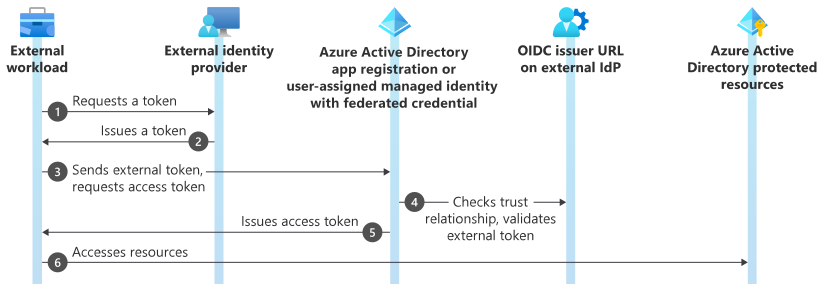
The following diagram shows the workload identity federation flow: a workload gets a token from an external identity provider, exchanges it with the Microsoft identity platform for an access token, and uses that access token to reach an Azure resource. In this tutorial, the external identity provider is Google Cloud and the token is a Google-issued ID token.
Prerequisites
- A Microsoft Entra tenant and an Azure subscription. If you don't have an Azure subscription, create a free account before you begin.
- A Google Cloud project and a workload that runs on a Google Cloud service that can obtain an ID token for a service account, such as App Engine or Compute Engine.
- Access to the Google Cloud console with permission to view service accounts in IAM & Admin.
- The Azure CLI (
az) command-line tool installed and configured to reach your tenant. You can also complete the Microsoft Entra steps in the Microsoft Entra admin center. - Permission to add a federated identity credential to an app registration or managed identity. To add a federated credential to an app registration, your account must be an owner of the app or hold one of the Application Administrator, Application Developer, or Cloud Application Administrator roles, or have the
microsoft.directory/applications/credentials/updatepermission.
Part 1: Identify a Google Cloud service account
Your Google Cloud workload needs an identity that Google can issue tokens for. Google Cloud service accounts provide this identity. Use the default service account of your Google Cloud project, or create a dedicated service account for your workload.
Google issues ID tokens for a service account where the sub (subject) claim is the service account's unique ID and the iss (issuer) claim is https://accounts.google.com. You use both values to configure trust on the Microsoft Entra application in Part 2.
In the Google Cloud console, go to IAM & Admin > Service Accounts.
Select the service account that your workload runs as.
On the service account's details, locate its Unique ID and copy the value. This value is the
subclaim in the tokens that Google issues for the service account.
Record the unique ID as <service-account-unique-id>. You use it as the subject of the federated identity credential in Part 2.
Part 2: Configure a Microsoft Entra application to trust the Google token
In this part, you add a federated identity credential to a Microsoft Entra application so that Microsoft Entra ID trusts the ID tokens that Google issues for your service account. A federated identity credential needs three inputs:
subject: must match thesubclaim in the Google-issued token — the unique ID of the service account,<service-account-unique-id>.issuer: must match theissclaim. For Google Cloud, this value ishttps://accounts.google.com. The issuer must comply with the OpenID Connect discovery specification, because Microsoft Entra ID uses the issuer URL to fetch the keys that validate the token.audiences: must match theaudclaim. Use the Microsoft-recommended valueapi://AzureADTokenExchange.
A Microsoft Entra application supports a limited number of federated identity credentials. For the current limit and other restrictions, see Important considerations and restrictions for federated identity credentials.
Create a file named
credential.jsonwith the following content. Replace<service-account-unique-id>with the unique ID you copied in Part 1.{ "name": "AccessFromGoogle", "issuer": "https://accounts.google.com", "subject": "<service-account-unique-id>", "audiences": ["api://AzureADTokenExchange"], "description": "Federated credential for a Google Cloud workload" }Add the federated identity credential to your app registration. Replace
<your-app-id>with your app registration's Application (client) ID.az ad app federated-credential create --id <your-app-id> --parameters credential.json
You can also add the federated credential in the Microsoft Entra admin center. Go to App registrations > your app > Certificates & secrets > Federated credentials > Add credential, and select the Other issuer scenario. Supply https://accounts.google.com as the issuer and the service account unique ID as the subject. For the detailed steps, see Configure an app to trust an external identity provider.
To configure the credential on a user-assigned managed identity instead of an app registration, use the following command. You need the Owner or Contributor role on the managed identity. For the detailed steps, see Configure a user-assigned managed identity to trust an external identity provider.
az identity federated-credential create \
    --name AccessFromGoogle \
    --identity-name <your-identity-name> \
    --resource-group <your-resource-group> \
    --issuer https://accounts.google.com \
    --subject <service-account-unique-id> \
    --audience api://AzureADTokenExchange
Grant your app or managed identity access to the Azure resources that your workload calls, such as a role assignment on your storage account.
Part 3: Exchange a Google token for a Microsoft Entra access token
In this part, your workload gets a Google-issued ID token for its service account and exchanges it for a Microsoft Entra access token, which it uses to call an Azure resource.
A Google Cloud service, such as App Engine or Compute Engine, requests an ID token for its service account from the Google metadata server. Google manages the signing keys, so your workload needs no stored keys.
Request a Google ID token from the metadata server. The audience in the request must match the audience that you configured on the federated identity credential,
api://AzureADTokenExchange. The following Node.js snippet requests the token and returns it as a string. The concept is the same in any language.async function getGoogleIdToken() { const endpoint = "http://metadata.google.internal/computeMetadata/v1/instance/service-accounts/default/identity?audience=api://AzureADTokenExchange"; const headers = { "Metadata-Flavor": "Google" }; const response = await fetch(endpoint, { method: "GET", headers }); return response.text(); }Exchange the Google ID token for a Microsoft Entra access token by using
ClientAssertionCredentialfrom the Azure Identity SDK.ClientAssertionCredentialtakes a callback that returns the federated assertion — in this case, the Google ID token. Provide your Microsoft Entra tenant ID astenantIdand the app registration's Application (client) ID asclientId.import { ClientAssertionCredential } from "@azure/identity"; const credential = new ClientAssertionCredential(tenantId, clientId, getGoogleIdToken);Use the credential with any Azure SDK client. For example, to call Azure Blob Storage:
const { BlobServiceClient } = require("@azure/storage-blob");

const blobClient = new BlobServiceClient(blobUrl, credential);
When the client needs a token, it invokes the callback to fetch a fresh Google ID token, exchanges the Google token with Microsoft identity platform for an access token, and caches the resulting access token. Because ClientAssertionCredential supplies the federated assertion through a callback, your workload never stores a secret.
ClientAssertionCredential is available across the Azure Identity SDKs, including .NET, Java, JavaScript, Python, and Go. The MSAL libraries also support client assertions if you need lower-level control over the token exchange.
Your Google Cloud workload can now access Microsoft Entra protected resources with no stored secrets.
Clean up resources
If you no longer need the resources you created in this tutorial, remove them to avoid ongoing charges:
Delete the federated identity credential from your app registration:
az ad app federated-credential delete \
    --id <your-app-id> \
    --federated-credential-id AccessFromGoogle
If you created a dedicated Google Cloud service account for this tutorial, delete it in the Google Cloud console under IAM & Admin > Service Accounts.
Remove any role assignments you added to grant your app or managed identity access to Azure resources.