Note
Access to this page requires authorization. You can try signing in or changing directories.
Access to this page requires authorization. You can try changing directories.
Overview
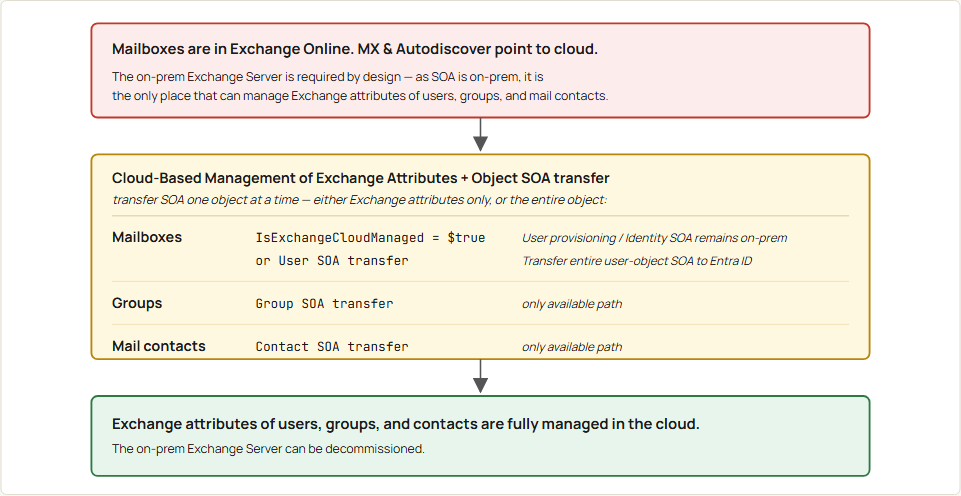
After you transfer Exchange-attribute Source of Authority (SOA) to the cloud, the on-premises Exchange Server is no longer needed for recipient management. Use Cloud-based management of Exchange attributes or the broader User Source of Authority transfer to move SOA to the cloud.
Removing the on-premises Exchange Server tightens your security posture by eliminating one more patched, internet-exposed server. It also completes the move to a fully cloud-managed Exchange environment. This article walks you through the uninstall, end to end.
Background
At the end of a hybrid migration, mailboxes are in Exchange Online, public folders are migrated or removed, and DNS points at Exchange Online. The on-premises Exchange Server then has one remaining role: managing Exchange attributes of directory-synchronized users, groups, and mail contacts. The Cloud-based management of Exchange attributes feature and Object Source of Authority (SOA) transfer move that responsibility to the cloud.
Why the on-premises Exchange Server is still required
In an Exchange hybrid configuration, you can't manage Exchange attributes for directory-synchronized objects directly in Exchange Online. You must update them in on-premises Active Directory; the changes then synchronize to the cloud. The only supported tools for those updates are the on-premises Exchange recipient cmdlets: Set-RemoteMailbox, Set-DistributionGroup, Set-MailContact, and similar. Active Directory Users and Computers (ADUC), ADSI Edit, and third-party utilities aren't supported for these attributes.
This restriction is the last Exchange Server (LES) problem. Mailbox data for most customers is in Exchange Online, but Exchange-attribute SOA (and other identity-attribute SOA) stays in on-premises Active Directory. As a result, the on-premises Exchange Server must remain in service (patched, licensed, and reachable) to allow edits to those Exchange attributes through the on-premises cmdlets.
Note
Exchange Management Tools (EMT) workaround. EMT was released in April 2022 with Exchange Server 2019 Cumulative Update 12 as a temporary workaround. EMT lets administrators install only the Exchange management tools role on a domain-joined machine and manage recipients through PowerShell, without a running Exchange Server. EMT lets you shut down the server, but not uninstall it; the Exchange Active Directory configuration containers and security groups must stay in place for EMT to function. EMT removes the running-server burden but leaves Exchange-attribute SOA anchored on-premises, so the LES removal problem stays open. If you're using EMT, switch to Cloud-based management of Exchange attributes first, then use this article to uninstall your Exchange Server.
SOA transfer mechanisms
There are two mechanisms to transfer SOA to the cloud:
- Cloud-based management of Exchange attributes: Set
IsExchangeCloudManagedto$trueon a directory-synchronized mailbox. The user object's identity-attribute SOA stays on-premises and continues to synchronize from Active Directory to Microsoft Entra ID. Exchange-attribute SOA moves to Exchange Online, where the attributes become editable throughSet-Mailbox. Phase 2 of this feature also provides writeback through Microsoft Entra Cloud Sync, which keeps the Active Directory copy current for any on-premises application that reads it. Available for mailboxes only. - Object Source of Authority transfer: Transfer the SOA of a directory-synchronized object to the cloud through the Microsoft Graph API.
IsDirSyncedflips toFalsefor that object in Microsoft Entra ID. The user, group, or mail contact then behaves like a cloud-native object and is fully editable in the cloud. Available for users, groups, and mail contacts.
| Object class | Available paths |
|---|---|
| Mailboxes | Cloud-based management of Exchange attributes, or User SOA transfer |
| Mail-enabled groups | Group SOA transfer |
| Mail contacts | Contact SOA transfer |
What happens when Exchange is uninstalled
Running Exchange Setup with /m:Uninstall on the last Exchange Server removes the installation. The msExch* Active Directory schema extensions remain in place; schema extensions aren't reversed by Setup. The following Active Directory objects are affected:
Removed by uninstall:
- The
CN=Microsoft Exchangeorganization container underCN=Services,CN=Configuration, and the tenant-specific subcontainer under it (for example,CN=Contoso). - Exchange security groups (
Organization Management,Exchange Trusted Subsystem,Discovery Management, and similar). - Server objects representing the uninstalled Mailbox/Edge servers.
- System and arbitration mailboxes (
SystemMailbox{...}GUIDs,Migration.{guid},FederatedEmail.{guid},DiscoverySearchMailbox{...}).
Retained after uninstall:
- The
msExch*Active Directory schema extensions: these are schema additions, not configuration objects, and persist for the life of the schema. - Per-user Exchange attribute values on user objects (
extensionAttribute1throughextensionAttribute15,msExchExtensionCustomAttribute1throughmsExchExtensionCustomAttribute5,proxyAddresses,msExchRecipientTypeDetails,mail, and similar). These attributes live on the user object, not in the removed Exchange containers, and aren't cleared by/m:Uninstall. - The
CN=Microsoft Exchange Autodiscovercontainer underCN=Services,CN=Configuration, and itsCN=Microsoft Exchange OnlineserviceConnectionPointchild. This SCP redirects domain-joined Outlook clients to Exchange Online for Autodiscover. It's separate from theCN=Microsoft Exchangeorg container (which is removed) and isn't cleared by/m:Uninstall. Manual cleanup (through ADSI Edit) is required only if you want it gone.
After uninstall, three things continue to work:
- Active Directory synchronizes user identity to Microsoft Entra ID through Connect Sync.
- Cloud Sync writeback writes Exchange attributes to Active Directory on every Exchange Online–side change.
- Recipient management runs in Exchange Online through
Set-Mailboxand the Microsoft 365 admin center.
Prerequisites
Before you uninstall Exchange Server through the LES path, make sure you meet these prerequisites.
1. All mailboxes and public folders migrated to Exchange Online
Migrate all on-premises mailboxes and public folders to Exchange Online, or remove them, before uninstall. Any item left on-premises blocks Exchange uninstallation.
Mailboxes
Verify that no user mailboxes remain on-premises:
# On-Premises Exchange Management Shell
Set-ADServerSettings -ViewEntireForest:$true
Get-Mailbox  # Should return empty
If user mailboxes remain, migrate them with a migration batch that uses the HCW-created migration endpoint:
# Exchange Online PowerShell
# 1. Find the migration endpoint (created by HCW)
$endpoint = Get-MigrationEndpoint | Select-Object -First 1
$endpoint | Format-List Identity, RemoteServer

# 2. Build a CSV listing the remaining on-premises mailboxes (single column: EmailAddress)
#    RemainingMailboxes.csv:
#      EmailAddress
#      user1@contoso.com
#      user2@contoso.com

# 3. Create and start the batch. Replace "contoso" with your tenant domain
New-MigrationBatch -Name "LES-Final-Cutover" `
    -SourceEndpoint $endpoint.Identity `
    -TargetDeliveryDomain "contoso.mail.onmicrosoft.com" `
    -CSVData ([System.IO.File]::ReadAllBytes("C:\Migration\RemainingMailboxes.csv")) `
    -AutoStart -AutoComplete

# 4. Monitor batch progress
Get-MigrationBatch -Identity "LES-Final-Cutover" |
    Format-List Status, TotalCount, ActiveCount, SyncedCount, FinalizedCount, FailedCount

# Per-user detail
Get-MigrationUser -BatchId "LES-Final-Cutover" | Get-MigrationUserStatistics
System mailboxes (arbitration, audit log, and similar) and any Offline Address Books pinned to them as GeneratingMailbox also block Exchange uninstall. Follow the disable/remove steps in Error when you try to remove a mailbox database.
Public folders
On-premises public folders block Exchange uninstall. Either migrate them to Exchange Online (recommended; preserves content) or, if no content is worth keeping, remove the on-premises deployment.
2. Exchange-attribute SOA transferred for all directory-synchronized mailboxes
For every directory-synchronized mailbox, you need to move Exchange-attribute Source of Authority off the on-premises Exchange Server. This requirement covers remote mailboxes you created through Exchange Server cmdlets.
IsExchangeCloudManaged = $trueon every directory-synchronized mailbox. The Exchange-attribute SOA flip (what this article follows). The Active Directory user stays directory-synchronized, but Exchange-attribute SOA moves to Exchange Online, and the attributes write back to Active Directory through Cloud Sync.
Note
Writeback is optional. Writeback is Phase 2 of Cloud-based management of Exchange attributes. You need it only when on-premises line-of-business applications read Exchange attributes from Active Directory and rely on those values staying current after the SOA flip. Examples of such attributes are proxyAddresses and extensionAttribute1 through extensionAttribute15. If no on-premises application depends on those values, skip writeback. The cloud-managed mailbox remains fully manageable from Exchange Online either way.
Alternatively, you can transfer the entire user object's Source of Authority to the cloud for the user that owns the mailbox. The User SOA transfer path. The user becomes cloud-only (IsDirSynced = False), and there's no on-premises Active Directory representation for Exchange to manage.
Note
Group and mail contact SOA transfer. IsExchangeCloudManaged only applies to mailboxes. Mail-enabled distribution lists, mail-enabled security groups, and mail contacts have no equivalent flag. After Exchange Server (or EMT) is removed, you can no longer manage them on-premises. To actively manage these objects from the cloud after LES uninstall, transfer their Source of Authority to the cloud through Group SOA and Contact SOA. Active management includes membership, mail attributes, hide-from-GAL, and similar tasks.
Inventory the current state of all directory-synchronized mailboxes and their cloud-management status:
# Exchange Online PowerShell
# Get all directory-synchronized mailboxes and their cloud management status
$mailboxes = Get-Mailbox -ResultSize Unlimited | Where-Object { $_.IsDirSynced -eq $true }
$mailboxes | Select-Object DisplayName, PrimarySmtpAddress, IsExchangeCloudManaged |
    Export-Csv "PreRemoval_MailboxInventory.csv" -NoTypeInformation

# Count summary
$total = $mailboxes.Count
$cloudManaged = ($mailboxes | Where-Object { $_.IsExchangeCloudManaged -eq $true }).Count
Write-Host "Total Dir-Synced Mailboxes: $total"
Write-Host "Cloud-Managed: $cloudManaged"
Write-Host "Not Cloud-Managed: $($total - $cloudManaged)"
If any directory-synchronized mailboxes aren't yet cloud-managed, enable cloud management for them:
# Exchange Online PowerShell
# Enable cloud management for all directory-synchronized mailboxes not yet enabled
Get-Mailbox -ResultSize Unlimited |
    Where-Object { $_.IsDirSynced -eq $true -and $_.IsExchangeCloudManaged -eq $false } |
    ForEach-Object {
        Write-Host "Enabling cloud management for: $($_.DisplayName)"
        Set-Mailbox -Identity $_.Alias -IsExchangeCloudManaged $true
    }
2.a Tenant-wide SOA for ongoing new mailbox provisioning
If on-premises Active Directory remains in service for new user provisioning after Exchange Server is removed, enable the tenant-wide Exchange attribute SOA switch so that new mailboxes are cloud-managed by default. The linked section also covers how to provision new mailboxes after the switch is enabled.
Note
This step is optional. It applies only if you plan to continue creating users in Active Directory after Exchange Server is removed.
3. Autodiscover and mail routing pointed at Exchange Online
Redirect inbound mail and Outlook clients to Exchange Online before you tear down hybrid services. You need to update two layers.
DNS records
Update MX and Autodiscover records so inbound mail and external Outlook clients reach Exchange Online directly.
For the full set of DNS records that Microsoft 365 requires, including SPF, DKIM, and DMARC for outbound mail authentication, see External Domain Name System records for Office 365.
Important
Update both internal and external DNS. Otherwise, you might have inconsistent client connectivity. Clients on the corporate LAN could be routed to a decommissioned on-premises Autodiscover endpoint while external clients reach Exchange Online.
Verify current records:
Resolve-DnsName -Name contoso.com -Type MX
Resolve-DnsName -Name autodiscover.contoso.com -Type CNAME
Update the following records in your public DNS provider:
| Record | Current (on-premises) | Change to (Exchange Online) |
|---|---|---|
MX for contoso.com |
On-prem Exchange Server IP | contoso-com.mail.protection.outlook.com |
| Autodiscover CNAME | On-prem Exchange Server | autodiscover.outlook.com |
A record (for example, mail.contoso.com) |
On-prem Exchange Server IP | Remove or repurpose; no longer needed |
Replace contoso-com with your domain (dots converted to hyphens). If MX was already updated during HCW or migration, verify it points to *.mail.protection.outlook.com.
Service connection point (SCP)
Domain-joined Outlook clients check Active Directory for an Autodiscover SCP before falling back to DNS. Even with DNS updated, a stale SCP keeps internal clients pointed at on-premises Exchange. Clear the SCP so domain-joined clients use the DNS-based Autodiscover record from the previous step.
# On-Premises Exchange Management Shell
Get-ClientAccessService | Set-ClientAccessService -AutoDiscoverServiceInternalUri $Null
Centralized mail transport (CMT)
If Centralized Mail Transport is enabled, outbound mail from Exchange Online routes through on-premises Exchange before reaching the internet. Uninstall breaks outbound mail flow. Disable CMT first through either of the following methods:
Re-run HCW (recommended): under Configure mail flow, clear the Enable Centralized Mail Transport check box.
Exchange Online PowerShell:
Set-OutboundConnector -Identity "<Hybrid Outbound Connector name>" `
    -RecipientDomains "<accepted domains, comma-separated>" `
    -RouteAllMessagesViaOnPremises:$False
After CMT is disabled, outbound mail flows from Exchange Online directly to the internet. See Configure mail flow using connectors in Exchange Online for broader connector configuration.
4. No SMTP relay dependencies
Caution
Exchange Server uninstall automatically removes all Receive Connectors. Any on-premises applications that rely on Exchange as an SMTP relay (printers, scanners, line-of-business apps, monitoring tools) lose the ability to send email after Exchange is gone. No manual cleanup is needed, but the loss of relay functionality is permanent.
If SMTP relay is in use, choose one of the following options:
- Migrate the relay to an alternative before uninstallation: options include Exchange Online SMTP relay (recommended), Azure Communication Services, or a third-party SMTP service.
- Don't uninstall Exchange Server: keep it running to continue serving as the SMTP relay. In this case, stop here and don't proceed with the removal steps.
To check whether Exchange is currently being used as an SMTP relay, list any Receive Connectors that allow anonymous relay:
# On-Premises Exchange Management Shell
Get-ReceiveConnector | Where-Object { $_.PermissionGroups -match 'AnonymousUsers' } |
    Format-Table Name, Bindings, RemoteIPRanges -AutoSize
The RemoteIPRanges column identifies the devices and subnets currently relying on Exchange for relay. Reconfigure those dependencies before uninstallation.
Remove the last Exchange Server
Important
Multi-domain forests: For every on-premises Exchange Management Shell session you use in these steps, run this command first so Get-* results include objects from all domains in the forest, not just the local domain:
Set-ADServerSettings -ViewEntireForest:$true
Phase 1: Pre-removal verification
Immediately before starting the removal, reverify each item in the Prerequisites section. The environment may have drifted since the initial setup. Specifically, confirm the following:
- All user mailboxes are in Exchange Online. On-premises system mailboxes are disabled. No on-premises public folder mailboxes remain (Prerequisite 1).
- All directory-synchronized mailboxes have
IsExchangeCloudManaged = $true, or the associated user account is cloud-only through User SOA transfer (Prerequisite 2). - MX and Autodiscover DNS records point to Exchange Online. The on-premises Autodiscover SCP is cleared. Centralized Mail Transport is disabled (Prerequisite 3).
- No SMTP relay dependencies remain, or you keep Exchange running as the SMTP relay (Prerequisite 4).
When you confirm all four, proceed to Phase 2.
Phase 2: Hybrid cleanup (while Exchange is still running)
These steps are similar to the Exchange hybrid removal guidelines in Decommission on-premises Exchange. The few differences here let you keep Active Directory as the identity SOA while Exchange Online holds the Exchange-attribute SOA.
Step 2.1: Remove the hybrid configuration object
Removing the Hybrid Configuration object prevents the Hybrid Configuration Wizard (HCW) from re-creating hybrid objects if it's run again in the future.
# On-Premises Exchange Management Shell
Remove-HybridConfiguration
Step 2.2: Remove the HCW-created intra-organization connector
HCW creates intra-organization connectors with the name HybridIOC - {GUID} on both sides. Remove those automatically; flag anything else for review and manual deletion.
# Run on both On-Premises Exchange Management Shell and Exchange Online PowerShell

Get-IntraOrganizationConnector | Where-Object { $_.Name -like 'HybridIOC -*' } |
    Remove-IntraOrganizationConnector -Confirm:$false

$other = Get-IntraOrganizationConnector
if ($other) {
    Write-Warning "Additional IntraOrganizationConnectors found. Review and delete manually if no longer needed:"
    $other | Format-Table Identity, Enabled, TargetAddressDomains -AutoSize
}
Step 2.3: Delete hybrid connectors
Check whether HCW-created inbound and outbound connectors exist, and remove them if found. HCW-created connectors are identifiable by ConnectorSource = 'HybridWizard'. Default names are Inbound from <unique identifier> and Outbound from <unique identifier>.
# Exchange Online PowerShell

$inbound  = Get-InboundConnector  | Where-Object { $_.ConnectorSource -eq 'HybridWizard' }
$outbound = Get-OutboundConnector | Where-Object { $_.ConnectorSource -eq 'HybridWizard' }

if ($inbound) {
    Write-Host "Found HCW inbound connector(s):"
    $inbound | Format-Table Name, Enabled, ConnectorSource -AutoSize
    $inbound | Remove-InboundConnector
} else {
    Write-Host "No HCW inbound connector found. Skipping."
}

if ($outbound) {
    Write-Host "Found HCW outbound connector(s):"
    $outbound | Format-Table Name, Enabled, ConnectorSource -AutoSize
    $outbound | Remove-OutboundConnector
} else {
    Write-Host "No HCW outbound connector found. Skipping."
}
Step 2.4: Remove the organization relationship
Check whether an HCW-created organization relationship exists on the Exchange Online side, and remove it if found. The HCW-created relationship is named O365 to On-Premises - <unique identifier>.
# Exchange Online PowerShell

$orgRel = Get-OrganizationRelationship | Where-Object { $_.Name -like "O365 to On-Premises*" }

if ($orgRel) {
    Write-Host "Found organization relationship(s):"
    $orgRel | Format-Table Name, Enabled, DomainNames -AutoSize
    $orgRel | Remove-OrganizationRelationship
} else {
    Write-Host "No HCW organization relationship found. Skipping this step."
}
Step 2.5: Remove the federation trust
Federation trust is optional; only present if HCW configured federated sharing (free/busy across orgs, MailTips, calendar sharing). OAuth-only hybrid deployments and non-federated tenants don't have one. HCW always names this trust Microsoft Federation Gateway. Check for that specific identity first, remove if found, otherwise skip.
# On-Premises Exchange Management Shell

$fedTrust = Get-FederationTrust -Identity 'Microsoft Federation Gateway' -ErrorAction SilentlyContinue

if ($fedTrust) {
    Write-Host "Found federation trust: $($fedTrust.Name). Removing..."
    $fedTrust | Remove-FederationTrust -Confirm:$false
} else {
    Write-Host "No federation trust found. Skipping this step."
}
Step 2.6: Remove the federation certificate
The federation certificate is also optional; it only exists if a federation trust was configured (Step 2.5). Skip if not found.
# On-Premises Exchange Management Shell

$fedCert = Get-ExchangeCertificate | Where-Object { $_.Subject -eq 'CN=Federation' }

if ($fedCert) {
    Write-Host "Found federation certificate: $($fedCert.Thumbprint). Removing..."
    $fedCert | Remove-ExchangeCertificate -Confirm:$false
} else {
    Write-Host "No federation certificate found. Skipping this step."
}
Step 2.7: Reset OAuth service principal credentials
Resets the keyCredentials of the first-party Service Principal used for hybrid OAuth, using the ConfigureExchangeHybridApplication.ps1 script that ships with Exchange.
# On-Premises Exchange Management Shell
& $env:ExchangeInstallPath\Scripts\ConfigureExchangeHybridApplication.ps1 -ResetFirstPartyServicePrincipalKeyCredentials
Step 2.8: Remove the hybrid agent (modern hybrid only)
Note
Conditional: Skip this step if the environment uses Classic Hybrid (no Hybrid Agent installed). Verify by checking Control Panel > Programs and Features for "Microsoft Hybrid Agent". If absent, move on to Phase 3.
For Modern Hybrid environments, run the following on the machine where the Hybrid Agent is installed.
2.8a: Import the Hybrid Management module
If the version that ships with the installed Agent is older, download the latest from https://aka.ms/HybridAgentPSM and import that copy instead.
# On-Premises PowerShell (run as Administrator)
Import-Module "C:\Program Files\Microsoft Hybrid Service\HybridManagement.psm1"
2.8b: Find the hybrid application AppId (GUID)
The AppId is the first subdomain of the TargetSharingEpr URL on the on-premises Organization Relationship. The URL format is:
https://<AppId-GUID>.resource.mailboxmigration.his.msappproxy.net/EWS/Exchange.asmx
Read it and extract just the GUID:
# On-Premises Exchange Management Shell
$epr = Get-OrganizationRelationship ((Get-OnPremisesOrganization).OrganizationRelationship) |
    Select-Object -ExpandProperty TargetSharingEpr

$appId = ([uri]$epr).Host.Split('.')[0]

Write-Host "TargetSharingEpr : $epr"
Write-Host "AppId            : $appId"
Confirm that $appId looks like a GUID (for example, 715727d3-79d1-4967-8a04-376938efaed3), not a full URL.
2.8c: Remove the hybrid application
Use -UserPrincipalName <tenant admin UPN>, which opens a device-login flow that supports MFA. See the Hybrid Agent PowerShell module docs.
Remove-HybridApplication -AppId $appId -UserPrincipalName admin@contoso.onmicrosoft.com
2.8d: Uninstall the hybrid agent
After the Hybrid Application is removed from the tenant, uninstall the Agent on-premises per Uninstall the hybrid agent.
Phase 3: Uninstall the last Exchange Server
Important
Complete SOA transfer for every directory-synchronized mailbox before you uninstall: set IsExchangeCloudManaged to True, or transfer the associated user account through User SOA transfer. SOA transfer can also be done after uninstall, but ordering it first keeps recipient management uninterrupted throughout.
Warning
If you're using EMT for recipient management, don't proceed with uninstallation. /m:Uninstall removes the Exchange Active Directory configuration containers and security groups that EMT depends on.
Step 3.1: Verify no mailboxes remain
Final pre-uninstall check: all five queries should return empty (work already done in Prerequisite 1):
# On-Premises Exchange Management Shell
Get-Mailbox
Get-Mailbox -Archive
Get-Mailbox -PublicFolder
Get-Mailbox -Arbitration
Get-Mailbox -AuditLog
If any return rows, follow Error when you try to remove a mailbox database for the per-type move/disable/remove procedure (covers user, archive, public folder, arbitration including -DisableLastArbitrationMailboxAllowed, and audit log mailboxes).
Step 3.2: Uninstall Exchange Server
Run Exchange Setup to uninstall:
# Command Prompt (Administrator)
Setup.exe /m:Uninstall /IAcceptExchangeServerLicenseTerms
Or through Control Panel:
- Open Control Panel > Programs and Features.
- Select Microsoft Exchange Server 2019.
- Select Uninstall.
Phase 4: Hybrid cleanup in Exchange Online (post-uninstall)
After Setup /m:Uninstall completes, remove the orphaned Hybrid Configuration through Exchange Online PowerShell. Run the following commands to identify what remains, then use the linked articles to remove each item.
# Connect to Exchange Online first

Get-IntraOrganizationConnector
Get-OrganizationRelationship
Get-InboundConnector  | Where-Object ConnectorSource -eq 'HybridWizard'
Get-OutboundConnector | Where-Object ConnectorSource -eq 'HybridWizard'
Get-OnPremisesOrganization
Get-MigrationEndpoint
Get-AcceptedDomain
Items to act on:
- IntraOrganizationConnector, OrganizationRelationship, HybridWizard connectors: Phase 2 (Steps 2.2 through 2.4) removes these connectors. If any rows return, rerun those steps. See
Remove-IntraOrganizationConnector,Remove-OrganizationRelationship,Remove-InboundConnector, andRemove-OutboundConnector. - OnPremisesOrganization: cloud-side identity record for the on-premises org. Orphaned post-uninstall. Refer to
Remove-OnPremisesOrganization. - MigrationEndpoint: orphaned reference to the now-removed on-premises server. Refer to
Remove-MigrationEndpoint. - AcceptedDomain: the customer domain may need its
DomainTypeflipped fromInternalRelay(set during hybrid) toAuthoritative(cloud-only). Refer toSet-AcceptedDomain.
Frequently asked questions
I have already run CleanupActiveDirectoryEMT.ps1. Do I still need to run Setup /m:Uninstall?
- If you have wiped and reformatted your last Exchange Server: not required.
- If you have only shut it down (server still installed): yes, power it back on and run
Setup /m:Uninstall(as a Domain Admin, since the Org Management security group is gone).