Note
Access to this page requires authorization. You can try signing in or changing directories.
Access to this page requires authorization. You can try changing directories.
A branch workspace admin profile (Preview) is a configuration on a Git-connected workspace. It lets a workspace admin preset a consented identity and settings that Fabric uses to create isolated branch workspaces for Git-based development. Instead of requiring every developer to have permissions to create workspaces, assign capacity, and configure Git integration, Fabric performs those actions on the workspace admin's behalf when a developer branches out to a new workspace. This approach preserves the self-service branch workspace experience while admins keep centralized governance, least-privilege access, and control over security boundaries.
Branch out using admin profile - how it works
When a developer branches out to a new workspace using an admin profile, they start a single branch-out operation. The operation is a wrapper that automates the whole flow, including creating the Git branch, so there's no need to create the branch manually. By using the admin profile, Fabric then performs the following actions on the workspace admin's behalf:
- Create the workspace.
- Assign the workspace to a capacity.
- Connect the workspace to the Git repository.
- Add members to the new workspace.
Enable and configure branch workspace admin profile
To use the branch workspace admin profile, one of the workspace admins must define the admin profile.
- Sign in to Microsoft Fabric, and open the workspace you want to enable for branch workspaces.
- Select Workspace settings.
- In the settings pane, select Git integration, and then select the Branch workspaces tab. The Branch workspaces tab shows the Allow branch workspace admin profiles setting and the Branch workspace admin profile card.
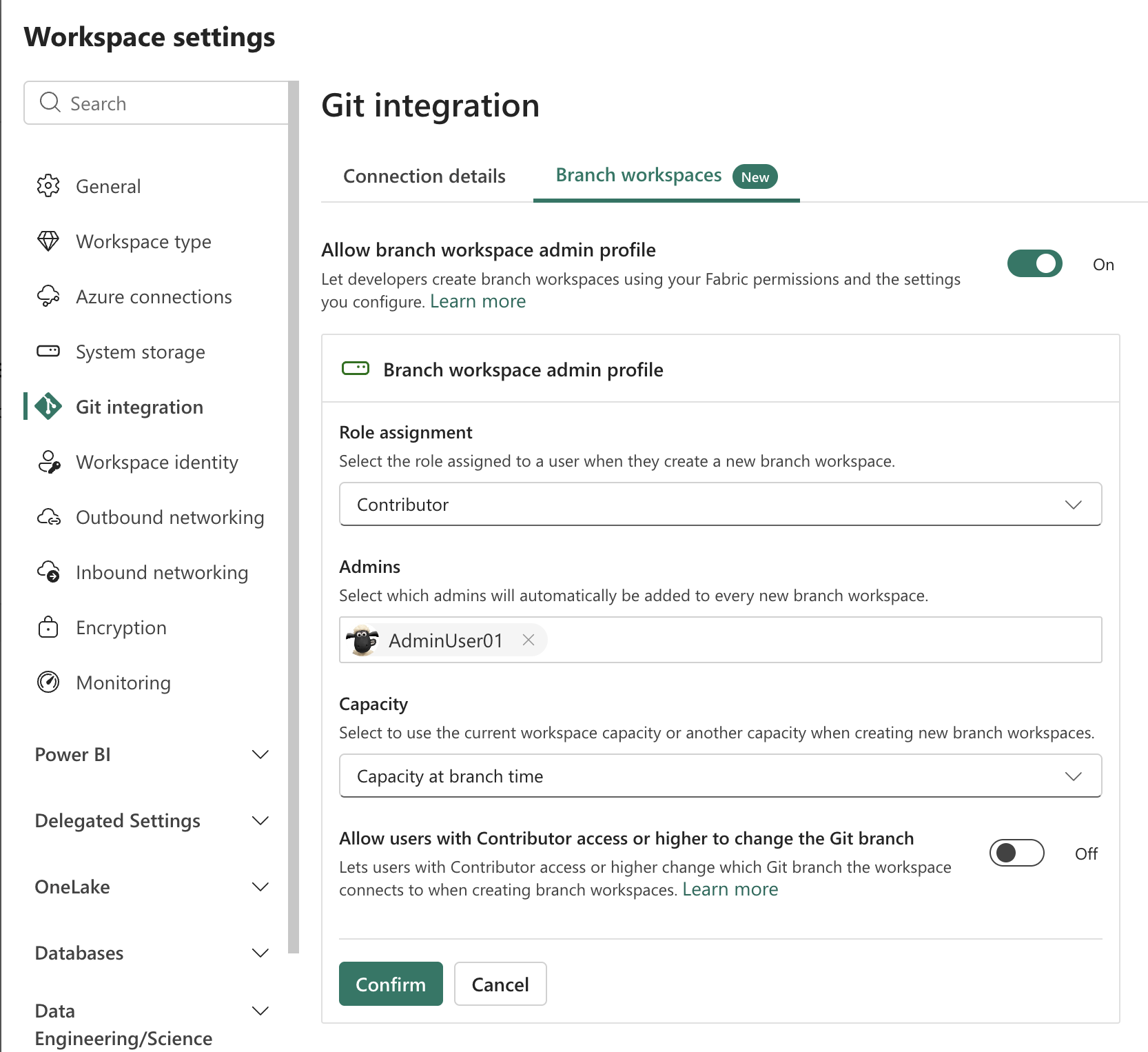
Turn Allow branch workspace admin profile On. The Branch workspace admin profile fields become available.
Under Role assignment, select the role that each developer who branches out using the admin profile receives on the new branch workspace.
Under Admins, add the identities to assign as admins on every branch workspace created with the admin profile. You can add individual users or security groups.
Note
If Role assignment is Contributor or Member, add at least one valid admin. If the role is Admin, you can leave this field empty. Fabric blocks a branch-out operation that would create a workspace with no admins.
Under Capacity, select Current active capacity to have each branch workspace use the same capacity as the main workspace at branch-out time, or select another eligible capacity. Fabric validates that the workspace admin can assign the selected capacity.
Set Allow users with Contributor access or higher to change the Git branch. The value you choose becomes the default value for every new branch workspace created using the admin profile. For more information, see Allow Contributors and Members to switch branches.
Review the configuration, and then select Confirm. Fabric validates that the workspace admin can perform the actions required for a successful branch-out operation. The profile is created only if all of the following checks pass:
- You're a workspace admin.
- The workspace is connected to Git.
- You're signed in to your Git account.
- You have access to the Git repository.
- You have permission to create workspaces.
- You have permission to assign the selected capacity, and that capacity is active.
The selected capacity and the Git repository are in the same geographic region, or a tenant admin turned off the setting that blocks cross-region operations.
- Every identity in the Admins list is a valid member of the tenant.
If validation identifies a missing permission, grant that permission and select Confirm again.
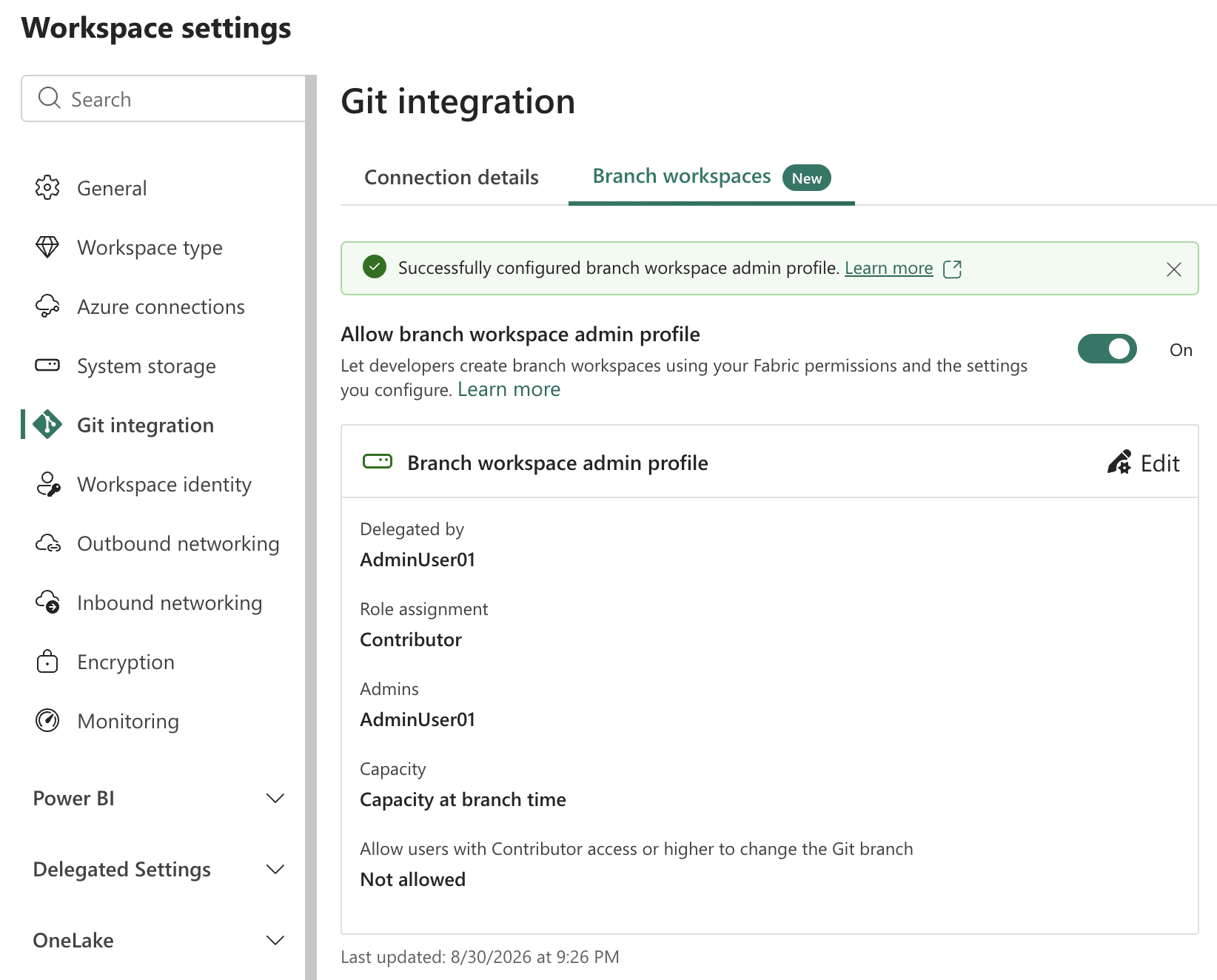
- When the Fabric validation process completes successfully, Fabric creates the branch workspace admin profile.
Considerations and limitations
Note
The workspace admin who last saves the profile becomes the consented identity for it. From that point, every branch-out operation that uses the profile runs under that admin's identity. If a different workspace admin edits and saves the profile, that admin becomes the new consented identity, and later branch-out operations use their identity instead.
- Enable or disable a profile. A workspace admin can disable an active profile or enable an inactive one. Enabling a profile re-runs validation, and the profile becomes active only if all checks pass.
- A profile can become invalid after you set it. Environment changes, such as a revoked permission, a deactivated capacity, or an admin who leaves the tenant, can invalidate a profile after you create it. An invalid profile can't be used for branch-out until a workspace admin resolves the issues.
- Branch workspaces aren't supported. You can't configure a branch workspace admin profile on a branch workspace.