Note
Access to this page requires authorization. You can try signing in or changing directories.
Access to this page requires authorization. You can try changing directories.
Note
Data visuals are in preview for Dataflow Gen2.
Data visuals let you visualize data directly in Dataflow Gen2. Instead of returning only a table of rows and columns, a query can return a visualization document: a small, flat table that describes the containers, cards, KPIs, and charts of a single dashboard. You write the document entirely in Power Query M, using the same #table structure that you use to shape data. A query can then generate visuals dynamically from your data the same way it generates any other output.
Common use cases
The following patterns describe what you can build with data visuals. For runnable, copy-and-paste M code, see Build a full dashboard.
Explore your data
Create a visual query that references a table query while you shape your data. For a profiling dashboard, use Table.Profile for column statistics and Table.Schema for column types. Add M calculations to group numeric values into ranges for bar charts, calculate quartiles, and count outliers based on the interquartile range (IQR). Quartiles and outlier counts aren't part of the default Table.Profile output.
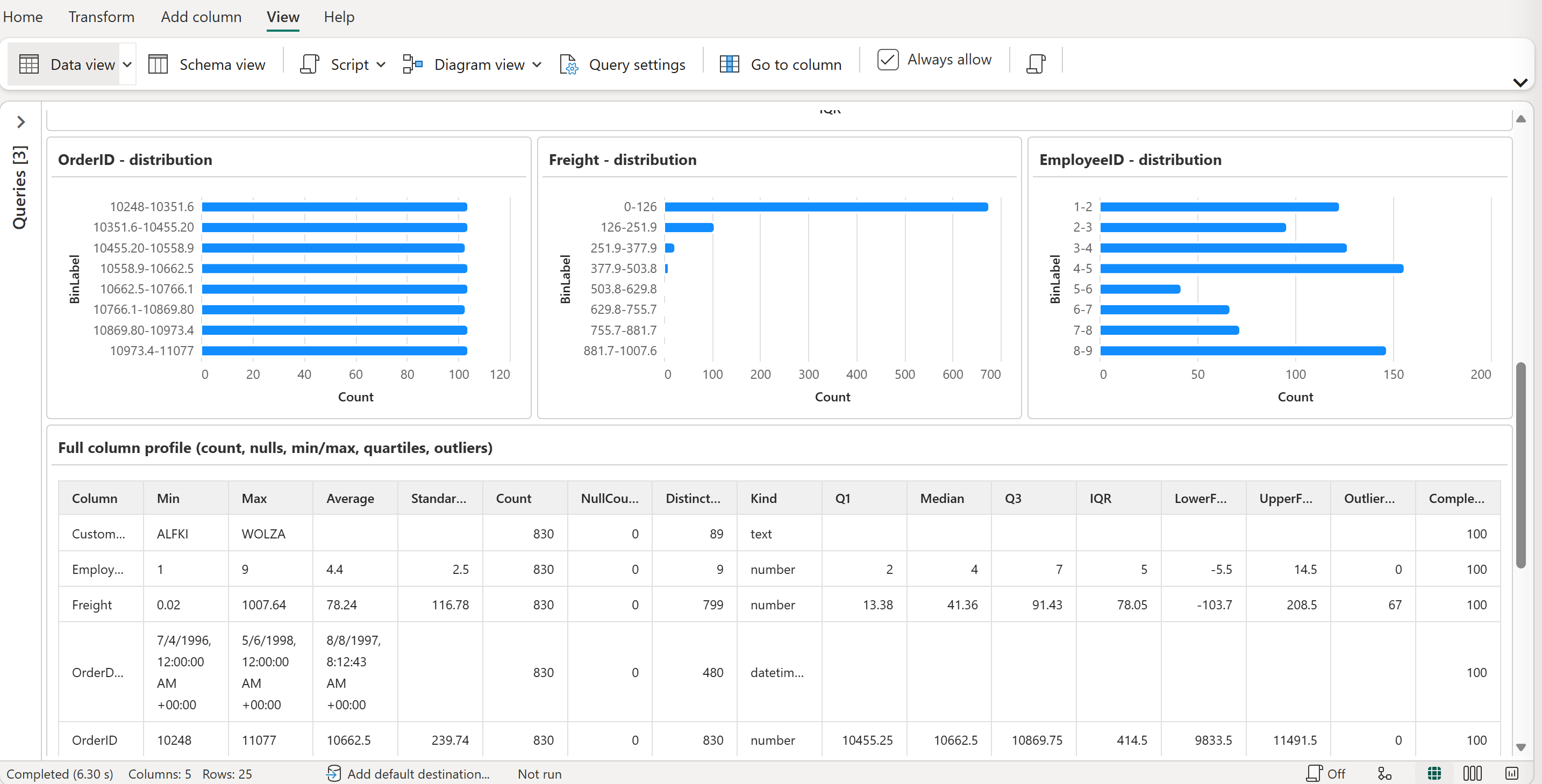
You can design a reusable profiling dashboard by discovering columns and types from the source query instead of hard-coding them. To support different tables, the profiling calculations also need to handle cases such as empty tables, null values, and columns with no numeric data.
Summarize your data
After a query returns the results you want, create a dashboard query that references those results and highlights what matters: KPI cards for the headline numbers, and charts for the trends and breakdowns behind them. The dashboard presents the summary without requiring readers to inspect the underlying table.
Visual document structure
A query that returns visuals returns a visualization document: a single flat table where each row is one visual. Five columns describe every visual, regardless of its kind:
| Column | Type | Description |
|---|---|---|
Name |
nullable text |
A unique ID for this row. |
Parent |
nullable text |
The Name of the parent row, or null for a root visual. |
PartType |
nullable text |
The visual kind, such as "Container", "Card", or "Chart". For more information, see Visual types reference. |
Properties |
nullable record |
The visual-specific settings for that PartType. |
Data |
any |
A reference to the table that a data-driven visual reads from, or null when the visual doesn't use data. |
Note
Whether a query renders as visuals depends on its returned table's column names, not on a strict, whole-shape type check. If a required column (Name, Parent, PartType, Properties, or Data) is missing or renamed, Dataflow Gen2 falls back to the standard tabular preview. Extra columns beyond these five are ignored, and the query still renders as visuals. Having the required column names doesn't guarantee valid contents. For example, a number in a Properties cell causes a record-conversion error that prevents the entire preview from rendering, rather than falling back to a table. This error differs from an invalid field inside a valid Properties record, which can produce an error scoped to one visual. For examples, see Rules for a valid document.
For example, the following self-contained document renders a card titled "Monthly sales" that contains a line chart. Paste the code into a blank query to see it evaluate:
let
    SalesData =
        #table(
            type table [Month = text, Revenue = number],
            {
                {"2026-01", 12000},
                {"2026-02", 15500},
                {"2026-03", 14200},
                {"2026-04", 18900}
            }
        ),
    VisualDocumentType = type table [
        Name = nullable text, Parent = nullable text, PartType = nullable text,
        Properties = nullable record, Data = any
    ],
    VisualDocument = #table(
        VisualDocumentType,
        {
            {"sales-card", null, "Card", [Title = "Monthly sales"], null},
            {"sales-trend", "sales-card", "Chart",
                [ChartType = "Line", DataSeries = [AxisColumns = "Month", ValueColumns = "Revenue"]], SalesData}
        }
    )
in
    VisualDocument
Evaluating this query renders a card that contains a line chart:

The examples in this article use VisualDocumentType as a convenient name for the table type. That variable name isn't required; the query must return a table with the visualization document columns.
A data-visuals query depends on the source queries, calculations, and column mappings used to build it. Each data-driven row's Data value supplies a table, while its Properties record configures the visual and, for charts, names the columns to use. To adapt a dashboard to a different dataset, update the source references, calculations, and chart mappings to match your columns, types, and category values.
Visual types reference
Every visualization document uses one PartType value per row. During preview, Dataflow Gen2 supports the following values. The system doesn't recognize other values.
Container, Card, Header, KpiCard, Table, Chart.
All charts share the single Chart value. The chart kind is selected by the ChartType property, not by the PartType value.
Important
The system doesn't recognize earlier chart-specific PartType values, such as AreaChart, BarChart, DonutChart, LineChart, PieChart, and StackedBarChart. Use PartType = "Chart" and set ChartType and DataSeries in Properties. For a doughnut chart, the ChartType value is "Doughnut".
These types fall into two groups: layout and content parts, which structure the dashboard, and charts, which visualize a Data reference.
Layout and content parts
| PartType | What it shows | Can have children | Required inputs | Optional inputs |
|---|---|---|---|---|
Container |
Groups child visuals in a row or column layout. | Yes, one or more | None | Direction: text, "row" or "column" (defaults to "row" if omitted) |
Card |
Wraps a single child visual with a title. | Yes, exactly one | Title: text |
None |
Header |
Displays header text with optional far-aligned text. | No | Header: text |
FarText: nullable text |
KpiCard |
Displays one key metric with a label. | No | Value: text, Label: text |
Sub: nullable text |
Table |
Renders a query's results as rows and columns. | No | Data column: table reference |
None |
Every input goes in the row's Properties record, except the table reference, which goes in the row's Data column.
Note
KpiCard.Value and Label must be text. The optional Sub and Header.FarText properties accept text or null. Format numbers before assigning them to text properties, for example "$" & Number.ToText(Number.Round(revenue, 0)). The schema doesn't format numeric values for you.
The following rows show the parent chain from a container to two leaf visuals. Add these rows inside the row list of a #table expression; this fragment isn't a complete query:
{"metrics", null, "Container", [Direction = "row"], null},
{"revenue", "metrics", "KpiCard", [Label = "Revenue", Value = "$5.2M"], null},
{"users", "metrics", "KpiCard", [Label = "Users", Value = "12,400"], null}
Charts
Every chart is a leaf row with PartType = "Chart". Two properties are required: ChartType selects the renderer, and DataSeries maps columns from the table referenced by that row's Data to chart roles.
| Property | Type | Required | Description |
|---|---|---|---|
ChartType |
text |
Yes | One of the supported chart types. |
DataSeries |
record |
Yes | The axis and value column mapping. |
ChartTitle |
text |
No | A title rendered inside the chart. |
The Data column, not a property, supplies the chart's source table. It's required for every chart.
Supported chart types
ChartType |
What it shows |
|---|---|
Line |
Shows a trend, such as revenue by month. |
Area |
Same as Line, with the area beneath the line filled in. |
Bar |
Compares values across categories. |
StackedBar |
Compares values across categories, segmented into color-coded series. |
Doughnut |
Shows proportional share of a whole, with a hollow center. |
Pie |
Shows proportional share of a whole. |
During preview, Dataflow Gen2 supports the chart types in this list. ChartType values outside the list aren't recognized.
The DataSeries record
AxisColumns and ValueColumns contain column names from the table referenced by that same row's Data, not the column data itself. For every chart type, a column name supplied as text is equivalent to a one-item text list: AxisColumns = "Region" and AxisColumns = {"Region"} behave the same way, as do ValueColumns = "Revenue" and ValueColumns = {"Revenue"}. Only StackedBar accepts more than one value column.
| Field | Type | Required | Description |
|---|---|---|---|
AxisColumns |
text, or a one-item list of text |
Yes | The column used for categories or the x-axis. Can name a text, date, or numeric column. Empty lists, multi-item lists, and non-text entries are rejected. |
ValueColumns |
text, or a nonempty list of text |
Yes | The numeric column or columns that supply the values. Line, Area, Bar, Doughnut, and Pie require exactly one column. StackedBar accepts one or more columns, one per series. Empty lists and non-text entries are rejected. |
PrimaryAxisColumn |
text |
No | Accepted for compatibility with the Excel chart schema. It has no effect in the preview with one axis column. |
A chart can carry its own ChartTitle, but the common pattern is to nest the chart inside a Card and let the card supply the title. The following row fragment assumes that SalesByRegion is an existing table:
{"by-region", null, "Card", [Title = "Revenue by region"], null},
{"by-region-chart", "by-region", "Chart",
    [ChartType = "Bar", DataSeries = [AxisColumns = "Region", ValueColumns = "Revenue"]], SalesByRegion}
Note
Missing source-column references can produce misleading or empty charts without a visible error. For example, a Bar chart with a missing AxisColumns column can group rows under a single "undefined" category, while a missing ValueColumns column can leave the chart empty. The missing column name can still appear as an axis title. Re-check these names after any upstream rename, aggregation, or column removal step.
Note
Placement properties from the Excel chart schema, such as Bounds, TableStyle, ShowGridlines, AutoPositionColumnOffset, and AutoPositionRowOffset, are accepted in Properties but ignored. They're workbook-specific and have no effect.
Stacked bar charts
StackedBar expects wide-form data: one row per category, and one numeric column per series. List every series column in ValueColumns, and each one becomes a color-coded segment of the stack. For example, the following row expects RegionalSales to contain Region, Hardware, Software, and Services columns. If your source has a category column, a series column, and a value column instead, pivot the series column into separate value columns, as shown in Step 3.
{"regional-sales", null, "Chart",
    [ChartType = "StackedBar",
     ChartTitle = "Regional sales",
     DataSeries = [AxisColumns = "Region", ValueColumns = {"Hardware", "Software", "Services"}]],
    RegionalSales}
Stacked bar charts have a few rendering behaviors to be aware of:
- Bars and numeric labels use the same alphabetical series order so each label stays in its matching segment. The legend appears below the chart without a heading.
- The numeric axis keeps its ticks but has no axis title. The category axis keeps its source column name.
- Bar tooltips use localized Category, Series, and Value labels. Automatically generated numeric-label tooltips can still show internal field names instead of your column names.
- Avoid backslashes in the category column name. Stacks are grouped incorrectly when the name contains one.
Choosing a visual type
| To show... | Consider |
|---|---|
| A single, prominent number | KpiCard |
| A trend, such as revenue by month | Chart with ChartType = "Line" or "Area" |
| A measure compared across categories | Chart with ChartType = "Bar" |
| A measure compared across categories, broken down by a sub-category | Chart with ChartType = "StackedBar" |
| Proportional share of a whole, across a small number of categories | Chart with ChartType = "Doughnut" or "Pie" |
| Row-level detail for readers to inspect | Table |
Schema summary
The following table consolidates every PartType into one place, showing how many children each accepts alongside its required and optional inputs. Every input goes in the row's Properties record, except where the Data column is called out:
| PartType | Children | Required inputs | Optional inputs |
|---|---|---|---|
Container |
One or more | None | Direction: "row" or "column" (default "row") |
Card |
Exactly one | Title: text |
None |
Header |
None (leaf) | Header: text |
FarText: nullable text |
KpiCard |
None (leaf) | Value: text, Label: text |
Sub: nullable text |
Table |
None (leaf) | Data column: table reference |
None |
Chart |
None (leaf) | ChartType: text (Line, Area, Bar, StackedBar, Doughnut, or Pie), DataSeries: record with AxisColumns and ValueColumns, Data column: table reference |
ChartTitle: text, DataSeries.PrimaryAxisColumn: text (ignored) |
Rules for a valid document
Now that you know the document's shape and the full set of visual types, the following rules describe how they combine into a valid document, and what happens when they don't.
- The document must contain exactly one row with
Parent = null(one root). Zero root rows, or more than one, fails the whole query withPreview.Error: The navigation table must contain exactly one root row.The root row can be anyPartType; it doesn't have to be aContainerorCard. - Every row needs a
Namevalue. Although the column is typed asnullable textfor schema flexibility, keepNameunique across the document. Duplicate names can cause repeated visuals instead of an error. For example, when twoCardrows share the sameName, a chart whoseParentreferences that name can render inside both cards. Parentmust be eithernull(for the root visual) or an exact match for another row'sName. AParentvalue that doesn't resolve to an existingNameleaves that row, and any of its own descendants, silently unrendered. No error is shown.PartTypemust be one of the values listed in Visual types reference. An unrecognized value shows an inline error,Visual not recognized: "<value>", in place of that row. The rest of the document still renders.Containerrequires at least one child; an emptyContainershowsMissing required visual property "cells".Cardrequires exactly one child. An emptyCardshowsMissing required visual property "cells".; aCardwith more than one child showsUnexpected number of cells. Expected: 1. Actual: <count>.Every otherPartTypeis a leaf and can't be aParentfor other rows.- Within a valid
Propertiesrecord, a number whereKpiCard.Valueexpects text shows an inline error,Unexpected result type. Expected: "Text". Actual: "number"., scoped to that row. - The table itself has no nesting. The
Parentcolumn is what builds the hierarchy: every row whoseParentmatches another row'sNamerenders as that row's child.
Build a full dashboard
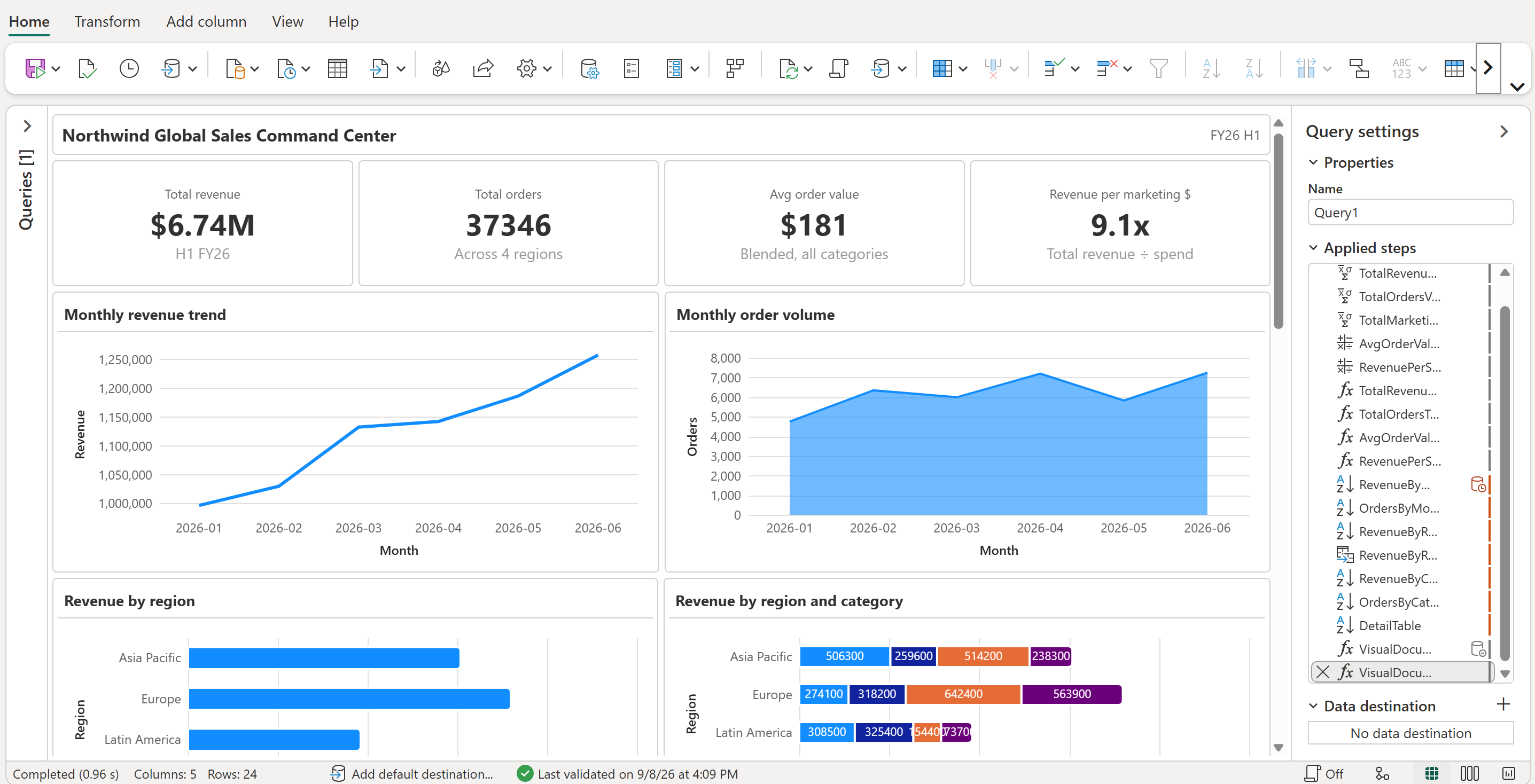
This walkthrough creates one dashboard from a small sample dataset: a header, four KPI cards, three rows of paired charts (trend, regional, and category mix), and a detail table. The following screenshot shows the upper portion of the dashboard:
Create two queries: one that holds the sample data, and one that builds the dashboard on top of it. Each code block is a complete query, so copy the entire block.
Step 1: Create the data query
Add a blank query by selecting Get data > Blank query. Name the query SalesData, open Advanced Editor, and replace the contents with the following code:
#table(
    type table [
        Month = text, Region = text, ProductCategory = text,
        Revenue = number, Orders = number, MarketingSpend = number
    ],
    {
        {"2026-01", "North America",  "Hardware",    365300, 941,  36070},
        {"2026-01", "Europe",         "Software",    259100, 1387, 30790},
        {"2026-01", "Asia Pacific",   "Services",    242300, 998,  25710},
        {"2026-01", "Latin America",  "Accessories", 129600, 1429, 14290},
        {"2026-02", "North America",  "Software",    332300, 1940, 39040},
        {"2026-02", "Europe",         "Services",    291000, 1172, 33310},
        {"2026-02", "Asia Pacific",   "Accessories", 249000, 2846, 31200},
        {"2026-02", "Latin America",  "Hardware",    157400, 385,  14600},
        {"2026-03", "North America",  "Services",    424900, 1678, 38090},
        {"2026-03", "Europe",         "Accessories", 274100, 2733, 31570},
        {"2026-03", "Asia Pacific",   "Hardware",    259600, 596,  29030},
        {"2026-03", "Latin America",  "Software",    173700, 984,  19560},
        {"2026-04", "North America",  "Accessories", 431200, 4454, 55230},
        {"2026-04", "Europe",         "Hardware",    318200, 734,  27780},
        {"2026-04", "Asia Pacific",   "Software",    238300, 1370, 21210},
        {"2026-04", "Latin America",  "Services",    154400, 634,  15270},
        {"2026-05", "North America",  "Hardware",    430700, 1048, 44580},
        {"2026-05", "Europe",         "Software",    304800, 1759, 40180},
        {"2026-05", "Asia Pacific",   "Services",    271900, 1028, 25440},
        {"2026-05", "Latin America",  "Accessories", 178900, 1990, 18600},
        {"2026-06", "North America",  "Software",    480600, 2612, 54230},
        {"2026-06", "Europe",         "Services",    351400, 1281, 43500},
        {"2026-06", "Asia Pacific",   "Accessories", 257300, 2928, 25930},
        {"2026-06", "Latin America",  "Hardware",    168000, 419,  22200}
    }
)
Select Done. Every later step references this query by name. The query doesn't need a let expression because it's a single expression.
Step 2: Create the dashboard query
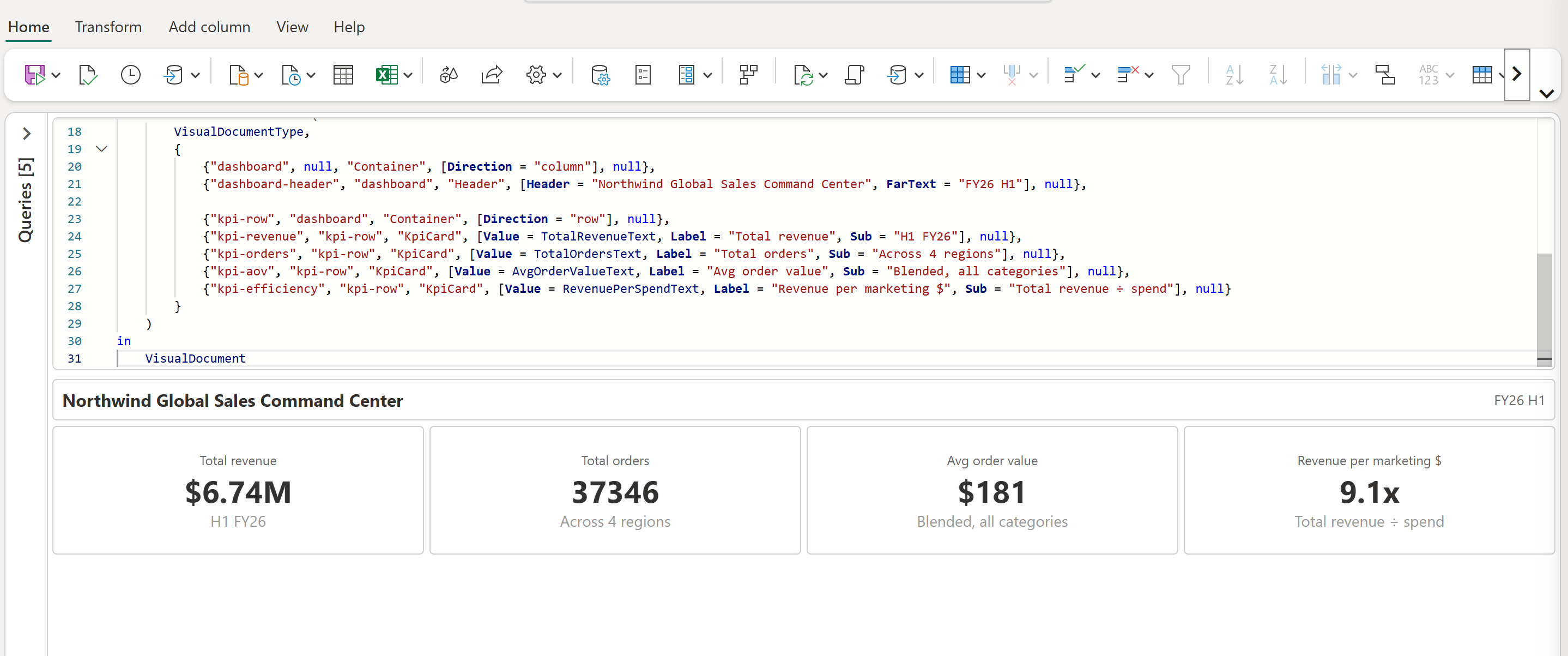
Add a second blank query, name it Dashboard, and open Advanced Editor. Replace the contents with the following code, which references SalesData from step 1, calculates the four KPI values, and lays out the header and KPI row:
let
    TotalRevenueValue = List.Sum(SalesData[Revenue]),
    TotalOrdersValue = List.Sum(SalesData[Orders]),
    TotalMarketingValue = List.Sum(SalesData[MarketingSpend]),
    AvgOrderValueValue = TotalRevenueValue / TotalOrdersValue,
    RevenuePerSpendValue = TotalRevenueValue / TotalMarketingValue,

    TotalRevenueText = "$" & Number.ToText(Number.Round(TotalRevenueValue / 1000000, 2)) & "M",
    TotalOrdersText = Number.ToText(TotalOrdersValue),
    AvgOrderValueText = "$" & Number.ToText(Number.Round(AvgOrderValueValue, 0)),
    RevenuePerSpendText = Number.ToText(Number.Round(RevenuePerSpendValue, 1)) & "x",

    VisualDocumentType = type table [
        Name = nullable text, Parent = nullable text, PartType = nullable text,
        Properties = nullable record, Data = any
    ],
    VisualDocument = #table(
        VisualDocumentType,
        {
            {"dashboard", null, "Container", [Direction = "column"], null},
            {"dashboard-header", "dashboard", "Header", [Header = "Northwind Global Sales Command Center", FarText = "FY26 H1"], null},

            {"kpi-row", "dashboard", "Container", [Direction = "row"], null},
            {"kpi-revenue", "kpi-row", "KpiCard", [Value = TotalRevenueText, Label = "Total revenue", Sub = "H1 FY26"], null},
            {"kpi-orders", "kpi-row", "KpiCard", [Value = TotalOrdersText, Label = "Total orders", Sub = "Across 4 regions"], null},
            {"kpi-aov", "kpi-row", "KpiCard", [Value = AvgOrderValueText, Label = "Avg order value", Sub = "Blended, all categories"], null},
            {"kpi-efficiency", "kpi-row", "KpiCard", [Value = RevenuePerSpendText, Label = "Revenue per marketing $", Sub = "Total revenue ÷ spend"], null}
        }
    )
in
    VisualDocument
Select Done to render the header and KPI row:
Step 3: Add the chart visuals
Open Advanced Editor for the Dashboard query, and replace the contents with the following code. The code adds the aggregations and chart rows for a trend row (Line and Area), a regional row (Bar and StackedBar), and a category mix row (Doughnut and Pie):
let
    TotalRevenueValue = List.Sum(SalesData[Revenue]),
    TotalOrdersValue = List.Sum(SalesData[Orders]),
    TotalMarketingValue = List.Sum(SalesData[MarketingSpend]),
    AvgOrderValueValue = TotalRevenueValue / TotalOrdersValue,
    RevenuePerSpendValue = TotalRevenueValue / TotalMarketingValue,

    TotalRevenueText = "$" & Number.ToText(Number.Round(TotalRevenueValue / 1000000, 2)) & "M",
    TotalOrdersText = Number.ToText(TotalOrdersValue),
    AvgOrderValueText = "$" & Number.ToText(Number.Round(AvgOrderValueValue, 0)),
    RevenuePerSpendText = Number.ToText(Number.Round(RevenuePerSpendValue, 1)) & "x",

    RevenueByMonth = Table.Sort(
        Table.Group(SalesData, {"Month"}, {{"Revenue", each List.Sum([Revenue]), type number}}),
        {{"Month", Order.Ascending}}
    ),
    OrdersByMonth = Table.Sort(
        Table.Group(SalesData, {"Month"}, {{"Orders", each List.Sum([Orders]), type number}}),
        {{"Month", Order.Ascending}}
    ),
    RevenueByRegion = Table.Sort(
        Table.Group(SalesData, {"Region"}, {{"Revenue", each List.Sum([Revenue]), type number}}),
        {{"Revenue", Order.Descending}}
    ),
    RevenueByRegionCategory = Table.Pivot(
        Table.Group(SalesData, {"Region", "ProductCategory"}, {{"Revenue", each List.Sum([Revenue]), type number}}),
        List.Sort(List.Distinct(SalesData[ProductCategory])),
        "ProductCategory",
        "Revenue",
        List.Sum
    ),
    RevenueByCategory = Table.Sort(
        Table.Group(SalesData, {"ProductCategory"}, {{"Revenue", each List.Sum([Revenue]), type number}}),
        {{"Revenue", Order.Descending}}
    ),
    OrdersByCategory = Table.Sort(
        Table.Group(SalesData, {"ProductCategory"}, {{"Orders", each List.Sum([Orders]), type number}}),
        {{"Orders", Order.Descending}}
    ),

    VisualDocumentType = type table [
        Name = nullable text, Parent = nullable text, PartType = nullable text,
        Properties = nullable record, Data = any
    ],
    VisualDocument = #table(
        VisualDocumentType,
        {
            {"dashboard", null, "Container", [Direction = "column"], null},
            {"dashboard-header", "dashboard", "Header", [Header = "Northwind Global Sales Command Center", FarText = "FY26 H1"], null},

            {"kpi-row", "dashboard", "Container", [Direction = "row"], null},
            {"kpi-revenue", "kpi-row", "KpiCard", [Value = TotalRevenueText, Label = "Total revenue", Sub = "H1 FY26"], null},
            {"kpi-orders", "kpi-row", "KpiCard", [Value = TotalOrdersText, Label = "Total orders", Sub = "Across 4 regions"], null},
            {"kpi-aov", "kpi-row", "KpiCard", [Value = AvgOrderValueText, Label = "Avg order value", Sub = "Blended, all categories"], null},
            {"kpi-efficiency", "kpi-row", "KpiCard", [Value = RevenuePerSpendText, Label = "Revenue per marketing $", Sub = "Total revenue ÷ spend"], null},

            {"trend-row", "dashboard", "Container", [Direction = "row"], null},
            {"revenue-trend-card", "trend-row", "Card", [Title = "Monthly revenue trend"], null},
            {"revenue-trend-chart", "revenue-trend-card", "Chart",
                [ChartType = "Line", DataSeries = [AxisColumns = "Month", ValueColumns = "Revenue"]], RevenueByMonth},
            {"orders-trend-card", "trend-row", "Card", [Title = "Monthly order volume"], null},
            {"orders-trend-chart", "orders-trend-card", "Chart",
                [ChartType = "Area", DataSeries = [AxisColumns = "Month", ValueColumns = "Orders"]], OrdersByMonth},

            {"region-row", "dashboard", "Container", [Direction = "row"], null},
            {"region-revenue-card", "region-row", "Card", [Title = "Revenue by region"], null},
            {"region-revenue-chart", "region-revenue-card", "Chart",
                [ChartType = "Bar", DataSeries = [AxisColumns = "Region", ValueColumns = "Revenue"]], RevenueByRegion},
            {"region-mix-card", "region-row", "Card", [Title = "Revenue by region and category"], null},
            {"region-mix-chart", "region-mix-card", "Chart",
                [ChartType = "StackedBar",
                 DataSeries = [
                     AxisColumns = "Region",
                     ValueColumns = {"Accessories", "Hardware", "Services", "Software"}
                 ]], RevenueByRegionCategory},

            {"mix-row", "dashboard", "Container", [Direction = "row"], null},
            {"revenue-mix-card", "mix-row", "Card", [Title = "Revenue mix by category"], null},
            {"revenue-mix-chart", "revenue-mix-card", "Chart",
                [ChartType = "Doughnut", DataSeries = [AxisColumns = "ProductCategory", ValueColumns = "Revenue"]], RevenueByCategory},
            {"orders-mix-card", "mix-row", "Card", [Title = "Order share by category"], null},
            {"orders-mix-chart", "orders-mix-card", "Chart",
                [ChartType = "Pie", DataSeries = [AxisColumns = "ProductCategory", ValueColumns = "Orders"]], OrdersByCategory}
        }
    )
in
    VisualDocument
Select Done to add the trend, regional, and category mix chart rows below the KPI row:
Step 4: Add the detail table
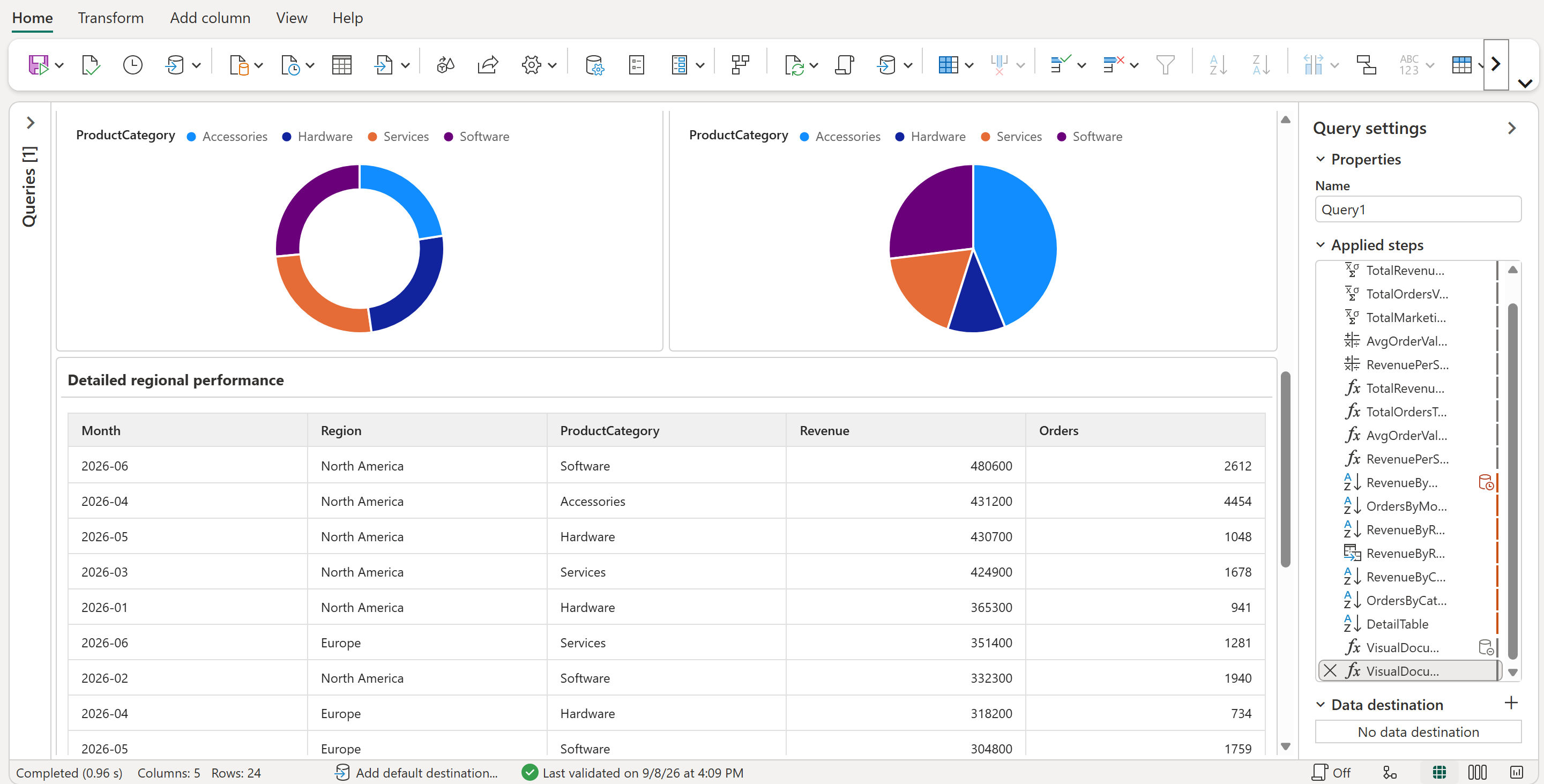
Open Advanced Editor again, and replace the contents with the following complete code. The code adds DetailTable, which selects columns from SalesData and sorts the rows by revenue without aggregating them. A Card and a Table display those rows below the charts:
let
    TotalRevenueValue = List.Sum(SalesData[Revenue]),
    TotalOrdersValue = List.Sum(SalesData[Orders]),
    TotalMarketingValue = List.Sum(SalesData[MarketingSpend]),
    AvgOrderValueValue = TotalRevenueValue / TotalOrdersValue,
    RevenuePerSpendValue = TotalRevenueValue / TotalMarketingValue,

    TotalRevenueText = "$" & Number.ToText(Number.Round(TotalRevenueValue / 1000000, 2)) & "M",
    TotalOrdersText = Number.ToText(TotalOrdersValue),
    AvgOrderValueText = "$" & Number.ToText(Number.Round(AvgOrderValueValue, 0)),
    RevenuePerSpendText = Number.ToText(Number.Round(RevenuePerSpendValue, 1)) & "x",

    RevenueByMonth = Table.Sort(
        Table.Group(SalesData, {"Month"}, {{"Revenue", each List.Sum([Revenue]), type number}}),
        {{"Month", Order.Ascending}}
    ),
    OrdersByMonth = Table.Sort(
        Table.Group(SalesData, {"Month"}, {{"Orders", each List.Sum([Orders]), type number}}),
        {{"Month", Order.Ascending}}
    ),
    RevenueByRegion = Table.Sort(
        Table.Group(SalesData, {"Region"}, {{"Revenue", each List.Sum([Revenue]), type number}}),
        {{"Revenue", Order.Descending}}
    ),
    RevenueByRegionCategory = Table.Pivot(
        Table.Group(SalesData, {"Region", "ProductCategory"}, {{"Revenue", each List.Sum([Revenue]), type number}}),
        List.Sort(List.Distinct(SalesData[ProductCategory])),
        "ProductCategory",
        "Revenue",
        List.Sum
    ),
    RevenueByCategory = Table.Sort(
        Table.Group(SalesData, {"ProductCategory"}, {{"Revenue", each List.Sum([Revenue]), type number}}),
        {{"Revenue", Order.Descending}}
    ),
    OrdersByCategory = Table.Sort(
        Table.Group(SalesData, {"ProductCategory"}, {{"Orders", each List.Sum([Orders]), type number}}),
        {{"Orders", Order.Descending}}
    ),
    DetailTable = Table.Sort(
        Table.SelectColumns(SalesData, {"Month", "Region", "ProductCategory", "Revenue", "Orders"}),
        {{"Revenue", Order.Descending}}
    ),

    VisualDocumentType = type table [
        Name = nullable text, Parent = nullable text, PartType = nullable text,
        Properties = nullable record, Data = any
    ],
    VisualDocument = #table(
        VisualDocumentType,
        {
            {"dashboard", null, "Container", [Direction = "column"], null},
            {"dashboard-header", "dashboard", "Header", [Header = "Northwind Global Sales Command Center", FarText = "FY26 H1"], null},

            {"kpi-row", "dashboard", "Container", [Direction = "row"], null},
            {"kpi-revenue", "kpi-row", "KpiCard", [Value = TotalRevenueText, Label = "Total revenue", Sub = "H1 FY26"], null},
            {"kpi-orders", "kpi-row", "KpiCard", [Value = TotalOrdersText, Label = "Total orders", Sub = "Across 4 regions"], null},
            {"kpi-aov", "kpi-row", "KpiCard", [Value = AvgOrderValueText, Label = "Avg order value", Sub = "Blended, all categories"], null},
            {"kpi-efficiency", "kpi-row", "KpiCard", [Value = RevenuePerSpendText, Label = "Revenue per marketing $", Sub = "Total revenue ÷ spend"], null},

            {"trend-row", "dashboard", "Container", [Direction = "row"], null},
            {"revenue-trend-card", "trend-row", "Card", [Title = "Monthly revenue trend"], null},
            {"revenue-trend-chart", "revenue-trend-card", "Chart",
                [ChartType = "Line", DataSeries = [AxisColumns = "Month", ValueColumns = "Revenue"]], RevenueByMonth},
            {"orders-trend-card", "trend-row", "Card", [Title = "Monthly order volume"], null},
            {"orders-trend-chart", "orders-trend-card", "Chart",
                [ChartType = "Area", DataSeries = [AxisColumns = "Month", ValueColumns = "Orders"]], OrdersByMonth},

            {"region-row", "dashboard", "Container", [Direction = "row"], null},
            {"region-revenue-card", "region-row", "Card", [Title = "Revenue by region"], null},
            {"region-revenue-chart", "region-revenue-card", "Chart",
                [ChartType = "Bar", DataSeries = [AxisColumns = "Region", ValueColumns = "Revenue"]], RevenueByRegion},
            {"region-mix-card", "region-row", "Card", [Title = "Revenue by region and category"], null},
            {"region-mix-chart", "region-mix-card", "Chart",
                [ChartType = "StackedBar",
                 DataSeries = [
                     AxisColumns = "Region",
                     ValueColumns = {"Accessories", "Hardware", "Services", "Software"}
                 ]], RevenueByRegionCategory},

            {"mix-row", "dashboard", "Container", [Direction = "row"], null},
            {"revenue-mix-card", "mix-row", "Card", [Title = "Revenue mix by category"], null},
            {"revenue-mix-chart", "revenue-mix-card", "Chart",
                [ChartType = "Doughnut", DataSeries = [AxisColumns = "ProductCategory", ValueColumns = "Revenue"]], RevenueByCategory},
            {"orders-mix-card", "mix-row", "Card", [Title = "Order share by category"], null},
            {"orders-mix-chart", "orders-mix-card", "Chart",
                [ChartType = "Pie", DataSeries = [AxisColumns = "ProductCategory", ValueColumns = "Orders"]], OrdersByCategory},

            {"detail-card", "dashboard", "Card", [Title = "Detailed regional performance"], null},
            {"detail-table", "detail-card", "Table", [], DetailTable}
        }
    )
in
    VisualDocument
Select Done to render the complete dashboard with the detail table at the bottom:
Tip
To use your own data, either edit the SalesData query to pull in your data, or replace every reference to SalesData in the Dashboard query with the name of your own query. Keep the expected column names and types, or update the aggregation steps and chart mappings to match. For the stacked bar chart, also update ValueColumns to match the category columns created by the pivot. This example uses Accessories, Hardware, Services, and Software.
Considerations and limitations
- This feature is in preview and subject to change.
- For the exact requirements a valid document must meet, and the error message you get if it doesn't, see Rules for a valid document.
- For
DataSeriesfields that name a missing column, see the note under The DataSeries record. - Filters, slicers, date pickers, and cross-filtering between visuals aren't supported. Each visual shows a snapshot of its
Datareference at evaluation time. - A large number of visuals, or large tables referenced in
Data, can slow down authoring. Start with a few visuals and a small number of table rows, then scale up after the lightweight version renders well. - Visuals render in the Dataflow Gen2 authoring canvas. They aren't part of the dataflow's refresh output, and they don't appear in downstream data destinations or through the Dataflow Gen2 connector.
- For
LineandAreacharts, a date or datetime axis isn't treated as a contiguous timeline. Gaps in your data, such as missing days or months, aren't filled in. Don't assume point spacing represents elapsed time: aLinechart can space date values equally even when the intervals between them differ. StackedBarcharts require wide-form data and have several rendering caveats. For more information, see Stacked bar charts.- Only the chart types listed in Supported chart types are available.