Note
Access to this page requires authorization. You can try signing in or changing directories.
Access to this page requires authorization. You can try changing directories.
Dataflow Gen2 provides two ways to reuse Power Query M code without rebuilding the same transformations. My queries is your personal library of queries for your own use across dataflows. Shared queries (preview) lets you make selected queries available to other people with the required access. They can import copies during authoring or view query results through a share link.
Important
The shared queries feature is currently in preview. The preview includes enabling sharing, browsing and importing queries through the Shared queries module in Get data, and consuming query results through a share link.
Saving a query to My queries and enabling sharing serve different purposes. Adding a query to your personal library doesn't enable sharing on the source dataflow. Enabling sharing makes the source dataflow and selected query discoverable through the sharing experience; it doesn't add the query to your personal library.
Choose between My queries and shared queries
Choose the feature based on who needs the query and how they plan to use it. My queries and shared queries have separate browsing entry points in Get data. They aren't two filters in the same query list: your personal library is in Recents & My Queries, while shared-query browsing is in the Shared queries module.
| Your goal | Feature | Entry point and action |
|---|---|---|
| Reuse queries from your personal library. | My queries | Open Get data > Recents & My Queries, then select the My Queries filter to browse and import your saved queries. |
| Reuse query logic that other authors have shared with you. | Shared queries (preview) | Open Get data > Shared queries to browse workspaces, folders, and dataflows, then import selected queries as copies. |
| View a query's results without working in the full authoring experience. | Shared queries (preview) | Open the query's share link to enter its dedicated consumption experience, rather than a Get data browsing module. |
Prerequisites and permissions
The requirements depend on whether you're authoring a dataflow or opening a shared query link.
- To save, share, or import queries during authoring, open a Dataflow Gen2 item that you can edit. If you need a dataflow, see Create your first Dataflow Gen2.
- To open a shared query link during the current preview, you need Contributor permissions in the workspace that contains the source dataflow, as stated in the share dialog.
A share link doesn't grant access to the dataflow. The viewer-style consumption experience doesn't mean the Viewer workspace role is sufficient.
Understand the query menu actions
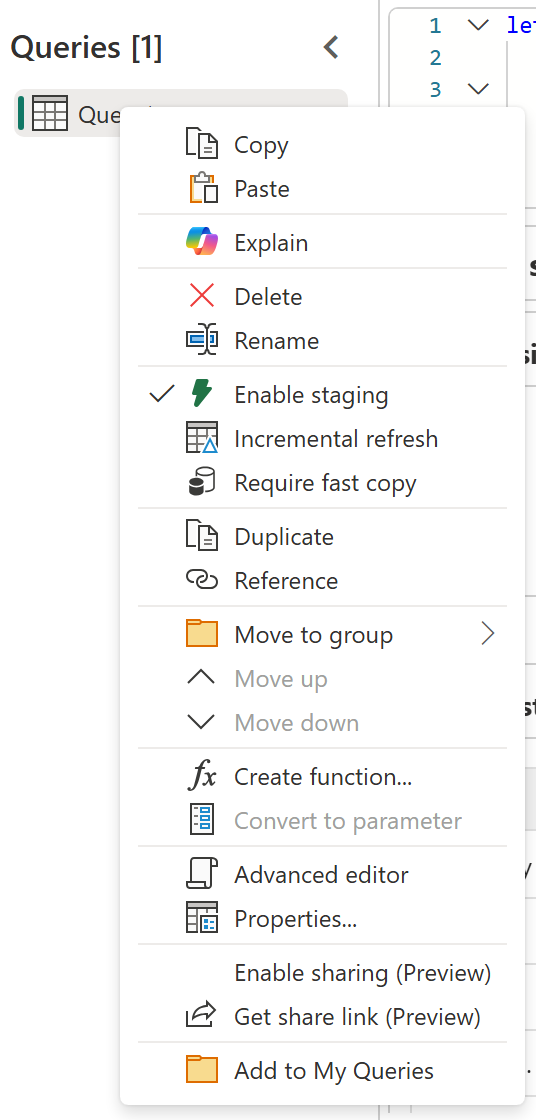
Right-click a query in the Queries pane to access the personal library and sharing actions.
| Action | Purpose |
|---|---|
| Add to My Queries | Save the query to your personal library for your own reuse. |
| Enable sharing (Preview) | Save the dataflow with sharing enabled. Make the dataflow discoverable in the Shared queries module and the selected query available for reuse and consumption. |
| Get share link (Preview) | Get a link to the shared query that you can send to people who have the required access to the dataflow. If sharing isn't enabled yet, the dialog lets you enable it and generate a link. |
Build your personal library with My queries
Use My queries for logic you frequently reuse yourself, such as a standard cleanup sequence or a helper query. You save the query once, then import its script when authoring another dataflow.
Add a query to My queries
In the Power Query editor, right-click the query in the Queries pane.
Select Add to My Queries.
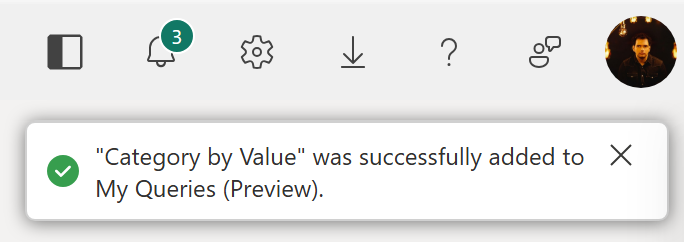
A notification confirms your request.

After the query is saved, a second notification shows the query name used in My queries.
Import a query from My queries
In the dataflow where you want to reuse the query, open the Get data experience.
Select the Recents & My Queries module.
Select the My Queries filter.

Select a saved query to import its script as-is into your current dataflow.

This action imports the query's M code, but not its credentials, query attributes, or data destination settings. Configure any required connections and destinations in the dataflow where you reuse it.
Share queries with other people
Use shared queries when a query should be available beyond your personal library. Sharing keeps the query in its source dataflow and makes it available for both authoring reuse and consumption.
Recipients must meet the shared-query access requirements. Enabling sharing doesn't grant additional permissions.
Enable sharing for a query
- Open the source dataflow in the Power Query editor.
- Right-click the query you want to share in the Queries pane.
- Select Enable sharing (Preview).
Enabling sharing saves the dataflow and applies two settings. It makes the source dataflow discoverable in the Shared queries module in Get data and makes the selected query available for reuse and consumption.
Making the dataflow discoverable doesn't automatically share every query in it. Enable sharing for each query you want to make available.
Get a share link
In the source dataflow's Power Query editor, right-click the query in the Queries pane.
Select Get share link (Preview).
If sharing isn't enabled, select Enable sharing and generate a link in the share dialog. Sharing changes take effect when you save the dataflow, as the dialog indicates.
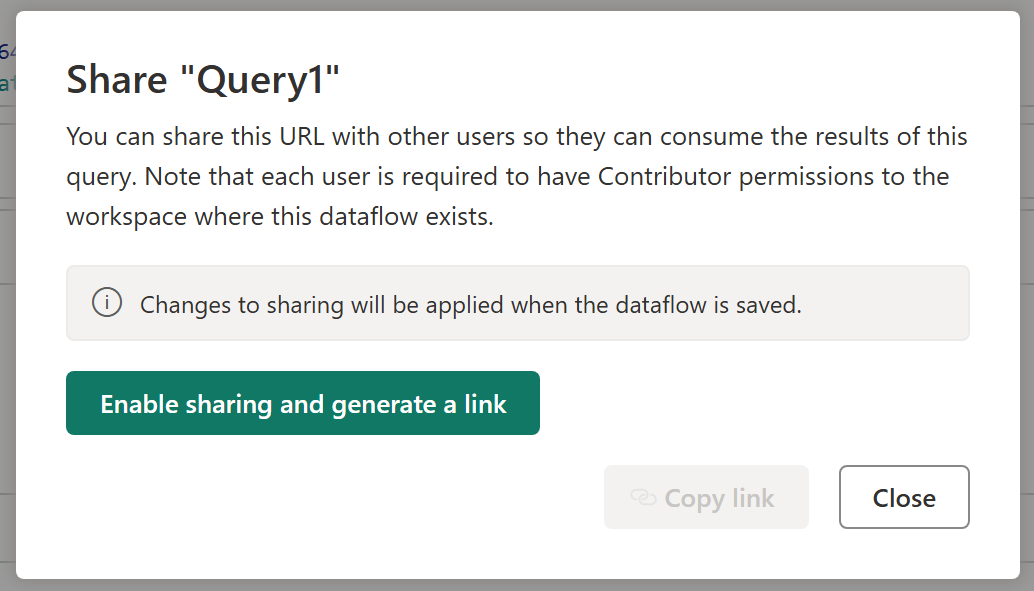
When the link is available, select Copy link.
Send the link to someone who has the required access to the dataflow.
The link opens the selected query in the consumption experience, rather than opening the full dataflow authoring experience.
Reuse a shared query during authoring
Use the Shared queries module in Get data to browse queries shared with you and import them as copies into your current dataflow. Open this module directly, rather than the My Queries filter in Recents & My Queries. You don't need a share link to use this authoring experience.
Browse and import shared queries
Enable sharing on the source dataflow and the queries you want to import.
Open the dataflow where you want to reuse the queries in the Power Query editor.
On the Home ribbon, select Get data.
Select the Shared queries module.
From the Workspaces list, select the workspace that contains the source dataflow.
Browse folders and subfolders as needed, then open the source dataflow to view its shared queries.
The following preview screenshot shows the query list inside a dataflow. It uses the label Shared Query (Preview) for the Shared queries module.

Select the checkboxes for the queries you want to reuse, then select Next to import them into your current dataflow.

Importing a shared query creates an independent copy, not a live link to the source query. You can edit the imported copy without changing the original. Later changes to the source query aren't automatically applied to your copy.
This workflow brings query logic into your existing dataflow for further authoring. To view a shared query's results without importing it, use the consumption experience instead.
Consume a shared query
The consumption experience is a dedicated, viewer-style view of a shared query. Use it when you want to inspect the query results without opening the full Power Query editor or adding the query to another dataflow.
- Open the share link provided by the query author.
- Review the query output in the consumption view.
- Select Refresh to refresh the results in this view.
The following example shows a shared query that displays a dataset statistical profile, including dataset size, data quality, duplicates, and column statistics. The content depends on the shared query; this profile isn't generated for every shared query. To create this type of output, see Create data visuals in Dataflow Gen2.
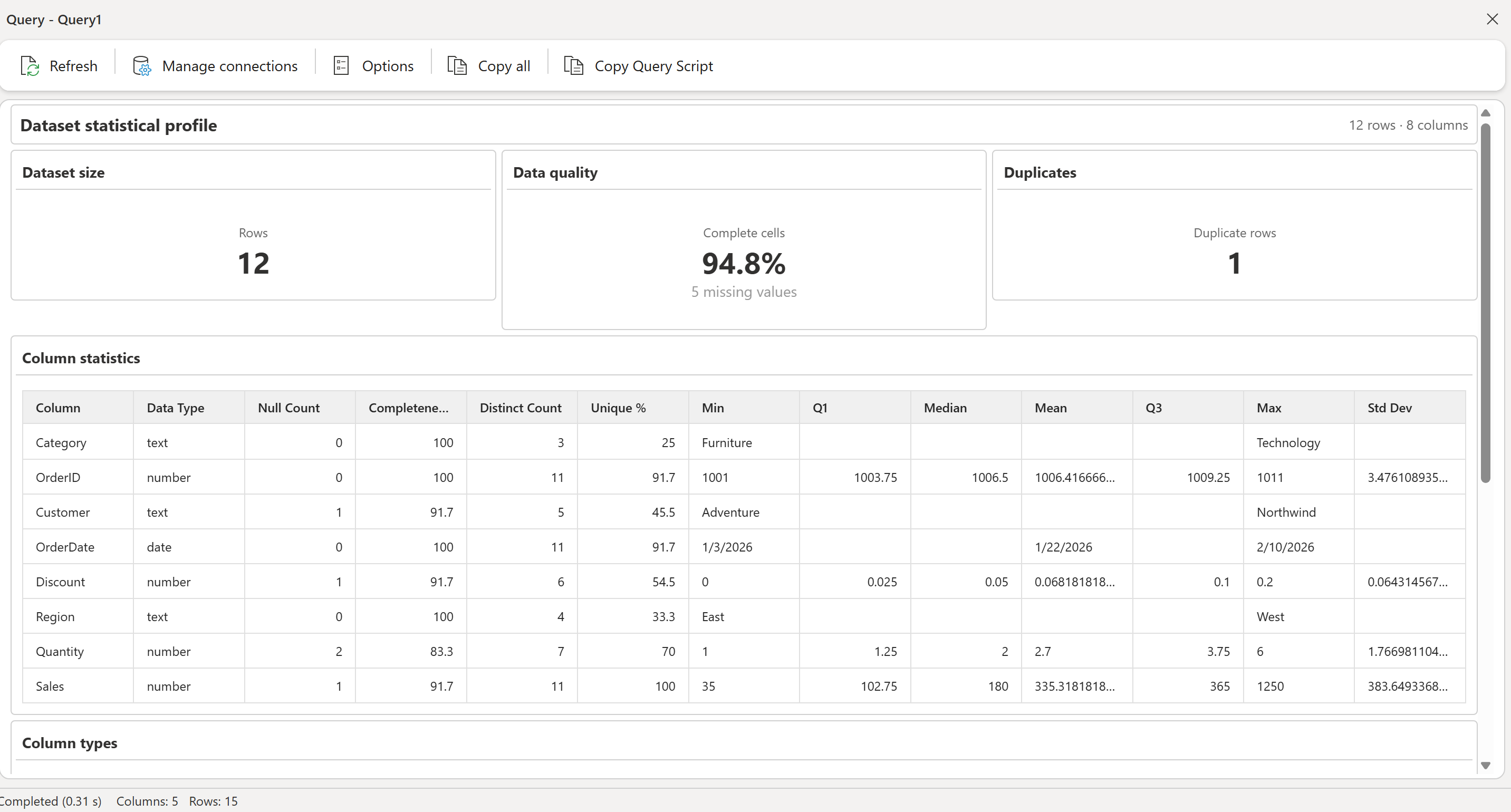
The toolbar also provides Manage connections, Options, Copy all, and Copy Query Script. To reuse the query's M code during authoring, select Copy Query Script. Viewing results through a share link doesn't import the query into another dataflow.
Considerations and limitations
The following considerations apply to your personal My queries library, not to the Shared queries browsing module. For shared-query access requirements, see Prerequisites and permissions.
- Query limit: The My Queries view shows only the latest 50 queries.
- No delete support: You can't delete saved queries from the My Queries view.
- Recent items: Queries saved to My queries also appear in your recent items.
- Saved contents: The feature saves only the M code of a query. It doesn't store query attributes, credentials, or data destination metadata.
- Duplicate names: If you save a query with a name that already exists in My queries, the feature appends a numeric value to create a unique name.
- List order: The list is sorted by last-used timestamp, from newest to oldest.
- Storage: The first time you save a query, a folder named
My Queriesis created in My workspace. This folder contains Dataflow Gen2 items that store your saved queries.