Note
Access to this page requires authorization. You can try signing in or changing directories.
Access to this page requires authorization. You can try changing directories.
Your dbt logs are now stored directly in OneLake, so the full, untruncated logs for every run are available. Logging with OneLake removes the 1-MB download limit and ensures you can review complete execution details—including errors, warnings, and debug information—whenever needed.
Prerequisites
- A Microsoft Fabric workspace
- A dbt job item in that workspace
Access full dbt logs
To retrieve untruncated logs for a dbt job run, follow these steps:
- Run a dbt command
- From the Output tab, select Output to download the dbt-output-<run_id>.json file
- Find the logs in OneLake Explorer
Run a dbt command
Run any dbt command from the dbt job UI, for example:
dbt rundbt testdbt build
Fabric generates execution logs after the command completes.
Download the output.json file
After the dbt job completes, download the
dbt-output-<run_id>.jsonfile from the run by selecting the Output button.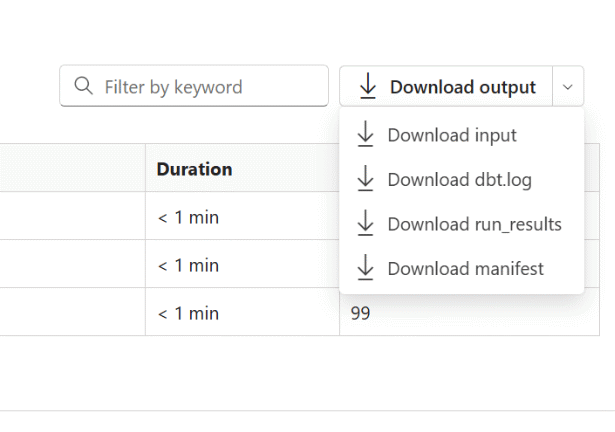
Open the file to view run metadata, including the paths to full logs stored in OneLake (under the
detailed_monitoring_output_pathfield).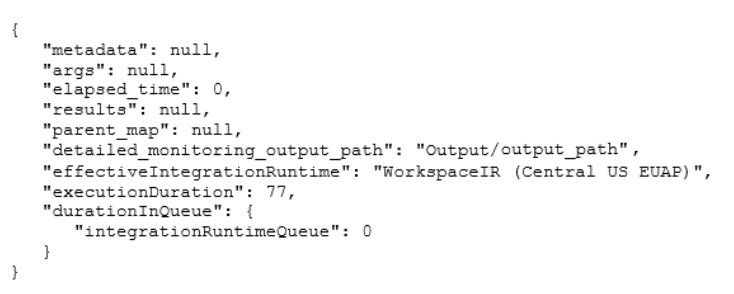
Find the logs in OneLake Explorer
Open OneLake Explorer.
Navigate to the log paths listed in
dbt-output-<run_id>.jsonunderdetailed_monitoring_output_path. For example:OneLake/WorkspaceName/detailed_monitoring_output_path/Output/cccc2222-dd33-4444-55ee-666666ffffffcontains the complete logs.Open the log files to view the complete, untruncated output for the dbt job run.


Known limitations
- To ensure optimal application performance and prevent browser slowdowns or crashes, the app enforces a 10 MB size limit for rendering lineage views and output tables. For results exceeding this limit, you need to check the full output log results in OneLake. Use
dbt-output-<run_id>.jsonto locate and access them in OneLake. Full results remain accessible through the dbt job UX, which doesn't impose a size restriction.