Note
Access to this page requires authorization. You can try signing in or changing directories.
Access to this page requires authorization. You can try changing directories.
The Dataflows Upgrade Wizard in Microsoft Fabric is a guided experience that performs an in-place upgrade of your Power BI Dataflow Gen1 items to Dataflow Gen2 (CI/CD). The upgrade preserves each dataflow's ID, name, schedule, and connections. You can upgrade a single dataflow, or upgrade multiple dataflows from a workspace together.
For most dataflows, downstream semantic models and reports keep working without any changes. Before you upgrade, review Assessment status and Known limitations to see which of your dataflows need attention, and see Inventory to find the downstream items that read them. After you upgrade, follow After the upgrade.
Note
The Dataflows Upgrade Wizard is currently in preview.
Tip
Power BI Dataflow Gen1 is now in a legacy state and won't receive new feature investment. For Premium customers with Fabric access, Dataflow Gen2 is the recommended path, offering improvements in performance, scale, reliability, functionality, and built-in AI. Pro/PPU customers can continue to use Gen1 as Gen2 guidance for these scenarios is evolving. See Upgrade from Dataflow Gen1 to Dataflow Gen2 for upgrade guidance.
Prerequisites
Before you start:
- The Dataflow Gen1 must be in a workspace assigned to a Fabric capacity.
- Fabric item creation must be allowed for the relevant scope (the Users can create Fabric items admin setting is enabled at the tenant, capacity, or user-group level).
- You need Admin, Member, or Contributor access to the workspace.
- You must be the owner of the Dataflow Gen1. If you aren't, the wizard reports the dataflow as Upgrade unavailable. Ask the owner to run the upgrade, or use Take over to become the owner first.
Important
Your Dataflow Gen1 can't be recovered after the upgrade completes. If you want to keep it, use Save As to create a new Dataflow Gen2 (CI/CD) with the same content as the original dataflow. The upgrade is in-place: the original Dataflow Gen1 is replaced by a new Dataflow Gen2 (CI/CD) with the same ID and name, and you can't revert it.
Upgrade a Dataflow Gen1 to Dataflow Gen2 (CI/CD)
You can start the Dataflows Upgrade Wizard from the workspace item list.
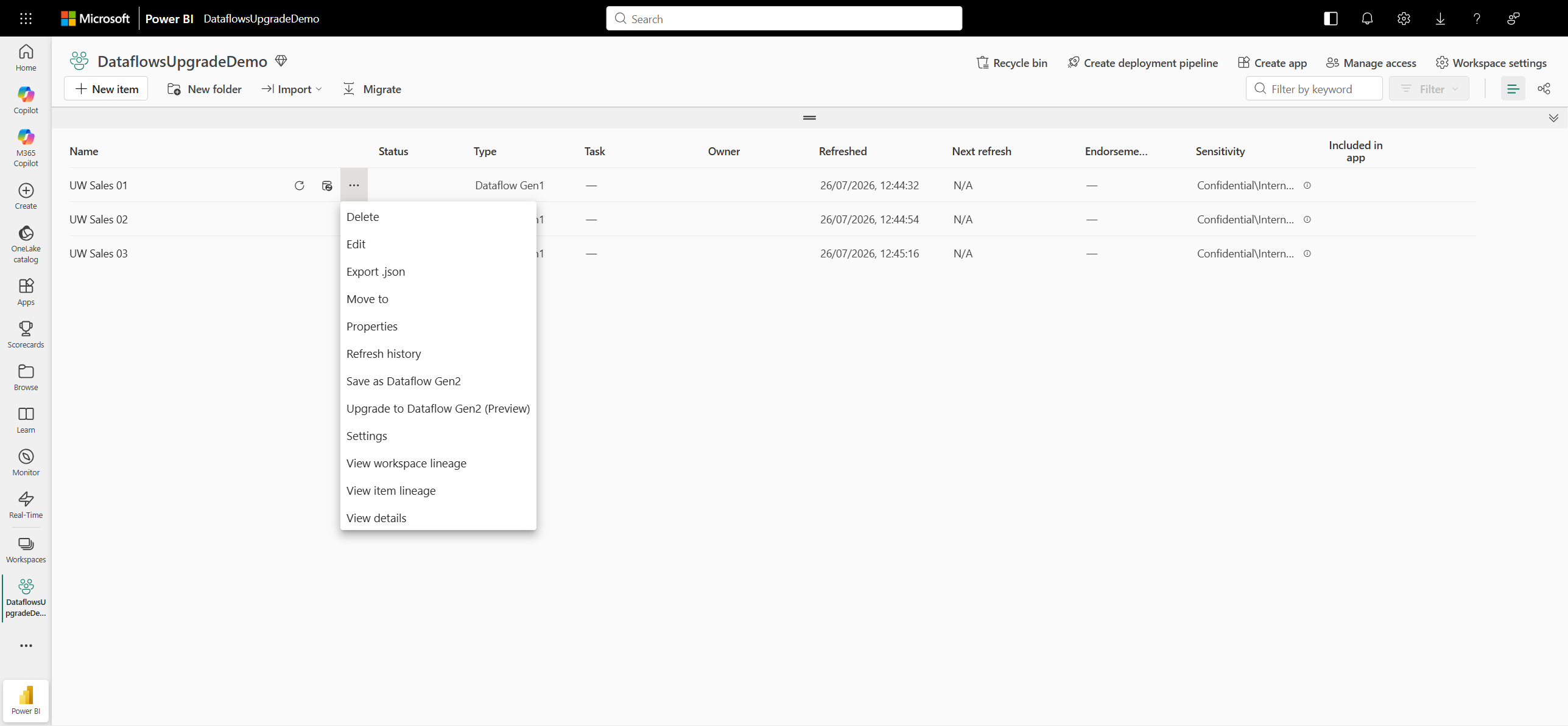
In your workspace, select the ellipsis (...) next to the Dataflow Gen1 you want to upgrade, and then select Upgrade to Dataflow Gen2 (Preview).
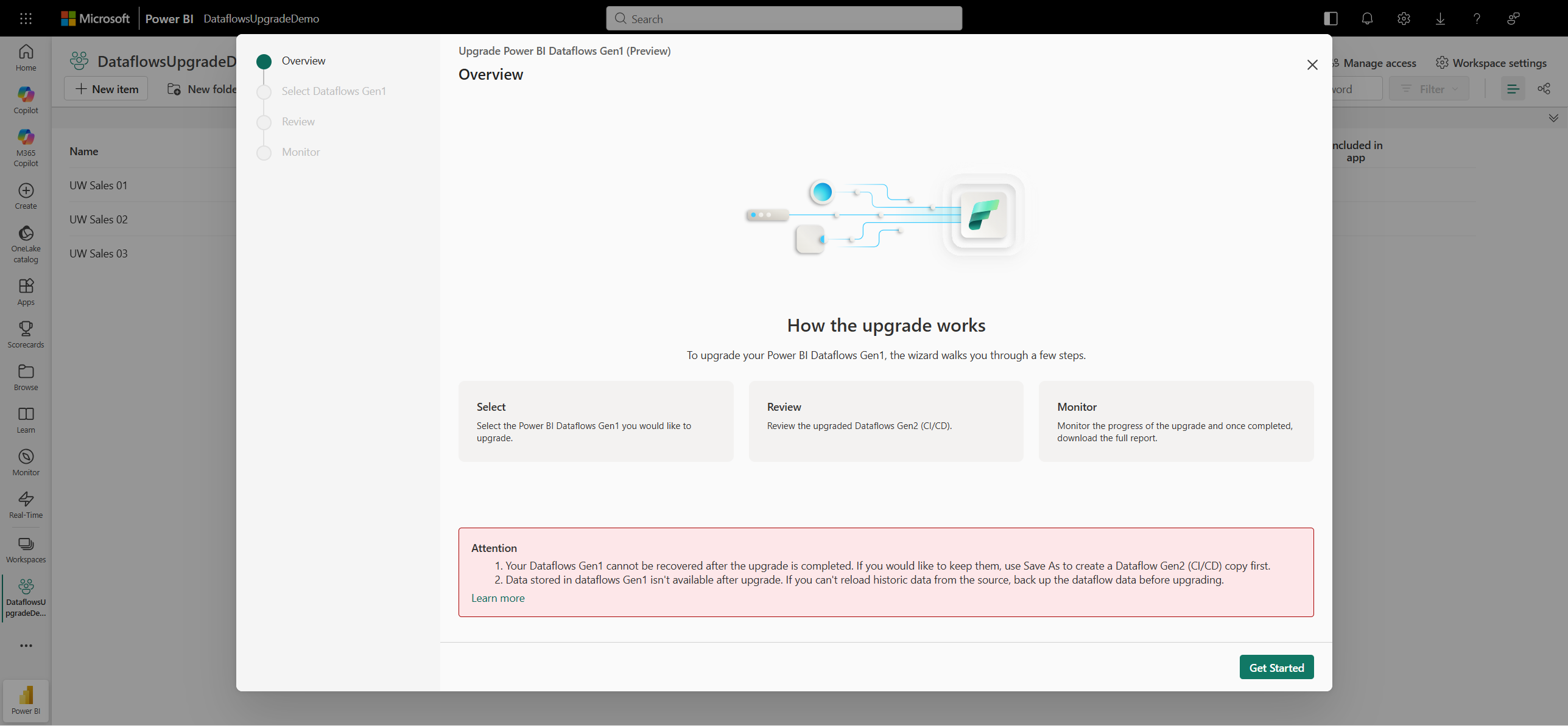
The Upgrade Power BI Dataflows Gen1 (Preview) wizard opens on the Overview step. Review how the upgrade works and the Attention notice, and then select Get Started.
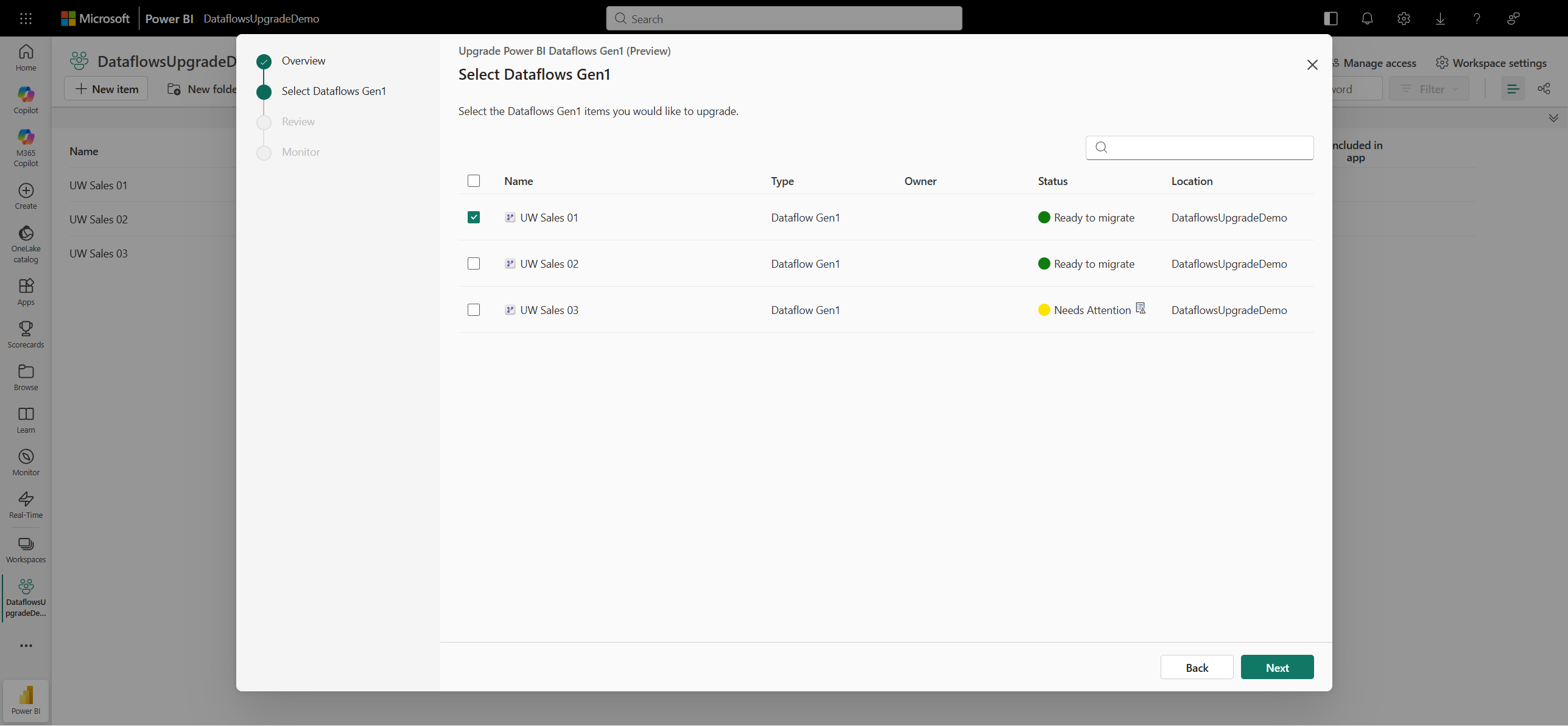
Select Dataflows Gen1. The Dataflow Gen1 you started from is already selected. To upgrade more dataflows together, select additional Dataflow Gen1 items from this workspace. The Status column shows the assessment status for each dataflow. Hover over the indicator next to a status to see the reasons that apply to that dataflow. You can handle most reasons after the upgrade, but a dataflow with more than 50 enabled queries needs an action first. Select Next.
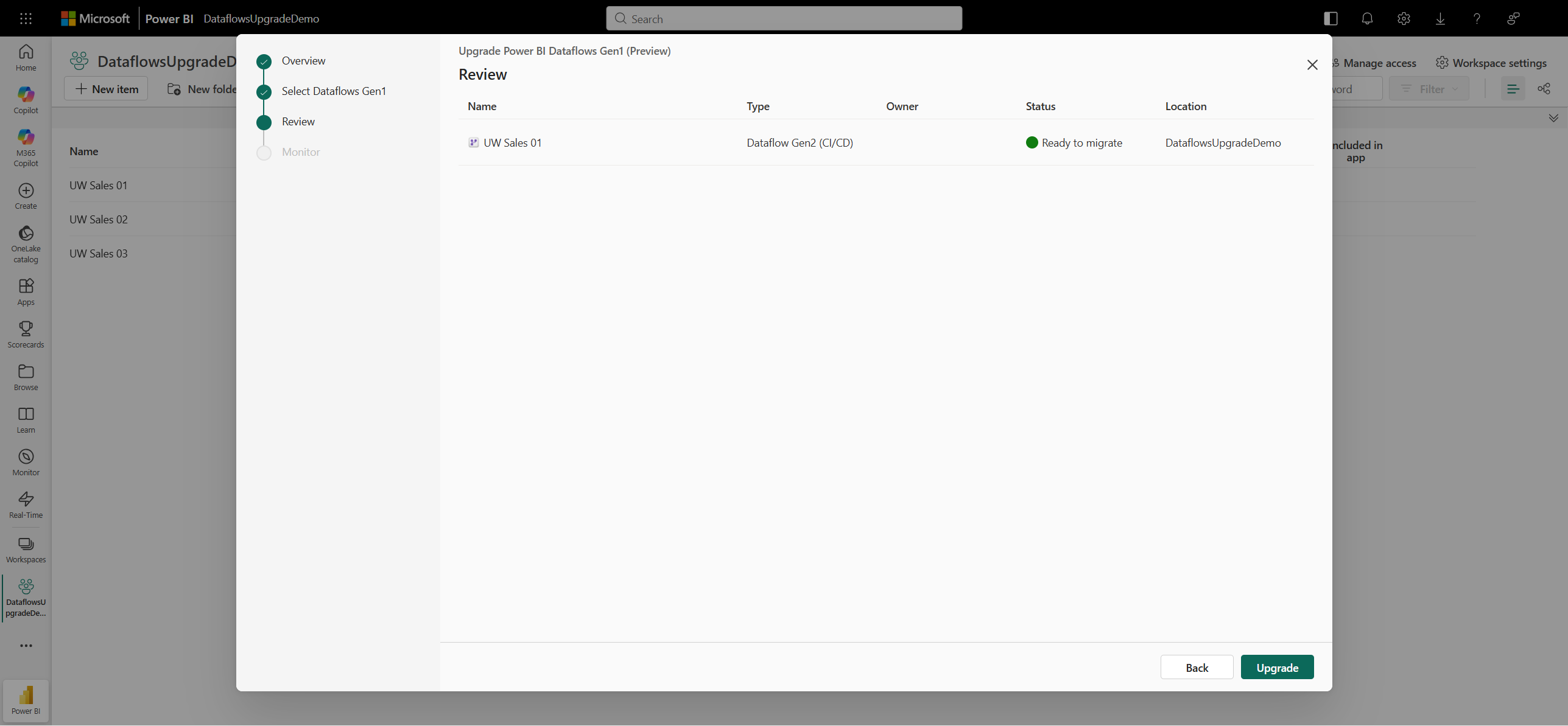
Review. Review the Dataflow Gen2 (CI/CD) items that the wizard is about to create. Each upgraded dataflow keeps the same name as the original Dataflow Gen1; only the item type changes to Dataflow Gen2 (CI/CD). Select Upgrade.
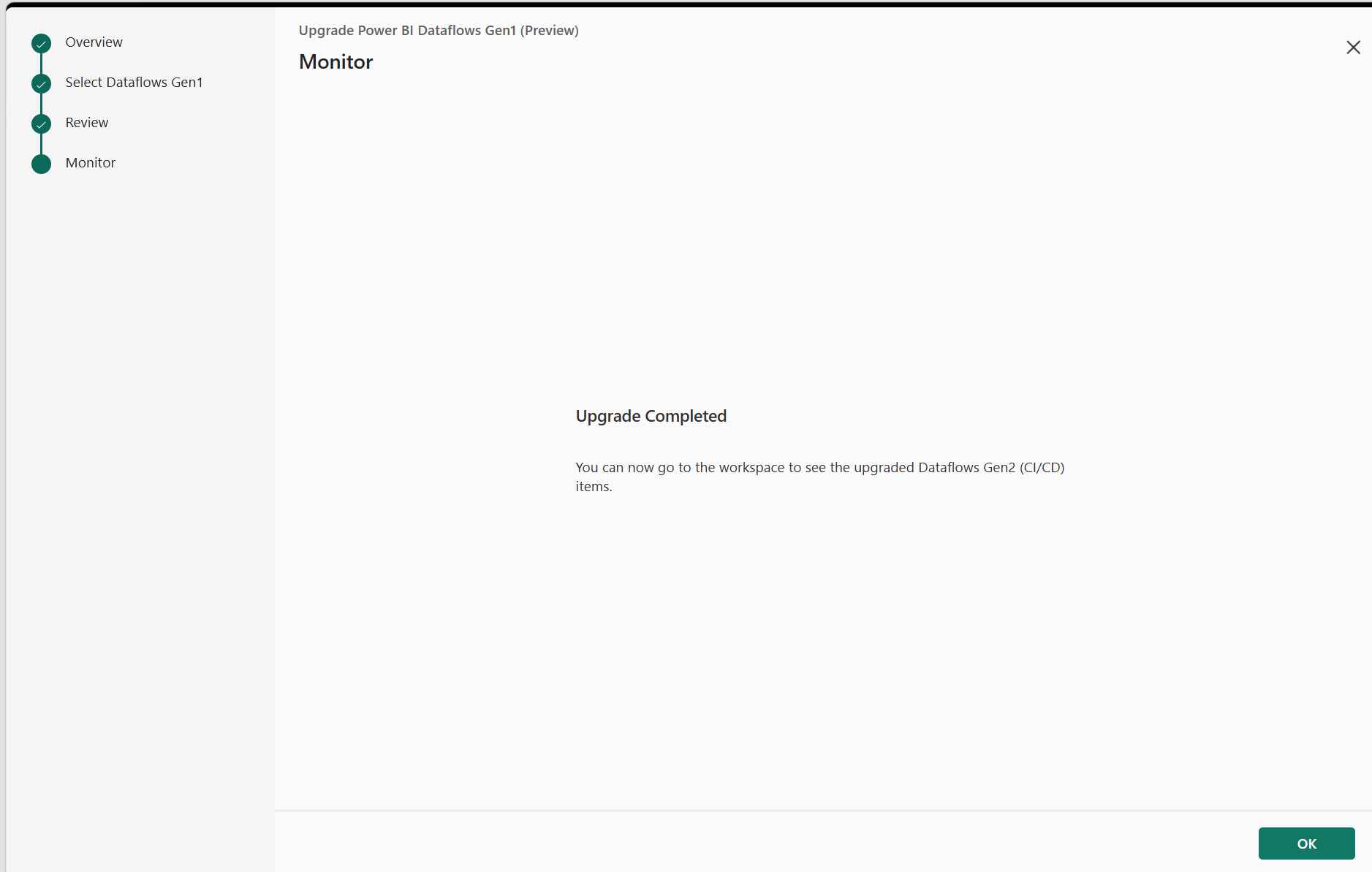
Monitor. The wizard shows the progress of the upgrade. When it finishes, Upgrade Completed appears, and you can go to the workspace to see the upgraded Dataflow Gen2 (CI/CD) items. If a dataflow failed to upgrade, it's listed with its error. Select OK to close the wizard.
Assessment status
When you select dataflows, the wizard assesses each one and returns one of these statuses:
| Status | What it means |
|---|---|
| Ready to migrate | The wizard didn't find anything that needs a manual step before or after the upgrade. |
| Needs Attention | The wizard found one or more reasons that need your attention. The upgrade can proceed. Review the reasons to see what to do before or after the upgrade. |
| Upgrade unavailable | You can't upgrade the dataflow, because you aren't its owner. |
The Needs Attention status might be due to more than one reason. Hover over the indicator next to the status in the Select Dataflows Gen1 step to see every reason that applies to that dataflow.
The assessment checks the dataflow itself, not the items that read it, and it doesn't detect every limitation. Review Known limitations before you upgrade.
Needs Attention
You can still upgrade a dataflow that needs attention, but complete the recommended action to keep the dataflow or its downstream items working.
| Reason | Why it's flagged | What to do after the upgrade |
|---|---|---|
| DirectQuery consumers | The dataflow has Enhanced Compute Engine enabled, which means semantic models or other dataflows might access it through DirectQuery. DirectQuery isn't supported with Dataflow Gen2. | Reconfigure any downstream semantic models to use Direct Lake or Import mode, and update any downstream dataflows that use DirectQuery against this dataflow. For steps, see Update consumers to the modern Power Platform Dataflows connector. |
| Bring Your Own Lake (ADLS Gen2 storage) | The dataflow uses Azure Data Lake Storage Gen2 as its storage destination. Dataflow Gen2 uses a different storage architecture with data destinations. | Configure an ADLS Gen2 data destination on the upgraded dataflow to continue writing data to your lake. |
| Incremental refresh | The dataflow uses incremental refresh. Gen1 incremental refresh settings aren't carried over during the upgrade, and Dataflow Gen2 incremental refresh requires a data destination that supports it. | Configure a data destination that supports incremental refresh, and define it explicitly in the query settings, because the default destination configuration isn't supported. Then reconfigure incremental refresh on the upgraded dataflow. |
| Linked entities | The dataflow contains linked entities that reference another dataflow, so it triggers a cascading refresh. Cascading refresh of linked dataflows isn't supported in Dataflow Gen2. | Configure a pipeline or a schedule to trigger the downstream linked dataflow refreshes separately. |
| Referenced by linked entities | Another dataflow in the same workspace references this dataflow as a linked entity, and might consume it through the legacy Power BI Dataflows connector, which doesn't support Dataflow Gen2. | Open and save the affected dataflows so they rebind to the upgraded dataflow. If they use the legacy connector, also update them to the modern Power Platform Dataflows connector. For steps, see Update consumers to the modern Power Platform Dataflows connector. |
| Unsupported characters in the name | The dataflow name contains characters that Dataflow Gen2 (CI/CD) doesn't support. Only letters, numbers, whitespace, and ( ) [ ] { } + - = _ # are allowed. |
The wizard removes the unsupported characters during the upgrade. To choose the name yourself, rename the dataflow before you upgrade. |
| Name already in use | A dataflow with the same name already exists in the workspace. | The wizard prefixes the upgraded dataflow with Migrated to avoid the naming conflict. To choose the name yourself, rename one of the dataflows before you upgrade. |
| More than 50 enabled queries | Dataflow Gen2 (CI/CD) supports up to 50 enabled queries in a dataflow, and this dataflow has more. | Reduce the number of enabled queries to 50 or fewer before you upgrade. |
The DirectQuery and linked-entity reasons are detection signals rather than proof of a dependency. Confirm the actual consumers (see Lineage view or Inventory) before you upgrade. A dataflow can sit on both sides of a linked-entity relationship, so if both linked-entity reasons apply, complete both actions.
Upgrade unavailable
The wizard reports Upgrade unavailable when you aren't the owner of the dataflow. Only the owner can run the upgrade in the wizard. Ask the owner to run it, or use Take over to become the owner and run it yourself.
After the upgrade
Your workspace shows a Dataflow Gen2 (CI/CD) item in place of each original Dataflow Gen1, with the same name and ID. Complete these steps in order.
- Refresh each upgraded dataflow. The upgrade doesn't refresh the new dataflow, so it holds no data until you refresh it. A downstream dataflow that reads it returns an error until this first refresh finishes.
- Open and save each downstream dataflow that reads an upgraded dataflow. Saving rebinds it to the upgraded dataflow. If you skip this step, the downstream dataflow keeps returning stale data.
- Complete any Needs Attention actions that applied to the dataflows you upgraded.
Known limitations
Review these limitations before you upgrade.
The upgrade is in-place and isn't reversible
The upgrade replaces the original Dataflow Gen1 with a new Dataflow Gen2 (CI/CD) that uses the same ID and name. You can't revert an upgrade. To upgrade while keeping your original Dataflow Gen1, use Save As to create a Dataflow Gen2 (CI/CD) copy instead.
Historic data isn't carried over
The data stored in a Dataflow Gen1 is a cache of the data from your source; the source system remains the system of record. Dataflow Gen2 uses a different storage architecture, so this cached data isn't available after the upgrade. If you can't reload the historic data from the source, back up the dataflow data before you upgrade (for example, to a lakehouse), and then configure a data destination on the upgraded dataflow to persist future refreshes.
The legacy Power BI Dataflows connector can't read an upgraded dataflow
The legacy Power BI Dataflows connector can't connect to a Dataflow Gen2 (CI/CD) item, so any item that consumes this dataflow through that connector fails the next time it refreshes. An item that holds imported data keeps showing that data until then, so it can look unaffected right after the upgrade. Update those items to use the modern Power Platform Dataflows connector. For steps, see Update consumers to the modern Power Platform Dataflows connector.
You can't refresh a dataflow while it's being upgraded
Manual and scheduled refreshes don't run while the wizard is upgrading a dataflow. Refresh the dataflow after the upgrade finishes.
You can't retry a failed upgrade for 24 hours
If an upgrade fails, the wizard restores the original Dataflow Gen1. You can't start a new upgrade for that dataflow until 24 hours pass. Retrying sooner fails.
You can't enable outbound access protection for 30 days after an upgrade
An upgraded Dataflow Gen1 is retained in a soft-deleted state for up to 30 days. During that window, you can't enable outbound access protection (OAP) on the workspace. Wait for the retention window to pass, or use a workspace that already has OAP enabled.
Applications that use the Power BI REST API
Dataflow Gen2 uses the Fabric REST API, which doesn't have full parity with the Power BI REST API. If applications trigger or manage your Gen1 dataflow through the Power BI REST API, review those calls and update them to the corresponding Fabric REST API endpoints.
Government Community Cloud (GCC) environments aren't supported
Fabric Dataflow Gen2 isn't currently available in GCC, so you can't upgrade a Dataflow Gen1 in a GCC environment.
Important
Dataflow Gen2 uses a different compute and billing model than Dataflow Gen1. Capacity Unit (CU) consumption can vary for many reasons, including the use of new features in Dataflow Gen2, such as lakehouse staging and warehouse compute. Validate refresh duration and CU consumption. For more information, see Dataflow Gen2 pricing.
Update consumers to the modern Power Platform Dataflows connector
The legacy Power BI Dataflows connector can't read a Dataflow Gen2 (CI/CD) item. After you upgrade, update any semantic model or dataflow that consumes the upgraded dataflow through the legacy connector so that it uses the modern Power Platform Dataflows connector instead.
Tip
To find the items that consume an upgraded dataflow, open the workspace and use Lineage view, or follow Inventory. In each consumer, the connector appears in the query's M code as PowerBI.Dataflows (legacy) or PowerPlatform.Dataflows (modern).
The wizard doesn't detect legacy connector usage, and it can't assess Power BI Desktop files or Excel workbooks that are stored outside Fabric. The absence of a warning doesn't mean that local files are unaffected. Inventory the .pbix and .xlsx files that read the upgraded dataflow, update their queries, and validate a refresh.
Example: change the connector in a query
Here's a query that reads a dataflow through the legacy Power BI Dataflows connector.
let
    Source = PowerBI.Dataflows([]),
    #"Navigation 1" = Source{[workspaceId = "<workspace ID>"]}[Data],
    #"Navigation 2" = #"Navigation 1"{[dataflowId = "<dataflow ID>"]}[Data],
    #"Navigation 3" = #"Navigation 2"{[entity = "Customers"]}[Data]
in
    #"Navigation 3"
Here's the same query, updated to use the modern Power Platform Dataflows connector. Two things change: the connector function, and a Workspaces navigation step that the legacy connector doesn't have. The workspace ID, dataflow ID, and entity name stay the same, because the upgrade preserves all three.
let
    Source = PowerPlatform.Dataflows([]),
    #"Navigation 1" = Source{[Id = "Workspaces"]}[Data],
    #"Navigation 2" = #"Navigation 1"{[workspaceId = "<workspace ID>"]}[Data],
    #"Navigation 3" = #"Navigation 2"{[dataflowId = "<dataflow ID>"]}[Data],
    #"Navigation 4" = #"Navigation 3"{[entity = "Customers"]}[Data]
in
    #"Navigation 4"
Where to make the change
Make the change in Power Query.
- Open the query that reads the upgraded dataflow in Advanced editor.
- Update the query to use the modern connector, as shown in the previous example. Keep the workspace ID, dataflow ID, and entity name that the query already uses.
- When prompted, sign in to the Power Platform Dataflows source by using your organizational account. The modern connector is a different source than the legacy one, so the credentials you already have don't carry over.
- Save your changes, and then refresh to confirm.
DirectQuery consumers
DirectQuery isn't supported with Dataflow Gen2, so switching the connector alone doesn't restore a DirectQuery connection. For any downstream semantic model that reads the dataflow in DirectQuery mode, change the storage mode to Import or Direct Lake in addition to updating the connector.