Note
Access to this page requires authorization. You can try signing in or changing directories.
Access to this page requires authorization. You can try changing directories.
Important
Send email is a preview feature. This article shows how to send plain-text messages, including text generated by M queries.
The send email action adds an Outlook-backed email action to a Dataflow Gen2 workflow. This walkthrough sends plain text, uses an M query to generate message text, and checks the received messages alongside the dataflow refresh history.
Prerequisites
Prepare the following items before configuring the action:
- A workspace assigned to a Fabric capacity.
- A Dataflow Gen2 item that you can edit, with send email available.
- An Outlook connection that you can authenticate and use for the action.
- Access to all connections used by the dataflow.
- A test mailbox that you control and can open to verify delivery.
- Synthetic data and a test message that contains no customer or confidential information.
For an on-demand refresh, the Dataflow Gen2 refresh documentation requires Member or higher workspace access and access to all dataflow connections. See Refresh prerequisites.
How the action fits into a refresh
The Send Email action stores an action query in the parent dataflow and executes the action through the dataflow refresh path. This walkthrough uses an on-demand refresh rather than configuring a recurring schedule.
Treat refresh execution and message delivery as separate observations. Record the refresh result, then inspect the destination mailbox. Don't infer delivery solely from a successful dataflow run.
Warning
Selecting Save & run in Dataflow Gen2 can start a refresh. Prepare the recipient, subject, and body before saving an email action. Review the existing refresh schedule and any pipeline triggers so a test message isn't sent unexpectedly. Don't retry a send until you check whether the previous message arrived.
Prepare the sample
This example uses a dedicated dataflow named Send_Email_Docs so the test doesn't modify an existing workflow. To create this sample for yourself, follow these steps:
In your Microsoft Fabric workspace, select New item, then Dataflow Gen2.
In New Dataflow Gen2 (CI/CD), enter
Send_Email_Docsin Name, and then select Create.Review the item's sensitivity label and follow your organization's classification policy for the data you use.
On Home, open the Get data dropdown list and select Blank query.
In Connect to data source, replace the blank query with the following M expression. Don't change Data gateway from (none) for this synthetic sample.
let
    Products = {"Notebook", "Pen", "Backpack", "Desk lamp", "Folder"},
    Prices = {12, 2, 45, 30, 4},
    Rows = List.Transform(
        {0..99},
        (i) =>
            let
                ProductIndex = Number.Mod(i, 5),
                Quantity = Number.Mod(i, 7) + 1
            in
                {
                    1001 + i,
                    Products{ProductIndex},
                    Quantity,
                    Quantity * Prices{ProductIndex}
                }
    ),
    SampleSales = #table(
        type table [
            OrderId = Int64.Type,
            Product = text,
            Quantity = Int64.Type,
            Amount = Int64.Type
        ],
        Rows
    )
in
    SampleSales
Select Next. In Query settings, change Name from
Query1toSampleSales.Confirm that the query preview contains 100 rows, with order IDs 1001 through 1100 and the four explicitly typed columns.
Start with a static message to confirm your connection and delivery before adding query-generated text.
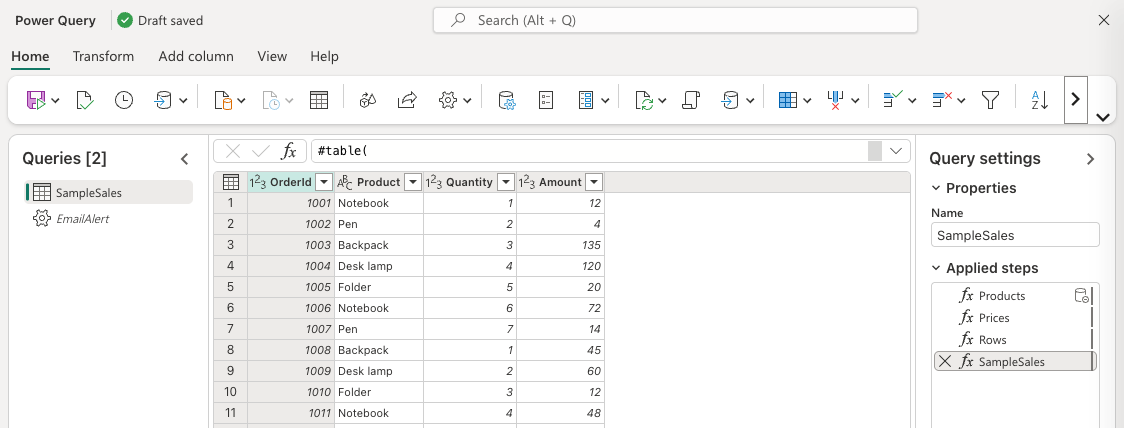
Configure a send email action
On Home, select Send email in the New action group.
If the dialog reports invalid or missing credentials, select Configure connection and complete the Outlook connection setup. Return to the dialog and check that the credential warning no longer appears.
Set To to your test mailbox. Use a single recipient for the first run.
Set Subject to
Send email documentation test - run 1.Set Body to the following plain text:
 This is a send email documentation test using synthetic data.
SampleSales contains 100 generated rows.
No customer data is included.
Review the configured recipient, subject, and body before proceeding.
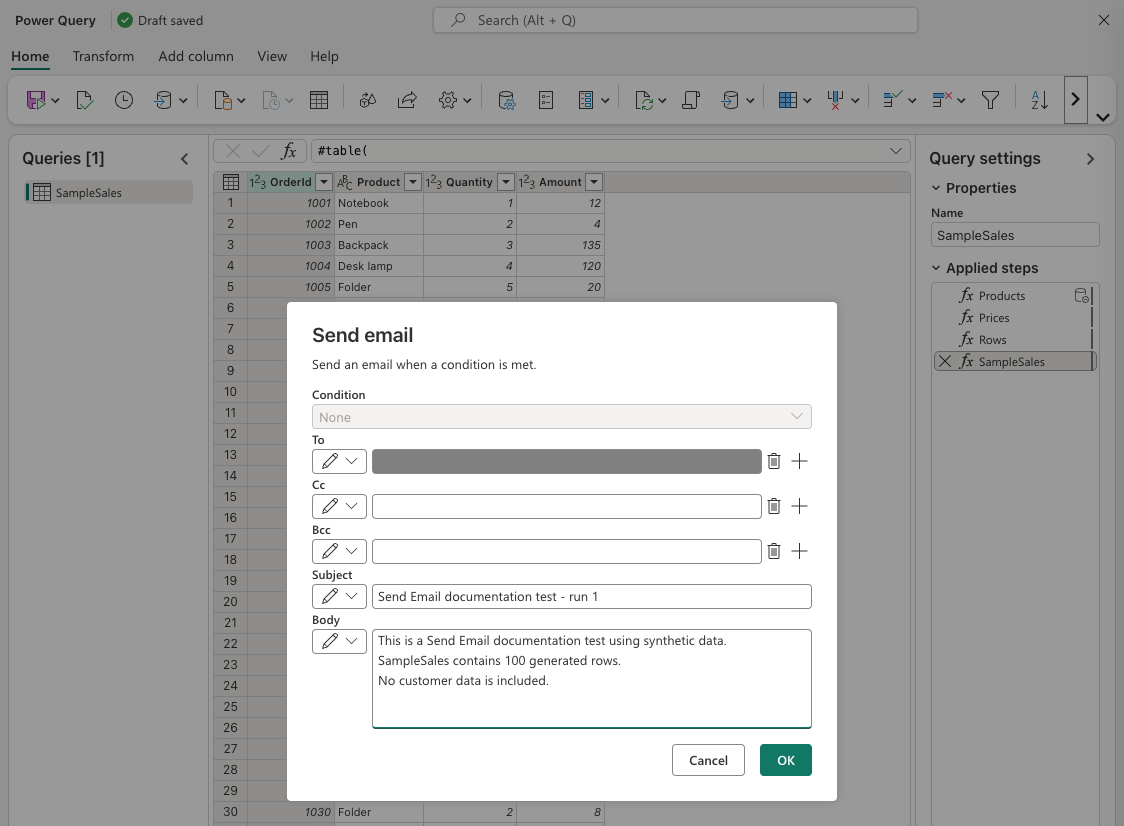
Select OK to create the action query. This example uses the generated query
EmailAlert, whose preview result type is Action.
Leave Cc and Bcc empty for this example. The preceding screenshot shows Condition disabled at None; this example doesn't configure a condition.
Run and verify delivery
- Confirm that you want to send the configured message to the test mailbox.
- Select Save & run to save the dataflow and start its refresh. Don't start another refresh while waiting for the result.
- Open Recent runs for the dataflow and record the refresh start time and final status.
- Open the destination mailbox and find the message by its subject.
- Compare the received sender, recipient, subject, and body with the configuration. Check that the three body lines remain distinct.
- Record how many copies arrived. Investigate unexpected duplicates before repeating the test or enabling a schedule.
For additional tests, use a distinct subject and review the recipient and expected message before each run. The following sections show how to generate the body with a named text query or an inline M expression.
Example message
The following example shows the received message body:
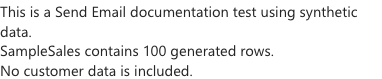
Generate the body with an M query
Use a named text query to read from the SampleSales sample query when you want to preview the message separately from the email action. Use the result as the body of the EmailAlert send email action query created earlier. The named query must return a text value, not a table.
Add a Blank query with the following expression:
let
    RowCount = Table.RowCount(SampleSales),
    Message = "Named query test: SampleSales contains "
        & Text.From(RowCount) & " rows."
in
    Message
Name the query
EmailBodyText. Confirm that its preview result is Text:Named query test: SampleSales contains 100 rows.In Queries, right-click
EmailBodyTextand clear Enable staging. Leave the source query's staging setting unchanged.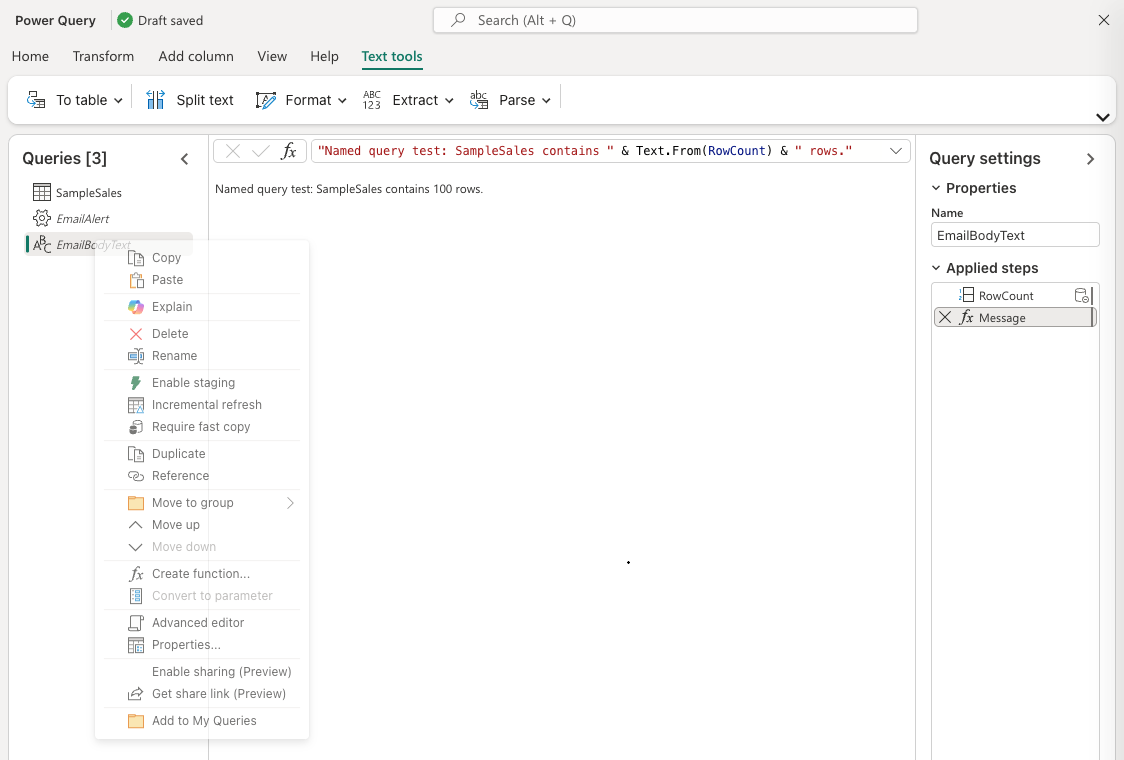
Select
EmailAlert. In Applied steps, double-click itsEmailAlertstep to reopen the Send email dialog.Open the input-mode menu beside Body and choose Select a query. Select
EmailBodyText.Set Subject to
Send email M test A - named query, confirm the recipient, and select OK.Select Save & run once. Verify the refresh result and received message.
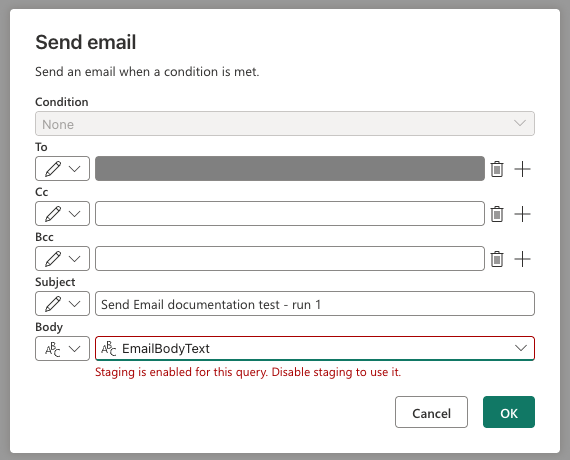
Create the text query before opening Select a query. Choose EmailBodyText to configure the action with Body = EmailBodyText.
Important
Disable staging on the text query referenced by Body before running the action.
The dialog also identifies a staged text query before running it:
Write an M expression in the action
To read directly from the SampleSales sample query without a separate named query, edit the EmailAlert send email action query's M expression in the formula bar. This method is different from typing M syntax into the dialog's Enter a value field.
Select
EmailAlertin Queries.In the formula bar, replace only the
Bodyvalue with the following expression. Preserve the existing connection and recipient fields.Body = "Inline M test: SampleSales contains " & Text.From(Table.RowCount(SampleSales)) & " rows."This fragment belongs inside the action's message record; it isn't a complete standalone query.
In the same record, set
Subjectto"Send email M test B - inline expression".Accept the formula edit and confirm that the preview result type is Action. Preview acceptance alone doesn't confirm runtime success or delivery.
Review the recipient and expected body, then select Save & run once.
Check that the received body is
Inline M test: SampleSales contains 100 rows.
The expression produces the calculated row count in the message, not the M syntax.
Note
Enter a value is a literal-text input. M syntax entered there is stored as text rather than evaluated as an expression. Use Select a query for a named text result or edit the action's M directly for an inline expression.
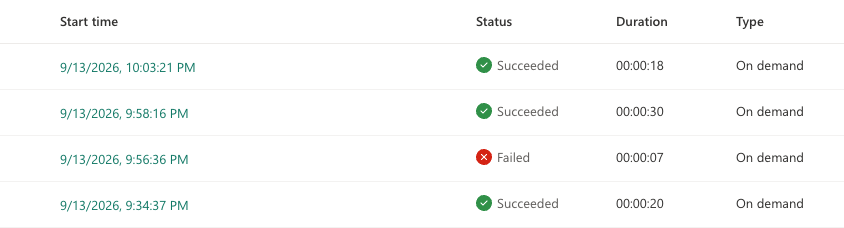
The following example refresh history shows a staging-related failure followed by successful runs using the inline expression and the unstaged text query:
Troubleshoot send email
The Outlook connection can't authenticate
Record the displayed error and check which account is authenticating the connection. Confirm that the connection is available to the dataflow. Don't collect passwords, tokens, or unredacted credentials in diagnostic evidence.
A refresh succeeds but no message arrives
Check the configured recipient and the mailbox's junk folder. Compare the refresh time with the test subject, and check whether another refresh ran.
The refresh fails
If error 101294 says the action's Body references a query enabled for staging, clear Enable staging on that referenced text query. Review the message before retrying; a retry starts another dataflow run.
Open the run details and record the error text, refresh identifier, and timestamp. Include any activity or request identifier exposed by the error. Distinguish an error in the source query from an error involving the email action.
See View refresh history and monitor your dataflows.