Note
Access to this page requires authorization. You can try signing in or changing directories.
Access to this page requires authorization. You can try changing directories.
Organizations often use separate development, test, and production environments to support continuous integration and continuous delivery (CI/CD) for dbt workloads. Although the dbt project remains unchanged, its adapter configuration must reference the resources available in each environment.
Variable Library separates environment-specific adapter values from the dbt job definition. After the initial configuration, the active value set in each workspace resolves the appropriate adapter settings. You can deploy the same dbt job across environments without reconfiguring supported fields after each deployment.
This article uses the Jaffle Shop sample project and the Microsoft Fabric Data Warehouse adapter. Variable Library-enabled fields differ by adapter.
Prerequisites
Before you begin, ensure you have:
- Permission to create Fabric items.
- Access to Fabric deployment pipelines.
- Permission to create and modify workspaces, warehouses, variable libraries, and dbt jobs.
Create the workspaces and warehouses
Create three Fabric workspaces:
dbt-vl-devdbt-vl-testdbt-vl-prod
In each workspace, create a Fabric Data Warehouse named
jaffle_wh.In each warehouse, use the same schema name. This article uses the
dboschema.
Important
The connection name and schema name aren't variable-enabled. Use the same connection name and schema name across development, test, and production.
Collect the warehouse values
For each warehouse, collect the values that identify it in its workspace:
Open the warehouse.
From the browser URL, copy the workspace ID, which follows
/groups/.From the same URL, copy the warehouse ID, which follows
/warehouses/.In the lower-left corner of the warehouse page, select Copy SQL connection string.
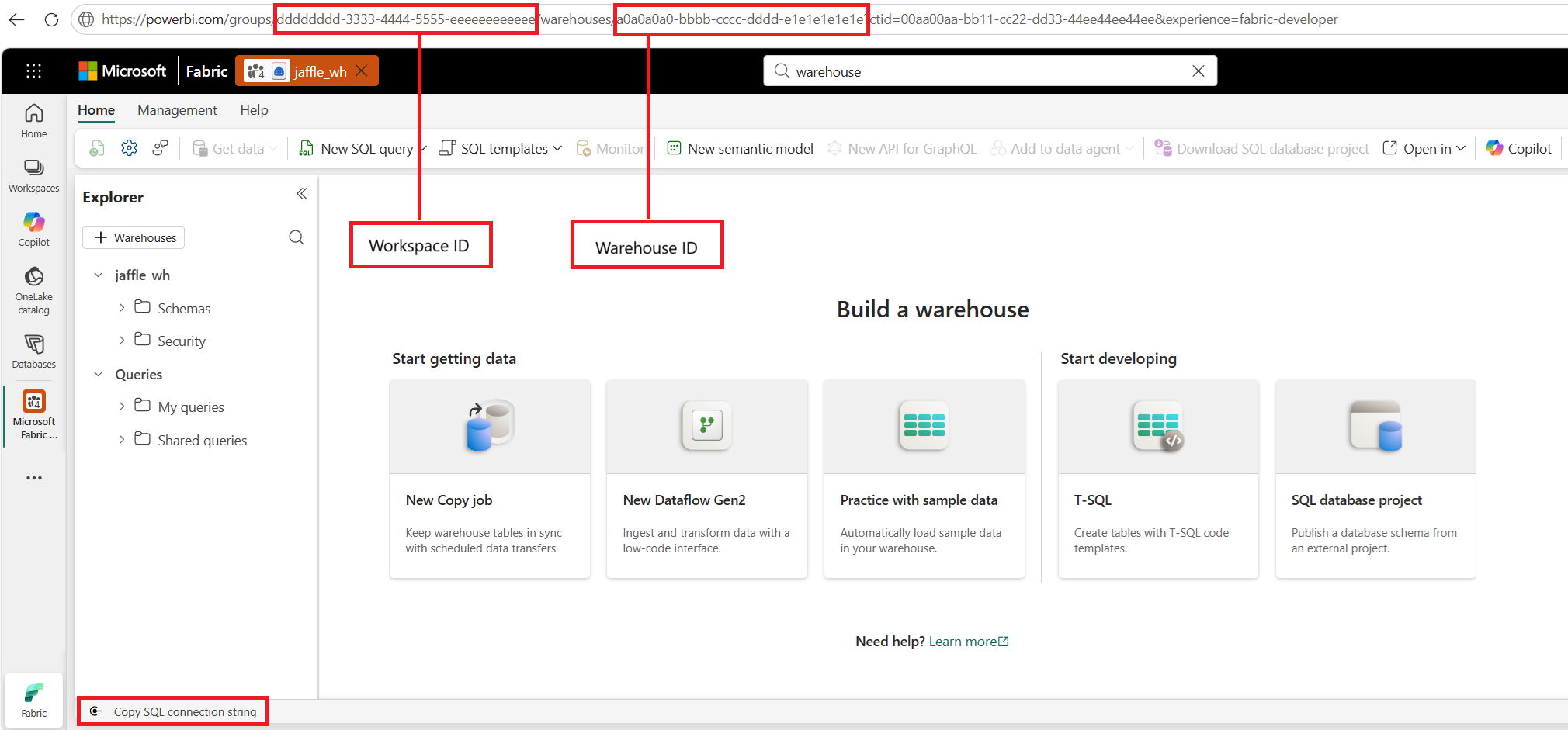
Retain the three values for each environment so that you can add them to Variable Library.
Create the Variable Library
In the
dbt-vl-devworkspace, select + New item.Search for and select Variable library.
Create a Variable Library named
dbt_job_cicd_variables.Create the following String variables and enter the development environment values as their default values:
Variable Default value workspaceIDDevelopment workspace ID artifactIDDevelopment Warehouse ID sqlEndpointDevelopment SQL connection string Create an alternative value set named
Test, and enter the test environment values for all three variables.Create another alternative value set named
Production, and enter the production environment values for all three variables.Save the Variable Library.
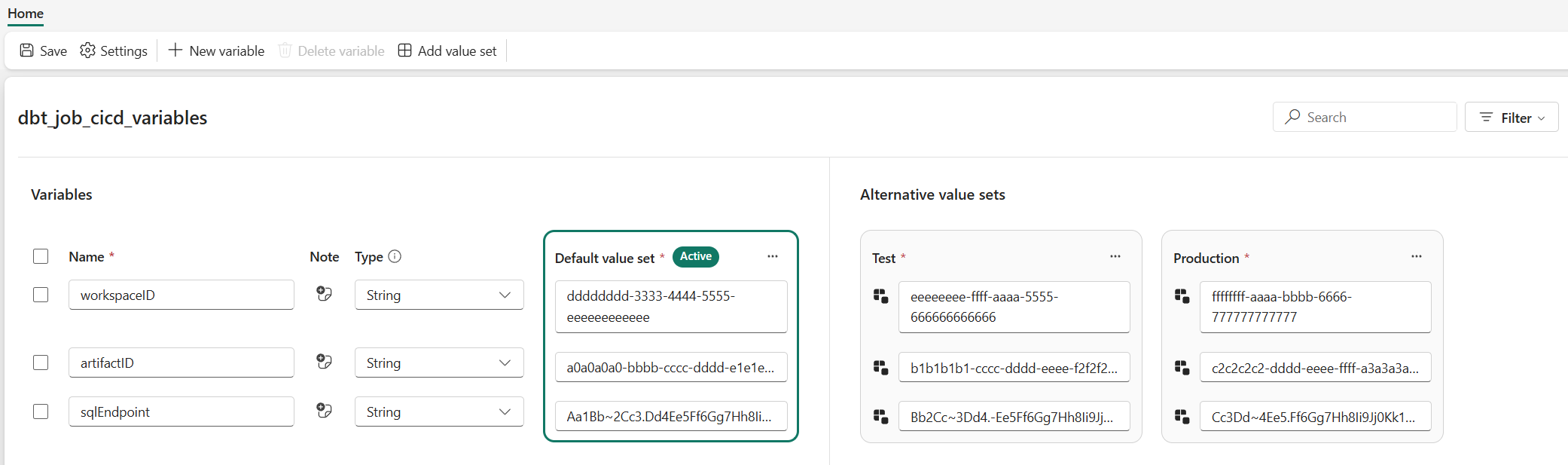
For more information about creating variables and value sets, see Variable Library value sets.
Create the dbt job
Create the dbt job in the development workspace and connect it to the development warehouse before you assign variable library references.
- In the
dbt-vl-devworkspace, select + New item. - Search for dbt job, enter a name, and select Create.
- Select Practice with Sample Project.
- Select the Jaffle Shop (Classic) sample project.
- Select Select a Profile.
- Select the development warehouse named
jaffle_wh. - For the schema, enter
dbo. - Select Connect.
For more information about the sample, see Practice with a sample dbt project.
Assign the Variable Library references
After you create the dbt project, select Adapter settings.
Locate the warehouse adapter connection, and select Edit connection.
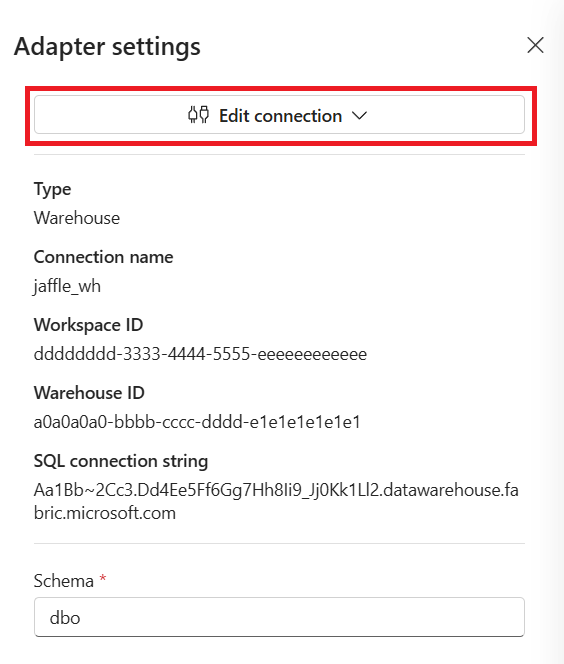
Assign the following Variable Library references:
Adapter field Variable Library reference Workspace ID workspaceIDWarehouse ID artifactIDSQL connection string sqlEndpointKeep the connection name as
jaffle_whand the schema asdbo.Save the configuration.
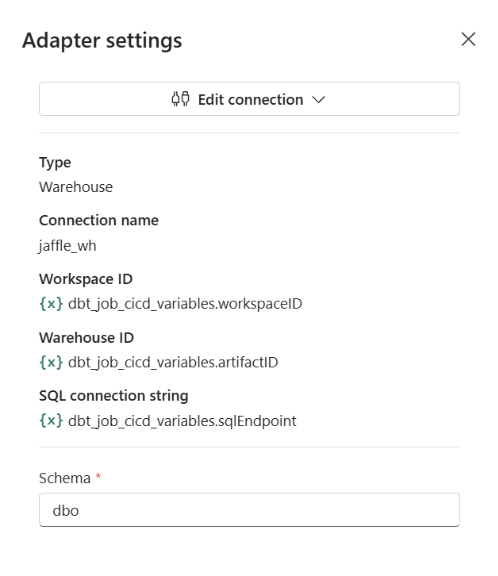
Verify the dbt job in development
- Run the dbt job with the default Build command.
- Confirm that the run succeeds.
- In the
jaffle_whwarehouse, confirm that the Jaffle Shop models are created in thedboschema.
Deploy the dbt job to test
Create a deployment pipeline with Development, Test, and Production stages.
Assign the workspaces to the corresponding stages:
Stage Workspace Development dbt-vl-devTest dbt-vl-testProduction dbt-vl-prodDeploy the dbt job and Variable Library from Development to Test.
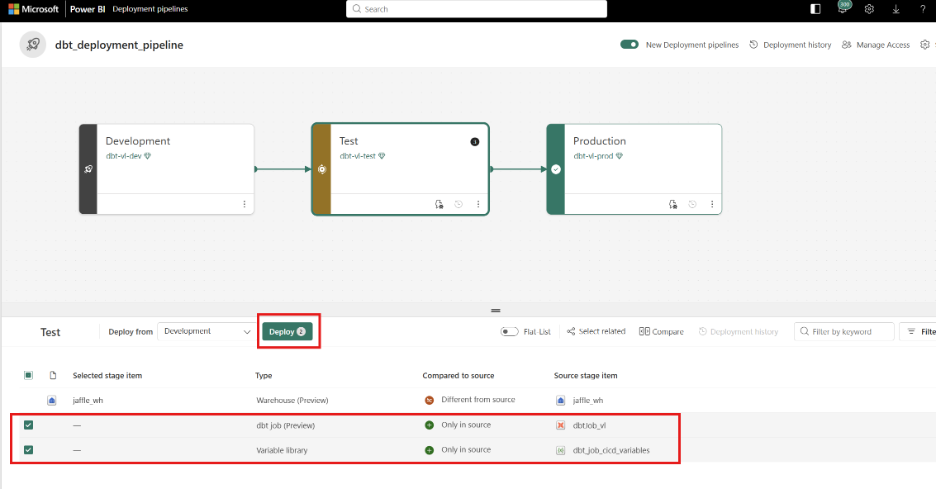
In
dbt-vl-test, open the deployed Variable Library.Set
Testas the active value set.Run the deployed dbt job.
Confirm that the Jaffle Shop models are created in the test warehouse.
The workspace ID, Warehouse ID, and SQL connection string resolve from the active Test value set.
Deploy the dbt job to production
- Deploy the dbt job and Variable Library from Test to Production.
- In
dbt-vl-prod, open the deployed Variable Library. - Set
Productionas the active value set. - Run the deployed dbt job.
- Confirm that the Jaffle Shop models are created in the production warehouse.
All value sets deploy to every stage, but only one value set is active in each workspace. A newly deployed Variable Library initially uses its default value set. Later deployments don't overwrite the active value-set selection in the target workspace.
Deploy a dbt job activity across environments
When you deploy a pipeline and its referenced dbt job together, the dbt job activity can use a relative reference to resolve the corresponding dbt job in the target workspace. You don't need to maintain environment-specific workspace or dbt job IDs for this scenario.
- In the development workspace, create a pipeline and add a dbt job activity.
- Configure the activity to use the dbt job in the development workspace.
- Deploy the pipeline and the referenced dbt job together from Development to Test.
- In the test workspace, open the deployed pipeline and verify that the dbt job activity references the corresponding dbt job in the test workspace.
- Run the pipeline and confirm that the dbt job completes successfully.
- Repeat the deployment from Test to Production.
The pipeline-to-dbt job reference resolves in the target workspace through relative reference. The deployed dbt job then uses the active Variable Library value set to resolve the environment-specific adapter configuration.
Limitations
- Assign Variable Library references through Edit connection. During the initial dbt project setup, select the development warehouse and complete the connection first.
- The connection name and schema name aren't variable-enabled. Use the same values across all deployment environments.