Note
Access to this page requires authorization. You can try signing in or changing directories.
Access to this page requires authorization. You can try changing directories.
Microsoft Fabric supports MLflow up to version 3.1, the open-source machine learning tracking platform. With this support, you can use the following capabilities to track and inspect machine learning and generative AI workloads in Fabric:
- LoggedModel, introduced in MLflow 3, as a first-class entity that links each model to its source run, code, configuration, parameters, metrics, and datasets.
- Traces that capture prompts, responses, tool calls, latency, and token usage from large language model (LLM) and generative AI applications.
This article explains what changes in MLflow 3, how to use the new features in Fabric, and how to migrate from MLflow 2.x.
Prerequisites
Get a Microsoft Fabric subscription. Or, sign up for a free Microsoft Fabric trial.
Sign in to Microsoft Fabric.
Switch to Fabric by using the experience switcher on the lower-left side of your home page.

A workspace upgraded to the latest machine learning tracking experience. To check eligibility and upgrade, see Upgrade your machine learning tracking system.
mlflowversion 3.0 or later. Fabric notebooks ship with MLflow 2.x by default, so you need to upgrade to MLflow 3 by running the following command in your notebook:%pip install "synapseml-mlflow[online-notebook]>=2.0.3" "mlflow-skinny==3.1.0" "opentelemetry-api<=1.40.0"The same command also installs the upgraded
synapseml-mlflowpackage for cross-workspace and outside-Fabric scenarios.
What changes in MLflow 3
| Area | MLflow 2.x | MLflow 3 |
|---|---|---|
| Model logging API | log_model(model, artifact_path="model") |
log_model(model, name="my_model", params={...}) (legacy artifact_path still works) |
| Model representation | Artifact attached to a run | First-class LoggedModel entity linked to a run |
| Experiment UI | Single experiment view | ML experiment vs AI experiment types, plus a Logged Models section and a Traces tab |
| Generative AI observability | Not available | Traces for prompts, responses, tool calls, latency, and tokens |
MLflow 3 is backward compatible with MLflow 2.x workflows. Existing experiments, runs, and notebooks that use mlflow>=2 continue to work without changes.
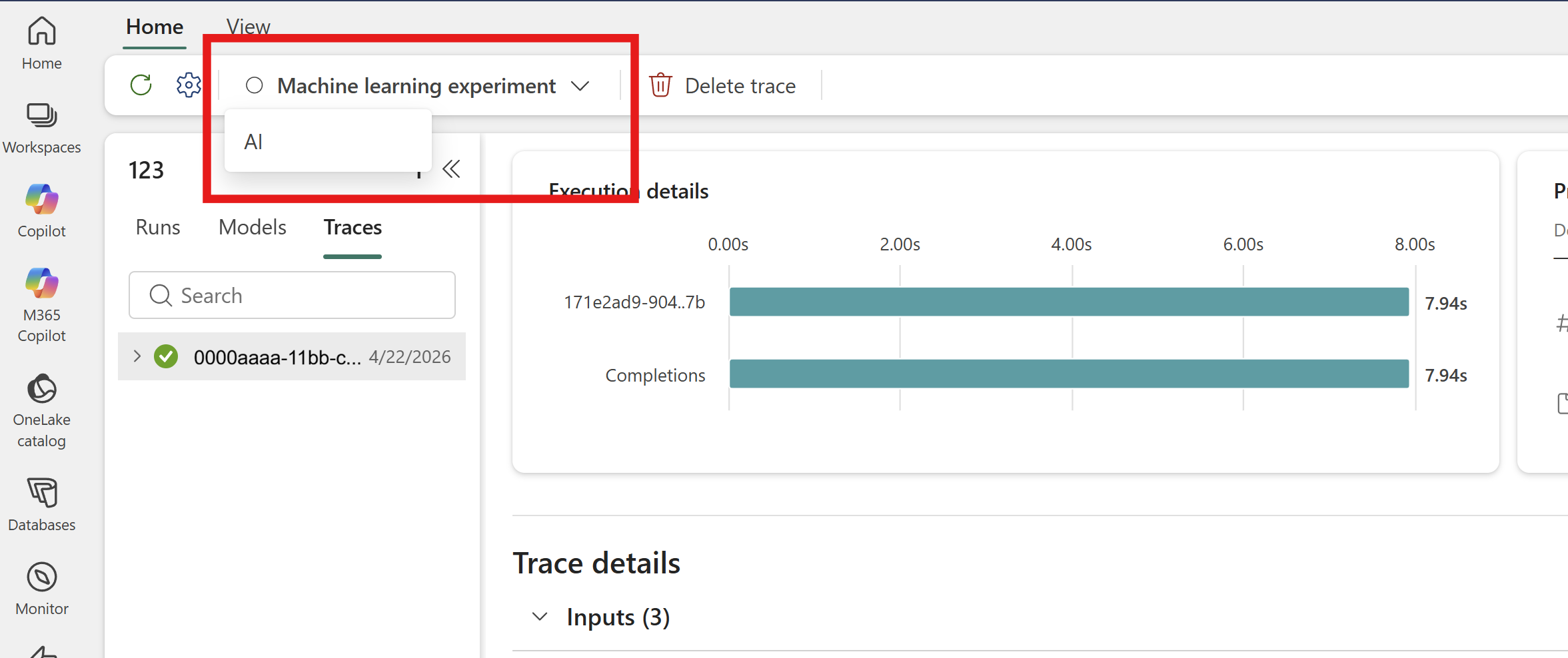
Choose an experiment type
When you create an experiment, the ribbon includes an experiment-type switch:
- ML experiment — classic tracking surface for runs, parameters, metrics, and LoggedModels. Use this type for traditional machine learning workflows.
- AI experiment — tracing-first surface tuned for generative AI workloads. The Traces tab is front and center, and the run detail view emphasizes prompts, tool calls, and token usage.
Existing experiments created before MLflow 3 default to the ML experiment type. You can switch types from the ribbon at any time.
Start from a notebook template
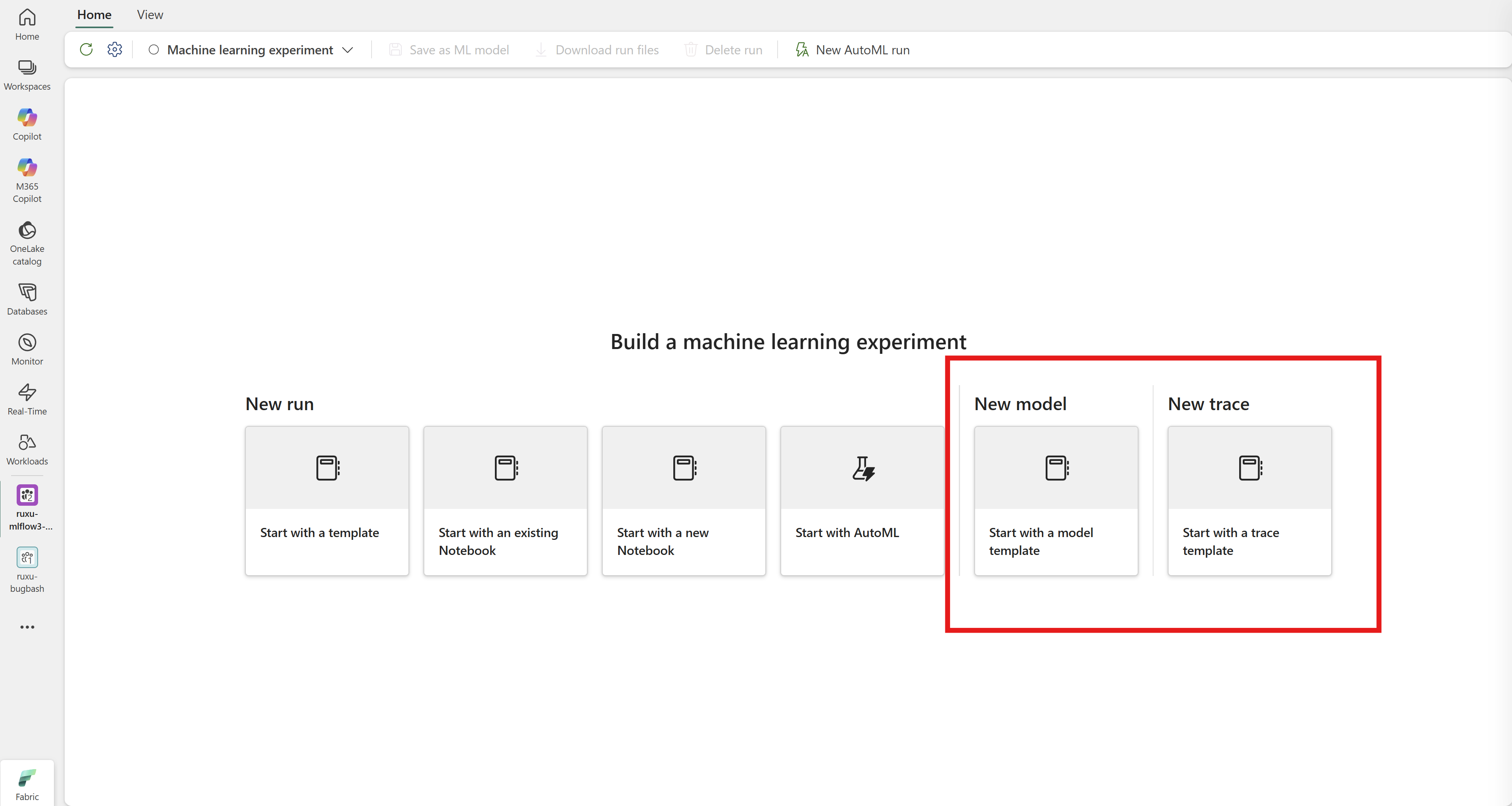
Two notebook templates ship with the release to get you running in one click. When you open an experiment that doesn't have any runs yet, the empty experiment page surfaces two starter cards:
- New model template — an end-to-end ElasticNet example that demonstrates the new LoggedModel API, including
params=,get_logged_model(), and metrics linked to both the LoggedModel and a dataset. - New trace template — covers
@mlflow.tracedecorators, OpenAI autologging with Fabric credentials, LangChain agents, and the OpenAI Agents SDK.
Select a card to open a preconfigured notebook with the right MLflow plugin versions and authentication.
Log a model with LoggedModel
In MLflow 3, every call to log_model() creates a LoggedModel entity that's linked to the source run, its parameters, metrics, and the datasets it was trained on. The following example trains an ElasticNet model on the Iris dataset, logs it as a LoggedModel, and links the evaluation metrics back to that LoggedModel and dataset:
import pandas as pd
from sklearn.linear_model import ElasticNet
from sklearn.metrics import mean_squared_error, mean_absolute_error, r2_score
from sklearn.datasets import load_iris
from sklearn.model_selection import train_test_split

import mlflow
import mlflow.sklearn
from mlflow.entities import Dataset

mlflow.set_experiment("mlflow3-logged-model-demo")

def compute_metrics(actual, predicted):
    rmse = mean_squared_error(actual, predicted)
    mae = mean_absolute_error(actual, predicted)
    r2 = r2_score(actual, predicted)
    return rmse, mae, r2

iris = load_iris()
iris_df = pd.DataFrame(data=iris.data, columns=iris.feature_names)
iris_df["quality"] = (iris.target == 2).astype(int)
train_df, test_df = train_test_split(iris_df, test_size=0.2, random_state=42)

with mlflow.start_run() as training_run:
    # Wrap the training data as an MLflow Dataset so metrics can be linked to it.
    train_dataset: Dataset = mlflow.data.from_pandas(train_df, name="train")
    train_x = train_dataset.df.drop(["quality"], axis=1)
    train_y = train_dataset.df[["quality"]]

    lr = ElasticNet(alpha=0.5, l1_ratio=0.5, random_state=42)
    lr.fit(train_x, train_y)

    # Log the model. `params=` attaches hyperparameters directly to the LoggedModel.
    model_info = mlflow.sklearn.log_model(
        sk_model=lr,
        name="elasticnet",
        params={"alpha": 0.5, "l1_ratio": 0.5},
        input_example=train_x,
    )

    # Retrieve the LoggedModel to inspect its identifier and parameters.
    logged_model = mlflow.get_logged_model(model_info.model_id)
    print(logged_model.model_id, logged_model.params)

    # Compute metrics and link them to both the LoggedModel and the training dataset.
    predictions = lr.predict(train_x)
    rmse, mae, r2 = compute_metrics(train_y, predictions)
    mlflow.log_metrics(
        metrics={"rmse": rmse, "r2": r2, "mae": mae},
        model_id=logged_model.model_id,
        dataset=train_dataset,
    )
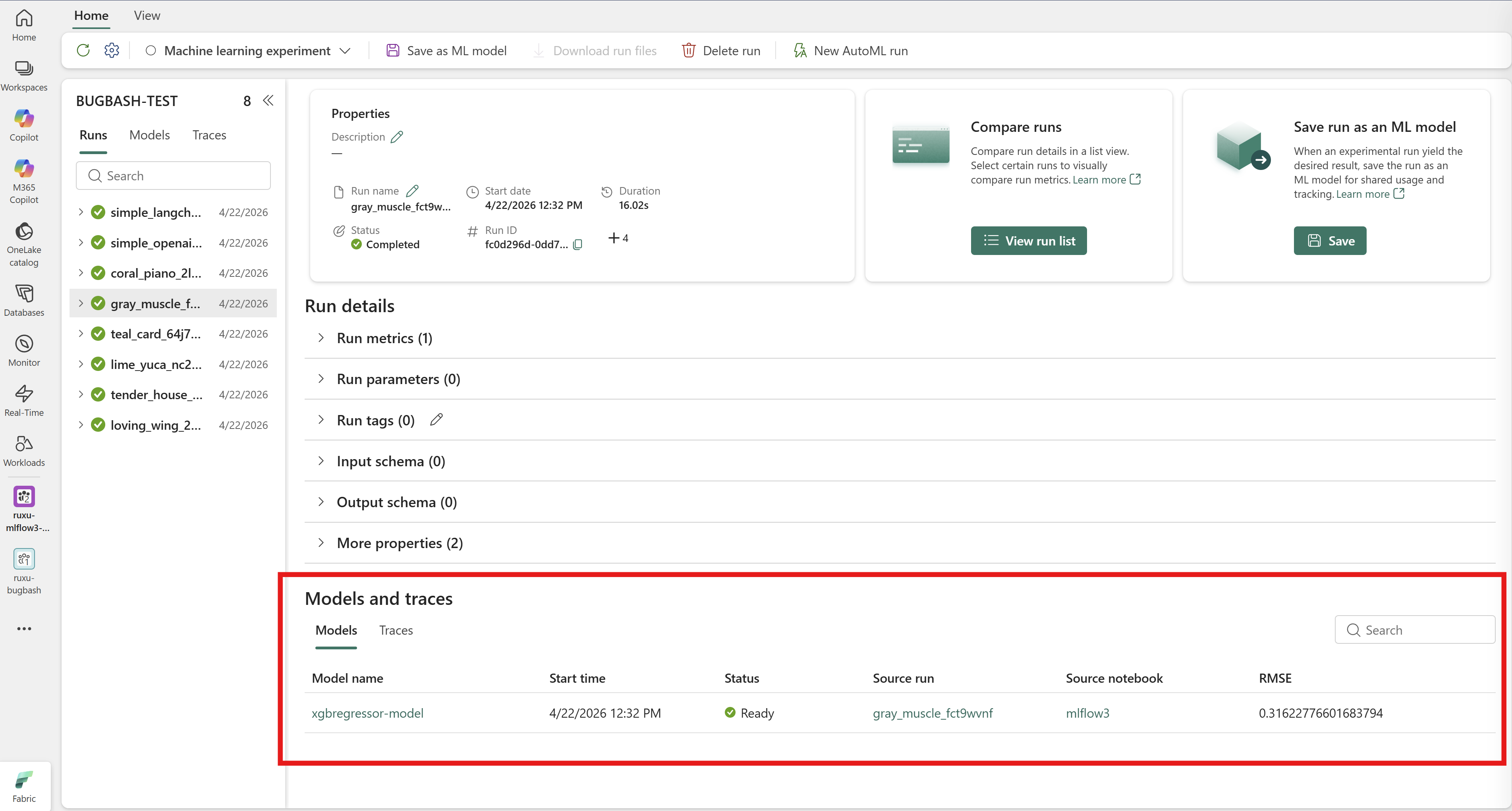
After the run completes, the model appears as a LoggedModel in two places:
- The Logged Models section on the experiment page.
- The Logged models tab on the run detail page.
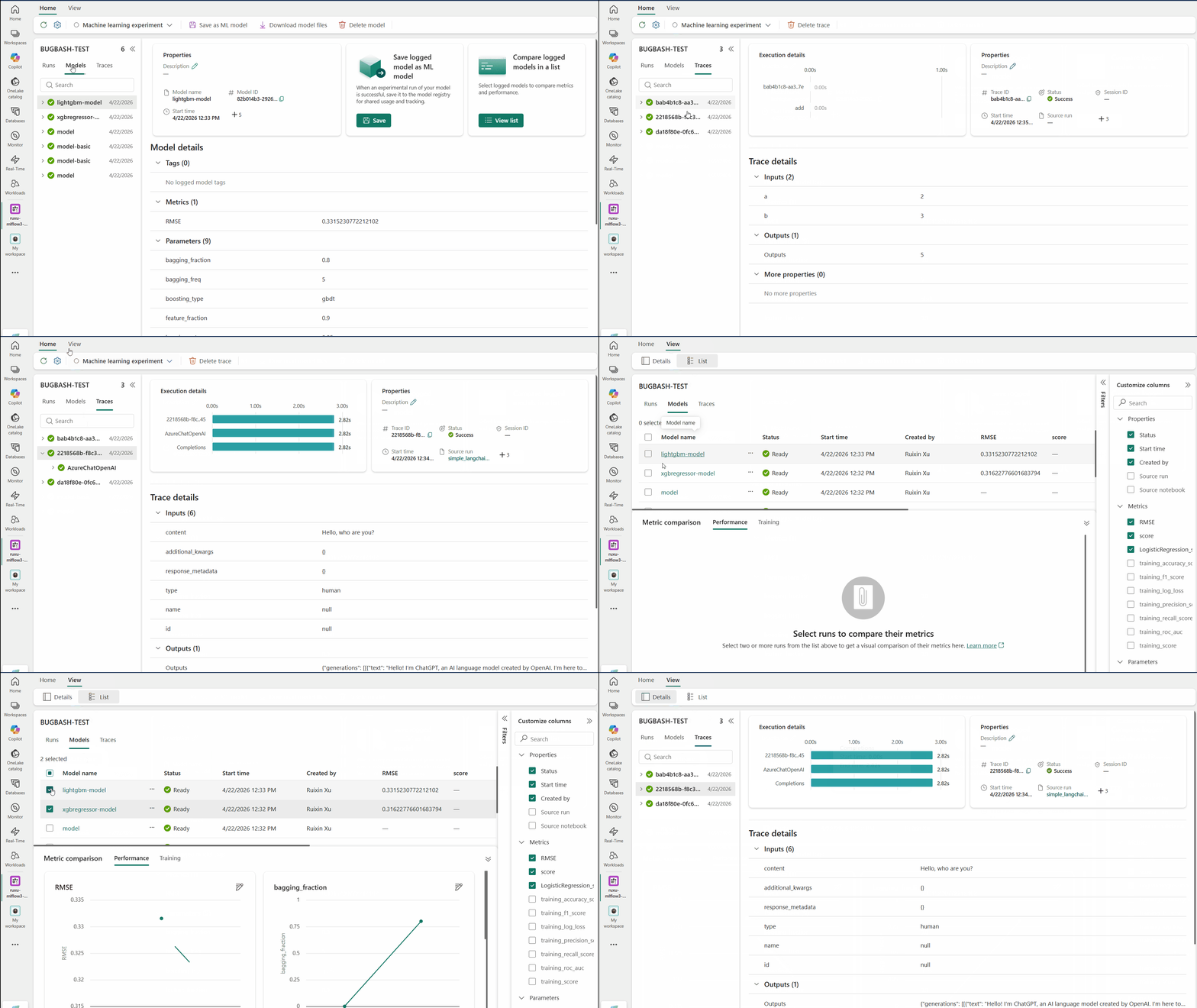
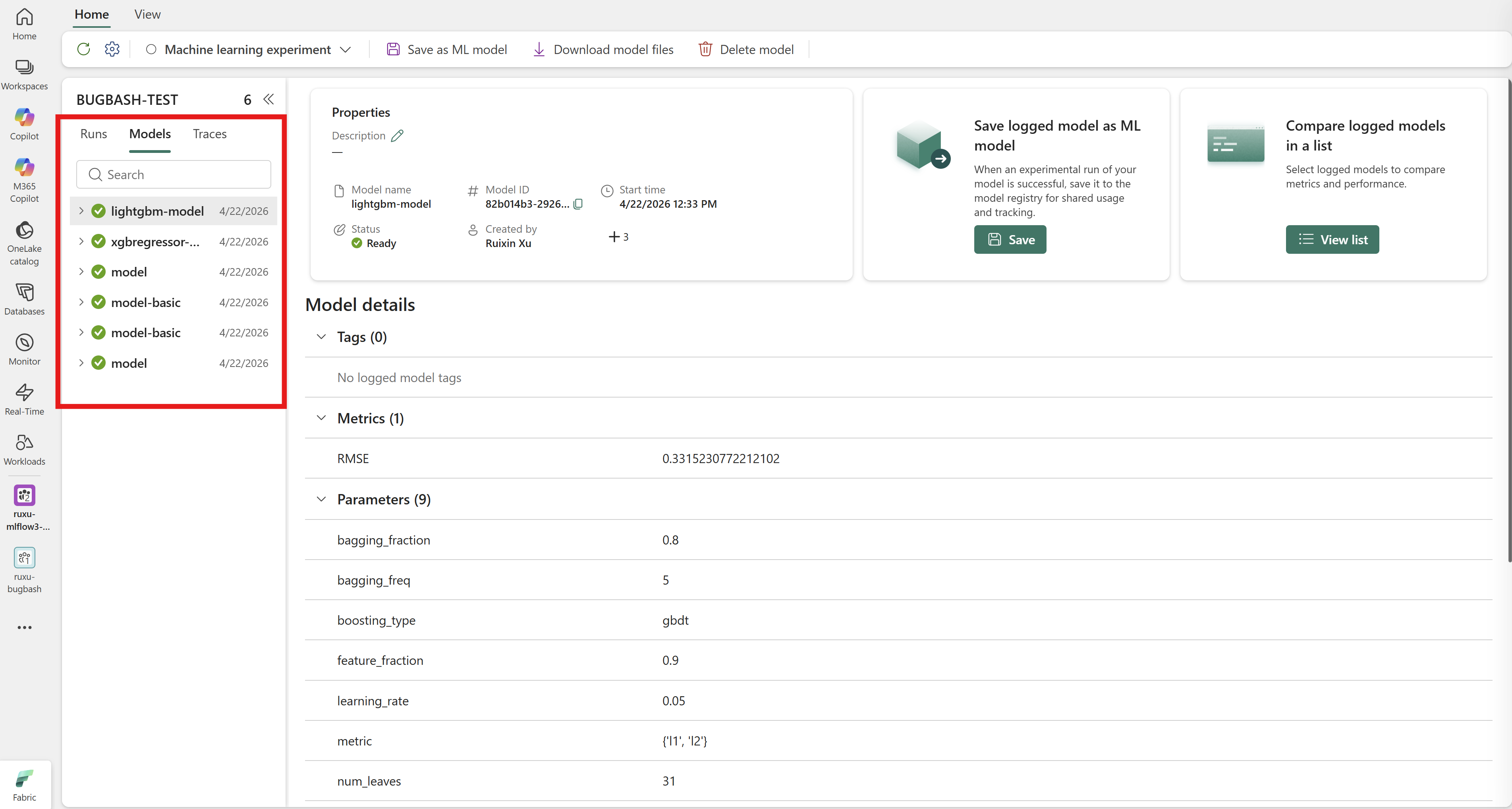
Inspect a LoggedModel
Select a LoggedModel from the list to open its detail page. The detail page shows:
- Parameters and metrics captured for the model.
- Source run link that navigates to the run that produced the model.
- Datasets used during training.
- Environment (Python version, dependencies, signature).
Compare LoggedModels
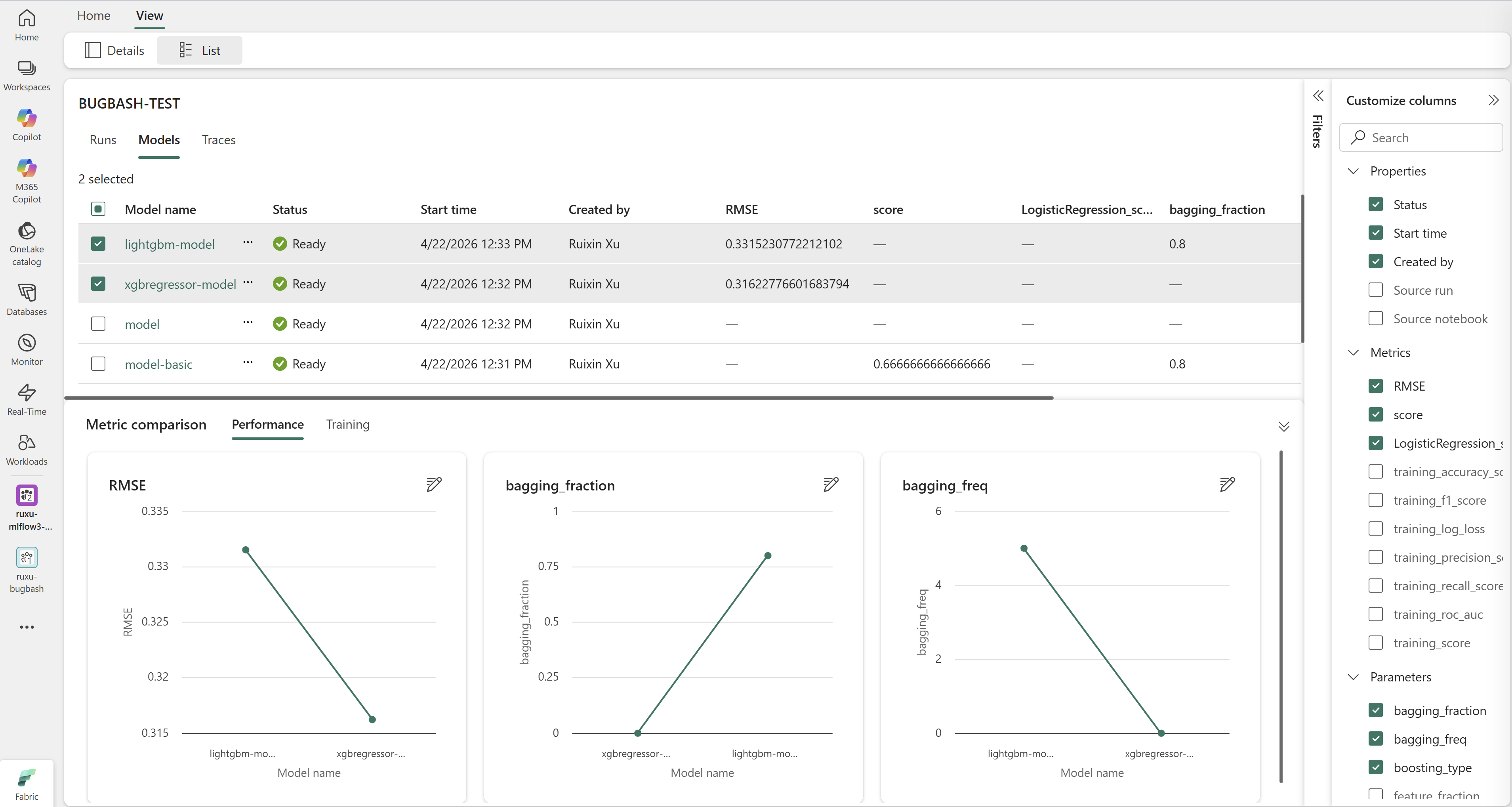
In the Logged Models section, select multiple LoggedModels to compare them using built-in line charts, scatter plots, and parallel coordinates. You can also search, filter, sort, and group LoggedModels by metric, parameter, tag, or metadata.
Register a LoggedModel
To promote a LoggedModel to a Fabric ML model item, open its detail page and select Register model. You can register it as a new ML model or as a new version of an existing model. After registration, the LoggedModel detail page shows a link to the registered model item.
Capture generative AI traces
Traces capture the execution of an LLM or generative AI application as a hierarchy of spans. Each trace shows inputs, outputs, latency, token usage, and any tool or function calls. Use the AI experiment type for the best traces-first experience.
Trace a function with the @mlflow.trace decorator
Add @mlflow.trace to any function to record its inputs, outputs, and duration. Use mlflow.update_current_trace() to attach tags from inside the function:
import mlflow
import time

mlflow.set_experiment("mlflow3-trace-demo")

@mlflow.trace
def process_user(user_id, action):
    mlflow.update_current_trace(tags={
        "user_id": user_id,
        "action": action,
        "environment": "production",
    })
    time.sleep(1)
    return f"Processed action {action} for user {user_id}"

with mlflow.start_run(run_name="function_call"):
    process_user(user_id=123, action="login")
When decorated functions call each other, MLflow automatically nests the spans so you can visualize the full call tree on the trace detail page.
Autolog OpenAI chat completions
Enable OpenAI autologging so that every call to the OpenAI client is traced automatically, without adding decorators. The following example uses AzureOpenAI with Fabric-managed credentials:
import mlflow
from openai import AzureOpenAI
from synapse.ml.fabric.credentials import get_openai_httpx_sync_client

mlflow.openai.autolog()

client = AzureOpenAI(
    api_version="2025-04-01-preview",
    http_client=get_openai_httpx_sync_client(),
)

with mlflow.start_run(run_name="simple_openai_chat") as run:
    response = client.chat.completions.create(
        model="gpt-4.1",
        messages=[
            {"role": "system", "content": "You are a helpful assistant."},
            {"role": "user", "content": "What are the main components of MLflow?"},
        ],
        temperature=0.7,
    )
    print(response.choices[0].message.content)
    print(f"Trace ID: {mlflow.get_last_active_trace_id()}")
For agent frameworks, MLflow also ships autologging for LangChain (mlflow.langchain.autolog()) and the OpenAI Agents SDK. The New trace template includes complete, runnable examples for both, including multi-turn tool-calling conversations.
View traces
To view traces:
- Open an experiment that contains generative AI runs.
- Select the Traces tab.
- Select a trace to open the Trace detail view.
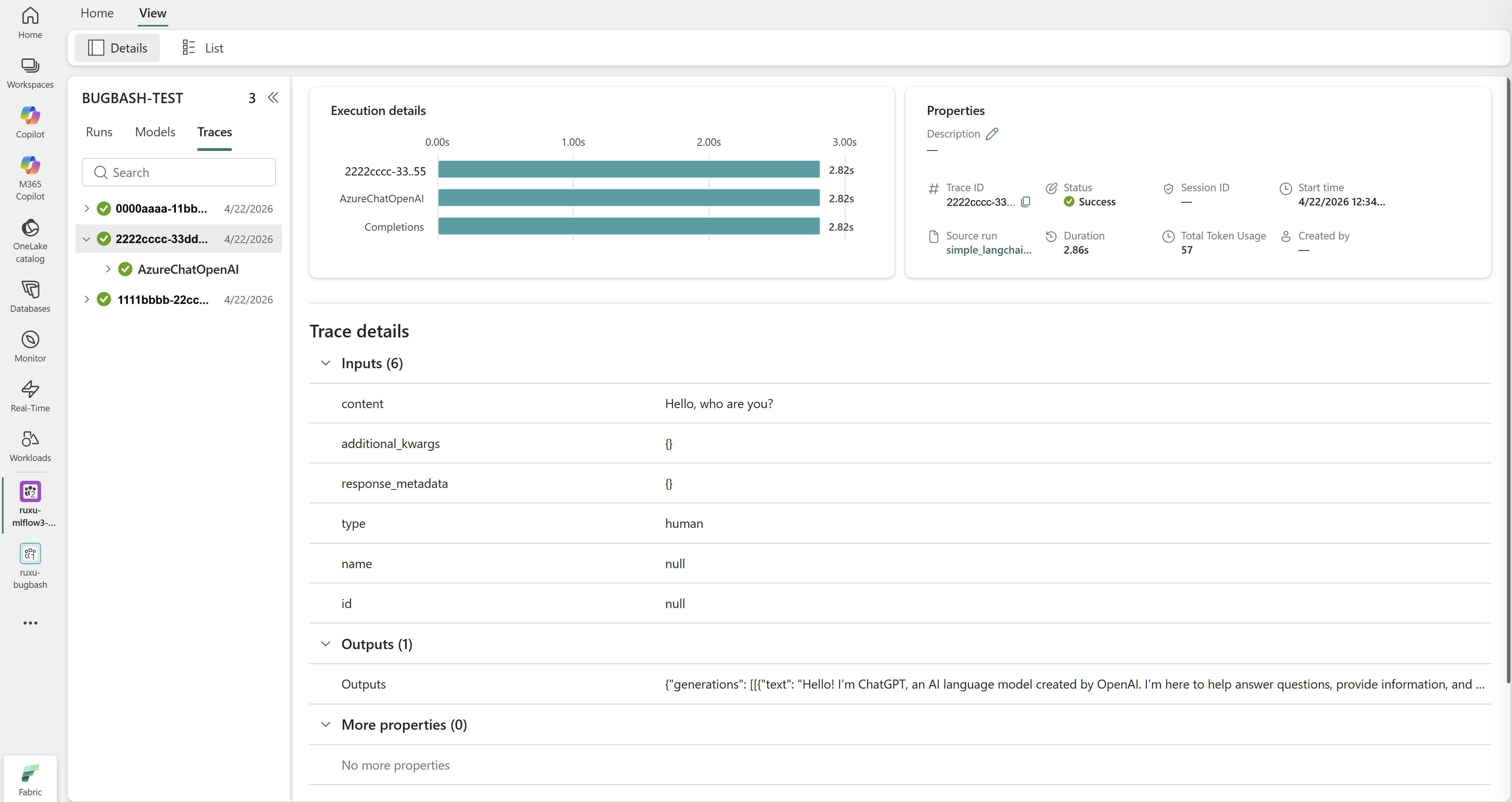
The trace detail view shows:
- A span tree with hierarchical breakdown of the request.
- Inputs, outputs, and attributes for each span.
- Prompt/response pairs for LLM spans (system, user, assistant).
- Latency, token usage, and model metadata (name, version, parameters).
- Tool and function calls with their inputs, outputs, and document IDs.
- Failed traces with exception type, message, and stack trace.
The trace list shows trace ID, input, output, duration, start time, and status (Completed, Failed, or Running). You can filter traces by user, status, or start time.
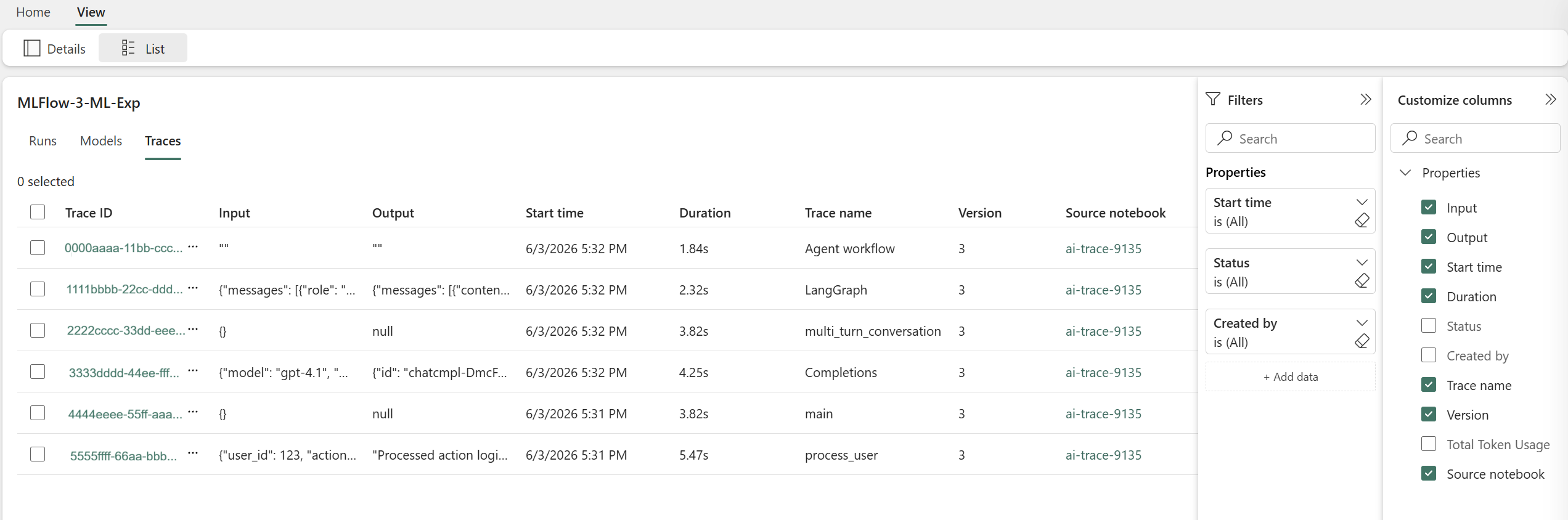
Traces produced by a run also appear on the run detail page under the Traces tab.
Migrate from MLflow 2.x
You can adopt MLflow 3 incrementally:
- Existing notebooks continue to run unchanged. The legacy
artifact_pathparameter onlog_model()still works and produces a LoggedModel. - New notebooks should use the
nameparameter for clarity. - Cross-workspace scenarios use the upgraded
synapseml-mlflowpackage. You no longer need to pinmlflow-skinnyto 2.22.2. For installation steps, see Manage MLflow models across workspaces and platforms.
What's not yet supported
Generative AI evaluation (mlflow.genai.evaluate()) is not yet enabled in Fabric. It's planned for a future release.