Note
Access to this page requires authorization. You can try signing in or changing directories.
Access to this page requires authorization. You can try changing directories.
The Fabric data agent enables organizations to build conversational systems using generative AI. By connecting Power BI semantic models as data sources, teams can ask natural language questions and receive accurate, context-rich answers without writing complex DAX or SQL queries.
However, the quality of AI responses depends heavily on how well you prepare your data sources. While Fabric data agent supports multiple data source types including lakehouses, warehouses, eventhouses, and ontologies, this guide focuses specifically on Power BI semantic models and walks through best practices for configuring them to maximize accuracy and relevance.
How the Fabric data agent works
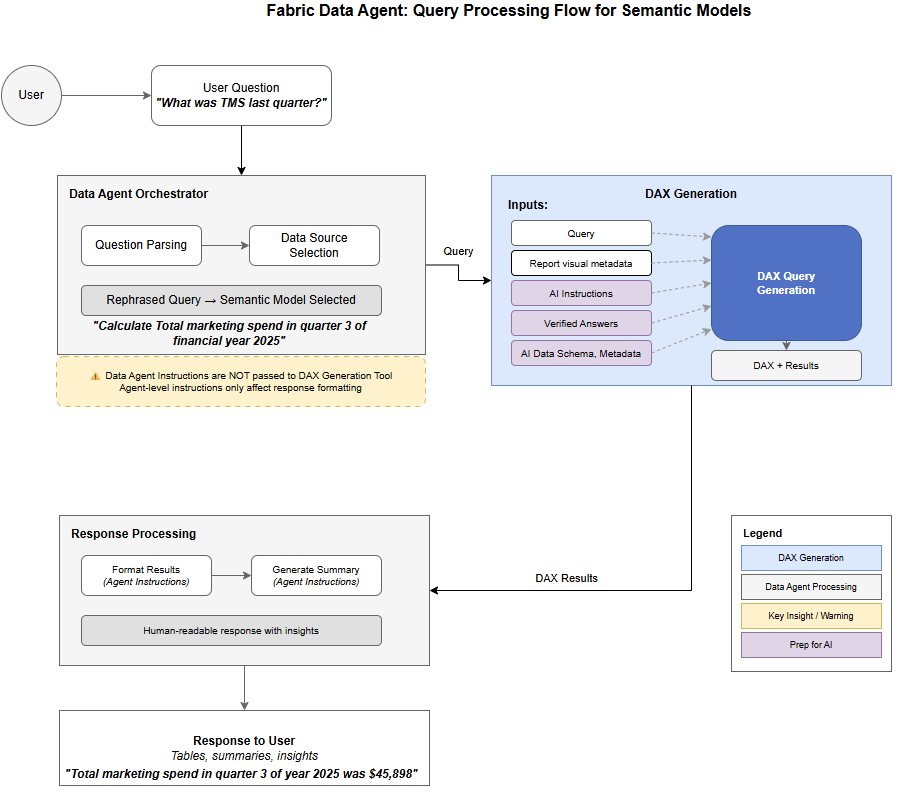
The data agent uses a layered architecture where user questions flow through an Orchestrator. The Orchestrator determines the appropriate data source and invokes specialized tools, including the DAX generation tool for Power BI semantic models to generate, validate, and execute queries.
The query processing flow
Question Parsing: The agent processes user questions through Azure OpenAI, ensuring compliance with security protocols and permissions and adhering to the Microsoft Responsible AI principles.
Data Source Selection: The system evaluates the question against available sources using schema information and AI instructions you provide.
Query Generation: For semantic models, the DAX generation tool generates DAX queries based on schema, metadata (synonyms, min and max values of numerical columns, report visual metadata, and more), context configured in Prep data for AI, and the conversation history.
Response Formatting: The agent formats results into human-readable responses with tables, summaries, or insights based on the agent instructions.
Advanced DAX generation (preview)
An advanced DAX generation tool is available for data agents on the preview runtime. Unlike standard DAX generation, which generates a query in a single pass, advanced DAX generation uses multiple reasoning steps to inspect model metadata, interpret the question, resolve ambiguity, and generate the DAX query.
Advantages of advanced DAX generation include:
- More accurate responses to complex questions: It reasons iteratively, inspects results, resolves ambiguity, and refines its approach across multiple steps.
- Instance value indexing: It searches values within semantic model columns to generate more accurate and reliable filters.
- Consistent answers across Microsoft experiences: It uses shared capabilities to improve response consistency across Fabric data agent, Fabric skills, Power BI, Microsoft 365 Copilot, and Fabric IQ plugin.
- Improved latency in some scenarios: Although the tool can perform multiple reasoning steps, its ability to more efficiently identify the relevant model objects and values can reduce response latency for some questions.
Use advanced DAX generation
To enable the feature, switch the data agent to the preview runtime.
Advanced DAX generation uses the semantic model metadata and Prep for AI configurations described in this article. Follow the best practices detailed in this article to maximize response accuracy and performance.
Instance value indexing currently requires the semantic model's Q&A setting to be enabled. This setting is enabled by default for Import and Direct Lake models. Since Q&A retires in December 2026, a replacement setting will support instance value indexing after retirement, and this article will be updated with the new configuration steps.
Prep for AI: Make semantic model AI ready
Power BI's Prep for AI feature provides three configuration components that directly impact how Fabric data agent interprets your semantic model. You can access these components in both Power BI Desktop and the Power BI service. Power BI Copilot also uses Prep for AI configurations, so investing time in setting these up benefits both Copilot and data agent responses.
Important
When querying semantic models, the DAX generation tool used by data agent relies solely on the semantic model's metadata and Prep for AI configurations. The DAX generation tool ignores any instructions you add at the data agent level for DAX query generation. Proper Prep for AI configuration is essential for accurate results.
AI data schemas
AI data schemas let you define a focused subset of your model for AI prioritization. While data agent also has its own table selection when adding a semantic model as a data source, configure your schema in Prep for AI first. The DAX generation tool uses this schema for creating DAX queries.
You can configure this schema in Power BI Desktop or the Power BI service by selecting Prep data for AI from the Home ribbon. Then, navigate to the Simplify data schema tab. From there, select which tables, columns, and measures the AI should use when generating responses. For detailed setup instructions, see Set an AI data schema.
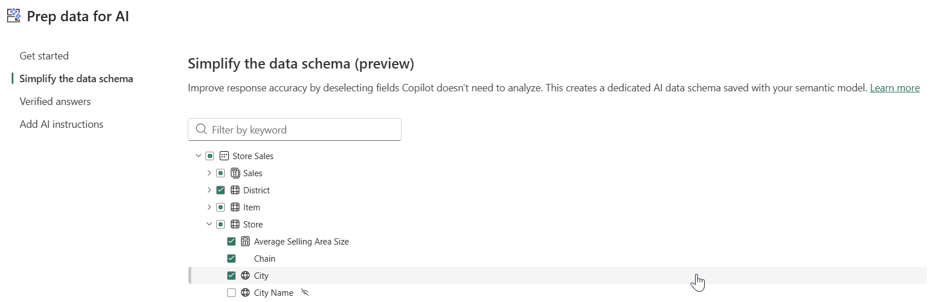
When you add the semantic model to data agent, select the same tables you defined in Prep for AI to ensure consistent behavior. First, define the scope of your data agent (the types of questions it should answer). Then, select only the relevant objects. This approach reduces ambiguity, improves accuracy, and reduces response latency.
The DAX generation tool relies on your model's metadata to interpret questions. Use clear, business-friendly names for tables, columns, and measures that reflect how users naturally refer to the data. For example, use 'Total Revenue' instead of 'TR_AMT' or 'Sales Region' instead of 'DIM_GEO_01'. This guidance is especially important for large models with overlapping or similarly named fields, where ambiguous names can lead to incorrect query generation.
Example: Resolving field ambiguity
| Without AI Data Schema | With AI Data Schema |
|---|---|
A user asks: "What were our sales last quarter?" The semantic model contains multiple sales-related measures: Total Revenue, Gross Sales, Net Sales, and Sales After Returns. The AI returns Gross Sales, but your team typically uses Net Sales for quarterly reporting. |
After configuring the AI data schema to include only Net Sales and exclude the other measures that aren't relevant, the same question now returns the expected metric. The AI no longer has to guess which "sales" measure the user intended. |
Tips for AI data schemas
For consistent and accurate results, ensure that you select the same tables in Fabric data agent that are also defined through AI Data Schemas in Prep for AI.
When selecting schema, also include dependent objects. For example, if a Total Revenue measure references two other measures that depend on additional columns, include all of those dependent objects in your schema. To identify dependencies, use the get_measure_dependencies function from the Semantic Link Labs library.
If you have a large semantic model, renaming all objects manually can be tedious. Use the Power BI Modeling MCP server to have an LLM generate business-friendly names for your tables, columns, and measures. Review and validate the changes before saving to ensure they don't break any DAX expressions, relationships, or other dependent objects.
Verified answers
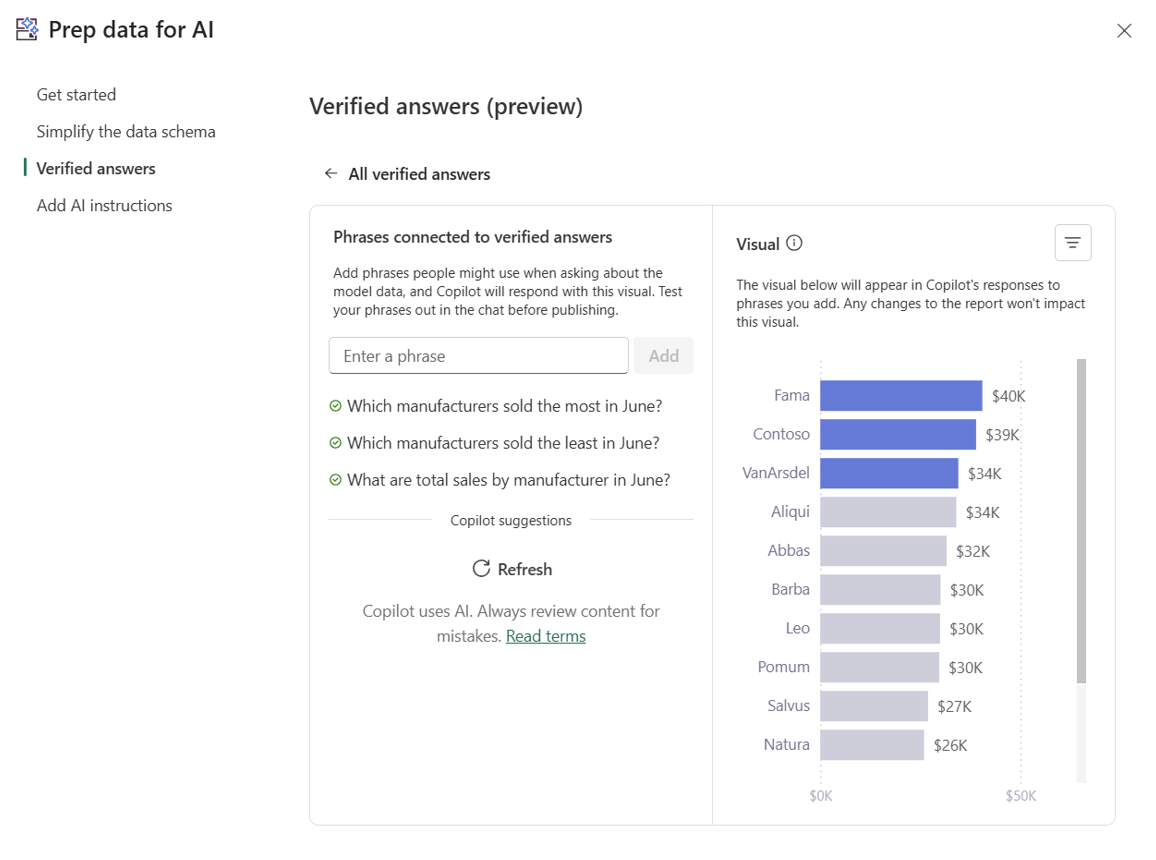
Verified answers are user-approved visual responses that specific questions trigger. They provide consistent, reliable responses to common or complex questions that might otherwise be misinterpreted. Because you store verified answers at the semantic model level (not the report level), they work across any data agent that uses the same model. For more information, see Prepare Your Data for AI – Verified answers.
When you use verified answers with data agent, the system doesn't return the Power BI visual itself. Instead, it uses the user questions and the visual's properties (columns, measures, filters) to influence DAX query generation. This approach means verified answers improve response accuracy by guiding the DAX generation tool toward the correct query structure. When a user asks a question to the data agent, the system first checks for an exact or semantically similar match to your prompt defined in the verified answer before generating a new response.
Example: Handling regional terminology
| Without Verified Answer | With Verified Answer |
|---|---|
A user asks: "Show me performance by territory" The AI interprets "territory" as product category because there's a Territory column in the Products table. The user actually meant sales regions. |
You create a verified answer using a regional sales visual with trigger questions like "What is the sales performance by territory?", "Show me sales broken down by territory", and "How are sales distributed across regions?" Now when users ask about territory performance, they consistently get accurate responses based on the objects used in the regional sales visual. |
Configuration tips for verified answers
- Use five to seven trigger questions per verified answer to cover natural variations.
- Include both formal and conversational phrasings users might try.
- Configure up to three filters for flexible slicing without creating multiple verified answers.
- If you rename any tables, columns, or measures referenced in a verified answer, update the verified answer and save it again for the changes to take effect.
AI instructions
AI instructions in Prep for AI provide context, business logic, and guidance directly on the semantic model. They help clarify terminology, guide analysis approaches, and provide critical business and semantic context the AI wouldn't otherwise understand.
You can configure these instructions in Power BI Desktop or the Power BI service by selecting Prep data for AI from the Home ribbon, and then navigating to the Add AI instructions tab. For detailed setup instructions, see AI Instructions documentation.
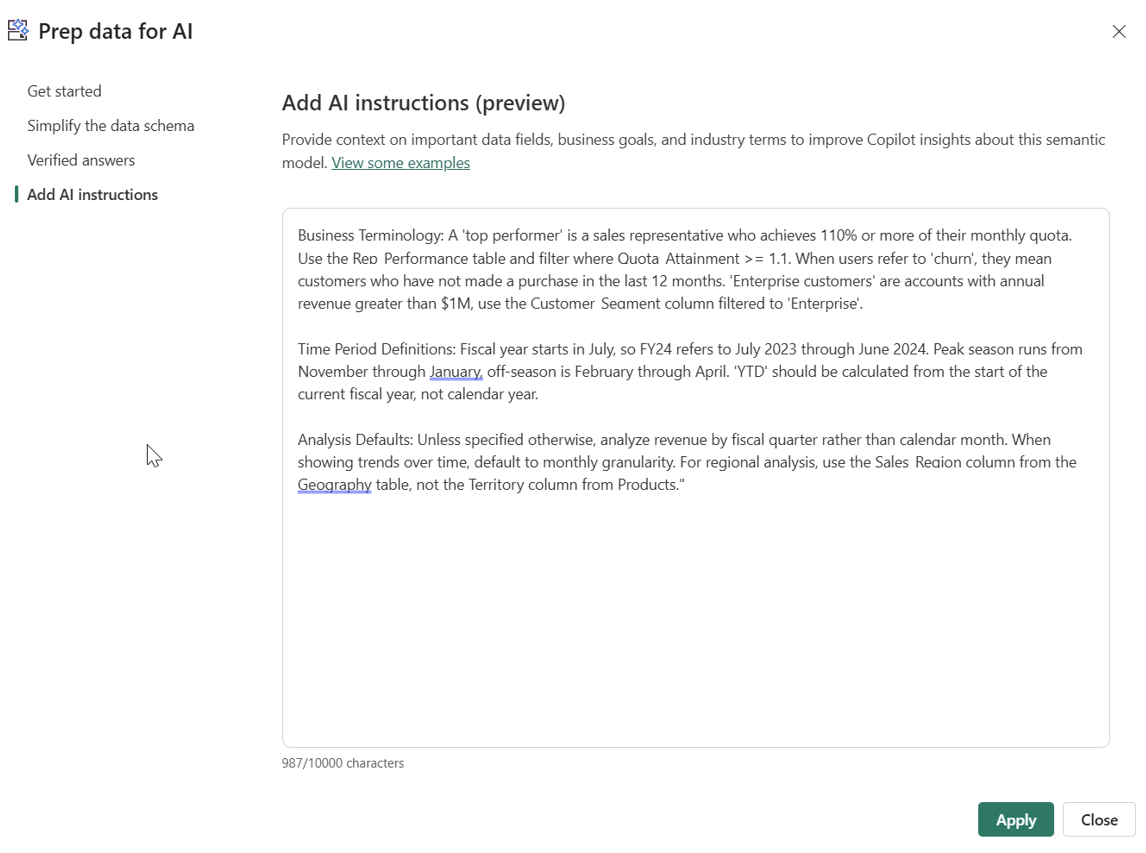
AI instructions are unstructured guidance that the LLM interprets, but there's no guarantee it follows them exactly. Clear, specific instructions are more effective than complex or conflicting ones.
As mentioned earlier, the DAX generation tool only refers to the AI instructions configured in Prep for AI of the semantic model. Data agent instructions aren't passed to the tool and are ignored when querying semantic models. For this reason, don't add semantic model specific instructions at the data agent level. Instead, keep all semantic model instructions in Prep for AI where the DAX generation tool can use them. Data agent instructions should only include guidance that applies across all data sources configured in the agent, such as general response formatting preferences, cross-source routing rules, common abbreviations, tone, and so on. Also note that unlike other data sources, data agent doesn't support data source instructions or descriptions for semantic models.
Example: Defining business terminology
| Without AI Instructions | With AI Instructions |
|---|---|
| A user asks: "Who were the top performers last month?" The AI doesn't understand what "top performer" means in your organization and returns an error or asks for clarification. | You add an instruction: "A top performer is a sales representative who achieves 110% or more of their monthly quota. Use the Rep_Performance table and filter where Quota_Attainment >= 1.1" Now the AI correctly interprets the question and returns the right results. |
Effective instruction patterns
- Time Period Definitions: "Peak season runs from November through January. Off-season is February through April."
- Metric Preferences: "When users ask about profitability, use the Contribution_Margin measure, not Gross_Profit."
- Data Source Routing: "For inventory questions, prioritize the Warehouse_Inventory table over Sales_Orders."
- Default Groupings: "Unless specified otherwise, analyze revenue by fiscal quarter rather than calendar month."
In addition to Prep for AI, the DAX query generation tool also uses metadata from report visuals such as visual title, columns, measures, filters, and so on to improve query accuracy.
Recommended implementation workflow
Optimize the Semantic Model: Start by optimizing your semantic model for performance. Poor data agent performance often comes from a poorly designed semantic model, inefficient DAX measures, or a mix of the two. When a user asks a question, the data agent generates a DAX query and runs it against your model. A well-optimized model uses fewer resources and achieves faster query execution. In a conversational interface, users expect quick responses, so slow performance directly impacts user experience and adoption.
Additionally, a bloated model with unnecessary columns, tables, and measures creates more noise for the DAX generation tool to parse, which can reduce response accuracy. By optimizing your model early, you also prevent performance problems as your data grows and the model becomes more complex. You can learn more in the Optimize a model for performance in Power BI course.
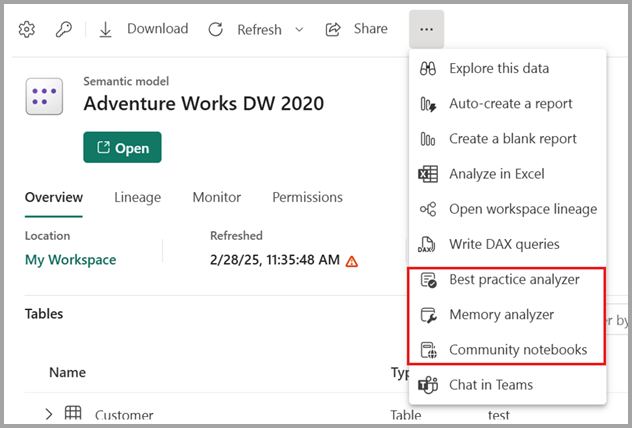
Use Best Practice Analyzer and Semantic Model Memory Analyzer in a Fabric notebook to identify problems such as incorrect data types, unnecessary columns, high cardinality columns, and inefficient DAX patterns. Add descriptions to tables, columns, and measures to help the LLM understand the purpose of each object included in the AI data schema.
Define Prep for AI > AI Data Schema: Based on the scope of your data agent, configure the AI data schema in Prep for AI by selecting only the tables, columns, and measures relevant to the questions your agent should answer.
Create Prep for AI > Verified Answers: Identify your most common questions and configure verified answers in Prep for AI using appropriate visuals. Use complete, robust questions as triggers (not partial phrases) to improve matching accuracy.
Add Semantic Model to data agent: Before adding AI instructions in Prep for AI, test and validate responses from the data agent. This step helps you understand where AI instructions are needed to improve DAX query generation.
Add Prep for AI > AI Instructions: Based on your validation findings, define business terminology, analysis preferences, and data source priorities in Prep for AI instructions (not in the data agent instructions).
Prepare report visuals: Review reports connected to the semantic model, including hidden visuals and pages, to ensure visuals have descriptive titles. Well-structured visuals help the AI ground the responses using the visual metadata such as visual title, table, column, measures used, filters applied, and more.
Verify and test DAX: Response accuracy depends on the generated DAX query. When testing your data agent, review the DAX query in each response to verify it's valid and correctly answers the question. If the results are incorrect, analyze the DAX to identify which configurations (semantic model, AI data schema, verified answers, or AI instructions) need adjustment.

Configure data agent Instructions: Add instructions at the data agent level only for guidance that applies across all data sources configured in the agent. This guidance includes general response formatting preferences, cross-source routing rules, common abbreviations, and tone. Don't add semantic model specific instructions here as they're not passed to the DAX generation tool. For guidance on configuring agent instructions, refer to configuration guidelines.
Validate & Iterate: LLMs can produce incorrect results without proper context. Continuously iterate on your configuration and validate responses to build trust in your data agent. To evaluate responses programmatically, you can use the Fabric data agent Python SDK to run automated evaluations against ground truth question-answer pairs and analyze accuracy metrics. Note that the SDK is for evaluation only in this case and can't modify semantic model's Prep for AI configurations. For details, see Evaluate your data agent. Additionally, involve stakeholders and end users in the evaluation process. Their feedback ensures that responses align with real-world expectations and usability, helping you identify gaps that automated checks might miss.
Implement Source Control and Deployment Pipelines: Use Git integration and deployment pipelines to manage your data agent configurations across development, test, and production workspaces. This practice ensures configuration changes are tested and validated before being promoted to production where end users access them. For details, see Source Control, CI/CD, and ALM for Fabric data agent.

Tip
You can use resources in fabric-toolbox repository as a reference to help you through this workflow. This repository contains:
- Checklist for preparing and configuring semantic model as data source
- data agent Utilities notebook with useful code snippets and helper functions
Common pitfalls to avoid
Not using star schema: Semantic models that use flat, denormalized tables or pivoted data structures make DAX less efficient and harder to write correctly. DAX is optimized for star schema with clear fact and dimension tables. Unpivot wide tables into normalized structures where each row represents a single observation.
Relying on hidden fields: Verified answers won't work if they reference hidden columns in the model.
Including unnecessary measures: Semantic models often contain helper measures and intermediate objects used to enhance report interactivity. When configuring your AI data schema, include only the measures that calculate actual business metrics. Excluding helper measures reduces noise and helps the DAX generation tool generate more accurate queries.
Duplicate or overlapping measures: Multiple measures that calculate similar metrics (for example, Total Sales, Sales Amount, Revenue) create ambiguity. Consolidate or clearly differentiate measures and exclude duplicates from your AI data schema.
Non-descriptive naming: Object names like TR_AMT, F_SLS, or DIM_GEO_01 provide no context for the DAX generation tool. Use clear, business-friendly names such as Total Revenue, Sales, or Customer Geography. If you can't rename objects, ensure descriptions and synonyms provide the necessary context for the AI to understand their purpose.
Relying on implicit measures: Implicit measures can lead to unpredictable results. Create explicit DAX measures for calculations you want users to query, and set the correct default summarization (Sum, Average, None, and so on) on numeric columns to prevent unintended aggregations.
Ambiguous date fields: Multiple date columns (Order Date, Ship Date, Due Date, Calendar Quarter/FY Quarter, and so on) without clear guidance confuse the AI. Use Verified Answers and AI instructions in Prep for AI to specify which date field to use by default or for specific question types.
Conflicting instructions: AI instructions that contradict Verified Answer configurations create unpredictable behavior.
Skipping schema refinement: Large models with many similarly named fields need focused AI data schemas.
Overly complex instructions: Keep instructions focused and specific. The AI interprets but doesn't guarantee following complex, conflicting guidance. Complex instructions can also add to latency.
Tools
To follow these guidelines, you can use the below tools from the fabric-toolbox GitHub repository:
- Checklist with recommendations. These are guidelines and not all items in the checklist may be applicable for your scenario.
- Notebook with collection of utilities in one place.
- Power BI MCP Server to accelerate development and testing in VS Code
- Semantic link labs library to programmatically update the semantic model in Fabric notebook.