Note
Access to this page requires authorization. You can try signing in or changing directories.
Access to this page requires authorization. You can try changing directories.
Applies to: ✅ Warehouse in Microsoft Fabric
This article describes how to work with Fabric Git integration and Fabric Data Warehouse.
Important
This feature is in preview.
It covers common development workflows including creating branches, updating Git repositories, syncing changes back to the Fabric workspace, and committing warehouse changes to Git. These workflows help enable version control, collaboration, and controlled deployment of warehouse schema changes.
Git Workflow for Fabric Data Warehouse
From the Workspace settings page, you can easily set up a connection to your git provider. To set up the connection, see Get started with Git integration. Follow instructions to Connect to a Git repo to either Azure DevOps or GitHub as a Git provider.
Create or checkout/switch branch
You can manage Git branches for your Fabric Data Warehouse workspace. You can create a new branch, switch between branches, or branch out to a separate workspace.
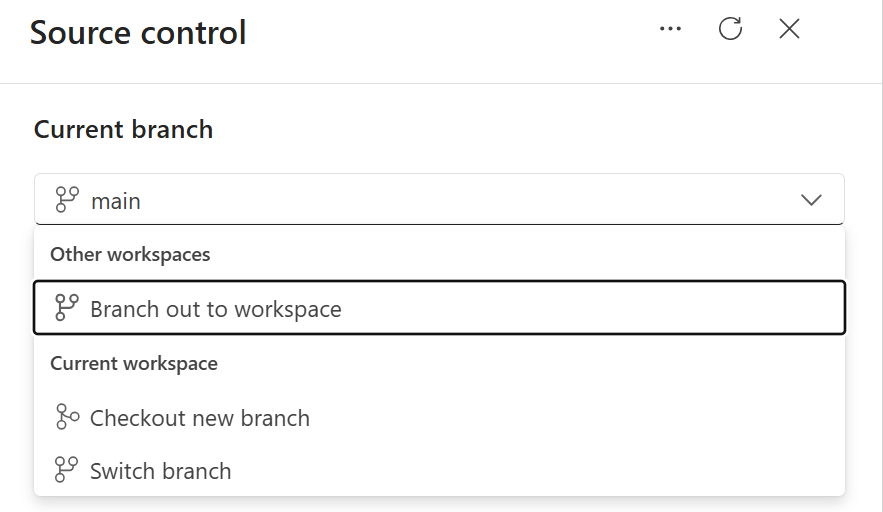
Checkout new branch: Create a new branch for this work. Always work in a new working branch, not
main. To connect the current workspace to a new branch while keeping the existing workspace status, select Checkout new branch.Branch out to another workspace: For more information on creating or attaching workspaces to branches, see Develop using another workspace.
Switch between existing branches: When you switch branches, the workspace syncs with the new branch and all items in the workspace are overridden. For more information, see Switch branches.
When you branch workflows, each warehouse analyzes its dependencies with other warehouses to determine the sequencing of item synchronization to ensure the branching workflows work as expected.
Learn more about checking out a new branch at Resolve conflicts in Git.
Develop locally by using a database project
You can perform local development by working with the warehouse database project from your Git repository. You can even develop against the warehouse's database project offline.
- Clone the Git repository that contains the warehouse database project.
- Open the database project locally, for example, in Visual Studio Code with the SQL database project extension.
- Make schema updates or script changes directly in the database project.
- Validate changes locally by building the database project for any errors.
- When development is complete, commit and push your changes to the remote Git branch. Once pushed, the updated project definitions can be synchronized back to the Fabric workspace through Git integration workflows.
Sync changes from Git back to the workspace
After completing development in a feature or working branch (not in main), you can synchronize the updated database project definitions from Git back to the Fabric workspace so that the warehouse reflects the latest approved changes.
If you created a feature branch earlier (for example, during branch creation or checkout), first create a pull request to review and merge your changes into the target branch. A pull request is simply a request to merge changes from one branch into another branch.
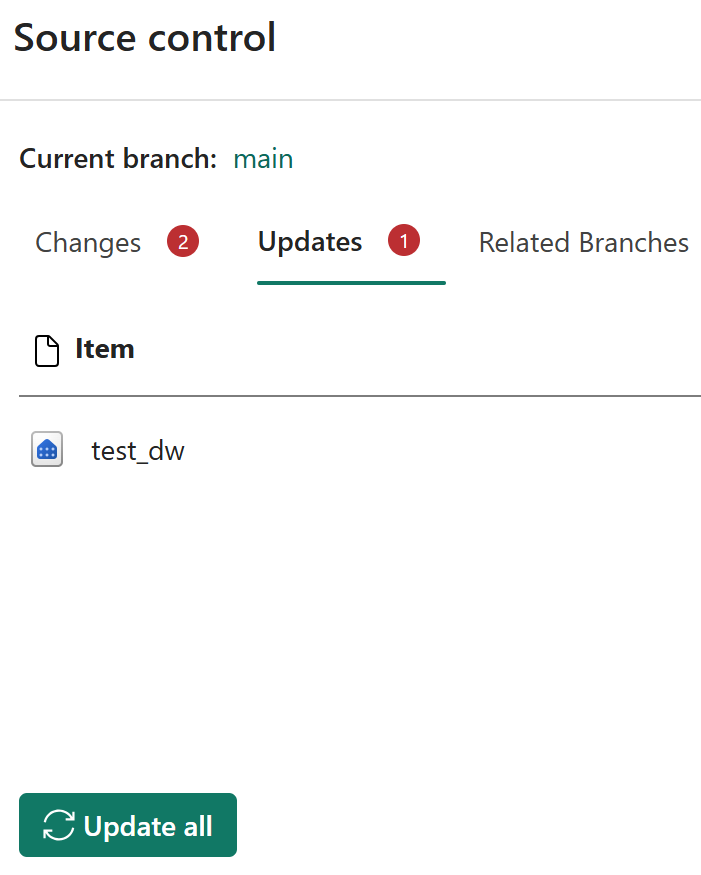
After the pull request is merged in Git, go to Source Control in the Fabric workspace.
Update or sync the workspace from the Git repository to apply the latest changes to the warehouse.
If conflicts occur while syncing changes between Git and the Fabric workspace, follow the conflict resolution guidance and resolve conflicts.
Make changes and commit warehouse updates to Git
If you need to make changes directly to the live warehouse, you can still update source control from the live warehouse definition.
Tip
To manage schema changes in a structured, version-controlled format, work with warehouse schema files in database projects. You can plan schema changes to the warehouse, as described in Develop locally by using a database project, rather than making changes incrementally directly to the live warehouse state as described in this section.
To review and commit your changes to a Git repository:
To create or modify warehouse objects, run T-SQL statements in the Fabric portal SQL query editor, SQL Server Management Studio (SSMS), MSSQL extension for Visual Studio Code, or other query tools. These changes update the live warehouse schema.
Go to Source Control in the Fabric workspace.
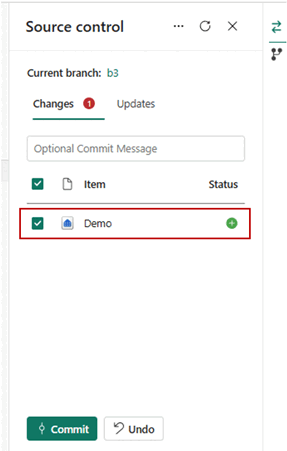
The modified warehouse appears as a pending change item in the changes list.
During branch-out or workspace-to-Git synchronization workflows, the system performs schema extraction by using DacFx-based incremental extraction. Schema extraction captures only relevant schema changes. Review the detected changes:
- Compare the warehouse item definition with the current branch version.
- Validate schema differences for individual items or multiple items.
Select the warehouse items you want to commit.
Add a commit message and commit the changes to the Git repository.
After committing:
- Go to the Git repository.
- Verify the changes through the commit history and updated database project item.
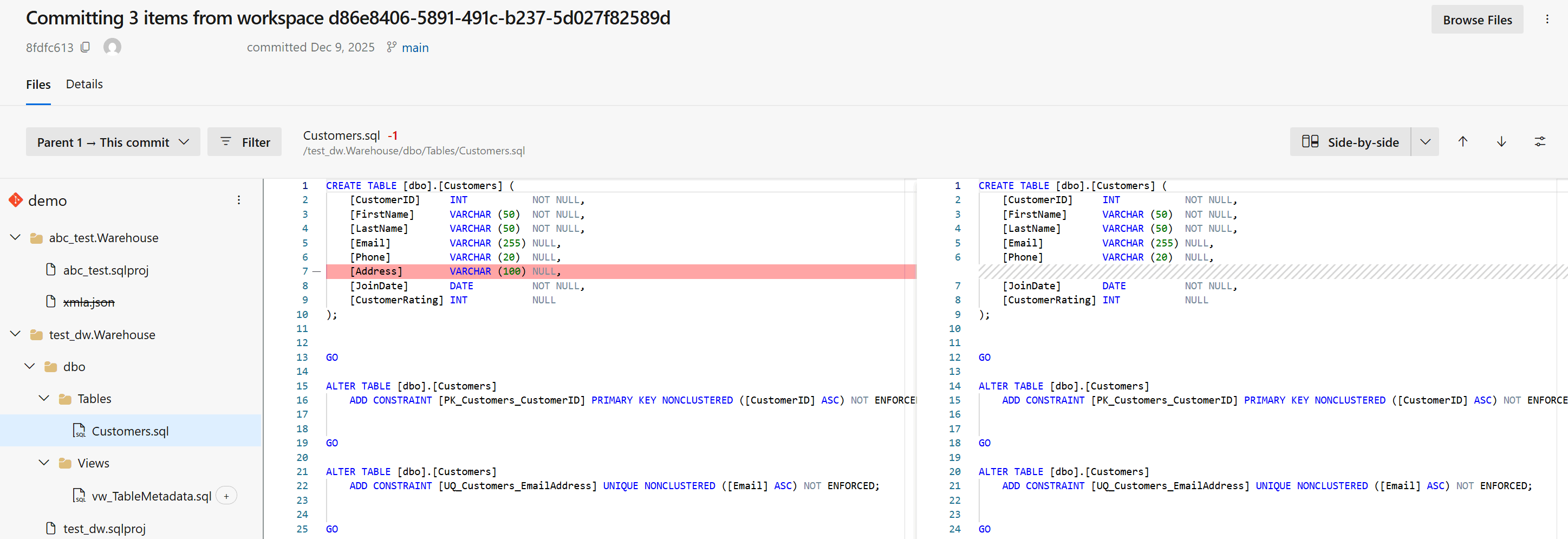
For example, a commit that removed the
Addresscolumn fromdbo.Customers: