Note
Access to this page requires authorization. You can try signing in or changing directories.
Access to this page requires authorization. You can try changing directories.
Applies to: Azure SQL Database, SQL Server on Azure Virtual Machines, SQL Server enabled by Azure Arc
Database Hub works with Fabric Activator to turn Microsoft SQL performance telemetry into alerts. For example, you can get a Teams message when CPU on a database stays above 80% for 10 minutes. You can also run a notebook that collects diagnostics when deadlocks spike.
Database Hub provides the telemetry and the queries. Activator evaluates the rules and runs the actions. This article covers what's specific to Database Hub. For Activator concepts, such as rule conditions and actions, follow the links to the Activator documentation.
In this article, you:
- Create an alert from a built-in template.
- Create an alert from a chart on the Performance page.
- Choose where to save your alert rules, and manage them.
Important
This feature is in preview.
How alerts work in Database Hub
When you enable performance monitoring, your SQL resources send telemetry to a Microsoft-managed telemetry pipeline and data store. It's the same telemetry behind the Performance page and the performance monitoring telemetry endpoint.
When you create an alert, you create an Activator rule that queries that telemetry on a schedule. As a result:
- Activator doesn't connect to your databases.
- You don't need to create credentials or identities for alerts.
- Alert queries don't add load to your databases.
- Activator runs the alert query with the identity of the user who created the rule. The query returns telemetry only for the resources that user can access.
- Each rule is saved to an Activator item in a Fabric workspace that you choose. You own the rule and manage it in Activator.
Important
Anyone who can open the rule, or who receives its notifications, can see the telemetry that the rule returns. They don't need access to the underlying Azure resources. Consider this condition when you choose a workspace and notification recipients.
After you create a rule, you manage it in Activator and Real-Time hub. For more information, see Manage your alert rules.
Choose how to create an alert
| Start from | Best for |
|---|---|
| A template | Common conditions on a single Azure SQL database |
| A performance page chart | Conditions across many resources, such as "the count of resources with high CPU stays above zero" |
Prerequisites
- Access to Database Hub. For more information, see Database Hub prerequisites.
- Performance monitoring enabled on each resource you want to alert on.
- The SQL resource provider registered on each subscription that contains those resources.
- The Reader role, or a role with greater permissions, on each subscription that contains the resources you want to alert on.
- A Fabric workspace on a Fabric capacity, and permission to create items in it, such as the Contributor role or higher. For more information, see Roles in workspaces.
Note
Database Hub is available with a Fabric Free license. Activator rules run on Fabric capacity, so the workspace where you save alerts needs a capacity. For how Activator consumes capacity, see Activator capacity usage.
Supported resources
The available alert options depend on the resource type. Each resource must have performance monitoring enabled.
| Resource | Templates | Performance page charts |
|---|---|---|
| Azure SQL Database | Yes | Yes |
| SQL Server on Azure Virtual Machines | Not currently | Yes |
| SQL Server enabled by Azure Arc | Not currently | Yes |
A chart alert includes every resource on the chart, even if templates aren't available for that resource type.
Alerts aren't currently available in Database Hub for the following resources:
- Azure SQL Managed Instance
- Azure SQL elastic pools
- SQL database in Fabric
- Azure Database for PostgreSQL flexible server
- Azure Cosmos DB
Alert templates
Templates give you a tested query and a sensible default condition for common problems. Each template returns a metric over time for the selected database. Activator owns the threshold and duration, so you can tune them without changing the query.
| Template | What it detects | Default condition | Metric fields | Telemetry table |
|---|---|---|---|---|
| High CPU utilization | CPU used by the database engine, as a percentage of the service tier limit | CpuPercent is greater than 80 for 10 minutes |
CpuPercent, SqlCpuPercent |
SqlServerCPUUtilization |
| High transaction log utilization | Log space used, as a percentage of the log space currently allocated | LogUsedPercent is greater than 85 for 10 minutes |
LogUsedPercent, LogUsedMB, LogAllocatedMB |
SqlServerDatabaseStorageUtilization |
| Deadlock spike | Deadlocks per minute | DeadlocksPerMinute is greater than 1 for 10 minutes |
DeadlocksPerMinute, DeadlockCount |
SqlServerPerformanceCountersCommon |
Note
The High transaction log utilization template compares log space used to log space currently allocated. It doesn't measure how close the log is to its maximum size.
Every template also returns the following fields. You can add them to notification messages by typing @ in the Headline or Notes box, or by selecting them under Context.
| Field | Description |
|---|---|
TargetName |
A readable name for the monitored database. |
DatabaseName |
The database name. |
SqlInstanceName |
The logical server name. |
ResourceId |
The Azure Resource Manager ID of the resource. |
EntityId |
The key that Activator uses to evaluate each database separately. |
Timestamp |
The start of the one-minute time bin. |
Create an alert from a template
Open Database Hub and select Estate.
Hover over the Azure SQL database you want to monitor, and then select the quick actions menu.
Select Set alert from template.

Select a template.
The Activator Add rule pane opens. The data source and template query are filled in and scoped to the database you selected. You can't edit the template query.
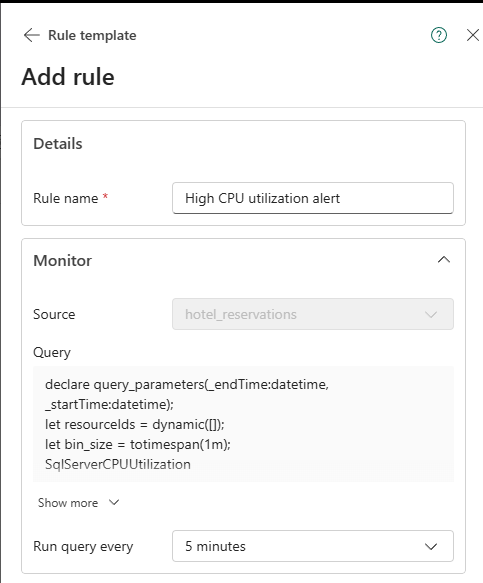
In Details, enter a Rule name. Include the database and the condition so the rule is easy to find later, for example
High CPU - AdventureWorks.In Monitor, set Run query every. The default is 5 minutes. You can choose a value from 1 minute to 1 day. For guidance, see Choose a query frequency.
In Condition, review the default condition. Adjust the threshold and the duration for your workload. For condition and occurrence options, see Detection settings in Activator.
In Action, choose what happens when the condition is met. For the setup steps for each action, see Configure actions for Activator rules. For ideas, see Action ideas for database teams.
In Save location, select the Workspace and the Activator Item for the rule. For guidance, see Choose where to save your alerts.
Select Create.
Create an alert from a Performance page chart
Use a chart alert when you want to know about a condition across many resources, rather than on one database. A chart alert covers every resource included in the chart. This coverage includes resource types that don't have templates yet, such as SQL Server on Azure Virtual Machines and SQL Server enabled by Azure Arc.
In Database Hub, select Performance.
Hover over the chart you want to set an alert on, and then select the Set alert icon (lightning bolt).
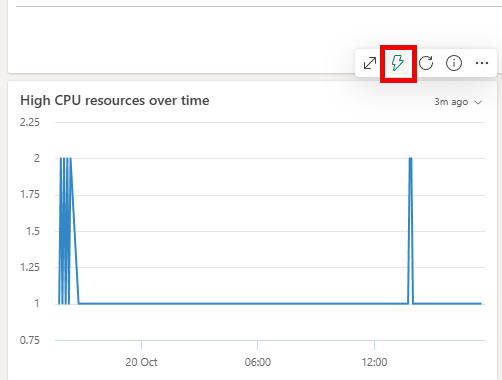
The Add rule pane opens with the query behind the chart. The rule evaluates the same query as the chart.
Complete the remaining sections as described in Create an alert from a template.
Select Create.
For example, to get notified when the count of SQL resources with high CPU stays above zero for 5 minutes, start from a chart that counts resources with high CPU. Set the condition to is greater than 0, and require that the condition stays true for 5 minutes. Different resources can contribute to the count during that period; this condition doesn't require any single resource to have sustained high CPU. To monitor sustained high CPU on an individual Azure SQL database, create an alert from a template.
Tip
The resources selected on the Performance page can differ from your full inventory. Check the resource selection before you create a chart alert.
Choose a query frequency
More frequent queries detect problems sooner but use more capacity. Match the frequency to how often the underlying telemetry is collected.
| Signal | Collection interval | Suggested Activator query frequency |
|---|---|---|
| CPU, memory, waits, and storage I/O | 10 to 15 seconds | 1 to 5 minutes |
| Active sessions | 30 seconds | 1 to 5 minutes |
| Performance counters and storage utilization | 1 minute | 5 minutes |
| Database properties | 10 minutes | 1 hour or longer |
For collection intervals for every table, see Tables. For general guidance, see Query frequency for query data sources.
How quickly alerts fire
End-to-end alert latency depends on two intervals:
- Collection interval. Each type of telemetry is collected on its own schedule. For example, CPU is collected every 15 seconds for Azure SQL Database and every 10 seconds for SQL Server.
- Query interval. Activator can run your alert query as often as every minute.
Tip
The duration in your condition controls how long a problem must last before the rule activates. Shorten it to hear about problems sooner. Lengthen it to filter out brief spikes.
Choose where to save your alerts
Each rule is saved to an Activator item in a Fabric workspace. The rule runs on that workspace's capacity. Keep the following in mind when you choose a workspace and item:
- Rules per item. Each Activator item holds up to 500 rules. For more information, see Maximum rules per Activator item.
- Capacity availability. If the workspace's capacity stays overloaded for more than 24 hours, Activator pauses rule evaluation. If the workspace no longer has a Fabric capacity available, Activator can't process your rules. For more information, see How Fabric capacity throttling affects Activator.
- Moving between regions. Activator items can't move to a capacity in another region. Before you move the workspace to a capacity in a different region, you must remove its Activator items. For more information, see Capacity reassignment restrictions.
- Access to alert data. Anyone who can open the rule in the workspace can see the telemetry it returns. For more information, see How alerts work in Database Hub.
Manage your alert rules
Use Activator and Real-Time hub to manage the rules you create from Database Hub.
- See all your rules. The Rules page in Real-Time hub lists every Activator rule you can access across workspaces, including rules created from Database Hub. You can start or stop rules and view recent activations. For more information, see Manage Activator rules in Real-Time hub.
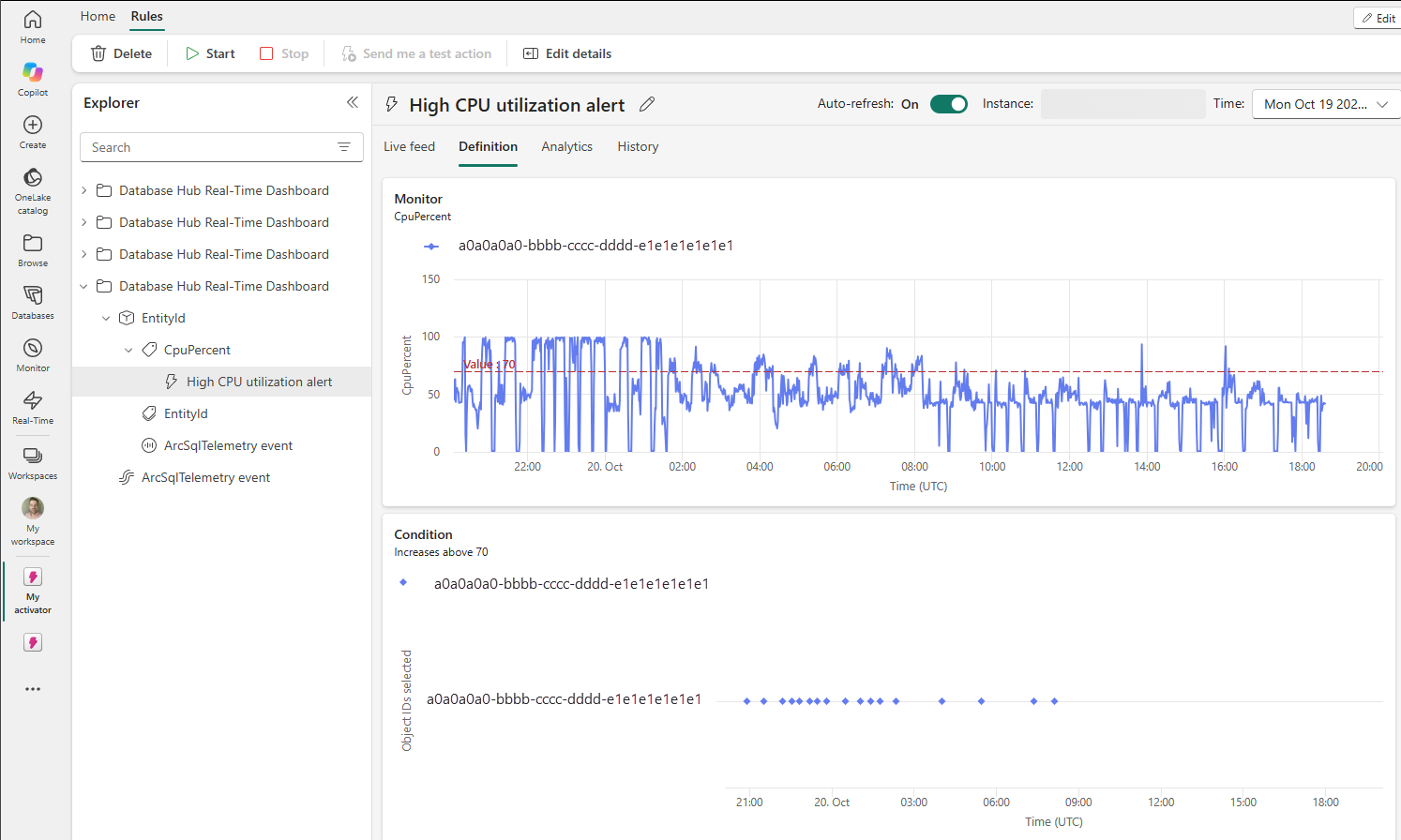
- Review a rule. Open the Activator item, or select the link in an alert notification. Activator shows:
- The metric trend, with your threshold.
- The rule's activation history.
- The history of query runs. Use it to confirm that the rule runs at the frequency you set.
- Test a rule. For more information, see Test your rule and Start and stop your rule.
- Change who gets error notifications. If a rule's data source fails, Activator sends a system notification to the rule creator. To send these notifications to someone else, see Configure error notification recipients.
- Delete rules you no longer need. A stopped rule can still consume capacity. For more information, see Pause and resume activity in your capacity.
Action ideas for database teams
Activator can do more than send a message. Here are some common patterns:
- Notify the on-call channel. Post to a Teams channel instead of messaging individuals, so whoever is on call sees the alert. Add
TargetNameand the metric value to the message. - Collect diagnostics automatically. Run a Fabric notebook that queries the telemetry for top waits and active sessions on the affected database. The evidence is then ready when someone starts investigating. Pass
ResourceIdto the notebook as a parameter. - Open an incident. Use a custom action with Power Automate to create a ticket in your IT service management tool, such as ServiceNow.
Limitations
- Templates are currently available only for Azure SQL Database.
- Some resource types don't support alerts yet. For details, see Supported resources.
- You can't edit a template's query.
- Activator rules require a Fabric capacity and consume capacity units.
- Activator limits apply, such as allowed notification recipients and the maximum number of actions. For more information, see Activator limitations.
- The same cloud and region support as performance monitoring telemetry applies. For more information, see Regional availability and data handling.
Troubleshoot
- Set alert from template doesn't appear.
- Templates are currently available only for Azure SQL Database. For SQL Server on Azure Virtual Machines and SQL Server enabled by Azure Arc, create an alert from a Performance page chart.
- Confirm that performance monitoring is enabled and that the database shows data on the Performance page.
- A rule doesn't activate when you expect it to.
- Confirm that the resource has recent telemetry on the Performance page.
- Confirm that the rule is running.
- Confirm that the workspace has a Fabric capacity available, and that the capacity hasn't been overloaded for more than 24 hours. For more information, see How Fabric capacity throttling affects Activator.
- Review the rule's query run history in Activator for errors.
- Confirm that the rule creator still has the Reader role on the subscription. If they don't, the rule's data source fails and Activator sends them a system notification.
- You get too many notifications.
- Increase the duration that the condition must stay true.
- Raise the threshold.
- Before you change the condition, use the preview in Activator to see how often the rule would have activated on past data.
- For Activator error codes, see Troubleshoot Activator.