Note
Access to this page requires authorization. You can try signing in or changing directories.
Access to this page requires authorization. You can try changing directories.
Publish a semantic view to create or update its read-only Direct Lake on OneLake semantic model for reports and agents. The view's YAML definition remains the source of truth. Saving a YAML file alone doesn't publish your changes.
Important
This feature is in preview.
Prerequisites
- A semantic view in a lakehouse.
- Write permission on the lakehouse and the Contributor role or higher in its workspace.
Important
In this preview, you can't publish semantic views in a workspace connected to deployment pipelines, Git, or Power Platform solutions, or one with workspace-level private links enabled. See Publish and manage views.
Publish a view
Before publishing, check the validation rules for the combined definition.
In the Explorer pane, expand
Context>Semantic Views.Right-click the view folder, and then select Publish.

In the confirmation dialog, select Publish. Only saved changes are published.


Publish is available only on view folders directly under Semantic Views. Each view publishes independently.
Publishing merges the view's YAML files, validates the definition against the lakehouse, writes compiled TMDL output to SystemContext/Semantic Views/<view-name>/, and creates or updates the generated semantic model.
Note
The first publish might take a while. Wait for the publish result before using the generated model.
After changing the YAML definitions or referenced table schema, save your changes and publish again to update the model. Connected reports and agents use the updated model; publishing doesn't create a separate test model.
Check the result
Review the publish result before using the model.

- Errors: Manually correct the reported problems in the source YAML files in
Context, save, and retry Publish. Publishing doesn't automatically fix errors or rewrite files. - Warnings: Publishing can succeed while skipping unsupported functionality. Review what was skipped and verify that your measures don't depend on it. For construct-specific behavior, see Semantic view YAML syntax reference.
Important
In this preview, an object-level security (OLS) warning indicates that users who can read SystemContext can see metadata about restricted tables or columns in the generated TMDL, although the generated model still enforces OLS on the data. If this exposure isn't acceptable, see Delete a semantic view for cleanup steps and limitations.
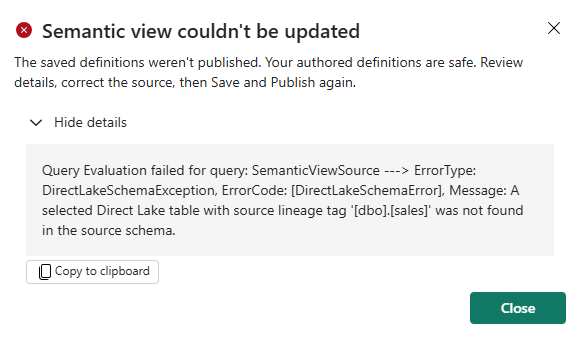
For example, an error can report a source table that wasn't found in the lakehouse schema:
A successful publish can include a warning that a metric without a supported DAX dialect was omitted:

If compilation fails, the previous generated output and model remain unchanged. If compilation succeeds but the model update fails, SystemContext can contain newer output than the model. Correct the problem and retry the full publish operation.
After a successful publish, inspect the model and test your measures in DAX query view (DQV):
- Expand
SystemContext>Semantic Views. - Right-click the view folder, then select Open in model view to inspect the model or Validate in DQV to test your measures.
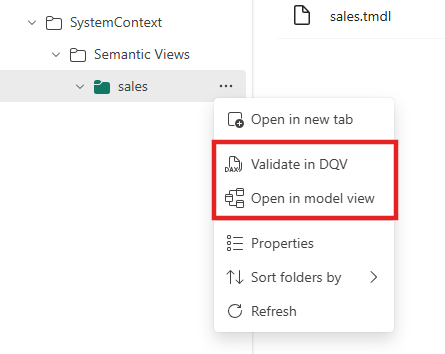
These commands are available after a model exists. Publishing validates the definition but not your business logic, so before you share the model, query your key metrics in DQV and compare the results with values you know are correct. You can also read the generated Tabular Model Definition Language (TMDL) file under SystemContext; make edits only in the source YAML under Context.