Note
Access to this page requires authorization. You can try signing in or changing directories.
Access to this page requires authorization. You can try changing directories.
The OneLake catalog in Fabric provides a centralized location for managing and configuring Fabric settings. Administrators can use this interface to efficiently oversee and adjust settings across capacities, workspaces, domains, tags, and other Fabric configurations, including tenant settings.
Manage capacities
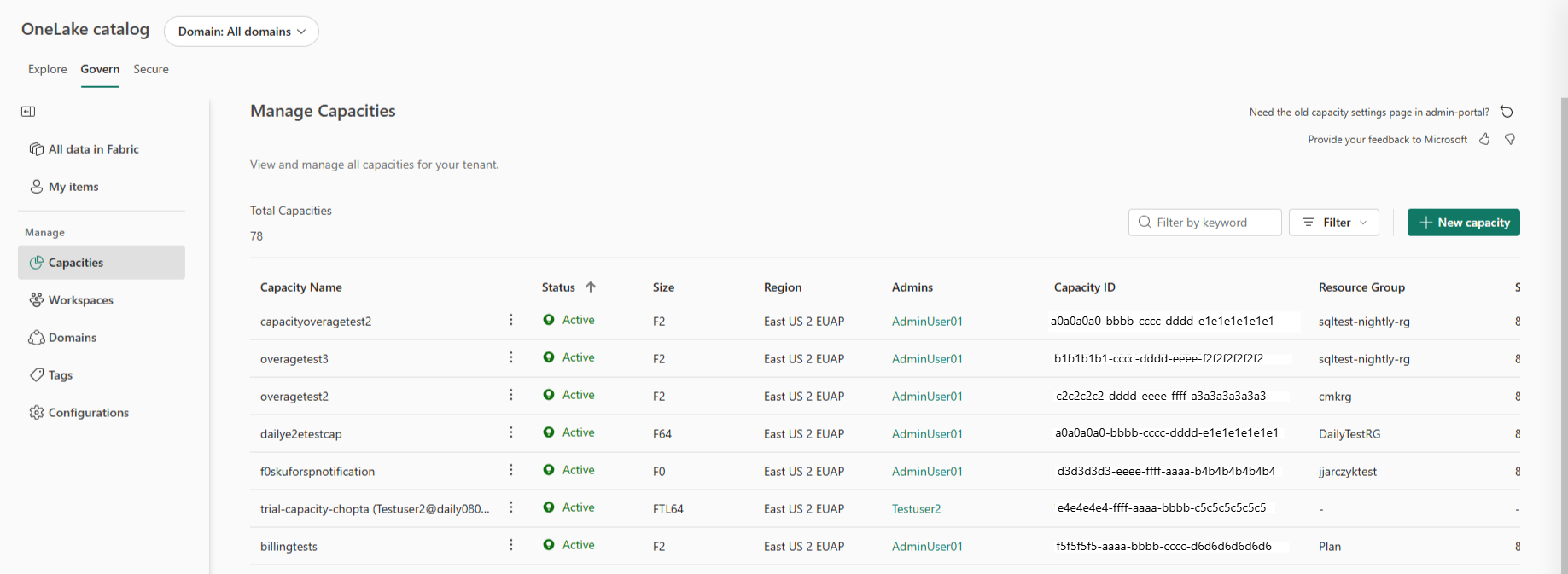
In the OneLake catalog, administrators can manage capacities, which are the resources allocated for various workloads in Fabric. This task includes creating new capacities, configuring capacity settings, and monitoring their usage to ensure optimal performance and resource allocation.
To manage capacities:
- Sign in to Fabric by using your administrator account.
- Select OneLake catalog, and then go to Govern > Capacities.
- To view details and usage data for an existing capacity, select a capacity from the list.
- To take actions on a capacity (such as pause, resize, reassign, configure settings, and more) select the options menu (three dots) next to the capacity name.
- To create a new capacity, select + New capacity.
For more guidance on managing capacities, refer to the Manage Fabric capacities article.
Manage workspaces
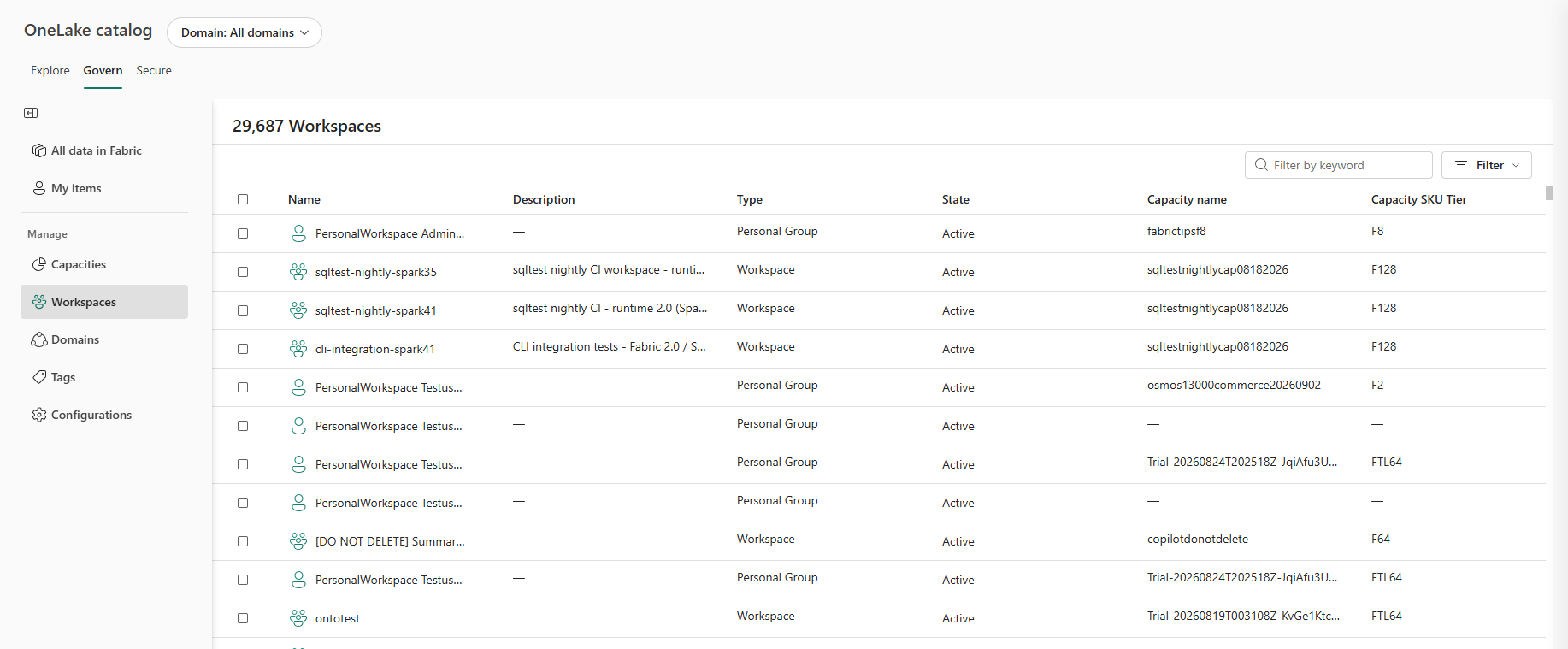
Administrators can manage workspaces in the OneLake catalog. Workspaces serve as collaborative environments for organizing and working with data, reports, and other resources. This management includes creating new workspaces, configuring workspace settings, managing access permissions, and monitoring workspace activity to maintain efficient collaboration and security.
To manage workspaces:
- Sign in to Fabric by using your administrator account.
- Select OneLake catalog, and then go to Govern > Workspaces.
- To configure settings for a workspace, select the More options menu (three dots) next to a workspace name, then select Edit.
- To manage access to a workspace, select the three dots next to the capacity name to take actions on a capacity such as pause, resize, reassign, and configure settings.
- To create a new capacity, select + New capacity.
For more guidance on managing workspaces, refer to the Manage Fabric workspaces article.
Manage domains
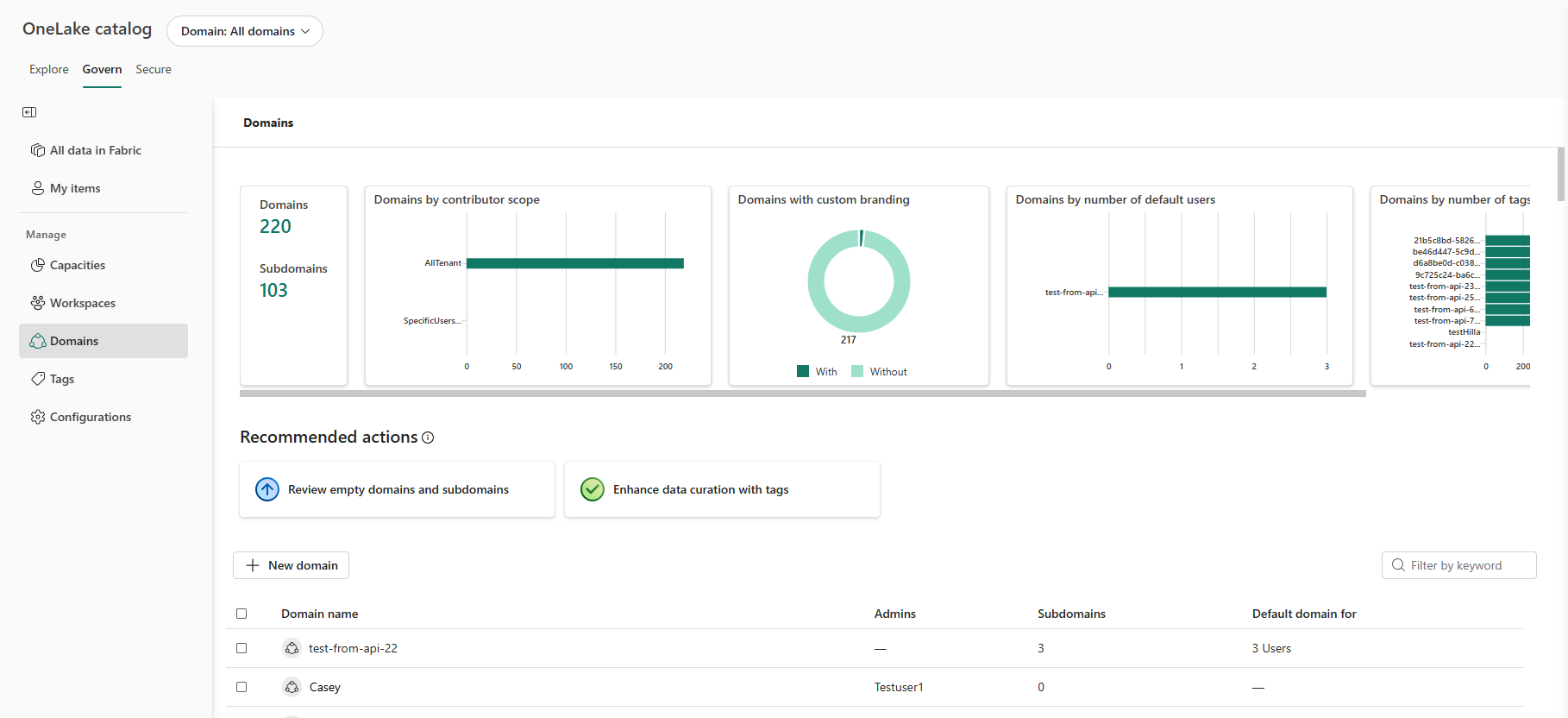
The OneLake catalog allows administrators to manage domains, which organize and control access to data within Fabric. Administrators can create and configure domains, assign ownership, and set access policies to ensure proper data governance and security.
To manage domains:
- Sign in to Fabric by using your administrator account.
- Select OneLake catalog, and then go to Govern > Domains.
- To create a new domain, select + New domain.
- To view details and manage an existing domain, select a domain from the list.
Manage tags
Administrators can use tags in the OneLake catalog to categorize and label various resources for easier management and discovery. This task includes creating new tags, applying them to resources, and managing existing tags to maintain a well-organized and searchable catalog.
To manage tags:
- Sign in to Fabric by using your administrator account.
- Select OneLake catalog, and then go to Govern > Tags.
- To create a new tag, select + New tag.
- To view details and manage an existing tag, select a tag from the list.
For more guidance on managing tags, see Manage Fabric tags.

Manage other Fabric settings
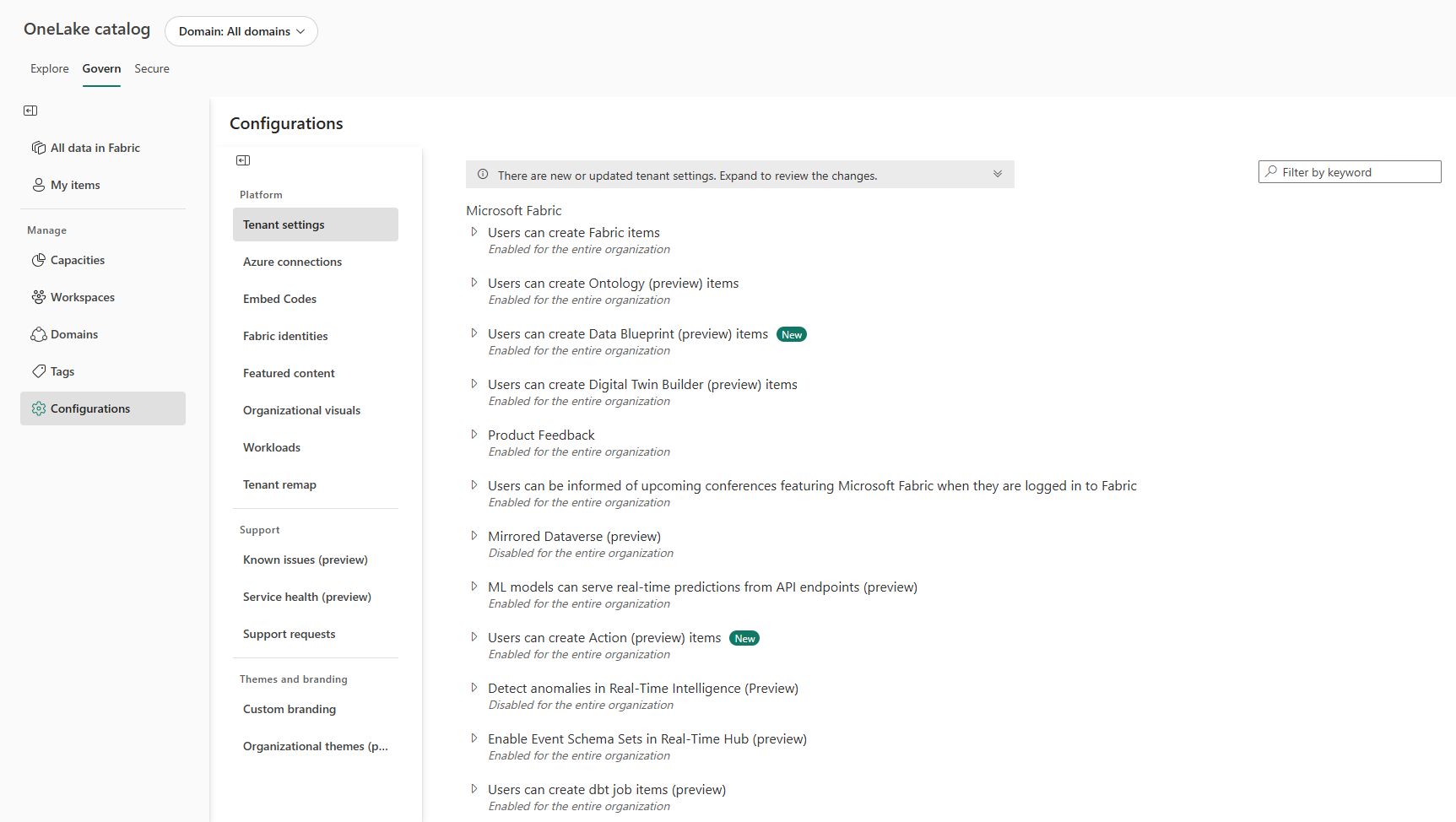
In addition to capacities, workspaces, domains, and tags, the OneLake catalog provides options for configuring other Fabric settings, including tenant settings. Administrators can configure these settings to tailor the Fabric environment to their organization's needs, ensuring optimal performance, security, and compliance.
To manage other Fabric settings:
- Sign in to Fabric by using your administrator account.
- Select OneLake catalog, and then go to Govern > Configurations.
- To modify tenant settings, select Tenant settings and make the necessary changes.
- To configure other Fabric options, select the relevant configuration and update the settings as needed.