Note
Access to this page requires authorization. You can try signing in or changing directories.
Access to this page requires authorization. You can try changing directories.
A Fabric capacity is a dedicated pool of compute resources that powers the items and workloads across your organization. As a Fabric administrator or capacity administrator, you need a single place to see the capacities you're responsible for and keep them sized and configured the way your organization requires.
This article shows you how to manage your capacities from the Capacities section in the Govern section of the OneLake catalog. From this centralized location, you can view the capacities you administer, create and delete capacities, change capacity settings, and configure delegated tenant settings.
Note
OneLake catalog and Govern are rolling out by region. If they're not available in your region, select Settings (gear) icon > Admin portal > Capacity settings during the regional rollout.
Prerequisites
To access the Manage capacities page, you must be a Fabric administrator or a capacity administrator. Fabric administrators can access the page even if they aren't an administrator of any capacity. Capacity administrators can access the capacities they administer.
Fabric roles and Azure role-based access control (Azure RBAC) permissions are independent. To perform an operation on an Azure-managed capacity, you also need the applicable Azure RBAC permissions on the Azure subscription or capacity resource. For available resource provider operations, see the Azure permissions for Microsoft Fabric and Power BI Embedded.
View all capacities
To get to your capacities in the OneLake catalog, follow these steps:
- Sign in to Fabric by using your admin account credentials.
- Select OneLake catalog, and then select the Govern tab.
- Select Capacities.
The Manage capacities page shows a list of all the capacities you have permission to manage in your tenant.
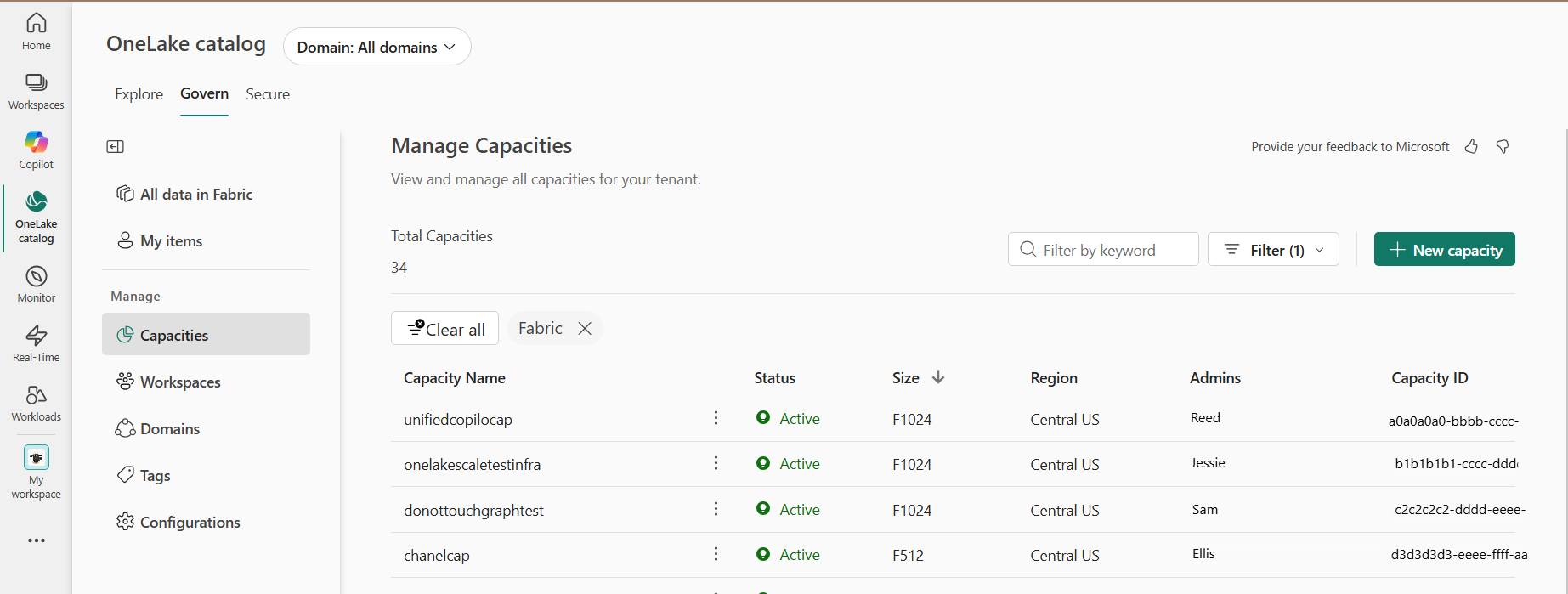
From this page, you can search for a capacity by name, filter the list by capacity type, size, region, and subscription ID, sort by any available column, and open the pane to create a new capacity.
The list includes all capacity types:
Power BI Premium - A capacity you buy as part of a Power BI Premium subscription. These capacities use P SKUs.
Note
Power BI Premium per-capacity (P SKU) subscriptions are retiring. To keep your Power BI workloads running, migrate to Fabric capacity (F SKUs). For an end-to-end view of the migration, see Power BI Premium to Microsoft Fabric migration overview. For answers to common questions, see the Power BI Premium to Microsoft Fabric migration FAQ.
Power BI Embedded - A capacity you buy as part of a Power BI Embedded subscription. These capacities use A or EM SKUs.
Trial - A Fabric trial capacity. These capacities use Trial SKUs.
Fabric capacity - A Fabric capacity. These capacities use F SKUs.
View details for a capacity
To view details for a capacity, follow these steps:
Go to OneLake catalog > Govern > Capacities.
On the Manage capacities page, filter or search the list to find the capacity.
Select the capacity to open the details page.
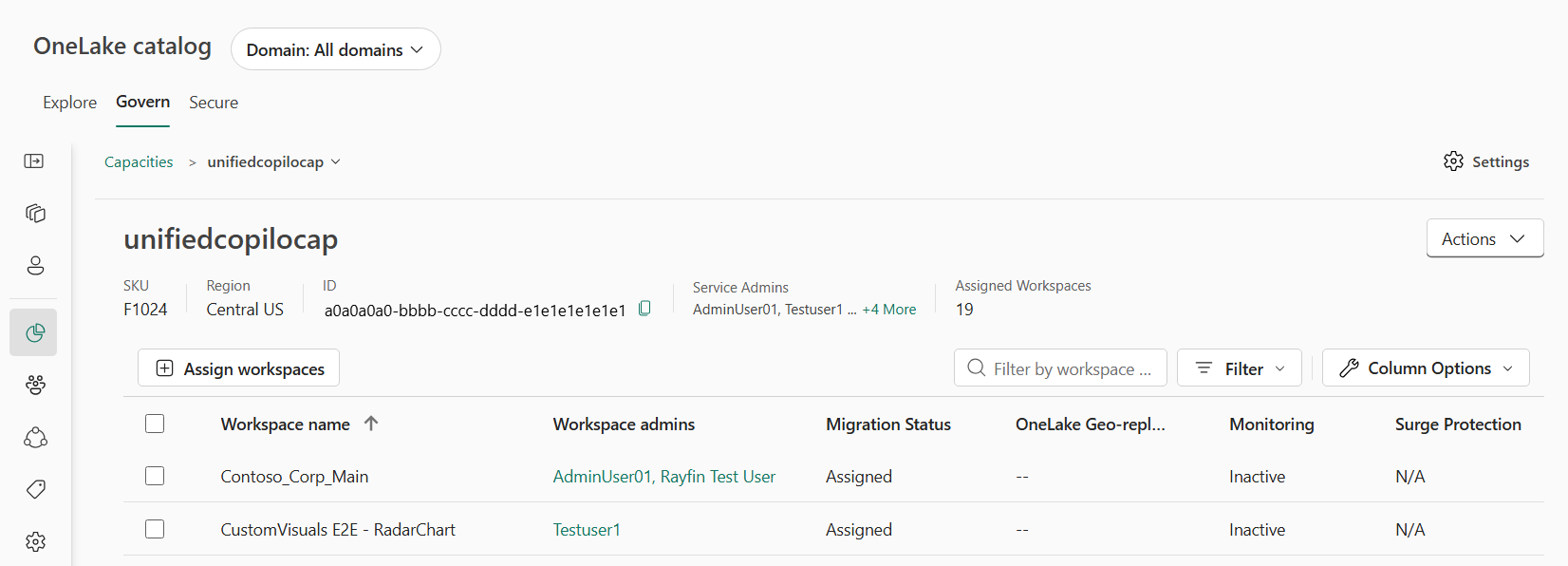
The capacity details view includes:
- Basic capacity information, such as name, SKU, Region, and ID.
- The service admin assigned to the capacity.
- The list of workspaces assigned to the capacity.
- Workspace details, including workspace admins and migration, OneLake geo-replication, monitoring, and surge protection status.
Create a new capacity
The Manage capacities page contains a New capacity option, where you can create a new Fabric capacity or Azure Embedded capacity. You must be a Fabric administrator. To create an Azure-managed capacity, you also need Azure RBAC permission to create capacity resources in the selected subscription. For F SKU requirements, see Buy Fabric capacity in Azure. For a Power BI Embedded capacity, the applicable permissions include Microsoft.PowerBIDedicated/capacities/read and Microsoft.PowerBIDedicated/capacities/write.
To create a new capacity, follow these steps:
In Fabric, go to OneLake catalog > Govern > Capacities.
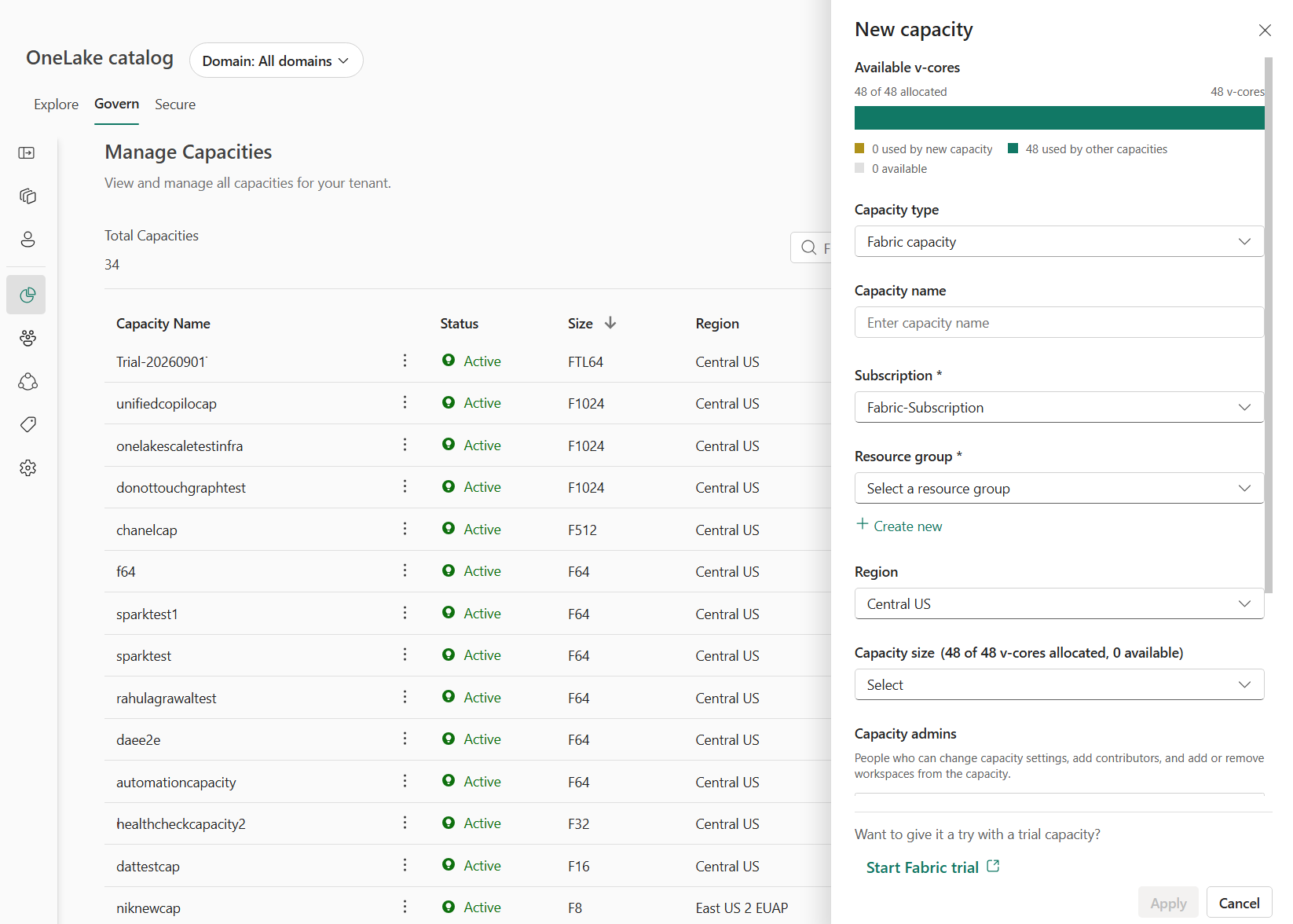
On the Manage capacities page, select New capacity.
On the New capacity page, enter the following information:
Capacity Type - Select the type of capacity.
Capacity name - Give your capacity a name.
Capacity admins - Add capacity admins.
Subscription - Select the Azure subscription you want to use for the capacity.
Resource group - Select the Azure resource group you want to use for the capacity.
Region - Select the region where you want to create the capacity.
Capacity size - Select the size of the capacity.
Capacity admins - Select the capacity admins.
Note
- You can create a new Power BI Embedded capacity with an A SKU or an EM SKU. If you select an EM size, you create a Power BI Embedded capacity.
- To create a new Trial capacity, see Fabric trial.
To add tags, expand Additional settings, select Add tag, and then enter the tag name and value.
Select Apply.
Manage capacities with the actions menu
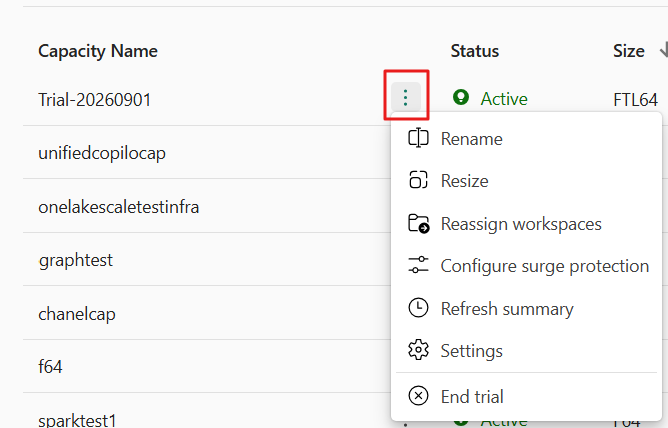
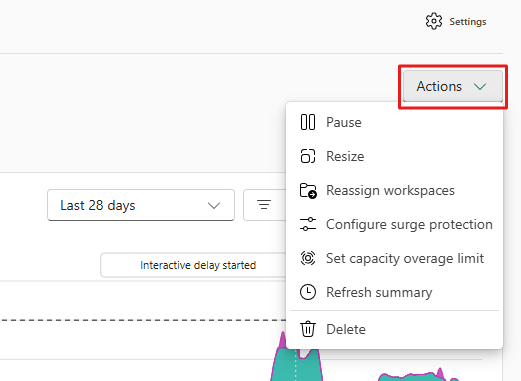
From either the Manage capacities page or a capacity's details page, use the actions menu to perform basic capacity management tasks. For example, pause or resize a capacity, reassign workspaces, configure surge protection, or set capacity overage limits. The actions available depend on the capacity type and your permissions.
To select an action, follow these steps:
Go to OneLake catalog > Govern > Capacities.
On the Manage capacities page, filter or search the list to find the capacity.
Do one of the following:
Next to the capacity name, select More options (three dots), and then select the action you want to take.
Open the details page by selecting the capacity name. Use the Actions menu to take the action you want.
Rename your capacity
To change the name of your Power BI Premium, Power BI Embedded EM SKU, or Trial capacity, follow these steps. You must be a capacity administrator. To rename a Power BI Embedded EM SKU, you also need the Microsoft.PowerBIDedicated/capacities/read and Microsoft.PowerBIDedicated/capacities/write Azure RBAC permissions on the capacity resource. For information about assigning capacity administrators, see Add and remove admins.
Note
You can't rename:
- A SKUs
- Fabric capacities (F SKUs)
- Go to OneLake catalog > Govern > Capacities.
- On the Manage capacities page, filter or search the list to find the capacity.
- Next to the capacity name, select More options (three dots) > Rename.
- Type the new name in the Capacity name field.
- Select (Apply).
Pause and resume a capacity
You can pause a Fabric capacity to stop billing when the capacity isn't in use, and resume it when you need it again. For F SKU prerequisites and steps, see Pause and resume your capacity. For an A SKU, you need the Microsoft.PowerBIDedicated/capacities/read, Microsoft.PowerBIDedicated/capacities/write, Microsoft.PowerBIDedicated/capacities/suspend/action, and Microsoft.PowerBIDedicated/capacities/resume/action Azure RBAC permissions on the capacity resource.
Note
You can only pause and resume A SKU and F SKU capacities.
Resize a capacity
The size of a capacity determines the amount of resources allocated to it, such as memory and processing power. To resize a capacity, you must be a capacity administrator. To resize an Azure-managed capacity, you also need Azure RBAC permission to read and update the capacity resource. For F SKU requirements, see Scale your Fabric capacity. For a Power BI Embedded capacity, the applicable permissions include Microsoft.PowerBIDedicated/capacities/read and Microsoft.PowerBIDedicated/capacities/write. For information about assigning capacity administrators, see Add and remove admins.
Note
- You can't resize a trial capacity.
To resize a capacity, follow these steps:
- Go to OneLake catalog > Govern > Capacities.
- On the Manage capacities page, filter or search the list to find the capacity.
- Next to the capacity name, select More options (three dots) > Resize.
- In the Resize capacity pane, specify the new Target size for the capacity.
- Select Apply to apply the changes.
Autoscale a capacity
You can enable autoscale for a Power BI Premium or Power BI Embedded capacity to automatically adjust its size based on workload demand. For steps, see Using Autoscale with Power BI Premium.
Note
Autoscale isn't available for Trial and Fabric F SKU capacities.
To enable autoscale for a capacity, follow these steps:
- Go to OneLake catalog > Govern > Capacities.
- On the Manage capacities page, filter or search the list to find the capacity.
- Next to the capacity name, select More options (three dots) > Manage Autoscale.
- In the Autoscale settings pane, toggle the switch to Enable Autoscale.
- Select a Subscription and Resource group for billing.
- Select Save.
Reassign a workspace to a different capacity
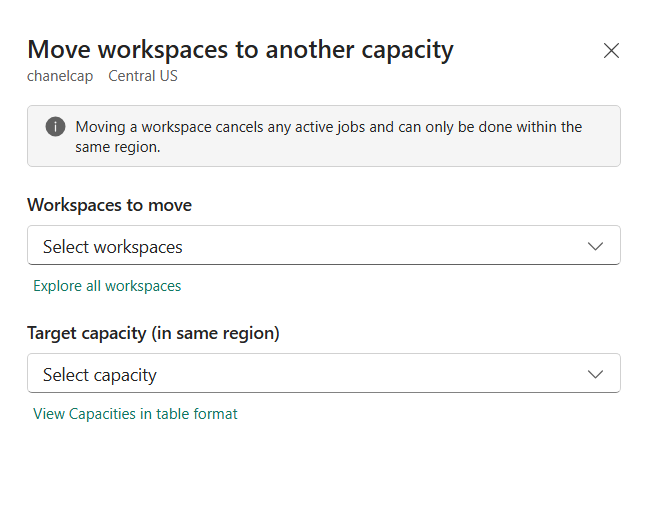
You can move a workspace from one capacity to another from the OneLake catalog Govern section. For steps, see Reassign a workspace to a different capacity. For information about limitations you might encounter, see Capacity reassignment restrictions and common issues.
Configure surge protection
Surge protection helps protect your capacities from unexpected spikes in background workload demand. For steps, see Surge protection.
Set a capacity overage limit
Set a capacity overage limit to control how much overage a capacity can accrue. For steps, see Enable capacity overage in Microsoft Fabric.
Delete a capacity
When you delete a Power BI Premium, Trial, or Fabric capacity, the process soft deletes non-Power BI Fabric items in workspaces assigned to the capacity. You can still see these Fabric items in the OneLake catalog and the workspace list, but you can't open or use them. If you associate the workspace that holds these items to a capacity (other than Power BI Embedded) from the same region as the deleted capacity within seven days, the deleted items are restored. This seven-day period is separate from the workspace retention setting.
You must be a Fabric administrator to delete a capacity. To delete an Azure-managed capacity, you also need the applicable Azure RBAC delete permission on the capacity resource, such as Microsoft.Fabric/capacities/delete for an F SKU or Microsoft.PowerBIDedicated/capacities/delete for a Power BI Embedded capacity.
Note
To delete a trial capacity, you need to end the trial.
To delete a capacity, follow these steps:
- Go to OneLake catalog > Govern > Capacities.
- On the Manage capacities page, filter or search the list to find the capacity.
- Next to the capacity name, select More options (three dots) > Delete.
- In the Delete capacity pane, confirm the deletion by following the prompts.
End a trial
To end a trial capacity, follow these steps:
- Go to OneLake catalog > Govern > Capacities.
- On the Manage capacities page, filter or search the list to find the trial capacity.
- Next to the capacity name, select More options (three dots) > End trial.
- In the End trial pane, confirm the action by following the prompts.
Manage capacity settings
In addition to the basic actions available in the actions menu, you can access all settings for a capacity.
To open the full capacity settings experience, follow these steps:
- Go to OneLake catalog > Govern > Capacities.
- On the Manage capacities page, filter or search the list to find the capacity.
- Next to the capacity name, select More options (three dots) > Settings.
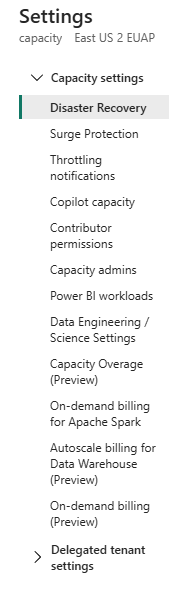
The Capacity settings section opens and displays all settings specific to the capacity. The Delegated tenant settings section allows Fabric admins to delegate tenant settings for capacity admins to manage. Changes to these settings affect only the capacity where you make them.
Note
Delegated tenant settings are available for Power BI Premium and Fabric capacities.
Settings details
This table summarizes the settings available for a capacity.
Note
- Some features in the table are available only if they're enabled in the tenant.
- Trial capacities only have some of the settings listed in the table.
| Details setting name | Description |
|---|---|
| Disaster Recovery | Enable disaster recovery for the capacity |
| Surge protection | Enable surge protection for the capacity |
| Throttling notifications | Enable notification for your capacity |
| Copilot capacity | Designate this capacity as a Copilot in Fabric capacity |
| Contributor permissions | Set up the ability to add workspaces to the capacity. Select one of these two options:
|
| Capacity admins | Give specific users the ability to do the following:
|
| Power BI workloads | Configure Power BI workloads for: |
| Data Engineering/Science Settings | Allow workspace admins to set the size of their Spark pools |
| Capacity overage (preview) | Enable capacity overage to allow the capacity to temporarily exceed its allocated resources. |
| On-demand billing for Apache Spark | Enable on-demand billing for Apache Spark to allow the capacity to be billed based on actual usage rather than allocated resources. |
* To assign a workspace to a Fabric capacity or a capacity with an A SKU, you need a capacity contributor role and a workspace admin role. A contributor on a capacity can assign workspaces to that capacity but can't modify capacity settings or delete the capacity. By using this role, workspace admins can move their workspaces into a managed capacity without full administrative control.
Delegated tenant settings
Use delegating admin settings to grant granular access to features in the capacity. The delegated tenant settings section lists these tenant settings:
- Workload management tenant settings that Fabric automatically delegates to the capacity.
- Tenant settings that the Fabric admin delegates.
By default, delegated tenant settings inherit their configuration from the tenant. To override this configuration, follow these steps. When you enable tenant setting delegation, you can disable it by clearing the Override tenant admin selection checkbox.
From the Delegate tenant setting list, open the setting you want to delegate permissions for.
Select the Override tenant admin selection checkbox.
Select Enabled.
In the Apply to section, select one of the following options:
- All the users in capacity - Delegate the setting to all the users in the capacity.
- Specific security groups - Apply the setting to specific security groups. Enter the security groups you want to apply the setting to.
To exclude specific security groups from the setting, select Except specific security groups and enter the security groups you want to exclude. This setting is optional, and you can use it together with the Apply to setting.
Select Apply.
Add and remove admins
To add and remove admins from your capacity, you need to be a capacity admin. Only users that belong to the tenant the capacity is part of can be admins of the capacity.
- Go to OneLake catalog > Govern > Capacities.
- On the Manage capacities page, filter or search the list to find the capacity.
- Next to the capacity name, select More options (three dots) > Settings.
- In Settings, select Capacity admins, and then add or remove admins as needed.
- Select Apply to save your changes.