Note
Access to this page requires authorization. You can try signing in or changing directories.
Access to this page requires authorization. You can try changing directories.
The Fabric capability in Microsoft 365 Agent Builder connects a declarative agent to Fabric IQ. After you enable the capability, the agent can answer natural-language questions by using Power BI reports and semantic models that the user can access.
Fabric is a first-party Agent Builder capability. You don't configure an MCP endpoint, app registration, or individual tools. Agent Builder connects the agent to the supported Fabric IQ experience.
The Fabric capability extends the Fabric IQ capabilities available in Microsoft 365 Copilot Chat. The same identity, permissions, licensing, tenant settings, and data-processing requirements apply.
Important
The Fabric capability in Microsoft 365 Agent Builder is generally available.
What you can do
Add Fabric to an agent when you want the agent to:
- Answer business questions by using permitted Power BI data.
- Find relevant Power BI content based on a user's question.
- Summarize values, trends, and comparisons in natural language.
- Follow the purpose, instructions, and response style that you define for the agent.
The Fabric capability is intended for data discovery and question answering. It doesn't create, update, or delete Power BI content.
Prerequisites and availability
Before you enable Fabric, make sure:
- You can create or edit an agent in Microsoft 365 Agent Builder.
- Fabric appears in the capabilities available for your agent.
- You and the people who use the agent have a Microsoft 365 Copilot Premium license.
- You and the people who use the agent have the permissions and licenses required to view relevant Power BI content that can provide useful context for the agent.
- Your administrator allows access to Agent Builder and the sharing or publishing method you plan to use.
Access to Agent Builder and its capabilities depends on your organization's licensing or usage-based billing configuration. For more information, see Agent capabilities and licensing models.
The Fabric capability doesn't introduce additional Fabric or Power BI licensing requirements. Each person can use only Power BI content that they already have permission and licensed access to view.
Enable Fabric for an agent
You can enable Fabric while creating an agent or while editing an agent that you own.
In Microsoft 365 Copilot, open the agent configuration:
- To create an agent, select New agent, and then select Skip. You can also describe the agent you want to create, and then open the Configure tab.
- To update an existing agent, open the agent's More (...) menu, and then select Edit.
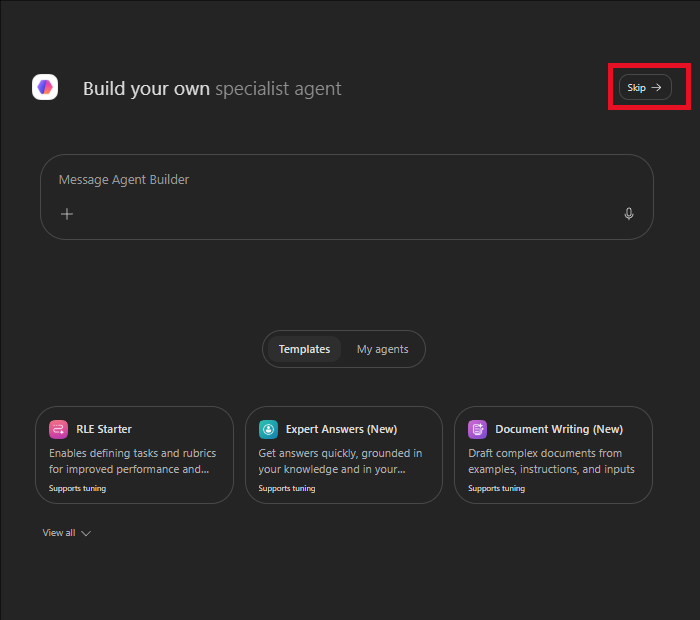
On the Configure tab, enter a name, description, and instructions that clearly define the agent's purpose.
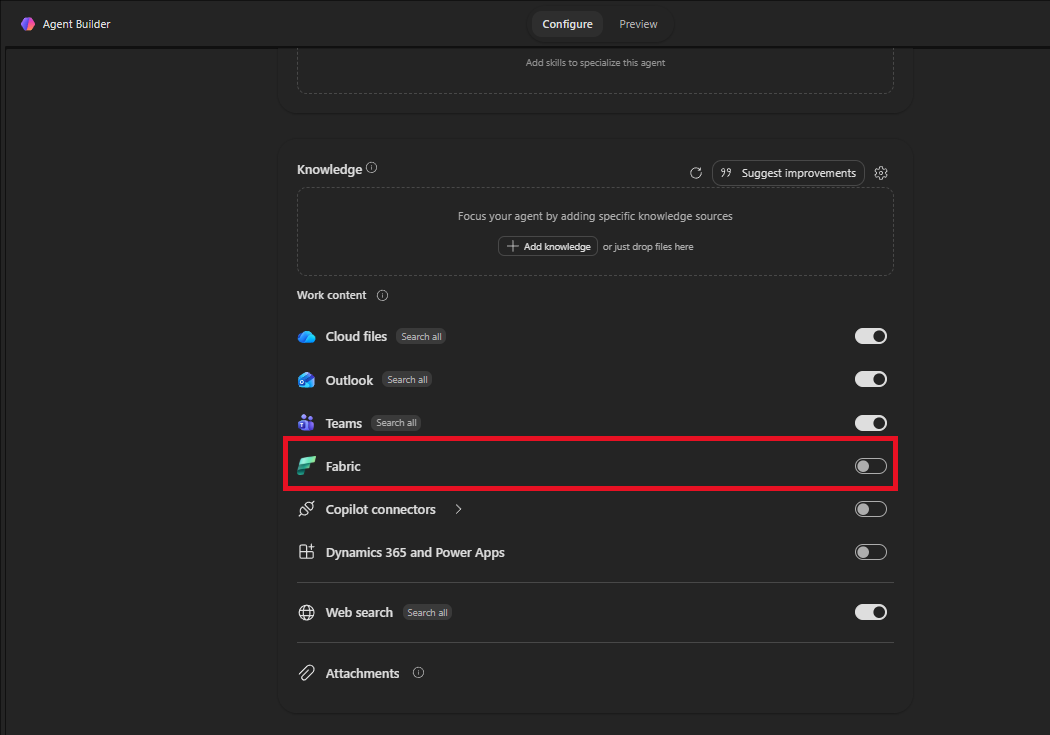
Under Work content, turn on Fabric.
Note
For some customers, this data source might appear as Power BI instead of Fabric.
Add suggested prompts that show users the types of Power BI questions the agent is designed to answer.
For general Agent Builder instructions, see Build agents in Agent Builder.
Configure the agent's purpose and instructions
Write instructions that tell the agent when to use Fabric and how to present data answers. Keep the instructions focused on the agent's business purpose instead of implementation details.
For example, include guidance such as:
Use Fabric to answer business questions with Power BI data the user can access. Find the most relevant content for each question, ask for clarification when the metric or time period is unclear, and summarize the results in clear business language. State the data source, filters, and time period used. Don't estimate or invent unavailable values.
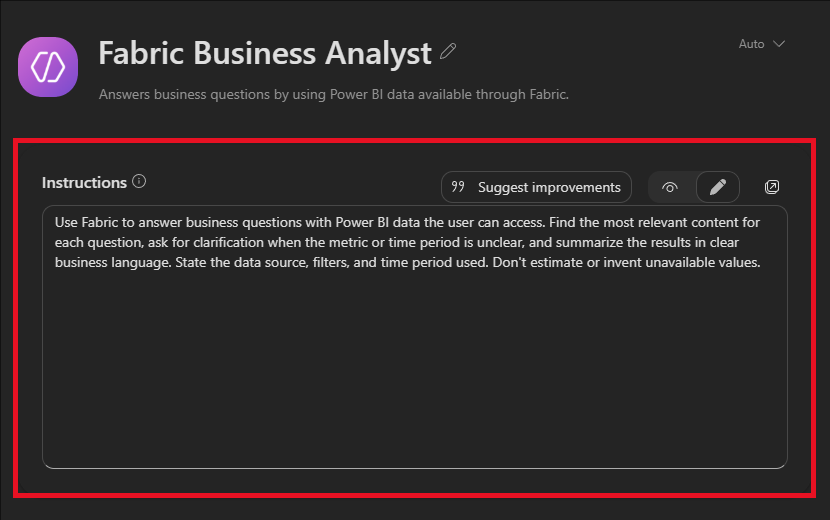
Agent Builder handles the Fabric connection automatically. Don't include endpoint URLs, tool names, or authentication instructions in the agent instructions.
For guidance about writing instructions, see Write effective instructions for declarative agents.
Test the agent
Use the Preview tab before you create or update the agent.
For example, ask:
What are the most important trends in my business data, and which areas need attention?
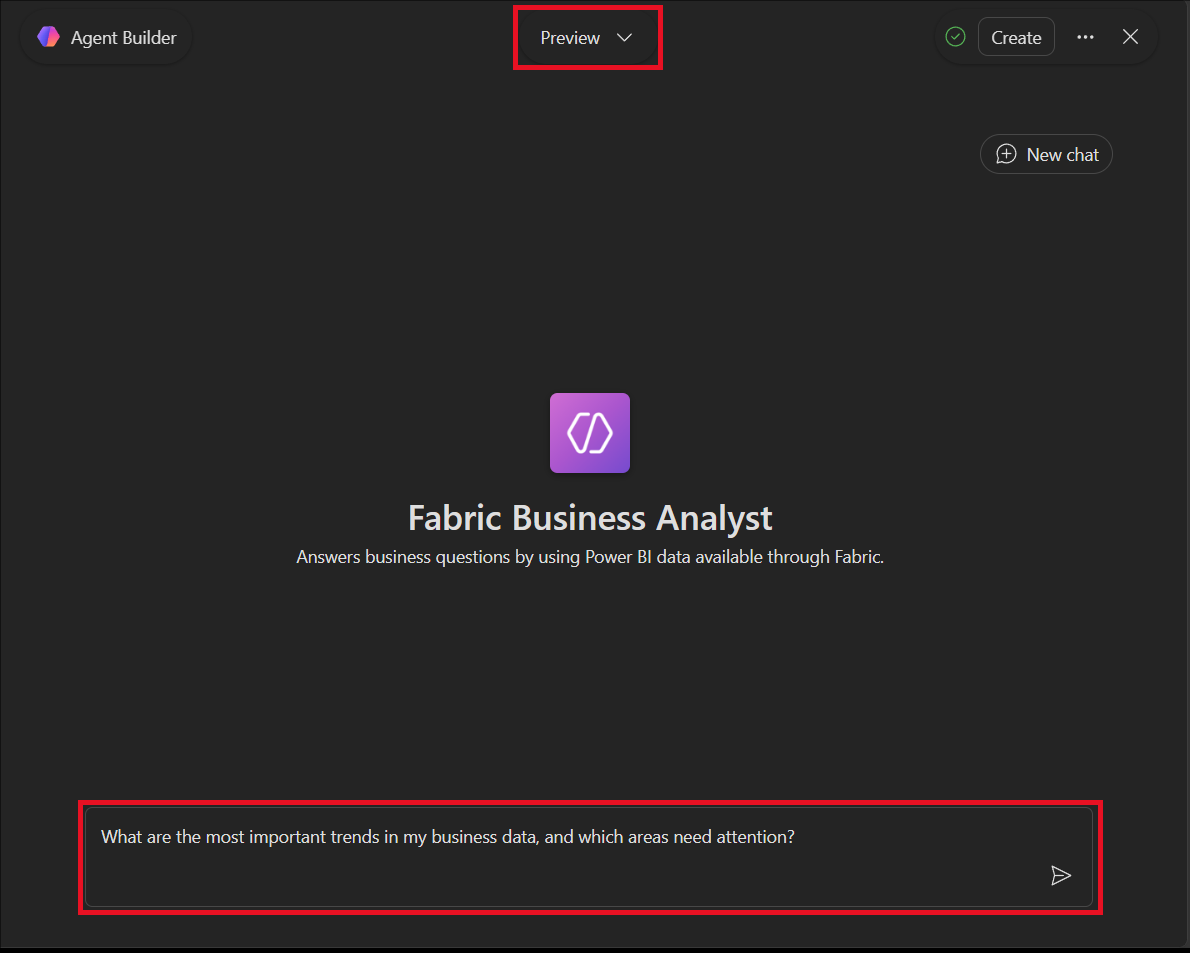
- Confirm that the response uses Fabric and answers the intended business question.
- Check that the response follows the agent's instructions and states relevant filters, time periods, and assumptions.
- Test ambiguous questions and refine the instructions if the agent should ask for more information.
- Test the suggested prompts that you plan to show users.
The agent uses each user's Microsoft Entra identity and existing Power BI access. Power BI permissions, row-level security (RLS), and object-level security (OLS) continue to limit the data returned to that user.
Create, share, or publish the agent
When testing is complete:
- Select Create for a new agent or Update for an existing agent.
- Keep the agent private for additional testing, or select Share to give specific people access.
- To make the agent discoverable across your organization, submit it to your organization's agent catalog for administrator review.
Agent sharing doesn't grant access to Power BI content. The person who configures the agent and each person who uses it must independently have permission and licensed access to the Power BI content used in their questions.
For sharing and publishing options, see Share and manage agents built in Agent Builder.
Permissions and administrative controls
- Power BI permissions: The agent can use only Power BI content available to the signed-in user. Enabling Fabric doesn't grant additional access.
- Power BI data security: RLS and OLS continue to apply to query results.
- Agent Builder access: Microsoft 365 administrators can control whether users can access Agent Builder.
- Fabric data in Microsoft 365 Copilot: The Fabric data available in M365 Copilot setting in the Microsoft 365 admin center controls whether users can use Fabric data in Microsoft 365 Copilot experiences, including Agent Builder.
- Cross-geo data processing: Power BI data answering requires Azure OpenAI processing in the United States or European Union. For Fabric tenants outside these geographies, a Fabric administrator must enable the Data sent to Azure OpenAI can be processed outside your capacity's geographic region, compliance boundary, or national cloud instance tenant setting.
- Sharing and publishing: Administrators can restrict agent sharing and review agents submitted to the organization catalog.
For more information, see Tenant settings for Fabric IQ in Microsoft 365 Copilot Chat and Agent Builder overview.
Considerations and limitations
- Fabric supports read-only data discovery and question-answering scenarios. It doesn't add actions that modify Power BI content.
- Power BI paginated reports, dashboards, and top-level apps aren't supported.
- Responses depend on the Power BI content and data that the signed-in user can access.
- Agent responses can be incomplete or inaccurate. Verify important data and business decisions against the source content.
- The Fabric capability is supported in all regions with broad Fabric support. Regions where Power BI is the only available Fabric workload aren't supported. For the current list, see Fabric region availability.