Note
Access to this page requires authorization. You can try signing in or changing directories.
Access to this page requires authorization. You can try changing directories.
Ontology (preview) integrates with operations agent to continuously monitor your ontology, surface insights against your business goals, and recommend actions—all grounded in the ontology's entity types and relationships.
Important
This feature is in preview.
Prerequisites
Make sure you meet the operations agent prerequisites, including the Microsoft Teams account and tenant settings for operations agent, Microsoft Copilot, and Azure OpenAI.
Create operations agent with ontology (preview) source
Follow these steps to create a new operations agent that monitors an ontology (preview) item. For full details on each setup field, see Create an operations agent.
In your Fabric workspace, select + New item and create a new Operations agent item.
On the Agent setup page, fill in the following:
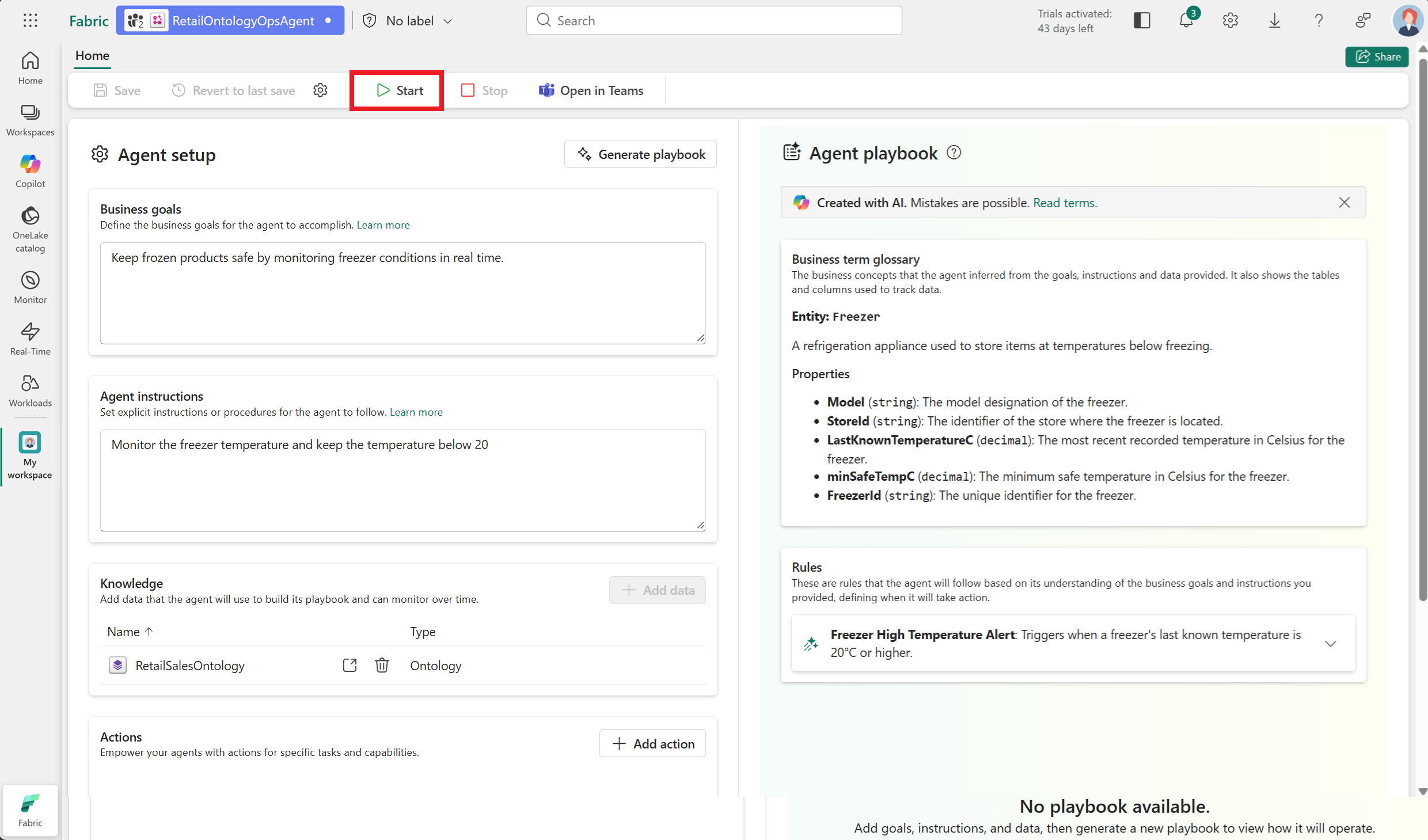
- Instructions: Add guidance for the agent's behavior. For example, Monitor the freezer temperature and keep the temperature below 20.
- Knowledge source: Select Add and choose your ontology item.
- Actions (optional): Define one or more actions the agent can recommend, such as NotifyStoreOperations with parameters like StoreId and FreezerId. If you add an action, configure it as described in Configure an operations agent.
Save the agent and select Generate playbook. Review the concepts and rules in the playbook and confirm they reference the expected ontology entity types (such as Store, Product, and Freezer) and properties.
Select Start in the toolbar to start the agent.
Receive notifications in Teams
Install the Fabric Operations Agent Teams app so the agent can contact you when it detects matching conditions in your ontology data. For more information, see Receive messages from an operations agent.
When a recommendation arrives, review the context (which references ontology entity types, not raw tables), adjust any action parameters if needed, then select Yes to approve or No to reject.