Note
Access to this page requires authorization. You can try signing in or changing directories.
Access to this page requires authorization. You can try changing directories.
When creating conditional formatting rules, you can choose from three Format by options that determine how formatting is applied. This article explains the configuration of rules in conditional formatting using IF conditions in detail.
Prerequisites
- You have access to a planning sheet.
- You have created a rule in conditional formatting.
Enable format by rules (IF conditions)
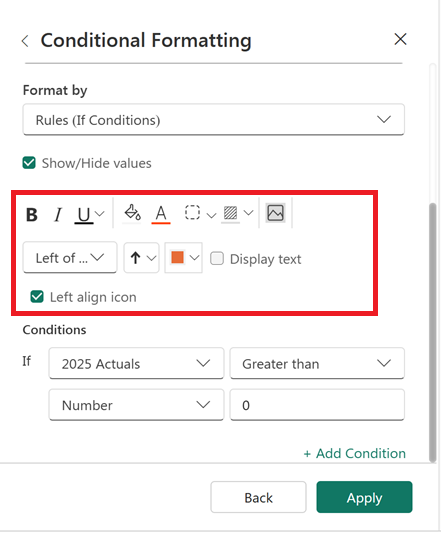
In the Format by dropdown, select Rules (If conditions) to configure rule-based conditional formatting based on one or more logical conditions. Format cells using font styles, colors, borders, icons, or background highlights when specified conditions are met.
Configure formatting styles
In the Style section, define how data should appear when conditions are met:
- Font style: Apply bold, italic, or underline
- Font color: Change text color
- Cell background: Highlight cells with color
- Borders: Add custom borders
- Icons or text: Display indicators or symbols
- Hide values: Mask sensitive data when conditions are met
You can also:
Align icons within cells
Display only icons or text (hide values)
Apply formatting to charts or labels where applicable.
Define rule conditions
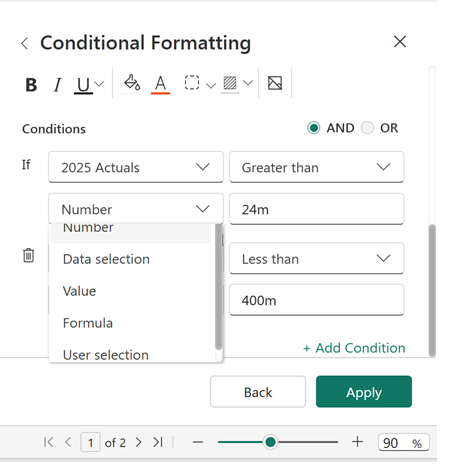
Use the Conditions section to specify when formatting is applied. You can combine multiple conditions using AND/OR logic.
Each condition contains the following components:
| Setting | Description |
|---|---|
| Measure or field | Select the measure or column to evaluate. |
| Operator | Define the comparison logic, such as Greater than, Less than, or Equal to. |
| Condition type | Specify the comparison source, such as Number, Data selection, Value, or Formula. |
| Value | Enter the comparison value or select a reference. |
Supported condition types include:
Number: Apply formatting based on numeric thresholds.
Data selection: Reference another cell value dynamically.
Value: Compare against another measure or column.
Formula: Use expressions combining measures and values.
User selection: Apply formatting dynamically based on runtime user interaction.
Nested conditions
You can configure advanced conditional formatting by selecting Add Condition.
Add multiple conditions and combine them using AND/OR logic.
Apply complex business rules across dimensions.

