Note
Access to this page requires authorization. You can try signing in or changing directories.
Access to this page requires authorization. You can try changing directories.
Conditional formatting helps you highlight important data points in a planning sheet by applying visual cues such as colors, icons, and styles based on defined rules. This formatting improves readability and directs attention to key performance indicators in high-density tabular reports.
Prerequisite
- You have access to the Planning sheet with the required dataset.
Create a conditional formatting rule
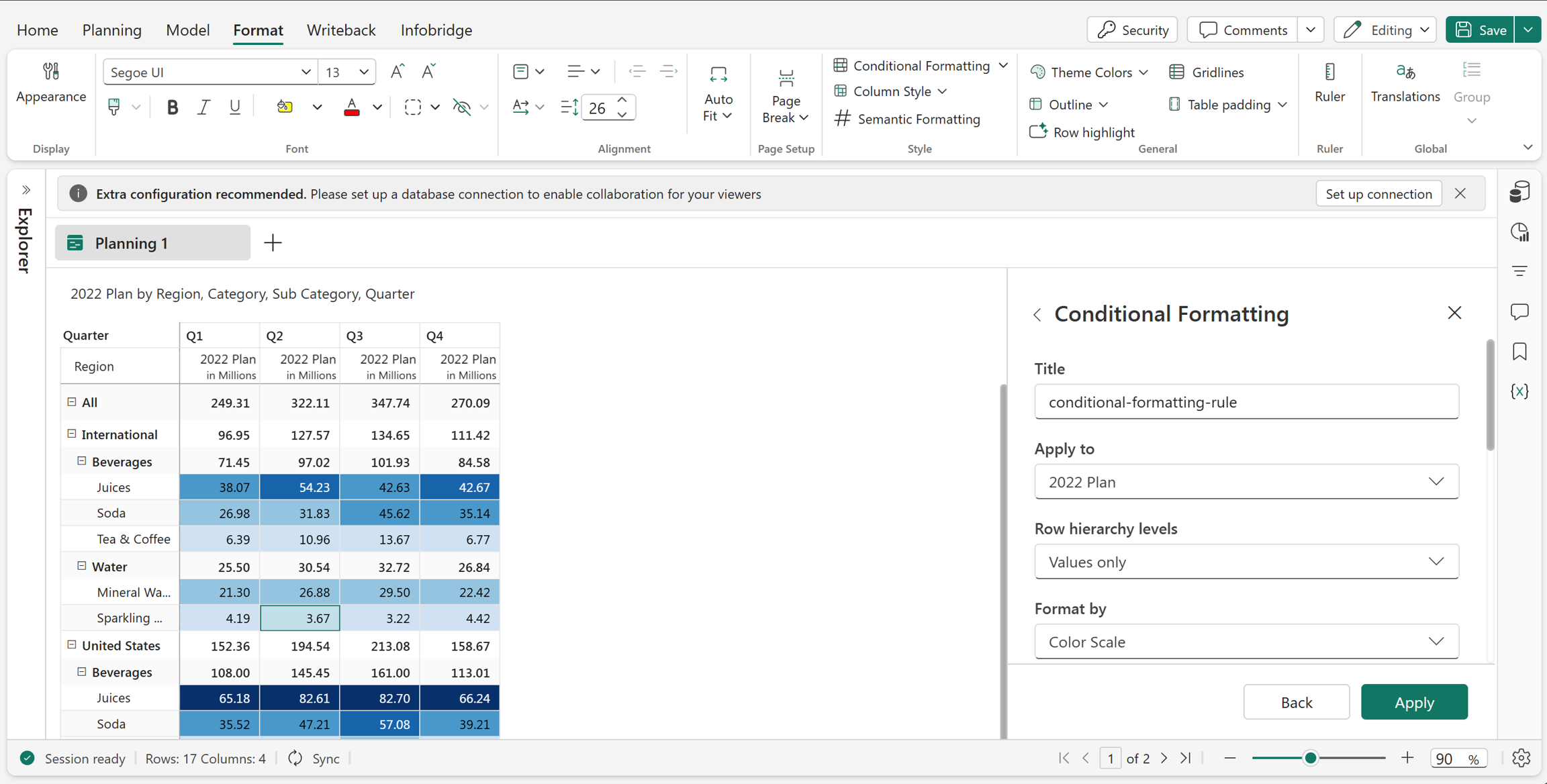
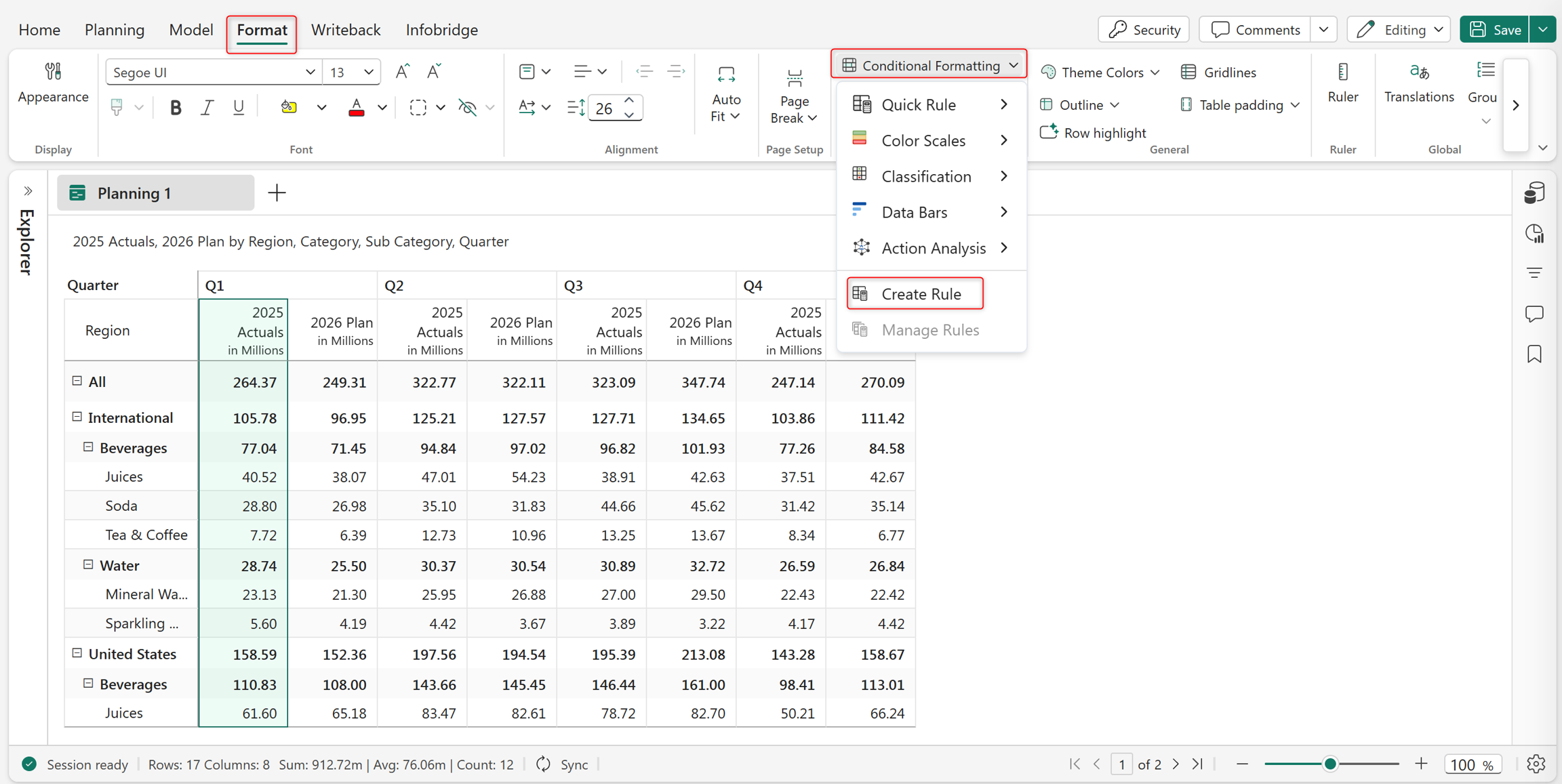
In the Planning sheet navigate to Format > Conditional formatting.
Select Create rule.
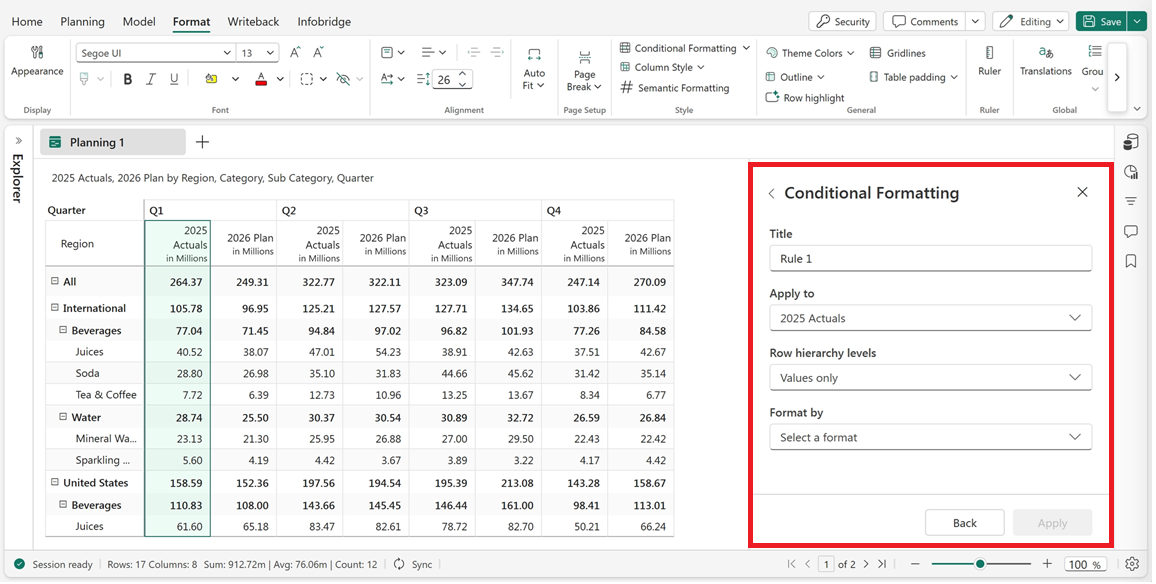
Enter a Title for the rule.
Select where to apply formatting using Apply to (rows, columns, headers, or measures).
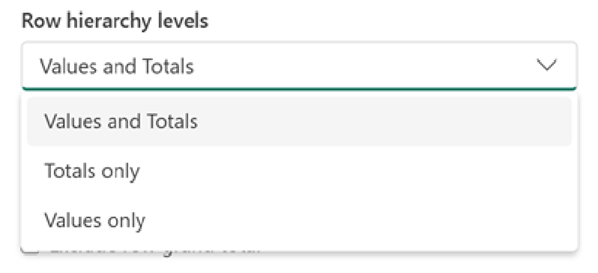
Select the formatting scope using Row hierarchy levels:
- Values only
- Totals only
- Values and totals
Select a rule type from Format by:
- Rules (IF conditions): For more information about configuring rules using IF conditions, see Configure rules using IF conditions.
- Color scale: For more information about configuring rules using color scale, see Configure rules using format by color scale.
- Classification: For more information about configuring rules classification, see Configure rules using format by classification.

Select Apply to create the rule.