Note
Access to this page requires authorization. You can try signing in or changing directories.
Access to this page requires authorization. You can try changing directories.
The Manage rules options allow you to view, edit, reorder, enable, disable, or delete existing conditional formatting rules in the planning sheet.
Use the Manage rules pane to organize and control how multiple conditional formatting rules are applied to your data.
Open Manage rules
To open the Manage rules pane:
Open the planning sheet.
Select Conditional formatting from the toolbar.
Select Manage rules.
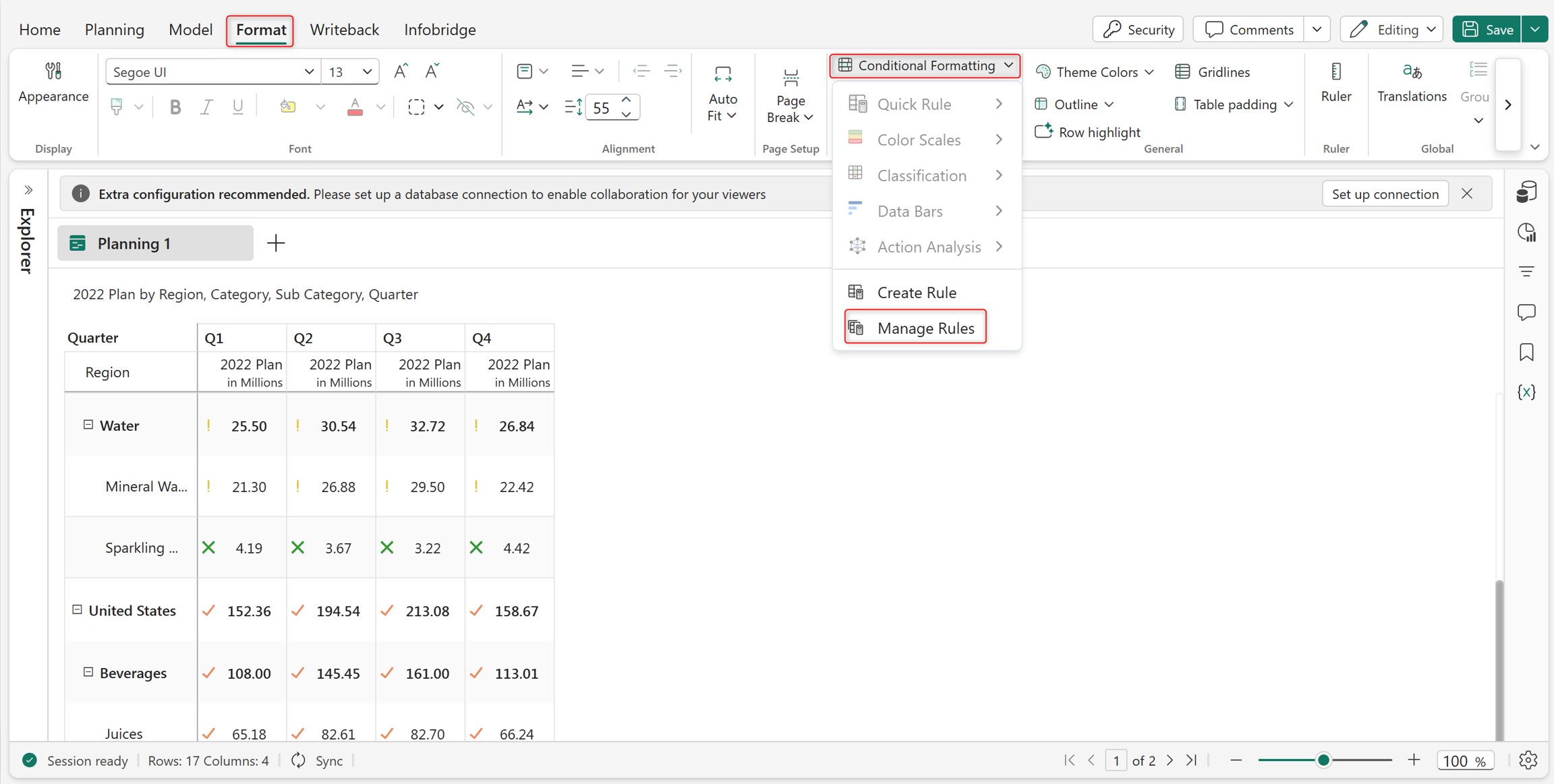
Rule management options
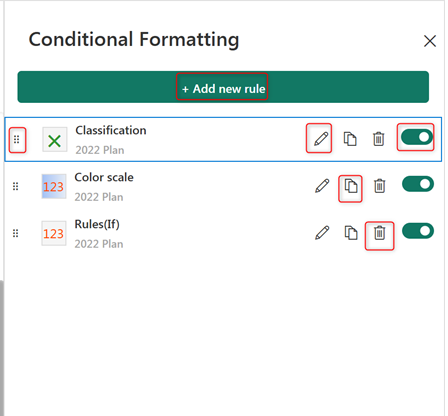
The Manage rules pane displays all the conditional formatting rules configured for the current planning sheet. The following actions can be performed from the Manage rules pane:
Add new rule
Create a new conditional formatting rule.
Edit a rule
Select the pencil icon next to the rule to modify its settings, conditions, formatting options, or target range.
Enable or disable a rule
Use the toggle option to temporarily enable or disable a conditional formatting rule without deleting it. Disabled rules are not applied in the planning sheet but can still be retained for future use.
Reorder rules
Select the reorder rules (⋮⋮) option to control the evaluation priority when multiple conditional formatting rules are applied to the same cells. Rules are evaluated based on their order.
Delete a rule
Delete rules that are no longer required from the planning sheet. Deleting a rule permanently removes the associated formatting configuration.
Duplicate a rule
Create a copy of an existing rule to reuse the same configuration with minor modifications.
Rule priority behavior
When multiple conditional formatting rules are applied to the same value, rule priority determines which formatting is displayed. Rearrange the rule order to control formatting precedence.
Export behavior
Conditional formatting rules configured in the planning sheet can also be applied during Excel and PDF exports. Enable or disable rules to be included in the exported report. For more information, see Export data from planning sheets to Excel and PDF.