Note
Access to this page requires authorization. You can try signing in or changing directories.
Access to this page requires authorization. You can try changing directories.
Organizations often maintain forecasts separately by region, product, or other business dimensions, resulting in inconsistencies across forecast views. Cube-based forecasting makes it possible to generate and distribute forecasts across multiple dimensions with varying levels of granularity in a single step. As you update forecasts, values remain synchronized across all related dimensions.
This article explains how to configure and use a cube for multi-dimensional forecasting. For more information about using cubes, see Plan across multiple dimensions with cubes.
Note
Are you a new developer working with Fabric? Are you interested in sharing your getting started experience and helping us make improvements? We’d like to talk with you! Sign up here if interested.
Prerequisites
- The column dimension is a standard date hierarchy (for example, year > quarter > month).
Extend forecasting to dimensions outside the sheet
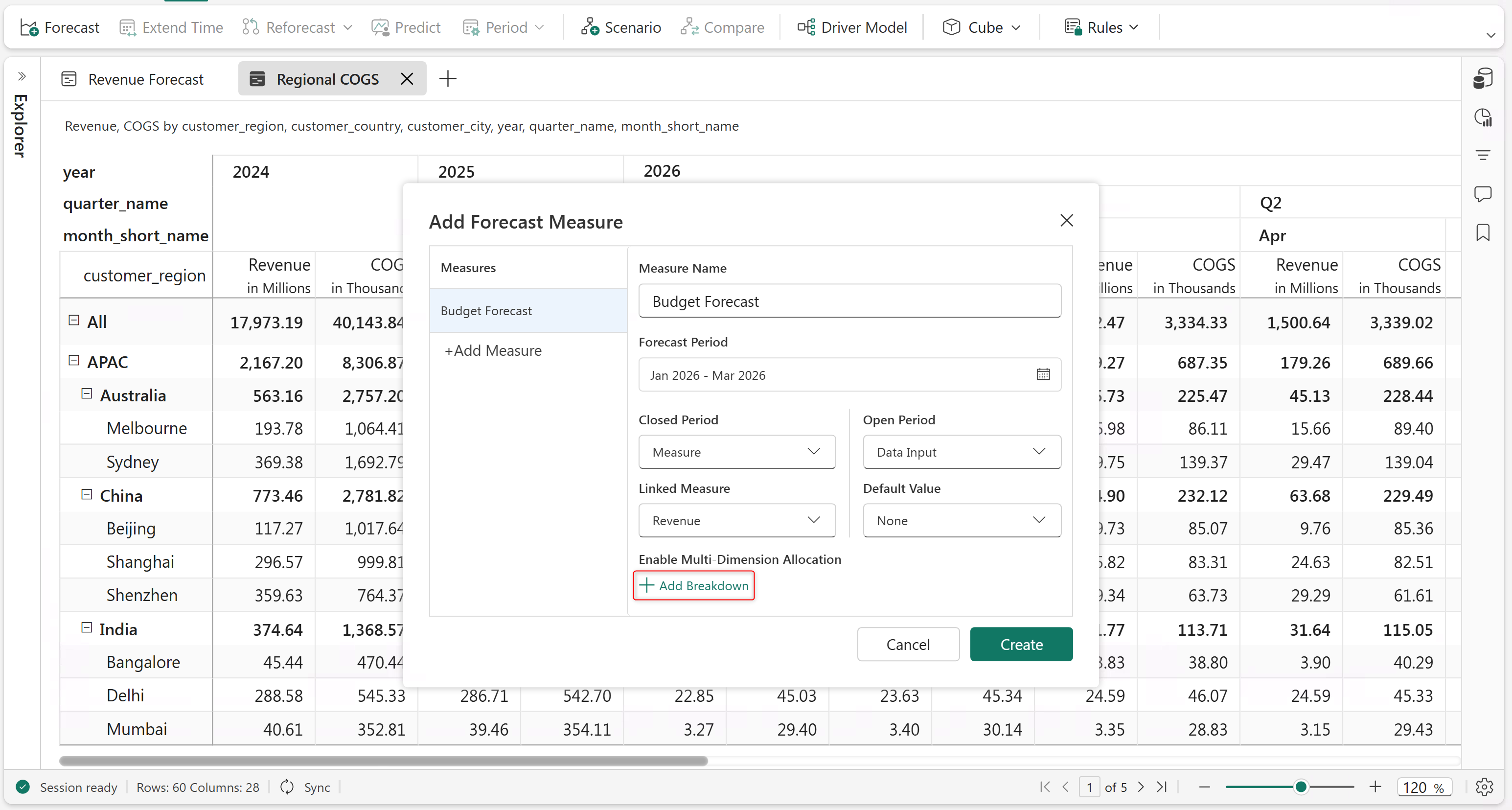
Forecasts are generated for the row dimensions included in the planning sheet. To forecast other dimensions that aren't present in the current sheet, add breakdowns.
Select Add Breakdown in the forecast configuration.
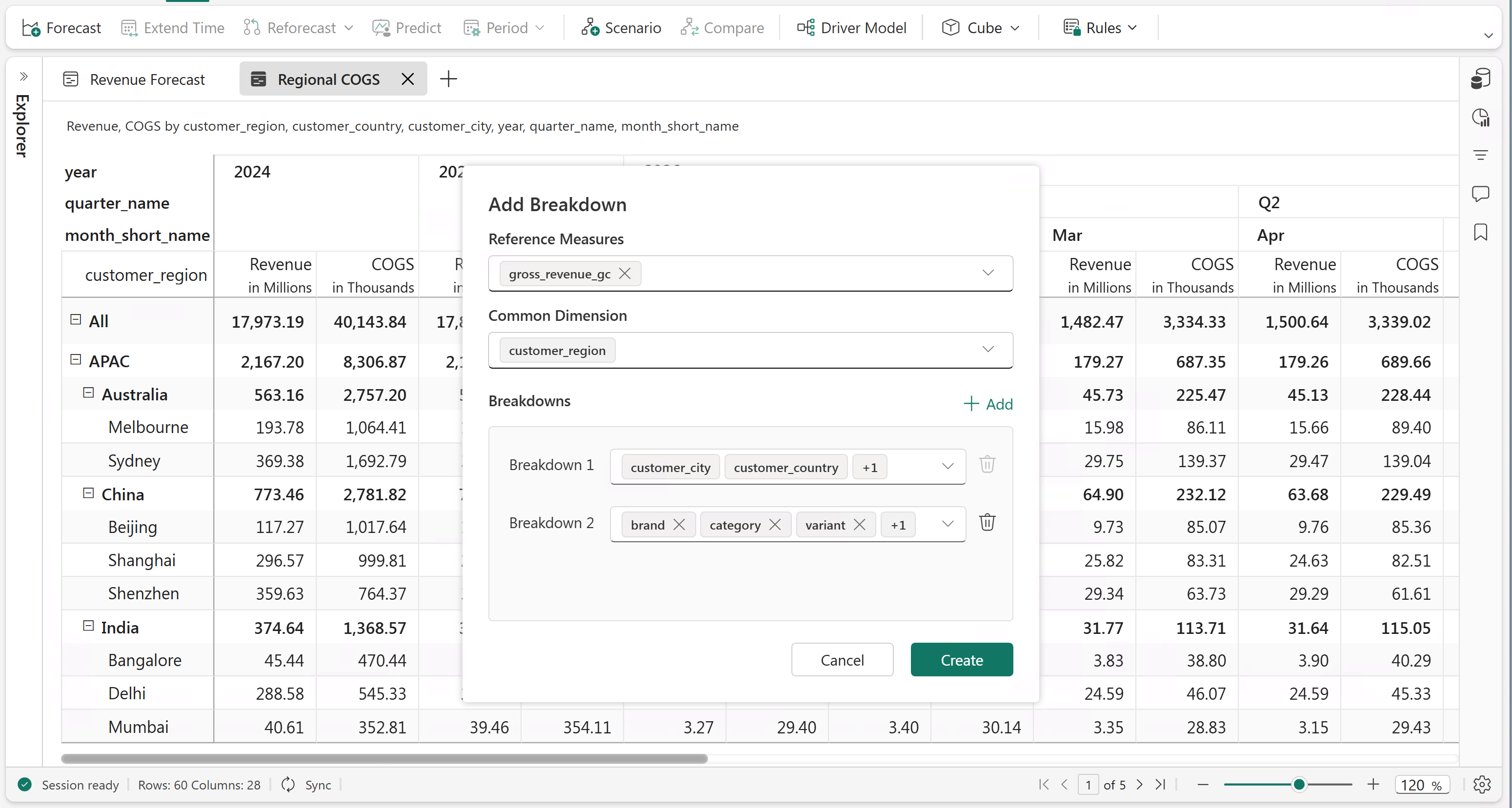
The first breakdown is set to the row dimensions in the sheet. To configure the cube, select Add and define the breakdown dimensions. Choose a reference measure to drive allocation weights. Select Create to create the cube.
Note
The dimensions and measures used to configure the cube can be sourced from the dataset without adding them to the current sheet. The reference measure used for weighted allocation must have values for the future forecast period.
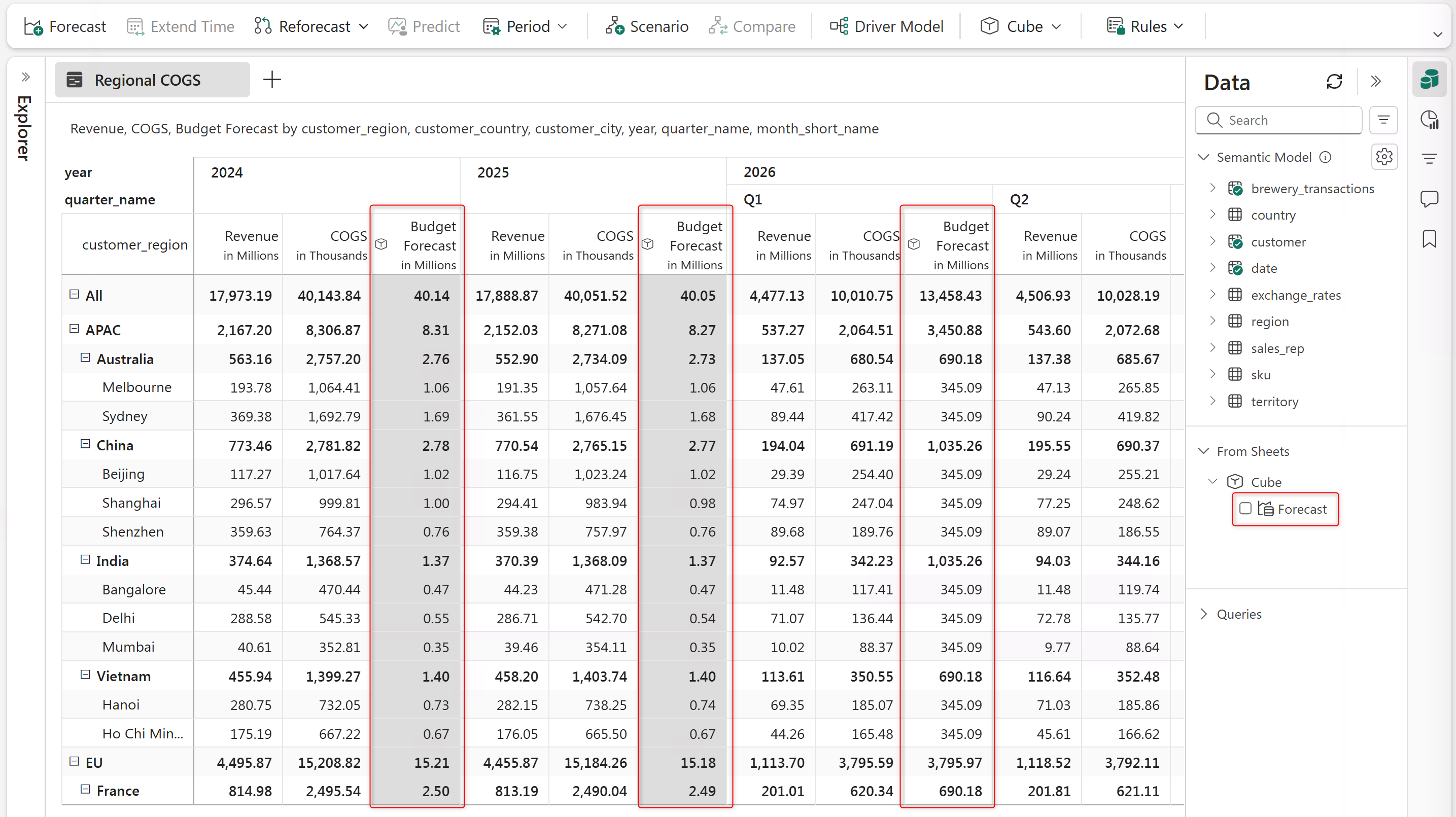
Complete the forecast configuration and create the forecast.
After you create the forecast cube, it appears in the From Sheets section of the Data pane. You can then import the forecast into other sheets with different granularities without creating separate forecasts for each sheet.
To import a forecast cube into a different planning sheet, go to Data > From Sheets and select More(...) > Insert as a measure for that cube.
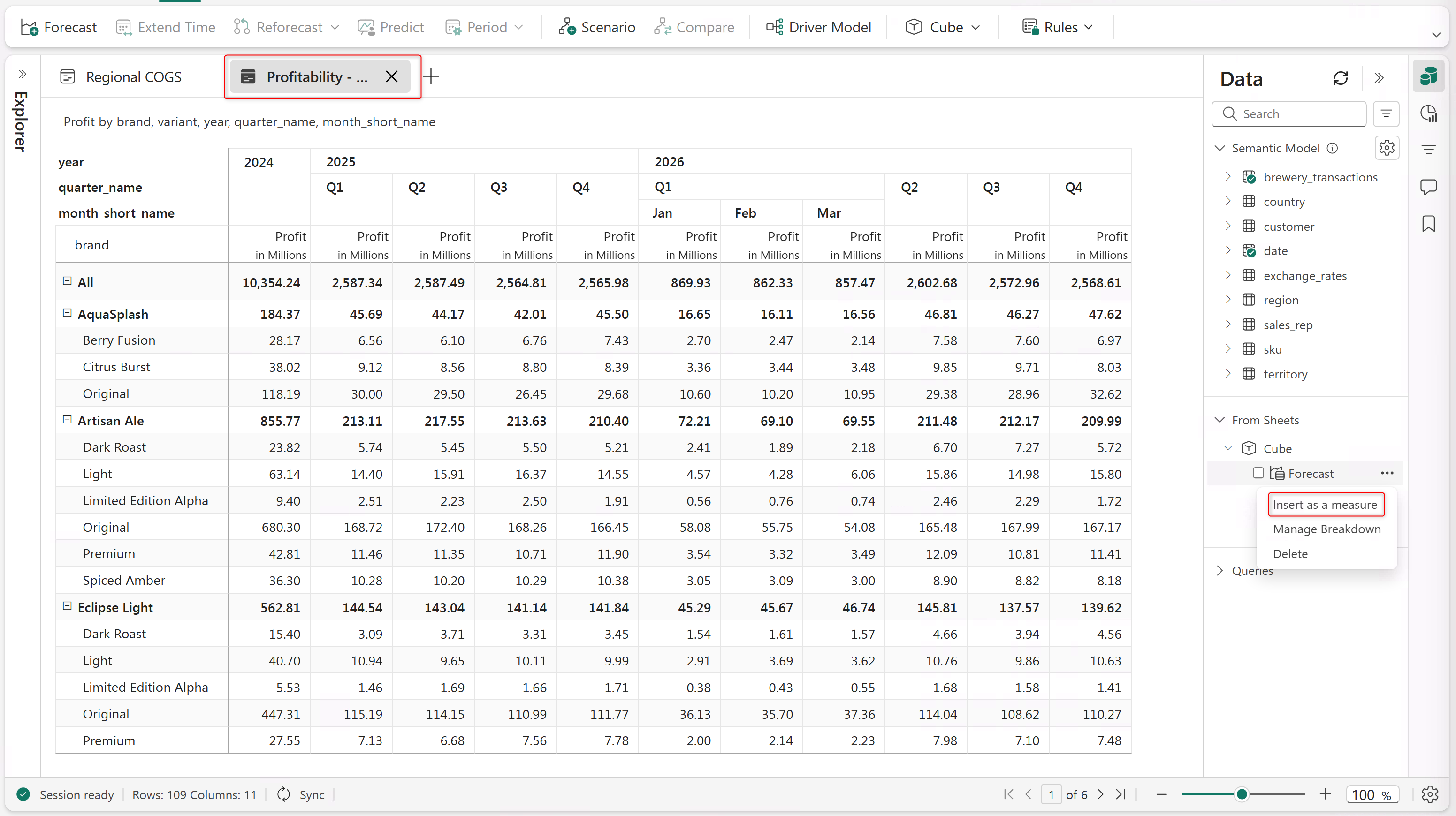
After you insert the forecast cube into the planning sheet, updates made in either sheet sync automatically, streamlining the process of forecasting across dimensions.
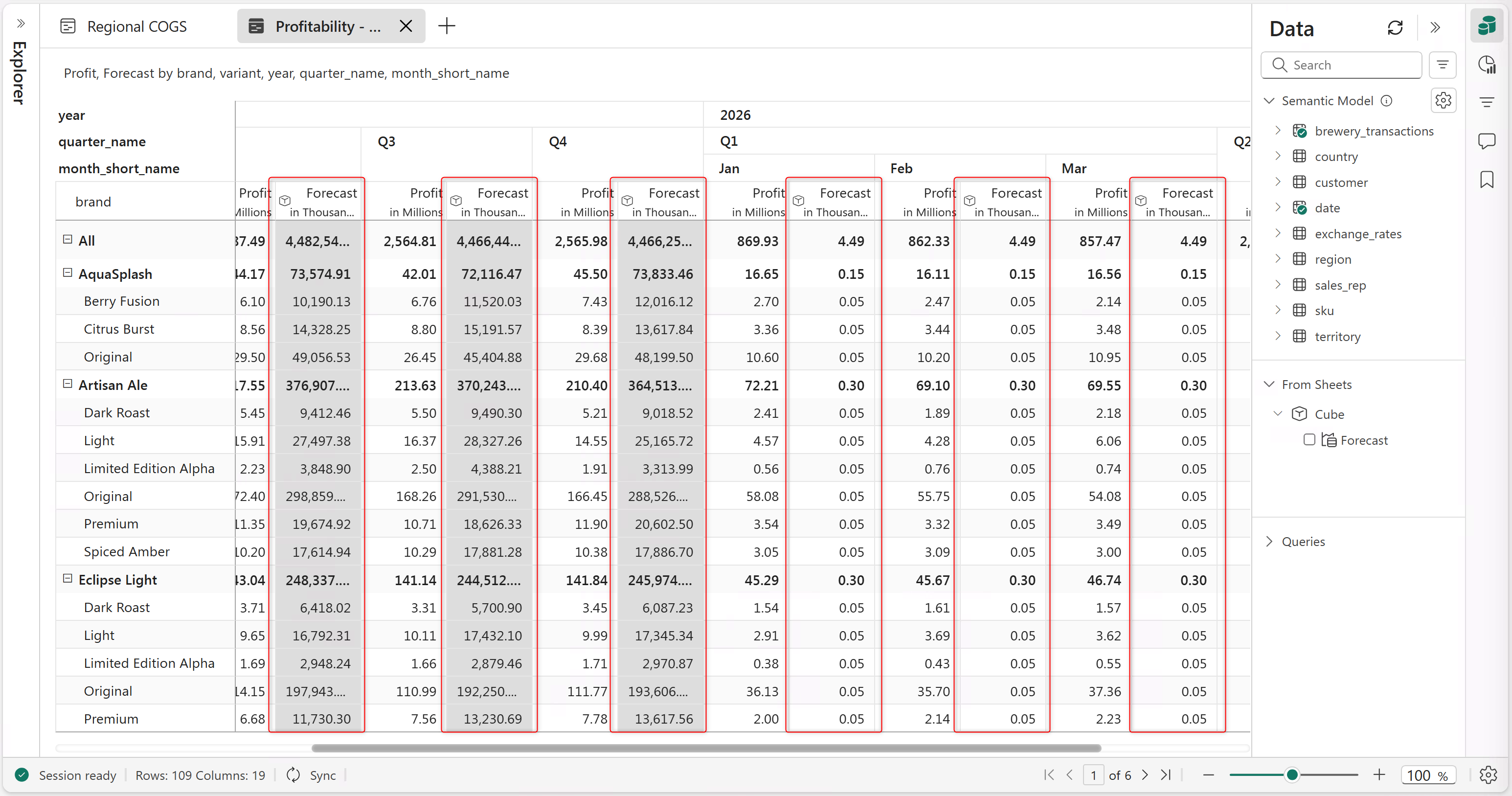
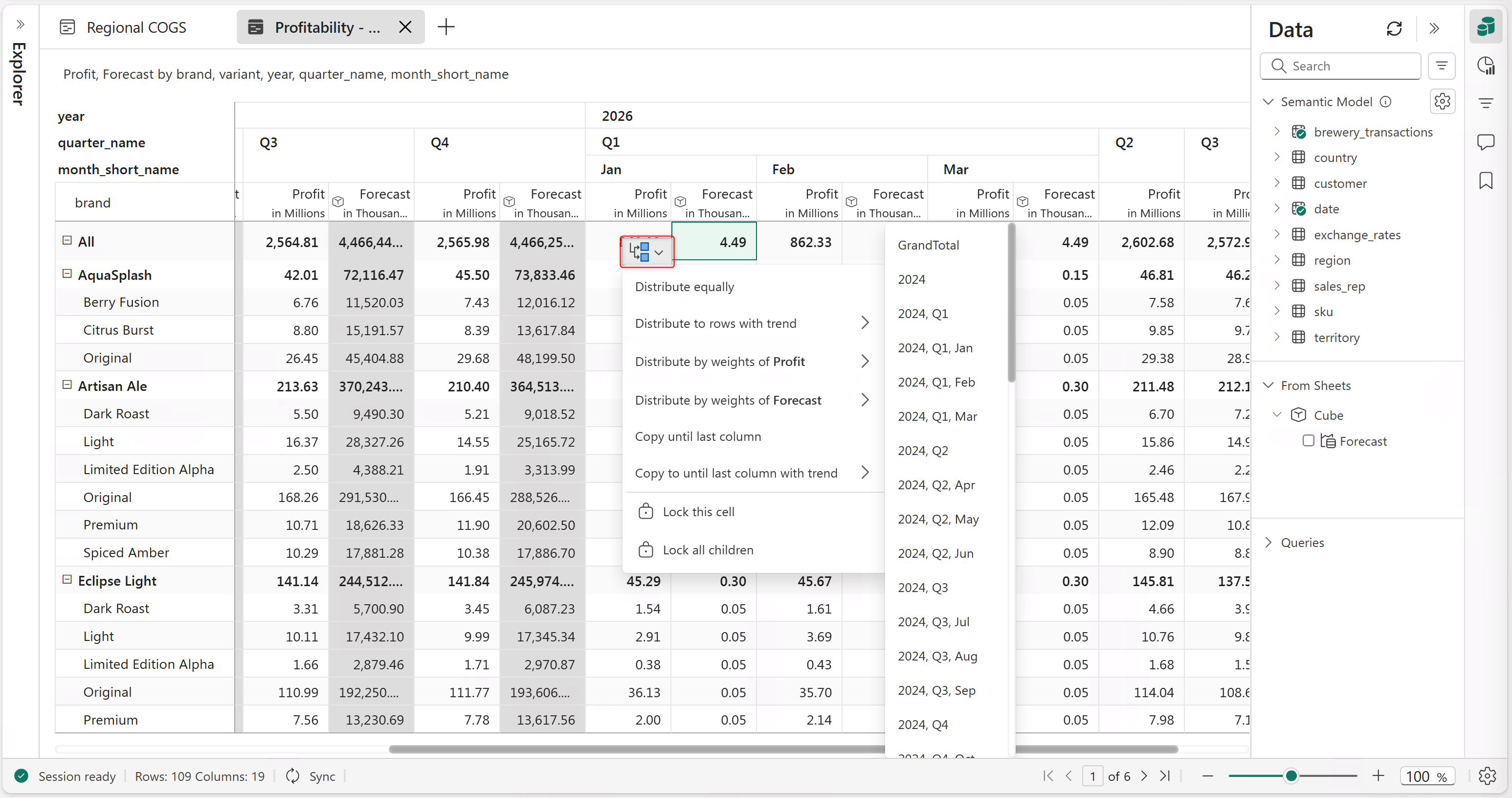
The system distributes forecast values equally across dimensions in the second sheet. Select a cell to redistribute values based on the measure weights in the second sheet.