Note
Access to this page requires authorization. You can try signing in or changing directories.
Access to this page requires authorization. You can try changing directories.
Apply logical functions to test conditions and return TRUE or FALSE results. These functions are commonly used to evaluate expressions, validate data, and build conditional logic in reports.
AND
The AND function returns TRUE only if all specified conditions are TRUE. If any condition evaluates to FALSE, the function returns FALSE. It is commonly used with IF and other conditional functions to evaluate multiple criteria.
Syntax
AND(logical_test1, [logical_test2], ...)
Arguments
logical_test1: The first condition to evaluate.logical_test2, ...(optional): Additional conditions to evaluate.
Return value
Returns TRUE if all conditions are met; otherwise, returns FALSE.
Example
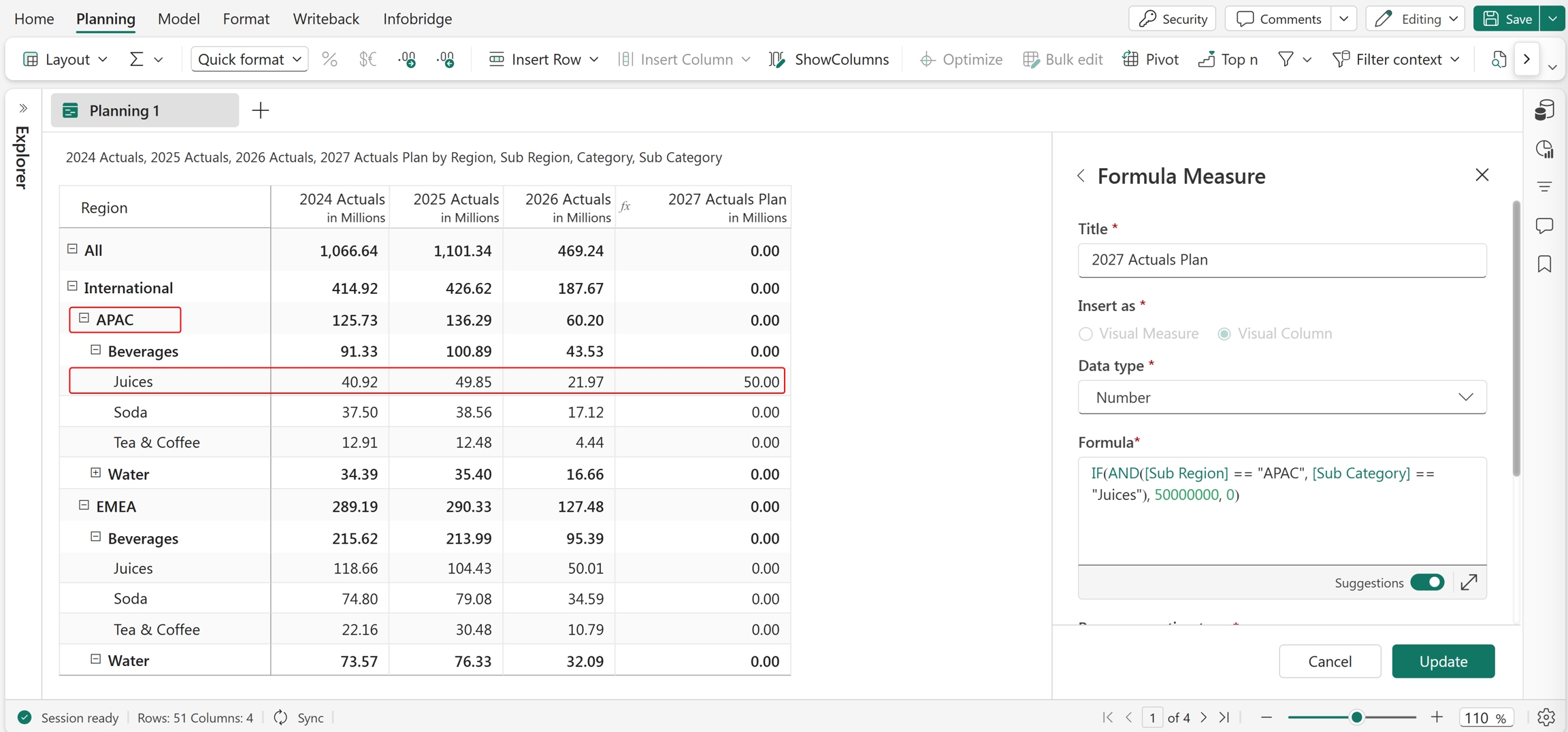
IF(AND(Sub Region == "APAC", Sub Category== "Juices"), 50000000, 0)
In this example, the AND function is used within an IF statement to assign values to the 2027 Actuals Plan. The AND function evaluates whether both conditions are met: Sub Region is APAC and Sub Category is Juices. If both conditions are TRUE, the formula returns 50 million; otherwise, it returns 0.
Excel equivalent
IN
The IN function returns TRUE if a specified value matches any value in a list or array. It returns FALSE if no match is found. It is commonly used with IF and other conditional functions to simplify multiple OR conditions.
Syntax
IN(value, [item1, item2, ...])
Arguments
value: The value to check.item1, item2, ...: A required list of values to compare against.
Return value
Returns TRUE if a match is found; otherwise, returns FALSE.
Example
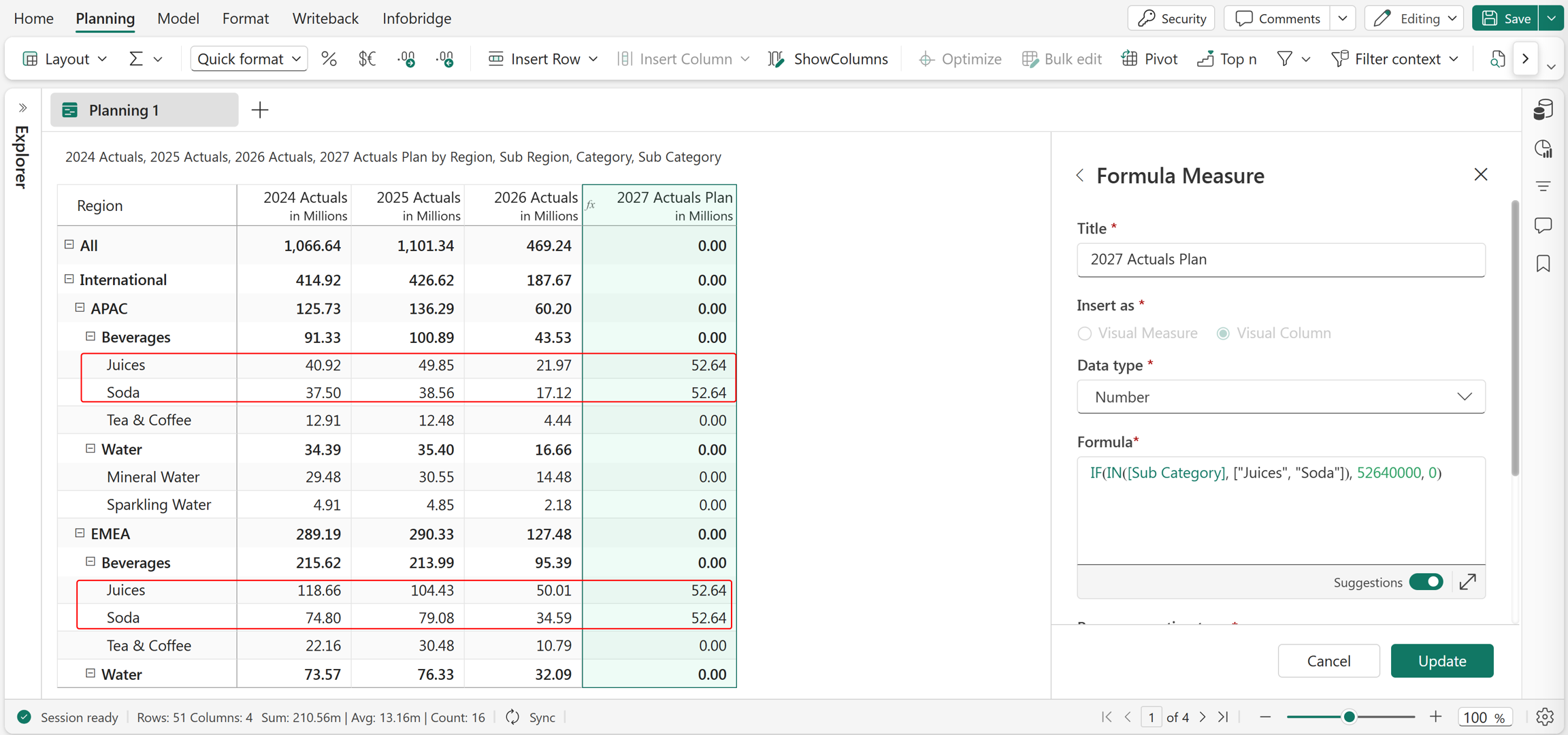
IF(IN(Sub Category,["Juices", 'Soda']), 52640000, 0)
In this example, the IN function is used within an IF statement to assign values to the 2027 Actuals Plan. The function evaluates whether the Sub Category matches any value in the list: Juices or Soda. If a match is found, the formula returns 52.64 million; otherwise, it returns 0.
ISBLANK
The ISBLANK function returns TRUE if the specified value is blank or empty. It returns FALSE if the value contains any text, number, or expression. It is commonly used with IF and other logical functions to validate missing values before performing calculations.
Note
The ISEMPTY function works similar to ISBLANK and can also be used to check for blank or empty values.
Syntax
ISBLANK(value)
Arguments
value: The value to evaluate.
Return value
Returns TRUE if the value is blank; otherwise, returns FALSE.
Example
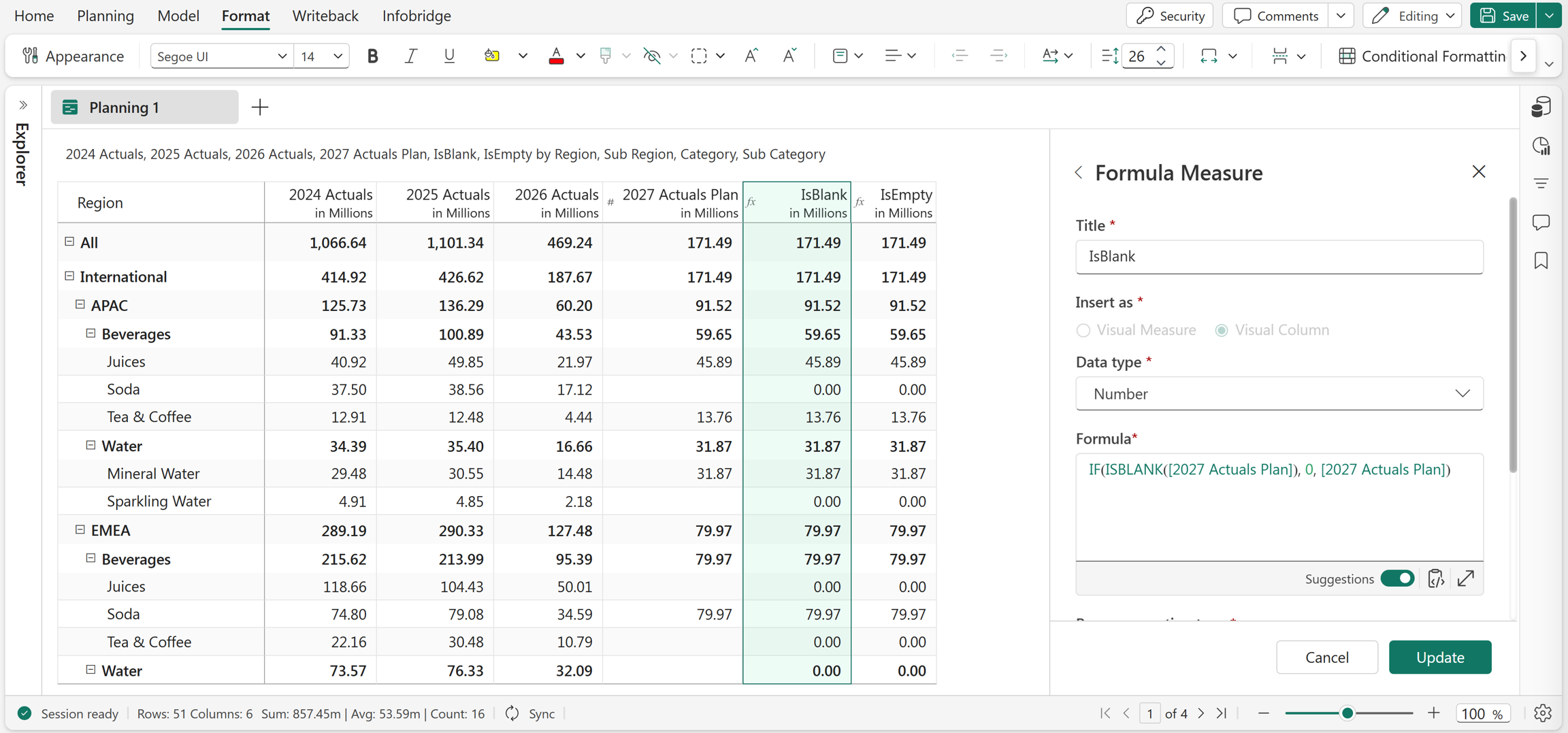
IF(ISBLANK(2027 Actuals Plan), 0, 2027 Actuals Plan)
In this example, the ISBLANK function checks whether the 2027 Actuals Plan value is blank. If the condition is TRUE, the formula returns 0; otherwise, it returns the existing value.
Excel equivalent
ISNUMBER
The ISNUMBER function returns TRUE if the specified value is a valid number. It returns FALSE if the value is not numeric. It is commonly used with IF and other conditional functions to validate numeric inputs before performing calculations.
Syntax
ISNUMBER(value)
Arguments
value: The value to evaluate.
Return value
Returns TRUE if the value is a numeric value; otherwise, returns FALSE.
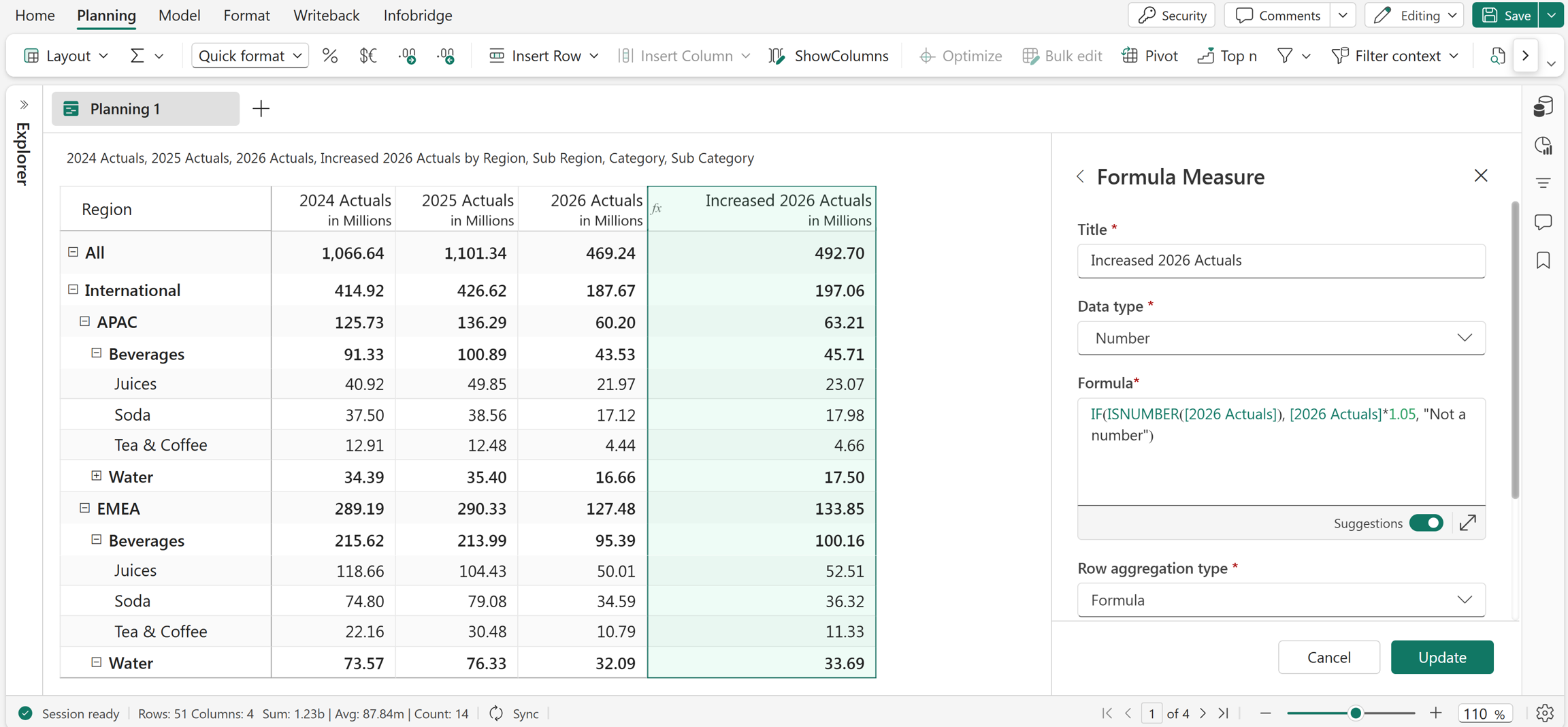
Example
IF(ISNUMBER(Revenue), Revenue*1.05, "Not a number")
In this example, the ISNUMBER function checks whether Revenue contains a numeric value. If the condition is TRUE, the formula applies a 5% increase to the value; otherwise, it returns 'Not a number'.
Excel equivalent
ISREFEXIST
The ISREFEXIST function returns TRUE if the specified reference exists in the sheet. It returns FALSE if the reference is invalid or doesn't exist. It is commonly used to along with IF to validate references before applying calculations or logic.
Syntax
ISREFEXIST(reference)
Arguments
reference: The reference to validate.
Return value
Returns TRUE if a valid reference exists; otherwise, returns FALSE.
Example
IF(ISREFEXIST(2026 Revenue Plan), 2026 Revenue Plan, "Reference doesn't exist")
In this example, the ISREFEXIST function checks whether the 2026 Revenue Plan reference exists. If the condition is TRUE, the formula returns the value of the 2026 Revenue Plan; otherwise, it returns the text 'Reference doesn't exist'.
Excel equivalent
NOT
The NOT function returns the opposite of a logical value. It returns TRUE if the specified condition is FALSE, and FALSE if the condition is TRUE. It is commonly used with IF and other logical functions to invert conditions in calculations.
Syntax
NOT(logical_test)
Arguments
logical_test: The condition to evaluate and reverse.
Return value
Returns TRUE if the condition is FALSE and FALSE if the condition is TRUE.
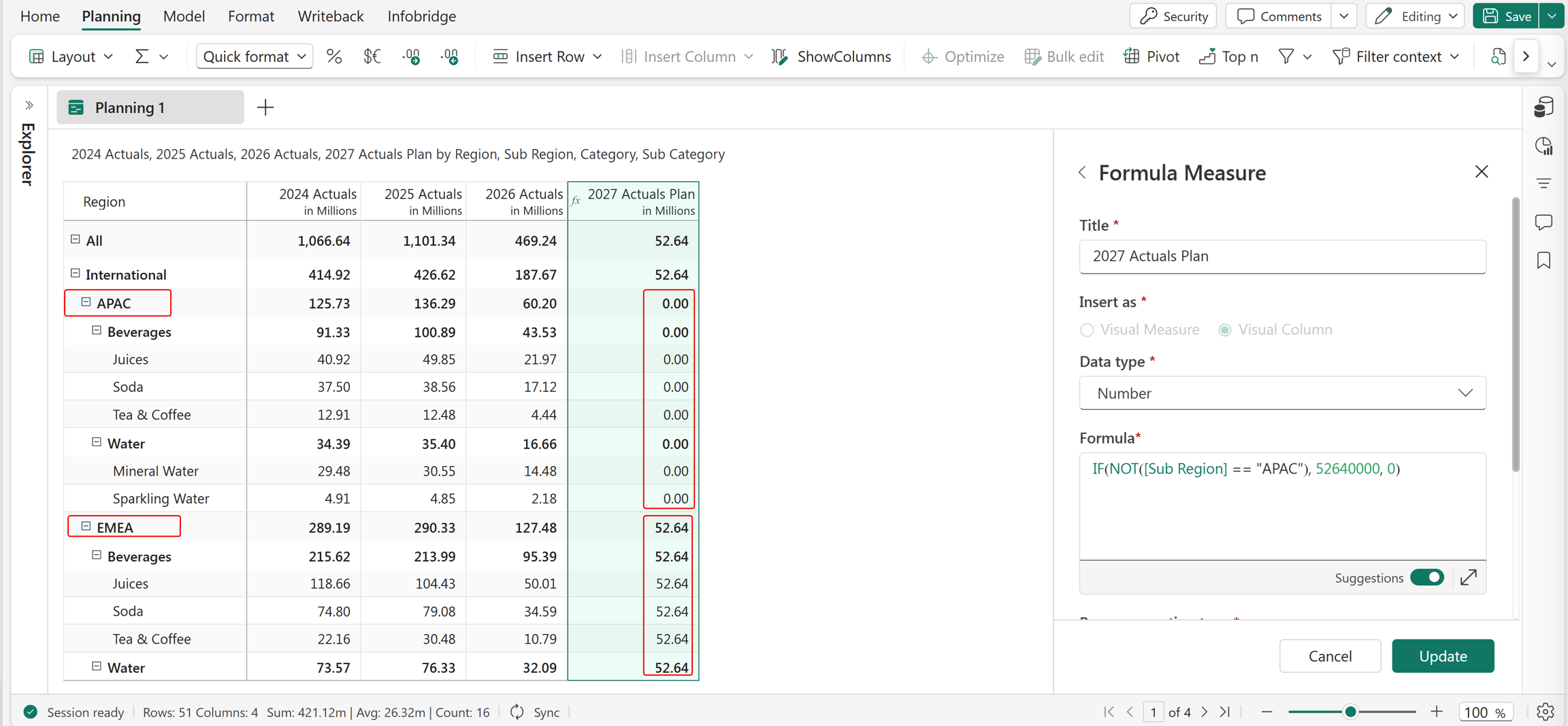
Example
IF(NOT(Sub Region == "APAC"), 52640000, 0)
In this example, the NOT function is used within an IF statement to assign values to the 2027 Actuals Plan. The function evaluates whether Sub Region is not APAC. If the condition is TRUE, the formula returns 52.64 million; otherwise, it returns 0.
Excel equivalent
OR
The OR function returns TRUE if at least one of the specified conditions is TRUE. It returns FALSE only when all conditions evaluate to FALSE. It is commonly used with IF and other conditional functions to evaluate multiple criteria.
Syntax
OR(logical_test1, [logical_test2], ...)
Arguments
logical_test1: The first condition to evaluate.logical_test2, ...(optional): Additional conditions to evaluate.
Return value
Returns TRUE if any condition is met; otherwise, returns FALSE.
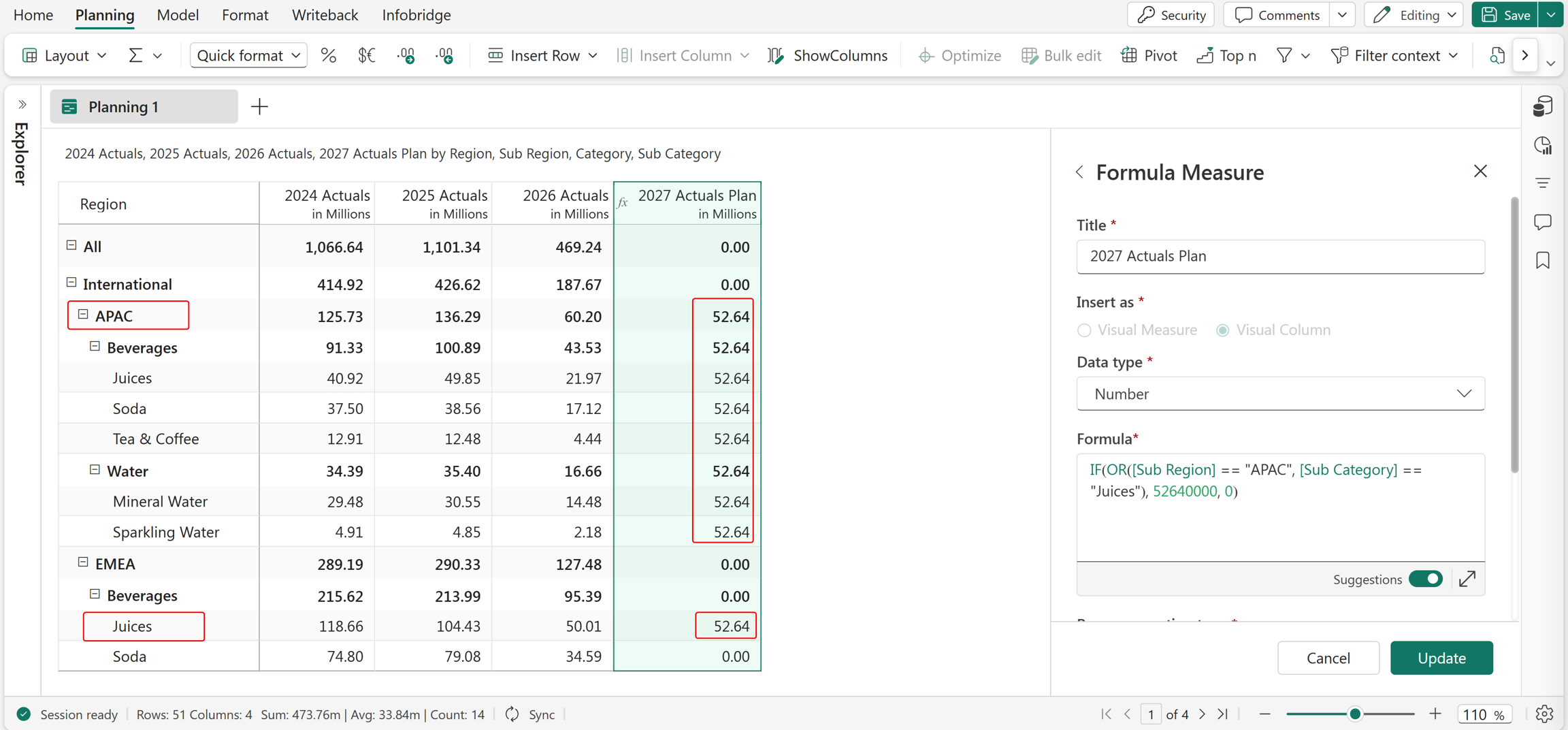
Example
IF(OR(Sub Region == "APAC", Sub Category == "Juices"), 52640000, 0)
In this example, the OR function is used within an IF statement to assign values to the 2027 Actuals Plan. The function evaluates whether either condition is met: Sub Region is APAC or Sub Category is Juices. If at least one condition is TRUE, the formula returns 52.64 million; otherwise, it returns 0.
Excel equivalent
XOR
The XOR (Exclusive OR) function returns TRUE if exactly one or an odd number of the specified conditions is TRUE. Otherwise, it returns FALSE. It is commonly used with IF and other logical functions to evaluate mutually exclusive conditions.
Syntax
XOR(logical_test1,[logical_test2], ...)
Arguments
logical_test1: The first condition to evaluate.logical_test2, ...(optional): Additional conditions to evaluate.
Return value
Returns TRUE if an odd number of conditions are TRUE; otherwise, returns FALSE.
Example
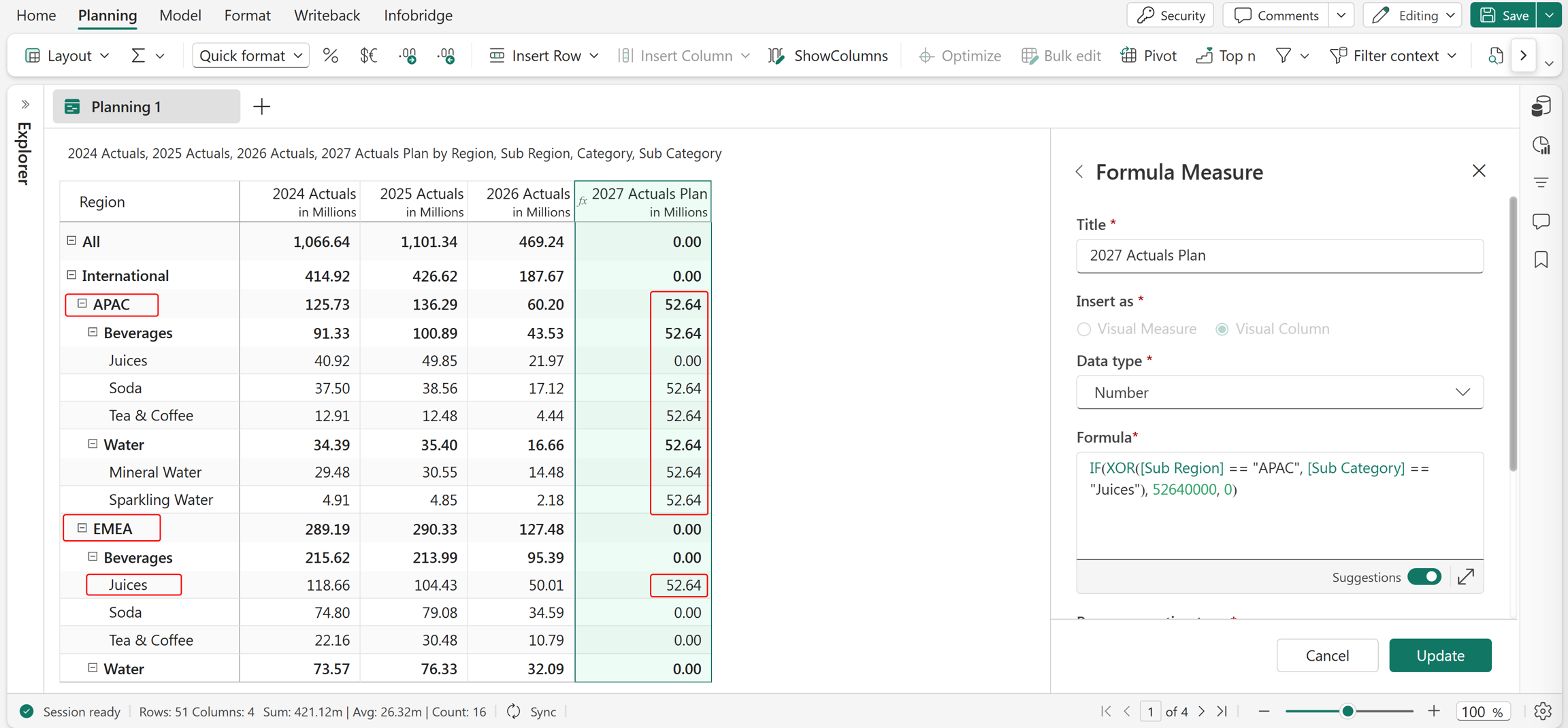
IF(XOR(Sub Region == "APAC", Sub Category == "Juices"), 52640000, 0)
In this example, the XOR function is used within an IF statement to assign values to the 2027 Actuals Plan. The function evaluates whether only one of the conditions is TRUE: Sub Region is APAC or Sub Category is Juices. If exactly one condition is TRUE, the formula returns 52.64 million; otherwise, it returns 0.