Note
Access to this page requires authorization. You can try signing in or changing directories.
Access to this page requires authorization. You can try changing directories.
In this tutorial, you build and configure a row-based P&L model using the Row Model Builder by defining Net Profit as the root, organizing Gross Revenue, Net Revenue, COGS, and Operating Expenses into a connected hierarchy, and configuring formula and aggregate relationships to see how driver-level inputs roll up to Net Profit in real time.
Prerequisites
Before you start this tutorial, ensure you complete the first tutorial: Fabric planning tutorial part 0: Introduction and environment setup
Configure a row model
In this section, you build a P&L hierarchy from scratch using Row Model Builder, starting from Net Profit and adding Gross Profit, Net Revenue, COGS, and Operating Expenses as connected nodes. Formula and data source rows define how each level calculates from the ones beneath it.
In Northwind_FMCG_Plan, select New Planning Sheet in the Home ribbon. Enter P&L – Row model and select Create.
Configure the field assignments from the P&L Rows as follows:
Field Value Rows Account Columns Date hierarchy—Year, Quarter, Month Values Value 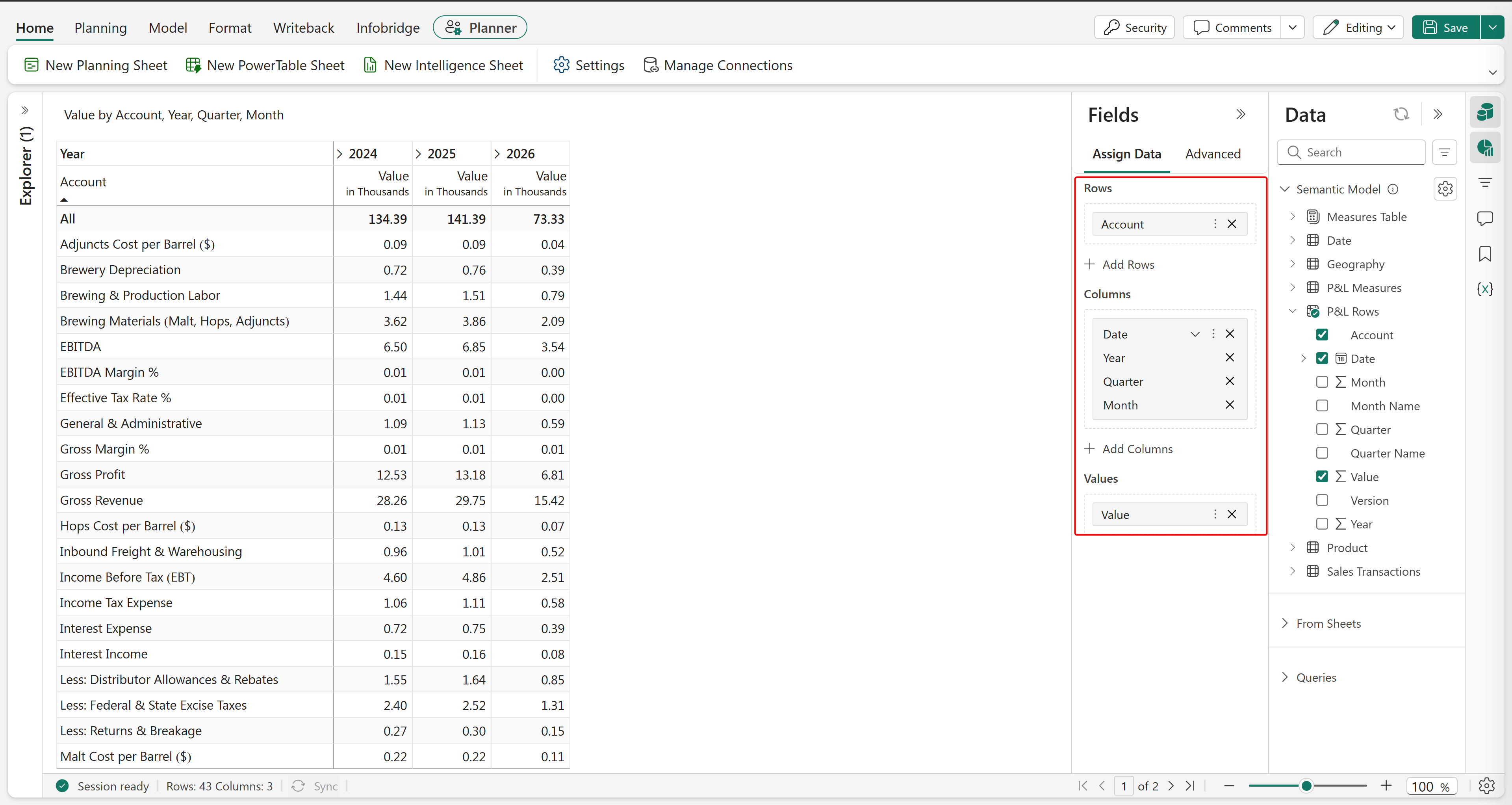
Go to the Model ribbon and select Row Model. The Model Builder dialog appears. Select Enable.
In the Row Model window, select the box corresponding to Row Name. Retain only the root node that is the All row, and delete the rest of the rows. Deselect the All row. Select Delete.
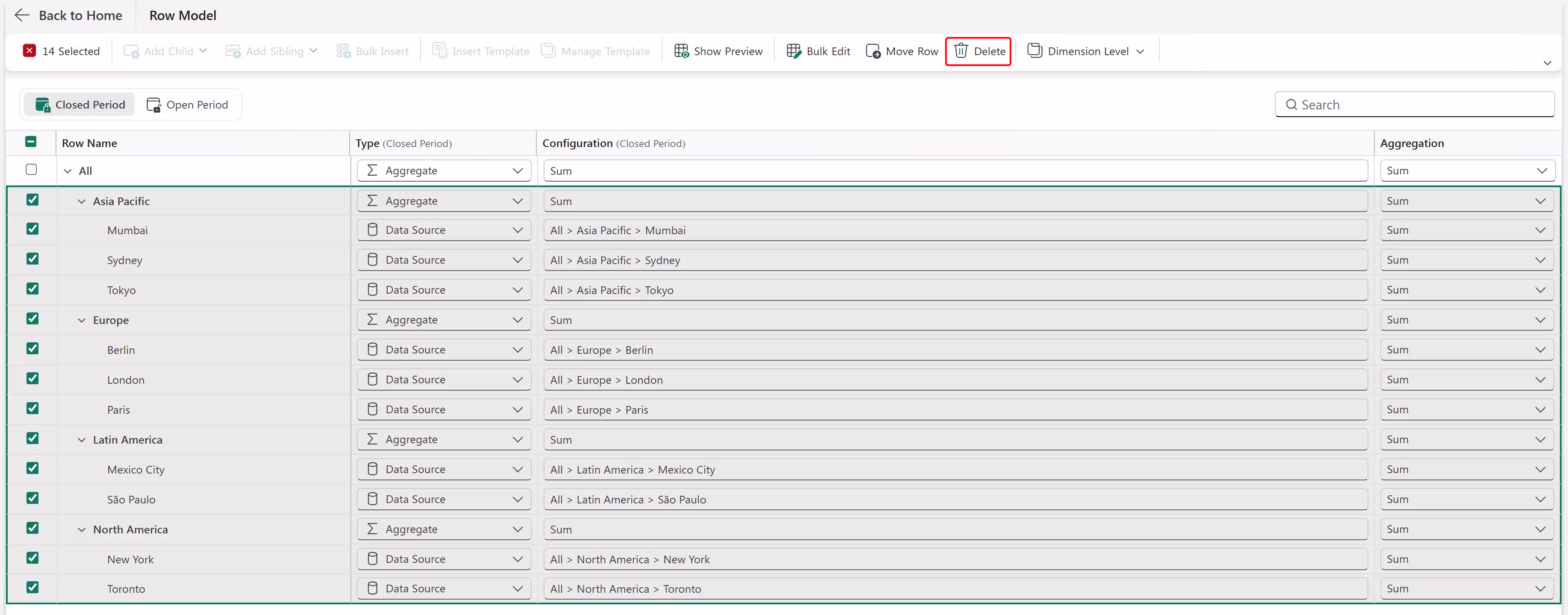
A warning message appears asking for confirmation. Select Delete. The canvas is now ready to build a new row model.
Select the All row and select the edit icon. In the side pane, set the Row Name to Net Profit. In the Configure as dropdown, select Formula. Select Apply.
Note
You enter the formula for Net Profit after creating all the other nodes in the row model.
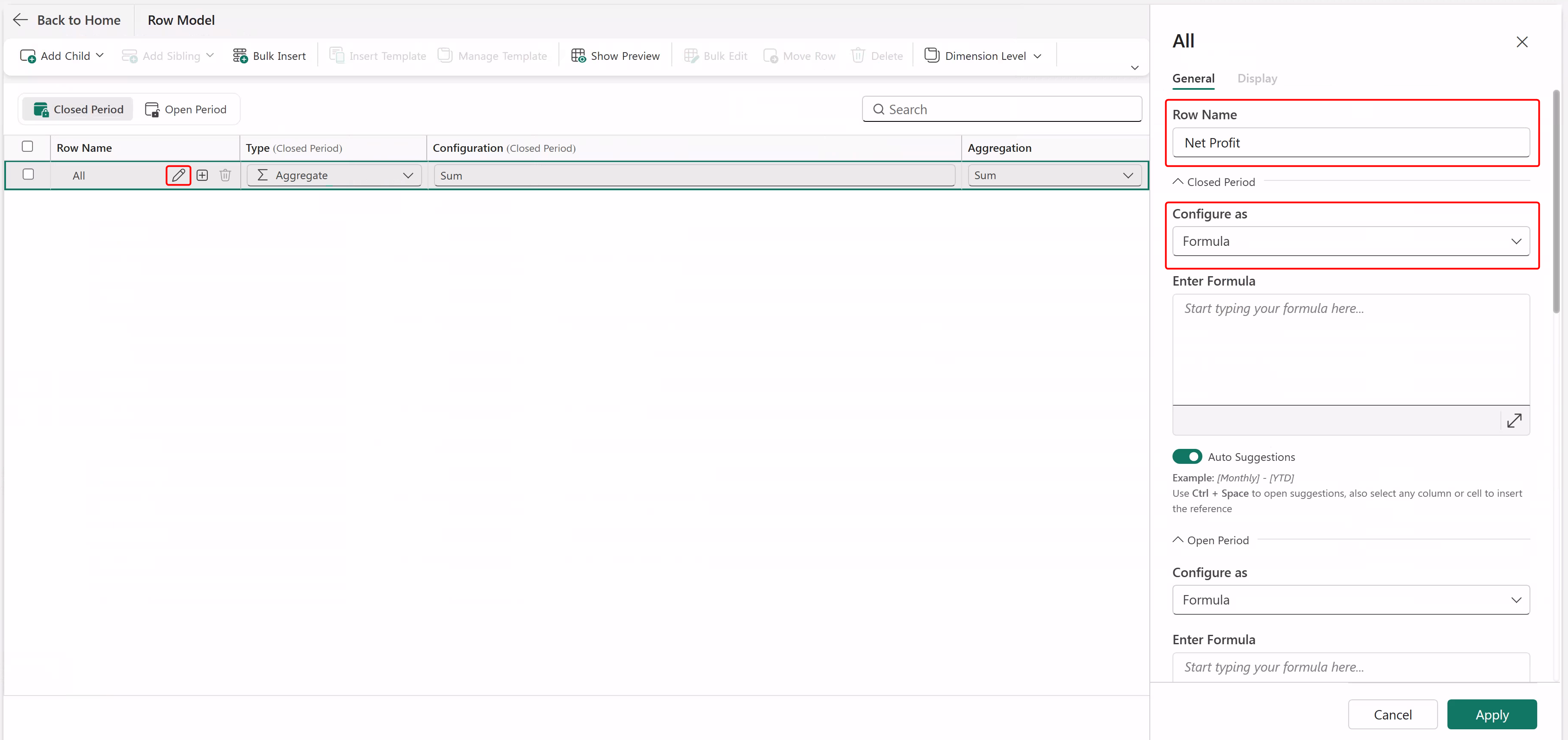
This action replaces the root node (All row) with Net Profit.
Select the Net Profit row. Select Add Child > Formula.
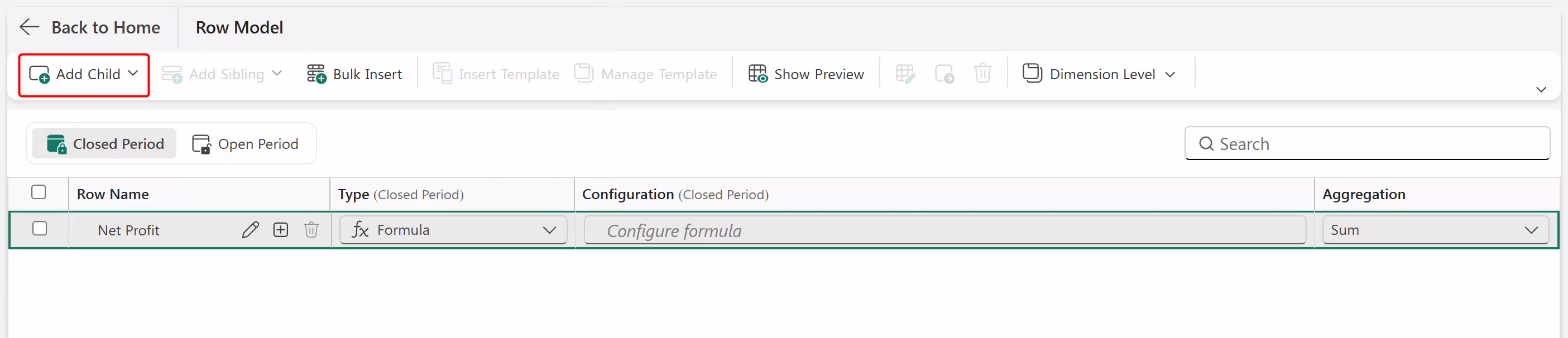
Select the edit icon, name it Gross Profit, and select Apply to add Gross Profit as a child under Net Profit.
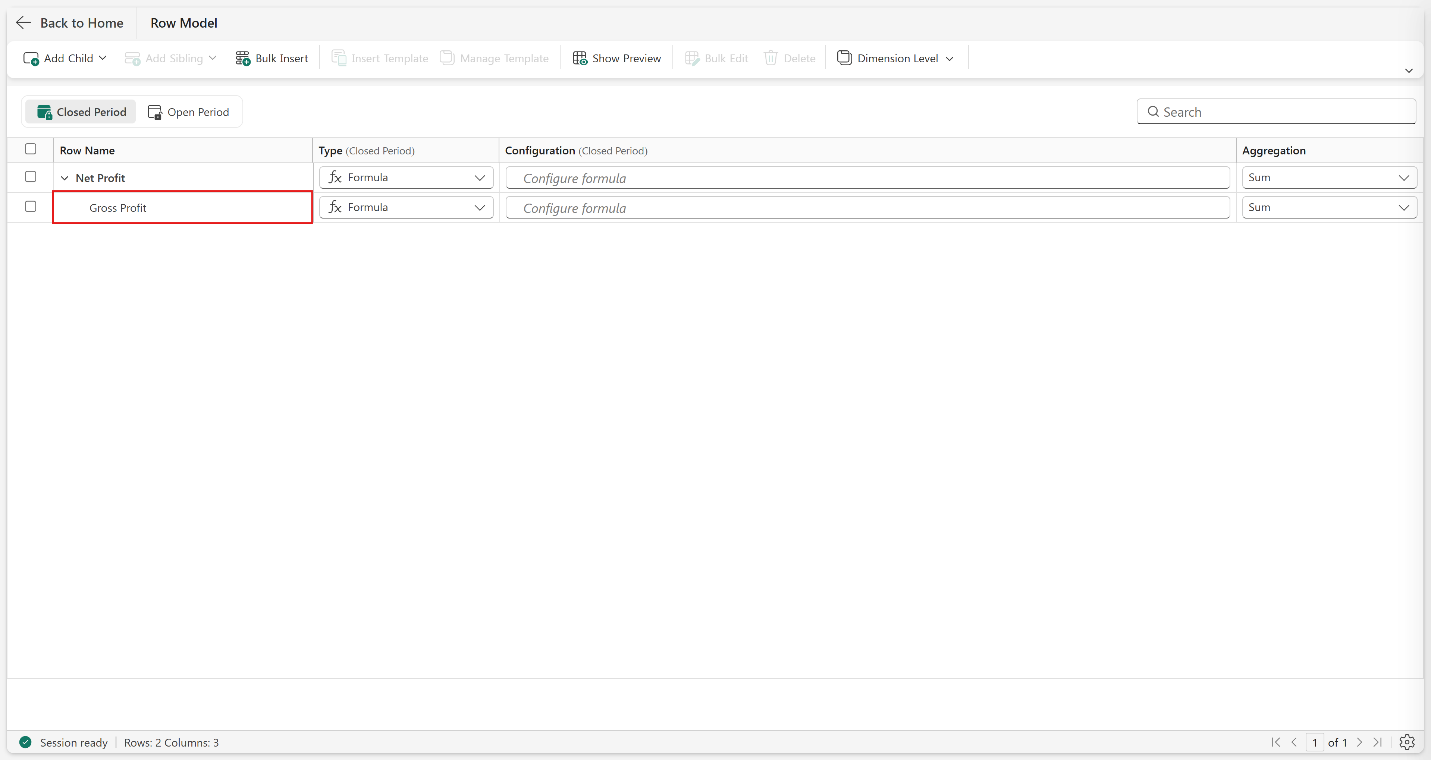
Select Gross Profit. Select Add Child > Formula. A new child row is added under Gross Profit. Select the edit icon, name it Net Revenue, and select Apply.
Select Net Revenue. Select Add Child > Data Source. Select the edit icon, name it Gross Revenue.
In Choose Close Period Source Row, select the corresponding source row from the semantic model. In this case, search for and select Gross Revenue. Select Apply.
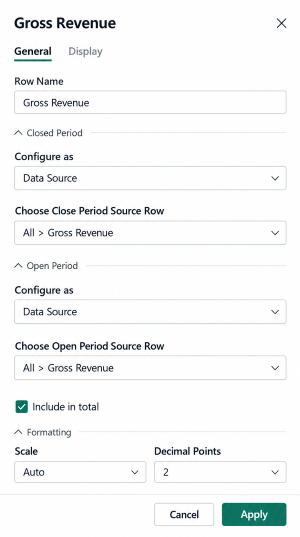
This action adds Gross Revenue as a child node under Net Revenue.
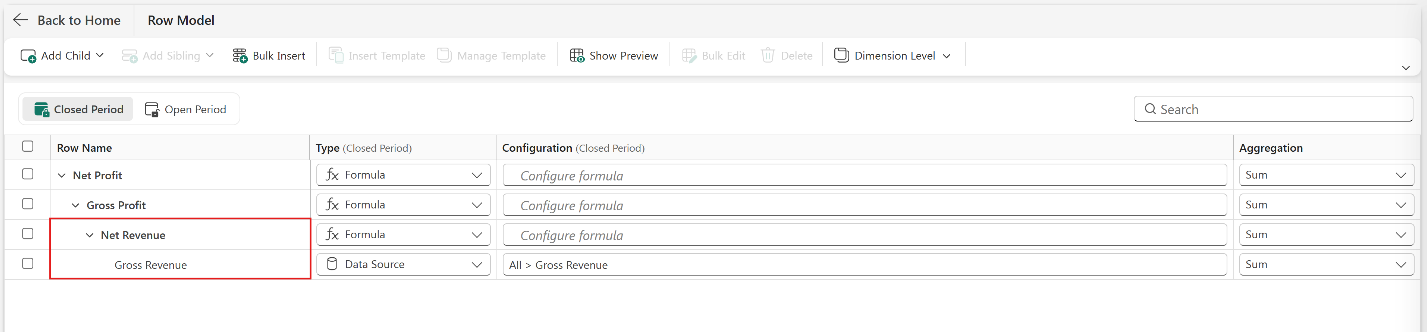
Select Gross Revenue. Select Add Sibling > Data Source. Select the edit icon, and name the row Returns and Breakage.
Select Choose Close Period Source Row, search for and select Returns and Breakage from the semantic model. Select Apply.
In the same way, add Distribution Allowance & Rebates and Federal & State Excise Taxes as siblings to Gross Revenue under Net Revenue.
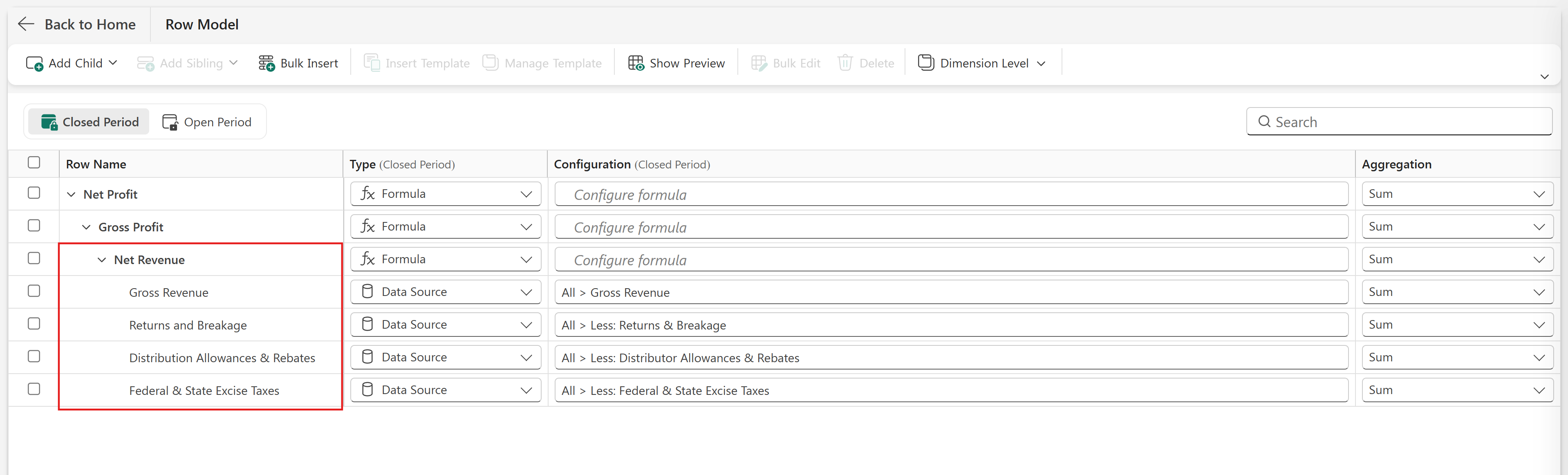
Select the Configure Formula box on the Net Revenue row. Enter the following formula:
[Gross Revenue] -[Returns and Breakage] - [Distribution Allowance & Rebates] - [Federal & State Excise Taxes]. Select Apply.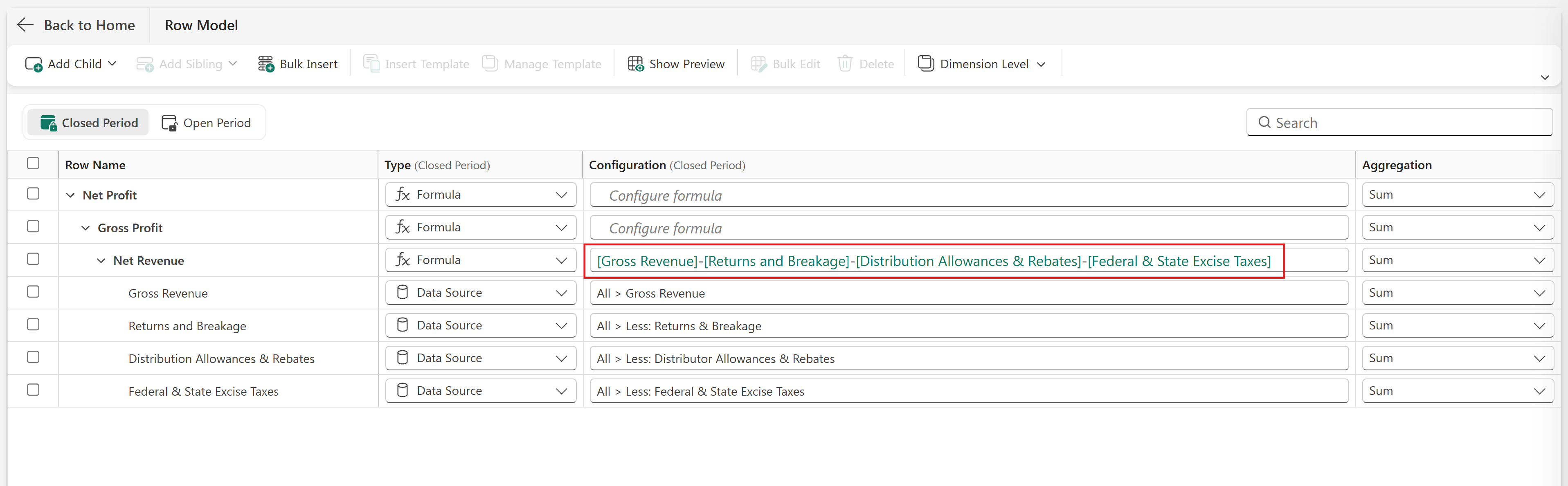
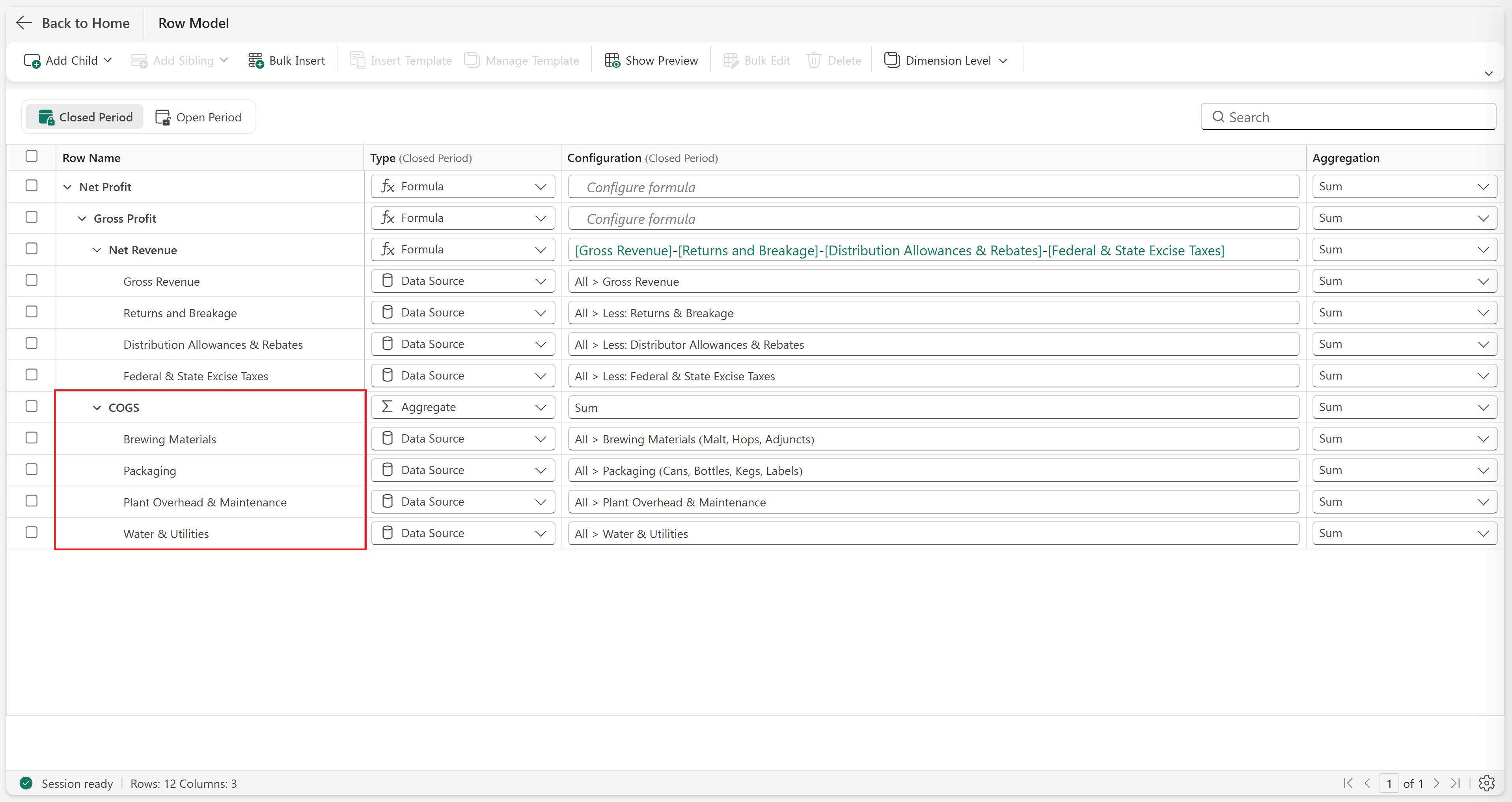
Select Net Revenue. Select Add Sibling > Aggregate. Select the edit icon, name the row COGS, and select Apply.
In the same way you created Gross Revenue in step 10, to create children under the COGS row, select Add Child > Data Source and create rows for the following categories:
- Brewing Materials
- Packaging, Plant Overhead and Maintenance
- Water & Utilities
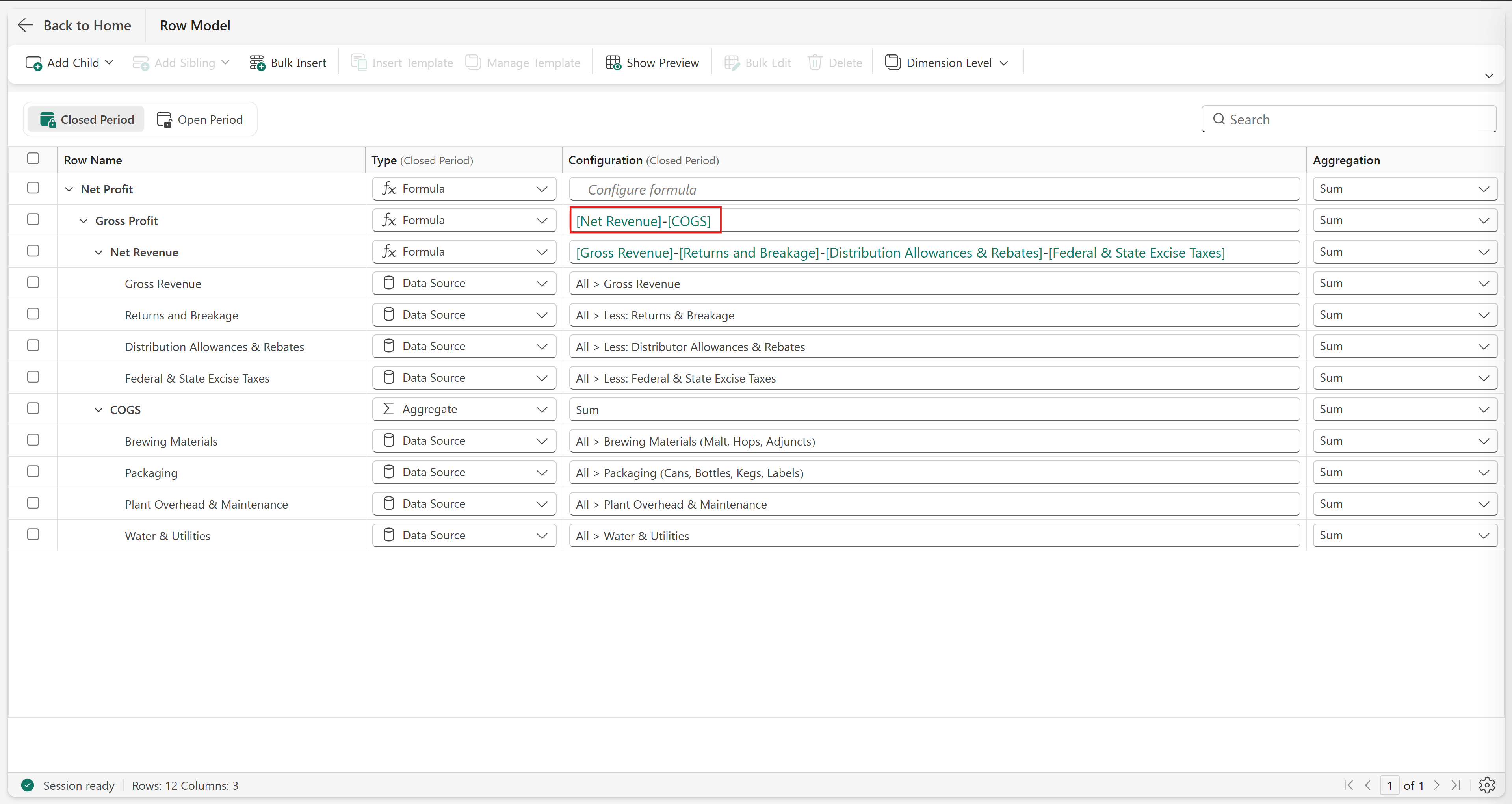
Enter the formula for Gross Profit as shown in the following image:
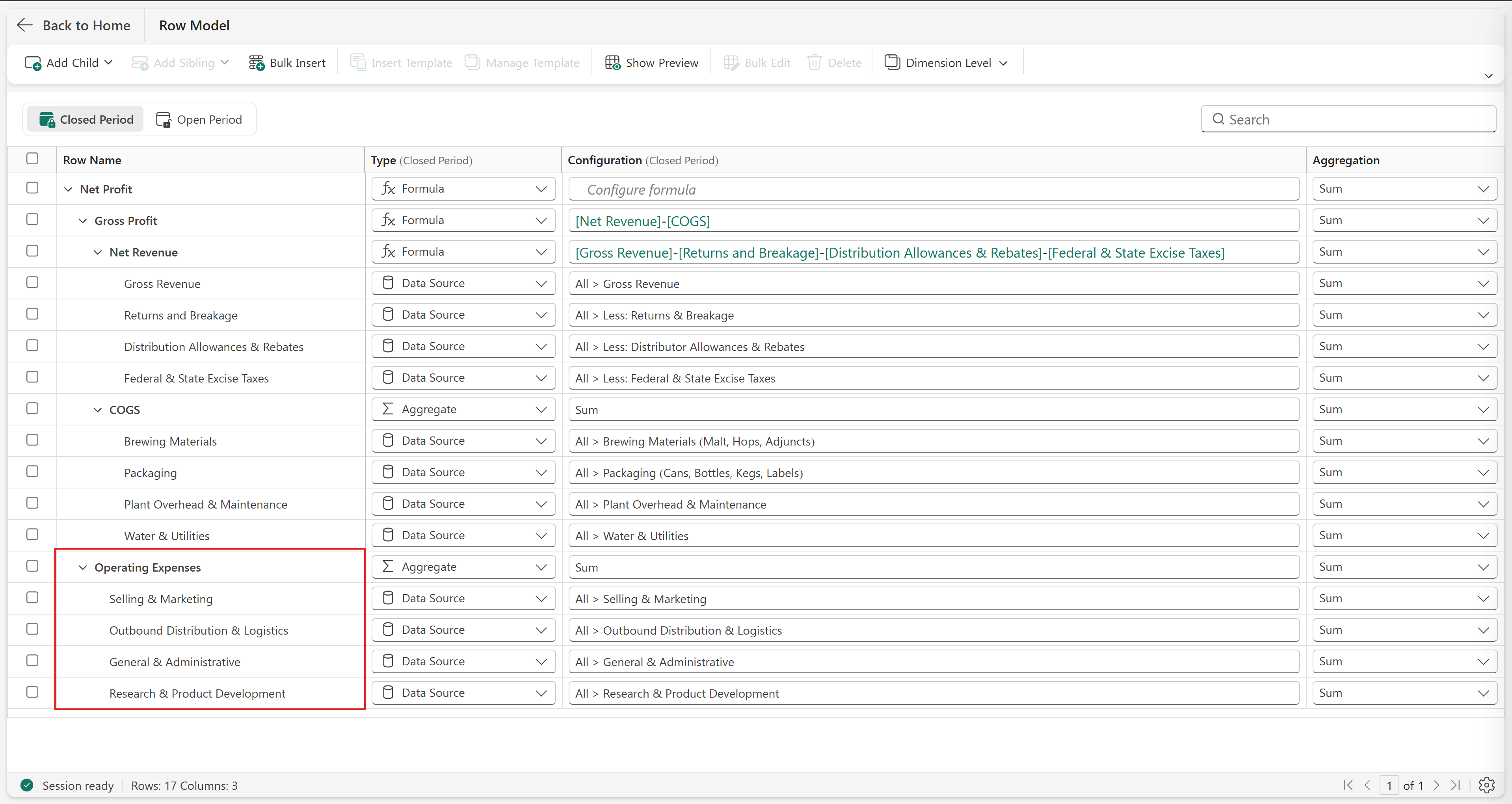
Create a hierarchy for Operating Expenses by using the Add Child > Data Source option.
Finally, enter the formula for Net Profit:
[Gross Profit]-[Operating Expenses]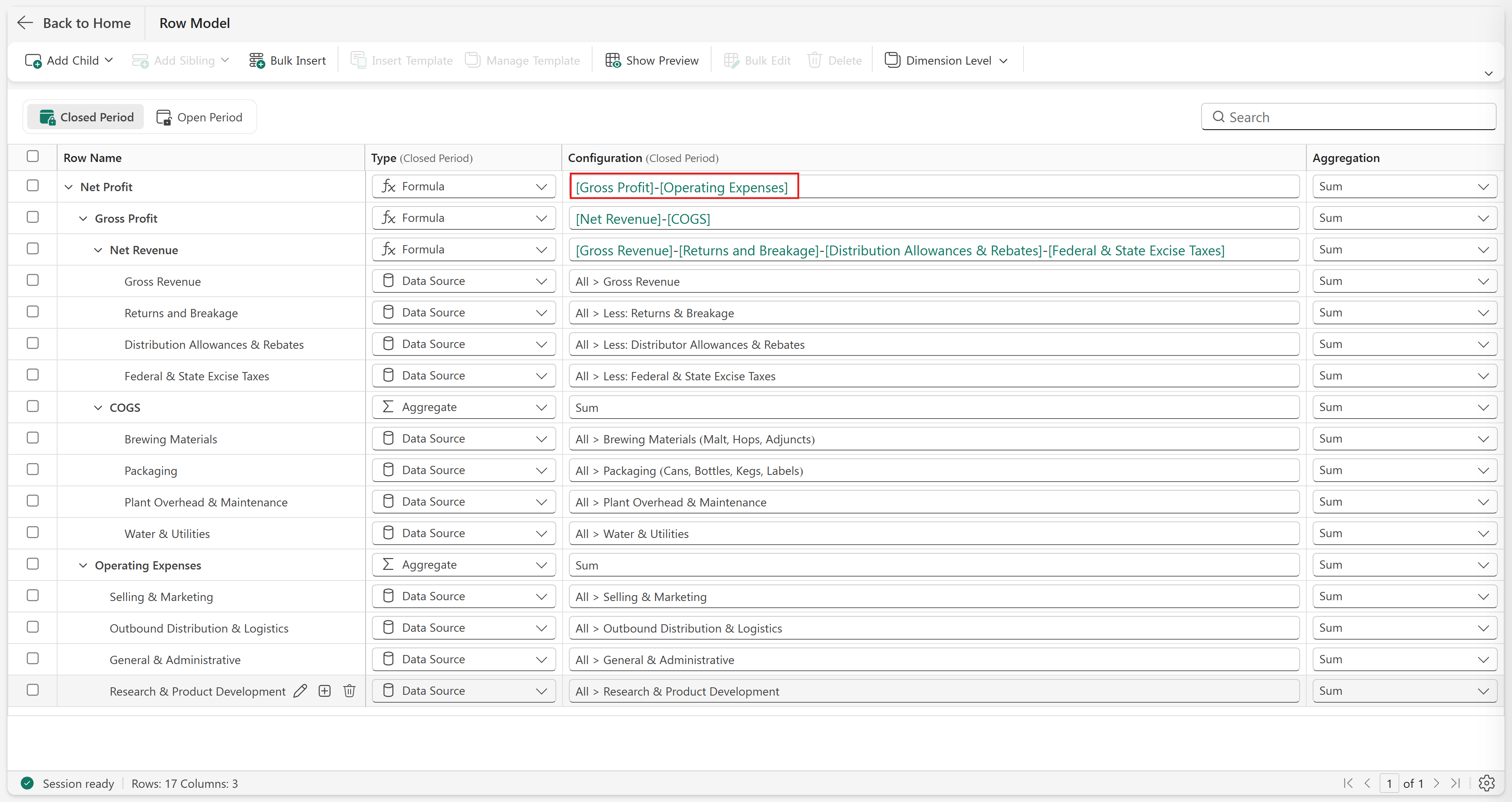
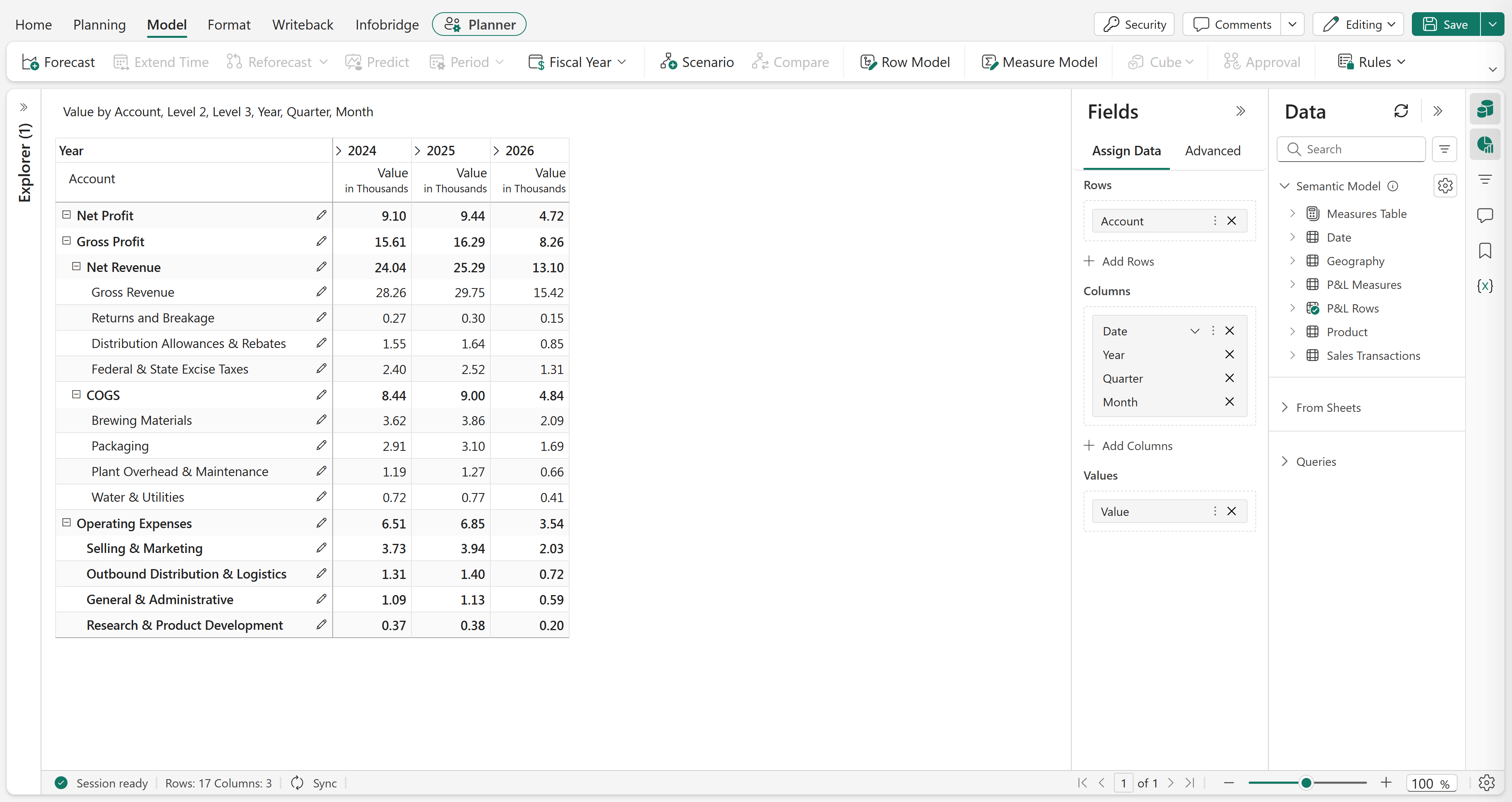
Select Back to Home. Observe that the planning sheet now displays the full P&L hierarchy — Net Profit at the root, with Gross Profit, Net Revenue, COGS, and Operating Expenses as connected nodes. Expanding any node shows its contributing data source rows.
Next steps
In the next tutorial, Consolidate plans across dimensions using cubes, allocate plans across multiple dimensions.