Note
Access to this page requires authorization. You can try signing in or changing directories.
Access to this page requires authorization. You can try changing directories.
Formula columns are calculated columns that you create from your data to derive business-specific metrics or calculations on the go. You can add them at the visual level or directly to your source database as a database column.
Common use cases for formula columns include calculating profit margins, tracking performance metrics, creating planning and forecasting calculations, generating status indicators, and building custom KPIs from existing data.
Insert the formula column
To insert formula columns, select PowerTable > Insert Column > Formula Column.
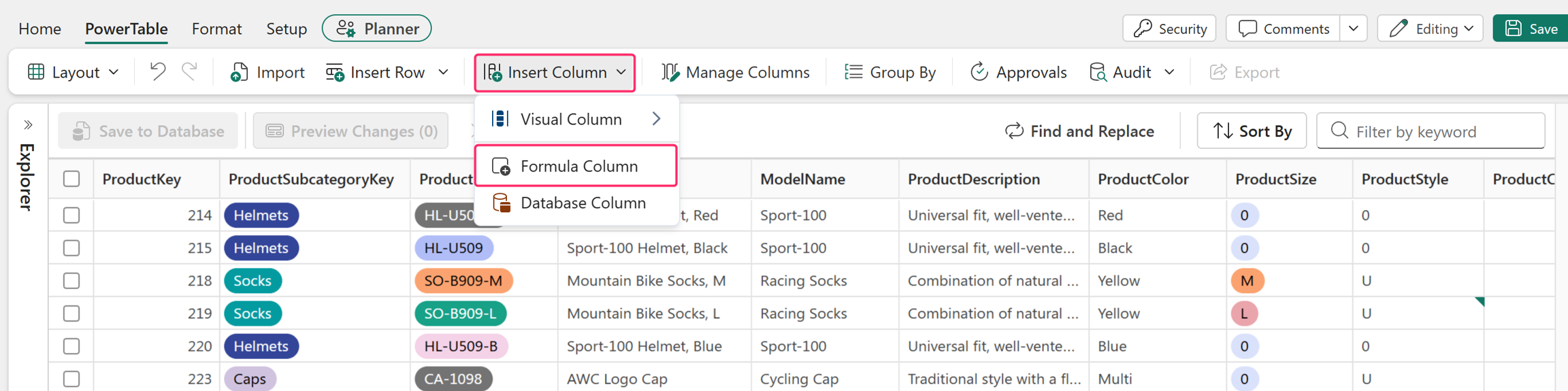
Enter the column name.
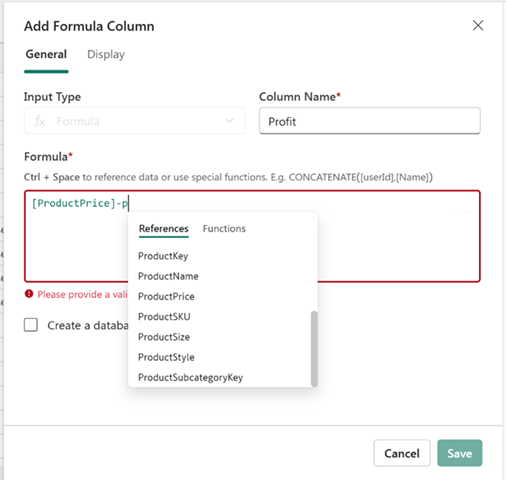
Enter the required formula in the formula box.
- When you place the cursor in the editor, a context assistant appears automatically with Functions and References. Or press Ctrl + Space to open it.
- As you type, the suggestions narrow automatically.
- Use the References tab to find and insert available columns from the current table into the formula.
- Use the Functions tab to browse and insert supported functions, such as SUM, MIN, MAX, and AVERAGE, into the formula.
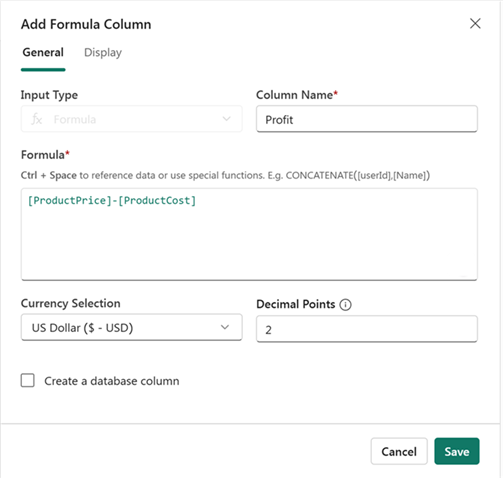
Specify the currency type and the number of decimal points to display.
To add the formula column directly to the database, select the Create a database column checkbox. Then, choose the appropriate data type and attributes such as length, precision, or scale for the column in the target database.
Note
Ensure you have the required permissions to the database you connect to, because you add a column directly to the source database.
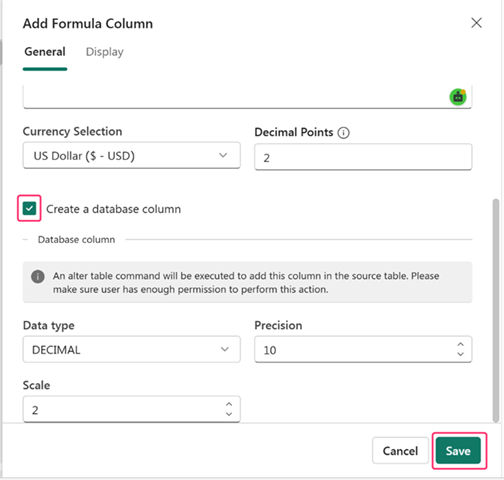
Select Save.
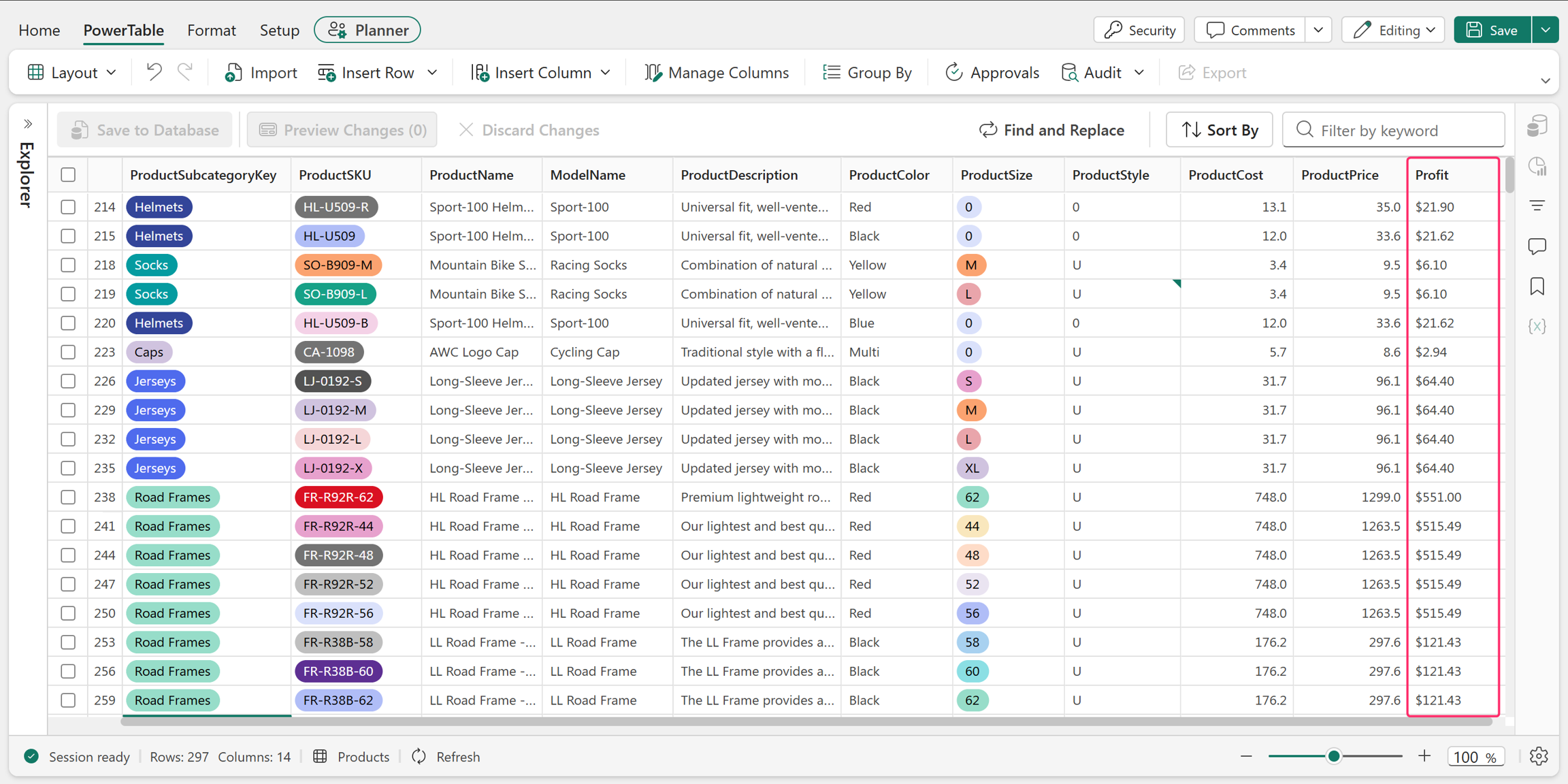
The formula column is added to the table.
FAQ
Why can't I paste the formula?
Pasting a formula isn't supported. PowerTable resolves column references as you type, and pasted text doesn't preserve those references.
Type the formula manually, and use Ctrl+Space to insert each column reference instead of typing the bracketed column name as plain text.
Does the formula column get written to the database?
The formula column is written to the database only if you select Create a database column in the Add Formula Column dialog.
If you don't create a database column, the formula column still persists in the PowerTable sheet. When you reopen the sheet, the formula column remains available, and its values are recalculated based on any changes to the underlying data.
Related content
For more information about the available formulas and functions, see Formula Syntax.