Note
Access to this page requires authorization. You can try signing in or changing directories.
Access to this page requires authorization. You can try changing directories.
Planning sheet supports more than 100 formulas and functions, including logical, conditional, mathematical, text, date, and lookup functions. PowerTable supports a subset of these formulas and a few more, with over 50 formulas available.
In PowerTable, you can use formulas when creating a formula column or configuring data-derived default values.
Formula column
Add formula columns to your PowerTable app to perform calculations without writing complex code. You can add formula columns at the visual level or directly to the database through the PowerTable app.
When you add a formula column, enter the required formula in the formula editor. As you type, the editor provides suggestions and autocomplete options to help you create and troubleshoot formulas.
You can also use Ctrl + Space to manually open the suggestions pop-up.
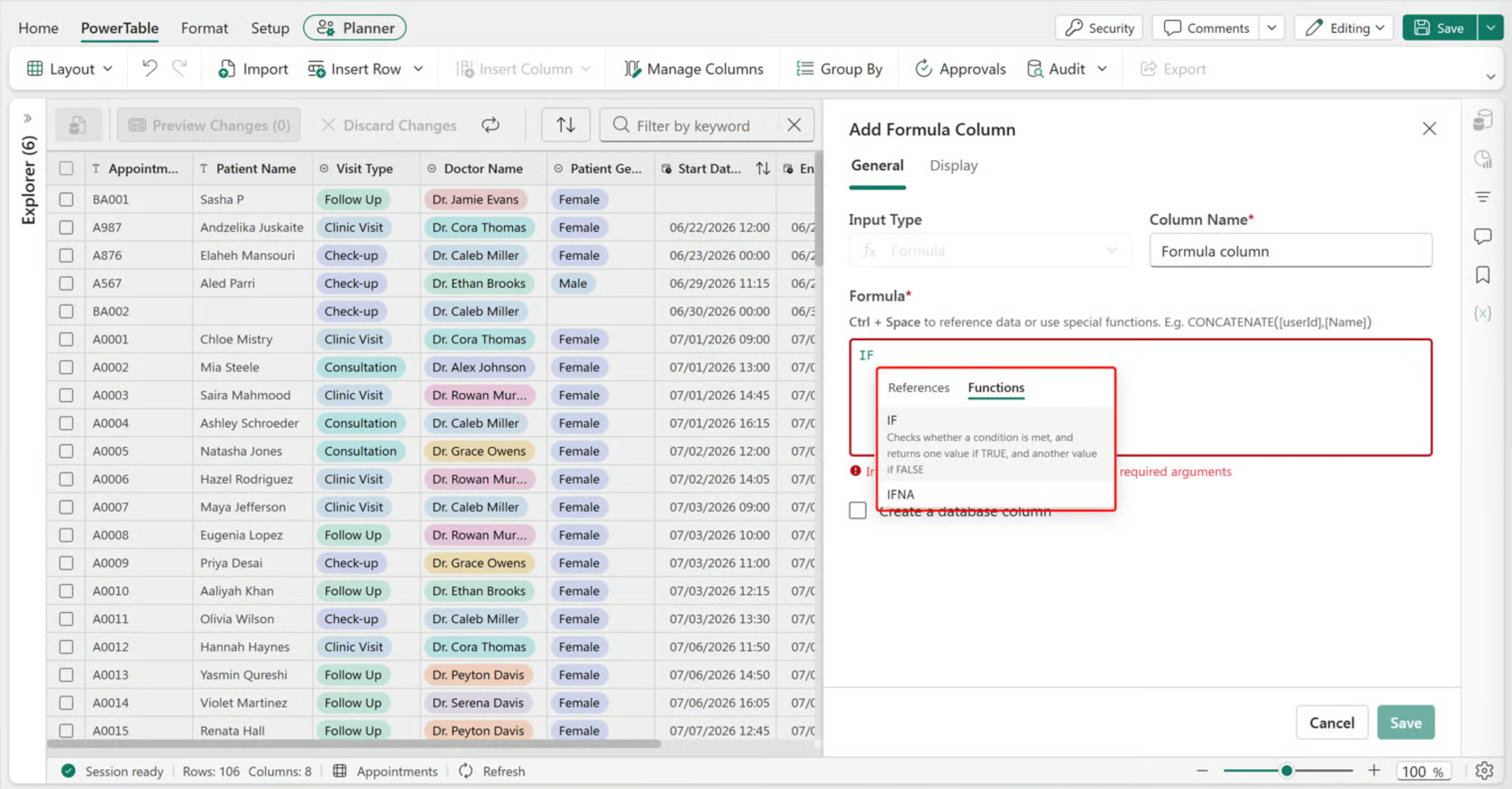
- Select the Reference tab to add column names to the formula.
- Select the Functions tab to view the list of supported functions. Select one to view its syntax and example and then insert it.
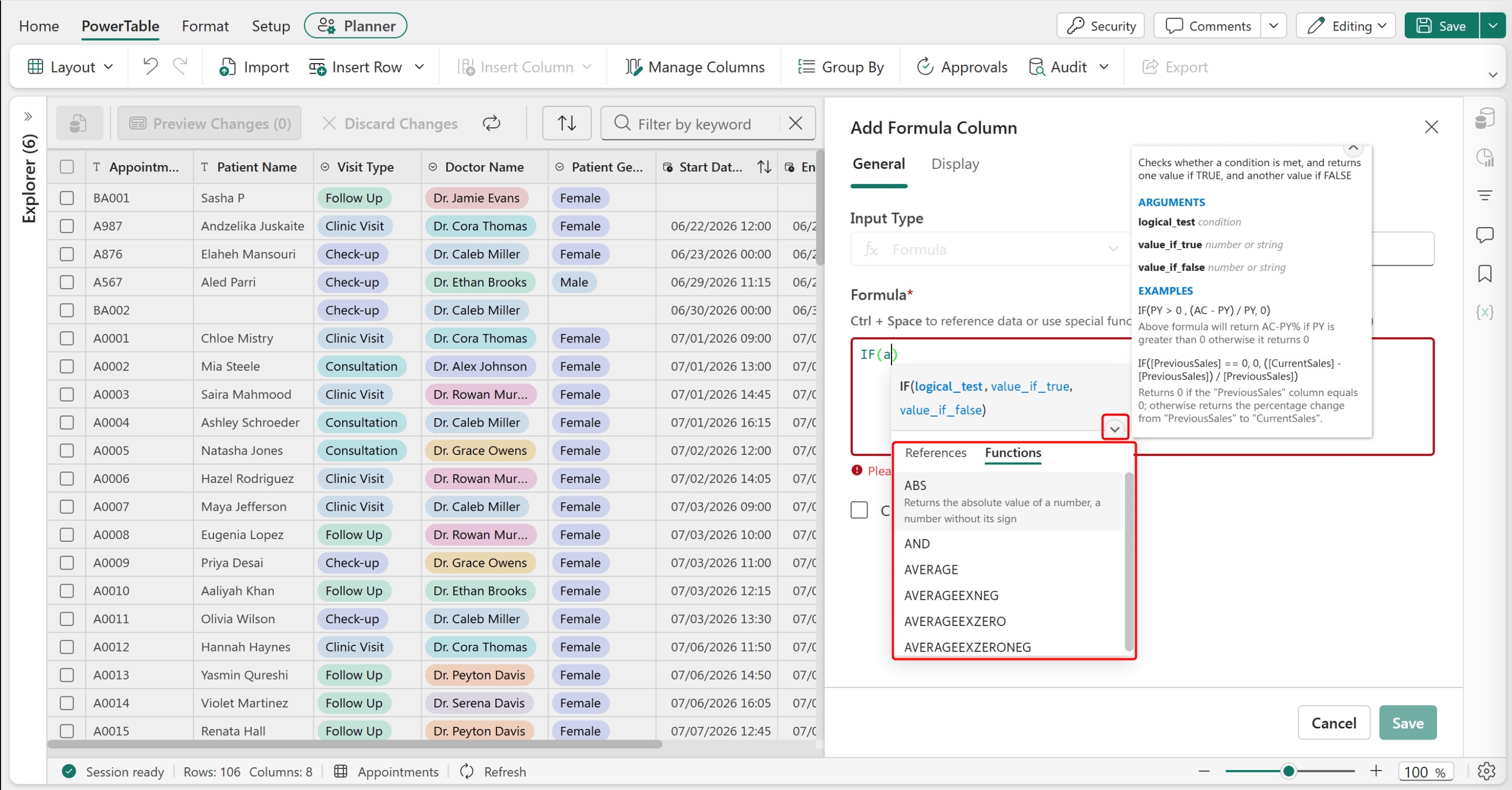
A formula can contain the following elements:
- References: Column names that contain values. For example,
[Name],[Cost], and such. - Expressions: References combined with logical or mathematical operators to define an operation. For example,
(([Actuals]-[Plan])/[Plan]) > 0.2. - Constants: Values or numbers that don't change.
- Functions: Predefined operations that accept one or more expressions and values and return a result. Each function has a specific keyword and syntax. Example:
IF([Age]>50,"Senior","Junior"). - Nested functions: Multiple functions combined within a single formula. Example:
IF((AND([Age]>50),([Gender]=="F")),0.5,0.2).
Note
Don't attempt to copy and paste the formulas from the preceding section.
Copy-pasting a formula isn't supported. PowerTable resolves column references as you type, and pasted text doesn't preserve those references.
Type the formula manually, use Ctrl+Space and then under References tab, select the reference to insert each column reference instead of typing the bracketed column name as plain text.
For more information about adding and configuring a formula column, see Insert formula column.
Default values
Default values automatically populate columns with predefined data when no value is provided. You can enter a static value or configure a formula to create a dynamic default value based on existing data.
For more information, see Default values using formulas
PowerTable formulas can be classified into:
- Conditional statements
- Logical functions
- Math functions
- Text formatting functions
- Date functions
- Identifiers
- Other operators
Following are the supported formulas and functions in PowerTable. Navigate to the links for detailed examples.
Conditional statements
Conditional statements evaluate expressions and return different values depending on whether the conditions are true or false.
| Formula | Description |
|---|---|
| IF | Returns one value if a condition is true and another value if it is false. |
| IFNA | Returns the specified value if an expression results in the #N/A error; otherwise, it returns the result of that expression. |
| SWITCH | Evaluates an expression against a list of values and returns the result corresponding to the first matching value. If no match is found, an optional default value is returned. |
Logical functions
Apply logical functions to test conditions and return TRUE or FALSE results.
These functions are often used along with the IF function and other conditional functions to evaluate multiple criteria.
| Formula | Description |
|---|---|
| AND | Returns TRUE only if all specified conditions are TRUE. If any condition evaluates to FALSE, the function returns FALSE. |
| IN | Returns TRUE if a specified value matches any value in a list or array. It returns FALSE if no match is found. |
| ISBLANK | Returns TRUE if the specified value is blank or empty. It returns FALSE if the value contains any text, number, or expression. |
| ISEMPTY | Same as ISBLANK. |
| ISNUMBER | Returns TRUE if the specified value is a valid number. It returns FALSE if the value is not numeric. |
| NOT | Returns the opposite of a logical value. It returns TRUE if the specified condition is FALSE, and FALSE if the condition is TRUE. |
| OR | Returns TRUE if at least one of the specified conditions is TRUE. It returns FALSE only when all conditions evaluate to FALSE. |
| XOR | Returns TRUE if exactly one or an odd number of the specified conditions is TRUE. Otherwise, it returns FALSE. |
Math functions
PowerTable supports the following math functions for arithmetic operations, aggregations, statistical calculations, exponential functions, rounding, formatting, and lookups.
| Formula | Description |
|---|---|
| ABS | Returns the absolute value of a number, which represents the number’s magnitude without considering its sign. |
| AVERAGE | Returns the average (arithmetic mean) of a set of values. |
| AVERAGEEXNEG | Returns the average (arithmetic mean) of a set of values while excluding negative numbers from the calculation. |
| AVERAGEEXZERO | Returns the average (arithmetic mean) of a set of values while excluding the zero values from the calculation. |
| AVERAGEEXZERONEG | Returns the average (arithmetic mean) of a set of values while excluding both zero and negative numbers from the calculation. |
| CEILING | Rounds a number up to the nearest integer or specified multiple (significance). |
| DIVIDE | Returns the result of dividing one number by another. |
| EVEN | Rounds a number up to the nearest even integer. |
| EXP | Returns the value of the mathematical constant e raised to the power of a specified number. |
| FLOOR | Rounds a number toward zero to the nearest specified multiple of significance. |
| INDEXOF | Returns the index of the first occurrence of a specified value within a list of values. |
| LOG | Returns the logarithm of a number using a specified base. |
| MAX | Returns the largest number from a set of values. |
| MEDIAN | Returns the middle value in a set of numbers arranged in ascending order. |
| MIN | Returns the smallest number from a set of values. |
| MOD | Divides one number by another and returns the remainder of the division. |
| NUMBERVALUE | Converts text into a numeric value by interpreting decimal and thousands separators, such as commas and periods. |
| ODD | Rounds a number up and returns the nearest higher odd integer. |
| PCT | Performs percentage calculations by converting a numeric value into its percentage equivalent. |
| POW | Returns the result of a number raised to a specified power. |
| RAND | Returns a random decimal number between 0 and 1. |
| RANDBETWEEN | Returns a random integer between two specified values. |
| ROUND | Rounds a number to a specified number of decimal places. |
| SUM | Returns the total of all numbers provided in the arguments. |
| SQRT | Returns the square root of a given number. |
Text formatting functions
PowerTable supports the following text formatting functions to format, extract, and transform text values in the tables.
| Formulas | Description |
|---|---|
| CONCATENATE | Joins two or more text strings into a single text string. |
| FIND | Returns the position of the first occurrence of a sub-string within a text string. |
| LEFT | Returns the specified number of characters from the beginning of a text string. |
| LEN | Returns the total number of characters in a text string, including letters, numbers, spaces, and special characters. |
| LOWER | Converts all characters in a text string to lowercase. |
| MID | Returns a specified number of characters from a text string, starting at the position you specify. |
| REPLACE | Replaces part of a text string with another text value based on the specified position and length. |
| REPT | Repeats a text string a specified number of times. |
| RIGHT | Returns the specified number of characters from the end of a text string. |
| TEXT | Converts a value into formatted text based on the specified format string. |
| TRIM | Removes leading and trailing spaces from a text string while retaining spaces between words. |
| UPPER | Converts all characters in a text string to uppercase. |
| VALUE | Converts a text string that represents a number into a numeric value. |
Date functions
PowerTable supports the following date functions to calculate, extract, and format date and time values.
| Formulas | Description |
|---|---|
| DATEADD | Adds or subtracts a specified interval from a date value. |
| DATEDIFF | Returns the number of days between two dates. |
| DATE | Converts a date value into the specified format. |
| DAY | Extracts the day value from a date. |
| EOMONTH | Returns the end date of the month for a given date. |
| FROMEXCELDATE | Converts an Excel serial date number into its equivalent date value. |
| MONTH | Extracts the month value from a date. |
| NOW | The DATE.NOW function returns the current date and time based on the system settings. |
| TODAY | Returns the current date. |
| YEAR | Extracts the year from a date. |
Identifiers
Use identifiers to reference and check table columns' values with the specified values.
| Formulas | Description |
|---|---|
| HAS | Checks whether the specified value exists in one or more columns. This function is commonly used with visual columns, such as Single Select and Multi-select. |
| HAS_SOME | Checks whether one or more of the specified values exist in one or more columns. |
| MATCH | Checks whether the specified value exactly matches the value in a column. |
| BLANK | Returns a blank value. Use this in formula to insert a blank or check for blank values. |
| COLUMN_COUNT | Returns total number of column items in the table. |
Other operators
For the list of unary and binary operators supported, see Other operators.