Note
Access to this page requires authorization. You can try signing in or changing directories.
Access to this page requires authorization. You can try changing directories.
Mirroring in Fabric provides an easy experience to avoid complex ETL (Extract Transform Load) and integrate your existing Sharepoint List data with the rest of your data in Microsoft Fabric. You can continuously replicate your existing SharePoint data directly into Fabric's OneLake.
This article provides steps to create a mirrored Sharepoint List database in Microsoft Fabric.
Prerequisites
- A tenant account with an active Microsoft Fabric subscription. You can try Fabric with a free trial.
- A Fabric workspace.
Create a mirrored database
In this section, we'll provide a brief overview of how to create a new mirrored database to use with your mirrored SharePoint List data source.
Open your Fabric workspace and check that it has a Trial or Premium Fabric capacity
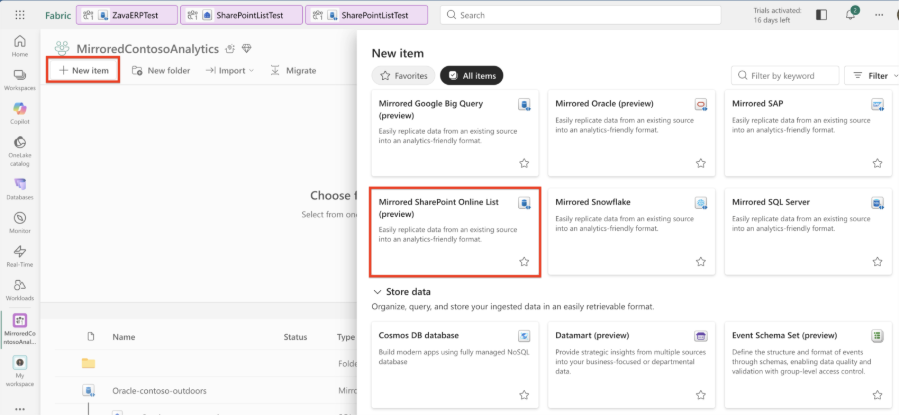
Select New > Mirrored SharePoint Online List
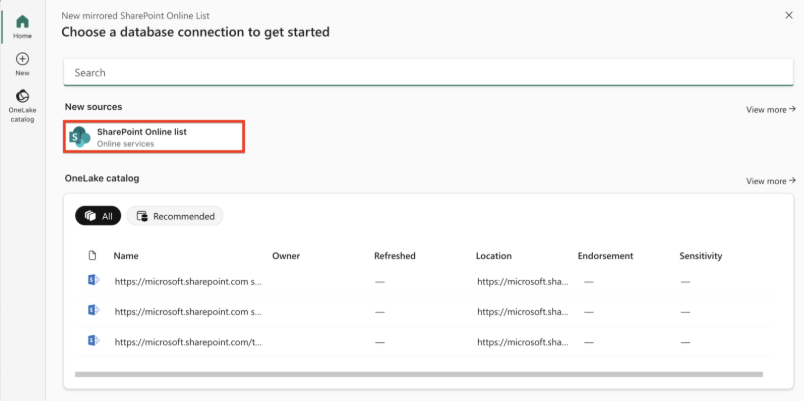
Select SharePoint Online list
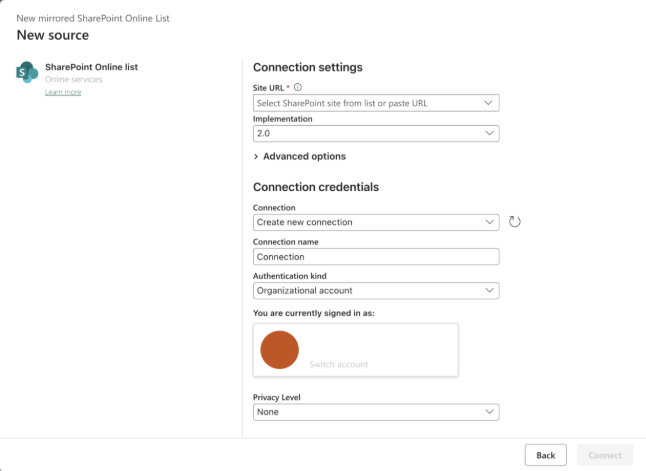
In the connection dialog, enter your database details:
Monitor Fabric mirroring
Once mirroring is configured, you're directed to the Mirroring Status page. Here, you can monitor the current state of replication. For more information and details on the replication states, see Monitor Fabric mirrored database replication.