Note
Access to this page requires authorization. You can try signing in or changing directories.
Access to this page requires authorization. You can try changing directories.
OneLake storage tiers let you make cost-effective tiering decisions based on data access patterns, keeping frequently accessed data in the hot tier and moving less active data to cool or cold storage to lower long-term data retention costs. Lifecycle management policies simplify tiering by automatically moving less active data to cooler storage tiers based on when a file was created, last modified, or last accessed. For example, you can create policies to:
- After 30 days without modification, move files to the cool tier. After 90 days without modification, move files to the cold tier.
- After 30 days without being accessed, move files within a specific path to the cool tier. If a file is accessed, move it back to the hot tier.
This article describes the structure and elements of a OneLake lifecycle management policy. OneLake uses a similar policy structure as Azure Storage. For more information, see Azure Storage lifecycle policies. To learn more about storage tiers in OneLake, check out OneLake storage tiers.
What's in a lifecycle policy?
A lifecycle management policy is a collection of rules defined in a JSON document. Each workspace can have a single lifecycle policy, and the lifecycle policy affects all files in a workspace, unless scoped to specific paths.
Each lifecycle rule contains the following elements:
- Scope: A rule can apply to the entire workspace, in the workspace, or be filtered to a set of paths with prefix matching.
- Status: The active status of a rule. An active rule attempts to run daily. An inactive rule won't run until reactivated.
- Condition: A rule's action is applied when a file in the scope meets the specified condition. You can set conditions on when a file was created, last accessed, or last modified.
- Action: A rule's action happens when a file in the scope meets the specified condition. Each action is linked to a single condition, and a single rule can have multiple action + condition pairs.
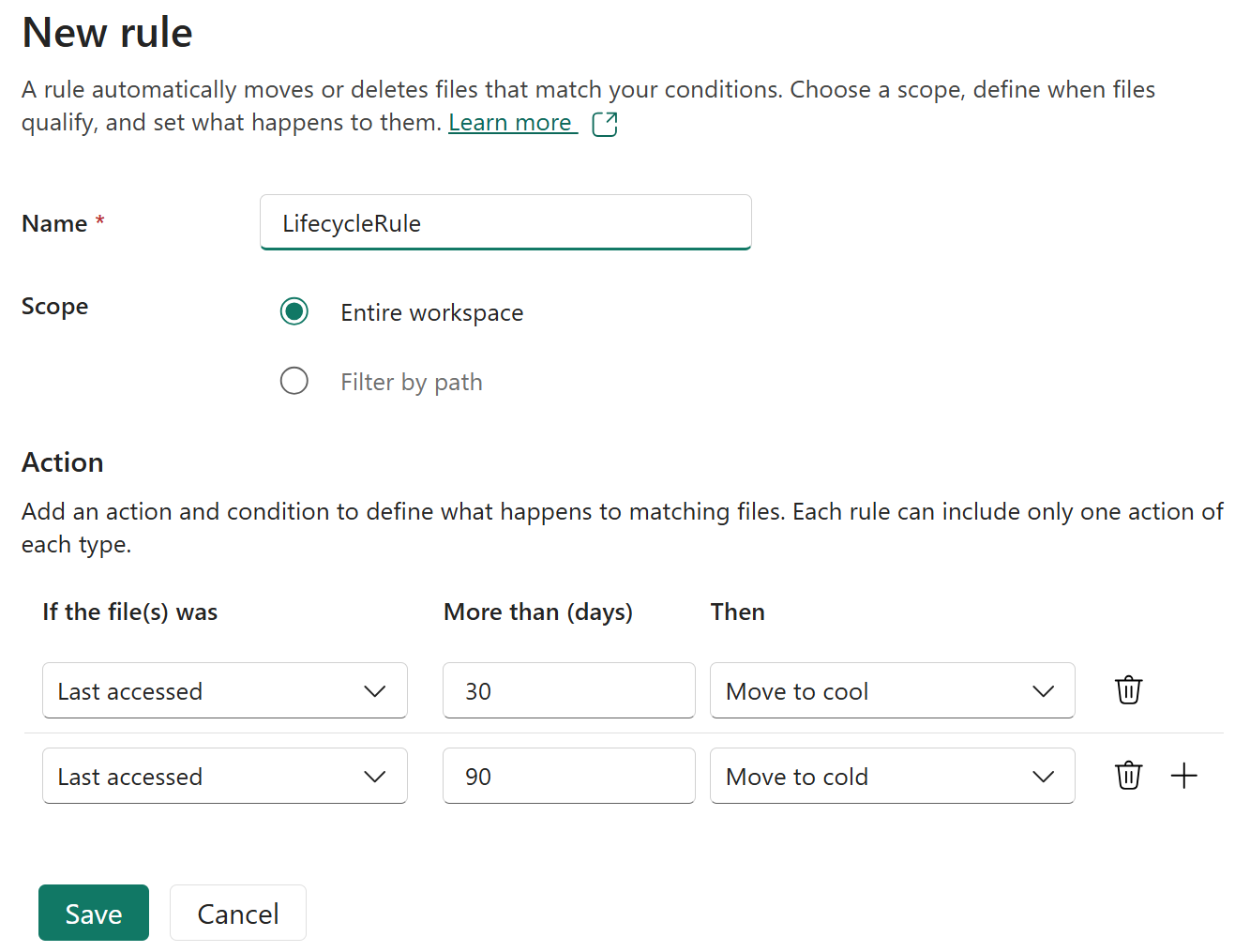
The following sections expand on each of these areas and how they're defined in the lifecycle policy JSON.
Rules
The following sample JSON shows a complete rule definition:
{
  "rules": [
    {
      "name": "rule1",
      "enabled": true,
      "type": "Lifecycle",
      "definition": {...}
    },
    {
      "name": "rule2",
      "type": "Lifecycle",
      "definition": {...}
    }
  ]
}
A rule contains several parameters, described in the following table:
| Parameter name | Type | Notes | Required |
|---|---|---|---|
| name | String | A rule name can include up to 256 alphanumeric characters. The rule name is case-sensitive. It must be unique within a policy. | Yes |
| enabled | Boolean | An optional boolean to allow a rule to be temporarily disabled. The default value is true. | No |
| type | An enum value | The only valid type is Lifecycle. |
Yes |
| definition | An object that defines the lifecycle rule | The definition contains the filters (scope), actions, and conditions. | Yes |
Scope
A rule's filters determine its scope. If no filter is present, then the lifecycle rule applies to all files within the workspace. You can't specify files to exclude from a rule's scope. If more than one filter is defined, a logical AND is applied to all filters.
The following table describes each filter parameter:
| Filter name | Type | Description | Required |
|---|---|---|---|
| blobTypes | Array of predefined enum values | OneLake only supports blockblob. | Yes |
| prefixMatch | Array of strings | These strings are prefixes to be matched. | No |
prefixMatch
Each rule can define up to 10 case-sensitive prefixes to filter the paths the rule applies to. A prefix string must start with an item name or GUID. For example, if you want to scope a rule to all files within the files folder of a lakehouse, set the prefixMatch to "myLakehouse.Lakehouse/Files". Characters such as * and ? are treated as string literals.
Actions
Each rule must contain at least one action and condition. Actions are applied to any files within the rule scope when the condition is met. The following table describes each action supported by OneLake lifecycle policies:
| Action | Description |
|---|---|
| TierToCool | Move a file to the cool storage tier. |
| TierToCold | Move a file to the cold access tier. |
| enableAutoTierToHotFromCool | If a file is set to the cool tier, this action automatically moves that file to the hot tier when the file is accessed. This action is available only when used with the daysAfterLastAccessTimeGreaterThan run condition. This action has no effect on files that were set to the cool tier before enabling this action in a rule. This action moves files from cool to hot only one time in 30 days. This safeguard is put into place to protect against multiple early deletion penalties charged to the account. |
If you define more than one action on the same file, lifecycle management applies the least expensive action to the file. The tierToCold action is considered less expensive than tierToCool.
Conditions
Every action is linked to a time-based condition. If a file's property exceeds the number of days specified by the condition, then the associated action executes. Lifecycle conditions are assessed on each object only once during a policy run - if a file meets a condition after assessment, it will be processed in a subsequent policy run. The following table describes each condition supported by OneLake lifecycle policies:
| Condition name | Type | Description |
|---|---|---|
| daysAfterModificationGreaterThan | Integer | The age in days after the file's last modified time. |
| daysAfterCreationGreaterThan | Integer | The age in days after the file's creation time. |
| daysAfterLastAccessTimeGreaterThan | Integer | The age in days after the file's last accessed time. To learn more, see Access time tracking. |
Access time tracking
Access time tracking is required when using the daysAfterLastAccessTimeGreaterThan condition. This field keeps a record of when a file was last read or written in the "LastAccessTime" file property. Metadata operations, such as getting a file's properties, aren't access operations and don't update the access time of the file. If you apply the daysAfterLastAccessTimeGreaterThan in a policy, OneLake automatically turns on access time tracking for your workspace and sets the last access time for all files to the current day. If your policy no longer contains any rules with the daysAfterLastAccessTimeGreaterThan, OneLake automatically turns off last access time tracking for your workspace.
Note
To minimize the effect on read access latency, only the first read of the last 24 hours updates the last access time. Subsequent reads in the same 24-hour period don't update the last access time. If a file is modified between reads, the last access time is the more recent of the two values
Manage your policy
You can create or update your lifecycle policy for your workspace via the Fabric portal (Workspace Settings > OneLake > Lifecycle Management) or by using the OneLake Lifecycle Policy APIs.
When you update your policy via an API, only full policy updates are supported. Resubmit the entire policy in full by using the Import Policy API.
Prerequisites
To create, update, or delete a lifecycle policy for a workspace, you must be a workspace admin. For more information, see Roles in workspaces.
Create a policy in the Fabric portal
In the Lifecycle management settings page, you can update your workspace's lifecycle policy by creating, deleting, and managing lifecycle rules.
To manage your lifecycle policy via the Fabric portal:
- Navigate to your workspace and select Workspace settings.
- Expand the OneLake section and select Lifecycle management.
- Select Add to create a new rule or create a template rule with predefined actions and conditions.
You can also delete, pause, or reactivate rules from the Fabric portal.
Run your policy
Lifecycle policies attempt to run once per day, but might be delayed if the previous policy didn't complete within a day. New rules take up to 24 hours to take effect. A new run is scheduled within 24 hours of the previous run completing. For more information on lifecycle policy performance, see lifecycle management performance characteristics.
You can view the amount of data stored by tier in the Fabric Capacity Metrics app.
Limitations and considerations
- Each workspace has one lifecycle management policy with up to 10 rules.
- Rules take up to 24 hours to apply after creation or update.
- Changing the default tier or running rules that move data between tiers will generate transaction charges.
- Cool storage has a minimum 30-day retention period; cold storage has a minimum 90-day retention period. Moving data earlier can result in early movement fees.
- Storage tiers are only supported on block blobs (the default for files in OneLake).