Note
Access to this page requires authorization. You can try signing in or changing directories.
Access to this page requires authorization. You can try changing directories.
Fabric Activator detects patterns in streaming data and takes action when conditions are met. In this tutorial, you use an AI agent to build an end-to-end pipeline. The pipeline watches a stream of telemetry events, detects sustained overheating, and calls a Fabric User Data Function (UDF) to file a repair job. You write the prompts; the agent does the authoring.
This tutorial uses widget-making-machine telemetry as the running example, but the same prompts work for almost any time-series data with a stable per-entity ID—IoT devices, vehicle fleets, logistics events, financial ticks, application metrics, and so on. Replace the field names and threshold to fit your data shape.
In this tutorial, you complete the following tasks:
- Set up an eventstream over your event hub.
- Create a User Data Function to file the repair job.
- Author an Activator rule that triggers the function.
If you're new to Fabric Activator, see What is Fabric Activator?. If you're new to Fabric User Data Functions, see What are Fabric User Data Functions?.
Scenario overview
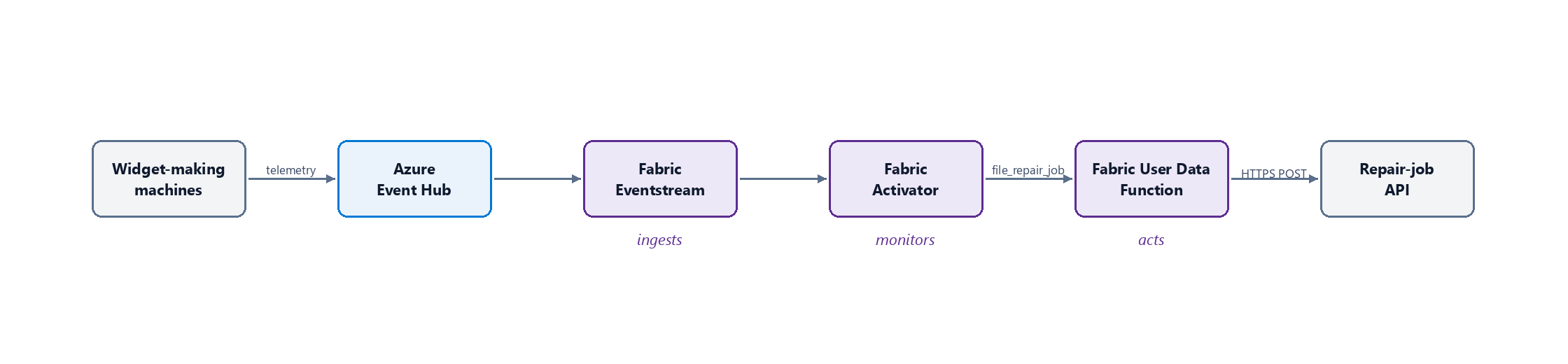
A manufacturer operates a fleet of widget-making machines across multiple plants. Each machine emits telemetry—temperature, vibration, pressure, run state—into an Azure event hub. When a machine sustains a high running temperature, it needs a maintenance visit before it breaks down.
For this tutorial, each event uses a small representative schema: a per-machine ID (machine_id), a location tag (plant_id), a numeric metric to monitor (temperature_c), and a run-state field (state). The exact field names don't matter—the same prompt shape works for any per-entity ID plus a metric you want to threshold.
You build a Fabric pipeline that watches the telemetry stream, applies a sustained-threshold rule, and calls a User Data Function to file the repair job. The rule groups events by machine_id and fires when temperature_c stays above 50°C for 5 minutes. When it fires, it passes machine_id, plant_id, and the current temperature into the action.
Prerequisites
Before you begin, you need:
- A Fabric workspace on F4 (or higher) capacity, with authoring permissions. To learn about workspaces, see Workspaces.
- A skill-compatible agent—for example, GitHub Copilot CLI or GitHub Copilot in Visual Studio Code—with the Fabric skills installed.
- An Azure Event Hubs namespace and hub streaming the telemetry. You need the namespace FQDN, hub name, and a
Listen+Sendconnection string.
Set up the eventstream
In this step, you create the eventstream that subscribes to your event hub. You prompt the agent and validate the result in the portal.
Give the agent this prompt, replacing the placeholders with values from your event hub:
Create a Fabric eventstream in my workspace called `WidgetMachineTelemetry` that ingests from this Azure event hub:

- Namespace: `<your namespace FQDN>`
- Hub name: `<your hub name>`
- Connection string: `<your Listen+Send connection string>`

When you're done, give me a direct portal link to the eventstream item so I can verify it.
The agent invokes the eventstream authoring skill. It creates the eventstream item, configures the event hub as a source, and returns a clickable URL to the item in the Fabric portal. You don't need a destination—Activator subscribes directly to the stream.
Select the link the agent gave you. In the Live view, confirm the event hub source is Connected and widget-machine telemetry events are flowing through.
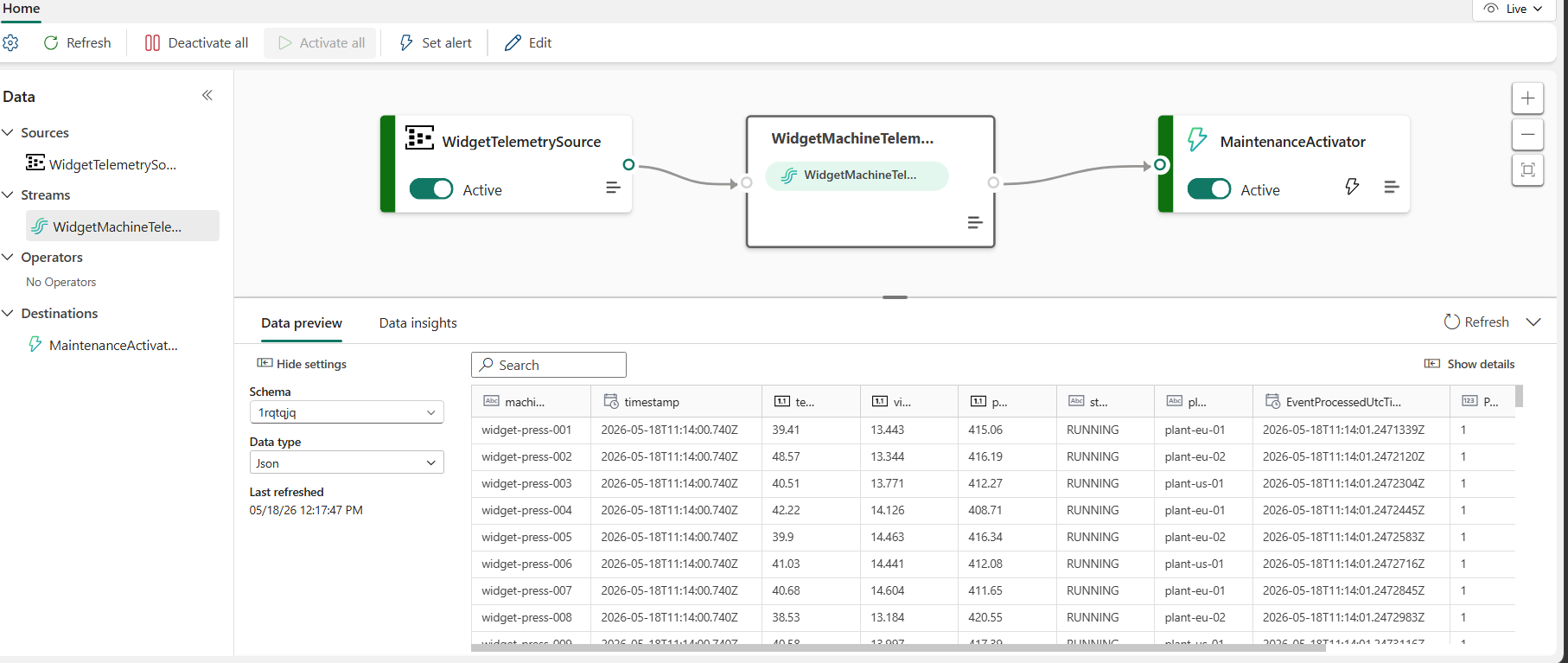
Figure 1: The
WidgetMachineTelemetryeventstream—events flow from thewidget-telemetryevent hub source through the stream to theWidgetMachineMaintenanceActivator destination.
Create the User Data Function
In this step, you create the User Data Function that your Activator rule calls. The function sends the repair-job request to your downstream API.
Give the agent this prompt:
Create a Fabric User Data Function called `MaintenanceDispatcher` in my workspace, written in Python, with a function `file_repair_job(machine_id, plant_id, temperature_c)` that sends those values as JSON in a POST request to `https://contoso.com/maintenance/fileRepairJob` and returns the parsed response.

When you're done, give me a direct portal link to the UDF item so I can verify it.
The agent invokes the Fabric UDF authoring skill. It scaffolds a Python UDF item, implements
file_repair_jobwithhttpx, publishes the UDF, confirms the function is callable, and returns a clickable URL to the item.Select the link the agent gave you, then use the built-in Test pane to invoke
file_repair_jobwith a sample payload. For example:machine_id="widget-press-042",plant_id="plant-eu-01",temperature_c=52.7. The call tocontoso.comreturns an HTTP error—that's expected, because the placeholder endpoint doesn't resolve. The important behavior is that the UDF deployed, registered, and reached the outbound HTTP call.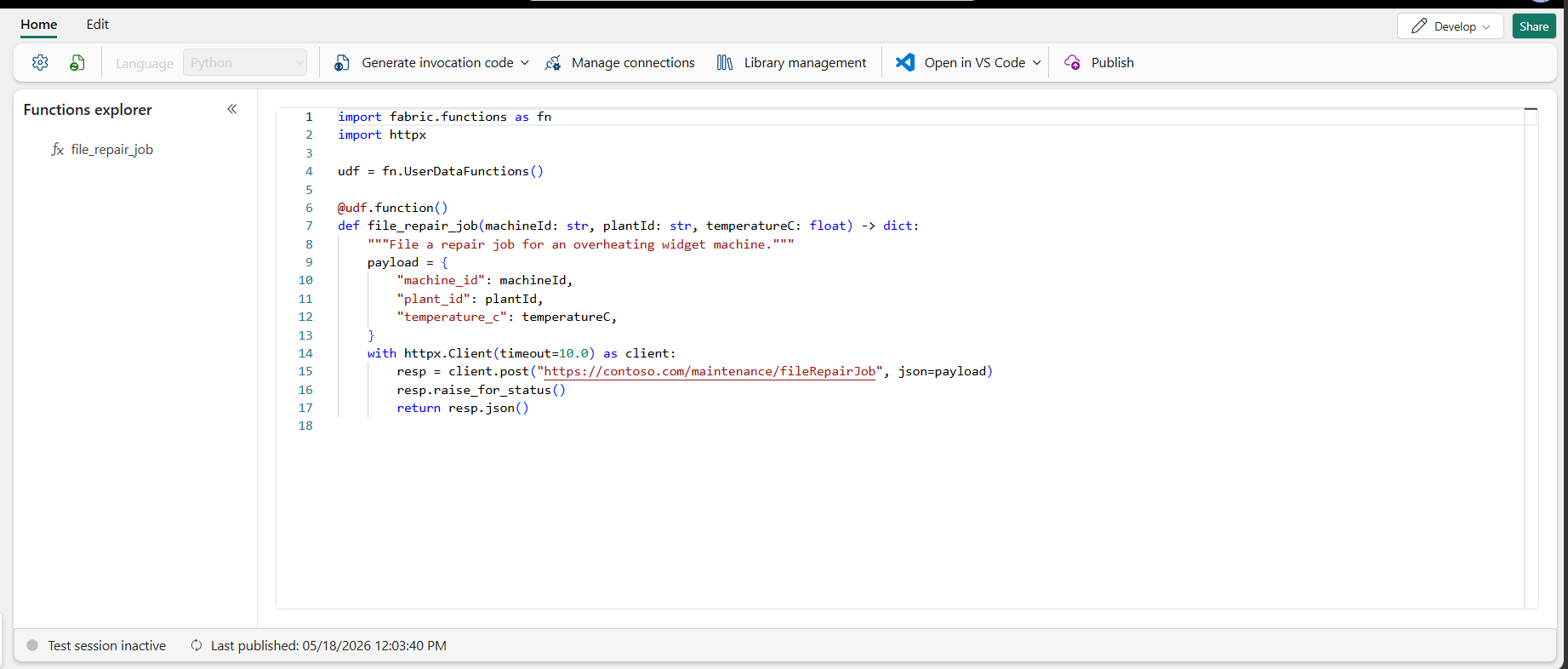
Figure 2: The
MaintenanceDispatcherUser Data Function—file_repair_jobsends the overheating machine's details to the maintenance system.
Note
This tutorial uses https://contoso.com/maintenance/fileRepairJob as a placeholder for the real maintenance system endpoint. Replace it with any HTTPS endpoint of your own. For authenticated endpoints, retrieve credentials from Azure Key Vault via a UDF generic connection. For more information, see Access data sources in Fabric User data functions.
Author the Activator rule
In this step, you create the Activator rule that watches the eventstream and calls your UDF when a machine overheats.
Give the agent this prompt:
Create an Activator rule in my workspace subscribed to the `WidgetMachineTelemetry` eventstream, that triggers my `file_repair_job` UDF when a machine's temperature stays above 50°C for 5 minutes.

When you're done, give me a direct portal link to the rule so I can verify it.
The agent invokes the Activator authoring skill and creates the Activator item. The agent groups the rule by
machine_id, builds the sustained-threshold detection, and configures the action to call your UDF withmachine_id,plant_id, and the current temperature. The agent then returns a clickable URL to the rule.Select the link the agent gave you, then walk through this checklist:
- Data is flowing into the rule. Open the rule's underlying Activator object in the Explorer pane and confirm that recent events appear in the live table with non-null
machine_idandtemperature_cvalues. - The rule is running. Confirm the rule is in the Started or Running state and the Activator object summary shows your machines as active instances.
- The agent records activations. As overheating machines stay above 50°C for 5 minutes, entries appear in the rule's History tab, each showing the
machine_idthat triggered, the temperature at fire time, and a successful call tofile_repair_job.
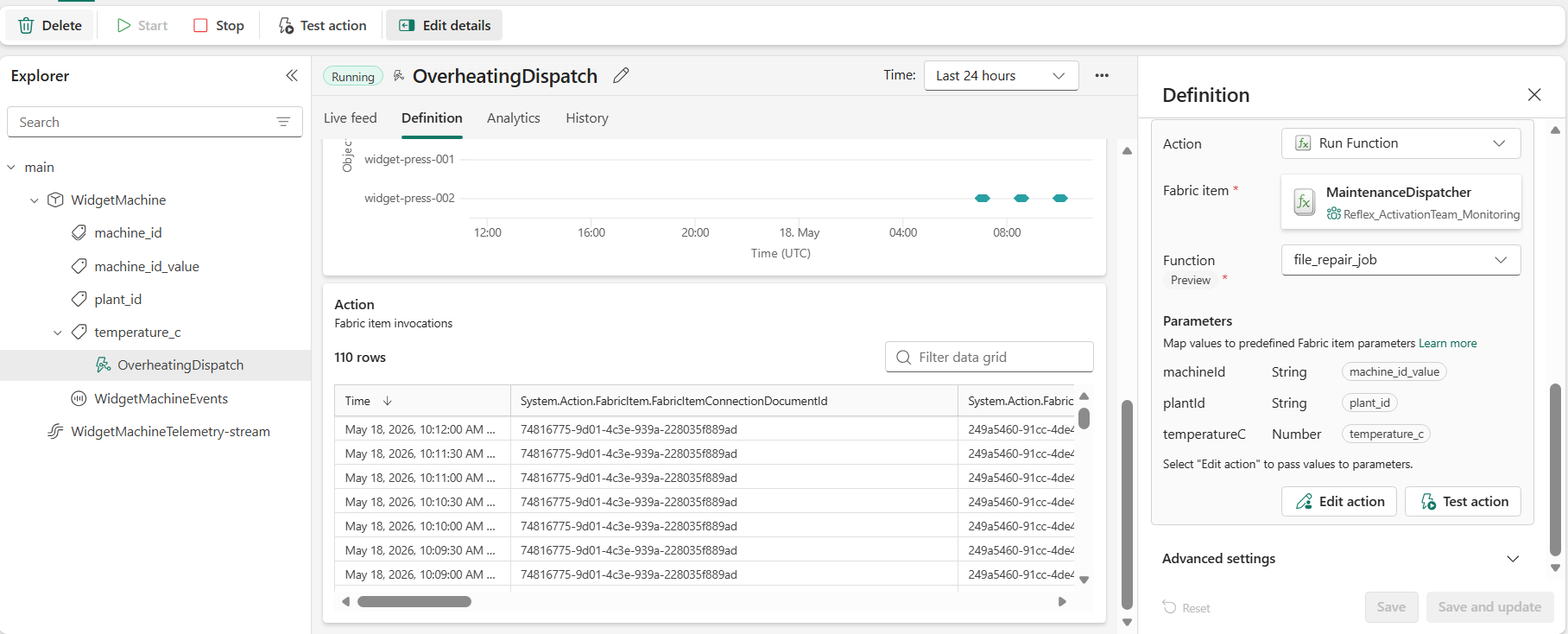
Figure 3: The
OverheatingDispatchActivator rule—fires when a machine's temperature stays above 50°C for 5 minutes, invokingfile_repair_jobwith the machine's identity, plant, and current temperature.- Data is flowing into the rule. Open the rule's underlying Activator object in the Explorer pane and confirm that recent events appear in the live table with non-null
Clean up resources
When you're finished, delete the eventstream, User Data Function, and Activator items from your workspace, and delete the Event Hubs namespace from the Azure portal to stop charges.