Note
Access to this page requires authorization. You can try signing in or changing directories.
Access to this page requires authorization. You can try changing directories.
You can connect your Fabric User data functions to supported Fabric data sources directly from the Fabric portal. Fabric handles authentication for you, so your user data function code only needs to reference a connection alias instead of storing credentials or connection details.
In this article, you learn how to:
- Create a new connection for your user data functions item.
- Use your new connection in your function code.
- Modify or delete your data connection.
Supported data sources in Fabric User data functions
The following data sources are currently supported for Fabric User data functions:
- Fabric SQL databases for read/write operations
- Fabric warehouses for read/write operations
- Fabric lakehouses for read/write operations for Lakehouse files and for read-only operations for the SQL Endpoint.
- Fabric mirrored databases for read-only operations
Note
You can also connect to the Fabric variable library to access configuration settings as variables in your functions. To learn how to use Variable Library variables in your function code, see Get variables from Fabric variable libraries.
Prerequisites
Before you can connect to data sources, you need:
- A Fabric User Data Functions item in your workspace
- Write permissions for the User Data Functions item to manage connections
- At least one of the supported data sources (SQL database, warehouse, lakehouse, or mirrored database) in an accessible workspace
- Read permissions (or higher) for the data source you want to connect to
Add a connection in the Fabric portal
To access data from your functions, you need to create a connection to your data source. This connection handles authentication and authorization automatically, so you don't need to manage connection strings or credentials in your code. Once you create a connection, it generates an alias that you can reference from any function in your user data functions item.
To add a connection:
In the Fabric portal, find and open your user data functions item.
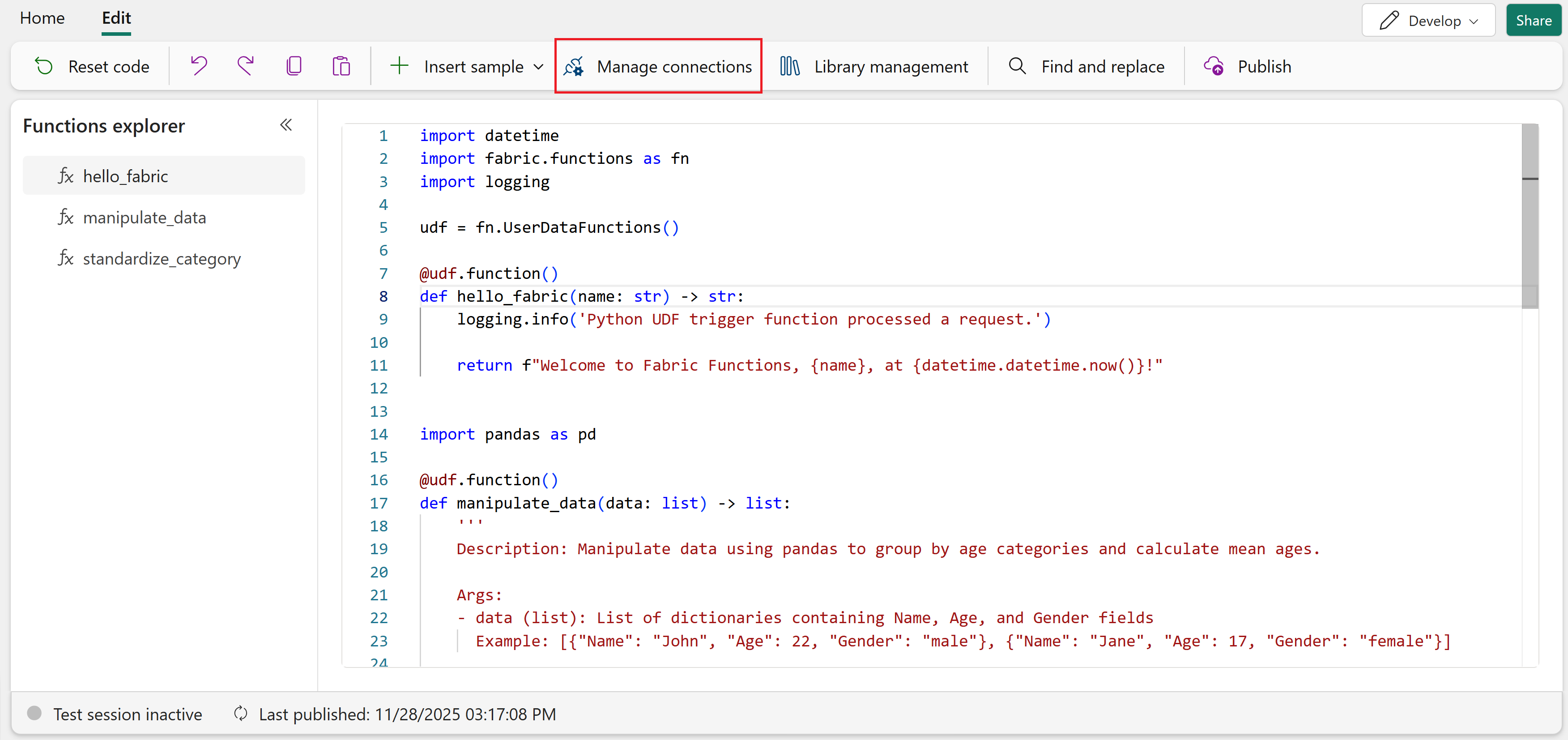
Select Manage connections in the ribbon of the user data functions editor.
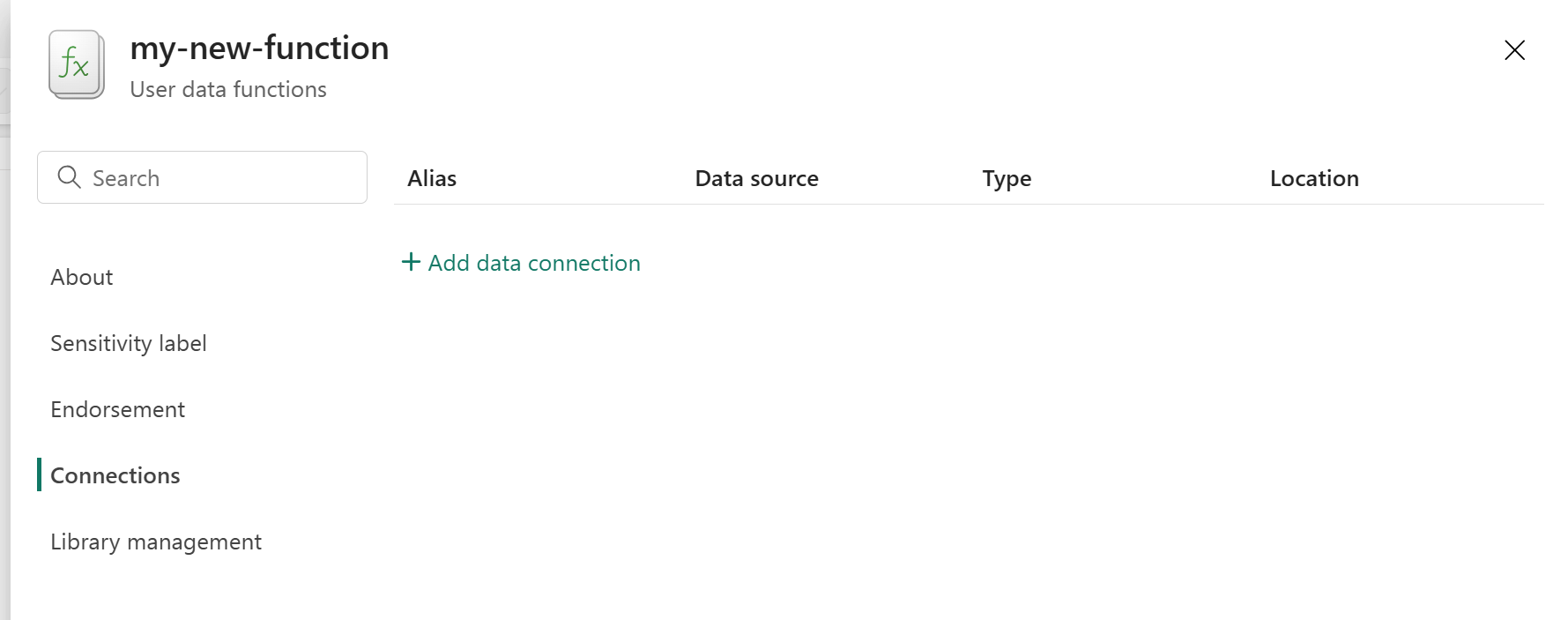
In the pane that opens, select Add data connection.
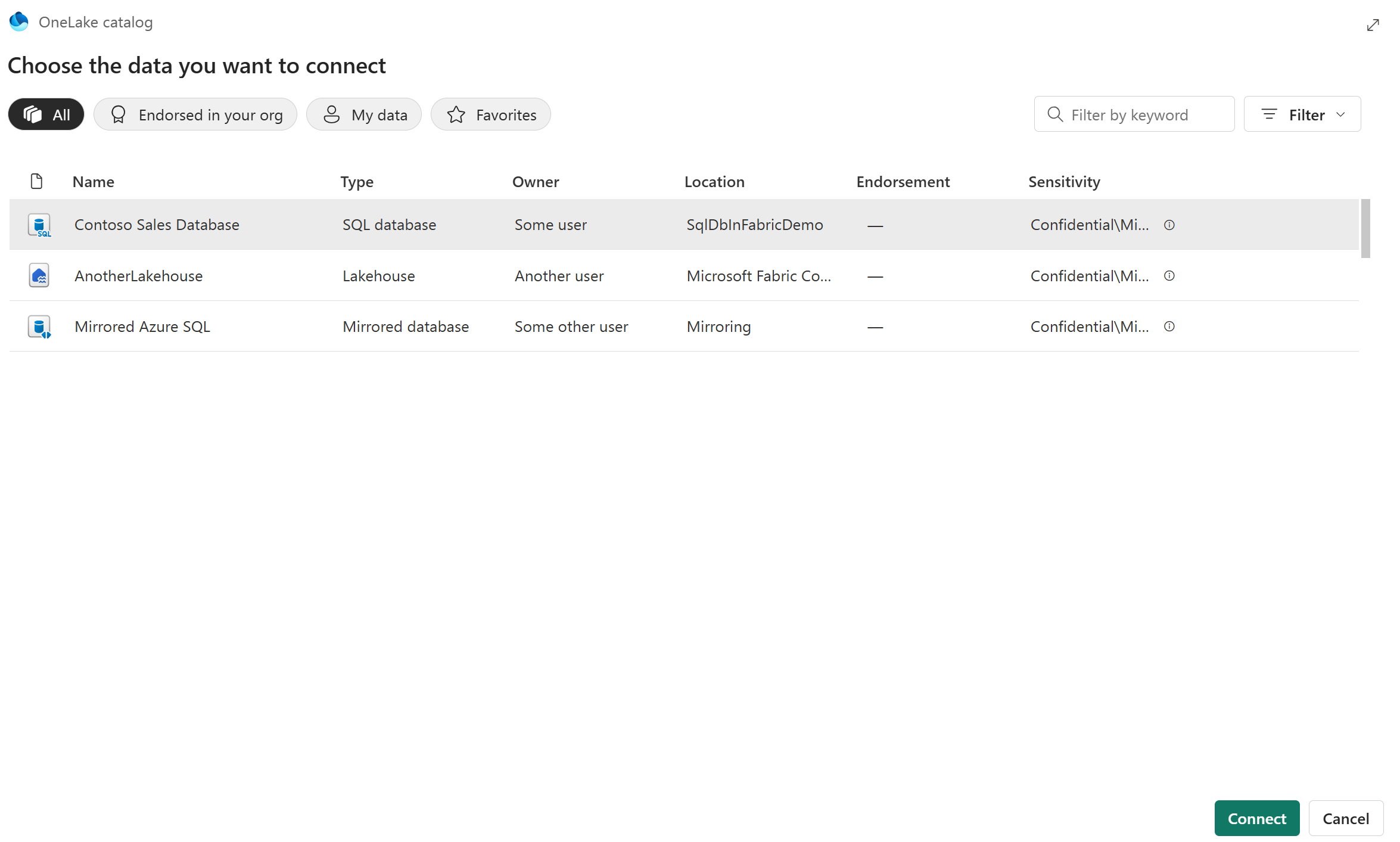
When the OneLake catalog opens, browse the list of data sources.
Note
The list is filtered to include only supported data sources that your user account has access to. Data sources might be in other workspaces. If you can't find the data source you're looking for, make sure you have the right permissions to connect to it.
Choose your data source, then select Connect.
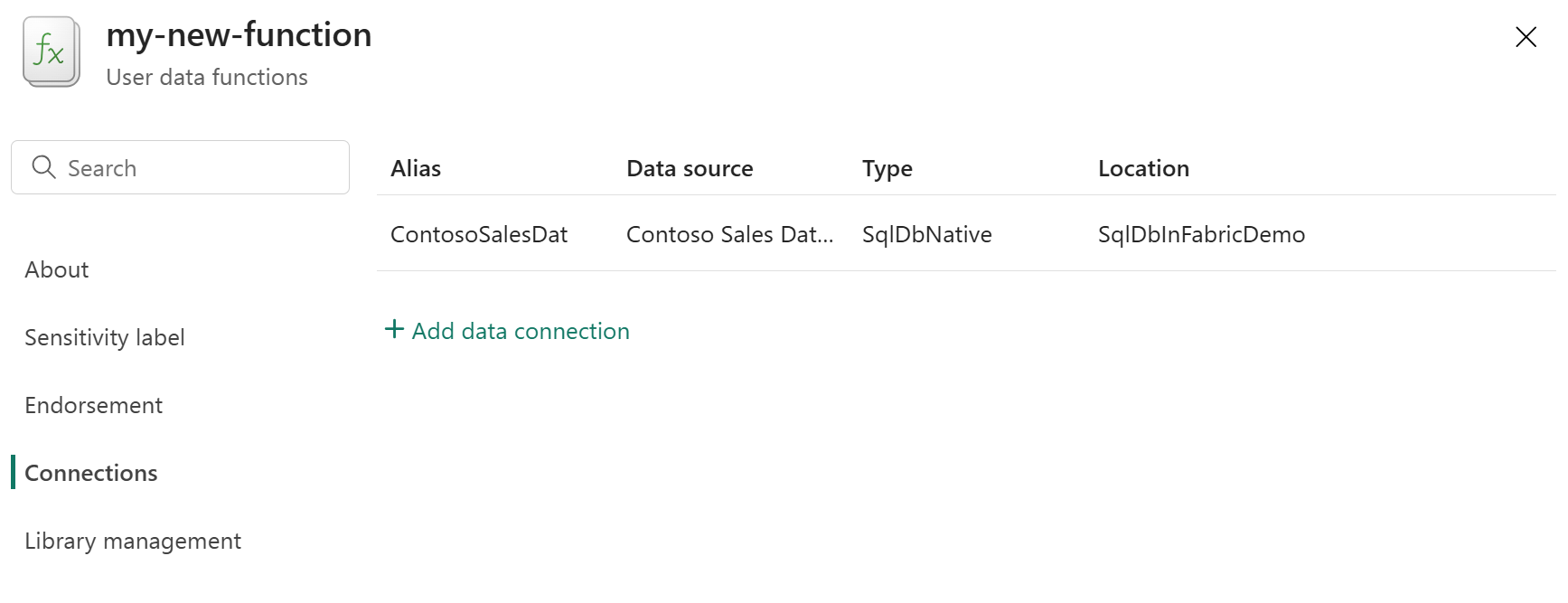
Once created, the new connection appears in the side pane on the Connections tab. Take note of the Alias name that was generated for it. You need this alias to reference the connection from functions in your user data functions item.
Use your connection in your function code
After you create a connection, you can reference it in your function code using the connection's alias. The alias is automatically generated based on the name of the data source you connected to. You add this alias to the @udf.connection decorator in your function, and the connection handles authentication when your function runs.
While you can add connection code to any function you write from scratch, using a sample provides a starting point with the connection code already written. You just need to modify the alias to match your connection.
To use the connection in your code:
If you're not already in the editor, open your user data functions item and select Develop mode, then select the Edit tab.
On the ribbon, select Insert sample.
From the dropdown list, select SQL Database > Read data from a table in SQL Database.
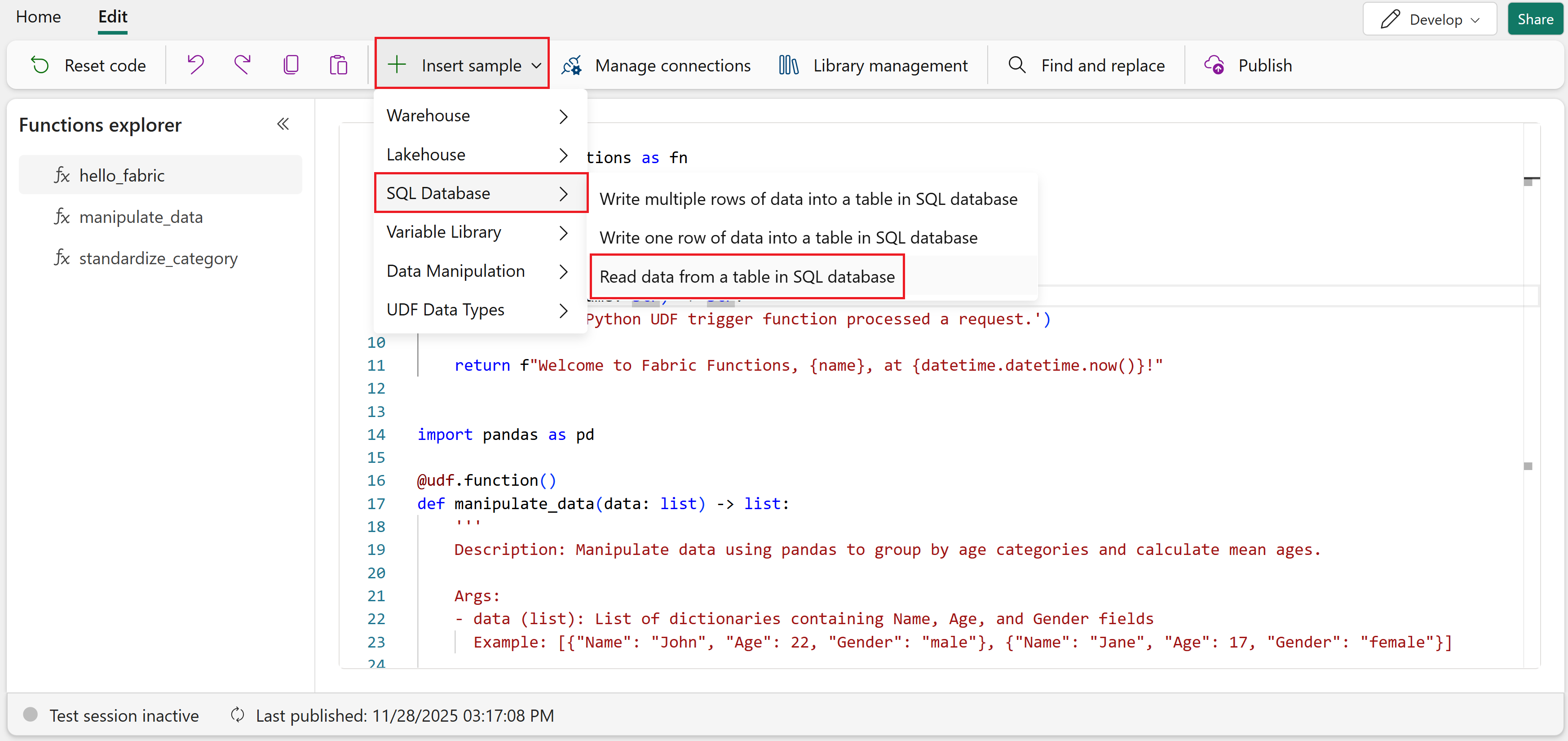
The sample inserts the following code that reads data from a SQL database table:
@udf.connection(argName="sqlDB",alias="<alias for sql database>")
@udf.function()
def read_from_sql_db(sqlDB: fn.FabricSqlConnection)-> list:
    # Replace with the query you want to run
    query = "SELECT * FROM (VALUES ('John Smith', 31), ('Kayla Jones', 33)) AS Employee(EmpName, DepID);"

    # Establish a connection to the SQL database
    connection = sqlDB.connect()
    cursor = connection.cursor()

    query.capitalize()

    # Execute the query
    cursor.execute(query)

    # Fetch all results
    results = []
    for row in cursor.fetchall():
        results.append(row)

    # Close the connection
    cursor.close()
    connection.close()

    return results
Note
This sample query generates test data inline using the
VALUESclause, so you can test your connection even if your database doesn't have any tables yet. When you're ready to query your own data, replace the query with one that references your actual tables.Replace
<alias for sql database>in the@udf.connectiondecorator with the alias from the connection you created in the previous section.For example, if your connection alias is
ContosoSalesDat, the decorator would look like this:@udf.connection(argName="sqlDB",alias="ContosoSalesDat") @udf.function() def read_from_sql_db(sqlDB: fn.FabricSqlConnection)-> list: [...]Test your function to verify the connection works correctly.
After you test your function with the connection, you can publish and run it. For more information, see Test your user data functions.
Modify or delete a connection
You can modify or delete existing connections from the Manage connections pane. However, be aware of the effect on your functions before making changes.
Modify a connection alias
To modify the alias of an existing connection:
In the Fabric portal, open your user data functions item.
Select Manage connections in the ribbon.
In the Manage connections pane, find the connection you want to modify and select the Edit connection icon (pencil).
Enter the new alias name.
Select Update to save your changes.
Important
When you change a connection's alias, any function using the old alias fails at runtime. You must update all function code that references the old alias to use the new alias name. To connect to a different data source, create a new connection instead of modifying an existing one.
Delete a connection
To delete a connection:
In the Fabric portal, open your user data functions item.
Select Manage connections in the ribbon.
In the Manage connections pane, find the connection you want to delete and select the Delete connection icon (trash can).
Confirm the deletion.
Warning
If you delete a connection that's referenced in your function code, those functions fail at runtime with a connection error. Before deleting a connection, make sure no functions are using it, or update your function code to remove references to the deleted connection alias.