Note
Access to this page requires authorization. You can try signing in or changing directories.
Access to this page requires authorization. You can try changing directories.
A single application can sometimes account for a large share of Eventhouse capacity consumption, whether due to expected workload patterns or configuration-related factors. Without clear, application-level visibility, it can be challenging to understand how capacity is being distributed and to identify the primary contributors to overall usage.
The application-level activity monitoring features in the Eventhouse system overview provide transparency into how different applications use system resources. These insights help you identify high-activity applications, understand usage trends over time, and make informed decisions to optimize capacity allocation.
In this article, you’ll learn how to analyze compute activity by application, interpret activity spike advisories, and explore per-user application details.
Prerequisites
- A workspace with a Microsoft Fabric-enabled capacity.
- An eventhouse in your workspace.
Visualize activity by application
The Activity in minutes tile on the system overview page displays compute activity as a stacked area chart broken down by application or workload. This visualization helps you quickly identify which applications are driving the most compute usage.
The chart displays the top five applications by activity volume. All remaining applications are grouped under Other.
Read the activity by application chart
The stacked area chart shows compute minutes over time, with each color representing a different application.
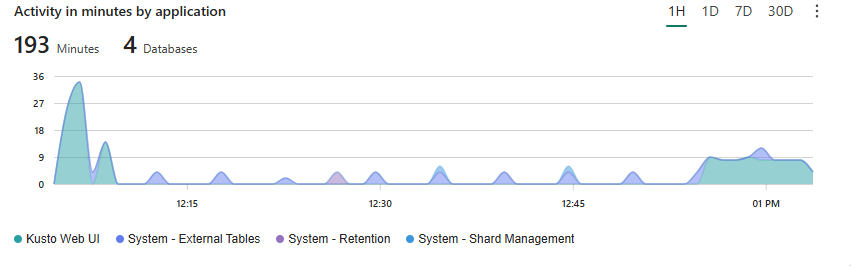
Use the chart to:
- Identify which applications are generating the most activity.
- Spot applications that are generating more activity than expected.
- Detect sudden changes in application behavior over time.
When you hover over a data point, you see the date, the application name with its activity count, and the total activity value across all applications.
View the underlying query
To see the full KQL query behind the chart, select the ellipsis (...) menu on the tile and then select Open query. This provides full visibility into how the compute minutes are calculated per application.
It's important to note that compute minutes don't directly correspond to compute units, which represent the actual processing time consumed by these operations.
For example, if two users execute queries at the same time, one taking 3 minutes and the other 5 minutes, the total compute minutes would be 8. But since these queries ran together, the actual compute units used are just 5 minutes.
In the case where 78 queries and 173 ingest operations run at the same time and total 183 compute minutes, if they all finish within a 5-minute period, the actual compute units used is still only 5 minutes.
Application categories
The charts categorize activity into the following application types based on the ClientActivityId field:
| Category | Description |
|---|---|
| KQL QuerySet | Queries run from a KQL queryset in Fabric Real-Time Intelligence. |
| Real-Time Dashboard | Queries from a Real-Time Dashboard. |
| ADX Dashboard | Queries from an Azure Data Explorer dashboard. |
| Fabric Data Exploration | Activity from the Fabric data exploration experience. |
| Ingestion Query | Queries related to ingestion operations. |
| Kusto Web UI | Queries from the Kusto Web UI. |
| Kusto Explorer | Queries from the Kusto Explorer desktop tool. |
| Data Activator | Queries generated by Data Activator rules. |
| Copilot | Queries from Copilot for Real-Time Intelligence. |
| Fabric AI Skill | Queries from a Fabric AI Skill. |
| Notebooks | Queries from notebooks using Kqlmagic. |
| Spark / Notebooks | Queries from Spark or notebook integrations. |
| SDK | Queries from the Kusto SDK or programmatic access. |
| Azure Data Factory | Queries from Azure Data Factory pipelines. |
| Materialized Views | Activity from materialized view refresh operations. |
| System operations | Background system tasks such as ingestion, retention, shard management, and storage cleaning. |
| Other | Activity from applications that don't match any of the recognized categories. |
Activity spike advisor
When a specific application generates an unusually high volume of queries, an advisor banner appears on the system overview page. This banner proactively alerts you to potential capacity issues.
Trigger conditions
The advisor banner appears when all of the following conditions are met for an application:
- Query volume is more than three times higher than its median over the last seven days.
- The application's queries account for more than 30% of total queries.
- The elevated activity has continued for more than 10 minutes.
Banner message
The banner displays a message similar to:
"<application_name> is driving unusually high query activity compared to its normal usage and contributing ~40% of total usage."
Dismiss the banner
If you dismiss the banner, it doesn't appear again for that application for one day. If more than one application meets the trigger conditions, the banner displays information for the application with the highest percentage of total queries.
View application details per user
The Activity in minutes - top 5 users tile on the system overview page shows the total compute minutes of the most active users. When you hover over a user's slice in the pie chart, you see the top three most consuming applications that user has been using. This information helps you understand which applications are driving individual users' compute consumption.
The tile also displays two summary metrics:
- Minutes: Total compute minutes across all users.
- Databases: Number of databases accessed.
For more information on viewing the underlying KQL query, select the ellipsis (...) menu on the tile and then select Open query.
View queries by application in query insights
The Query insights tab includes a Queries by Application - Top 5 applications tile that shows a pie chart of query distribution by application.
Read the queries by application chart
- The pie chart displays the top five applications by query count.
- When you hover over a slice, you see the application name and the percentage of total queries.
- The legend shows each application name and the total number of queries, sorted in descending order.
If no queries were performed, the tile displays a "No queries performed" message.