Note
Access to this page requires authorization. You can try signing in or changing directories.
Access to this page requires authorization. You can try changing directories.
Use bulk import to add multiple Avro schemas to a new or existing event schema set. You can also import multiple versions of a schema, review their order, and keep the latest definition available alongside its history.
Prerequisites
- Permission to edit the target schema set, or the Admin, Member, or Contributor role in the workspace where you create a new set. See Permissions.
- Files containing Avro schema definitions, such as
.avscfiles. Event payloads aren't schema definitions. - For a walkthrough, save all three versions from the device telemetry schema example as separate files.
Select files and a target schema set
Navigate to your event schema set from the Fabric workspace page or the Fabric Real-Time hub.
Select Import on the ribbon.

On Import schemas, follow these steps:
Confirm that the Use existing schema set option is selected if you want to import into an existing set. Otherwise, choose New schema set.
Confirm the workspace selection is correct.
If you selected the Use existing schema set option, confirm the right schema set is selected.
Select Choose files on the ribbon.
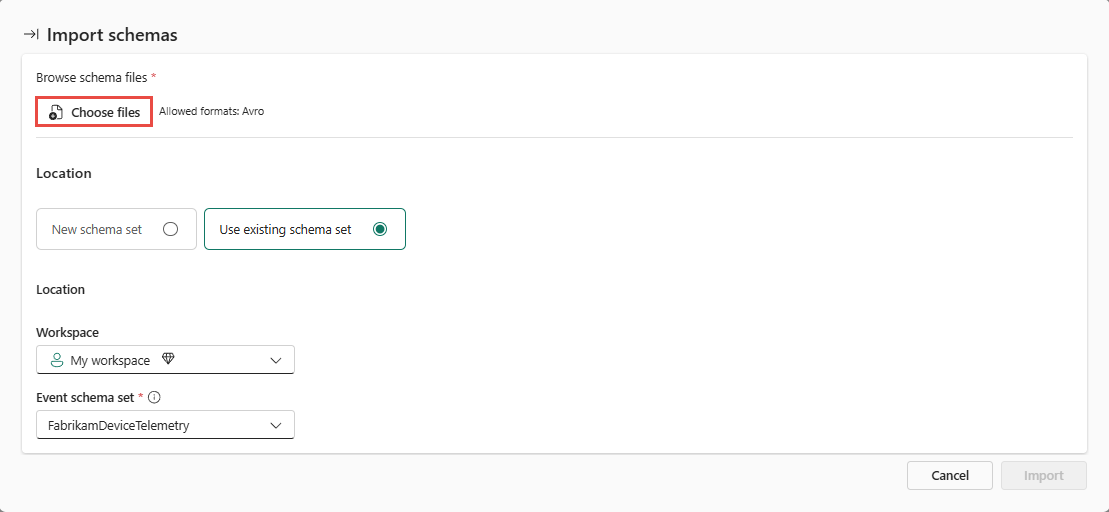
Select files for one or more schemas, and one or more versions of a schema. In this example, select the files you downloaded: device-telemetry-v1.avsc, device-telemetry-v2.avsc, device-telemetry-v3.avsc.
Review the selected files, schema names, descriptions, and detected versions before importing. Check that the files represent versions of the same intended schema rather than unrelated definitions. Review the displayed grouping and ordering instead of relying only on the order in which you selected the files. Resolve any validation errors shown in the import workflow. Then, select Import.


Review imported schemas
Open the target schema set. Verify that the imported schemas appear. Select the schema that you want to inspect.
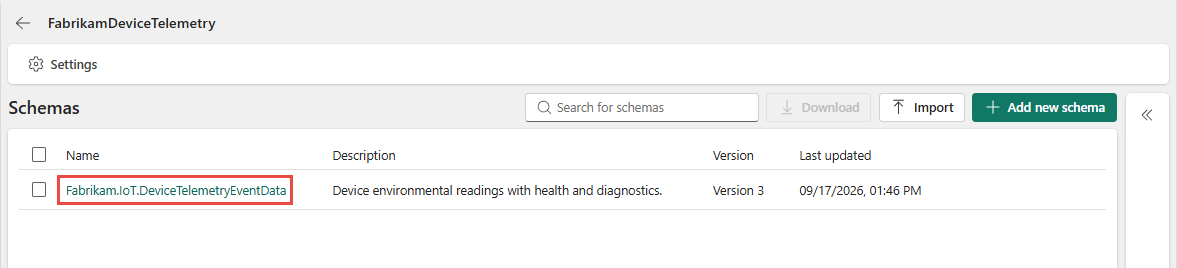
Inspect its latest definition. Use the version history to verify that the earlier versions are available in the intended order.


Important
Review the import result before using the schemas in a pipeline. Importing a definition doesn't update producers, change an eventstream's schema association, or prove that the new version is compatible with existing consumers.
To review differences between the imported definitions, see Compare schema versions.