Note
Access to this page requires authorization. You can try signing in or changing directories.
Access to this page requires authorization. You can try changing directories.
Note
This tutorial is part of a series. For the previous section, see: Real-Time Intelligence tutorial part 6: Create a Real-Time Dashboard.
Anomaly detection is a feature of Real-Time Intelligence that helps you identify unusual patterns in your data. In this part of the tutorial, you learn how to create an Anomaly detector item on your workspace to detect anomalies in the number of empty docks at a station.
Getting started
- From the left navigation bar, select Real-Time to open the Real-Time hub.
- Under All data streams, select the eventhouse table TransformedData you created in the previous tutorial. The table details page opens. Select Detect anomalies from the top menu.
Select a database and the table or the shortcut you want to analyze.
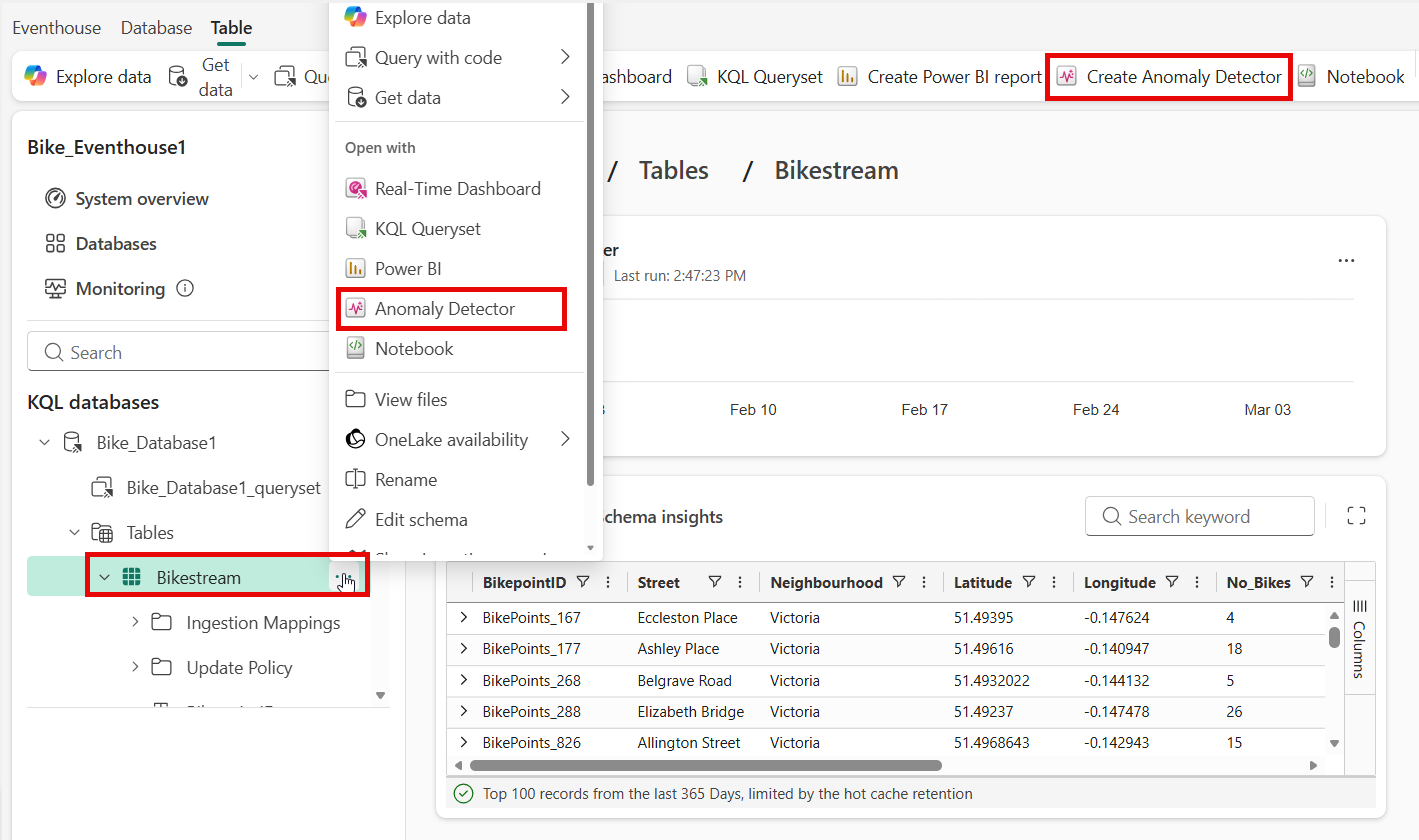
In the upper toolbar, select Create Anomaly Detector or select the Anomaly Detector option from the ellipsis (⋯) in the database tree.


Configure anomaly detection
In the Select attributes section, choose the following options:
Field Value Value to watch No_Empty_Docks Group by Street Timestamp Timestamp 
Select Run analysis.
Important
Analysis typically takes up to four minutes depending on your data size and can run for up to 30 minutes. You can navigate away from the page and check back in when the analysis is complete.
Note
Ensure your Eventhouse table contains sufficient historical data to improve model recommendations and anomaly detection accuracy. For example, datasets with one data point per day require a few months of data, while datasets with one data point per second might only need a few days.
When analysis is complete, anomalies along with tabular data are displayed on the right.

Note
Experiment with the Detection model under Customize detection section and Timestamp above the Detector results pane. More data might increase anomaly detection accuracy.
Select Save.


Related content
For more information about tasks performed in this tutorial, see: