Note
Access to this page requires authorization. You can try signing in or changing directories.
Access to this page requires authorization. You can try changing directories.
Use this topic to set up your XBOX Development Kit to create and validate titles while streaming.
To stream from your XBOX Development Kit to a browser, use IP Connect or Remote Connect in the Web Content Test Application (CTA). The Android Content Test Application and Windows PC Content Test Application, both deprecated, also support direct local streaming.
You can also use Cloud Aware development to support and validate your title by using Cloud Aware APIs. These APIs behave on an XBOX Development Kit, with streaming support, similarly to an XBOX Game Streaming server.
Prerequisites
To set up your dev kit for streaming, ensure that it's running an OS of November 2019 or later and connected to the network.
Note
XBOX Game Streaming isn't available on XBOX One S dev kits.
The XBOX Series X Dev Kit hardware isn't the same as the hardware that runs the XBOX Game Streaming server, but it's the closest match for CPU performance.
Enable Developer Mode
Enable Developer Mode on your XBOX Development Kit with the following steps.
- Open Settings and select System > Console Info > Developer Settings.
- Enable Developer Mode.
- Restart the XBOX Development Kit.
Note
If Developer Settings isn't available, with your controller quickly select LB > RB > LT > RT to enable Developer Settings in the UI.
Enable the streaming service
You can control the streaming service from the Streaming tab of Dev Home, or via the xbgamestream (NDA topic)Authorization required command line tool.
Note
The development console allows only one remote stream at a time.
For example, you can't use the remote view of XBOX Manager (NDA topic)Authorization required while also using a game streaming client. The client that connected most recently receives audio and video.
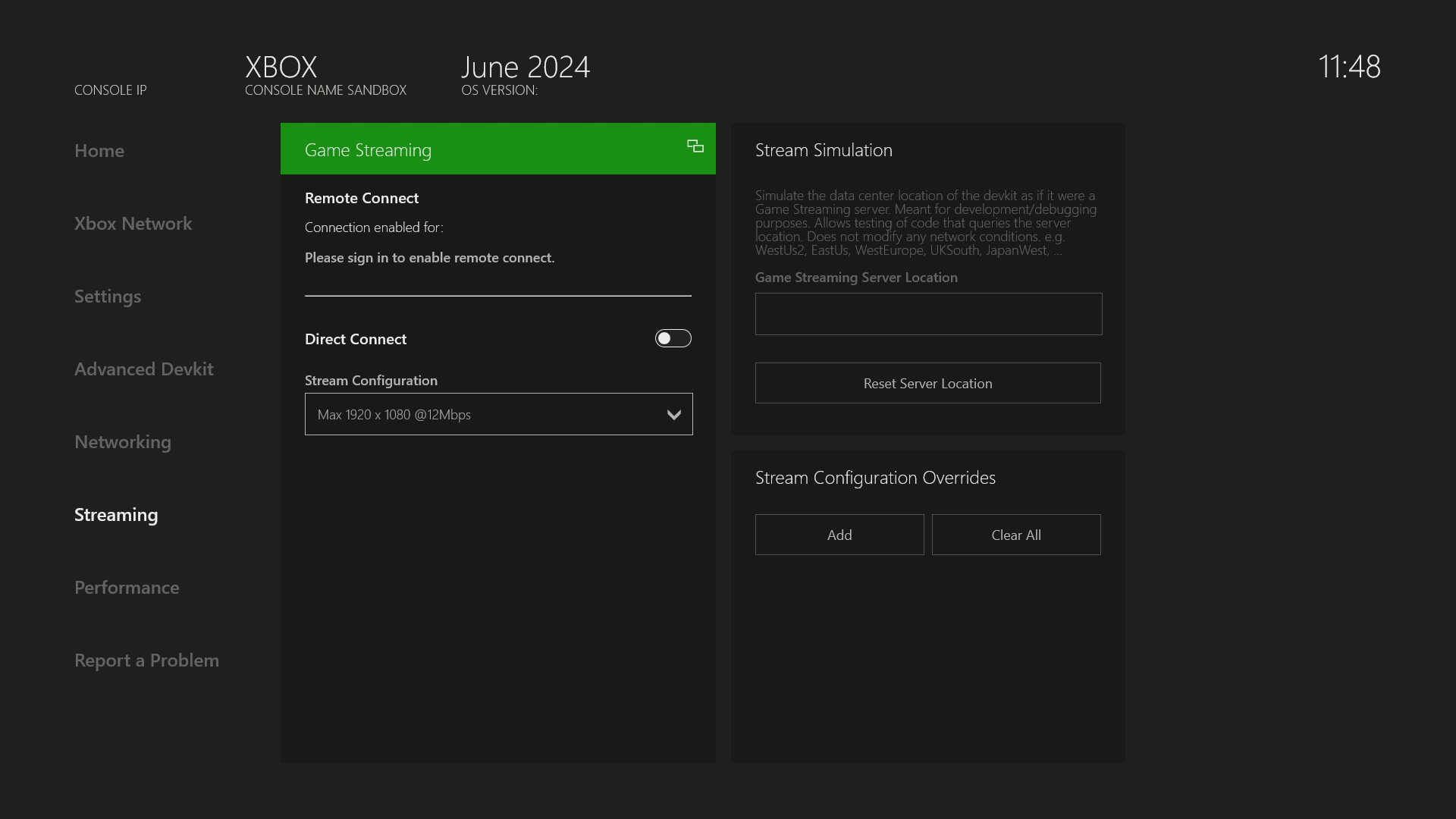
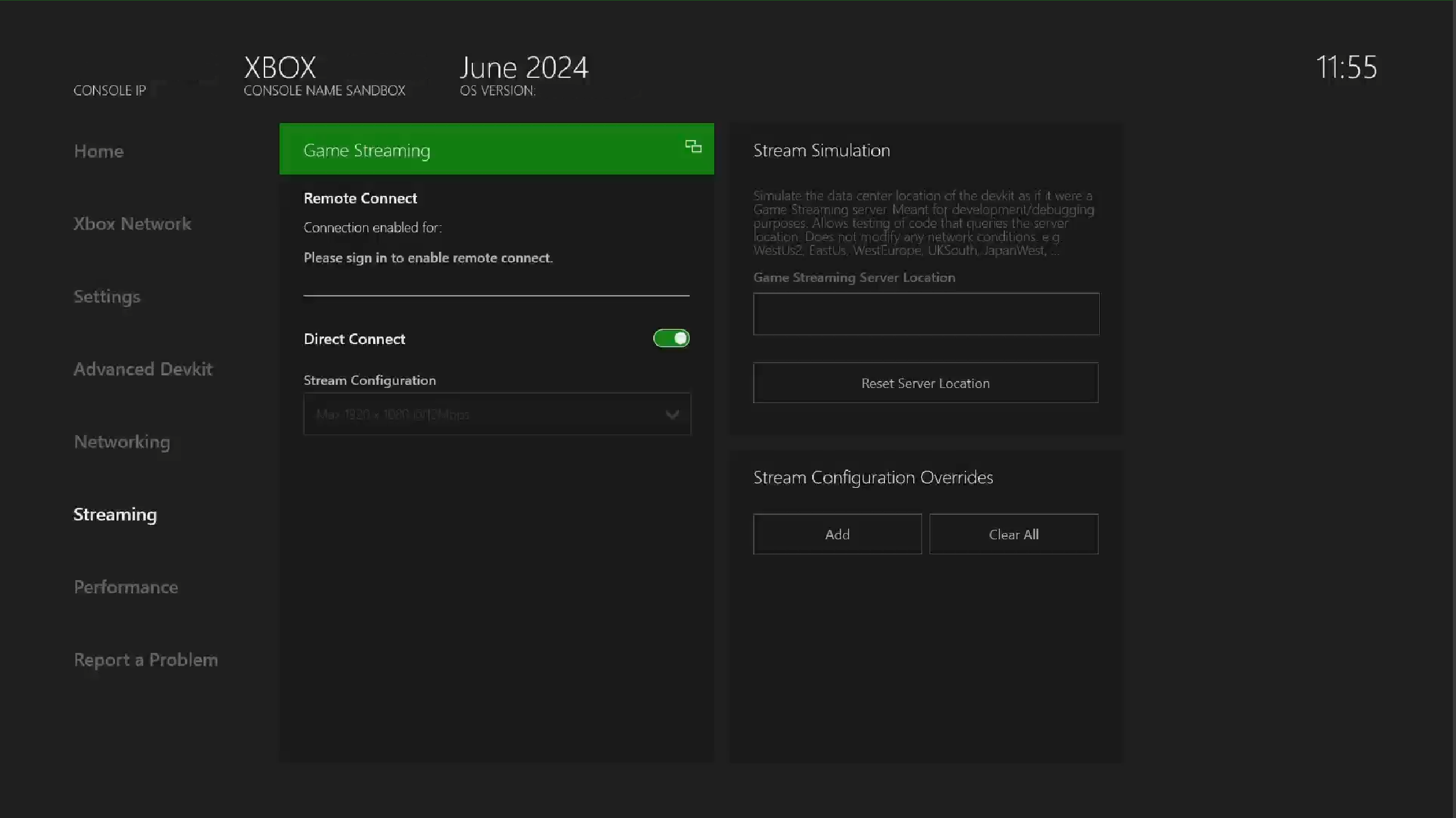
By default, the streaming service doesn't listen for local connections. To start it, go to the Streaming tab. Find "Direct Connect" toggle and turn it on. The service starts after a few seconds.
Note
After each restart of the XBOX Development Kit, return to the Streaming tab of Dev Home to connect to the streaming service again as shown in the following screenshot.
After a short startup delay, the Cloud Streaming service runs with a status change of the toggle that's visible in the Streaming tab of Dev Home as shown in the following screenshot.
You can perform a direct connect by using the Content test application (CTA) client and providing the main console IP address that's used to connect to the client.
Note
It isn't necessary to stop and restart this service unless there are connectivity problems.
Direct Connect is for connecting by IP address. Remote Connect streams over the internet instead. For more information, see Remote Connect.
Note
Leave Direct Connect off when you use Remote Connect.
While Direct Connect is listening, it blocks remote connections.
Stream Configuration
The streaming configuration controls various aspects of the stream such as the resolution or bitrate. The streaming configuration for direct connect can be modified via the Streaming Configuration dropdown menu which contains a couple base configurations.
Overrides
In more advanced scenarios, you can override specific settings of the base stream configuration for both direct connect and remote connect.
Note
Overrides do not perist between reboots so they must be reset if desired.
Note
Overrides are only applied to direct connect when it restarts "listening for connections" and on new connections for remote connect.
Overrides can be viewed and configured in the Streaming tab using the Stream Configuration Overrides panel in the bottom right (or by the xbgamestream tool).
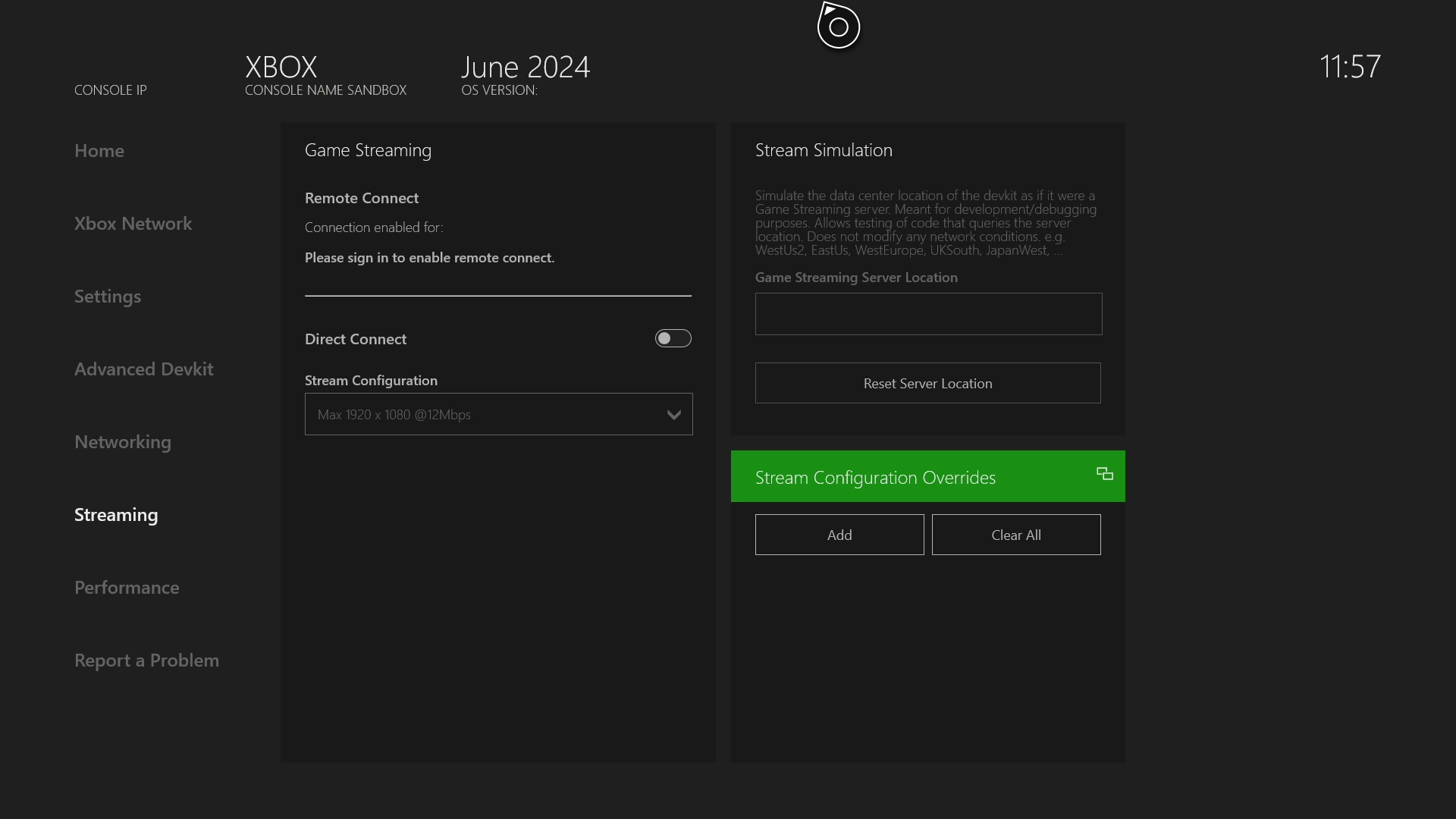
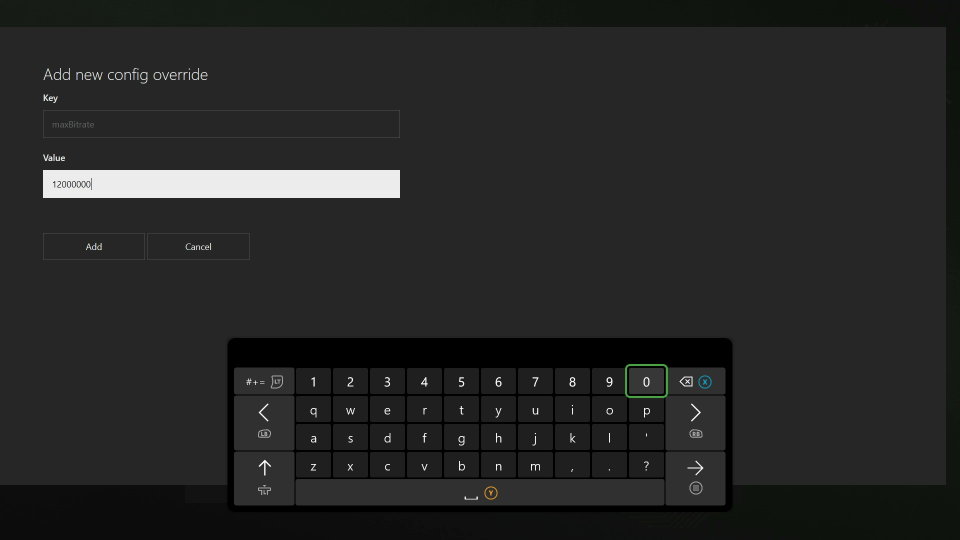
New overrides can be added with the Add button in the top left of the panel which will open up a window where the key and value can be specified. Existing overrides can be edited from the Edit option in the context menu which opens a similar window. Specific overrides can be deleted by the Clear option in the context menu and all overrides can be deleted by the Clear All button at the top of panel. The current set of configurable settings are as follows.
| Key | Description |
|---|---|
| allowDirectCapture | Boolean for enabling and disabling direct capture. Default value: true |
| maxBitrate | Maximum bitrate of the video stream. Example value: 12000000 |
| minBitrate | Minimum bitrate of the video stream. Example value: 5000000 |
| maxResolution | The suggested maximum resolution of the video stream. Example values: 720p, 1080p. |
| minResolution | The suggested minimum resolution of the video stream. Example values: 720p, 1080p. |
Troubleshooting
Use the following sections to resolve issues you experience while setting up your XBOX Development Kit for XBOX Game Streaming.
Network configuration to allow access to XBOX Development Kit streaming
To connect by using the CTA, allow TCP and UDP traffic on port 9002 between the CTA and the XBOX Development Kit.
CTA can't connect to XBOX Development Kit
Use the following steps to resolve connectivity issues between the CTA and dev kit.
- Ensure that the IP address of the console that's used by the client is correct.
- Ensure that the streaming service is running by checking the Streaming tab of Dev Home.
- Stop and start the streaming service on the Streaming tab of Dev Home.
- If you started listening with a specific protocol version, for example
xbgamestream startlistening version=<version>, restart listening without theversionparameter so the service can choose the protocol automatically. For more information, see xbgamestream (NDA topic)Authorization required.
Managing different communication protocol versions
There are different communication protocol versions for streaming. Unless you set a version with xbgamestream startlistening, the game streaming service chooses the protocol automatically based on the client's connection request.