Note
Access to this page requires authorization. You can try signing in or changing directories.
Access to this page requires authorization. You can try changing directories.
The Web Content Test Application (CTA) developer tools are available at play.xbox.com, the new XBOX Cloud Gaming web experience, which is in preview. These tools are designed for Edge and Chrome on Windows, and for Safari on Mac, iOS, and iPadOS.
This article covers play.xbox.com. If you test at xbox.com/play, the current experience, see Web Content Test Application (CTA) on xbox.com/play.
- Choose an experience
- Open developer settings
- Sandbox selection
- Offering selection
- IP Connect
- Remote Connect
- Touch Adaptation Kit (TAK) sideload
- Switch TAK layouts during a stream
- Mouse and Keyboard
Choose an experience
The web CTA runs on two XBOX Cloud Gaming web experiences: play.xbox.com, which is in preview, and xbox.com/play. Use this table to choose one for your scenario:
| Scenario | play.xbox.com | xbox.com/play |
|---|---|---|
| IP Connect to an XBOX Development Kit | Supported | Supported with a sandbox test account only |
| TAK sideload from the same PC | Supported | Supported |
| TAK sideload to a phone or tablet from a PC | Not supported yet | Supported over HTTPS |
| Switch layouts during a stream | Supported | Supported |
| Remote Connect | Supported | Supported |
Both experiences support private offerings, sandbox test accounts, region selection, and Mouse and Keyboard.
To test touch layouts on a phone or tablet while a PC runs tak serve, use xbox.com/play. For steps, see Web Content Test Application (CTA) on xbox.com/play.
If you switched to play.xbox.com from xbox.com/play, you can return at any time. Select your profile picture, then select Account settings > Exit preview.
Open developer settings
To start using the developer tools, visit play.xbox.com and enter developer mode by following these steps:
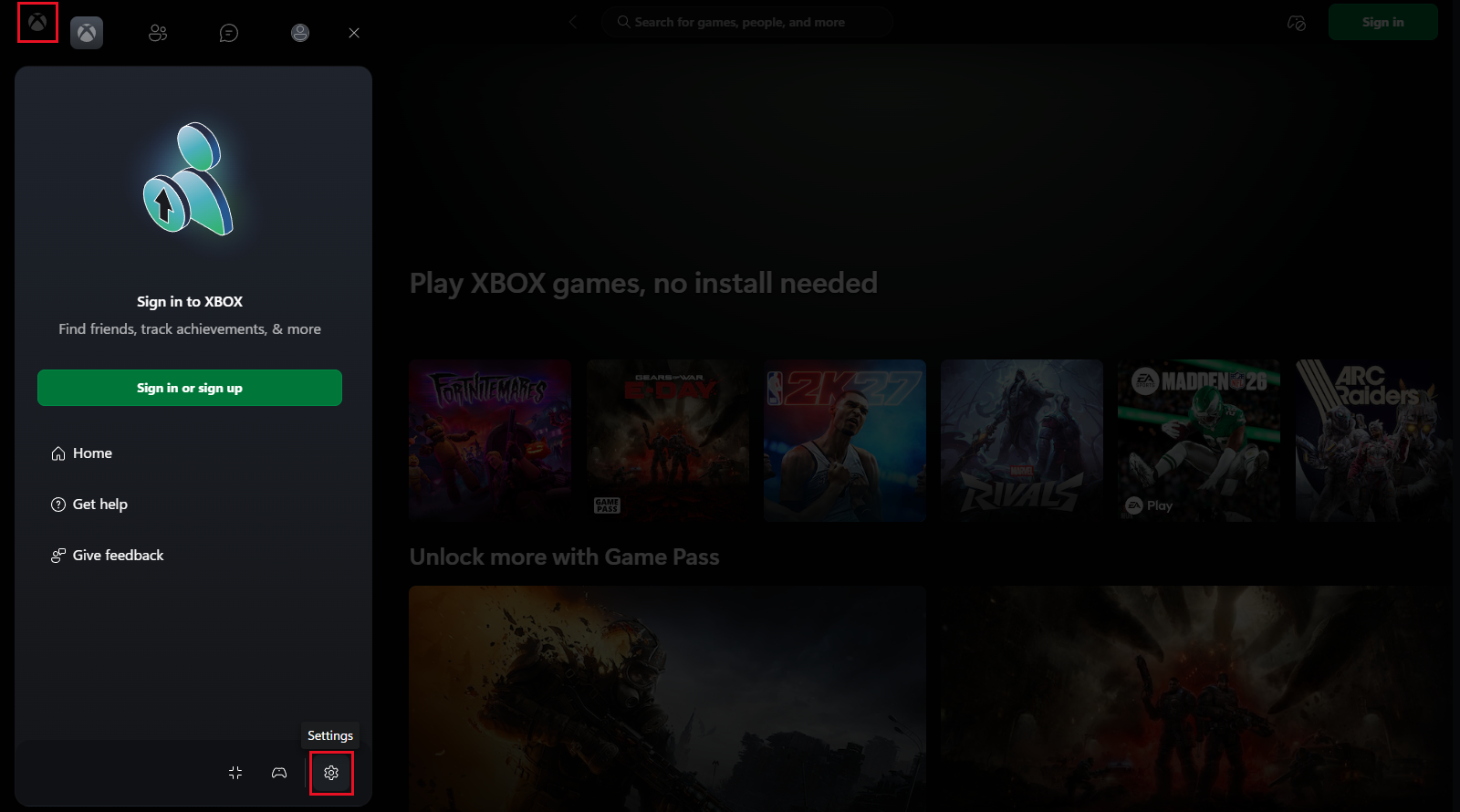
- Select the XBOX button at the top left to open the Guide, then select Settings.
- Select Account 10 times in quick succession. A toast reading Developer mode enabled confirms that you're in developer mode and reveals the Developer settings tab.
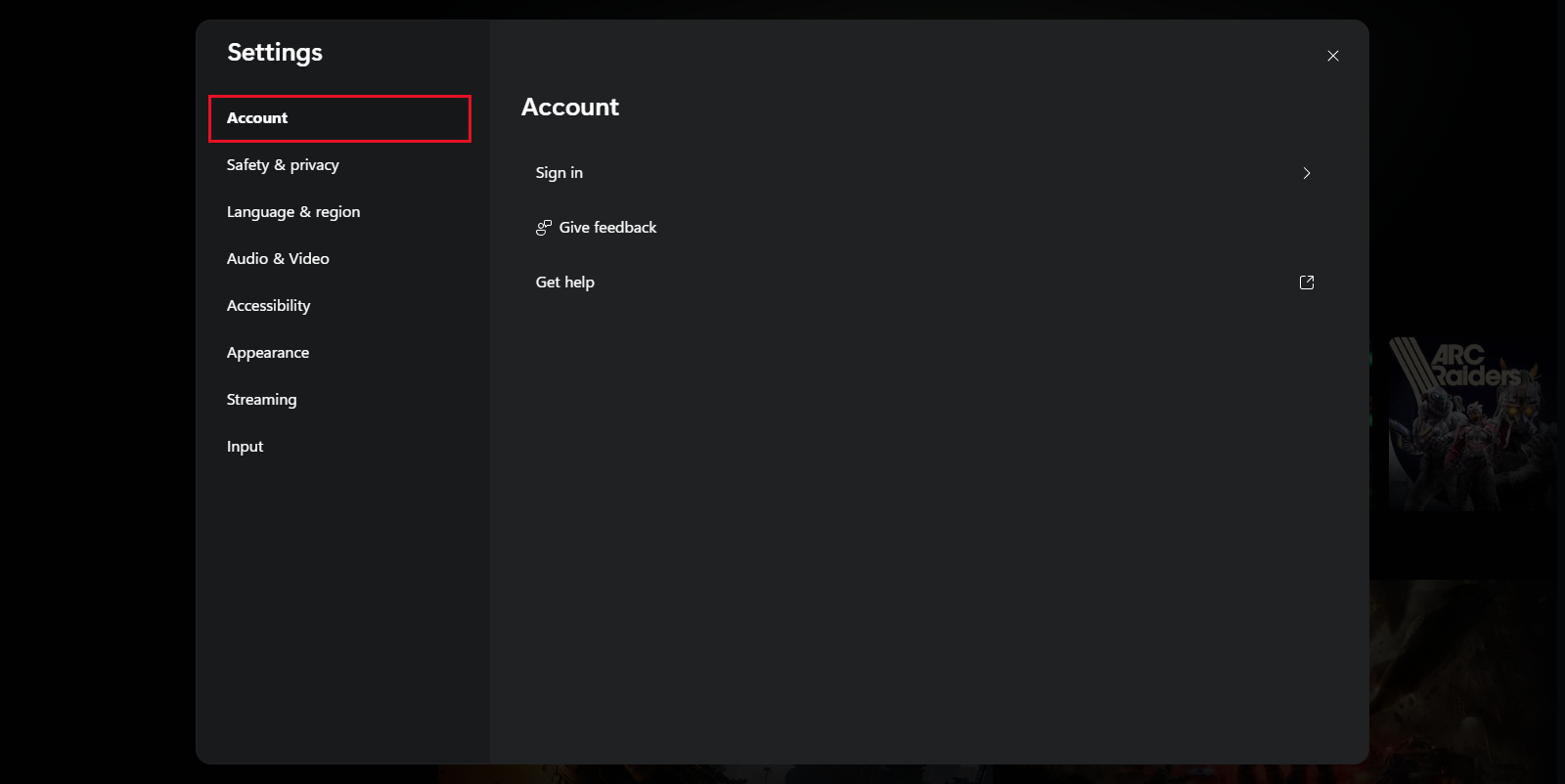
- Open Developer from Settings. If you don't see Developer in Settings, look under System.
Important
In Settings > Developer, select Persist developer mode between reloads to keep developer mode on after the page reloads.
Some developer flows, including turning on TAK sideload, reload the page.
Note
On iOS or iPadOS, you can save play.xbox.com as a progressive web app (PWA). Select the share button, then select Add to Home Screen.
The PWA remembers your account, sandbox, offering, and streaming region.
Developer settings include sandbox selection, private offering selection, and stream configuration settings. For the stream configuration settings you can override, see Stream Configuration Overview.
Sandbox selection
A sandbox is an isolated development environment for your title, and each sandbox test account belongs to one. The sandbox ID isn't your offering ID; get it from whoever created your test accounts. For more information, see XBOX services sandboxes overview.
For a retail account, leave the sandbox blank and sign in with the same account that's signed in to the XBOX Development Kit or configured to access a private offering.
To use a sandbox test account:
- Sign out of play.xbox.com.
- Enter developer mode if needed, then open Settings > Developer.
- Enter the sandbox ID.
- Select Apply.
- Reload the page.
- Sign in with the sandbox test account.
Note
For sandbox test accounts, set the sandbox ID before signing in.
Otherwise, some features might not work, because these accounts don't have access to retail features.
If you signed in without the sandbox ID, sign out by visiting another Microsoft website, such as outlook.com. Then sign in again with the correct sandbox ID.
To return to retail, clear the sandbox ID, select Apply, reload the page, and sign in again.
Offering selection
Offerings are the private test environments used to validate games running on datacenter hardware. For more information on offerings, see Game Streaming Overview.
To use a specific offering:
- In Settings > Developer, select the offering from the offering dropdown, or select Custom offering ID and enter the offering ID.
- Select Apply.
- Select Browse titles in this offering to see the titles you can stream.
Titles in the offering don't appear in the main play.xbox.com catalog. You can also browse them at https://play.xbox.com/_internal/dev-tools/offering/<offeringid>, replacing <offeringid> with the offering ID.
If you're unable to access the offering, make sure you're signed in to an account that's authorized to use that specific offering.
Offering regions
Offerings connect to a real datacenter, so test in each region where you expect players. Offerings don't automatically route you to the closest datacenter. Instead, choose a region with the streaming region dropdown in developer settings, or with the user.region query parameter. Choose the region before you start a stream. The user.region parameter accepts the same region names as the dropdown. Available regions must be configured ahead of time. Contact your Microsoft account representative to adjust the available regions for your offering.
IP Connect
Use IP Connect to stream directly from an XBOX Development Kit by IP address.
Before using IP Connect, complete these prerequisites:
- Set up your XBOX Development Kit for streaming. For more information, see Set up an XBOX Development Kit.
- In Dev Home > Streaming, make sure Direct Connect is listening. It stops listening each time the kit restarts.
- Make sure your client device is on the same network as your XBOX Development Kit, or connected through a VPN.
- Make sure your network allows TCP and UDP traffic to port 9002 on the XBOX Development Kit. The browser uses a WebSocket connection for signaling and UDP for the stream.
To connect by IP address:
- Go to
https://play.xbox.com/_internal/dev-tools/ip-connect. - Enter the IP address and port of the XBOX Development Kit, for example
192.168.1.10:9002. - Select Connect.
- If your browser asks for permission to access devices on your local network, select Allow.
When the connection succeeds, the app running on the XBOX Development Kit appears in the browser. Connect a supported controller to interact with it.
Remote Connect
Remote Connect streams from your XBOX Development Kit over the internet through XBOX remote play services. It finds the kit through your signed-in account, so you don't enter an IP address. Set up the kit first.
XBOX Development Kit setup
- Sign in to the XBOX Development Kit with the account you'll use from the website. The account must be allowed in the kit's sandbox.
- If you want, give the XBOX Development Kit a name so that you can easily identify it.
- Go to Dev Home > Streaming. Under Remote Connect, select your account.
- In Dev Home > Streaming, make sure Direct Connect isn't listening. Direct Connect is a separate connection mode for IP Connect, and it blocks Remote Connect while it's listening.
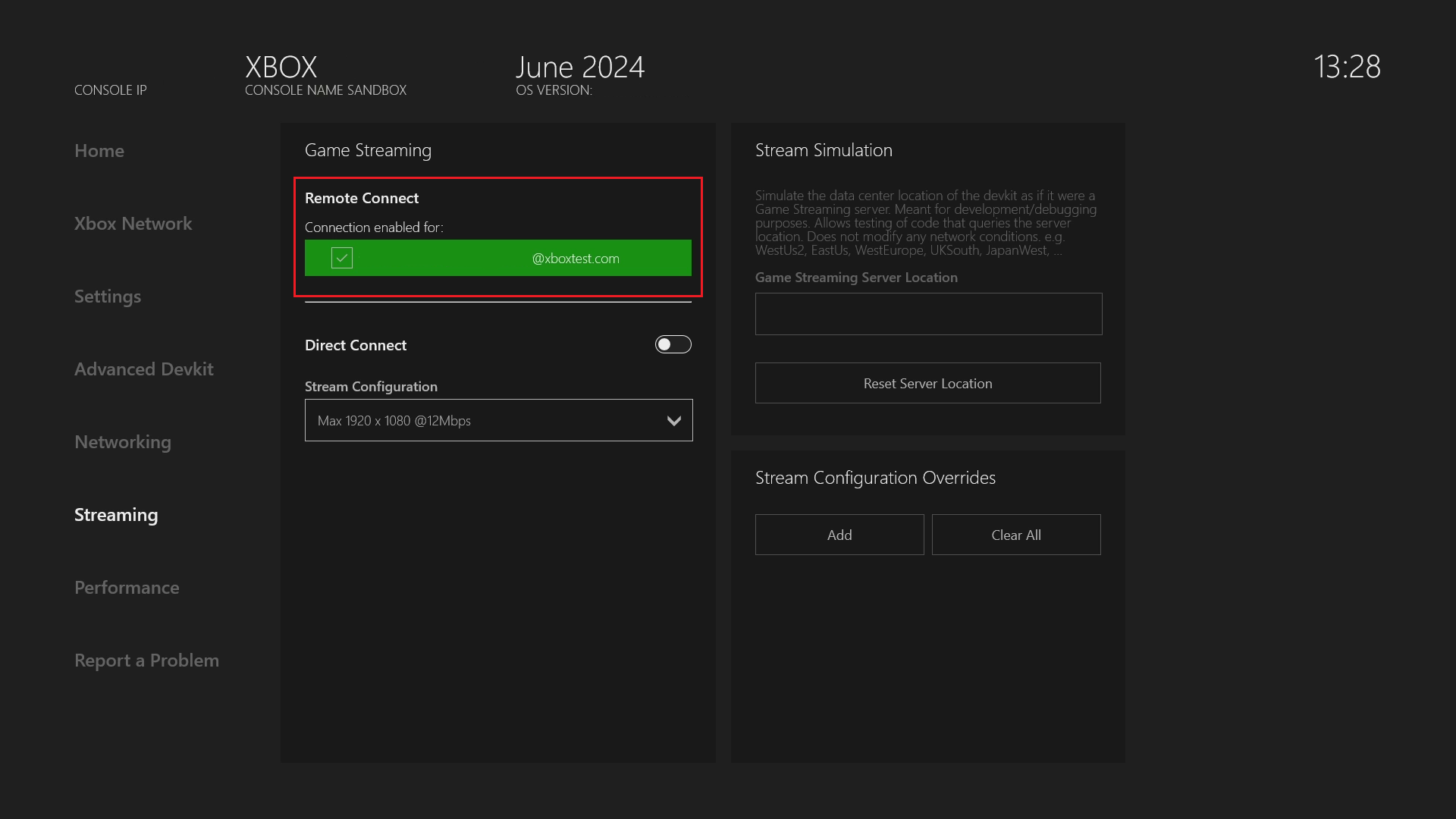
You can also turn on Remote Connect from consumer settings. Go to Dev Home > Settings > Launch Settings > Devices & Connections > Remote Features > Enable Remote Features.
Web Content Test Application setup
Make sure you've completed the previous XBOX Development Kit setup steps before proceeding. If you haven't, your XBOX Development Kit doesn't appear in the list of devices.
Sign in to play.xbox.com with the same account that's signed in on the XBOX Development Kit. For a sandbox test account, set the sandbox ID first, as described in Sandbox selection.
After you're signed in, select your profile picture, then select Accessories & remote play > Remote play to see a list of devices that you can connect to. Select your XBOX Development Kit to start streaming.
Note
Unlike IP Connect, Remote Connect doesn't require the two devices to be on the same network.
Both the XBOX Development Kit and the device you're connecting from need an internet connection.
TAK sideload
TAK sideload streams with the touch layouts served by the TAK CLI serve command instead of the layouts published for your title. These steps apply to Edge and Chrome.
Before you start, run tak serve on the same PC as the browser.
- Go to play.xbox.com, enter developer mode, and select Persist developer mode between reloads. For more information, see Open developer settings.
- In Settings > Developer, under Input, turn on Enable sideload.
- In the Enable TAK sideloading? dialog, select Continue. The page reloads in insecure developer mode, which relaxes the page's security restrictions so it can reach your sideload server. While this mode is on, a banner reading WARNING: Site is in insecure developer mode. stays at the top of the page.
- Return to Settings > Developer and make sure Enable sideload is on. If you see TAK sideloading needs insecure developer mode, select Enable.
- In the TAK server address box, enter the address of your sideload server, for example
http://localhost:9269. - Under Network status, check Local network permission. If it shows Permission required, select Request. When the browser asks to let play.xbox.com Access other apps and services on this device, select Allow. If no prompt appears, open the browser's site settings for play.xbox.com and set Apps on device to Allow.
- When TAK server connection shows Connected, start a stream. A Touch adaptation bundle sideload successful notification confirms that the stream is using your sideloaded layouts.
Note
On play.xbox.com, the sideload server must run on the same PC as the browser, at localhost or 127.0.0.1.
The page's security policy blocks other addresses, even in insecure developer mode.
To test on a phone or tablet while a PC runs tak serve, use xbox.com/play. For steps, see Sideload from another device on xbox.com/play.
To use a password, the server address must use https, such as https://localhost:9269. The TAK server password box appears only for https addresses. For certificate setup, see Certificate Generation Instructions.
To turn off TAK sideload and restore the normal security policy, select Exit insecure mode in the warning banner. The page reloads.
Insecure developer mode turns off after 24 hours. To keep sideloading, go to Settings > Developer and, under TAK sideloading needs insecure developer mode, select Enable.
Switch TAK layouts during a stream
In developer mode, you can switch the active Touch Adaptation Kit (TAK) layout while streaming:
- In the stream overlay, open the quick actions menu and select Touch Controls customization.
- Select Settings.
- In More options, select the Layouts tab.
- Select a layout under Custom layouts or System layouts. Custom layouts shows the layouts loaded for this stream. When sideload works, those are your layouts. To remove your selection, select Clear.
Mouse and Keyboard
Mouse and Keyboard lets players use the controls they're used to on PC, play games that support only mouse and keyboard, and play supported titles without a controller. Developers can also use the keyboard for internal debugging commands.
Before you start, enter developer mode as described in Open developer settings.
How to test Mouse and Keyboard
After your Content Test Application (CTA) is set up, you can test your Mouse and Keyboard implementation by going to Settings > Developer and turning on Mouse and keyboard under Input. Change this setting before you start a stream.
Note
Turn off Emulate touch with mouse while testing Mouse and Keyboard.
When it's on, mouse clicks are interpreted as touch.
To capture the mouse for the game, left-click the stream. A Press F9 to release your mouse notification appears.
To release the mouse, press F9. This also opens the Guide. Press F9 again to close the Guide and return the mouse to the game.
Note
Avoid using F9 for critical game functionality, or let players remap keys within the game.
Players can remap F9, but not every player will.
Contact your Microsoft account representative when you've completed testing and are ready to enable Mouse and Keyboard for all users.