Note
Access to this page requires authorization. You can try signing in or changing directories.
Access to this page requires authorization. You can try changing directories.
Microsoft MCP Server for IT Admins lets AI agents query data in your Microsoft Entra tenant by using natural language. This article shows how to connect the MCP server as a tool in your Microsoft Foundry project and start querying your organization's data.
Prerequisites
- A Microsoft Entra tenant.
- An admin user account in the tenant with the following roles assigned in the Microsoft Entra admin center:
- Cloud Application Administrator, to create the app registration and grant admin consent.
- The directory roles for the Graph operations your agent performs, so the MCP server can call Graph APIs on behalf of the signed-in user.
- At least Azure AI Developer role scoped to the Microsoft Foundry project resource to connect tools and use agents.
- A client app registration in Microsoft Entra with the following configuration:
- Application (client) ID. Note this value for use during setup.
- A Web redirect URI (confidential client), which you add in a later step.
- Client secret. Go to Certificates & secrets > Client secrets and create a new secret. Copy the secret value for use during setup.
- The three required Microsoft Graph delegated permissions and the Graph permissions for your scenarios, with admin consent.
- A Microsoft Foundry project with at least one agent configured.
Connect the MCP server as a tool in Microsoft Foundry
Use the custom OAuth provider option to connect your app registration to the Microsoft MCP Server for IT Admins endpoint (https://mcp.svc.cloud.microsoft/admin).
In the Microsoft Foundry portal, make sure you're using the New Foundry UI and navigate to your project.
In the sidebar menu, select Tools. On the Tools tab, select Connect a tool.
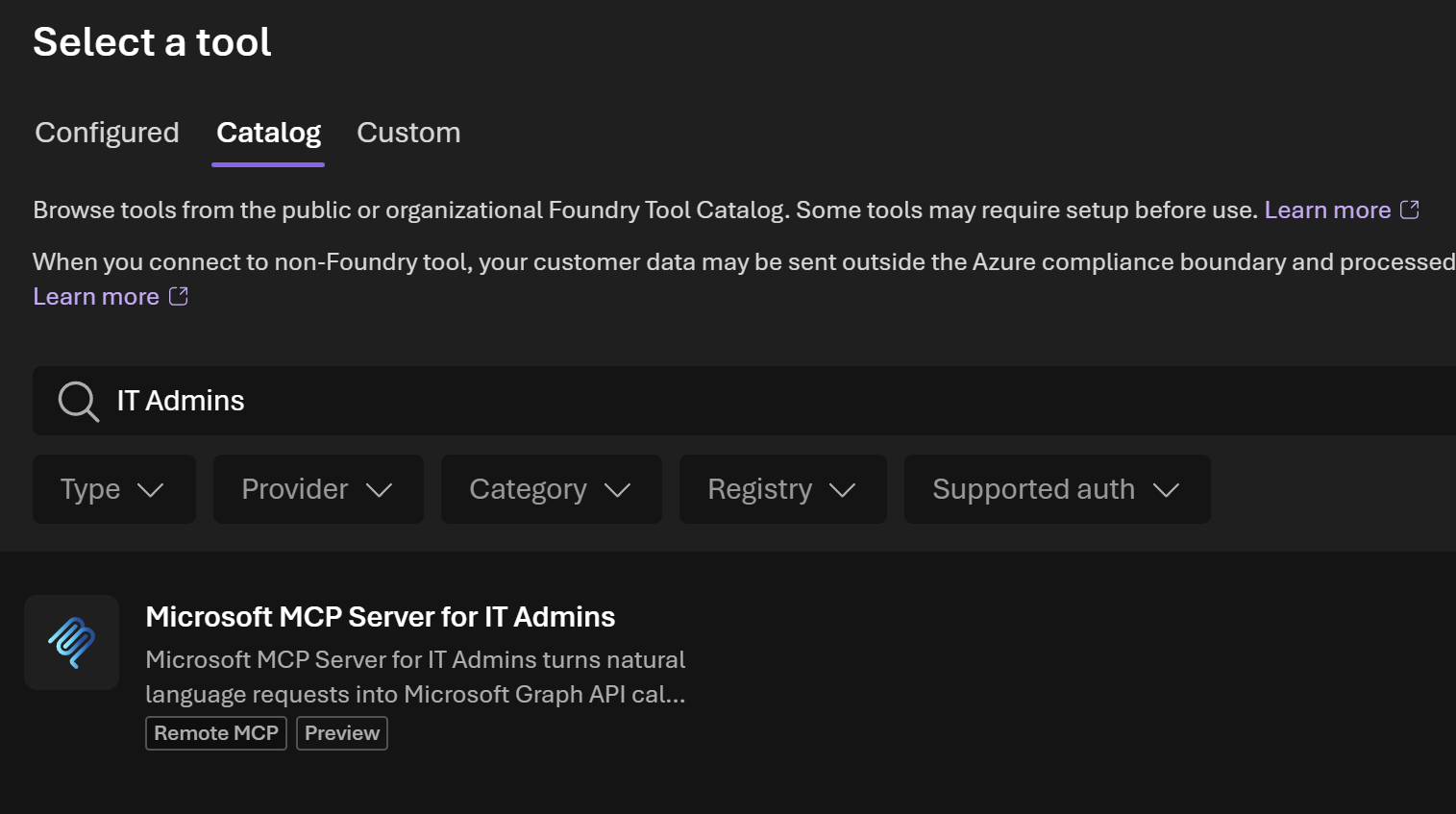
Under Catalog, search for Microsoft MCP Server for IT Admins, and then select Create.
For OAuth Provider, select Custom to use your own OAuth app registration for token exchange.
Provide the following configuration:
Field Value Name Enter a unique identifier for the tool connection. Remote MCP Server endpoint Prepopulated with https://mcp.svc.cloud.microsoft/admin. Leave it unchanged.Authentication Prepopulated with OAuth Identity Passthrough. Leave it unchanged. Client ID The application (client) ID from your app registration. Client Secret The client secret value from your app registration. Token URL, Auth URL, and Refresh URL These fields are prepopulated. Replace organizationswith your tenant ID if your Microsoft Foundry project and app registration are in different tenants. Otherwise, leaveorganizationsas the default value.Scopes Prepopulated with offline_accessand the three required permissions ashttps://mcp.svc.cloud.microsoft/admin/scopes. Leave it unchanged.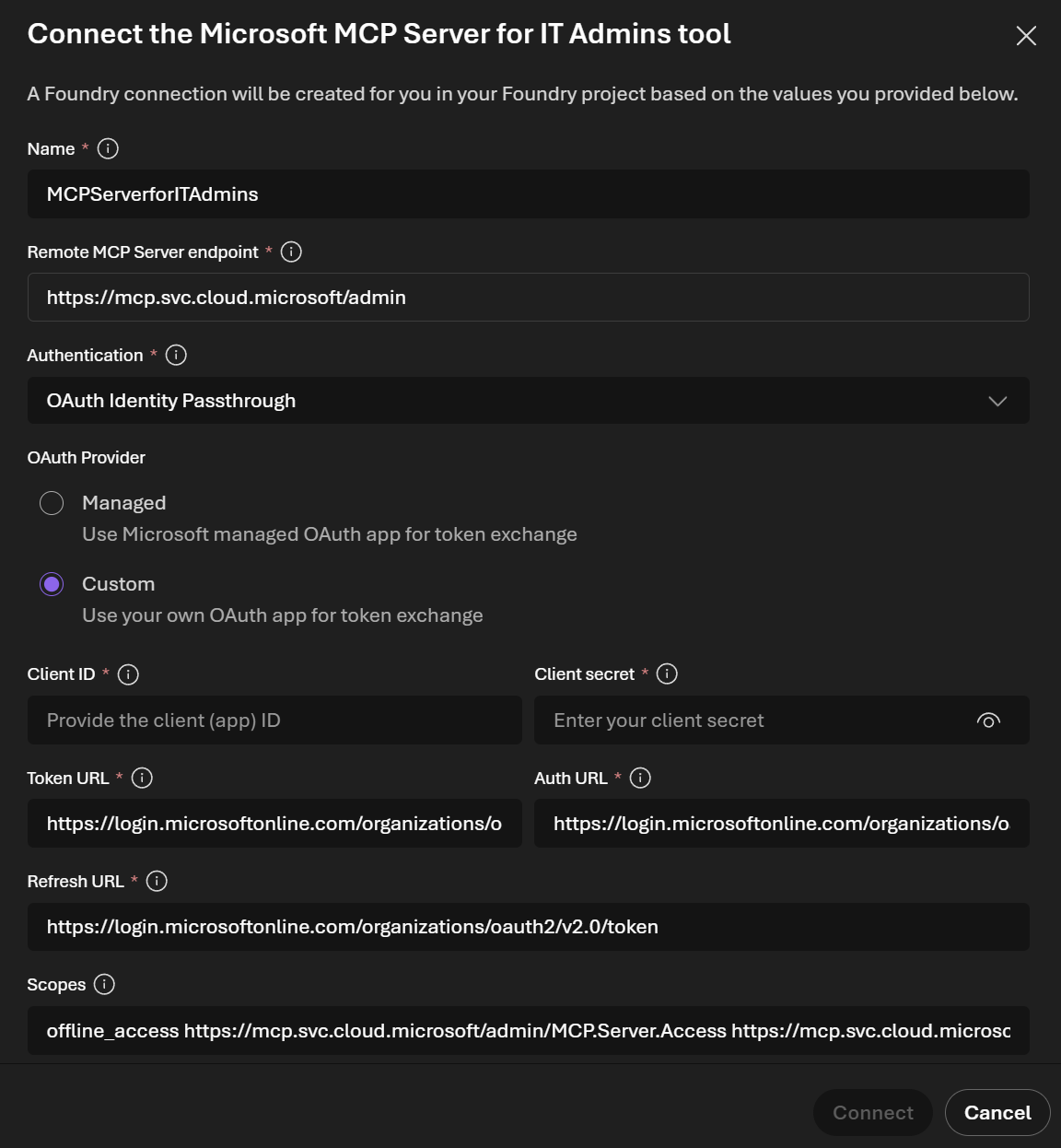
Select Connect, and then copy the Redirect URL provided.
Return to your Microsoft Entra app registration, go to Authentication, add the redirect URL as a redirect URI under Web, and save your changes. Foundry exchanges the token on the server with your client secret, so this app registration is a confidential client.
Query Microsoft Entra data
After you connect the Microsoft MCP Server for IT Admins tool, add it to an agent and start querying your organization's data using natural language.
In the Microsoft Foundry sidebar, go to Agents and select an existing agent or create a new one.
In the agent configuration, add the Microsoft MCP Server for IT Admins tool you connected in the previous section.
Sign in and authorize access
When you first use the tool, the agent prompts you to sign in and authorize access.
Select Open consent when prompted to sign in.
Follow the authentication prompts to grant access. You typically don't need to sign in again until the connection expires or is disconnected.
Approve each MCP tool call as prompted during query execution.
Example queries
After you sign in, you can ask questions such as:
- "How many users are in my tenant?"
- "Which users haven't signed in for the last 30 days?"
- "Show me all guest users with admin roles."
Note
Microsoft Foundry isn't listed as a client that supports write actions, so use this tool for read queries. Write actions require an MCP client that supports elicitation on MCP protocol version 2026-07-28. For those clients, see Supported clients.