Note
Access to this page requires authorization. You can try signing in or changing directories.
Access to this page requires authorization. You can try changing directories.
Important
Windows Server Insider Preview builds and Windows Server management in Microsoft Intune are for nonproduction testing and evaluation only. Microsoft doesn't support production use of Windows Server management in Intune.
Windows Server Insider Preview builds may be substantially modified before they are commercially released. Microsoft makes no warranties, express or implied, with respect to the information provided here. Some product features and functionality may require additional hardware or software. Microsoft is not obligated to provide any support services for this preview software or service.
This guide is for Microsoft Intune and Microsoft Configuration Manager administrators who want to manage Windows Server devices and Windows devices in the same management plane. This preview enables server-management scenarios where you can use the same Windows management workflows for supported configuration, compliance, apps, updates, and access policies across clients and selected servers in Intune.
For customers managing cloud and on-premises servers in Azure, and for production or business-critical Windows Server workloads, Azure Arc is Microsoft's recommended management plane. Azure Arc extends Azure management and services to servers outside Azure, including on-premises and multicloud environments. Intune's endpoint-management workflows complement Azure Arc.
Before you begin, prepare an Intune test environment, an eligible nonproduction Windows Server build, and a test account. See Prerequisites for the full list.
Prerequisites
- An existing Microsoft Intune and Microsoft Entra ID subscription.
- A nonproduction Windows Server vNext installation (build 29621.1000 or later) from Windows Server Insider Preview downloads.
- Local administrator access to prepare and inspect the pilot server.
- A test user or device enrollment manager (DEM) account, and dedicated groups for pilot users and Windows Server pilot devices. For DEM account requirements, setup, and limitations, see Enroll devices using a device enrollment manager account.
- Access to an Intune test environment.
- Connectivity to the Microsoft services required for enrollment and the selected management workflows.
Scope of server management preview
This preview supports physical servers and virtual machines (VMs) running Windows Server with Desktop Experience (Insider preview vNext builds). This guide applies to persistent Windows Server environments and persistent single-session hosts. Server Core isn't supported. Multisession, ephemeral, and nonpersistent hosts are outside the scope of this preview.
Choose a server management approach
Choose a management approach based on your server workloads and management needs. These approaches can complement each other; avoid competing policies for the same settings.
| Your scenario | Management approach | Important boundary |
|---|---|---|
| Evaluate endpoint-style management of eligible servers alongside Windows clients. | Microsoft Intune Server management preview | Nonproduction only. Use the enrollment paths and workloads documented in this guide. |
| Manage supported Defender security settings on servers that aren't enrolled in Intune. | Microsoft Defender for Endpoint security settings management | Delivers supported security policies only—not equivalent to Intune management. Transitioning these servers to Intune management isn't supported in this preview. |
| Continue managing released Windows Server versions in an existing Configuration Manager environment. | Configuration Manager | Follow its Server support requirements. Intune Server co-management isn't included in this preview. |
| Manage server infrastructure, monitoring, and governance across on-premises and multicloud environments. | Azure Arc and applicable Azure services | Azure is the recommended infrastructure-management plane. Arc is optional alongside the Intune preview; avoid competing policies for the same settings. |
How to use this guide
Complete the phases in order with a dedicated test user or DEM account and a nonproduction pilot server. The intended outcome is an enrolled pilot server with targeted compliance, update, configuration, and Win32 app policies, plus guidance on supported remote device actions and providing feedback. A successful policy report alone doesn't establish that a setting works on Windows Server. Verify that the setting actually applies to the managed server.
Summary of steps
Note
Use eligible Windows Server Insider Preview builds in a nonproduction environment only.
| Step | High-level action |
|---|---|
| 1. Prepare the environment | Review administrative permissions and scopes, audit existing Windows assignments, and isolate server targeting using dedicated groups and assignment filters where supported. Then allow server enrollment and configure automatic enrollment. |
| 2. Enroll a pilot server | Use Microsoft Entra join for a new setup, or hybrid join and Group Policy enrollment for a domain-dependent pilot server. Confirm enrollment in Intune. |
| 3. Configure compliance | Assign supported Windows compliance settings, excluding unsupported preview checks. Install BitLocker if needed. Optionally use compliance as a Conditional Access signal. |
| 4. Configure updates | Apply only update settings confirmed for the Windows Server preview to the pilot servers. |
| 5. Apply configuration | Deploy supported settings catalog policies, administrative templates, and configuration and endpoint security templates to the server pilot. |
| 6. Deploy apps | Prepare a Win32 test app and configure its app policy for assignment to server-specific pilot device groups. |
| 7. Manage device actions | Use supported remote device actions on the nonproduction pilot servers. |
| 8. Provide feedback | Report Intune issues through the product-team feedback form. Report Windows Server Insider Preview build issues through Feedback Hub. |
| 9. Connect an Intune-managed server to Azure (optional) | Use Arc and Intune for complementary workloads, not to manage the same workload on the same server. |
Phase 1 - Set up your environment
Warning
Before you enable server enrollment, carefully review your existing Windows 11 client policies and their assignments. Broad assignments, including All devices, user assignments, and dynamic groups, can include newly enrolled servers. Don't assume that existing client policies and apps are automatically excluded from servers.
Complete the permissions and assignment review in this phase before allowing server enrollment. Confirm that each assigned setting is appropriate for Windows Server.
Configure and review permissions and scopes
Windows Server management doesn't add any new role-based access control (RBAC) roles in Microsoft Intune. Use the existing RBAC and scope tags guidance to configure administrative permissions, role assignments, and management scopes for your server administrators.
Review existing role assignments and scopes, including permissions to run remote device actions and access BitLocker recovery keys or local administrator passwords. Confirm that only the intended administrators have these permissions for the pilot servers.
For more information, see Role-based access control with Microsoft Intune and Use RBAC and scope tags for distributed IT.
Review existing Windows assignments
Creating a Server pilot group doesn't exclude servers from existing Windows assignments. Before enabling enrollment, complete the following assignment review:
- Review broad device assignments, including All devices, user assignments, and dynamic groups that can include pilot servers or their users.
- Audit configuration, compliance, endpoint security, app, script, update, and policy set assignments.
- Check assignment filter support for each workload. Policy sets and Windows PowerShell scripts don't support assignment filters.
- Update existing client assignments to exclude pilot servers where needed. For workloads without filter support, use explicitly scoped group assignments and supported exclusions.
Target Windows Server devices separately from Windows devices
Generally, Windows policies assigned to a Microsoft Entra ID user apply to Windows Server devices enrolled by the same user. Use dedicated Windows Server pilot device groups to target pilot servers separately from Windows devices. Assignment filters using the operatingSystemSKU property can identify Windows Server devices for workloads that support filters. For the available server SKU values, see the operatingSystemSKU filter property. Review current Windows policy assignments carefully.
To create an assignment filter for Windows Server, follow these steps:
- Sign in to the Microsoft Intune admin center.
- Go to Tenant administration > Assignment filters.
- Select Create > Managed devices.
- In Basics, enter a descriptive Filter name and select Windows 10 and later for Platform.
- Configure the rules using the
operatingSystemSKUproperty and complete the remaining steps in Create an assignment filter. The following new properties have been added for Windows Server SKUs:- Windows Server Datacenter (8)
- Windows Server Datacenter (evaluation installation) (80)
- Windows Server Standard (7)
- Windows Server Standard (evaluation installation) (79)
- Windows Server Datacenter: Azure Edition (407)
When assigning supported policies or apps, follow Use an assignment filter to apply the filter in include or exclude mode.
Allow server enrollment
Server devices are blocked from enrolling by default. Allow them in an enrollment restrictions profile before enrolling the pilot server. You can configure server enrollment restrictions in the default Windows device type restriction or in existing and new Windows restrictions profiles.
Follow Create a device platform restriction to configure the profile and set Server devices to Allow and Personally owned devices to Allow.
Note
Remember that both personally owned devices and server devices must be allowed for Windows Server enrollment using "add work or school account" in Settings. Follow the best practices for Windows Server platform restrictions to learn how to block personally owned devices in your environment.
Configure automatic enrollment
Important
If you provision Windows Server Insider Preview builds as Azure VMs, enrolling them in Intune gives Microsoft Entra users with applicable Intune permissions management privileges over those VMs, according to their Intune roles and scopes. Carefully review the mobile device management (MDM) user scope (MDM user scope) before enabling automatic enrollment. This setting applies to both Windows and Windows Server devices.
Configure automatic MDM enrollment so pilot users can enroll eligible pilot servers.
- Sign in to the Microsoft Intune admin center.
- Browse to Devices > Enrollment > Windows > Automatic Enrollment.
- Configure the MDM user scope to include the pilot users, following Set up automatic enrollment.
- Configure the Disable MDM enrollment when adding work or school account on Windows to No.
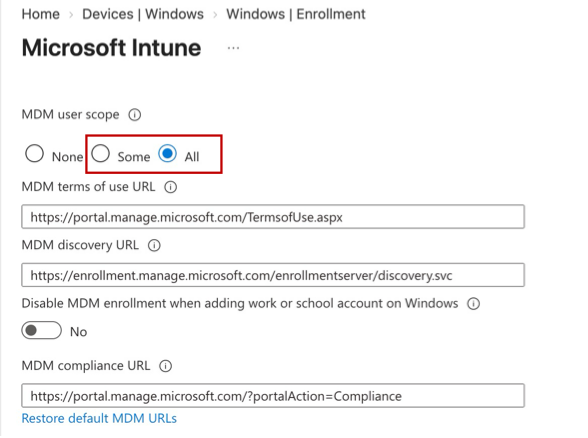
For this pilot, select Some as the MDM user scope and include only the intended pilot users.
Review authentication methods for Windows Server vNext
The following table shows authentication-method availability in the Windows Server vNext builds. Configure authentication methods in Microsoft Entra ID as needed.
| Authentication method | Local server sign-in | Remote server sign-in |
|---|---|---|
| Smart card (certificate-based) | Included in preview | Included in preview |
| YubiKey in smart-card/Personal Identity Verification (PIV) mode | Included in preview | Included in preview |
| Windows Hello for Business | Excluded from preview | Included in preview |
| Windows Hello via enhanced VM Connect | Excluded from preview | Included in preview |
| FIDO2 security key (native sign-in) | Included in preview | Included in preview |
| Web Sign-In | Excluded from preview | Excluded from preview |
Windows Hello for Business supports remote server sign-in through Remote Desktop Protocol (RDP). Enhanced VM Connect can redirect the host's Windows Hello PIN or credentials into a server VM.
Phase 2 - Enroll a test server
If you're starting from scratch, join the pilot server directly to Microsoft Entra ID and enroll it in Intune. If your server scenario depends on Active Directory, or you want to manage an existing domain-joined pilot server in Intune, use Microsoft Entra hybrid join.
Option A: Microsoft Entra join
To join the pilot server to Microsoft Entra ID and enroll it in Intune, use the test account included in the automatic-enrollment scope:
On the pilot server, open Settings > Accounts > Access work or school > Connect, and select Join this device to Microsoft Entra ID.
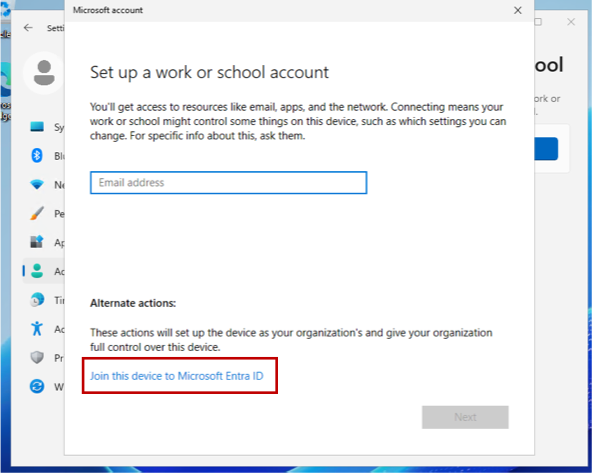
Sign in with the Microsoft Entra ID test user and complete multifactor authentication (MFA), if applicable.
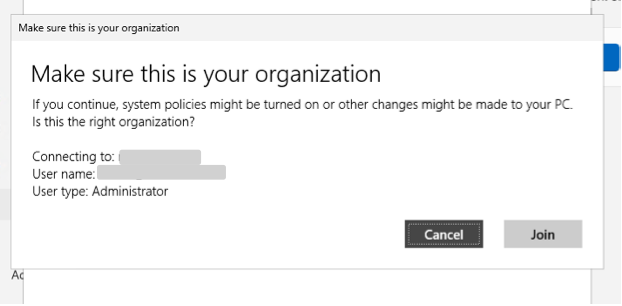
Select Join to complete Microsoft Entra join and enroll the device in Intune. The enrolling user becomes the device's primary user. For assignment details and change instructions, see Find and change a device's primary user.
Verify Microsoft Entra join and Intune enrollment
After joining, run the following command on the pilot server to inspect its device identity:
dsregcmd /status
In Device State, expect AzureAdJoined : YES.
You should also see that the device is connected and managed by your Intune tenant. Now you can sign in using your work or school account to the server.
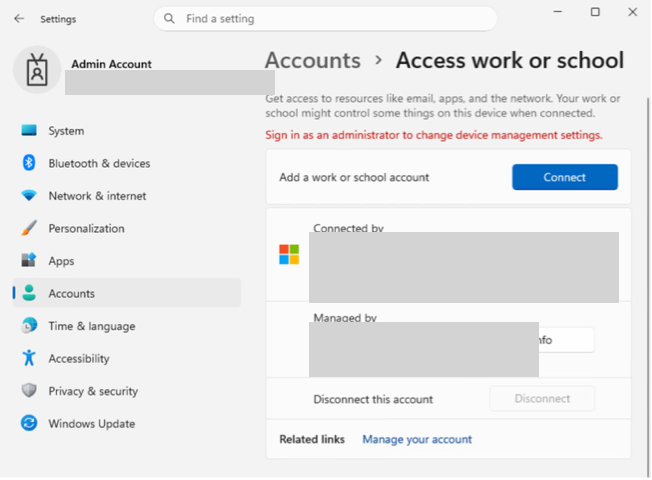
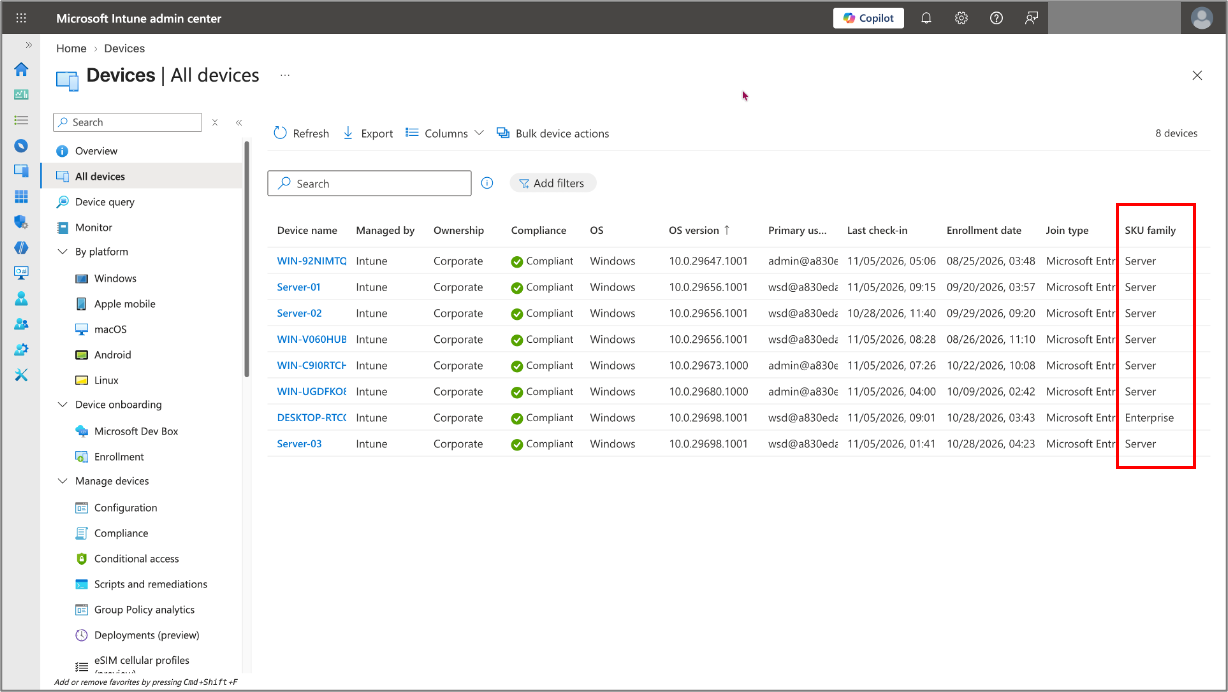
In the Microsoft Entra admin center, go to Entra ID > Devices > All devices and use the matching device ID to locate the record. The Join type should be Microsoft Entra joined, and Managed by should be Intune. See Troubleshoot devices by using dsregcmd and Manage device identities.
Option B: Microsoft Entra hybrid join
This enrollment path assumes that the domain-joined pilot server is already Microsoft Entra hybrid joined. For hybrid-join prerequisites, setup, and verification, use the existing Microsoft Entra guidance:
- Plan Microsoft Entra hybrid join for supported scenarios and prerequisites.
- Configure Microsoft Entra hybrid join, including the network connectivity requirements.
- Targeted deployments of Microsoft Entra hybrid join for a limited pilot rollout.
- Troubleshoot devices by using dsregcmd to verify device join and user authentication.
For Intune enrollment, use an eligible Windows Server Insider Preview build and a synchronized domain user with a valid Intune license. Confirm that server enrollment is allowed and the pilot user is included in the MDM user scope configured in Phase 1. For automatic-enrollment prerequisites, including the Microsoft Entra ID P1 or P2 requirement, see Set up automatic enrollment.
Enroll the hybrid-joined server by using Group Policy
You can automatically enroll a Microsoft Entra hybrid-joined Windows Server pilot device in Intune by using the same Group Policy automatic-enrollment flow as Windows 11. The first user to sign in to Windows Server is the primary user. For prerequisites and configuration steps, follow Enroll a Windows device automatically using Group Policy. Limit the enrollment policy to the intended pilot servers.
DEM accounts aren't supported for automatic enrollment through Group Policy on Windows Server, as on Windows 11. See Windows automatic enrollment.
If enrollment doesn't complete, follow Troubleshoot Group Policy auto-enrollment to check the enrollment configuration and task results.
Verify hybrid join and Intune enrollment
After automatic enrollment, the hybrid-joined pilot server should appear as an Intune-managed device, just like a hybrid-joined Windows 11 device. In the Microsoft Intune admin center, go to Devices > All devices, locate the pilot server, and confirm that Managed by is Intune.
To confirm hybrid join, run dsregcmd /status as the domain user on the pilot server. In Device State, expect AzureAdJoined : YES and DomainJoined : YES. In the Microsoft Entra admin center, go to Entra ID > Devices > All devices and use the matching device ID to locate the record. The Join type should be Microsoft Entra hybrid joined. See Troubleshoot devices by using dsregcmd and Manage device identities.
Phase 3 - Configure compliance
This preview enables using device compliance as a signal for Conditional Access enforcement on managed servers. For configuration guidance, see Create a device-based Conditional Access policy.
Create a server compliance policy
Follow Create a compliance policy to create and assign the policy, and use Windows 10 and Windows 11 compliance settings as the settings reference. Configure only settings supported in the Windows Server preview and target the server pilot group. Don't copy a Windows 11 compliance baseline unchanged.
Note
BitLocker isn't installed by default on Windows Server. Before enabling BitLocker or evaluating BitLocker compliance, install the optional BitLocker Drive Encryption feature and restart the server. For Server Manager and PowerShell installation instructions, see Install BitLocker on Windows Server.
The following compliance checks are Excluded from preview. Leave them as Not configured in policies assigned to Windows Server devices. If configured, these checks can report Error or Not applicable rather than a supported compliance result.
| Compliance category | Excluded setting |
|---|---|
| Configuration Manager Compliance | Require device compliance from Configuration Manager |
| System security > Device security | Firewall |
| System security > Device security | Antivirus |
| System security > Device security | Antispyware |
These exclusions apply to compliance evaluation, not configuration. Firewall and antivirus configuration is supported as described in Apply device configuration.
Phase 4 - Configure Windows Server updates
Use the Windows update ring policy creation and assignment workflow for eligible Windows Server Insider Preview devices. The Server-specific prerequisites and limitations in this guide also apply. You can configure Windows Update for Business and update rings settings including automatic updates, notifications, preview-build controls, quality-update deferrals, deadlines, maintenance windows, and reboot behavior.
Assign the update ring policy to server-specific Microsoft Entra device groups containing only the intended nonproduction pilot servers. Keep server update assignments separate from Windows client assignments, and configure only settings supported in the Windows Server preview.
Follow Manage Windows Update ring policies, including Create and assign update rings.
Note
The Quality updates, Feature updates, and Driver updates policies for Windows Server are Excluded from preview. This exclusion doesn't apply to quality-update deferral settings within update rings.
Phase 5 - Apply device configuration
Use the Windows settings catalog policy creation and assignment workflow for eligible Windows Server Insider Preview devices. The Server-specific prerequisites and limitations in this guide also apply. Follow Create a policy using settings catalog, and assign the policy to server-specific Microsoft Entra device groups containing the intended nonproduction pilot servers.
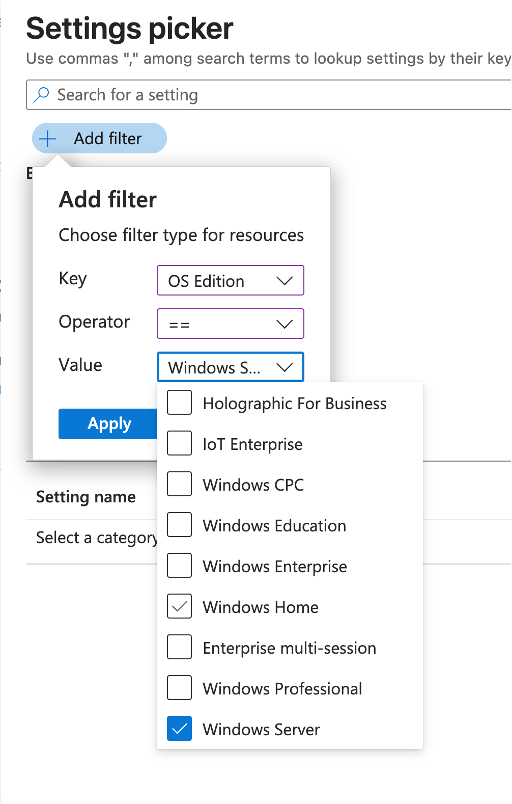
The preview adds a Windows Server option to the OS edition filter so you can find settings catalog settings that can apply to Windows Server. In your policy, select Add settings > Add filter, then filter by OS edition for Windows Server. For instructions on choosing a filter, see Search and filter settings.
Note
The OS edition filter only changes the settings shown in the settings picker. It doesn't make those settings exclusive to Windows Server or control which devices receive the policy. Actual applicability depends on configuration service provider (CSP) support in the Windows Server Insider build and can change between builds. Review each setting's Learn more link for CSP information, and validate the setting on your pilot server build.
Supported settings catalog groups
The following settings catalog groups are included in the Windows Server Insider preview:
- LocalPoliciesSecurityOptions
- ADMX_CredentialProviders
- ADMX_CredUI
- ADMX_WinLogon
- ADMX_WindowsRemoteManagement
- ADMX_Smartcard
- ADMX_Logon
- Kerberos
- CredentialsUI
- CredentialProviders
- ADMX_Kerberos
- ADMX_CredSsp
- WindowsLogon
- LocalUsersAndGroups
- UserRights
- ADMX_Netlogon
- SystemServices
- BITS
- ADMX_Bits
- Authentication
- LocalSecurityAuthority
- RemoteDesktop
- RemoteDesktopServices
- RemoteManagement
- Sudo
- ADMX_TPM
- DataProtection
- ADMX_EncryptFilesonMove
- SecureBoot
- Security
- DmaGuard
- DeviceGuard
- ADMX_DeviceGuard
- RemoteProcedureCall
- RemoteShell
- VirtualizationBasedTechnology
- ADMX_UserExperienceVirtualization
- ServiceControlManager
- FileSystem
- ADMX_UserProfiles
- ActiveXControls
- ADMX_ActiveXInstallService
- ADMX_CtrlAltDel
- DeviceLock
- ADMX_RemoteAssistance
- FederatedAuthentication
- ADMX_DeviceInstallation
- Desktop
- DeviceInstallation
- ADMX_Desktop
- ADMX_DeviceSetup
- NetworkListManager
- ADMX_DFS
- Start
- ADMX_WinInit
- ADMX_GroupPolicy
- DeviceHealthMonitoring
Supported configuration and endpoint security templates
The following templates are also included in the Windows Server Insider preview:
- Endpoint security > Antivirus
- Endpoint security > Disk encryption
- Endpoint security > Firewall
- Endpoint security > Account protection > Local admin password solution
- Endpoint security > Attack surface reduction
- Devices > Configuration > Templates > Device restrictions or Kiosk
Custom configuration profiles are also included in the Windows Server Insider preview. For setup instructions, see Use custom device settings in Microsoft Intune.
Supported administrative templates
The Windows Server Insider preview includes administrative templates (ADMX) for:
- Microsoft Edge
- Mozilla Firefox
- Microsoft 365 Apps
- Microsoft OneDrive
- Adobe Acrobat
- Google Chrome
For the general workflow, see Configure settings with administrative templates.
Phase 6 - Deploy a test Win32 app
Use the Windows Win32 app deployment workflow for eligible Windows Server Insider Preview devices. The Server-specific prerequisites and limitations in this guide also apply. To prepare the app and configure its app policy, follow these steps:
- Follow Prepare a Win32 app to package the app for upload to Intune.
- Follow Add, assign, and monitor a Win32 app to configure the app policy and assign it to server-specific Microsoft Entra device groups containing the intended nonproduction pilot servers.
Company Portal can be deployed to managed server devices for available app scenarios.
Phase 7 - Manage device actions
Use the Windows remote device action workflows for the actions listed here on eligible Windows Server Insider Preview devices. Review each action's prerequisites and limitations before using it. For guidance, see Windows device remote actions.
Warning
Use caution when using destructive device actions, such as retire, delete, or wipe, on pilot servers. Unsupported actions might still appear in the Intune admin center, but they don't work on Windows Server.
The preview includes the following server device actions:
| Action type | Included actions |
|---|---|
| Device operations | Sync, restart |
| Key and password rotation | Rotate BitLocker keys, rotate local administrator password |
| Management and removal | Retire, delete, wipe |
| Diagnostics | Collect diagnostics |
| Microsoft Defender actions | Scan, update |
Phase 8 - Provide feedback
Note
The Windows Server Insider preview management experience in Intune is only for validating scenarios in nonproduction environments and isn't supported by Microsoft. We'd love to hear about your experience during this preview. Provide feedback directly to the product team to help shape what's next.
Use the feedback channel that matches the issue you're reporting.
Report Intune issues
For Intune issues, submit feedback directly to the product team through the Intune Windows Server preview feedback form.
Report Windows Server Insider Preview build issues
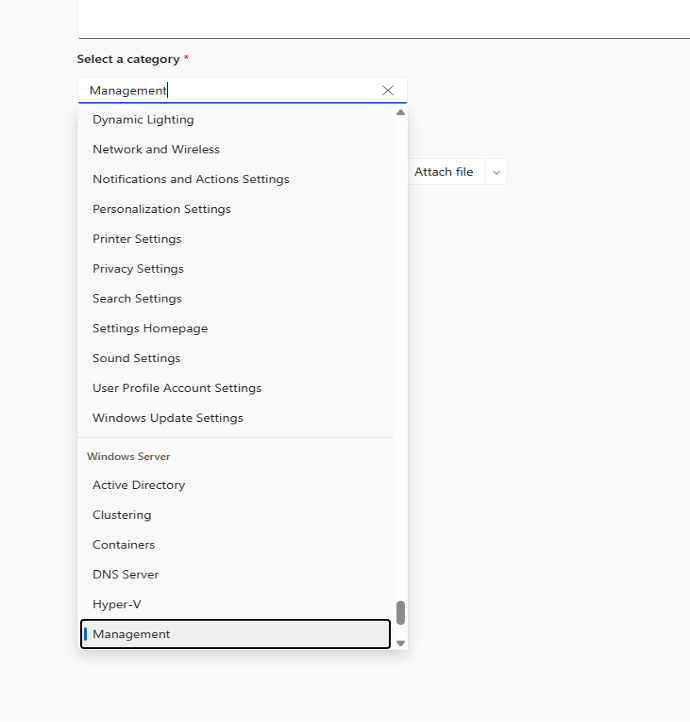
For Windows Server Insider Preview build issues, use Feedback Hub on Windows Server to report the problem to Microsoft with as much detail as possible:
Open the Feedback Hub app.
Select Report a Problem.
Fill out Summarize your feedback and What did you dislike. Attach any additional documents that don't contain sensitive data.
Include the following details in your report:
- Scenario
- Server build and enrollment state
- Assigned policy or application
- Expected result and actual result
- Relevant timestamps
- Intune device ID
- Screenshots that don't contain sensitive data
In Select a category, scroll to Windows Server and select Management.
Select Submit.
Phase 9 - Connect an Intune-managed server to Azure (optional)
Note
Azure and Azure Arc aren't required to manage Windows Server devices in Microsoft Intune. Connecting an Intune-managed server to Azure through Azure Arc is optional.
Azure is Microsoft's recommended management plane for on-premises and hybrid servers. Windows Server devices managed by Microsoft Intune can be connected to Azure to complement Intune's endpoint management capabilities with Azure's infrastructure management capabilities.
For onboarding guidance, see Connect hybrid machines to Azure using a deployment script.
For example, an endpoint team can use Intune to deploy applications, apply supported security configurations, deploy patches, and evaluate device compliance on a Windows Server. The infrastructure team can connect that same server to Azure through Azure Arc, making it available as an Azure resource. They can then use Azure Monitor to monitor server health and performance, and Azure Policy to audit supported configurations against infrastructure governance requirements.
Together, these capabilities let each team manage the same server through the lens relevant to its role. Clear ownership of administrative responsibilities is essential to keep server behavior predictable. Intune and Azure can manage different areas of the same server, but they should not enforce competing policies for the same settings or workload.
Important
Don't use Windows Server Insider preview to manage production workloads, including on servers connected to Azure Arc. Use only nonproduction servers for testing and evaluation.
Known issues and limitations
Intune feature limitations
- Intune features that depend on the Open Mobile Alliance Device Management (OMA-DM) protocol aren't blocked for enrolled Windows Server devices. They might apply beyond the core workloads covered in this guide when an enrolled server is in scope of assigned policies. Review policy assignments to ensure that only the intended policies target your pilot servers.
- Features that depend on the MMPC protocol, such as Endpoint Privilege Management and Resource Explorer, aren't included in the Windows Server Insider preview.
- Transitioning servers from Microsoft Defender security settings management to MDM enrollment isn't supported yet.
- Microsoft Configuration Manager co-management isn't included in this preview.
- If a Conditional Access policy requires multifactor authentication and applies to server devices, enrolled servers may stop syncing with Intune without prompting users to sign in. Under Settings > Access work or school account, Device sync status displays this message: "Sync wasn't fully successful because we weren't able to verify your credentials. Select Sync to sign in and try again." To resolve the issue, select Sync and complete the sign-in process.
Azure management issues
During this Insider preview, limited coordination between Intune administrators and Azure administrators can lead to unexpected behavior. The following list isn't exhaustive.
The following issues apply to Windows Server Insider Preview VMs in Azure that use Microsoft Entra sign-in and are enrolled in Intune.
Unexpected changes to the trust boundary
- Users with applicable Intune roles and scopes can manage enrolled Azure VMs. They don't need membership in the Azure RBAC groups normally used to manage those VMs.
- Intune administrators can use supported device actions, including wipe, without the Azure privileges or just-in-time (JIT) requirements normally associated with managing those VMs. Intune permissions still govern access to these actions.
Conflicting services and policy assignments
- Organizations using Azure Update Manager can experience changes in update behavior and compliance on VMs also managed by Intune.
- Azure and Intune compliance policies can overlap and create conflicts on the same VM. Such Azure policies should be evaluated in audit mode for Intune-managed servers.
- Intune policies assigned to all devices or similarly broad groups intended for Windows 11 can also apply to enrolled Azure VMs.
- Workload build templates used in landing zones or similar environments might not capture all Intune management effects on a VM's final configuration. These gaps can complicate troubleshooting issues such as application and OS compatibility.
- Users signing in to Azure VMs can trigger application installations through Intune user assignments unless assignment filters exclude those servers.
Frequently asked questions
When should I use Microsoft Intune instead of Azure Arc?
Use Microsoft Intune for endpoint-like servers that have an associated user identity and that you want to manage alongside Windows clients. For other server-management scenarios, use Azure Arc. For more information, see Azure Arc-enabled servers overview and Modernize server management from Configuration Manager to Azure Arc.
Can I enroll servers without a user?
No. Userless enrollment isn't supported in this preview. Follow the account requirements in Enroll a test server. Don't assume that enrollment methods documented for Windows clients also apply to Windows Server.
Is it safe to test this insider preview in my production Intune environment since it only applies to servers?
It is not recommended to test this insider preview in a production environment.
I have a test tenant where I am evaluating Intune managing servers and I also want to test application compatibility with Windows Server 2028 Insider Preview. Is it possible to exclude my server from Intune when my test tenant is opted in?
The best option in this scenario is to have separate tenants for testing.
Can existing Windows client policies apply to newly enrolled servers?
Yes. Broad device and user assignments can include servers after enrollment. Creating a dedicated Server group doesn't remove those existing assignments. Review your Windows 11 client policies, apps, scripts, and policy sets before allowing server enrollment. Use assignment filters where supported. For workloads without filter support, use explicitly scoped group assignments and supported exclusions. See Review policies before server enrollment.
Can I use released Windows Server versions on production workloads?
No. This preview requires eligible Windows Server vNext Insider Preview builds and is for nonproduction testing only. Review the prerequisites before installing a test server.
Do I need an additional subscription for the preview?
No additional Windows Server preview subscription is required. Existing product entitlements still apply, including those for Microsoft Intune, Microsoft Entra Conditional Access, and Microsoft Defender for Endpoint on servers. This statement applies to the preview, not to future licensing terms.
Is Microsoft Configuration Manager co-management included?
Full Microsoft Configuration Manager co-management isn't included in this preview. Don't assume that Windows client co-management workflows or workload-transition controls apply to servers.
Can I manage disconnected or air-gapped servers?
Disconnected and air-gapped server management isn't included in this preview. The server needs connectivity to the Microsoft services required for enrollment and the management workflows you select.
Does every Windows client policy or setting work on Windows Server?
No. Review support for each setting and test its actual effect on the server. A successful assignment or policy report alone doesn't prove that the setting produces the intended result. See Apply device configuration and Manage device actions for configuration and remote-action guidance.