Note
Access to this page requires authorization. You can try signing in or changing directories.
Access to this page requires authorization. You can try changing directories.
The JCA Provider for Azure Key Vault is a Java Cryptography Architecture provider for certificates in Azure Key Vault. It is built on four principles:
- Must be extremely thin to run within a JVM.
- Must not introduce any library version conflicts with Java app code dependencies.
- Must not introduce any class loader hierarchy conflicts with Java app code dependencies.
- Must be ready for "never trust, always verify and credential-free" Zero Trust environments.
Source code | API reference documentation | Product documentation | Samples
Getting started
Prerequisites
A Java Development Kit (JDK), version 8 or later.
- Here are details about Java 8 client compatibility with Azure Certificate Authority.
An existing Azure Key Vault. If you need to create a Key Vault, you can use the Azure Cloud Shell to create one with this Azure CLI command. Replace
<your-resource-group-name>and<your-key-vault-name>with your own, unique names:az keyvault create --resource-group <your-resource-group-name> --name <your-key-vault-name>Access configuration:
- If using role-based access, assign the roles:
Key Vault Secrets UserandKey Vault Certificate User. If used for Jar signing, add roleKey Vault Crypto User. - If using access policy, add the permissions:
getandlistSecret permissions,getandlistCertificate permissions. If used for Jar signing, addSignCryptographic Operations.
- If using role-based access, assign the roles:
Include the package
Include the BOM file
Please include the azure-sdk-bom to your project to take dependency on the General Availability (GA) version of the library. In the following snippet, replace the {bom_version_to_target} placeholder with the version number. To learn more about the BOM, see the AZURE SDK BOM README.
<dependencyManagement>
    <dependencies>
        <dependency>
            <groupId>com.azure</groupId>
            <artifactId>azure-sdk-bom</artifactId>
            <version>{bom_version_to_target}</version>
            <type>pom</type>
            <scope>import</scope>
        </dependency>
    </dependencies>
</dependencyManagement>
and then include the direct dependency in the dependencies section without the version tag as shown below.
<dependencies>
    <dependency>
        <groupId>com.azure</groupId>
        <artifactId>azure-security-keyvault-jca</artifactId>
    </dependency>
</dependencies>
Include direct dependency
If you want to take dependency on a particular version of the library that is not present in the BOM, add the direct dependency to your project as follows.
<dependency>
    <groupId>com.azure</groupId>
    <artifactId>azure-security-keyvault-jca</artifactId>
    <version>2.13.0</version>
</dependency>
Key concepts
SSL/TLS and mTLS
The JCA library supports SSL/TLS and mTLS (Mutual TLS) to enhance security in secure communication channels. It enables applications to securely retrieve certificates from Azure Key Vault and use them for TLS-related operations.
Jar Signer
The JCA library provides support for Java Archive (JAR) signing, ensuring the integrity and authenticity of JAR files using certificates stored in Azure Key Vault.
Examples
Authentication Methods
The JCA provider supports four authentication methods, which are automatically selected based on the configuration priority:
1. Service Principal (Client Credentials)
Use this method when you have explicit credentials (tenant ID, client ID, client secret):
System.setProperty("azure.keyvault.uri", "<your-azure-keyvault-uri>");
System.setProperty("azure.keyvault.tenant-id", "<your-tenant-id>");
System.setProperty("azure.keyvault.client-id", "<your-client-id>");
System.setProperty("azure.keyvault.client-secret", "<your-client-secret>");
2. Workload Identity (AKS)
Use this method when running in Azure Kubernetes Service with Workload Identity enabled. Only set the Key Vault URI - the federated credentials are automatically detected from environment variables (AZURE_FEDERATED_TOKEN_FILE, AZURE_CLIENT_ID, AZURE_TENANT_ID) or can be explicitly set via system properties:
// Automatic detection from environment variables
System.setProperty("azure.keyvault.uri", "<your-azure-keyvault-uri>");

// Or explicitly set client ID and tenant ID via system properties
System.setProperty("azure.keyvault.uri", "<your-azure-keyvault-uri>");
System.setProperty("azure.keyvault.tenant-id", "<your-tenant-id>");
System.setProperty("azure.keyvault.client-id", "<your-client-id>");
3. Managed Identity
Use this method when running on Azure services (VMs, App Service, Container Apps) with Managed Identity enabled. Only set the Key Vault URI:
// System-assigned managed identity
System.setProperty("azure.keyvault.uri", "<your-azure-keyvault-uri>");

// User-assigned managed identity (specify the object ID)
System.setProperty("azure.keyvault.uri", "<your-azure-keyvault-uri>");
System.setProperty("azure.keyvault.managed-identity", "<managed-identity-object-id>");
4. Access Token
Use this method when you have a pre-obtained bearer token:
System.setProperty("azure.keyvault.uri", "<your-azure-keyvault-uri>");
System.setProperty("azure.keyvault.access-token", "<your-access-token>");
Authentication Selection Logic:
- If
tenant-id,client-id, andclient-secretare set → Service Principal authentication - If only
azure.keyvault.uriis set → Automatic detection:- Workload Identity (if
AZURE_FEDERATED_TOKEN_FILEenvironment variable exists) - Managed Identity on App Service (if
MSI_ENDPOINTenvironment variable exists) - Managed Identity on Container Apps/AKS (if
IDENTITY_ENDPOINTenvironment variable exists) - Managed Identity on VM (via IMDS endpoint at 169.254.169.254)
- Workload Identity (if
Exposed Options
The JCA library supports configuring the following options:
azure.keyvault.uri: (Required) The Azure Key Vault endpoint to retrieve certificates.azure.keyvault.tenant-id: The Microsoft Entra ID tenant ID (required for Service Principal authentication; optional for Workload Identity ifAZURE_TENANT_IDenvironment variable is set).azure.keyvault.client-id: The client/application ID (required for Service Principal authentication; optional for Workload Identity ifAZURE_CLIENT_IDenvironment variable is set).azure.keyvault.client-secret: The client secret (only required when using Service Principal authentication).azure.keyvault.managed-identity: The user-assigned managed identity object ID (optional, for user-assigned managed identity).azure.keyvault.access-token: The access token for authentication. This allows using a pre-obtained bearer token instead of client credentials.azure.cert-path.well-known: The path where the well-known certificate is stored.azure.cert-path.custom: The path where the custom certificate is stored.azure.keyvault.jca.refresh-certificates-when-have-un-trust-certificate: Indicates whether to refresh certificates when have untrusted certificate.azure.keyvault.jca.certificates-refresh-interval: The certificate refresh interval as an ISO-8601 duration, for example-Dazure.keyvault.jca.certificates-refresh-interval=PT30Sfor 30 seconds. Millisecond values such as-Dazure.keyvault.jca.certificates-refresh-interval=30000remain supported for backward compatibility. Defaults to zero; zero or negative values disable periodic refresh.azure.keyvault.jca.certificate-alias-filter-pattern: A regex that filters which Key Vault certificate aliases are eligible for lazy loading. Append a suffix to the property name to configure more than one filter, for exampleazure.keyvault.jca.certificate-alias-filter-pattern.1orazure.keyvault.jca.certificate-alias-filter-pattern.prod. If no such property is configured, all discovered Key Vault aliases are eligible for lazy loading. See "Filtering Key Vault certificate aliases" below.azure.keyvault.disable-challenge-resource-verification: Indicates whether to disable verification that the authentication challenge resource matches the Key Vault or Managed HSM domain.azure.keyvault.jca.disable-aia-download: Set totrueto disable automatic AIA (Authority Information Access) certificate chain completion. Chain completion is only attempted when the chain returned by Azure Key Vault is incomplete, meaning it holds a single certificate or is missing an intermediate CA. When disabled, the provider will return certificate chains as provided by Azure Key Vault without downloading missing intermediate CA certificates. Use this in locked-down environments or when processing untrusted certificates to prevent outbound HTTP(S) requests to URLs embedded in certificate extensions. Defaults tofalsefor backward compatibility. The value is captured when a Key Vault keystore and its client are initialized.
The supported system property names are available from KeyVaultJcaPropertyNames. You can configure them using:
System.setProperty(KeyVaultJcaPropertyNames.KEYVAULT_URI, "<your-azure-keyvault-uri>");
or as a JVM argument:
-Dazure.keyvault.uri=<your-azure-keyvault-uri>
The system property azure.keyvault.jca.certificates-refresh-interval-in-ms has been removed and is ignored. If it is
configured, the provider logs a warning. Use azure.keyvault.jca.certificates-refresh-interval instead, with an ISO-8601
duration such as PT30S or the existing millisecond value.
Programmatic configuration
Use KeyVaultLoadStoreParameter when each key store needs an explicit configuration instead of global system
properties:
KeyVaultLoadStoreParameter parameter = new KeyVaultLoadStoreParameter(
    "<your-azure-keyvault-uri>",
    "<your-tenant-id>",
    "<your-client-id>",
    "<your-client-secret>")
    .setCertificatesRefreshInterval(Duration.ofSeconds(60))
    .setCertificateAliasFilterPatterns(Collections.singleton("^prod-.*"));
parameter.disableAiaDownload();

Security.addProvider(new KeyVaultJcaProvider());
KeyStore keyStore = KeyStore.getInstance(
    KeyVaultKeyStore.KEY_STORE_TYPE,
    KeyVaultJcaProvider.PROVIDER_NAME);
keyStore.load(parameter);
When load(parameter) is used, the values and defaults in that parameter replace the complete configuration captured
from system properties. This prevents separate key stores from overwriting one another's configuration. Use
KeyVaultLoadStoreParameter.fromSystemProperties() when a programmatic caller needs the same system-property
snapshot used by the default key store initialization.
Filtering Key Vault certificate aliases
Each filter is configured as its own property, so no delimiter is required and a pattern may contain any character. Filters use Java-based regex:
-Dazure.keyvault.jca.certificate-alias-filter-pattern.1='^cert-.*'
-Dazure.keyvault.jca.certificate-alias-filter-pattern.prod='^prod-\d{1,5}$'
-Dazure.keyvault.jca.certificate-alias-filter-pattern.exclude-old='!.*-old$'
- Inclusion patterns are used directly and exclusion patterns start with a
!prefix. - A suffix for the property name can be a number or a string; it is used to keep the property names unique and does not affect evaluation. The filters are unordered. Property names are case-sensitive, which means
.prodand.PRODare two different filters. - Patterns use full-alias matching (
Pattern.matcher(alias).matches()). - An alias is loaded only if it matches at least one inclusion pattern, or if no inclusion pattern is configured, and matches no exclusion pattern.
- An invalid pattern fails fast with an
IllegalArgumentExceptionthat names the offending pattern.
Quote the filter value as required by your shell, otherwise characters such as ^ and \ can be altered before the JVM receives them:
| Shell | Example |
|---|---|
| Bash, including Git Bash | -Dazure.keyvault.jca.certificate-alias-filter-pattern.1='^prod-.*' |
| PowerShell | '-Dazure.keyvault.jca.certificate-alias-filter-pattern.1=^prod-.*' |
Windows cmd.exe |
"-Dazure.keyvault.jca.certificate-alias-filter-pattern.1=^^prod-.*" |
SSL/TLS
Server side SSL
If you are looking to integrate the JCA provider to create an SSLServerSocket see the example below.
System.setProperty("azure.keyvault.uri", "<your-azure-keyvault-uri>");
System.setProperty("azure.keyvault.tenant-id", "<your-azure-keyvault-tenant-id>");
System.setProperty("azure.keyvault.client-id", "<your-azure-keyvault-client-id>");
System.setProperty("azure.keyvault.client-secret", "<your-azure-keyvault-client-secret>");

KeyVaultJcaProvider provider = new KeyVaultJcaProvider();
// Register the provider before requesting its KeyStore implementation.
Security.addProvider(provider);

// Load the certificate and private key that identify this server to connecting clients.
KeyStore keyStore = KeyVaultKeyStore.getKeyVaultKeyStoreBySystemProperty();

// Key managers select the server certificate and private key during each TLS handshake.
KeyManagerFactory managerFactory = KeyManagerFactory.getInstance(KeyManagerFactory.getDefaultAlgorithm());
managerFactory.init(keyStore, "".toCharArray());

// Configure one-way TLS: clients aren't required to present a certificate.
SSLContext context = SSLContext.getInstance("TLS");
context.init(managerFactory.getKeyManagers(), null, null);

SSLServerSocketFactory socketFactory = context.getServerSocketFactory();
SSLServerSocket serverSocket = (SSLServerSocket) socketFactory.createServerSocket(8765);

while (true) {
    // Accept a TLS connection and write a minimal HTTP response over it.
    SSLSocket socket = (SSLSocket) serverSocket.accept();
    System.out.println("Client connected: " + socket.getInetAddress());
    BufferedWriter out = new BufferedWriter(new OutputStreamWriter(socket.getOutputStream()));

    String body = "Hello, this is server.";
    // Build a minimal HTTP response and calculate Content-Length from the UTF-8 body bytes.
    String response = "HTTP/1.1 200 OK\r\nContent-Type: text/plain\r\nContent-Length: "
        + body.getBytes(StandardCharsets.UTF_8).length + "\r\nConnection: close\r\n\r\n" + body;

    out.write(response);
    out.flush();
    socket.close();
}
Note: See Authentication Methods for configuration details.
Client side SSL
If you are looking to integrate the JCA provider for client side socket connections, see the HTTPS URL connection example below.
System.setProperty("azure.keyvault.uri", "<your-azure-keyvault-uri>");
System.setProperty("azure.keyvault.tenant-id", "<your-azure-keyvault-tenant-id>");
System.setProperty("azure.keyvault.client-id", "<your-azure-keyvault-client-id>");
System.setProperty("azure.keyvault.client-secret", "<your-azure-keyvault-client-secret>");

KeyVaultJcaProvider provider = new KeyVaultJcaProvider();
// Register the provider before requesting its KeyStore implementation.
Security.addProvider(provider);

KeyStore keyStore = KeyVaultKeyStore.getKeyVaultKeyStoreBySystemProperty();

// Create trust managers from the certificates in the Key Vault-backed KeyStore.
TrustManagerFactory trustManagerFactory
    = TrustManagerFactory.getInstance(TrustManagerFactory.getDefaultAlgorithm());
trustManagerFactory.init(keyStore);
TrustManager[] trustManagers = trustManagerFactory.getTrustManagers();

// The local server may use a self-signed certificate. Accept a one-certificate server chain while delegating
// validation of all other chains to the platform trust manager. Do not use this behavior in production.
for (int i = 0; i < trustManagers.length; i++) {
    if (trustManagers[i] instanceof X509TrustManager) {
        X509TrustManager delegate = (X509TrustManager) trustManagers[i];
        trustManagers[i] = new X509TrustManager() {
            @Override
            public void checkClientTrusted(X509Certificate[] chain, String authType)
                throws CertificateException {
                delegate.checkClientTrusted(chain, authType);
            }

            @Override
            public void checkServerTrusted(X509Certificate[] chain, String authType)
                throws CertificateException {
                if (chain.length != 1) {
                    delegate.checkServerTrusted(chain, authType);
                }
            }

            @Override
            public X509Certificate[] getAcceptedIssuers() {
                return delegate.getAcceptedIssuers();
            }
        };
    }
}

// Configure one-way TLS: the client validates the server but doesn't present a client certificate.
SSLContext sslContext = SSLContext.getInstance("TLS");
sslContext.init(null, trustManagers, null);

String result = null;
HttpsURLConnection connection = null;
try {
    // openConnection will return HttpsURLConnection when the protocol is 'https'.
    connection = (HttpsURLConnection) URI.create("https://localhost:8765").toURL().openConnection();

    // Apply the custom trust configuration to this HTTPS connection.
    connection.setSSLSocketFactory(sslContext.getSocketFactory());
    // Allow the sample certificate to use a hostname other than localhost. Do not do this in production.
    connection.setHostnameVerifier((hostname, session) -> true);

    connection.setRequestMethod("GET");
    int status = connection.getResponseCode();
    if (status == 200) {
        // Decode the response using its declared charset, or UTF-8 when no charset is present.
        Charset responseCharset = StandardCharsets.UTF_8;
        String contentType = connection.getContentType();
        if (contentType != null) {
            Matcher matcher = Pattern.compile("(?i)\\bcharset\\s*=\\s*\"?([^;\\s\"]+)")
                .matcher(contentType);
            if (matcher.find()) {
                responseCharset = Charset.forName(matcher.group(1));
            }
        }

        // Read the complete body without changing its line endings.
        try (Reader reader = new InputStreamReader(connection.getInputStream(), responseCharset)) {
            StringBuilder responseBody = new StringBuilder();
            char[] buffer = new char[1024];
            int read;
            while ((read = reader.read(buffer)) != -1) {
                responseBody.append(buffer, 0, read);
            }
            result = responseBody.toString();
        }
    } else {
        result = "Not success";
    }
} catch (IOException ioe) {
    ioe.printStackTrace();
} finally {
    if (connection != null) {
        connection.disconnect();
    }
}
System.out.println(result);
Note: See Authentication Methods for configuration details.
mTLS
Server side mTLS
If you are looking to integrate the JCA provider to create an SSLServerSocket see the example below.
KeyVaultJcaProvider provider = new KeyVaultJcaProvider();
// Register the provider before requesting its KeyStore implementation.
Security.addProvider(provider);

System.setProperty("azure.keyvault.uri", "<server-azure-keyvault-uri>");
System.setProperty("azure.keyvault.tenant-id", "<server-azure-keyvault-tenant-id>");
System.setProperty("azure.keyvault.client-id", "<server-azure-keyvault-client-id>");
System.setProperty("azure.keyvault.client-secret", "<server-azure-keyvault-client-secret>");
// Load the certificate and private key that identify this server to connecting clients.
KeyStore keyStore = KeyVaultKeyStore.getKeyVaultKeyStoreBySystemProperty();

// Key managers select the server certificate and private key during each mTLS handshake.
KeyManagerFactory kmf = KeyManagerFactory.getInstance(KeyManagerFactory.getDefaultAlgorithm());
kmf.init(keyStore, "".toCharArray());

System.setProperty("azure.keyvault.uri", "<client-azure-keyvault-uri>");
System.setProperty("azure.keyvault.tenant-id", "<client-azure-keyvault-tenant-id>");
System.setProperty("azure.keyvault.client-id", "<client-azure-keyvault-client-id>");
System.setProperty("azure.keyvault.client-secret", "<client-azure-keyvault-client-secret>");
// Load the client certificates that this server trusts.
KeyStore trustStore = KeyVaultKeyStore.getKeyVaultKeyStoreBySystemProperty();

// Trust managers validate the certificate presented by each client.
TrustManagerFactory tmf = TrustManagerFactory.getInstance(TrustManagerFactory.getDefaultAlgorithm());
tmf.init(trustStore);

// Combine the server identity with the client trust configuration.
SSLContext context = SSLContext.getInstance("TLS");
context.init(kmf.getKeyManagers(), tmf.getTrustManagers(), null);

SSLServerSocketFactory socketFactory = context.getServerSocketFactory();
SSLServerSocket serverSocket = (SSLServerSocket) socketFactory.createServerSocket(8765);
// Require every client to present a trusted certificate during the TLS handshake.
serverSocket.setNeedClientAuth(true);

while (true) {
    // Accept an mTLS connection and write a minimal HTTP response over it.
    SSLSocket socket = (SSLSocket) serverSocket.accept();
    System.out.println("Client connected: " + socket.getInetAddress());
    BufferedWriter out = new BufferedWriter(new OutputStreamWriter(socket.getOutputStream()));

    String body = "Hello, this is server.";
    // Build a minimal HTTP response and calculate Content-Length from the UTF-8 body bytes.
    String response = "HTTP/1.1 200 OK\r\nContent-Type: text/plain\r\nContent-Length: "
        + body.getBytes(StandardCharsets.UTF_8).length + "\r\nConnection: close\r\n\r\n" + body;

    out.write(response);
    out.flush();
    socket.close();
}
Note: See Authentication Methods for configuration details.
Client side mTLS
If you are looking to integrate the JCA provider for client side socket connections, see the HTTPS URL connection example below.
KeyVaultJcaProvider provider = new KeyVaultJcaProvider();
// Register the provider before requesting its KeyStore implementation.
Security.addProvider(provider);

System.setProperty("azure.keyvault.uri", "<client-azure-keyvault-uri>");
System.setProperty("azure.keyvault.tenant-id", "<client-azure-keyvault-tenant-id>");
System.setProperty("azure.keyvault.client-id", "<client-azure-keyvault-client-id>");
System.setProperty("azure.keyvault.client-secret", "<client-azure-keyvault-client-secret>");
// Load the certificate and private key that identify this client to the server.
KeyStore keyStore = KeyVaultKeyStore.getKeyVaultKeyStoreBySystemProperty();

System.setProperty("azure.keyvault.uri", "<server-azure-keyvault-uri>");
System.setProperty("azure.keyvault.tenant-id", "<server-azure-keyvault-tenant-id>");
System.setProperty("azure.keyvault.client-id", "<server-azure-keyvault-client-id>");
System.setProperty("azure.keyvault.client-secret", "<server-azure-keyvault-client-secret>");
// Load the server certificates that this client trusts.
KeyStore trustStore = KeyVaultKeyStore.getKeyVaultKeyStoreBySystemProperty();

// Create trust managers from the server trust material.
TrustManagerFactory trustManagerFactory
    = TrustManagerFactory.getInstance(TrustManagerFactory.getDefaultAlgorithm());
trustManagerFactory.init(trustStore);
TrustManager[] trustManagers = trustManagerFactory.getTrustManagers();

// The local server may use a self-signed certificate. Accept a one-certificate server chain while delegating
// validation of all other chains to the platform trust manager. Do not use this behavior in production.
for (int i = 0; i < trustManagers.length; i++) {
    if (trustManagers[i] instanceof X509TrustManager) {
        X509TrustManager delegate = (X509TrustManager) trustManagers[i];
        trustManagers[i] = new X509TrustManager() {
            @Override
            public void checkClientTrusted(X509Certificate[] chain, String authType)
                throws CertificateException {
                delegate.checkClientTrusted(chain, authType);
            }

            @Override
            public void checkServerTrusted(X509Certificate[] chain, String authType)
                throws CertificateException {
                if (chain.length != 1) {
                    delegate.checkServerTrusted(chain, authType);
                }
            }

            @Override
            public X509Certificate[] getAcceptedIssuers() {
                return delegate.getAcceptedIssuers();
            }
        };
    }
}

// Create key managers that select the client certificate and private key during the mTLS handshake.
KeyManagerFactory keyManagerFactory = KeyManagerFactory.getInstance(KeyManagerFactory.getDefaultAlgorithm());
keyManagerFactory.init(keyStore, "".toCharArray());

// Combine the client identity with the server trust configuration.
SSLContext sslContext = SSLContext.getInstance("TLS");
sslContext.init(keyManagerFactory.getKeyManagers(), trustManagers, null);

String result = null;
HttpsURLConnection connection = null;

try {
    // openConnection will return HttpsURLConnection when the protocol is 'https'.
    connection = (HttpsURLConnection) URI.create("https://localhost:8765").toURL().openConnection();

    // Apply the custom identity and trust configuration to this HTTPS connection.
    connection.setSSLSocketFactory(sslContext.getSocketFactory());
    // Allow the sample certificate to use a hostname other than localhost. Do not do this in production.
    connection.setHostnameVerifier((hostname, session) -> true);

    connection.setRequestMethod("GET");
    int status = connection.getResponseCode();

    if (status == 200) {
        // Decode the response using its declared charset, or UTF-8 when no charset is present.
        Charset responseCharset = StandardCharsets.UTF_8;
        String contentType = connection.getContentType();
        if (contentType != null) {
            Matcher matcher = Pattern.compile("(?i)\\bcharset\\s*=\\s*\"?([^;\\s\"]+)")
                .matcher(contentType);
            if (matcher.find()) {
                responseCharset = Charset.forName(matcher.group(1));
            }
        }

        // Read the complete body without changing its line endings.
        try (Reader reader = new InputStreamReader(connection.getInputStream(), responseCharset)) {
            StringBuilder responseBody = new StringBuilder();
            char[] buffer = new char[1024];
            int read;
            while ((read = reader.read(buffer)) != -1) {
                responseBody.append(buffer, 0, read);
            }
            result = responseBody.toString();
        }
    } else {
        result = "Not success";
    }
} catch (IOException ioe) {
    ioe.printStackTrace();
} finally {
    if (connection != null) {
        connection.disconnect();
    }
}

System.out.println(result);
Note: See Authentication Methods for configuration details.
Jarsigner
You can use the JCA provider to sign JAR files using certificates stored in Azure Key Vault by the following commands:
 jarsigner   -keystore NONE -storetype AzureKeyVault \
             -signedjar signerjar.jar ${PARAM_YOUR_JAR_FILE_PATH} "${CERT_NAME}" \
             -verbose  -storepass "" \
             -providerName AzureKeyVault \
             -providerClass com.azure.security.keyvault.jca.KeyVaultJcaProvider \
             -J--module-path="${PARAM_JCA_PROVIDER_JAR_PATH}" \
             -J--add-modules="com.azure.security.keyvault.jca" \
             -J-Dazure.keyvault.uri=${KEYVAULT_URL} \
             -J-Dazure.keyvault.tenant-id=${TENANT} \
             -J-Dazure.keyvault.client-id=${CLIENT_ID} \
             -J-Dazure.keyvault.client-secret=${CLIENT_SECRET}
You can find completed steps here
File-System certificates
You can load the certificate in the file system as a trusted certificate by configuring the following properties.
| Certificate Type | Description | Usage |
|---|---|---|
| Well-Known Certificate | The file path to the well-known certificate | System.setProperty("azure.cert-path.well-known", "<well-known-certificate-file-path>")] |
| Custom Certificate | The file path to the custom certificate | System.setProperty("azure.cert-path.custom", "<custom-certificate-file-path>") |
Note: These properties support certificate files only (e.g., .cer, .pem, .der, .crt). Private keys are not supported.
Key-Less certificates
You can set the private key as non-exportable to ensure the security of the key.
Note if you want to use key less certificate, you must add sign permission.
You can add permission in portal: 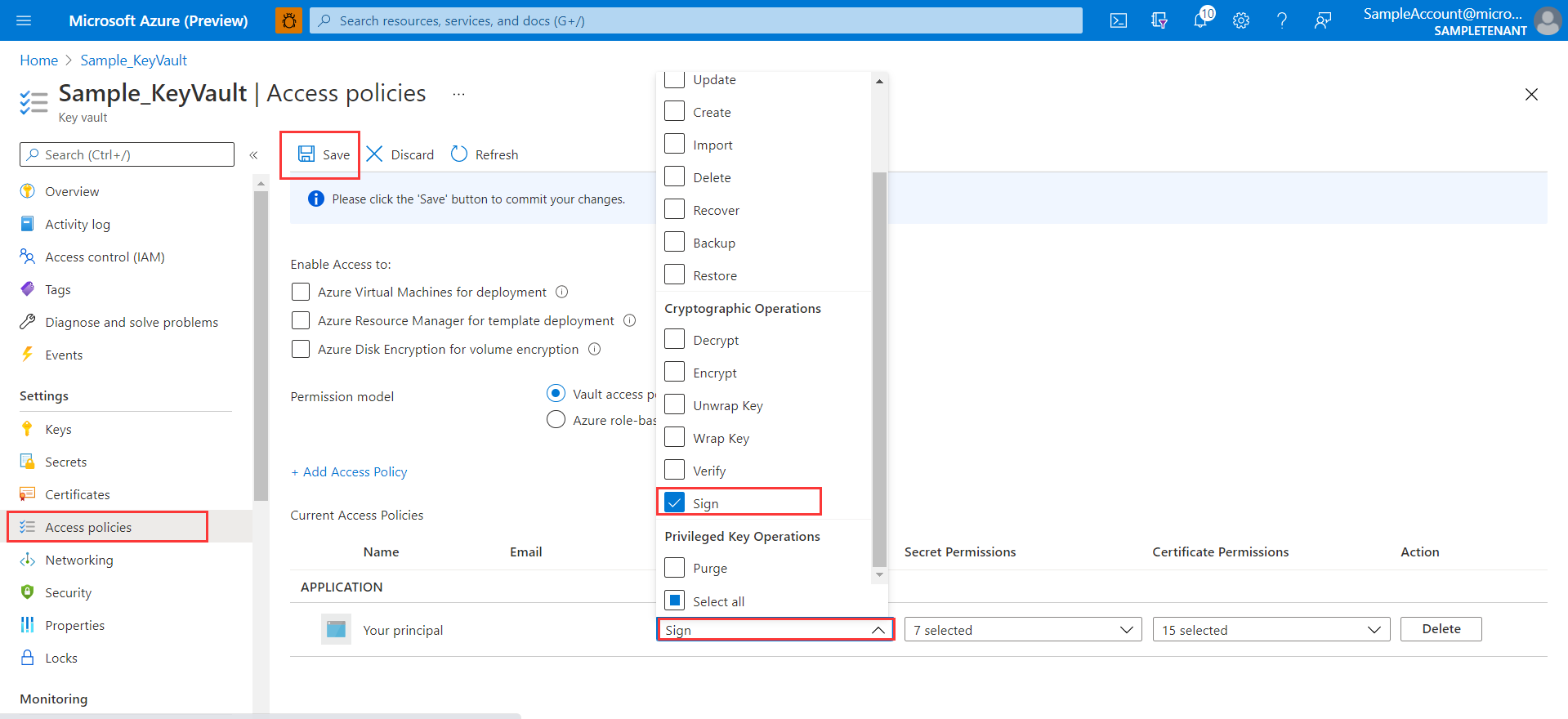
Or add permission by cli command:
  az keyvault set-policy --name ${KEY_VAULT} \
        --object-id ${MANAGED_IDENTITY} \
        --key-permissions get list sign\
        --secret-permissions get list \
        --certificate-permissions get list
Please replace ${KEY_VAULT} with your key vault name and replace ${MANAGED_IDENTITY} with your principal's object-id.
Supported key type
| Content Type | Key Type | Key Size or Elliptic curve name | Sign algorithm | Support |
|---|---|---|---|---|
| PKCS #12 | RSA | 2048 | RSASSA-PSS | ✔ |
| PKCS #12 | RSA | 3072 | RSASSA-PSS | ✔ |
| PKCS #12 | RSA | 4096 | RSASSA-PSS | ✔ |
| PKCS #12 | EC | P-256 | SHA256withECDSA | ✔ |
| PKCS #12 | EC | P-384 | SHA384withECDSA | ✔ |
| PKCS #12 | EC | P-521 | SHA512withECDSA | ✔ |
| PKCS #12 | EC | P-256K | ✘ | |
| PKCS #12 | RSA-HSM | 2048 | RSASSA-PSS | ✔ |
| PKCS #12 | RSA-HSM | 3072 | RSASSA-PSS | ✔ |
| PKCS #12 | RSA-HSM | 4096 | RSASSA-PSS | ✔ |
| PKCS #12 | EC-HSM | P-256 | SHA256withECDSA | ✔ |
| PKCS #12 | EC-HSM | P-384 | SHA384withECDSA | ✔ |
| PKCS #12 | EC-HSM | P-521 | SHA512withECDSA | ✔ |
| PKCS #12 | EC-HSM | P-256K | ✘ | |
| PEM | RSA | 2048 | RSASSA-PSS | ✔ |
| PEM | RSA | 3072 | RSASSA-PSS | ✔ |
| PEM | RSA | 4096 | RSASSA-PSS | ✔ |
| PEM | EC | P-256 | SHA256withECDSA | ✔ |
| PEM | EC | P-384 | SHA384withECDSA | ✔ |
| PEM | EC | P-521 | SHA512withECDSA | ✔ |
| PEM | EC | P-256K | ✘ | |
| PEM | RSA-HSM | 2048 | RSASSA-PSS | ✔ |
| PEM | RSA-HSM | 3072 | RSASSA-PSS | ✔ |
| PEM | RSA-HSM | 4096 | RSASSA-PSS | ✔ |
| PEM | EC-HSM | P-256 | SHA256withECDSA | ✔ |
| PEM | EC-HSM | P-384 | SHA384withECDSA | ✔ |
| PEM | EC-HSM | P-521 | SHA512withECDSA | ✔ |
| PEM | EC-HSM | P-256K | ✘ |
Using jarsigner with Azure Key Vault JCA
The integration of Azure Key Vault JCA provider can be used with jarsigner to sign JAR files using certificates stored in Azure Key Vault. Below are the steps to configure and use jarsigner with this library.
Download and Configure JCA Provider Jar
- Download the latest JCA Provider Jar.
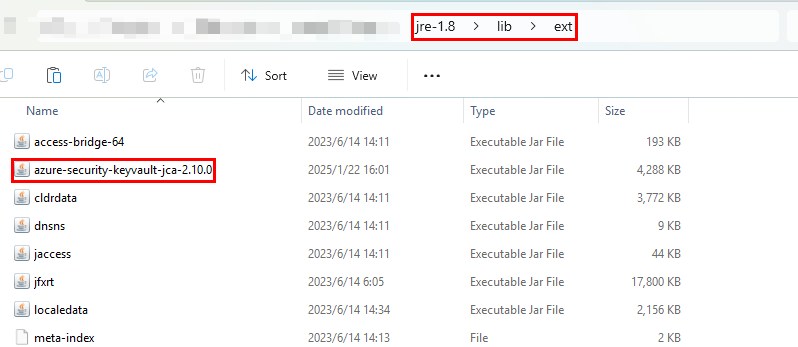
- If you are using Java8, you need to add the JCA provider jar to the class path.
- Place the jar under the folder
${JAVA_HOME}/jre/lib/ext
- Place the jar under the folder
- If you are using Java9 or higher, just place the jar in a folder that jarsigner can access.
Prepare Azure Resources
Follow these steps carefully to achieve successful integration:
- Prepare your parameters
DATE_STRING=$(date +%H%M%S)
RESOURCE_GROUP_NAME=jarsigner-rg-$DATE_STRING
KEYVAULT_NAME=jarsigner-kv-$DATE_STRING
CERT_NAME=jarsigner-cert-$DATE_STRING
SERVICE_PRINCIPAL_NAME=jarsigner-sp-$DATE_STRING
SUBSCRIPTION_ID=$(az account show --query id -o tsv)
- Create a resource group
az group create --name $RESOURCE_GROUP_NAME --location "EastUS"
- Create a key vault
az keyvault create --name $KEYVAULT_NAME --resource-group $RESOURCE_GROUP_NAME --location "EastUS"
- Assign role to create certificates in the Key Vault.
# Get your user object ID (if you're using a user account)
USER_OBJECTID=$(az ad signed-in-user show --query id -o tsv)

# Or if you're using a service principal, get its object ID
# SP_OBJECTID=$(az ad sp show --id <your-sp-id> --query id -o tsv)

# Assign Key Vault Certificates Officer role
az role assignment create \
    --role "Key Vault Certificates Officer" \
    --assignee $USER_OBJECTID \
    --scope "/subscriptions/$SUBSCRIPTION_ID/resourceGroups/$RESOURCE_GROUP_NAME/providers/Microsoft.KeyVault/vaults/$KEYVAULT_NAME"
- Get the Key Vault URL
KEYVAULT_URL=$(az keyvault show --name $KEYVAULT_NAME --query "properties.vaultUri" --resource-group $RESOURCE_GROUP_NAME -o tsv| tr -d '\r\n')
echo $KEYVAULT_URL
- Add a certificate to Key Vault
az keyvault certificate create --vault-name $KEYVAULT_NAME -n $CERT_NAME -p "$(az keyvault certificate get-default-policy)"
- Create a Service Principal
SP_JSON=$(az ad sp create-for-rbac --name $SERVICE_PRINCIPAL_NAME)

CLIENT_ID=$(echo $SP_JSON | jq -r '.appId')
CLIENT_SECRET=$(echo $SP_JSON | jq -r '.password')
TENANT=$(echo $SP_JSON | jq -r '.tenant')

echo "CLIENT_ID:"$CLIENT_ID
echo "CLIENT_SECRET:"$CLIENT_SECRET
echo "TENANT:"$TENANT
Note the appId and password from the output, you'll need them later.
- Get the objectId
OBJECTID=$(az ad sp show --id "$CLIENT_ID" --query id -o tsv | tr -d '\r\n')
echo $OBJECTID
- Assign Roles to Service Principal:
# Assign Key Vault Secrets Officer role to Service Principal
az role assignment create \
    --role "Key Vault Secrets Officer" \
    --assignee $OBJECTID \
    --scope "/subscriptions/$SUBSCRIPTION_ID/resourceGroups/$RESOURCE_GROUP_NAME/providers/Microsoft.KeyVault/vaults/$KEYVAULT_NAME"

# Assign Key Vault Certificates Officer role Service Principal
az role assignment create \
    --role "Key Vault Certificates Officer" \
    --assignee $OBJECTID \
    --scope "/subscriptions/$SUBSCRIPTION_ID/resourceGroups/$RESOURCE_GROUP_NAME/providers/Microsoft.KeyVault/vaults/$KEYVAULT_NAME"
Sign with Jarsigner
- If you are using Java8, try to sign the jar using below command
jarsigner   -keystore NONE -storetype AzureKeyVault \
            -signedjar signerjar.jar ${PARAM_YOUR_JAR_FILE_PATH} "${CERT_NAME}" \
            -verbose  -storepass "" \
            -providerName AzureKeyVault \
            -providerClass com.azure.security.keyvault.jca.KeyVaultJcaProvider \
            -J-Dazure.keyvault.uri=${KEYVAULT_URL} \
            -J-Dazure.keyvault.tenant-id=${TENANT} \
            -J-Dazure.keyvault.client-id=${CLIENT_ID} \
            -J-Dazure.keyvault.client-secret=${CLIENT_SECRET}
- If you are using Java9 or higher, try to sign the jar using below command
jarsigner   -keystore NONE -storetype AzureKeyVault \
            -signedjar signerjar.jar ${PARAM_YOUR_JAR_FILE_PATH} "${CERT_NAME}" \
            -verbose  -storepass "" \
            -providerName AzureKeyVault \
            -providerClass com.azure.security.keyvault.jca.KeyVaultJcaProvider \
            -J--module-path="${PARAM_JCA_PROVIDER_JAR_PATH}" \
            -J--add-modules="com.azure.security.keyvault.jca" \
            -J-Dazure.keyvault.uri=${KEYVAULT_URL} \
            -J-Dazure.keyvault.tenant-id=${TENANT} \
            -J-Dazure.keyvault.client-id=${CLIENT_ID} \
            -J-Dazure.keyvault.client-secret=${CLIENT_SECRET}
replace ${PARAM_YOUR_JAR_FILE_PATH} with the path of your jar file, replace ${PARAM_JCA_PROVIDER_JAR_PATH} with the path of the jca provider jar.
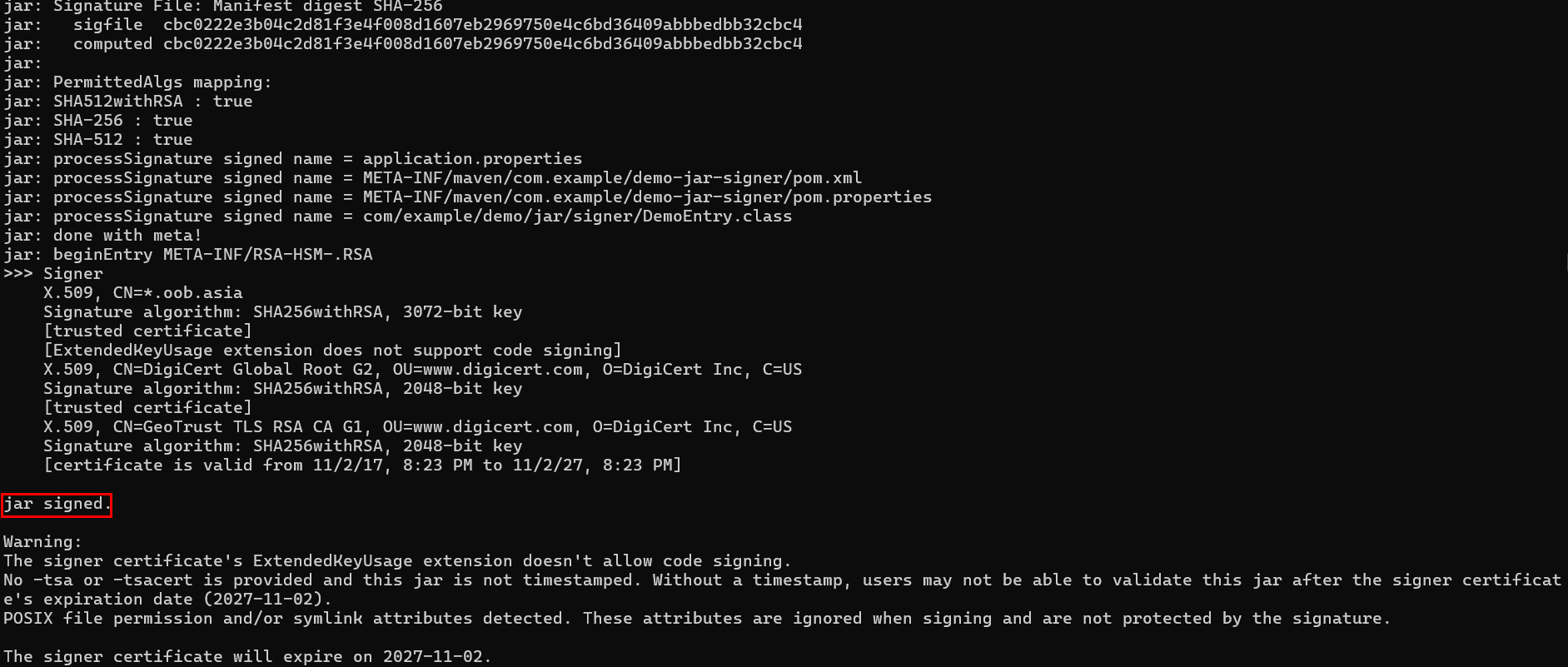
Check your output, if you see the jar signed message, it means the jar is signed successfully.
Verify with Jarsigner
After signing, you can verify the JAR file with:
jarsigner -verify -verbose -certs signerjar.jar
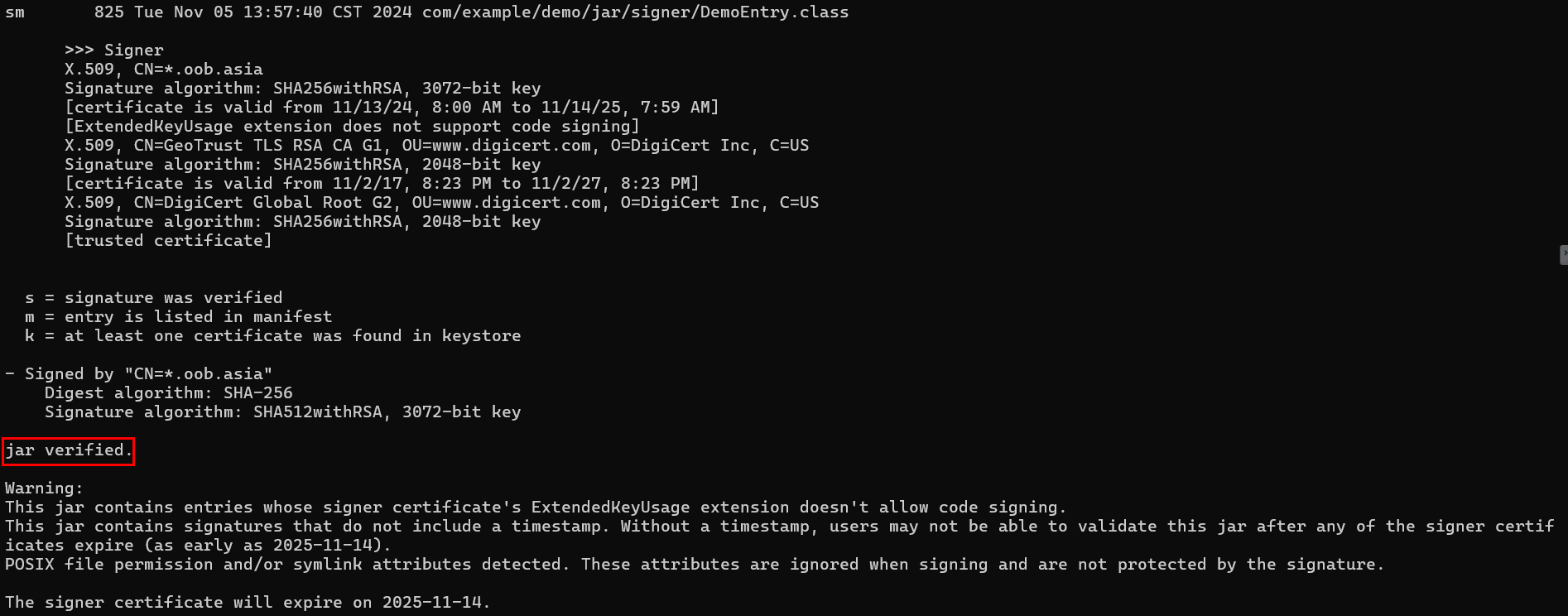
Check your output, if you see the jar verified message, it means the jar is verified successfully.
Clean up Resources
az group delete --name $RESOURCE_GROUP_NAME --yes --no-wait
az ad app delete --id $CLIENT_ID
Troubleshooting
Debug Key Vault Provider
Remote debugger can be used to troubleshoot complex issues. Let’s try this out in Java 9 and above!
Before you start debugging, make sure the code of your JCA jar is the same as your IDE source code.
Replace the placeholders with your own credentials and execute below command to start the
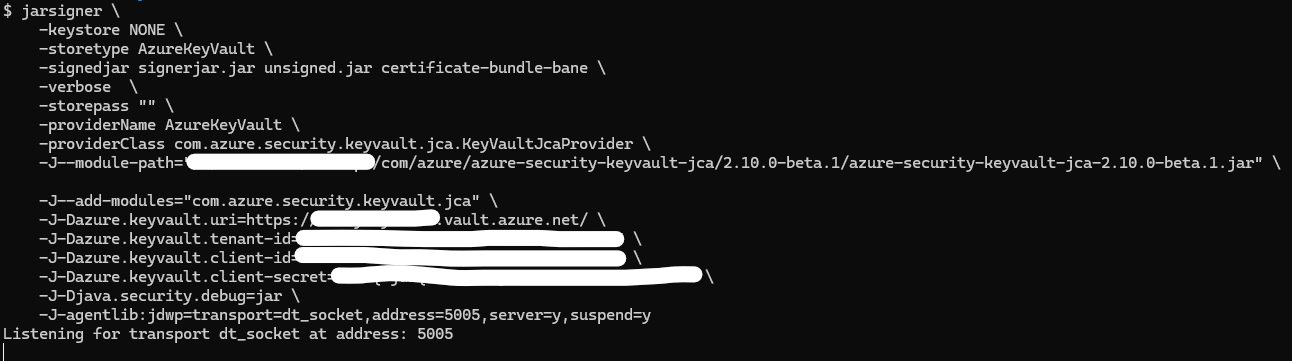
jarsignercommand:jarsigner \ -keystore NONE \ -storetype AzureKeyVault \ -signedjar <file-name-generated-after-signing> <jar-file-name-to-be-signed> <certificate-bundle-name-in-key-vault> \ -verbose \ -storepass "" \ -providerName AzureKeyVault \ -providerClass com.azure.security.keyvault.jca.KeyVaultJcaProvider \ -J--module-path="<your-local-Maven-repository-path>/com/azure/azure-security-keyvault-jca/<current-version-num>/azure-security-keyvault-jca-<current-version-num>.jar" \ -J--add-modules="com.azure.security.keyvault.jca" \ -J-Dazure.keyvault.uri=https://<your-key-vault-name>.vault.azure.net/ \ -J-Dazure.keyvault.tenant-id=<your-tenant-id> \ -J-Dazure.keyvault.client-id=<your-client-id> \ -J-Dazure.keyvault.client-secret=<your-client-secret> \ -J-Djava.security.debug=jar \ -J-agentlib:jdwp=transport=dt_socket,address=5005,server=y,suspend=yAfter execution, you will see the following output information:
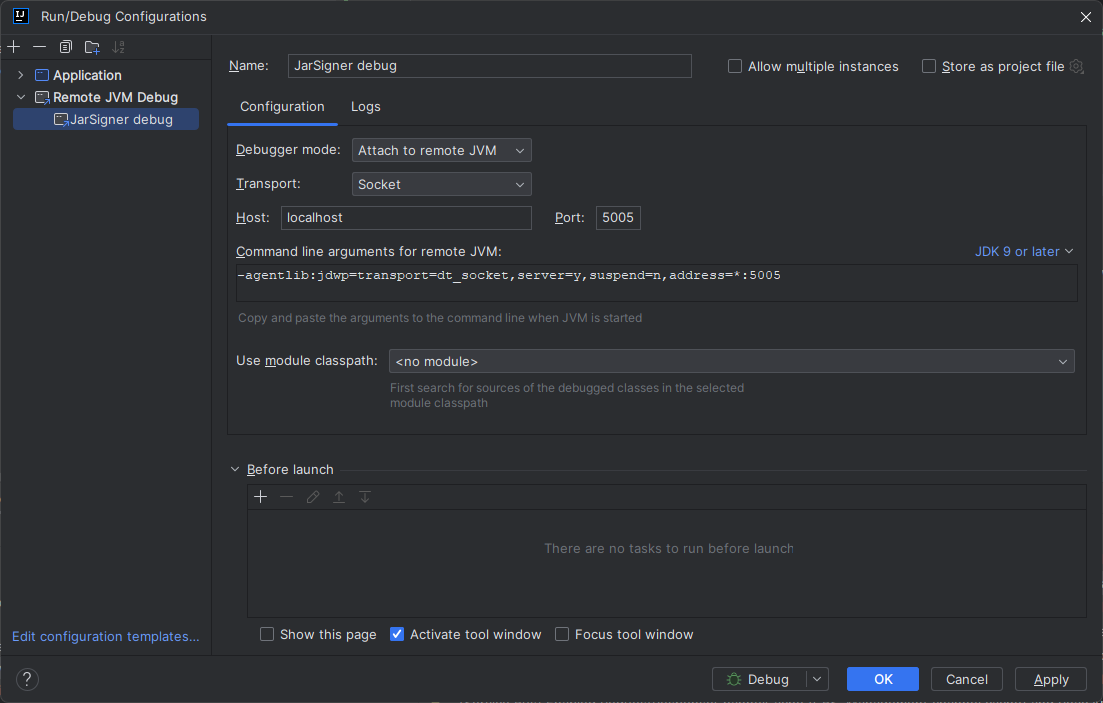
Create a Remote JVM Debug configuration in your IDE tool, such as in Intellij IDEA:
Click the
Debugbutton to debug in your IDE: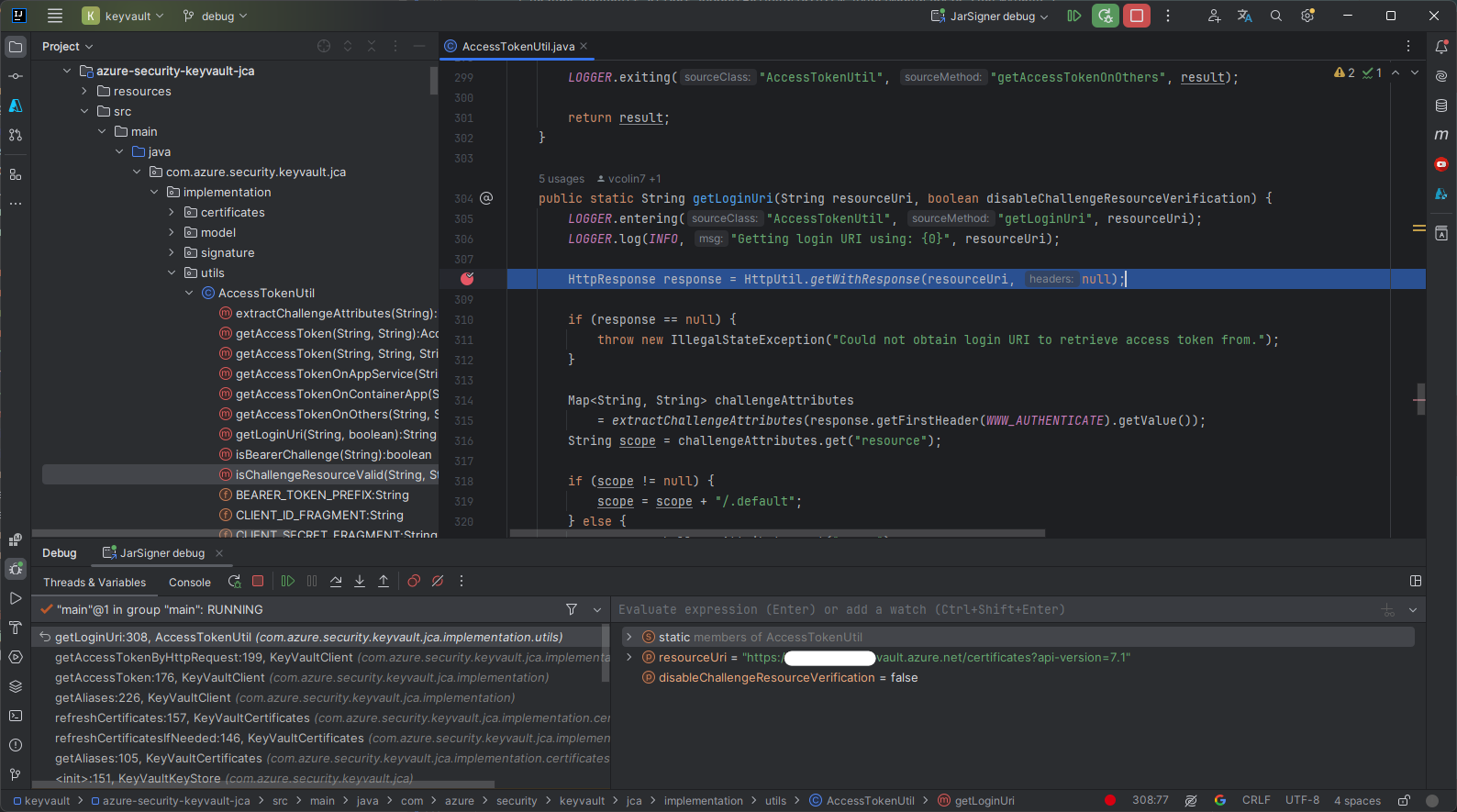
Configure an HTTP proxy
Except for VM IMDS requests, the Azure Key Vault JCA provider uses the JDK's proxy selection. The default JDK proxy selector uses the following system properties based on the protocol of the request URL:
| Request URL | Proxy properties |
|---|---|
http:// |
http.proxyHost and http.proxyPort |
https:// |
https.proxyHost and https.proxyPort |
Key Vault and standard Microsoft Entra token endpoints use HTTPS, while AIA certificate URLs may use HTTP or HTTPS. The default JDK proxy selector uses http.nonProxyHosts for both protocols to identify hosts that should be accessed directly. Separate hosts with | and use * as a wildcard.
VM managed identity authentication uses the HTTP IMDS endpoint at 169.254.169.254. The provider opens IMDS connections with Proxy.NO_PROXY to bypass HTTP proxy routing; no additional http.nonProxyHosts entry is required for IMDS. This follows the IMDS proxy requirements.
App Service and Container Apps managed identity endpoints are supplied by their hosting environment and may use HTTP. These requests use the JDK's proxy selection, like Key Vault, Microsoft Entra, and AIA requests; the IMDS bypass does not apply to them. When using the default JDK proxy selector, configure http.nonProxyHosts for the endpoint host if your environment requires direct access.
For a Java application, pass the properties as JVM -D options before -jar:
java \
    -Dhttp.proxyHost=<proxy-host> \
    -Dhttp.proxyPort=<proxy-port> \
    -Dhttps.proxyHost=<proxy-host> \
    -Dhttps.proxyPort=<proxy-port> \
    -Dhttp.nonProxyHosts="localhost|127.*|*.example.com" \
    -jar <application-jar>
The jarsigner command runs in its own JVM. Prefix each JVM option with -J to pass the same properties to that JVM:
jarsigner \
    -J-Dhttp.proxyHost=<proxy-host> \
    -J-Dhttp.proxyPort=<proxy-port> \
    -J-Dhttps.proxyHost=<proxy-host> \
    -J-Dhttps.proxyPort=<proxy-port> \
    -J-Dhttp.nonProxyHosts="localhost|127.*|*.example.com" \
    <other-jarsigner-options>
HTTPS requests use the HTTP CONNECT method to create a tunnel through the proxy.
To use the operating system proxy settings instead, set -Djava.net.useSystemProxies=true when starting the JVM. The JDK reads this property only at startup. For jarsigner, pass it as -J-Djava.net.useSystemProxies=true.
For the complete property definitions, see the JDK Networking Properties.
Configure logging
This module uses JUL (java.util.logging), so to configure things like the logging level you can directly modify the JUL configuration.
Here is an example of a logging.properties file:
# To enable this configuration file, please add this property:
# -Djava.util.logging.config.file="src/test/resources/logging.properties"
#
# The Java logging APIs (java.util.logging) default loads logging.properties from:
# 1. $JAVA_HOME/jre/lib/ (Java 8 and before)
# 2. $JAVA_HOME/conf/ (Java 9 and above)
#
# For more information about this file, please refer to:
# 1. https://docs.oracle.com/javase/8/docs/technotes/guides/logging/overview.html#a1.8
# 2. https://docs.oracle.com/cd/E23549_01/doc.1111/e14568/handler.htm

handlers = java.util.logging.ConsoleHandler
java.util.logging.ConsoleHandler.level = ALL
java.util.logging.ConsoleHandler.formatter = java.util.logging.SimpleFormatter
java.util.logging.SimpleFormatter.format= [%1$tF %1$tT] %3 [%4$-7s] %5$s %n

.level = INFO
com.azure.security.keyvault.jca.level = ALL
General
Azure Key Vault JCA clients raise exceptions. For example, if you try to check a client's identity with a certificate chain that does not include a trusted certificate, a CertificateException will be thrown. In the following snippet, the error is handled gracefully by catching the exception and displaying additional information about the error.
class Demo {
    void demo () {
        try {
            KeyVaultJcaProvider provider = new KeyVaultJcaProvider();
            Security.addProvider(provider);
            // ...
            // Start SSL server socket
            // ...
        } catch (CertificateException e) {
            System.out.println(e.getMessage());
        }
    }
}
Next steps
Spring Boot
For Spring Boot applications see our Spring Boot starter.
References
Additional documentation
For more extensive documentation on Azure Key Vault, see the API reference documentation.
Contributing
This project welcomes contributions and suggestions. Most contributions require you to agree to a Contributor License Agreement (CLA) declaring that you have the right to, and actually do, grant us the rights to use your contribution. For details, visit https://cla.microsoft.com.
When you submit a pull request, a CLA-bot will automatically determine whether you need to provide a CLA and decorate the PR appropriately (e.g., label, comment). Simply follow the instructions provided by the bot. You will only need to do this once across all repos using our CLA.
This project has adopted the Microsoft Open Source Code of Conduct. For more information see the Code of Conduct FAQ or contact opencode@microsoft.com with any additional questions or comments.
Collaborate with us on GitHub
The source for this content can be found on GitHub, where you can also create and review issues and pull requests. For more information, see our contributor guide.

Azure SDK for Java