Note
Access to this page requires authorization. You can try signing in or changing directories.
Access to this page requires authorization. You can try changing directories.
Darwinbox Deep Integration Functionality
Content Discovery: Automatic Content Sync Reporting: xAPI
Requirements:
The LinkedIn Learning and Darwinbox integration involves the following requirements:
• An active Darwinbox instance
• An active LinkedIn Learning account
• Admin access to LinkedIn Learning
• Admin privileges to your Darwinbox instance
Integration Overview
Single Sign-On
SSO Configuration
Enabling SAML SSO:
• LinkedIn Learning recommends SAML SSO for all enterprise learning platform integrations. SSO authentication can be configured in your LinkedIn Learning Admin settings. Most organizations have a centrally managed identity management solution like Azure AD, Okta or AD FS which can be configured to authenticate users into enterprise applications like LinkedIn Learning.
• To configure SAML SSO with your identity management solution, share the LinkedIn Learning SSO Implementation Guide with your organization’s IT team.
Automated Content Catalog Sync
The LinkedIn Learning library contains thousands of courses. LinkedIn Learning adds courses at a rate of 20-30 per week at no extra cost.
Darwinbox automates this process using the LinkedIn Learning content APIs, so LMS admins do not have to manually upload new content packages at regular intervals. After the initial setup, Darwinbox will dynamically refresh the content library on an automated basis. This ensures new LinkedIn Learning content is available to learners within 24 hours of release. All content titles and descriptions are aggregated and indexed to accommodate keyword searches and support efficient discoverability within Darwinbox.
Reporting
LinkedIn Learning captures all content viewed on its platform in robust usage reports accessible from the LinkedIn Learning administrative interface. In addition to generating reports, LinkedIn Learning uses xAPI to communicate a learner’s activity back to Darwinbox when the learner completes a LinkedIn Learning course. All LinkedIn Learning course completions will be reported both in LinkedIn Learning and in Darwinbox.
LMS Configuration – Steps Performed in LinkedIn Learning
Provision LinkedIn Learning Content API Keys
For Darwinbox to sync LinkedIn Learning catalog metadata, API keys must be provisioned in LinkedIn Learning admin settings.
To sync your Darwinbox content with LinkedIn Learning, take the following steps:
Login to LinkedIn Learning. If you are not already in the Admin screen, select Go to Admin, then click Me > Integrate
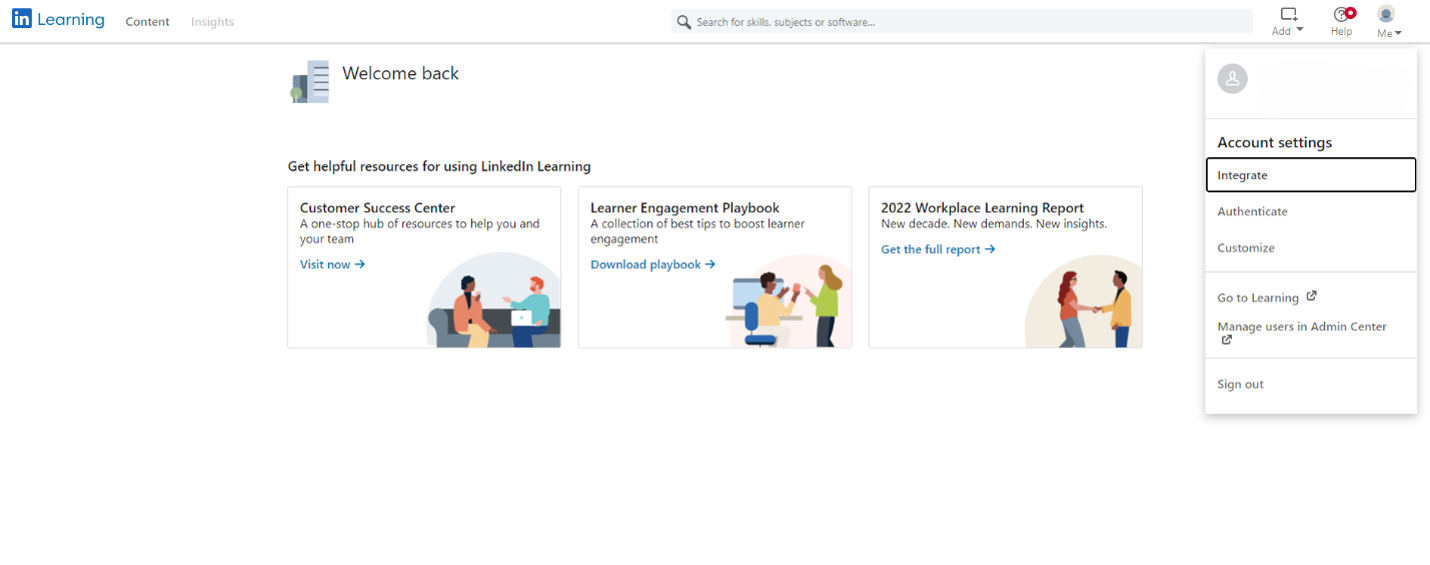
From the side navigation menu, Access content and reports via API.
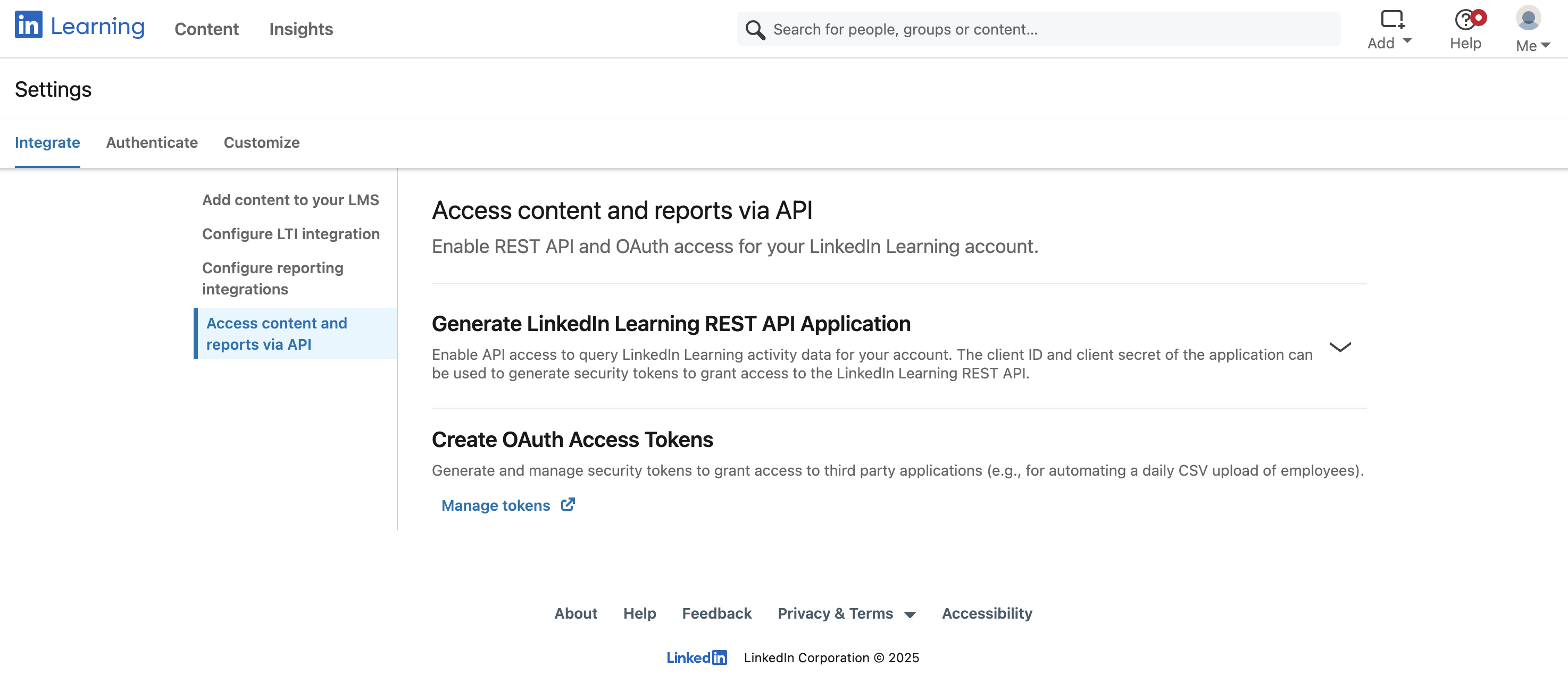
Click the down arrow on the right to expand the Generate LinkedIn Learning REST API Application section.
Click Add Application and provide the name related to your LMS (e.g., "Darwinbox LMS Integration"), as the application name, and provide a short description of the integration use case in the application description field.
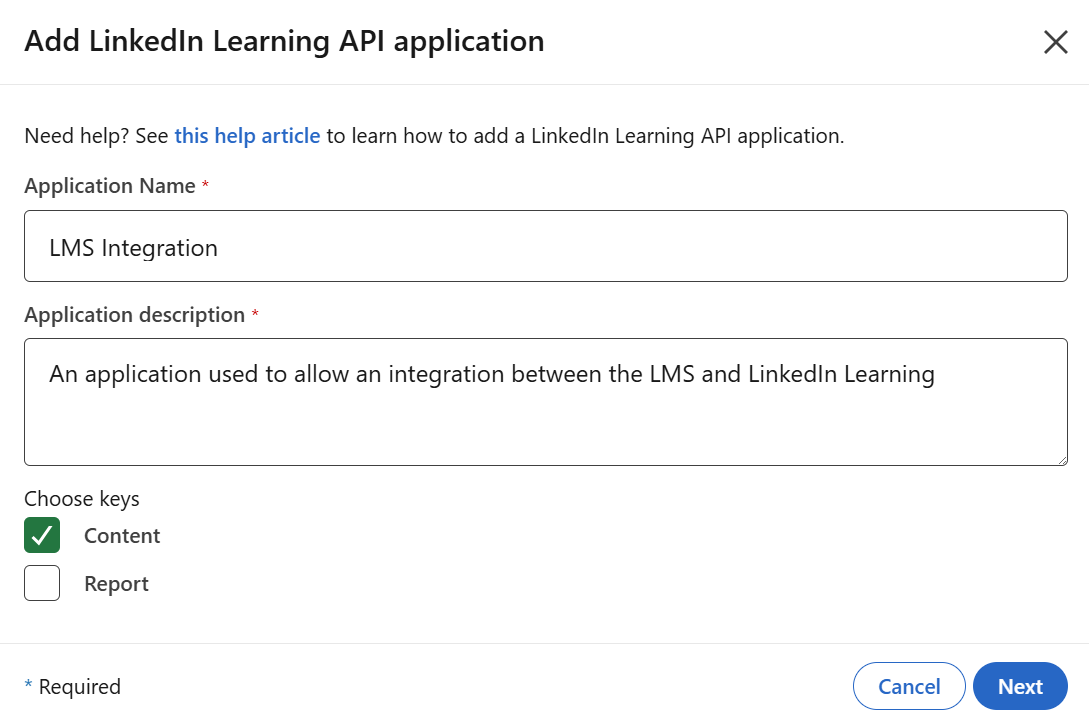
There are two checkboxes – Content and Report. Select the fields that apply to you. For Content Sync to the LMS, only Content is required.
Click Next and agree to the Terms and Conditions
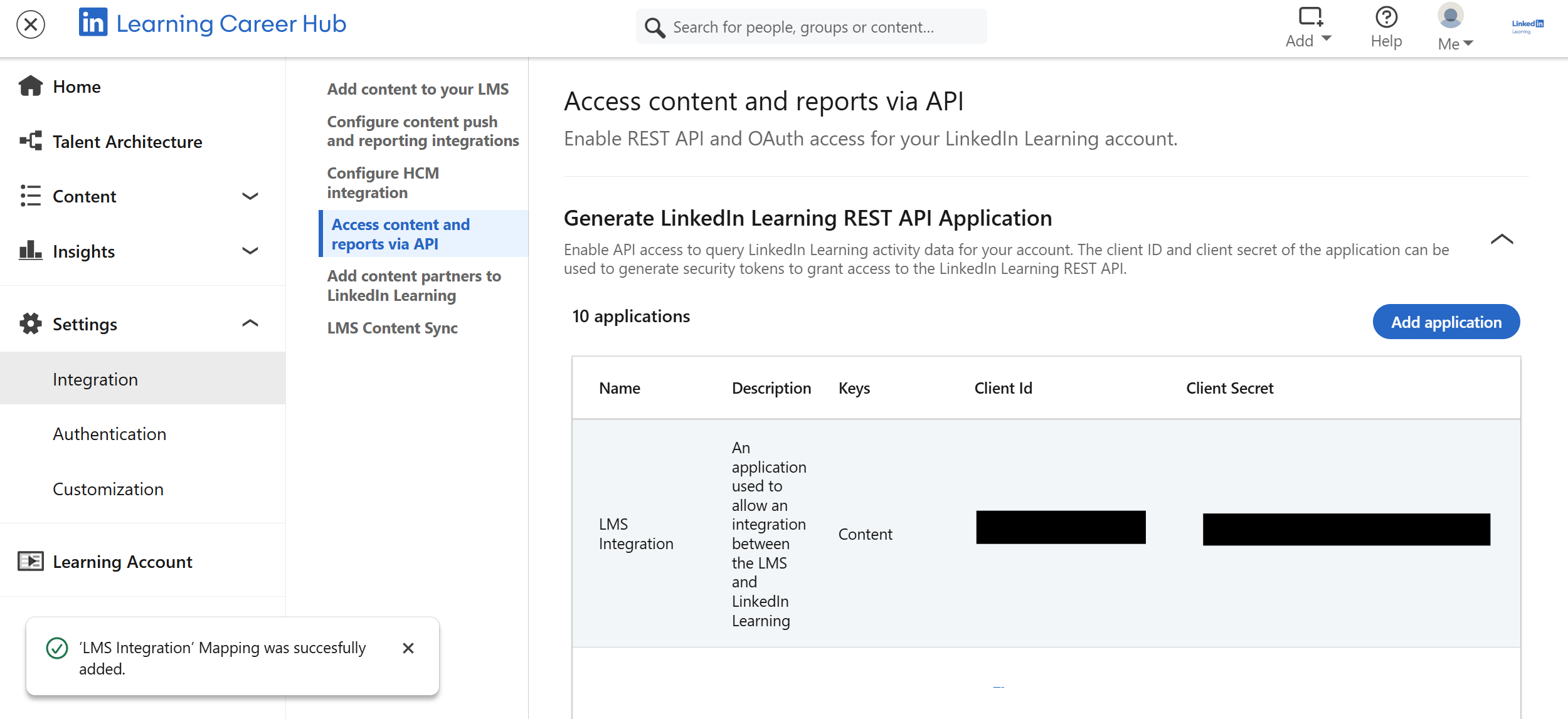
Save the Client ID and Client Secret values.
LMS Configuration – Steps Performed in Darwinbox
Darwinbox Configuration
To complete the configuration with Darwinbox, you need the following information:
• Client ID
• Client Secret
Once you’ve gathered the required information and have logged into the Darwinbox LMS as an Admin, follow these steps below:
Open Darwinbox Studio
Navigate to Connector Library and search for LinkedIn Learning
Open the application and click install
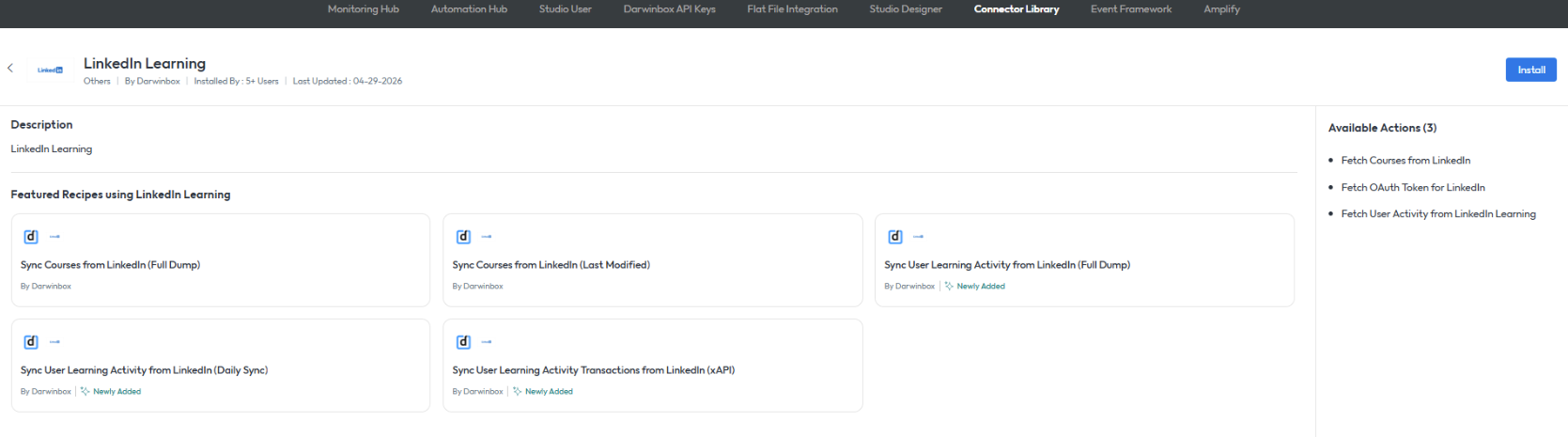
After installing the application, navigate to Automation Hub
Click on App Connection and select Create

Open the newly crated application and input the following information into the applicible sections:
• App Connection Name: LinkedIn Learning
• Auth Type: No
• OAuth Base URL: https://www.linkedin.com/oauth/v2
• API Base URL: https://api.linkedin.com/v2
• Client ID: The value that was generated within LinkedIn Learning outlined in steps above
• Client Secret: The value that was generated within LinkedIn Learning outlined in steps above
• Grant Type: client_credentials
*
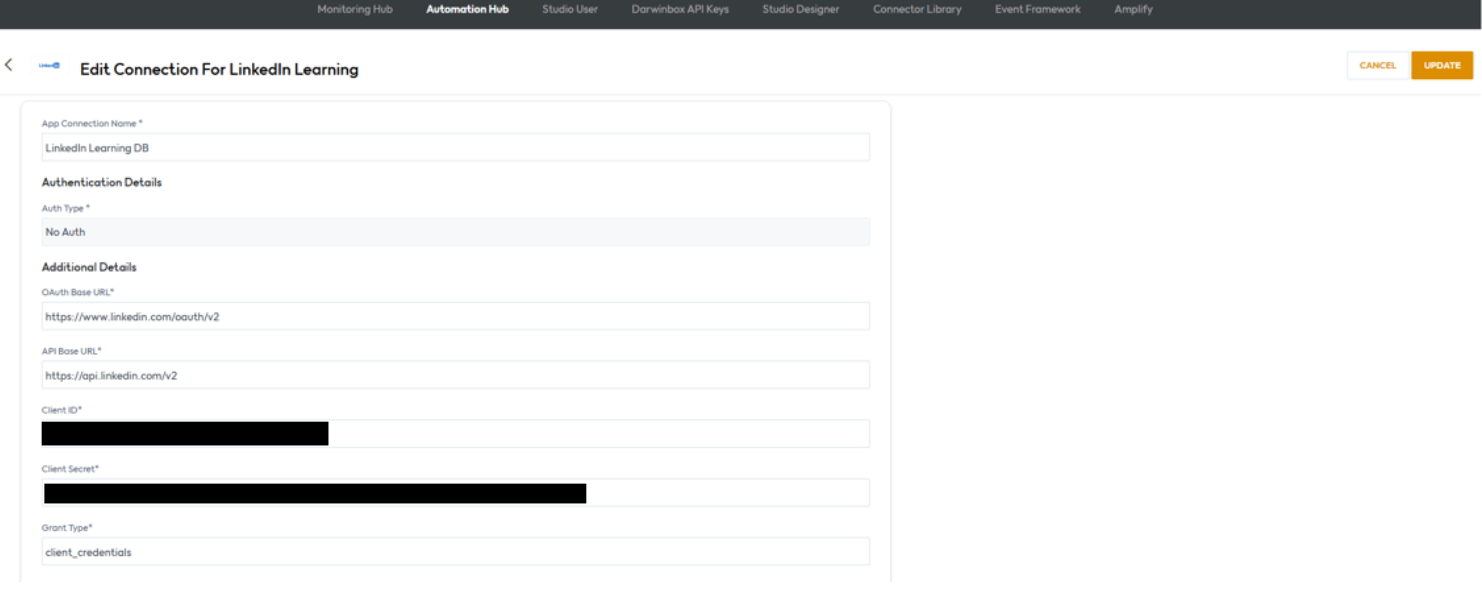
- Click on Update.
The App Connection is now completed.
Enable xAPI Learner Activity Tracking in LinkedIn Learning
To enable xAPI in Darwinbox, take the following steps:
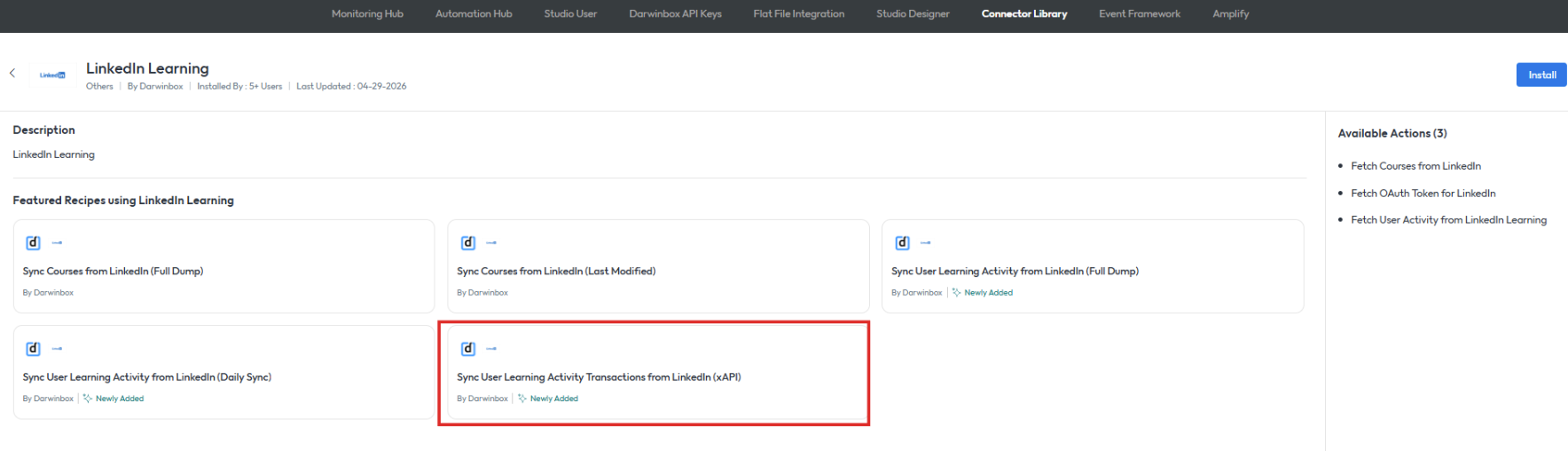
Login to the Darwinbox LMS and navigate to Connector Library and Open the App - LinkedIn Learning
Select the flow Sync User Learning Activity Transactions from LinkedIn (xAPI)
Click on Use Recipe
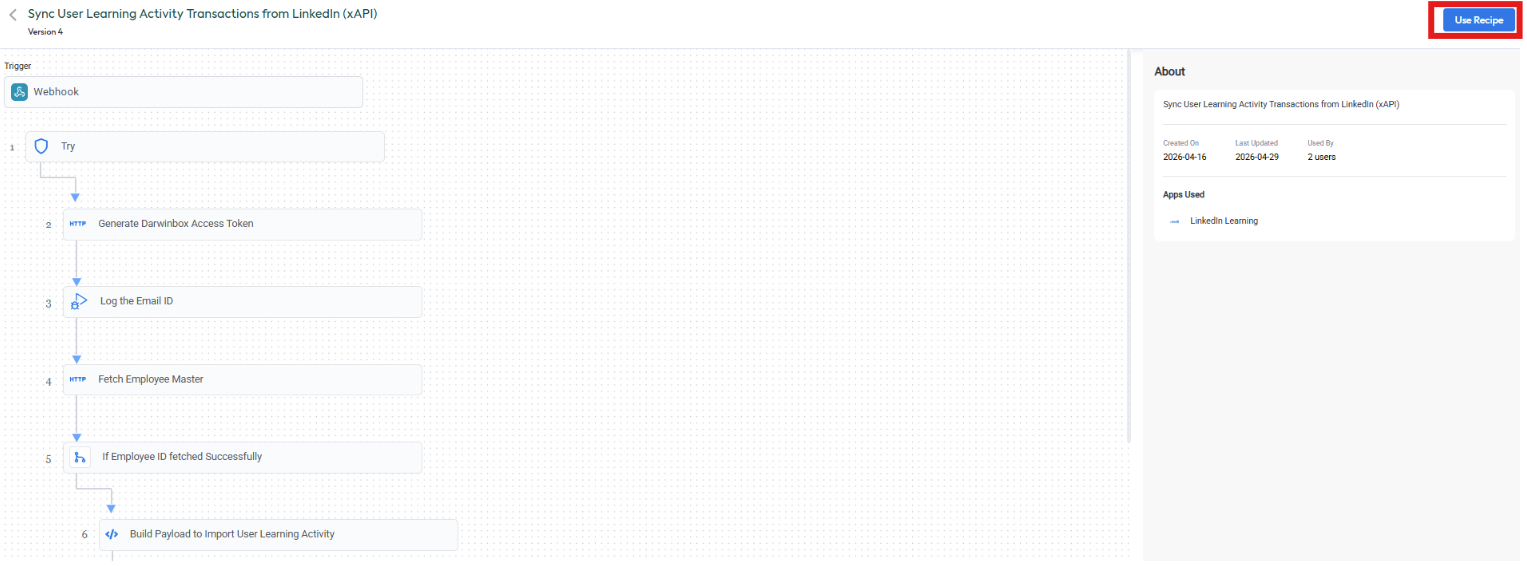
Here you can select the relevant Project and App Connection
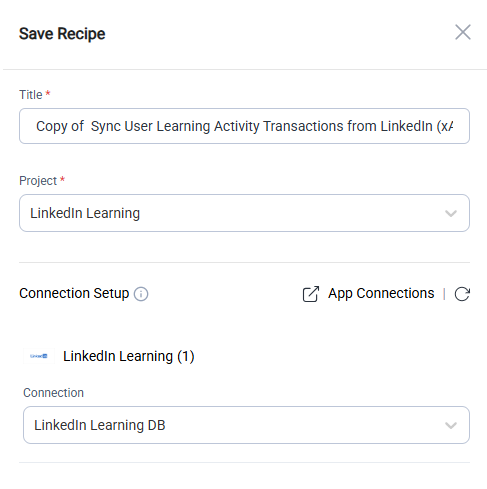
Select Save.
Note
If the project is not yet created, one will have to be created using the steps below.
a. To create a project. Navigate to Studio Designer > My Projects > Create Project
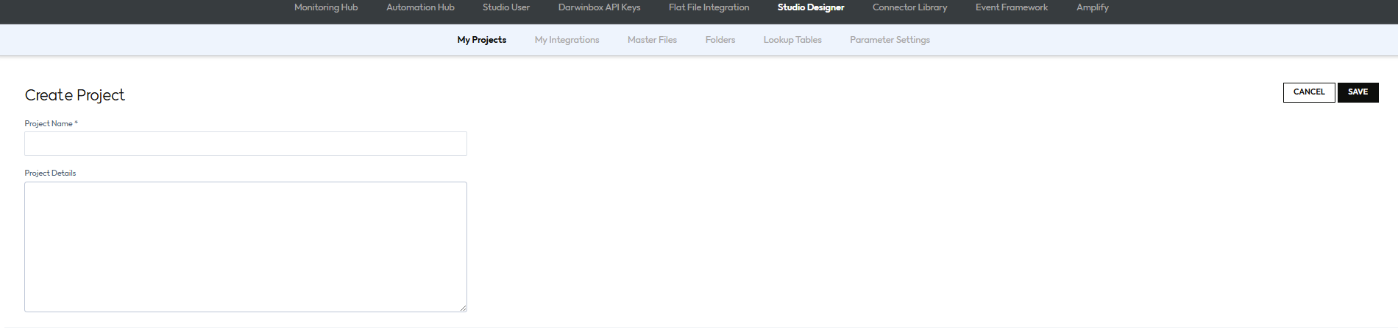 • Project Name: LinkedIn Learning
b. Click Save
Note
This flow will then be copied to the Automation Hub - Automation Rules section. Step 4 and 5 can now be repeated with the newly created project. After the above steps have been completed, the relevant API details which will be used for the XAPI configuration within LinkedIn Learning will now be available.
- Navigate to Darwinbox API Keys

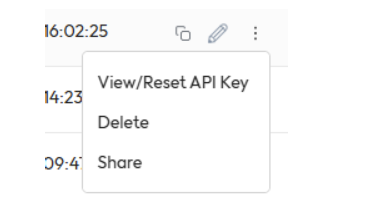
- Find the API with the Name [Recipe_Sync User Learning Activity Transactions from LinkedIn (xAPI)] > Select the 3 dots > View/Reset API Key
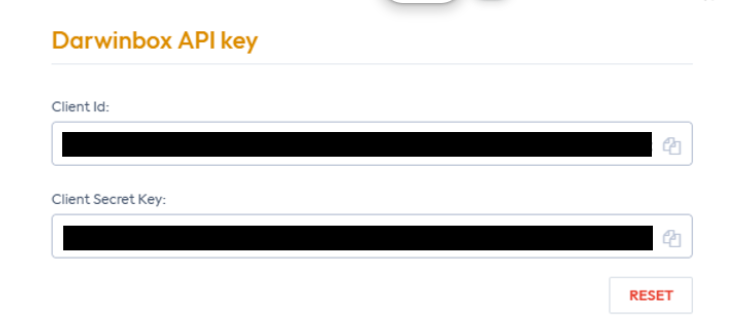
- The Client ID and Client Secret values are located here. Save these for later
- Again find the API with the Name [Recipe_Sync User Learning Activity Transactions from LinkedIn (xAPI)] > Select Copy API Endpoint > The first endpoint that appears is the Tenant Server URL. Save this for later
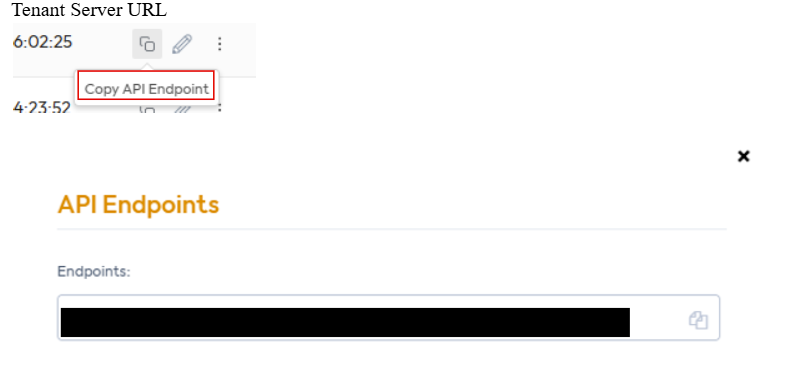
- To generate the OAuth Server URL replace {tenant_url} in https://{tenant_url}/oauth/v2token with your own unique tenant URL. Save this for later
Note
To communicate learner activity back to Darwinbox, you must enable xAPI in your LinkedIn Learning admin settings.
To enable xAPI in LinkedIn Learning, take the following steps:
- After you login, if you are not already in the Admin screen, click Go to Admin, then select Me > Integrate.
From the side navigation menu, select Configure reporting integrations.
Expand the Configure xAPI section.
Click Add integration.
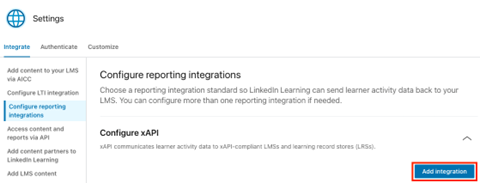
In the Integration name field, enter a name such as "Darwinbox Reporting".
In the User Type drop down, select ID or E-mail.
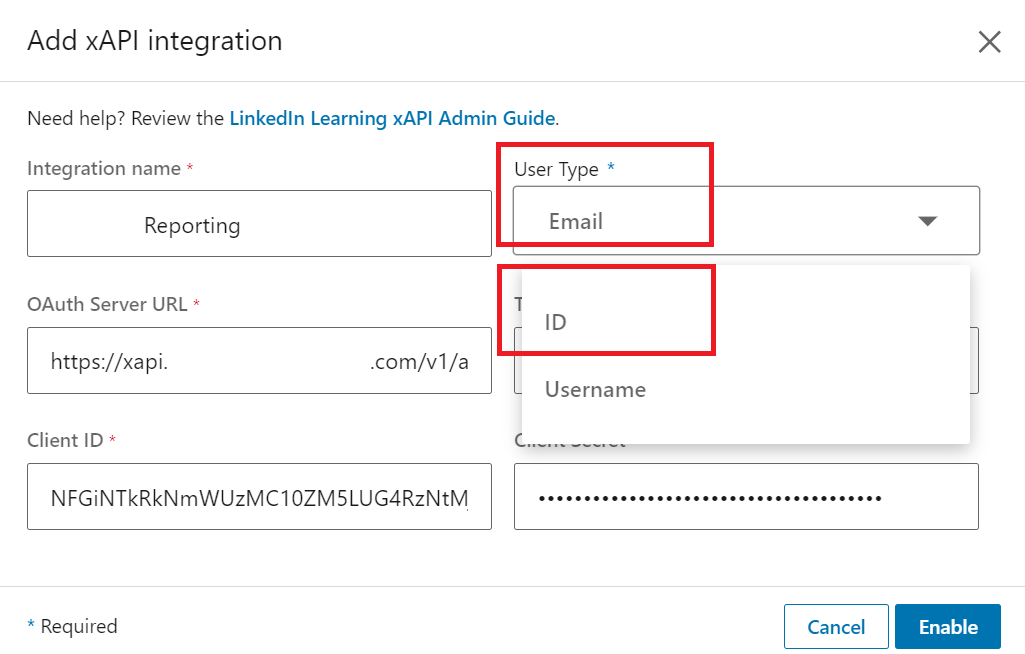
Copy and paste the values saved earlier from Darwinbox into LinkedIn Learning:
• OAuth Server URL
• Tenant Server URL
• Client ID
• Client Secret
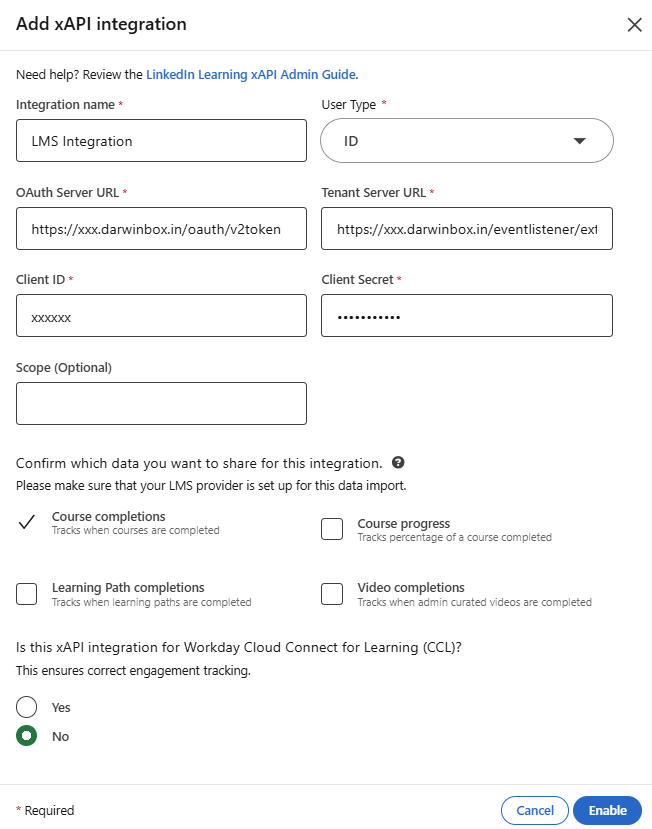
Click Enable.
Note
xAPI statements are communicated once. From the LinkedIn Learning perspective, the original completion will be maintained.
Configuration of the XAPI Mapping Sheet for Darwinbox
Please see LinkedIn_Learning_User_Activities_Mapping file content below.
| xAPI verb | Full verb URI | Darwinbox action |
|---|---|---|
| completed | http://adlnet.gov/expapi/verbs/completed | complete |
| passed | http://adlnet.gov/expapi/verbs/passed | complete |
| failed | http://adlnet.gov/expapi/verbs/failed | complete |
| watched | http://adlnet.gov/expapi/verbs/watched | complete |
| listened | http://adlnet.gov/expapi/verbs/listened | complete |
| read | http://adlnet.gov/expapi/verbs/read | complete |
| attended | http://adlnet.gov/expapi/verbs/attended | complete |
| earned | http://adlnet.gov/expapi/verbs/earned | complete |
| attempted | http://adlnet.gov/expapi/verbs/attempted | start |
| started | http://adlnet.gov/expapi/verbs/started | start |
| resumed | http://adlnet.gov/expapi/verbs/resumed | start |
| progressed | http://adlnet.gov/expapi/verbs/progressed | start |
| experienced | http://adlnet.gov/expapi/verbs/experienced | start |
| registered | http://adlnet.gov/expapi/verbs/registered | enroll |
| suspended | http://adlnet.gov/expapi/verbs/suspended | remove |
Save the above as a CSV file with the name - LinkedIn_Learning_User_Activities_Mapping.csv
Upload this file in Darwinbox Studio > Studio Designer > Master Files > Upload
Note
For completion reporting to be successfull the learner must exsist in LinkedIn Learning and Darwinbox. Also the learner Email or ID must match on both instances.
You have now enabled the Darwinbox xAPI connection in LinkedIn Learning.
Congratulations! Your learners now can access LinkedIn Learning content via their Darwinbox instance.
Darwinbox Troubleshooting
To create a support request, please visit the Darwinbox Customer Support Page
Questions
For LinkedIn Learning configuration questions, reach out to your dedicated Customer Success Manager.