Note
Access to this page requires authorization. You can try signing in or changing directories.
Access to this page requires authorization. You can try changing directories.
RiseUp Deep Integration Functionality
Content Discovery: Automated Catalog Sync (All languages) Reporting: xAPI
Requirements:
The LinkedIn Learning and RiseUp integration involves the following requirements:
- An active RiseUp LMS instance
- An active LinkedIn Learning account
- Admin access to LinkedIn Learning
- Admin privileges to your RiseUp LMS instance
Overview
Single Sign-On
During the initial configuration, you can configure LinkedIn Learning and your SSO provider to establish a secure SAML single sign-on (SSO) connection to ensure seamless access to content. SSO authentication reduces friction for users and administrators by eliminating the need for manual user registration. SSO ensures learners spend more of their time watching content and less of their time trying to remember usernames and passwords.
Automated Content Catalog Sync
The LinkedIn Learning library contains over 24,000 courses, with 20-30 courses added per week at no extra cost.
RiseUp automates this process using the LinkedIn Learning content APIs, so LMS admins do not have to manually upload new content packages at regular intervals. After the initial setup, RiseUp will dynamically refresh the content library on an automated basis. This ensures new LinkedIn Learning content is available to learners within 24 hours of release. All content titles and descriptions are aggregated and indexed to accommodate keyword searches and support efficient discoverability.
RiseUp supports automatic syncing of All languages content libraries.
Reporting
LinkedIn Learning captures all content viewed on its platform in robust usage reports accessible from the LinkedIn Learning administrative interface. In addition to generating reports, LinkedIn Learning uses xAPI to communicate a learner’s activity back to RiseUp when the learner completes a LinkedIn Learning course. All LinkedIn Learning course completions will be reported both in LinkedIn Learning and in RiseUp.
SSO Configuration
Enabling SAML SSO:
LinkedIn Learning recommends SAML SSO for all enterprise learning platform integrations. SSO authentication can be configured in your LinkedIn Learning Admin settings. Most organizations have a centrally managed identity management solution like Azure AD, Okta or AD FS which can be configured to authenticate users into enterprise applications like LinkedIn Learning.
- To configure SAML SSO with your identity management solution, share the LinkedIn Learning SSO Implementation Guide with your organization’s IT team.
LMS Configuration – Steps Performed in LinkedIn Learning
Provision LinkedIn Learning Content API Keys
For RiseUp to sync LinkedIn Learning catalog metadata, API keys must be provisioned in LinkedIn Learning admin settings.
To sync your RiseUp content with LinkedIn Learning, take the following steps:
Login to LinkedIn Learning. If you are not already in the Admin screen, select Go to Admin, then click Integration

From the side navigation menu, Access content and reports via API.
Click the down arrow on the right to expand the Generate LinkedIn Learning REST API Application section.

Click Add Application and provide the name related to your LMS (e.g., "RiseUp LMS Integration"), as the application name, and provide a short description of the integration use case in the application description field. For example, "RiseUp content catalog sync".

Under choose keys, there are two checkboxes – Content and Report. Select Content.
Click Next and accept the Terms and Conditions
Save the Client ID and Client Secret values.

LMS Configuration – Steps Performed in RiseUp
RiseUp Configuration
To complete the configuration with Riseup, you need the following information:
• Client ID
• Client Secret
- Share these credentials with Rise Up’s technical team for them to configure the LinkedIn Learning connector
Enable xAPI Learner Activity Tracking in LinkedIn Learning
Note
To communicate learner activity back to RiseUp, you must enable xAPI in your LinkedIn Learning admin settings.
Using the information you acquired from RiseUp technical team, follow the instructions below to configure xAPI within LinkedIn Learning
- After you login, if you are not already in the Admin screen, click Go to Admin, then select Me > Integrate.

From the side navigation menu, select Configure reporting integrations.
Expand the Configure xAPI section.
Click Add integration.
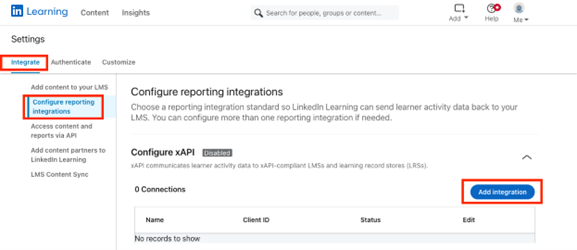
In the Integration name field, enter a name such as "RiseUp Reporting".
In the User Type drop down, select Email.
Note
This value must match the email address value in RiseUp; please reach out to RiseUp support if you need help identifying this value.
Copy and paste the following items provided by RiseUp into LinkedIn Learning:
- OAuth Server URL
- Tenant Server URL
- Client ID
- Client Secret
Check if your LMS support Course Progress, Learning Path completions and video completions and check the box accordingly
Click Enable.

Congratulations! Your learners now can access LinkedIn Learning content via their RiseUp instance.
Questions
For LinkedIn Learning configuration questions, reach out to your dedicated Customer Success Manager.