Note
Access to this page requires authorization. You can try signing in or changing directories.
Access to this page requires authorization. You can try changing directories.
What this Document Tells You
The following steps outline the Workday and LinkedIn Learning integration process:
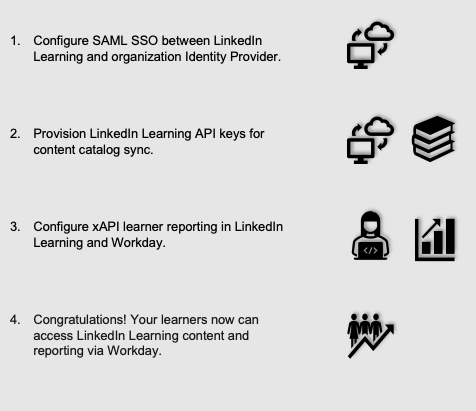
Single Sign-On (SSO)
SSO authentication reduces friction for users and administrators by eliminating the need for manual user registration. SSO ensures learners spend more of their time watching content and less of their time trying to remember usernames and passwords.
We recommend SAML SSO for all enterprise learning platform integrations. You can configure SSO authentication in your LinkedIn Learning Admin settings. Most organizations have a centrally-managed identity management solution like Azure AD, Okta, or ADFS, which can be configured to authenticate users into enterprise applications like LinkedIn Learning.
To configure SAML SSO with your identity management solution, share the LinkedIn Learning SSO Implementation Guide with your organization’s IT team.
Workday Deep Integration Functionality
CCL Automated Content Catalog Sync
Content Discovery: Automated Catalog Sync (All languages)
The LinkedIn Learning library contains over 24,000 courses, with 20 to 30 courses added per week at no extra cost. LinkedIn Learning automates this process using a direct connection between LinkedIn Learning and Workday, so LMS admins do not have to manually upload new content packages at regular intervals. After the initial setup, LinkedIn will dynamically refresh the content library on an automated basis. This ensures new LinkedIn Learning content is available to learners within 24 hours of release. All content titles, descriptions and skills are aggregated and indexed to accommodate keyword searches and support efficient discoverability. Workday supports automatic syncing of All languages content libraries.
Reporting: xAPI
- LinkedIn Learning captures all content viewed on its platform in robust usage reports accessible from the LinkedIn Learning administrative interface. In addition to generating reports, LinkedIn Learning uses xAPI to communicate a learner’s activity back to Workday when the learner completes a LinkedIn Learning course, LinkedIn Learning learning path and/or previously curated videos. All LinkedIn Learning course completions, learning paths, and curated videos will be reported both in LinkedIn Learning and in Workday.
Integration Benefits
More discoverable courses: Learners can more easily discover LinkedIn Learning courses mapped to Workday Skills Cloud, with greater visibility in search and recommendations across Workday - driving stronger skill alignment and learner engagement.
More bite-sized and in-depth learning formats: Learners can discover LinkedIn Learning videos curated by admins and learning paths in Workday.
Take skills to the next level: Learners can practice and demonstrate their skills by filtering for LinkedIn Learning Hands-On Practice and Professional Certificates in Workday.
System Requirements
LinkedIn Learning Requirements
An active LinkedIn Learning account
Admin privileges to your LinkedIn Learning instance
Workday Content & Skills Cloud Requirements
An active Workday LMS instance with Cloud Connect for Learning
Admin privileges to your Workday LMS instance
Workday Skills Cloud for full skills data utilization
Note
Customers migrating from the legacy Workday Content integration should review the notes at the end of this guide.
Integration Workflow Overview
Step 1: Set up Integration System User for Cloud Connect for Learning
Step 6: Enable xAPI Learner Activity Tracking in LinkedIn Learning
Step 1: Set up Integration System User for Cloud Connect for Learning
Important
If you do not complete this step correctly by following the linked Workday guide, the LinkedIn content import will fail.
All Cloud Connect for Learning integrations require an Integration System User (ISU) and an Integration System Security Group (ISSG), which should be set up according to the instructions in the Workday Guide. As a result, Workday assigns the ISU to the Cloud Connect for Learning Security Group.
Step 2: Configure Cloud Connect for Learning in Workday
Search for "Configure Cloud Connect for Learning" in the global search bar at the top of any screen in your Workday Tenant.
Select "LinkedIn Learning" as the Content Provider.
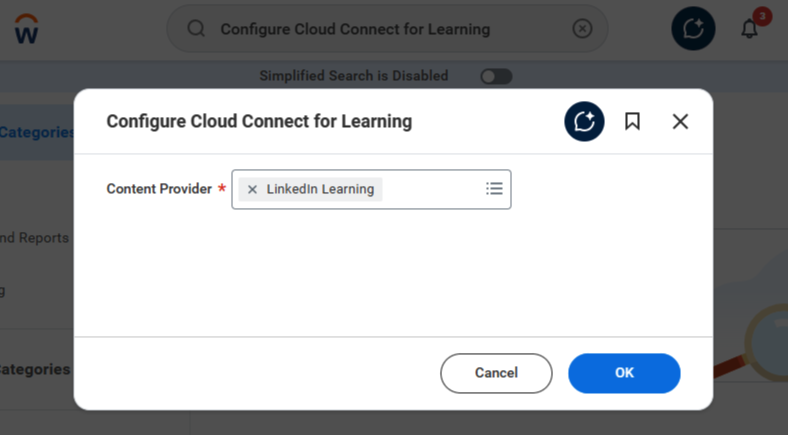
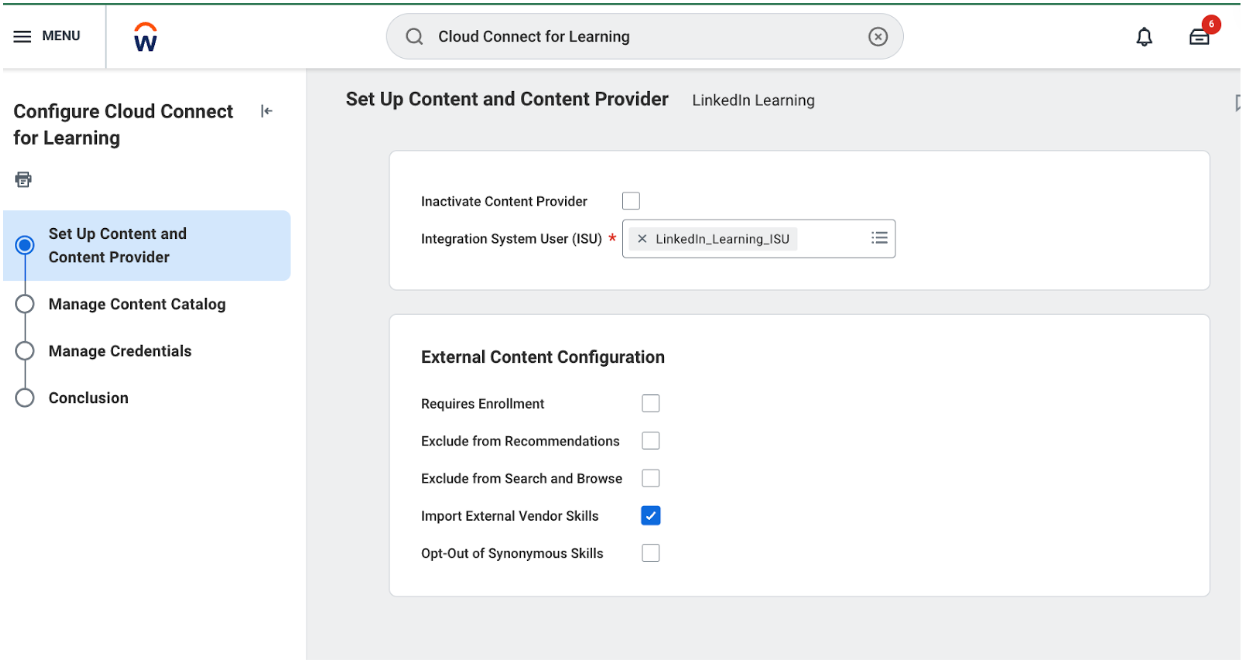
You will be directed to the Setup Content and Content Provider task. A flow of subsequent tasks will appear on the left-hand side.
Enter the following information:
Inactivate Content Provider: Unchecked ◻️
Integration System User: Select the CCL ISU you have configured. The example below shows "wd-implementer / Workday Implementer" but you should select the CCL ISU that you configured.
Requires Enrollment (Optional): Unchecked ◻️
Exclude from Recommendations: Unchecked ◻️
Exclude from Search and Browse: Unchecked ◻️
Import External Vendor Skills: Checked ✅
Note
If you do not have Workday Skills Cloud, you may not see this option. Customers should confirm with their Workday representative whether Workday Skills Cloud is available in their tenant.
Reminder: After checking Import External Vendor Skills, make sure to apply the same selection in the corresponding configuration on LinkedIn Learning. The settings must remain consistent between the Workday CCL configuration and LinkedIn Learning.
Opt-Out of Synonymous Skills: Unchecked ◻️
Click Next. (Once you complete the above steps, the configuration should look like the example below.)
Step 3: Manage Content Catalog
You will be directed to the Manage Content Catalog task.
Select a Default Learning Topic. The example below shows “LinkedIn Learning” as the topic, but you should select the topic that makes the most sense for your organization.
Click Next.

Step 4: Manage Cloud Connect for Learning Credentials
Enable the Generate Credentials toggle and click Next. If you previously completed this configuration, it will say Regenerate Credentials instead.

After generating credentials, the following will be displayed:
Client ID
Client Secret (Note: Save this secret for future use; it won't be available after initial setup.)
Auth URL
Content URL
Tracking URL
Click Next to display the Conclusion Screen.
Click OK to complete the flow.
Important
Credentials will not be valid if you do not complete all of the steps above.
Result:
Your tenant is now configured to accept API requests from external systems. You have generated the URLs and credentials needed for communication with the CCL Self-Service API.
Step 5: Integrate Workday CCL with LinkedIn Learning
Log in to LinkedIn Learning Admin (select Go to Admin from the Learner Experience).
From the left rail, click Settings > Integration > Configure content push and reporting integrations.
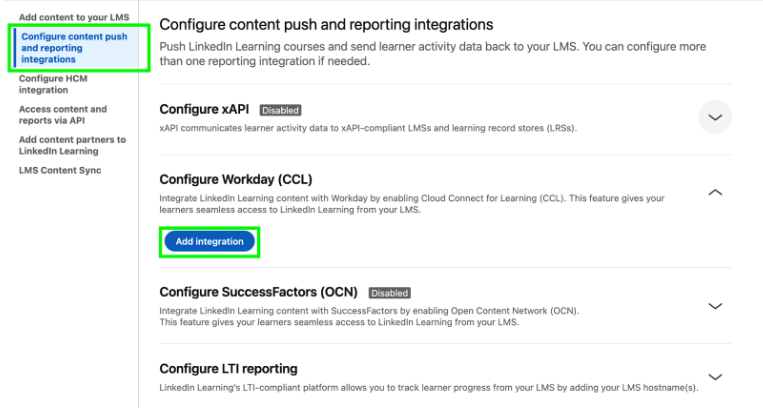
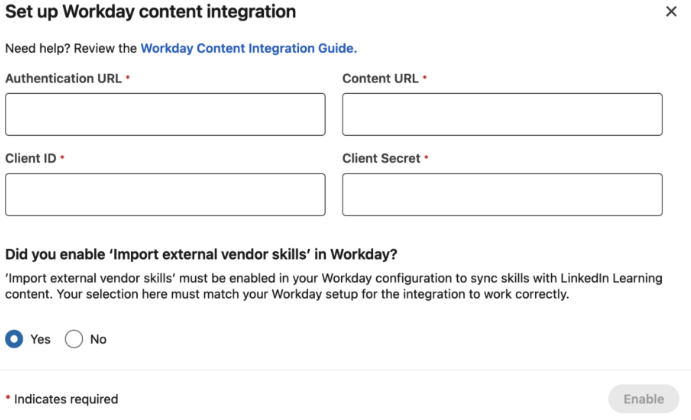
Click Add Integration under Configure Workday (CCL).
Provide the Authentication URL, Content URL, Client ID, and Client Secret generated in Workday CCL.
Answer "Yes" to Did you enable 'Import external vendor skills' in Workday? Your selection here should match your Workday setup.
Click Enable
Step 6: Enable xAPI Learner Activity Tracking in LinkedIn Learning
To ensure accurate learner activity tracking between LinkedIn Learning and Workday CCL, follow the below steps:
Navigate to xAPI Integration Setup in LinkedIn Learning
- In LinkedIn Learning Admin, go to the left rail and click Settings > Integration > Configure content push and reporting integrations > Configure xAPI.

Add xAPI Integration
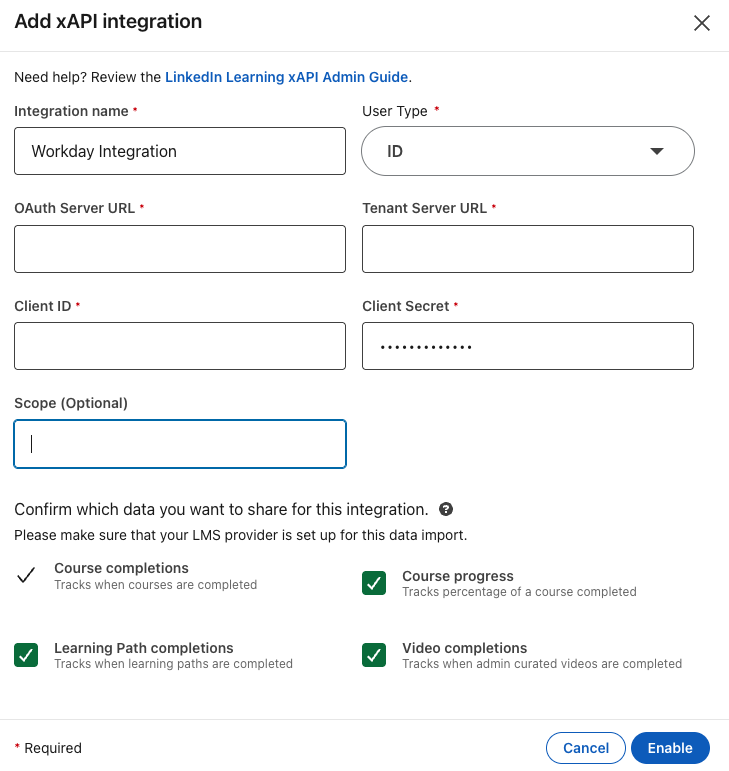
Click Add Integration
Set the Integration Name.
In the User Type drop-down, select Email or ID. The Email value must match the email address value in Workday. While the ID value (unique_user_id within LinkedIn Learning) must match the username value in Workday. Please reach out to Workday support if you need help identifying this value.
Configure OAuth and Tenant URLs
OAuth Server URL: Enter the Auth URL generated in Workday CCL.
Tenant Server URL: Enter the Tracking URL generated in Workday CCL.
Enter Provider Credentials
Client ID: Enter the Client ID generated in Workday CCL.
Client Secret: Enter the Client Secret generated in Workday CCL.
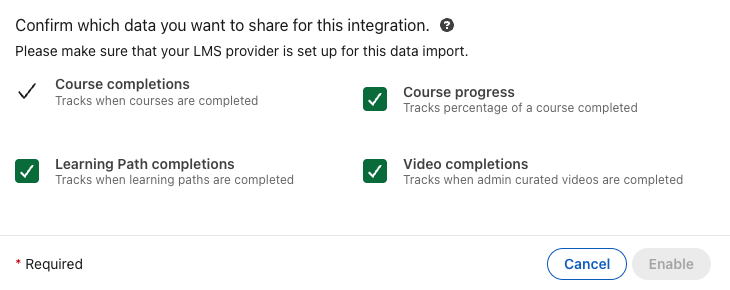
Select Data Scope
Select which detailed metrics to share with Workday.
Course completions (Default Checked) ✅
Learning Path completions: Checked ✅
Course progress: Checked ✅
Video completions: Checked ✅
Select "Yes" to "Is this xAPI integration for Workday Cloud Connect for Learning (CCL)?". Once everything is configured correctly, it should look similar to the example below.

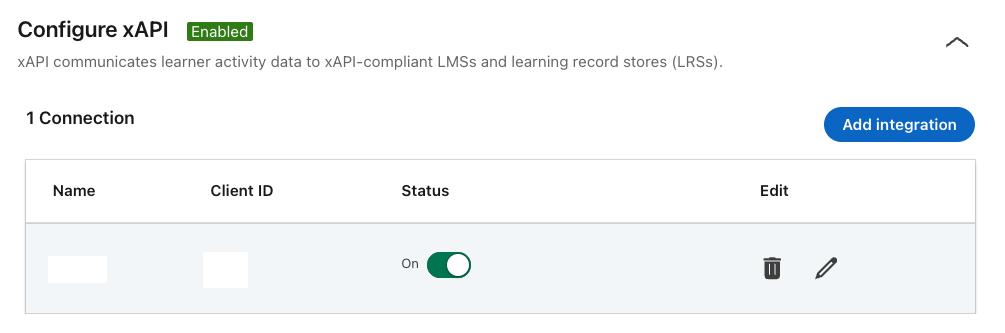
Click Enable to activate the integration.
Conclusion
You have successfully configured Workday CCL integration with LinkedIn Learning. Your system is now set up for automated content sync, Workday skill mapping, and learner activity tracking.
Please complete the Integration Success Checklist to confirm all the content types, metadata, and filters are syncing correctly.
Congratulations! Your learners can now access LinkedIn Learning content via their Workday instance.
Workday Troubleshooting & Tips
Save your Client Secret Securely; it cannot be retrieved after initial setup.
Default Learning Topic can be changed later for more granular content assignment.
To re-trigger a full content sync, delete the Workday CCL integration in LinkedIn Learning, re-add it, and enable it. This should trigger a full resync.
If upgrading integration from existing Workday deep integration, please note the following:
- Delete existing xAPI configuration in LinkedIn Learning and create a new xAPI integration
- Disable the current course catalog sync in Workday prior to configuring the new CCL integration to ensure that courses are not duplicated.
Admin-created custom learning paths and collections in the LinkedIn Learning content library are not synced from LinkedIn Learning to Workday.
If Workday does not have the Workday Skills Cloud SKU, during configuration leave the "import external vendor skills" option unchecked and the corresponding setting in LinkedIn Learning unchecked.
For further assistance, contact Workday’s customer support. You must register as a Workday member to receive technical support.
LinkedIn Learning Resources
Questions
For LinkedIn Learning configuration questions, reach out to your dedicated Customer Success Manager.