Note
Access to this page requires authorization. You can try signing in or changing directories.
Access to this page requires authorization. You can try changing directories.
Note
The new profile assignment and channel experience is rolling out gradually and might not be available in your tenant right away. If this experience isn’t available in your tenant, see Channel to profile mapping and Switch device update channel for profile assignment and channel management.
Profile assignment defines which devices cloud update manages. Profiles exist for Current Channel and Monthly Enterprise Channel. A profile becomes active when one or more groups are assigned to it.
Channel management is part of profile assignment. When an eligible device is assigned to a profile, cloud update will change the device’s target update channel to match the profile. This behavior helps you move devices between supported update channels without using a separate channel-change workflow.
This article explains how to assign devices to profiles, move devices between update channels, resolve profile conflicts, offboard devices, and choose a profile assignment approach for common deployment scenarios
Assign devices to a profile
Use device selection criteria to define which devices are managed by a profile. You don’t create profiles or manually enable them. Instead, you assign Microsoft Entra groups or built-in channel groups to an existing profile.
- Devices must be available in Inventory before cloud update can onboard them.
- You can assign profiles by using Microsoft Entra groups or built-in channel groups:
- Microsoft Entra groups are created and maintained by admins. Use these groups to target specific users or devices, such as a pilot group, a department, or devices that are already managed through an existing group strategy.
- Built-in channel groups are dynamic groups created by cloud update and represent devices by their current update channel in Inventory, such as Current Channel or Monthly Enterprise Channel. Use these groups to onboard devices that are already on a specific channel or to move devices in bulk by assigning them to a destination profile.
- Cloud update evaluates group membership at least once per day.
To assign devices to a profile, follow these steps:
- Sign in to the Microsoft 365 Apps admin center with an account that has permission to manage cloud update.
- In the left navigation, expand Cloud Update, and then select the profile that you want to manage.
- On the profile page, select the Settings tab.
- Select Device selection criteria.
- Select + Add groups to add Microsoft Entra groups or select + Add channels to add built-in channel groups.
- Select the groups that contain the users or devices that you want to onboard and manage with the profile.
- Select Save.
Move devices to another update channel
Each profile maps to an update channel. If an eligible device is assigned to a profile and the device isn’t already on that profile’s update channel, cloud update changes the device’s target update channel to match the profile.
- Use the destination profile for the channel you want devices to move to.
- Use the same configuration steps that you use to assign devices to a profile. The difference is that you select the destination profile for the update channel that you want devices to use.
- Group-based profile assignment replaces the previous Switch device update channel control.
- After the target update channel is changed, the device continues to be managed by the destination profile.
To move devices to another update channel, use the steps in Assign devices to a profile and choose the destination profile that matches the update channel that you want the devices to use.
Profile conflict resolution
If a device is assigned to multiple profiles, cloud update applies the following rules in order:
- Microsoft Entra group assignment has the highest priority.
- For example, if a device is included in both the Current and Monthly Enterprise profiles, and is also a direct member of a Microsoft Entra group assigned to the Monthly Enterprise profile, the device is managed by the Monthly Enterprise profile and set to Monthly Enterprise Channel.
- The faster update channel has the next priority.
- For example, if a device is included in multiple profiles through built-in channel groups, the device is managed by the profile associated with the faster update channel.
Offboard devices from a profile
Cloud update offboards a device from a profile when the device no longer matches any profile assignment. To offboard a device, remove all group references that include the device or the signed-in user from all profiles. After the device is offboarded, it returns to the next highest-priority management source for Microsoft 365 Apps.
Exclusions are a separate control from profile assignment. Use exclusions when you want to prevent a group of users or devices from being managed by cloud update. For more information, see Configure exclusions.
Common setup scenarios
Choose one of the following common setup scenarios to learn more:
- Pilot cloud update
- Onboard existing devices by update channel
- Move devices to a different update channel
You can combine these approaches. For example, you can use built-in channel groups to onboard existing devices by update channel, and then use Microsoft Entra groups to move specific users or devices between update channels.
Pilot cloud update
Use a Microsoft Entra group to onboard a small set of users or devices first. This approach lets you validate Cloud Update before expanding to a larger rollout.
To start with a pilot group, follow these steps:
- Create a Microsoft Entra group and add the users or devices that you want to include in the pilot.
- In the Microsoft 365 Apps admin center, expand Cloud Update, and then select the profile that you want to manage.
- On the profile page, select the Settings tab.
- Select Device selection criteria.
- Select + Add groups, add your Microsoft Entra group, and then select Save.
The following screenshot shows an example of this configuration:
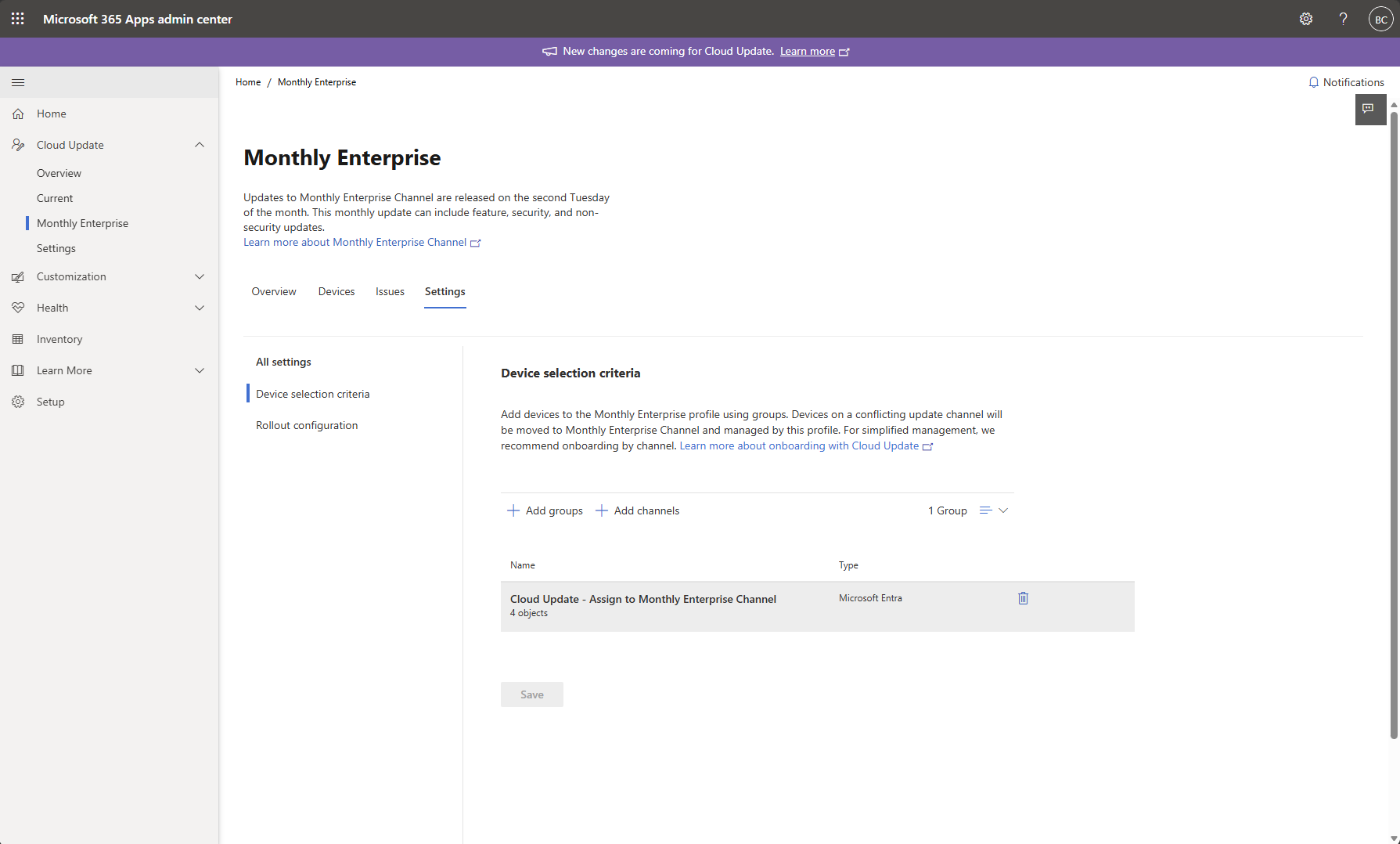
If devices in the pilot group aren't already on the profile's update channel, cloud update changes their target update channel to match the profile. As you expand your deployment, add more users or devices to the Microsoft Entra group.
Onboard existing devices by update channel
Use built-in channel groups to onboard devices already on Current Channel or Monthly Enterprise Channel. This ensures that their current update channel doesn’t change. New devices discovered in inventory on these update channels are then automatically onboarded, reducing the need to manage Microsoft Entra group membership.
To onboard existing devices by update channel, follow these steps:
- Open the Current Channel profile and go to Settings > Device selection criteria.
- Select + Add channels, add the Current Channel group, and then select Save.
- Open the Monthly Enterprise Channel profile and go to Settings > Device selection criteria.
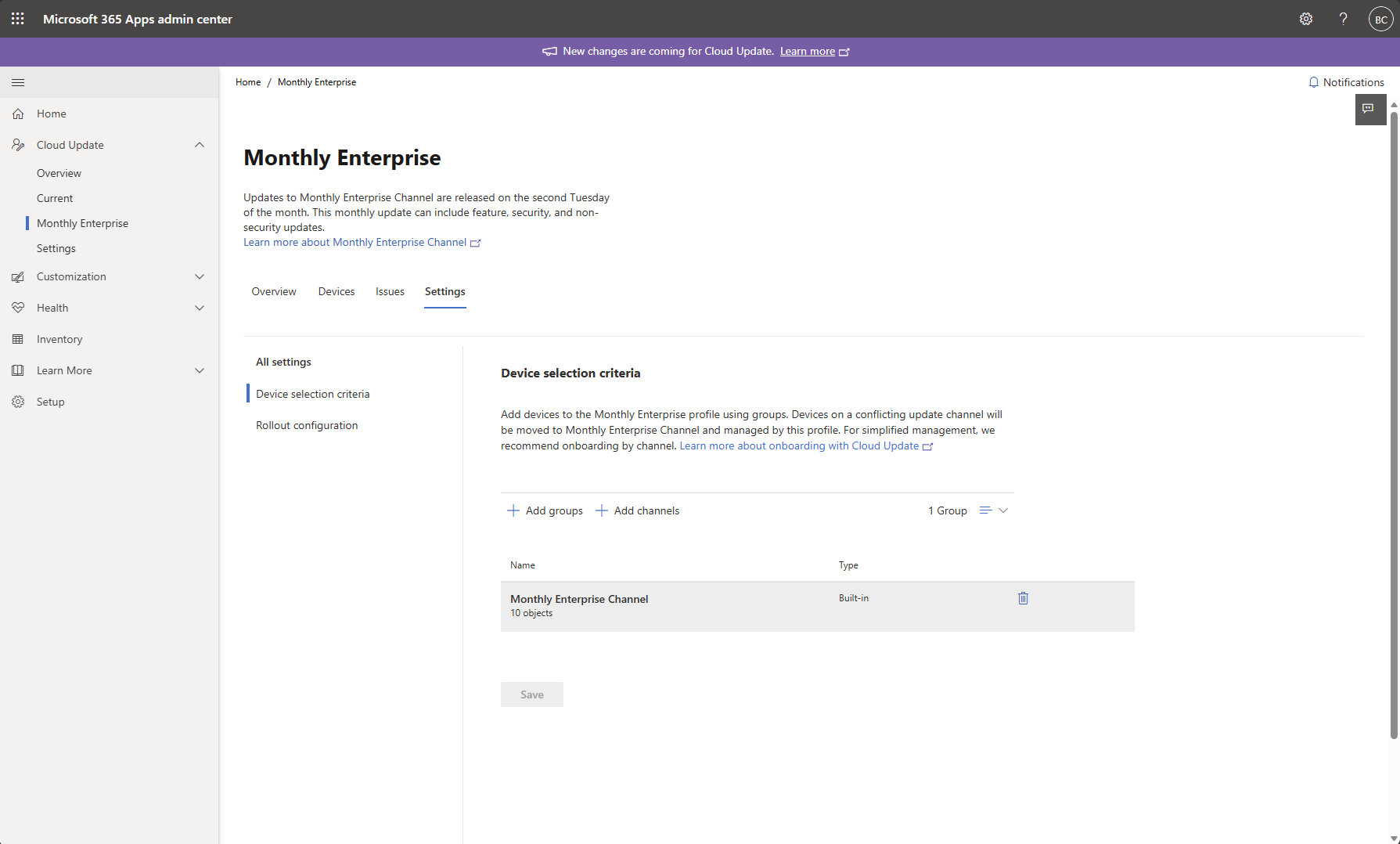
- Select + Add channels, add the Monthly Enterprise Channel group, and then select Save.
The following screenshot shows an example of this configuration:
Move devices to a different update channel
Use Microsoft Entra groups or built-in channel groups to move eligible devices to another update channel. Assign the group to the destination profile. Devices in the group that don't match the profile's update channel have their target update channel changed to match the profile and are managed by that profile.
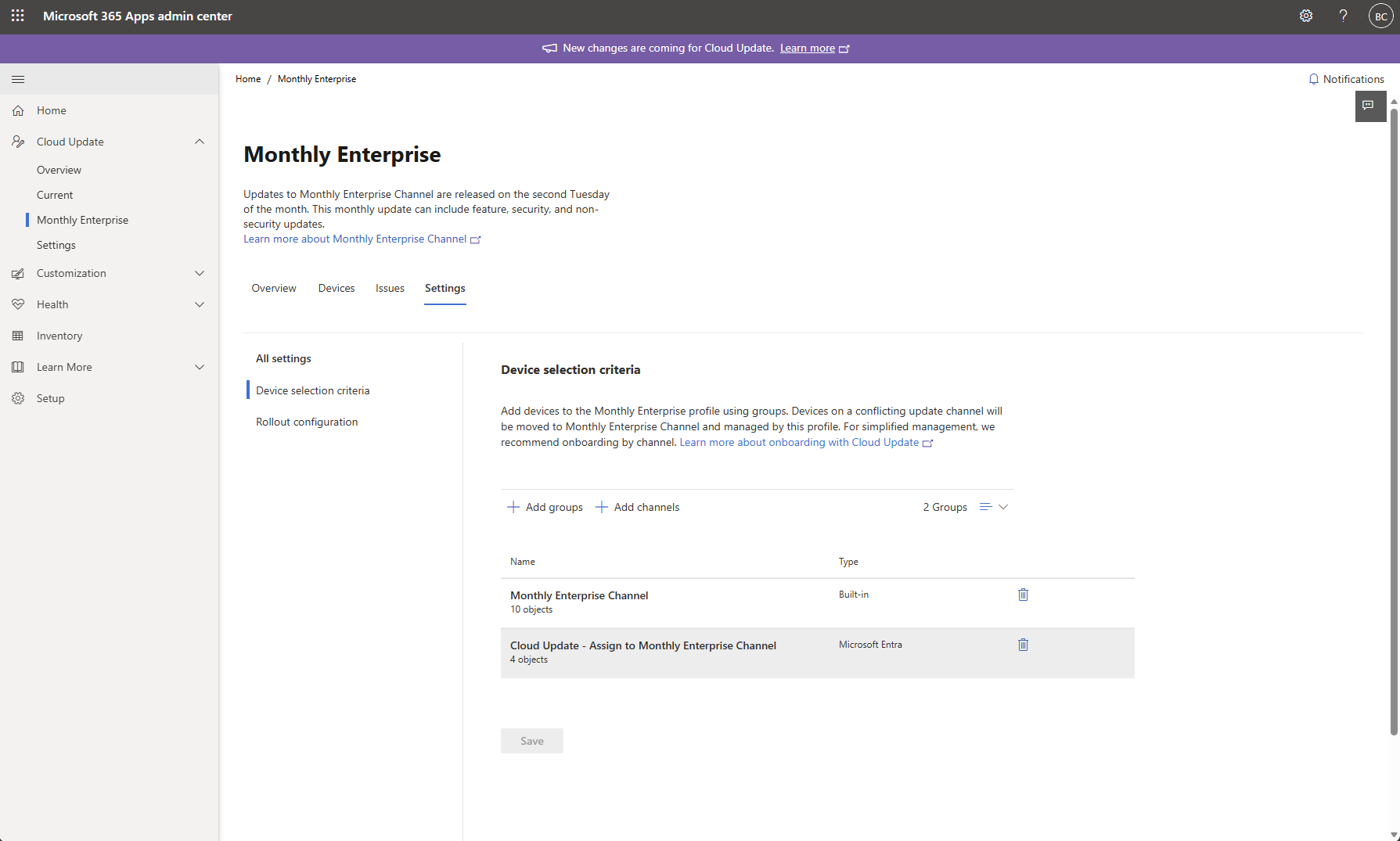
The following screenshot shows an example of this configuration. The Monthly Enterprise Channel built-in group automatically includes devices that are already on Monthly Enterprise Channel. The Cloud Update - Assign to Monthly Enterprise Channel Microsoft Entra group provides a mechanism to move additional devices to Monthly Enterprise Channel by managing group membership.