Note
Access to this page requires authorization. You can try signing in or changing directories.
Access to this page requires authorization. You can try changing directories.
Use the Overview, Devices, and Issues tabs in cloud update to monitor update progress for Microsoft 365 Apps. These views help you confirm that devices are moving through the rollout as expected, identify update issues that need attention, and review device-level details when you need to investigate a specific device.
Monitor update progress
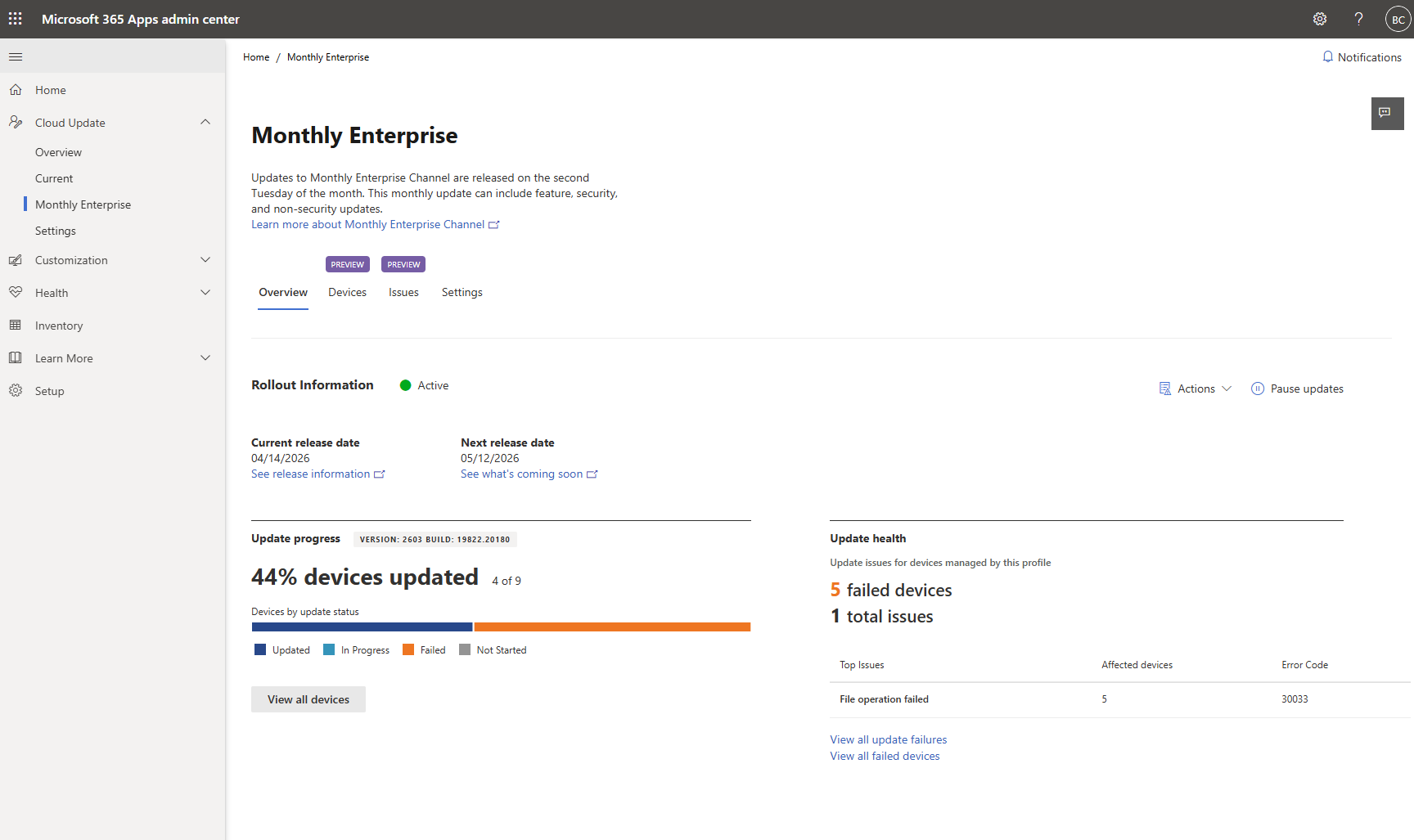
Update progress shows the rollout status for devices managed by the selected cloud update profile. Use this view to understand how many devices are updated, in progress, failed, or not started for the latest release. You can use the progress summary to validate rollout activity, identify devices that are falling behind, and decide when to review device-level details.
Review rollout waves
Note
Enhanced rollout waves is rolling out gradually and might not be available in your tenant right away. If this experience isn’t available in your tenant, see rollout waves for guidance on the existing experience.
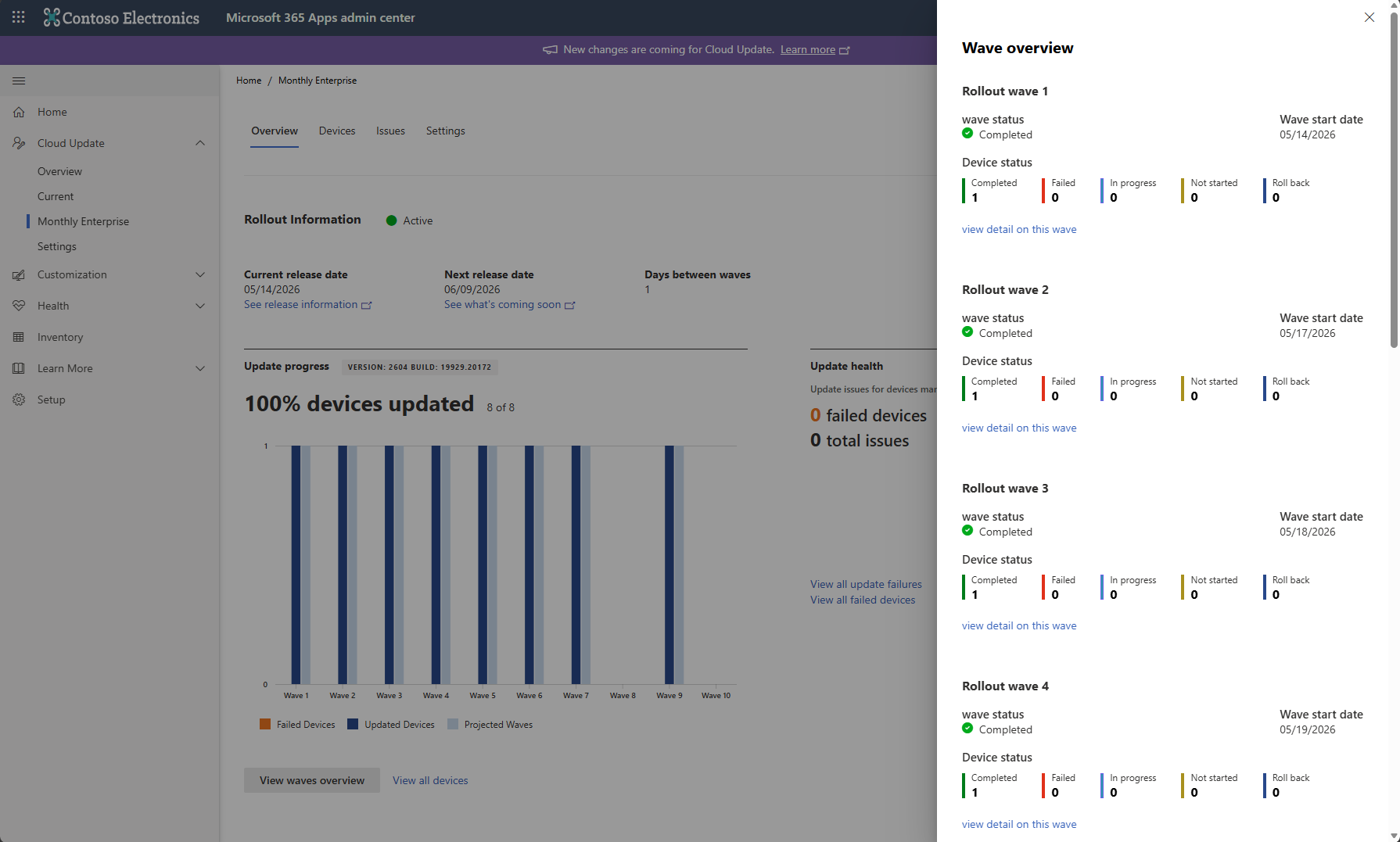
If rollout waves are configured for the profile, use waves overview to review how devices are distributed across waves and when each wave is scheduled to start. Waves overview helps you confirm that the rollout is following the expected schedule and that devices are assigned to the correct wave before or during the update rollout.
From the Overview tab, select View waves overview to open the flyout. The flyout shows wave details, including the wave name, start date, device count, and rollout status for each wave. Use this information to track wave-level progress, identify waves that have not started, and determine whether a device is expected to update based on its assigned wave.
Note
In some cases, a device in a later wave can show a completed status before its scheduled wave starts. This status can occur when the device is already up to date when it onboards to cloud update, when an online repair updates the installation, or when the Office Deployment Tool changes the installation and triggers an update.
Monitor update health
Update health helps you identify and resolve update issues for Microsoft 365 Apps. Many update issues are temporary and resolve after the device retries the update. Use update health to find devices that repeatedly fail, understand what is preventing the update from applying, and determine whether an issue requires admin action.
The update health card is available on the Overview tab for each cloud update profile. The card summarizes active update issues for devices in the profile, including the number of affected devices and the top issue detected. Use this card to quickly confirm whether updates are progressing normally or whether a subset of devices needs further review.
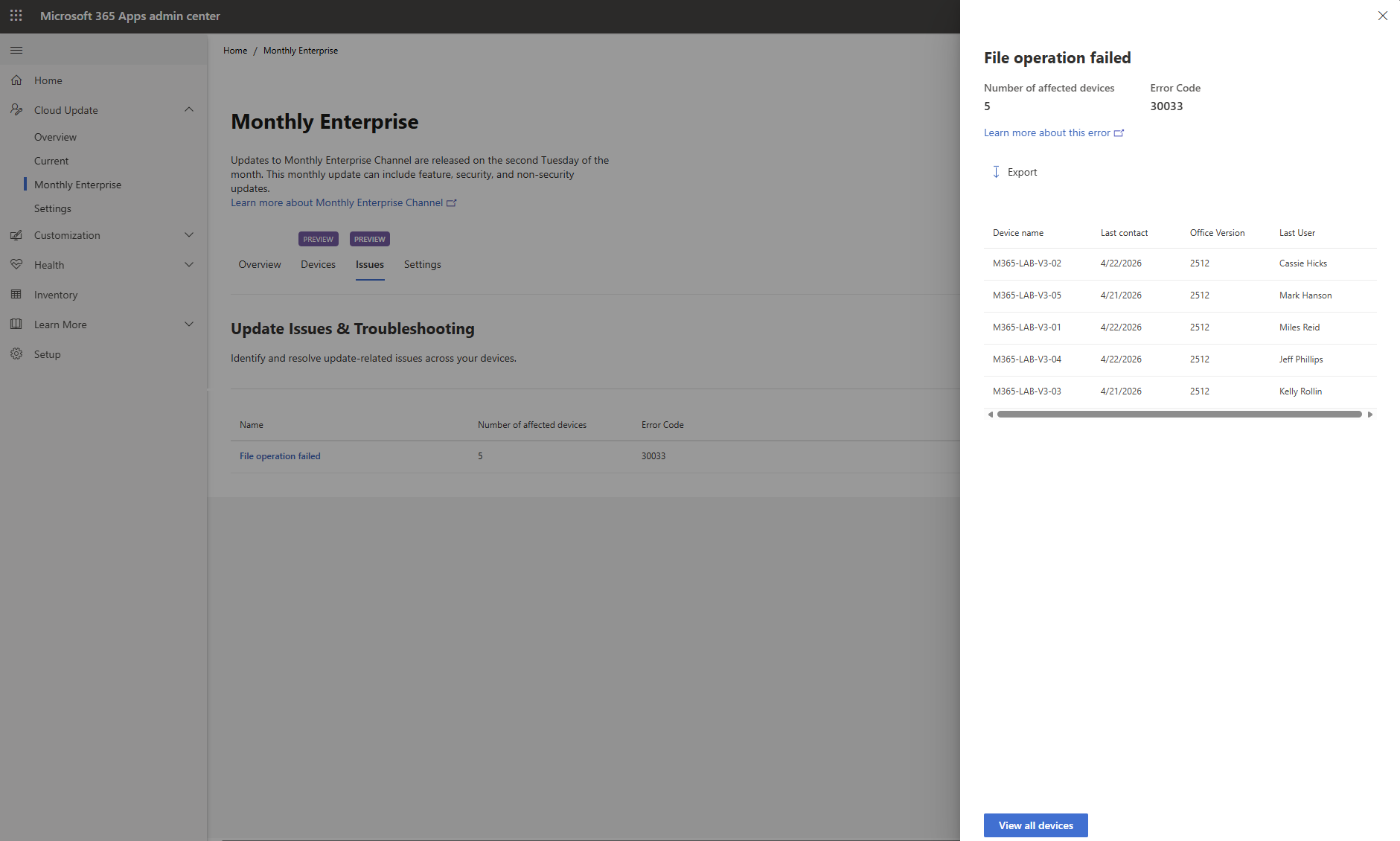
Use the Issues tab to review update issues across devices in the selected profile. The Issues tab groups devices by issue and shows the number of affected devices, the error code, and a description of the issue. Select an issue to open a details pane that lists the impacted devices, provides an option to export the device list, and includes a link to the Office update troubleshooting article. Use this view to understand the scope of an issue, identify common failure patterns, and prioritize which issues to investigate first.
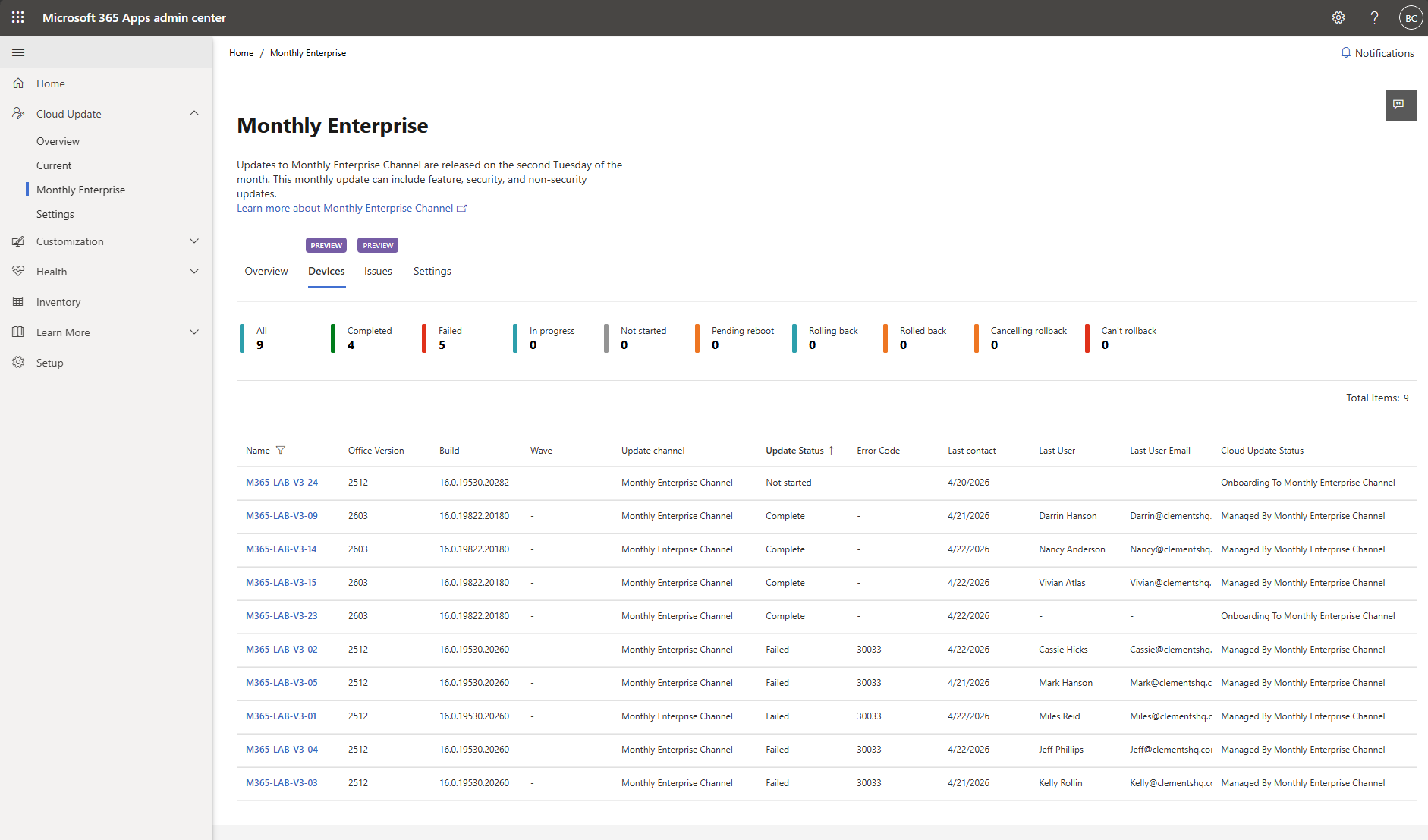
Use the Devices tab to review all devices managed by the selected profile. The Devices tab includes status summaries, filters, and sortable columns that help you narrow the device list by update status, version, update channel, rollout wave, error code, last contact time, or other device details. Use this view to validate rollout progress, find outliers, and drill down to a specific device when you need more information for troubleshooting.