Note
Access to this page requires authorization. You can try signing in or changing directories.
Access to this page requires authorization. You can try changing directories.
Important
This feature is available within Microsoft 365 admin center based on licensed subscription. To view your licensed subscriptions in the Microsoft 365 admin center, select Billing > Licenses > Subscriptions. For more information, see Licensing for agent management.
Agent Map in the Microsoft 365 admin center gives IT and AI admins a visual way to understand and manage the agents running in their tenant. Instead of relying only on list-based views, Agent Map groups agents by the platform they were created on, making it easier to interpret large agent estates and spot adoption patterns at a glance.
Use Agent Map to explore your organization's agent landscape, filter to specific subsets (such as ownerless agents), and drill into individual agents to review key details like ownership, configuration, and activity. You can also view how agents relate to each other, helping you understand dependencies and interactions as your agent footprint grows.
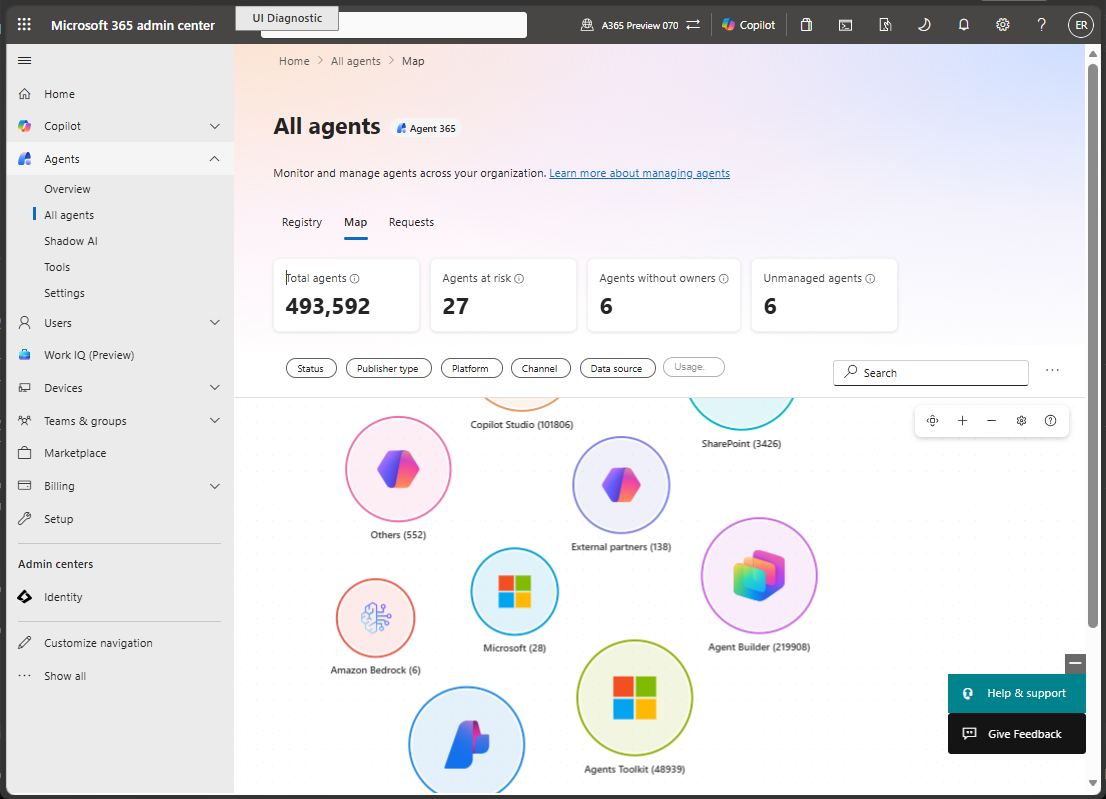
You can use the Agent Map to address what needs your attention, rather than agent inventory details. Use the Agent Map accomplish the following actions:
Spot patterns fast by identifying clusters of agents across your tenant.
Slice the map with built-in filters to focus on the agents that matter right now. Filter by Status, Publisher type, Platform, Channel, Data source, or Usage.
Note
Usage is supported via Agent365 observability data for tenants with below 4,000 agents.
Track key signals at a glance with high-level metrics and agent-level indicators.
Drill into any agent to review important details such as publisher, type, platform, version, and connectivity.
The Map complements the Registry by offering a more visual and scalable solution for environments with large numbers of agents.
View Agent Map
Use the following steps to view the Agent Map:
- Sign in to the Microsoft 365 admin center.
- In the left navigation pane, select Agents > All Agents > Map.
When you select the Map tab, the map loads agents from your tenant and displays them as icons grouped by platform and other metrics.
Agent Map is available to all Microsoft Copilot administrators with an E7 (Agent 365) license. To access the Agent Map, your role must be either a Global Administrator or an AI Administrator. For more information about agent management roles, see Agent management roles and permissions.
Agent Map clusters
By default, Agent Map clusters agents by the platform or by the builder the group of agents were created by. Each cluster appears as its own group on the map, so you can quickly view how agents are distributed across your environment.
| Cluster | What agents appear here |
|---|---|
| Microsoft Copilot Agent Builder | Agents built using the Microsoft Copilot Agent Builder tool |
| Copilot Studio | Agents built using Microsoft Copilot Studio |
| Copilot Studio Legacy | Agents built using an earlier version of Copilot Studio |
| Microsoft 365 Agents Toolkit | Agents built using the Microsoft 365 Agents Toolkit (formerly Teams Toolkit) |
| SharePoint | Agents built using SharePoint |
| Azure AI Foundry | Agents built using Azure AI Foundry |
| Amazon Bedrock | Agents built using Amazon Bedrock |
| Google Vertex AI | Agents built using Google Vertex AI |
| Microsoft | First-party agents built and maintained by Microsoft |
| External Partners | Third-party agents from external publishers not associated with a known builder |
| Others | Any agents that don't match a known platform or publisher |
Agent Map summary
The Agent Map provides summary details about the agents your organization has available. These summary details are provided as cards and can be selected to provide a mutual exclusive summary. However, the dropdown filter selections, below the cards, can be combined independently. The following table describes each card:
| Tenant-wide agent details | Description |
|---|---|
| Total agents | The number of agents available in your organization's tenant that can be activated, used, or shared. |
| Agents at risk | The number of agents with at least one high security risk detected through your security platforms. |
| Agents without owners | The number of agents that no longer have owners at your organization. |
| Unmanaged agents | The number of agents created or managed outside of Agent 365, without its risk protection and observability. |
Agent map filtering and search
You can find specific agents quickly by name, using the search bar at the top of Agent Map. You can also refine what you're looking at with filters that reshape the map around what matters.
The following table provides filter details:
| Filter group | Filters | Description |
|---|---|---|
| Status |
|
Narrows the view by how widely an agent is currently available in your tenant. This view can show a limited rollout to a fully blocked or unavailable view. |
| Publisher type |
|
Lets you slice the map by who published or distributed the agent, allowing you to separate first-party, third-party, and internally produced agents (including creator-shared agents). |
| Platform |
|
Groups agents by the platform they were built on to help you understand build provenance, tooling trends, and governance coverage across your estate. |
| Channel |
|
Filters agents by where users encounter them, so you can investigate exposure and adoption by host product. |
| Usage | Active users: Top 100 by users, Inactive Total sessions: Top 100 by sessions, No sessions Exception rate: Has exceptions (>0%), No exceptions Assisted hours: Has assisted hours, No assisted hours Security alerts |
Highlights agents by recent usage and reliability signals so you can prioritize high-impact agents, find unused ones, and spot agents that may need attention. |
Note
For performance reasons, the Usage/Observability filters are currently available only for tenants with fewer than 4,000 users. Usage is based on agents reporting activity via Agent 365.
Export agents
You can export the full list of agents displayed in the Agent Map to an Excel file. Select Export to download agent details for reporting, auditing, or compliance purposes.
Agent Map features
The Agent Map provides controls to help you navigate the map.
- Zoom In/Out: Adjust the map view for closer inspection or broader visualization.
- Keyboard shortcuts: Provides a key to Keyboard shortcuts. You can select this option to see navigation, zoom, selection and general keyboard shortcuts.
- Settings: Provides a slider to control the Max agents per platform in the Agent Map.
Single Agent Map (preview)
The Single Agent Map (preview) gives admins a connected view of one agent, the users who interact with it, and the tools it invokes. The experience uses Agent 365 observability data to help you investigate usage, identify exceptions, and understand activity flow.
Single Agent Map is currently available in preview and is subject to change.
What you can do
- Understand how a specific agent is used across your organization.
- Identify users with the highest interaction volume.
- See which tools the agent calls most often.
- Detect exception patterns and reliability issues.
- Review activity over the last 7 days or last 30 days (default).
What data appears in the map
The map is generated from telemetry for SDK-integrated agents and includes aggregated activity across sessions and interactions. Connection lines are weighted to show interaction volume, so thicker lines indicate more activity.
If a tool has an exception rate >1% during the selected time period, the line to that tool is highlighted.
Single Agent Map shows the top 50 users and top 50 tools for a selected agent.
You can select nodes to investigate details:
- Agent node: Review agent details and summary activity.
- User node: Open user details consistent with the existing Users experience in the admin center.
- Tool node: Review tool calls, exception counts, and last activity.
To see the full list of users for an agent, open the Activity tab in the agent side pane.
Note
Each reported interaction with a tool or server is counted as one tool call. Counts might be higher when multiple interactions occur during a single execution loop, such as initialization calls between an agent and a server.
Note
If Conceal user, group, and site names in all reports is enabled in your organization, user names are concealed in Single Agent Map. To show user names again, go to Org settings > Reports and clear that setting.
How to open Single Agent Map
- Sign in to the Microsoft 365 admin center.
- In the left navigation pane, select Agents > All Agents > Map.
- Select an agent that has observability data.
- In the agent view, review summary metrics such as users, sessions, and exceptions.
- Select All connections to open Single Agent Map.
Supported agent types
- Any agent that sends observability data to Agent 365. For more information about Agent 365 observability support, see Microsoft Agent 365 overview.
- This includes first-party Microsoft agents and agents built with Microsoft Copilot Studio.
Limitations (preview)
- The feature is in preview and might change.
- Insights depend on observability data availability.
- Knowledge signals aren't included yet.
When to use Single Agent Map
Use Single Agent Map when you need to investigate one agent's adoption, understand user interaction patterns, diagnose tool exceptions, or follow interaction flow between an agent, users, and tools.
Agent details
When you select an icon for a specific agent, you can see more details about the agent, including:
- Details:
- Description
- Publisher
- Agent type
- Platform
- Last updated
- Version
- Users
- Data and tools
- Security
- Activity
For more information about agent details, see Understand agent details in Microsoft 365 admin center.
Agent actions
From the Agent Map, you can take administrative actions directly on agents without leaving the map view. When you select an agent, the details pane opens and provides available actions based on the agent's current state.
Available actions are based on the state of the agent. Actions can include the following:
- Assign new owner - Assign an owner to an agent that currently has no active owner. You can only assign ownership to users with a Copilot license.
- Block - Blocks the agent from members of your organization. They won't be able to install or use the agent. Additionally, the agent will be removed from any member of your organization who has already installed it.
- Unblock - Restore access to a previously blocked agent.
- Install - Deploys and installs the agent to the selected users.
- Pin for users - The agent will be pinned in the UI (based on channel) where the agent was deployed, so that the agent can be found more easily. Based on the users or groups where the agent was deployed, you can specify who will have the agent pinned.
These actions are reflected in both the Agent Map and the Registry tab. For a full list of available admin actions, see Governance and Lifecycle actions for agents available in Microsoft 365 admin center.