Note
Access to this page requires authorization. You can try signing in or changing directories.
Access to this page requires authorization. You can try changing directories.
Important
Multi-tenant agent management is in public preview. Preview features might change before general availability. This article describes only the capabilities available in the public preview.
Multi-tenant agent management is a central control tower that lets partners and enterprise administrators govern agents across the tenants they administer from the Microsoft 365 admin center. With this experience, you can view agent inventory, add agents, install or block agents across multiple tenants, review risk and activity, and use the tenant switcher to move directly into a governed tenant without signing out or maintaining a separate account in that tenant.
Use the multi-tenant experience to reduce repetitive administration, maintain a consistent rollout posture, and prioritize remediation across governed tenants. Actions are applied to each selected governed tenant and are subject to the administrator's delegated role in that tenant.
Before you begin
Make sure the following requirements are met:
The governing tenant has an active relationship with at least one governed tenant. Partners establish GDAP relationships in Partner Center. Enterprises establish governance relationships through Microsoft Entra Tenant Governance. Learn more about What is Microsoft Entra Tenant Governance? (preview).
Important
Microsoft Entra Tenant Governance is not same as Multitenant Organisations (MTO) in Microsoft 365.
The signed-in administrator has a supported delegated role in each governed tenant. Access and available actions can differ by tenant if role assignments differ.
Risky-agent security information and agent activity are available only for users who are licensed with Microsoft Agent 365.
Who should use this experience
- Microsoft partners that manage customer tenants through Granular Delegated Admin Privileges (GDAP).
- Enterprises that manage multiple tenants through Microsoft Entra Tenant Governance.
Terminology
| Term | Meaning |
|---|---|
| Governing tenant | The tenant from which administrators centrally view and manage agents in other tenants. |
| Governed tenant | A tenant whose agents can be viewed and managed by authorized administrators in the governing tenant. |
| GDAP | Granular Delegated Admin Privileges. Partners and enterprises can use GDAP to receive time-bound, role-scoped access to managed tenants. |
| Governance relationship | A CSP relationship established by partners with their customer tenants, or a directional Microsoft Entra Tenant Governance relationship between a governing tenant and a governed tenant. |
How multi-tenant management differs from single-tenant management
Multi-tenant agent management extends the single-tenant experience by consolidating inventory, navigation, rollout, governance, and response across eligible governed tenants.
| Capability | Single-tenant agent management | Multi-tenant agent management |
|---|---|---|
| Scope | Shows agents and settings for the current tenant. | Shows a consolidated inventory across eligible governed tenants. |
| Tenant navigation | Requires the administrator to already be working in the tenant. | Uses the tenant switcher to move from the governing tenant into an eligible governed tenant in delegated context. |
| Agent rollout | Adds and installs an agent in one tenant. | Adds an agent to the inventory, and then installs it in all eligible governed tenants or a selected set. |
| Governance | Reviews and acts on one tenant's agent instances. | Surfaces tenant-level risk, permissions, and activity from one location. |
| Response | Blocks or changes availability in the current tenant. | Blocks an agent or updates its availability across selected governed tenants. |
Roles and permissions
Access to view and manage agents depends on the delegated role assigned in each governed tenant.
| Delegated role in the governed tenant | View agent inventory | Add, install, block, or change availability |
|---|---|---|
| AI Administrator | Yes | Yes |
| Global Administrator | Yes | Yes |
| Global Reader | Yes | No |
Important
Use the least-privileged role that completes the task. Global Administrator is a highly privileged role and should be limited to scenarios where a less-privileged role can't be used.
Tenant switcher
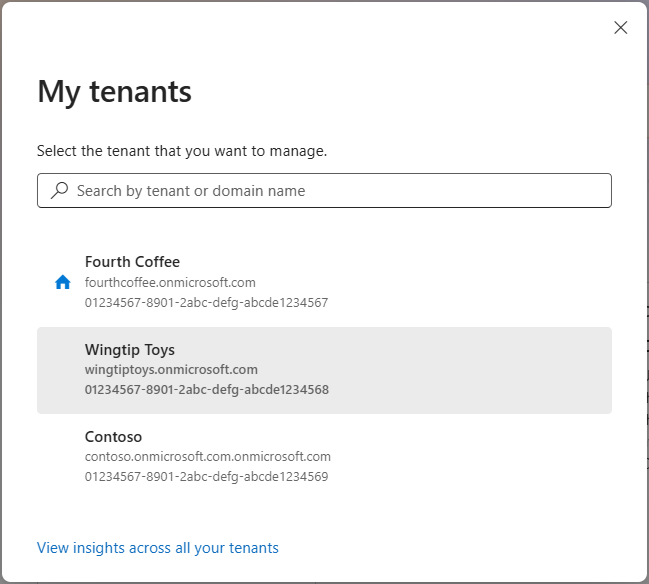
The tenant switcher is a key benefit for partners and enterprise administrators. It lets you move from the governing tenant directly into an eligible governed tenant and continue administration in that tenant's context. You don't need to sign out, use a separate browser session, or maintain a local administrator account in each governed tenant.
In the Microsoft 365 admin center command bar, select the tenant switcher next to the current tenant name.

Search for or select the governed tenant that you want to administer.
The Microsoft 365 admin center opens in the selected governed tenant by using your delegated access.
Use the tenant switcher again to return to the governing tenant or move to another governed tenant.
Use the tenant switcher when you need to work in one governed tenant. To return to the consolidated experience, use the tenant switcher to return to the governing tenant, and then select All tenants.
Multi-tenant agent experience
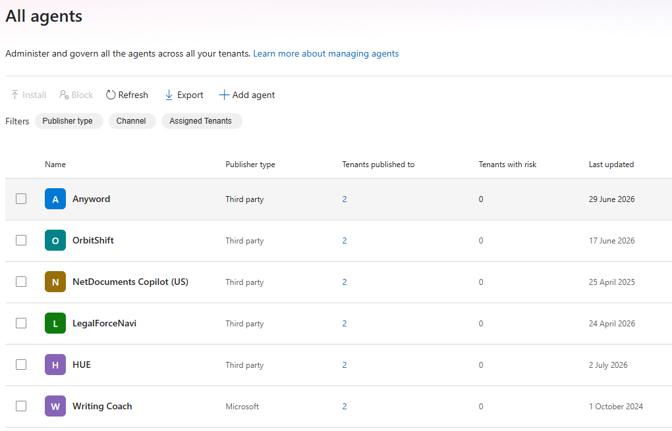
The multi-tenant agent experience opens the consolidated agent inventory from the governing tenant.
- Sign in to the Microsoft 365 admin center with an account in the governing tenant.
- Select All tenants > Agents.
The All tenants scope is only available when the governing tenant has at least one supported tenant relationship and the signed-in administrator has a supported delegated role.
View agents across tenants
The Agents page combines agent definitions with per-tenant deployment information. Use the summary cards, search, filters, and columns to identify agents that require attention.
- Total agents shows the agents discovered across eligible governed tenants.
- Risky agents highlights agents with security information that requires review.
- Assigned tenants shows where an agent is available. Select the tenant information to review the tenant instances.
Note
The public preview lets you work with all eligible governed tenants or any selected subset.
Add an agent
After reviewing the consolidated listing, an authorized administrator can add a custom agent to the agent inventory. Adding the agent makes it available for review and later installation in governed tenants; it does not automatically install the agent in other tenants.
- On the Agents page, select Add agent.
- Complete the steps shown in the Add agent pane for the agent that you are adding.
- Review the agent details and any permissions presented in the workflow.
- Complete the workflow, and then confirm that the agent appears in the Agents listing.
Review agent details
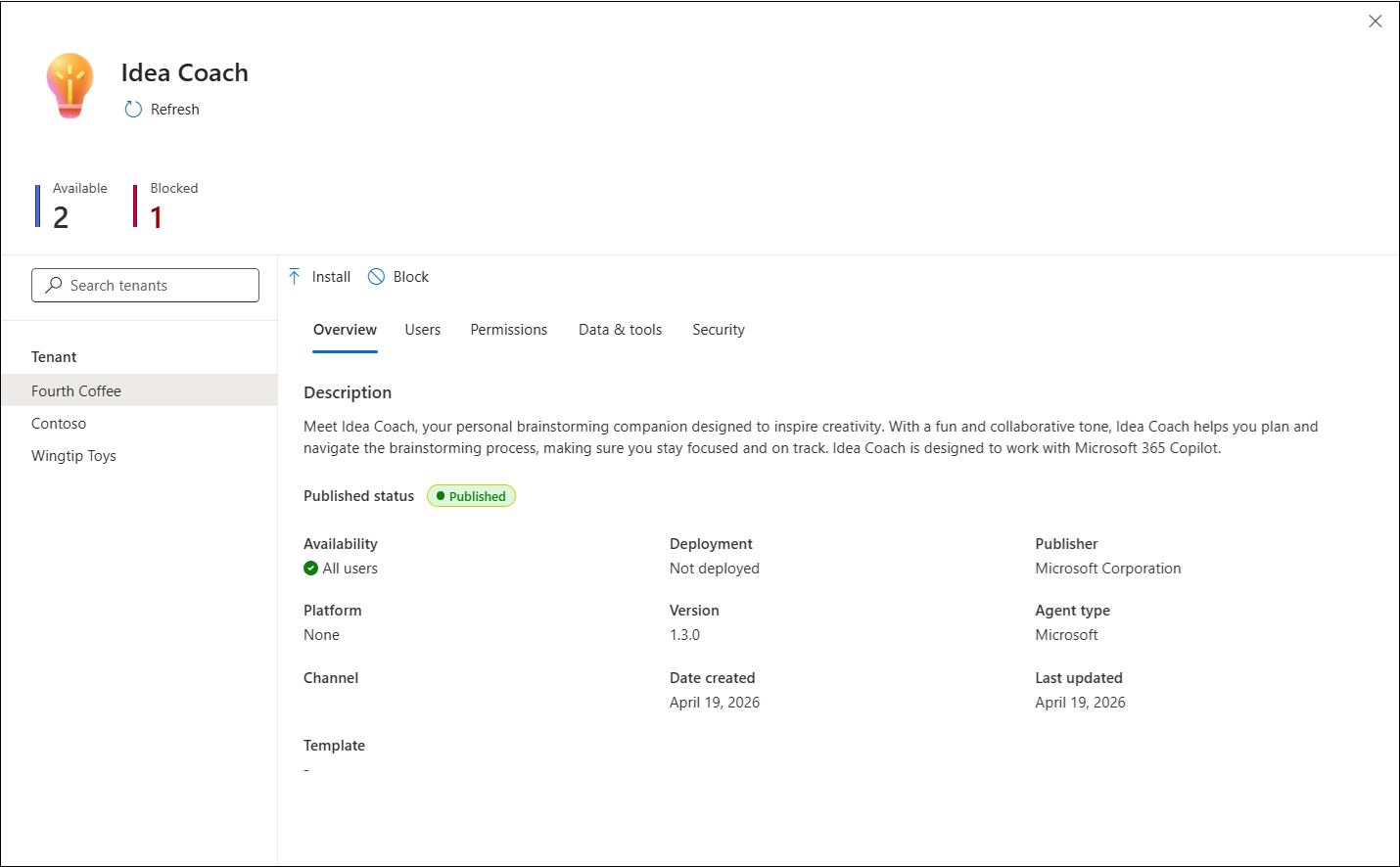
Agent status is tenant-specific. A single agent can have different availability, permissions, risk information, and activity in different tenants, so review the selected tenant before you take an action.
- On the Agents page, select an agent.
- In the details pane, select a governed tenant from the tenant list.
- Review the available tabs for that tenant instance, such as Overview, Data & tools, Security & compliance, Permissions, and Activity.
Take action for a specific tenant in agent details
Use agent details when an action should apply to one governed tenant instead of multiple tenants. Always confirm the selected tenant before applying a change.
- In the agent details pane, select the governed tenant that you want to manage.
- Review the tenant-specific availability, permissions, security information, and activity.
- Depending on the agent status and your delegated role, install or block the agent for the selected tenant, or update the users for whom the agent is available.
- Review the affected tenant and confirm the action.
Install an agent in other tenants from the listing
After an agent appears in the consolidated listing, use Install to make it available in other eligible governed tenants. You can install it in all eligible tenants or a selected set in one workflow.
- On the Agents page, select the agent, and then select Install.
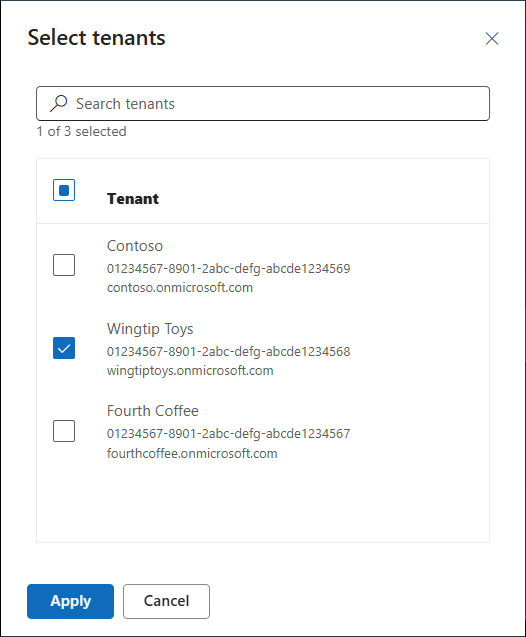
- Choose All tenants or Specific tenants. If you choose Specific tenants, search for and select the governed tenants.
- Review the agent configuration and required permissions for the selected tenants.
- Choose the users or groups that can use the agent in each selected tenant.
- Review the installation summary, and then select Install.
The exact configuration steps shown in the installation pane can vary by agent.
Block an agent across tenants
When an agent is unsafe, non-compliant, or no longer approved, block it in the governed tenants where it shouldn't run.
- On the Agents page, select one or more agents.
- Select Block.
- Select the governed tenants where the block should apply.
- Review the affected agent instances, and then confirm the action.
Blocking is applied separately in each selected governed tenant. Tenants where you have read-only access remain visible, but you can't apply the action in those tenants.
Review risky agents
Risk information is tenant-specific, so investigate the affected tenant before remediation.
- Select an agent, and then select an affected governed tenant.
- For risk investigation, open Security & compliance to review the available protection and policy information.
- Use the available links to continue the investigation in Microsoft Purview, Microsoft Entra, or Microsoft Defender, when shown.
- Block the agent in the affected tenants or take other remediation actions as appropriate.
Note
Risky-agent information in Security & compliance requires a Microsoft Agent 365 license for specific users.
Review agent activity
Use the Activity tab to understand adoption and operational behavior for the selected agent in the selected governed tenant.
- Select an agent, and then select a governed tenant.
- Open Activity.
- Choose the date range.
- Review total sessions, exceptions, active users, and last activity information.
- Select Export to CSV when you need to analyze the displayed activity outside the admin center.
Note
Agent activity requires a Microsoft Agent 365 license for specific users.
Example scenarios
Partner deployment across customer tenants
A managed service provider has active GDAP relationships with its customer tenants. An AI Administrator reviews the consolidated listing, adds an approved custom agent when needed, and installs it in the required customer tenants in one workflow. When tenant-specific follow-up is needed, the administrator uses the tenant switcher to move directly into the customer tenant. The partner avoids repeated sign-ins and rollout steps across customer admin centers.
Enterprise response to a risky agent
A central IT team uses a Microsoft Entra Tenant Governance relationship to oversee subsidiary tenants. The team filters the consolidated inventory for risky agents, opens the affected tenant instances, reviews Security & compliance, and blocks the agent in the tenants where remediation is required.
Public preview scope and considerations
- This article covers the tenant switcher and the multi-tenant Agents experience, including cross-tenant inventory, adding agents, installation, blocking, tenant-level details, risky-agent information, and agent activity.
- Available tenants and actions are determined by the active relationship, delegated role assignment, and licensing in each governed tenant.
- Preview user interface labels and workflow steps might change before general availability.