Note
Access to this page requires authorization. You can try signing in or changing directories.
Access to this page requires authorization. You can try changing directories.
When a member of your organization publishes an agent to your tenant, the agent requires administrator approval before becoming available tenant-wide. Administrators can review the agent's details, such as the description, owner, data, and tools, and then publish or reject it. On publishing, administrators can also scope its audience to specific users or groups, or everyone, ensuring a controlled rollout.
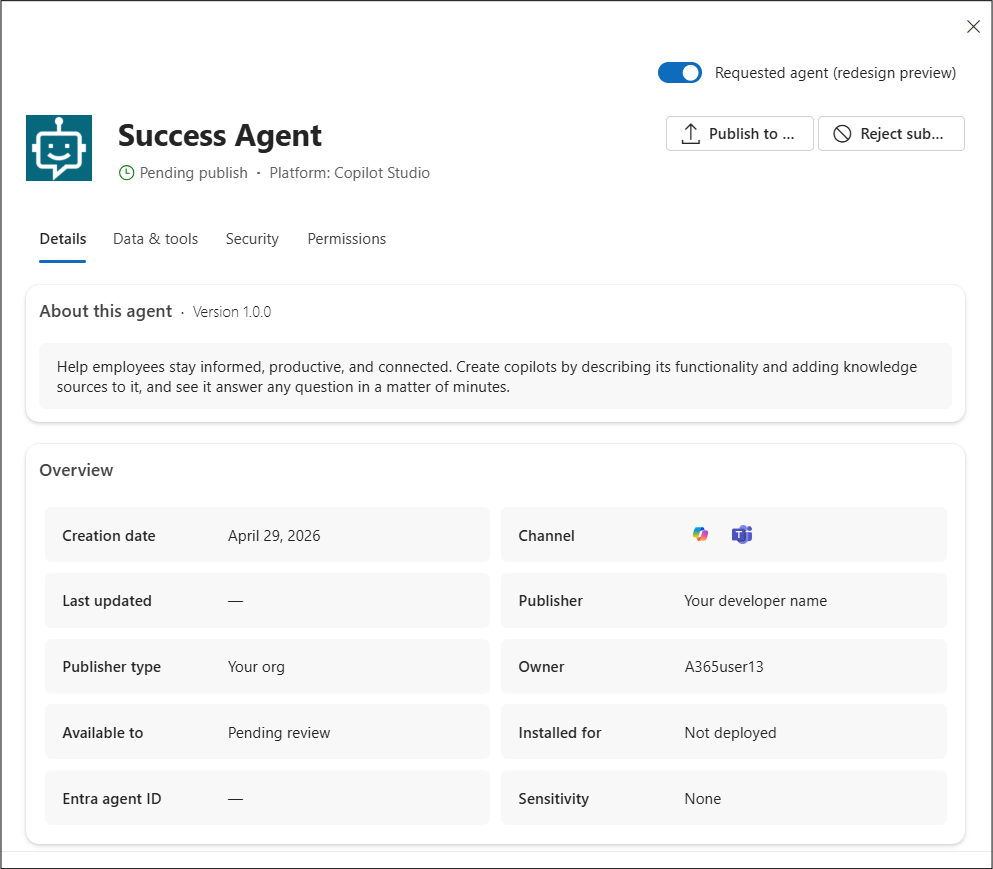
The Requests list of agents provides a view of agents that require your review and action. Members of your organization can request specific agents that need your review before an agent can be made available. For example, agents that members of your organization create by using Copilot Studio, Microsoft Foundry, or Microsoft 365 Agents Toolkit can be submitted for admin approval. When an agent is submitted for admin approval, Microsoft 365 admin center receives all metadata about an agent's definition. From the Requests list, you can select the agent to see the details about the agent to better understand the agent's capabilities, data sources, and custom actions before allowing the agent to be published to your organization.
Agent registry filters
The agent Requests view can contain a large list of agents that need your approval. You can filter the agent Requests list based on the following criteria:
- State - The state of the request, such as Pending activate, Pending review, or Pending update.
- Channel - The channel filter is the location where the agent is deployed. It's the surface through which members of your organization can discover and interact with the agent. Channel values include Microsoft Teams, Copilot, Office, Outlook, Word, Excel, or PowerPoint.
Tip
If you don't see the agents that you expect to see in the agent registry list, check to make sure you don't have an existing filter set.
The streamlined approval workflow makes it faster and easier for administrators to review, approve, and manage custom agents in the Microsoft 365 admin center.
Three kinds of requests show up under the Requests tab:
- Pending review
- Pending update
- Pending activate
Actions for requested agents
Select from two primary actions for a requested agent:
- Publish to store - When you're ready to publish a requested agent, you can select this action to start the agent publishing wizard. The wizard allows you to select users, protection policies, and any required permissions.
- Reject submission - After reviewing a requested agent's details, select this action if you don't want to make the agent available to your organization.
Requested agents pending review
When you submit an agent for admin approval, the Microsoft 365 admin center provides all metadata about the agent's definition. Select the Available tab to confirm the agent's capabilities, data sources, and custom actions before publishing the agent to your organization.
To view pending agent requests and act on those requests, use the following steps:
- Sign in to the Microsoft 365 admin center.
- Select Agents > All agents > Requests.
- Select the requested agent and view the agent's details.
Confirm the capabilities, data sources, security and permissions, and custom actions that the agent can invoke. - When you're ready, select Publish to store within the agent details pane to view the agent publishing wizard. The publishing wizard steps you through the process of selecting users, applying a policy template, and accepting permissions.
- Select the users or groups that can install the agent. Publishing makes the agent available for installation to the selected audience.
- (Optional) Select the users or groups who will have the agent preinstalled.
- Select Next to view template options.
- Choose a policy template that applies to the agent.
- Select to apply either an existing template, the default template, or a custom template.
- Select Next to review permissions.
- In the Review permissions step, view the permissions requested by the agent and grant admin consent if appropriate. Permissions allow the agent to access relevant data or perform actions on behalf of users. For more information, see Agent permissions.
- Select Next to complete the process.
- Once you review the agent details, select Publish.
For more information about publishing requested agents, see Publish agents.
Requested agents pending update
When developers publish an update to an existing agent, the update appears in the Pending approval list with the status Update pending. Until you approve the update, users can access the previous version of the agent.
To view pending agent requests and act on those requests, use the following steps:
- Sign in to the Microsoft 365 admin center.
- Select Agents > All agents > Requests.
- Select the agent with the state of Pending update and view the agent's details.
- When ready, select Update in store.
Requested agents pending activate
When a member of your organization requests to activate an agent so that they can create agent instances, the process requires your approval before they can create instances. Administrators can review the agent's details, such as the description, owner, data, and tools. Then, they can approve the request and activate it or reject it. When an administrator activates an agent, they can also scope its audience, such as specific users, groups, or everyone, ensuring a controlled rollout.
The Microsoft 365 admin center activation process for agents ensures governance, security, and quality of custom applications.
For more information about activating requested agents, see Activate agents.
Reject agents
As an alternative, within the Requests list, you can select the ellipses to the right of the agent name, and then select Reject submission when you don't want to publish the agent.
For more information about rejecting requested agents, see Reject agents.
Request Microsoft built agents unavailable due to admin policy
When Microsoft built agent is unavailable because of an admin policy, for example the agent is blocked, users in your organization can't install it. However, they can still request it:
From the store, a member opens the blocked agent and selects Request.
The request is submitted to your administrators and appears in the Microsoft 365 admin center under Agents > All agents > Requests. The state of the request shows as Allow user to install.
To act on a request:
Find the requested Microsoft built agents by going to the Requests tab and filtering by the state Allow user to install.
Select the agent, then open the Requests tab in the agent's details pane to see which users requested the agent. The user is listed under Requested from along with the date requested.
If the agent is blocked, a banner reminds you that it must be unblocked before any request to install it can be accepted. If your organization's settings block a member from access, they won't be able to install the agent even after you approve their request. To unblock the agent and make it available:
Select Unblock agent to make it available.
Select the request and choose Approve to let the user install the agent. You can also select Reject to deny the request.