Note
Access to this page requires authorization. You can try signing in or changing directories.
Access to this page requires authorization. You can try changing directories.
Plugins are packaged integrations that extend agents with reusable capabilities, including skills, Model Context Protocol (MCP) servers, and connectors. Skills provide reusable instructions or workflows that help agents perform tasks consistently. For definitions of these and other tool types, see Key concepts in the Agent Tools overview.
This article explains how to upload, install, uninstall, and delete plugins and skills; manage plugin availability; review access requests; and govern MCP servers in the Microsoft 365 admin center.
Plugins are primarily available to end users in the Copilot channel, where they extend the experience with specialized capabilities, data, and actions. Organizations can make plugins available to users based on their business needs and governance requirements. The plugin catalog can include third-party plugins published by independent providers and plugins published by Microsoft, giving organizations access to a broad range of ready-to-use capabilities while allowing administrators to determine which plugins are appropriate for their users.
Administrators can view the complete list of plugins available to their organization in the Microsoft 365 admin center. They can review publisher information and manage plugin availability based on the publisher, helping ensure that only approved Microsoft or third-party plugins are available to users.
Manage plugin availability at the organization level
Use the Microsoft 365 admin center to control which categories of plugins users can discover and install on the Copilot channel. These settings apply across your organization and can be configured by publisher type.
To manage plugin availability at the organization level, follow these steps:
- Sign in to the Microsoft 365 admin center.
- Select Agents > Settings > Agent and plugin access.
- Under the installation settings, choose which publisher categories users can access: Microsoft, your organization, or certified external publishers.
- Select a category to allow users to discover and install plugins from that publisher type.
If a category isn't selected, affected plugins remain discoverable but display the message: "This plugin is blocked by your organization's policy."
Manage plugin availability for users
Administrators can control who can use an individual plugin in the Microsoft 365 admin center.
To manage plugin availability for users, follow these steps:
- Sign in to the Microsoft 365 admin center.
- Select Agents > Tools > Plugins.
- Select the plugin that you want to manage.
- Open Users, and then choose one of the following availability options:
- All users: Make the plugin available to everyone in the organization.
- No users: Make the plugin unavailable to all users.
- Specific users and groups: Make the plugin available only to selected users or groups.
- Review your selection, and then save the changes.
Review plugin access requests
If a plugin is restricted by organization-level availability settings or by its user availability configuration, users can still discover the plugin in the Copilot channel. The plugin appears as blocked by organizational policy, and eligible users can select Request access.
The request is sent to the Microsoft 365 admin center, where an administrator can review the request and either approve or reject it.
To review a plugin access request, follow these steps:
- Sign in to the Microsoft 365 admin center.
- Select Agents > Tools > Requests.
- Select the plugin access request that you want to review.
- Review the request details, including the user and the requested plugin.
- Select Approve to grant access, or select Reject to deny the request.
Upload plugins or skills
You can upload your own plugins or skills to make them available for agents in your organization through the Microsoft 365 admin center.
Before you can upload a plugin or a skill, a developer needs to package it into a manifest file. For more information about creating a manifest file, see Cowork plugin development.
To upload a plugin or skill, follow these steps:
Sign in to the Microsoft 365 admin center.
Select Agents > Tools > Registry.
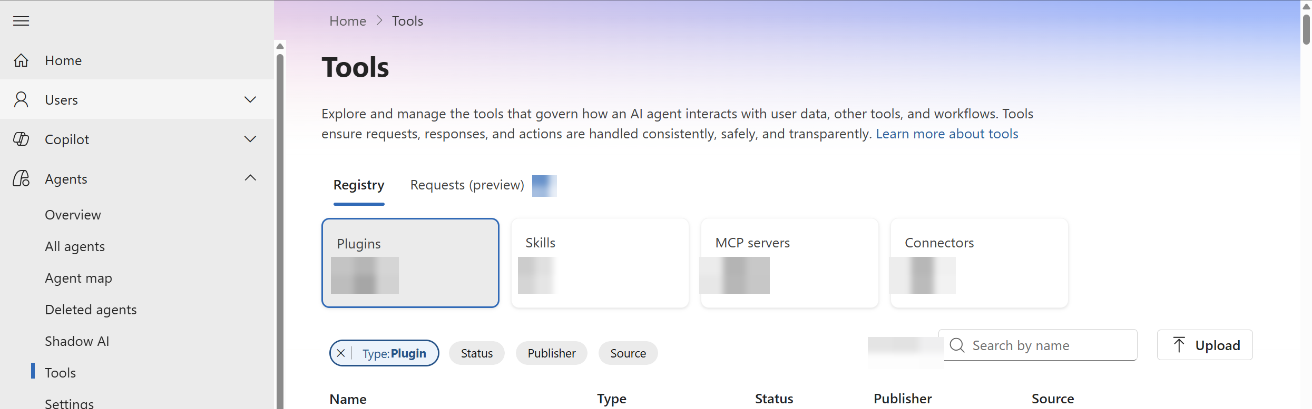
Select Upload.
Upload the manifest file for the plugin or skill.
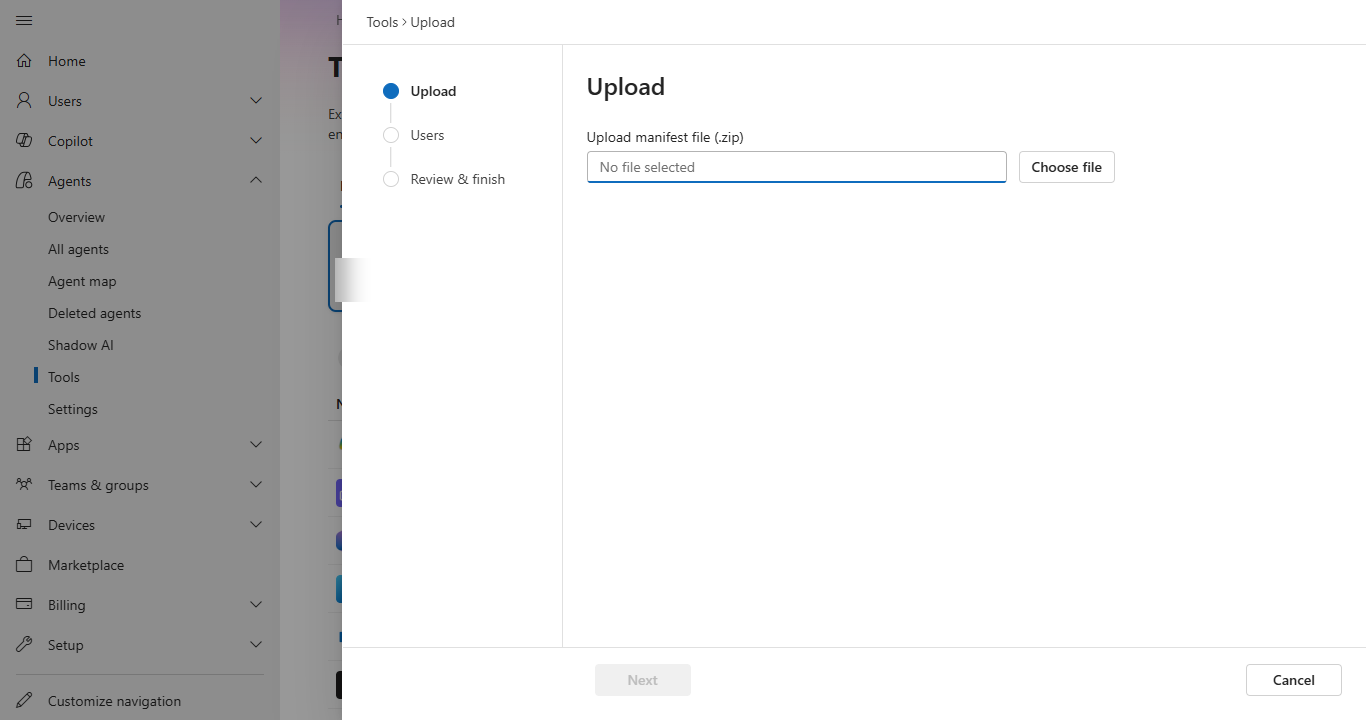
After the manifest uploads, review the components included in the package, such as MCP servers and skills, and then select Next.
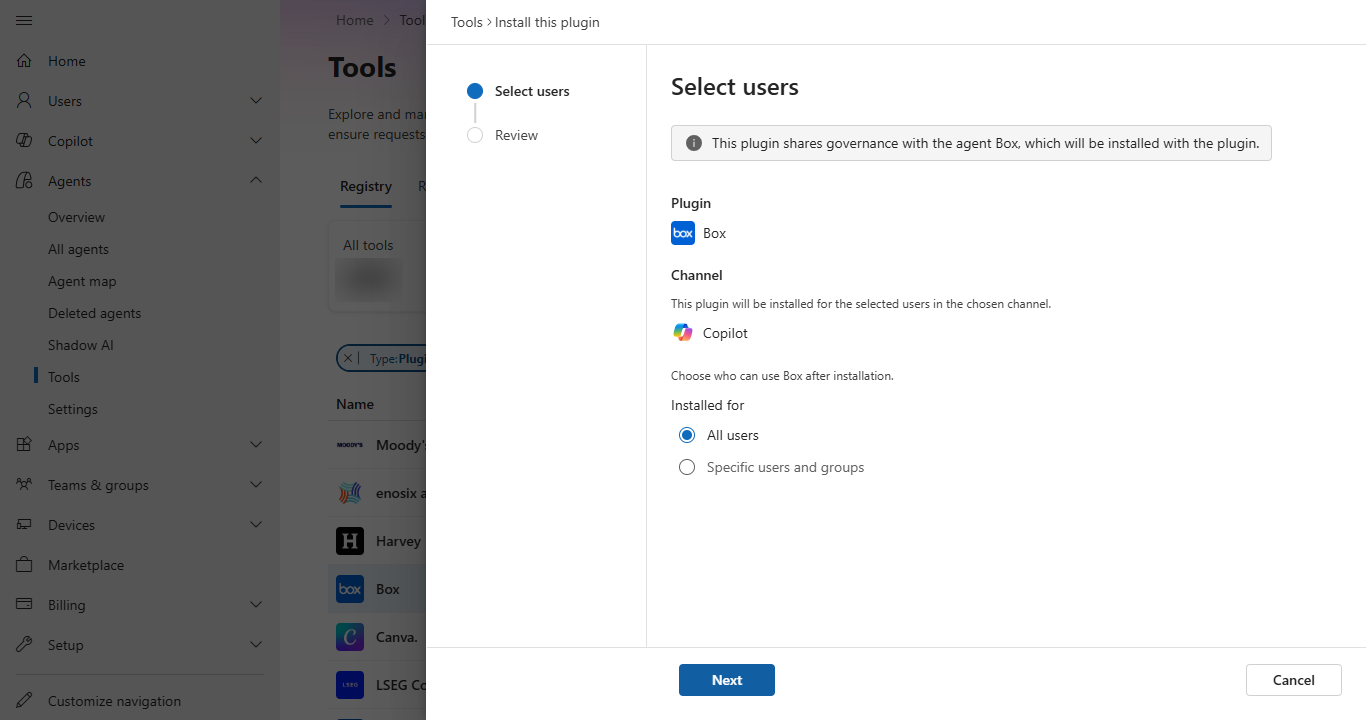
In the Scope users pane, choose who can use the plugin or skill by selecting either All users or Specific users or groups.
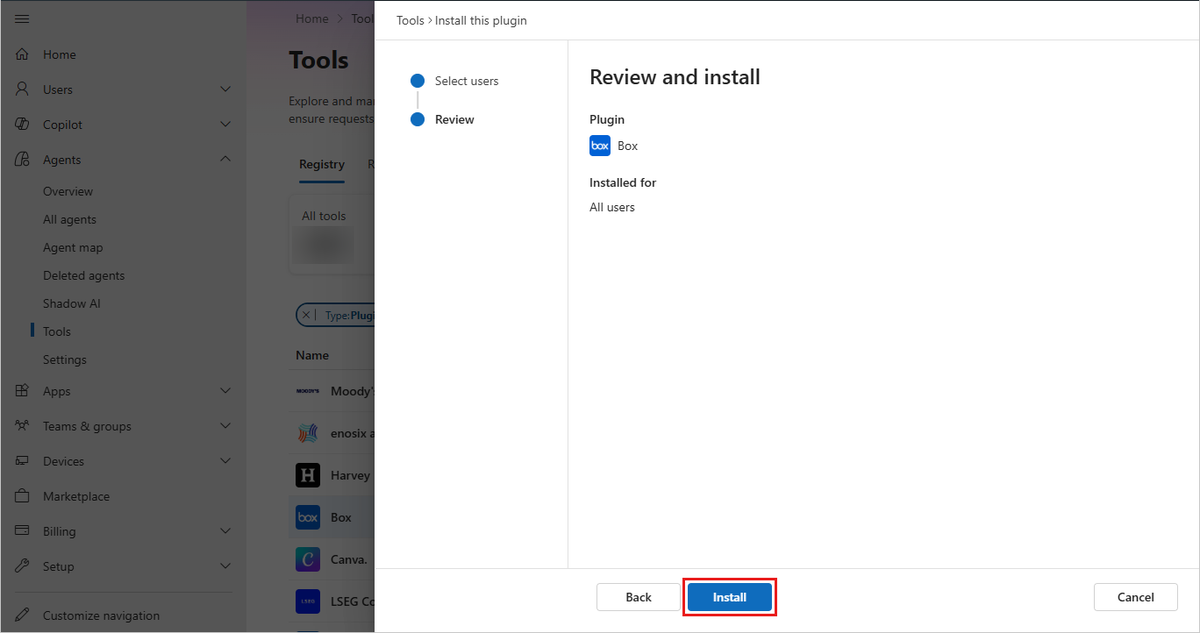
Review the configuration, and then select Install.
Manage plugins and skills
Managing a skill uses the same actions and steps as managing a plugin, so this section applies to both plugins and skills.
Tool actions
| Tool actions | Description |
|---|---|
| Install and uninstall | Install a plugin or skill for users so that it's ready to use without manual installation by end users. You can uninstall a previously installed plugin or skill. |
| Manage user availability | Make a plugin or skill available to all users, no users, or specific users and groups. |
| Delete | Delete a plugin or skill package that was uploaded to your tenant. Deleting isn't available for plugins or skills that come from the Microsoft 365 Store. |
| Block | Block a plugin or skill across your organization to prevent users and agents from accessing it. |
Note
Delete applies only to plugins and skills that were uploaded to your tenant. User availability settings apply to any plugin or skill, whether it was uploaded or made available from the Microsoft 365 Store. To restrict access by user or publisher category, see Manage plugin availability for users or Manage plugin availability at the organization level.
Install a tool
You can install a plugin or skill for your entire organization or for specific users or groups by using the same process as for other apps in the Microsoft 365 admin center.
To install a plugin or skill so that it's available, follow these steps:
Sign in to the Microsoft 365 admin center.
Select Agents > Tools > Plugins.
From the list, select a plugin or skill to install. The Overview pane opens.
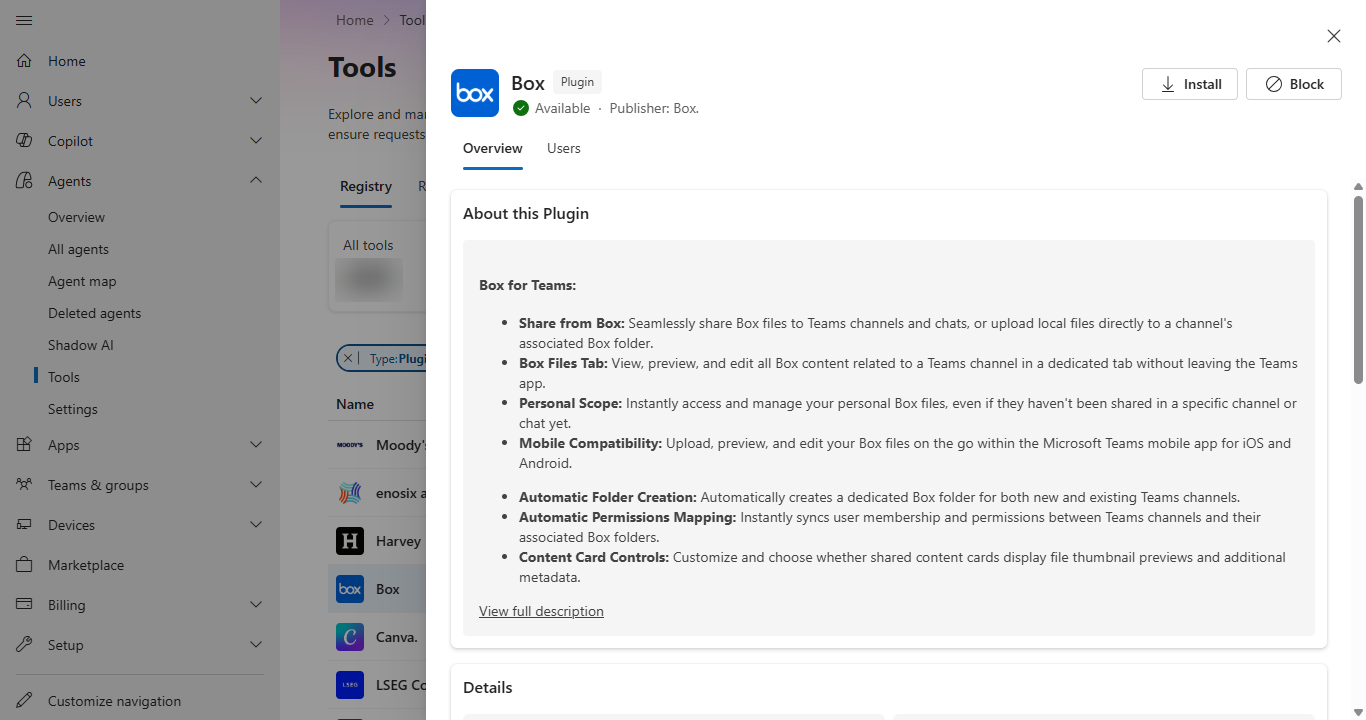
In the Overview pane, select Install.
In the Select users pane, confirm the details.
Choose who can use it by selecting either All users or specific users or groups.
Select Next.
In the Review and install pane, confirm the details and select Install.
Uninstall a tool
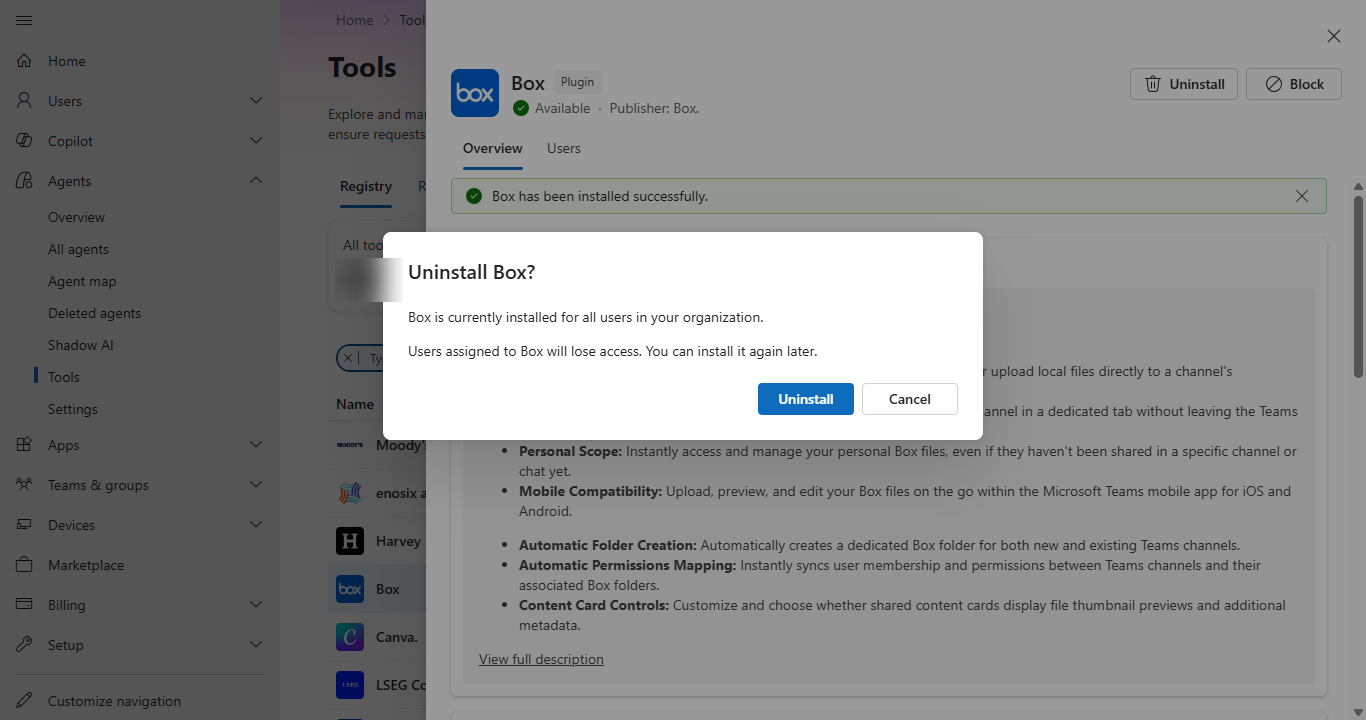
Uninstall a plugin or skill to remove it from the environment. It isn't available to agents unless you install it again.
To uninstall a plugin or skill so that it's unavailable, follow these steps:
Sign in to the Microsoft 365 admin center.
Select Agents > Tools > Plugins.
From the list, select a plugin or skill to uninstall. The Overview pane opens.
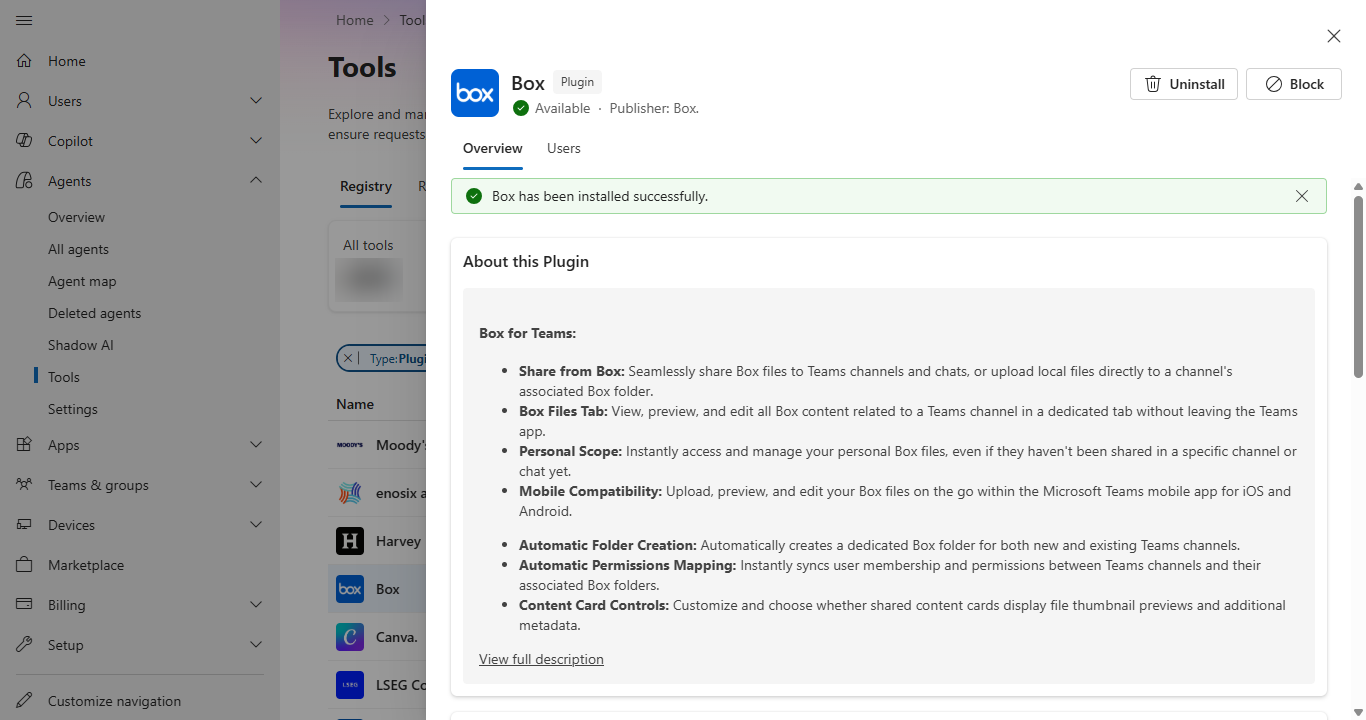
In the Overview pane, select Uninstall.
Confirm the uninstall action by selecting Uninstall.
Delete a tool
You can delete a previously uploaded plugin or skill package across your entire organization by using the Microsoft 365 admin center. When you delete it, agents can no longer use it and it's removed from the registry.
To delete a plugin or skill, follow these steps:
- Sign in to the Microsoft 365 admin center.
- Select Agents > Tools > Plugins.
- From the list, select a plugin or skill to delete. The Overview pane opens.
- Select Delete.
- Confirm the delete action by selecting Delete.
Block a tool
You can block a plugin or skill package across your entire organization by using the Microsoft 365 admin center. When you block it, agents can no longer use it.
To block a plugin or skill, follow these steps:
- Sign in to the Microsoft 365 admin center.
- Select Agents > Tools > Plugins.
- From the list, select a plugin or skill to block. The Overview pane opens.
- Select Block.
- Confirm the block action by selecting Block.
Note
Blocking a plugin prevents users from accessing the plugin and any agents that depend on it. Associated MCP servers and connectors remain available to other plugins. Blocking an MCP server also blocks dependent plugins and linked connectors. Blocking a plugin package blocks its included agents because they share the same governance controls. Unblocking the plugin package restores access to the associated agents.
Review and approve MCP requests
After a developer registers a tool, such as a remote MCP server, the tool appears in the Microsoft 365 admin center for review and approval.
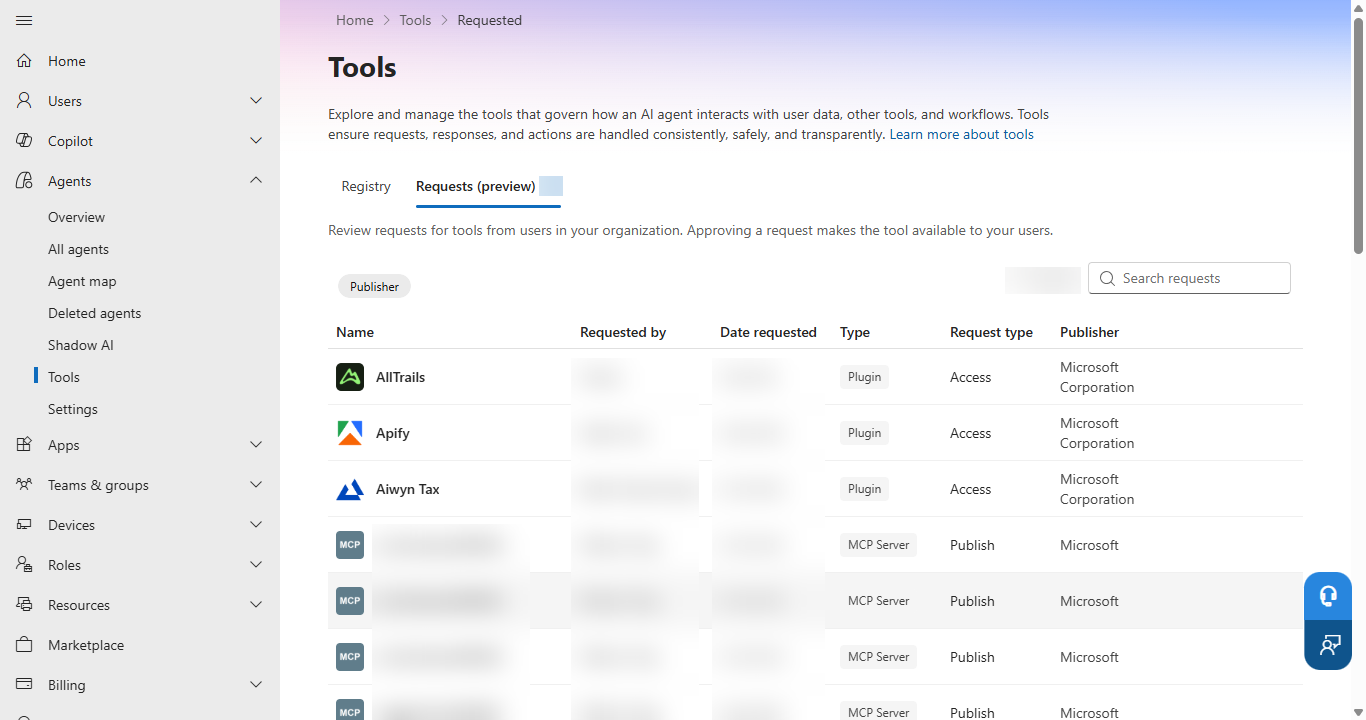
With the required permissions, you can review, approve, or reject requests to control which tools are available in your organization.
Important
To complete the review and approval process, you must meet two requirements:
- You must have access to the Tools page in the Microsoft 365 admin center to manage agent tools and review MCP server registration requests.
- You must be able to grant tenant-wide consent.
Two roles meet both requirements:
Use roles with the fewest permissions, and limit the number of users who have admin permissions. See Least privileged roles by task in Microsoft Entra ID.
To learn more about admin roles and permissions in the Microsoft 365 admin center, see:
To review and approve MCP server registration requests, follow these steps:
- Sign in to the Microsoft 365 admin center.
- Select Agents > Tools, and then select the Requests (preview) tab.
- Review the server name, publisher, requester, and request date.
- Review the server information and declared tools for accuracy and compliance.
- Select Approve to make the server available in the organizational registry, or Reject to deny the request.
- After approval, consent to the Microsoft Entra permissions required by the MCP server. The server becomes available to agent-building surfaces only after consent is granted.
Note
After approval and consent, the MCP server can take up to 30 minutes to appear in all Microsoft Copilot Studio environments in the tenant.
The registry displays the following status indicators for MCP servers:
- Available: The tool is active and ready for use.
- Blocked: The tool is disabled, and agents can't access it.
Block or allow an MCP server
To block or allow an entire MCP server, follow these steps:
Sign in to the Microsoft 365 admin center.
Select Agents > Tools, and then select the Registry tab.
Select an MCP server from the list to open its overview pane.
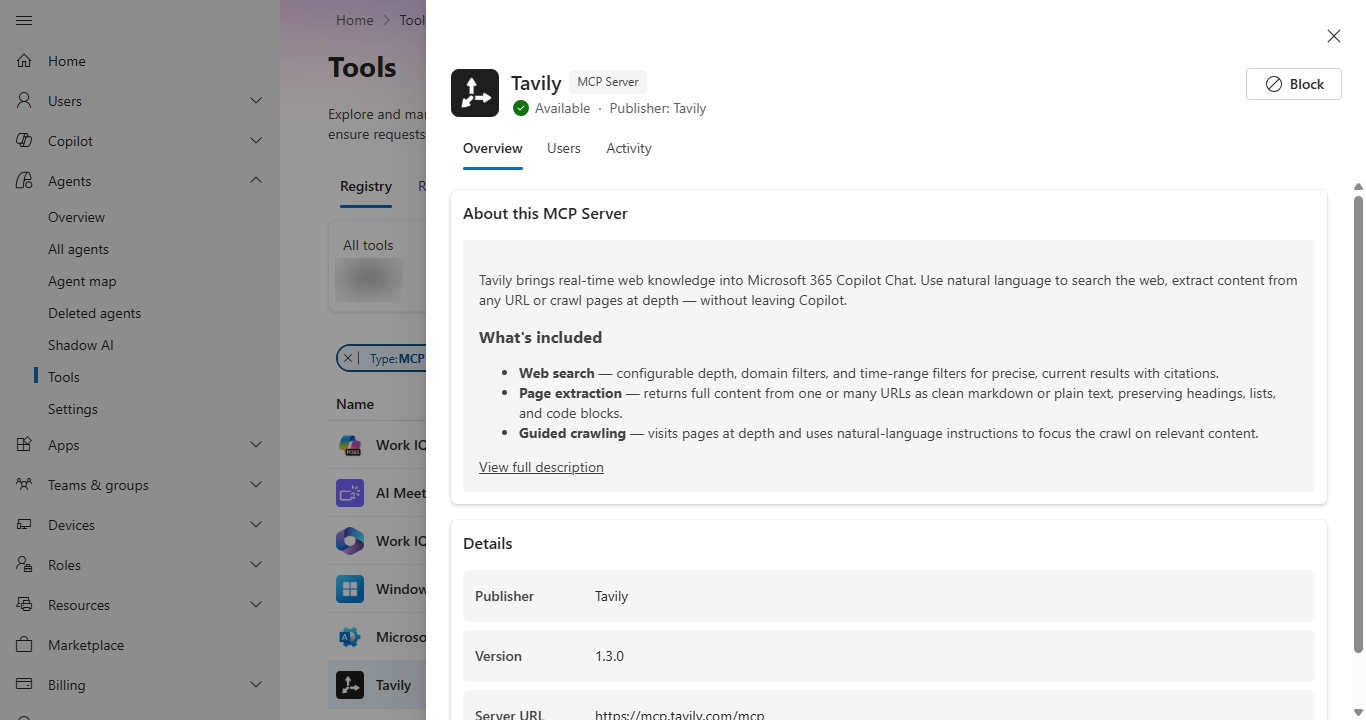
Select Block to restrict the server across your organization, or Unblock to restore access to a previously blocked server.
Blocking an MCP server disables all the tools it exposes. If one or more plugins use the MCP server, you can also block those plugins. To control individual tools instead of the entire server, use tool-level granular control.
Manage individual tools within an MCP server
Note
Tool-level granular control is rolling out to tenants and supports only specific types of MCP servers registered on Agent 365.
By default, blocking an MCP server disables all the tools it exposes. Tool-level granular control lets you allow or block individual tools within a supported MCP server registered on Agent 365 instead of blocking the entire server. Use this capability to keep high-risk tools, such as tools that write, delete, or process payments, turned off by default while allowing lower-risk tools on the same server.
If an MCP server doesn't support tool discovery, the Tools tab shows a message that the server doesn't support tool discovery, and individual tools aren't available to manage. In this case, use Block or allow an MCP server to control the entire server instead.
To manage individual tools within an MCP server, follow these steps:
Sign in to the Microsoft 365 admin center.
Select Agents > Tools, and then select the Registry tab.
Select an MCP server from the list to open its overview pane.
Select the Tools tab. The list shows every tool the server exposes, along with its description and an Enabled or Disabled toggle.
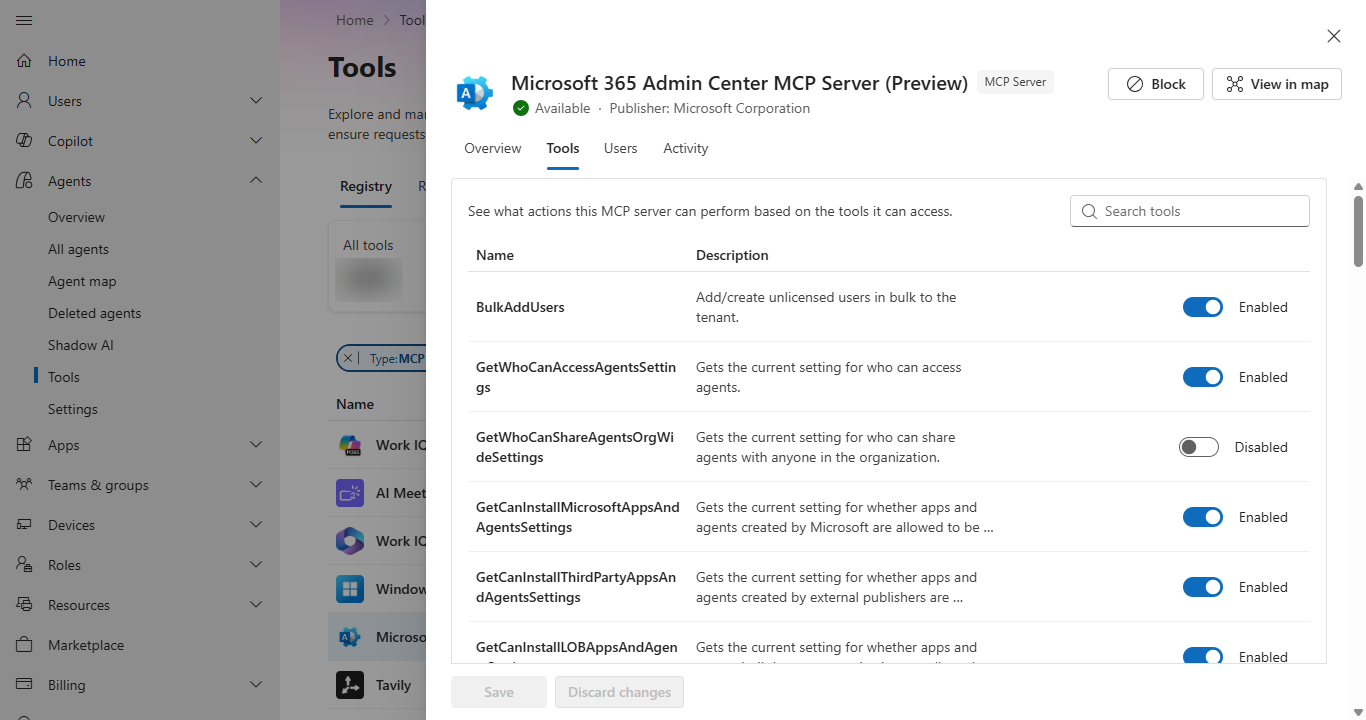
Turn individual tools on or off as needed.
Select Save to apply your changes, or Discard changes to cancel.
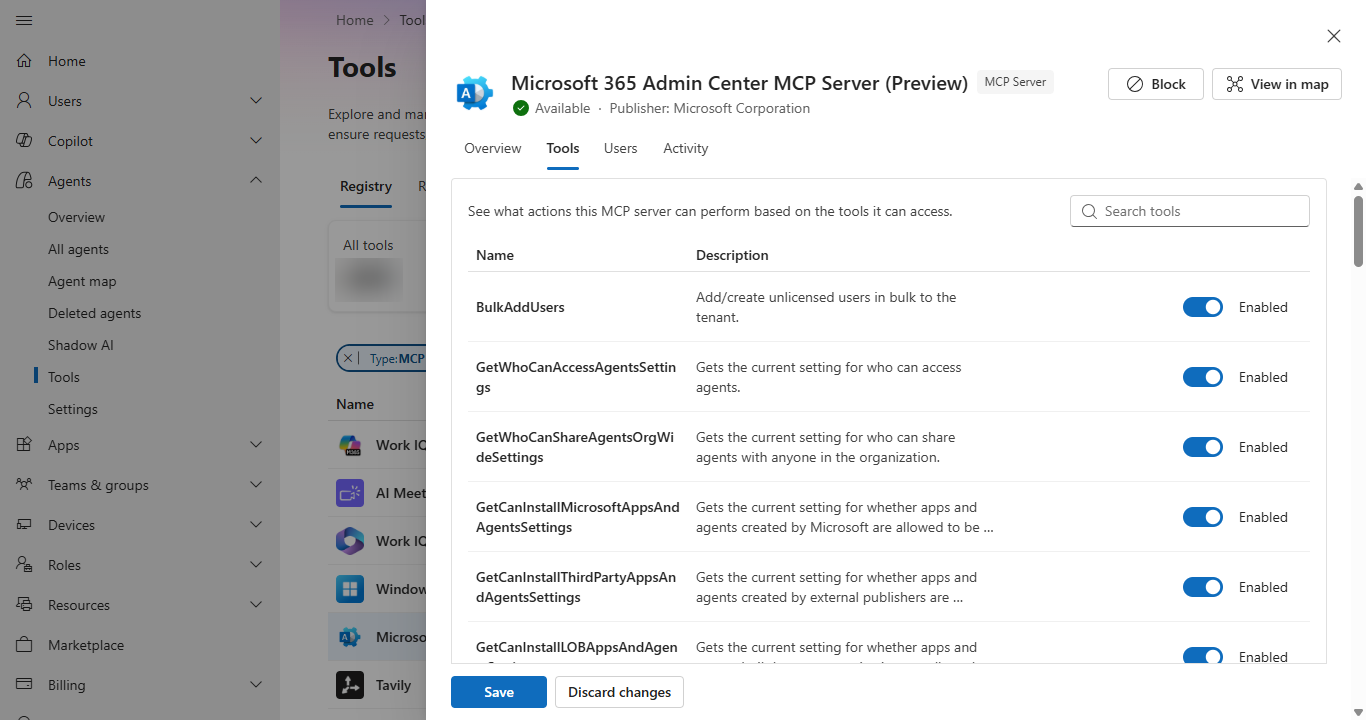
The policy you set for each tool applies wherever the tool is used and is enforced at runtime by the Agent 365 Tooling Gateway.
For information about registering, evaluating, and monitoring your own remote MCP servers, see Bring your own (BYO) MCP server. For information about connecting an Azure AI Gateway or Azure API Management instance so its registered MCP servers are automatically discovered, see Manage Tools Gateway.
Frequently asked questions
How can I block all third-party plugins?
Use organization-level availability settings to control this. Go to Agents > Settings > Agent and plugin access, and clear the publisher category for certified external publishers. This prevents users from discovering or installing plugins published by third parties, while plugins from Microsoft or your organization can still be governed separately. For more information, see Manage plugin availability at the organization level.
Can I block an individual MCP server that's included in a plugin?
Yes. Select the MCP server to view the plugins that use it. When you block the server, you can also block all linked plugins.