Note
Access to this page requires authorization. You can try signing in or changing directories.
Access to this page requires authorization. You can try changing directories.
Multi-tenant configuration management helps enterprise and partner administrators define, deploy, monitor, and maintain a desired configuration across the tenants they administer from the Microsoft 365 admin center.
Important
Multi-tenant configuration management is in preview. Preview capabilities and user-interface labels might change before general availability. This article describes the capabilities represented in the current preview.
A baseline defines the desired configuration for one or more Microsoft 365 workloads. Assign a baseline to one or more tenants to deploy the desired configuration and start background monitoring. Configuration management compares the tenant's actual configuration with the assigned baseline and reports differences as configuration drift.
Configuration management supports the following lifecycle:
- Define the desired configuration in a baseline.
- Deploy the baseline to one or more tenants.
- Monitor tenant configuration for drift.
- Review and remediate settings that differ from the baseline.
Before you begin
Before you manage configurations across tenants, make sure you meet the following requirements:
- The signed-in administrator has delegated administrative rights to the governed tenants through granular delegated admin privileges (GDAP).
- A tenant relationship is established through Microsoft Entra Tenant Governance for enterprise organizations, or through Partner Center for partners.
- The signed-in administrator has the fine-grained permissions required for the settings included in the baseline. Required permissions depend on the workloads and configuration settings that you need to deploy, monitor, or fix.
Note
Delegated administrative access to a governed tenant doesn't automatically provide permission to manage every configuration setting. The administrator must also have the permissions required by the workloads and settings included in the baseline.
For more information, see About admin roles in the Microsoft 365 admin center.
Terminology
| Term | Meaning |
|---|---|
| Governing tenant | The tenant from which an administrator manages one or more governed tenants. |
| Governed tenant | A tenant that is within the signed-in administrator's delegated administrative purview. |
| Baseline | A reusable definition of the desired configuration that one or more tenants should maintain. |
| Assigned baseline | A baseline associated with a tenant for deployment and ongoing monitoring. |
| Configuration drift | A difference between a baseline's expected configuration value and the tenant's actual configuration value. |
| Remediation | An administrator-initiated action that applies selected baseline-defined values to correct detected drift. |
Manage multi-tenant configuration
- Sign in to the Microsoft 365 admin center with an account in the governing tenant.
- In the left navigation, select the All tenants scope.
- Select Configuration management to create and manage baselines, or select Tenants to assign baselines and monitor tenant status.
Understand configuration management concepts
Configuration management
Use the Configuration management page to create and manage baseline definitions. The page groups Microsoft-provided baselines and custom baselines, and it can show information such as baseline name, version, publisher, assigned tenants, status, description, creator, and last update.
Depending on the selected baseline and its state, available actions can include:
- Add new baseline
- Edit or configure a baseline
- Deploy a baseline
- Review deployment results (in the tenants screen)
- Remove a baseline
- Open drift remediation
Tenants
Use the Tenants page to view the tenants within the signed-in administrator's administrative purview, assign baselines, and monitor configuration state. The page can show assigned baselines, baseline drift status, the number of detected drifts, and the last monitored time. Expand a tenant node to view the baselines assigned to that tenant.
Important
A tenant can have multiple assigned baselines.
A tenant without an assigned baseline is shown as Not monitored. After you assign a baseline, background monitoring evaluates the tenant against the configuration defined in the baseline. A matching tenant is shown as Compliant. A tenant with one or more differences is shown as Drifted.
Manage configuration snapshots
A configuration snapshot captures selected configuration resources from one governed tenant.
Create a configuration snapshot
- From All tenants, select Tenants.
- Select a tenant.
- Open Snapshot, and then select Create.
- In the Create configuration snapshot pane, enter a required snapshot name and an optional description.
- Select the configuration resources to include. Examples shown in the current preview include Copilot, Entra, Exchange, Intune, Security & Compliance, and Teams.
- Create the snapshot.
After submission, the user interface confirms that the snapshot was created and is processing. This confirmation doesn't mean that snapshot processing is complete.
Important
Snapshot creation can take some time depending on the resources selected in the snapshot.
View configuration snapshots
- From All tenants, select Tenants.
- Select the tenant.
- Open Snapshot, and then select View.
- Review the Configuration snapshots list for the tenant. The list shows Snapshot name, Status, Resources, Created, and Completed.
The preview user interface can show snapshot statuses such as succeeded and partiallySuccessful.
Select a snapshot name to open its details pane. Expand the captured configuration resources to inspect the settings included in the snapshot.
Compare tenant configurations
Use Compare tenants to compare selected configuration resources across exactly two tenants. You can compare only two tenants at a time.
- From All tenants, select Tenants.
- Select exactly two tenants.
- Select Compare.
- On the Compare tenants page, select one or more resources to compare. Examples shown in the current preview include Copilot, Entra, Exchange, Intune, Security & Compliance, and Teams.
- Select Compare.
Important
Tenant comparison can take some time depending on the workloads and resources selected.
Review comparison results
In the tenant comparison table, configuration resources and properties appear in rows, and the two selected tenants appear as comparison columns. Expand resources and properties to review their values. Turn on Only show diffs to limit the table to differences.
Interpret comparison values
| Displayed value | Meaning |
|---|---|
| This configuration property wasn't found on this tenant | The configuration property isn't available on that tenant. |
| Value not configured | The property exists, but no value is configured for that tenant. |
Create a baseline
Create a custom baseline when you need a reusable definition of the configuration that one or more tenants should maintain. The baseline creation experience depends on whether the tenant relationship is defined through Microsoft Entra Tenant Governance or Partner Center. The following procedure and creation modes apply to Microsoft Entra Tenant Governance relationships.
- From All tenants, select Configuration management.
- Select Create New baseline.
- Enter a baseline name and an optional description.
- Select one of the following creation modes:
- From a snapshot of an existing tenant: Recommended when an existing tenant already has a configuration that you want to replicate to other tenants, either without changes or after modifying the captured configuration. Select the tenant whose configuration you want to capture as the starting point.
- Upload a Baseline configuration file/Edit JSON: Provide a baseline configuration file or edit the JSON representation.
- Custom: Select and configure settings manually.
- Complete the Configure step for the selected creation mode. For Take a snapshot of an existing tenant, review the captured configuration and make any required modifications.
- Review the baseline, and then create it or save it as a draft, depending on the options available in the preview experience.
Assign a baseline to tenants
Assign a baseline to one or more governed tenants from either the Configuration management page or the Tenants page. Assigning a baseline deploys the desired configuration and starts background monitoring for the selected tenants. A tenant can have multiple assigned baselines.
- From All tenants, use one of the following entry points:
- Configuration management: Select a baseline, select Assign baseline, and then select one or more target tenants.
- Tenants: Select one or more tenants, select Assign baseline, and then select the baseline that you want to assign.
- Continue through the assignment workflow and review the deployment details.
- Submit the assignment.
After a successful assignment, the selected tenant entries on the Tenants page are updated to show the assigned baseline. Expand a tenant node to view all baselines assigned to that tenant.
Important
The assignment can change configuration in the selected governed tenants. Review the baseline contents, target tenants, and required permissions before submitting the assignment.
Assign a baseline for Partner Center relationships
For Partner Center relationships, the Assign baseline workflow can configure tenant-specific attributes during assignment when baseline properties require values that differ by tenant, such as users and groups. Not every baseline has tenant-specific attributes.
- Select the target tenants and the baseline. The workflow shows each selected tenant's current baseline, where applicable.
- Select Next.
- When prompted, choose one of the following options:
- Yes, configure attributes for each tenant: Configure tenant-specific values during assignment.
- No, assign without configuring attributes: Assign the baseline now and configure the attributes later.
- If you configure attributes now, move through each selected tenant and configure the values exposed by the baseline, including user, group, and recipient fields where applicable.
- Review the per-tenant attribute completion summary.
- Select Assign.
Caution
Verify the tenant-specific values for every selected tenant before you assign the baseline.
Monitor tenant configuration
After a baseline is assigned, background monitoring compares the tenant's actual configuration with the expected values in the baseline. Use the Tenants page to review configuration status across governed tenants.
| Status | Meaning |
|---|---|
| Compliant | The monitored configuration matches the assigned baseline. |
| Drifted | One or more monitored configuration values differ from the assigned baseline. |
| Not monitored | No baseline is assigned to the tenant, so the tenant isn't being evaluated against a baseline. |
| Unknown | The preview user interface can display this status. The precise conditions that produce Unknown must be confirmed before publication. |
Review configuration drift
When a tenant shows as Drifted, select Fix drifts to open the experience for inspecting settings whose actual values differ from the baseline's expected values. You can then choose whether to remediate selected settings.
- From All tenants, select Tenants.
- Select a tenant with a Drifted status.
- Select Fix drifts to open the drift inspection experience.
- Review each drifted property, including its status, expected value, actual value, and last monitored time.
- Use Show drifted values only to focus the list on differences, if that option is available.
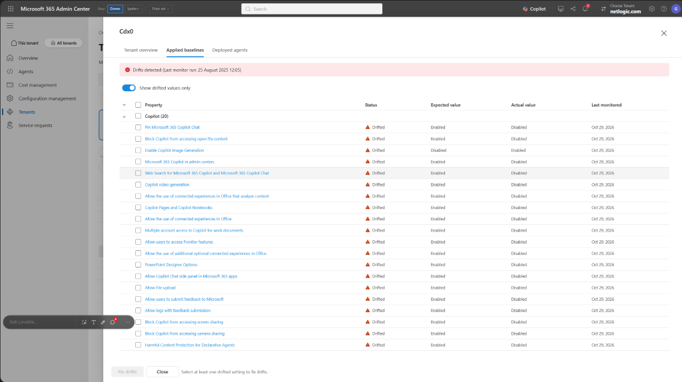
Fix configuration drift
Use Fix drifts to apply the baseline-defined values for selected drifted settings.
- From the drift details view, review the Expected value and Actual value for each drifted property.
- Select the settings that you want to remediate.
- Select Fix drifts.
- Review the remediation details and submit the operation.
- After the operation completes and monitoring runs again, return to the tenant to review the updated status.
Important
Fixing drift changes configuration in the governed tenant. Confirm that the baseline still represents the intended configuration before applying remediation.
Review deployment results
Use Deployment results from the Configuration management or Tenants experience to review the outcome of baseline deployment operations. The final article should document the result states, retry behavior, and error details after those semantics are validated against the publication build.
Preview considerations
- Capabilities and user-interface labels can change during preview.
- The settings that you can include in a baseline depend on the configuration resources that the service supports.
- The administrator's ability to deploy, monitor, or remediate a setting depends on the fine-grained permissions granted for that workload and setting.
- Monitoring results reflect the most recent completed monitoring run and might not immediately reflect a recent configuration change. Confirm exact monitoring cadence and freshness commitments before publication.