Note
Access to this page requires authorization. You can try signing in or changing directories.
Access to this page requires authorization. You can try changing directories.
Important
Starting in March 2026, the Company, City, and ProxyAddresses field filters in the User Activity tab will no longer be supported.
To continue filtering activity data by company, city and proxy addresses attributes, you can join metrics from the Microsoft 365 usage report Graph API with your own data sources and build a custom dashboard in Power BI or another data visualization tool of your choice. The following Graph API reports include user-level detail:
getEmailActivityUserDetail
getOneDriveActivityUserDetail
getSharePointActivityUserDetail
getSkypeForBusinessActivityUserDetail
getTeamsUserActivityUserDetail
getYammerActivityUserDetail
If using Microsoft 365 usage report Graph API is not an option for your organization, you can also export user detail reports directly from the Microsoft 365 admin center as an alternative.
This article is intended for Microsoft 365 administrators who want to understand what insights Microsoft 365 usage analytics provides and how the available reports support adoption and licensing decisions.
Use Microsoft 365 usage analytics within Power BI to gain insights on how your organization is adopting the various services within Microsoft 365. You can visualize and analyze Microsoft 365 usage data, create custom reports, and share the insights within your organization. You can also gain insights into how specific regions or departments are using Microsoft 365.
Microsoft 365 usage analytics gives you access to a prebuilt dashboard that provides a cross-product view of the last 12 months and contains many prebuilt reports. Each report provides specific usage insights. User-specific information is available for the last full calendar month.
The data model that powers the template app includes user attributes from Active Directory, enabling you to pivot in certain reports. The following Active Directory attributes are included: location, department, and organization.
To start collecting data, see Enable Microsoft 365 usage analytics.
Microsoft 365 usage analytics contains many reports detailed in the following sections.
You can access detailed reports for each area by selecting the data tables. You can view all prebuilt reports by selecting the tabs at the bottom of the site. For more detailed instructions, see the following articles:
Data availability
- Most reports show the last 12 months of data.
- User-level details are available for the latest complete calendar month.
- Month values shown in reports always refer to the latest complete month unless otherwise noted.
Executive summary dashboard
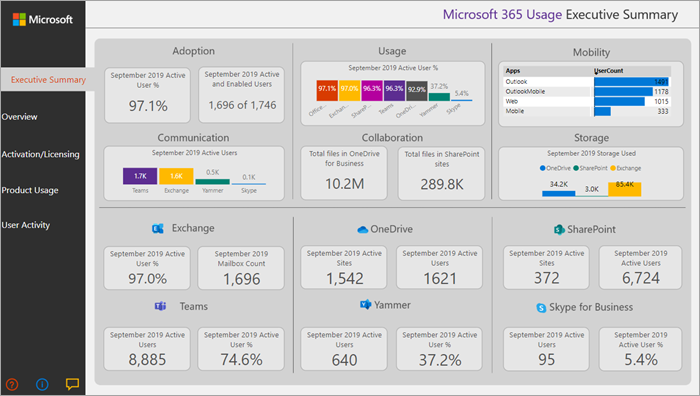
The executive summary is a high-level, at-a-glance view of Microsoft 365 for Business adoption, usage, mobility, communication, collaboration, and storage reports. Business decision makers use the executive summary. It provides a view into how some individual services are used, based on all the users who are enabled and those users who are active. All values of the month shown on the report refer to the latest complete month.
This summary lets you quickly understand usage patterns in Microsoft 365 and how and where your users are collaborating.
Microsoft 365 reports overview
The Microsoft 365 overview report contains the following reports. You can view them by choosing the tab on top of the report page. All values of the month shown on the top section of the report refer to the latest complete month.
Adoption: Offers an all-up summary of adoption trends. Use the reports in this section to learn how your users adopted Microsoft 365, and how overall usage of the individual services changed month over month. In this report, you can see:
- How many users are enabled.
- How many users actively use Microsoft 365.
- How many users are returning users.
- How many users are using the product for the first time.
Usage: Offers a drill-down view into the volume of active users and the key activities for each product for the last 12 months. Use the reports in this section to learn how people in your organization are using Microsoft 365.
Communication: You can see at a glance whether people in your organization prefer to stay in touch by using Teams, Viva Engage, email, or Teams calls. You can observe if there are shifts in patterns in the use of communication tools among your users.
Collaboration: See how people in your organization use OneDrive and SharePoint to store documents and collaborate with each other, and how these trends evolve month over month. You can also see how many users shared documents internally or externally and how many users used SharePoint sites or OneDrive accounts, broken out by owners and other collaborators.
Storage: Use this report to track cloud storage for mailboxes, OneDrive, and SharePoint sites.
Mobility: Track which clients and devices people use to connect to email, Teams, or Viva Engage.
Activation and licensing reports
The activation and license page offers reports on Microsoft 365 activation. It shows how many users downloaded and activated Microsoft 365 apps and how many licenses your organization assigned. The month value towards the top refers to the current month, and the metrics reflect values aggregated from the beginning of the month to the current date.
Activation: Track service plan activations (for example, Microsoft 365 Apps for enterprise, Project, and Visio) in your organization. Each person with a Microsoft 365 license can install products on up to five devices. You can also use reports in this section to see the devices on which people installed Microsoft 365 productivity apps. To activate a plan, a user must install the app and sign in by using their account.
Licensing: This report contains an overview of license types, the count of users who were assigned each license type, and the license assignment distribution for each month. The month value towards the top refers to the current month, and the metrics reflect values aggregated from the beginning of the month to the current date.
Product usage reports
This report contains a separate report for each Microsoft 365 service, including Exchange, Microsoft 365 groups, OneDrive, SharePoint, Teams, and Viva Engage. Each report contains total enabled versus total active user reports, counts of entities such as mailboxes, sites, groups, accounts, and activity type reports where appropriate. All values of the month shown in the top section of the report refer to the latest complete month.
User activity reports
User activity reports are available for certain individual services. These reports provide user-level detail usage data joined with Active Directory attributes. In addition, the Department Adoption report lets you slice by Active Directory attributes so that you can see active users across all individual services. All metrics are aggregated for the latest complete month. To view the content date, go to the table page and select the UserActivity table where the value under TimeFrame provides the reporting period.
Note
Global Reader and Usage Summary Reports Reader don't have permission to view the user activity reports.
Frequently asked questions (FAQs)
For answers to frequently asked questions about Microsoft 365 usage analytics, see Microsoft 365 usage analytics FAQs.