Note
Access to this page requires authorization. You can try signing in or changing directories.
Access to this page requires authorization. You can try changing directories.
Microsoft is transparent about the specific policies, operational practices, and technologies that help you ensure the privacy, security, and compliance of your data across Microsoft 365 Backup.
Microsoft respects the privacy and ownership of data you use.
None of your organization's data is used or transferred by Microsoft to train AI models, large-language models, or any other models.
Your data remains securely within your organization's tenant.
Privacy
Privacy is built into all Microsoft 365 Backup experiences. Microsoft 365 Backup services adhere to the Microsoft Privacy Statement and follow Microsoft's compliance with General Data Protection Regulation and the Microsoft EU Data Boundary.
Microsoft 365 Backup inherits privacy features and settings from Microsoft 365 and SharePoint, where applicable.
GDPR compliance
Microsoft 365 Backup supports compliance with General Data Protection Regulation (GDPR) requirements, except:
GDPR workflows aren't directly executable on all data in Microsoft 365 Backup.
GDPR data service request (DSR) data deletion actions operated on the tenant don't delete data in the backups. Those actions must be executed again after a Backup restoration to ensure the original DSR is honored.
DSRs related to the discovery of data using eDiscovery are not possible for Exchange Online, OneDrive, or SharePoint backups.
eDiscovery
Data in the Exchange Online backups isn't eDiscoverable via existing eDiscovery tooling.
Data in the OneDrive account and SharePoint site backups that aren't currently part of your live latest version data in your tenant aren't eDiscoverable. An eDiscovery search doesn't discover data that exists solely in the OneDrive or SharePoint backups.
Retention policies
Retention and deletion policies don't "flow through" to the backups. This means that the backup recovery window is governed solely by the backup policy. You can configure that recovery window on the policy, and it defaults to one year. Once data is restored from the backups, that now-live data will be governed by applicable retention or deletion policies.
Sensitivity labels
Restoration of any data (such as sites or mailbox items) reverts the data's sensitivity labels to the state of that protected item at the prior point from which it's being restored. That is, the state of labeling at the point in time from which the content is being restored; in other words, the state reverts to the prior point in time.
Data residency
Data residency refers to the geographic location where data is stored at rest. The way that data is transferred and stored in Microsoft 365 Backup is defined in the Microsoft Products and Services Data Protection Addendum (DPA).
All data within Microsoft 365 Backup is stored within the customer tenant for any given service and follows the standard Microsoft 365 data storage guidelines by available geography. The metadata used for billing purposes is sent to Azure and includes: entitlement_id, event_id, usage_date_time, metered_resource_id, quantity, resourceUri, location, tags.isinternaltenant, tags.protectionunitid, tags.servicetype, tags.tenants, tags.applications, and azure_cloud.
Audit logs
Microsoft Purview auditing solutions provide an integrated solution to help organizations effectively respond to security events, forensic investigations, internal investigations, and compliance obligations. You can search for audit events for Backup activities such as create policy or restore using PowerShell or Microsoft Purview Audit.
Activity logs
Microsoft 365 Backup Activity Logs provide an in-product view of backup policy and restore operations. Use activity logs for operational monitoring and troubleshooting. For compliance investigations that require the Microsoft 365 audit record, continue to use Microsoft Purview Audit.
Activity logs include policy creation, activation, modification, pause, rename, deletion, dynamic rule activity (creation, modification or deletion), complete product level offboarding, protection-unit offboarding, and restore task creation and completion. Read-only operations, such as viewing policies or listing restore points, aren't included.
Open activity logs
Go to the Microsoft 365 admin center.
Open Microsoft 365 Backup.
Click on Reports tab.
In the Recent activities card, click View more to open the Activity logs page.
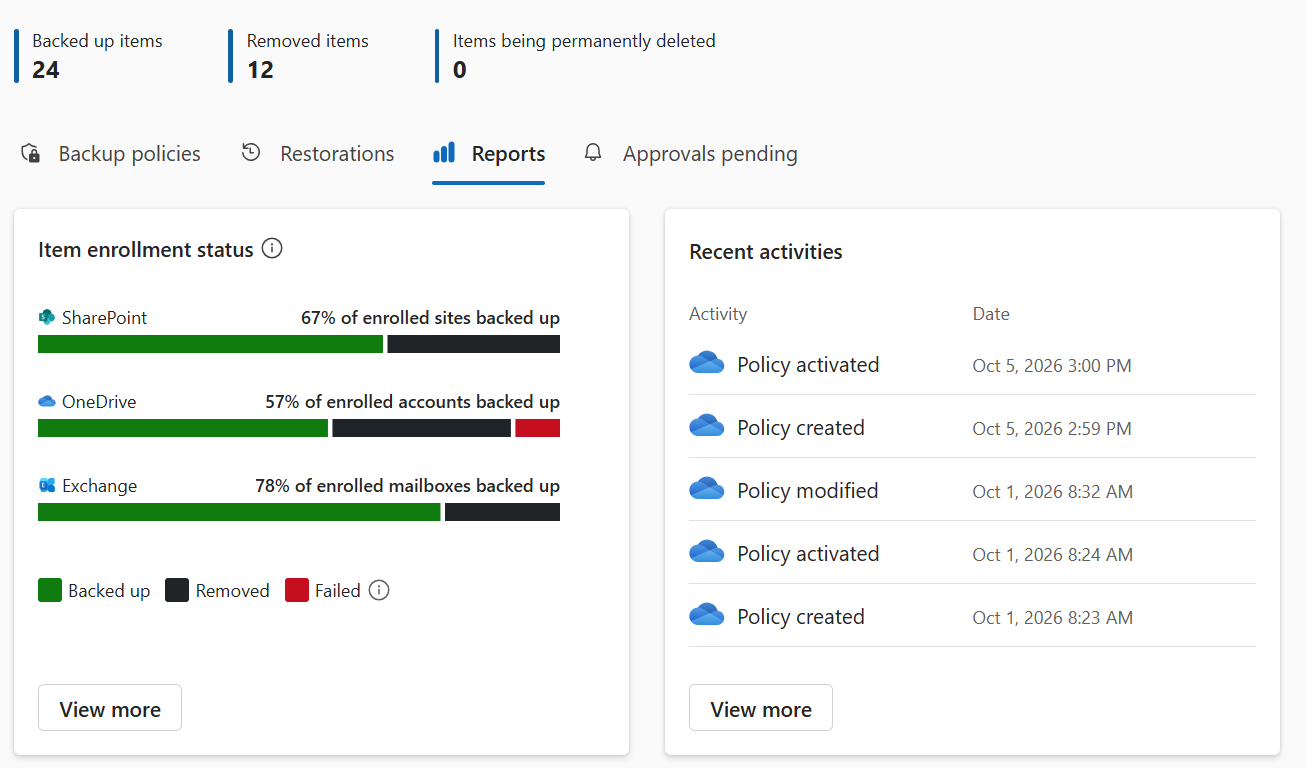
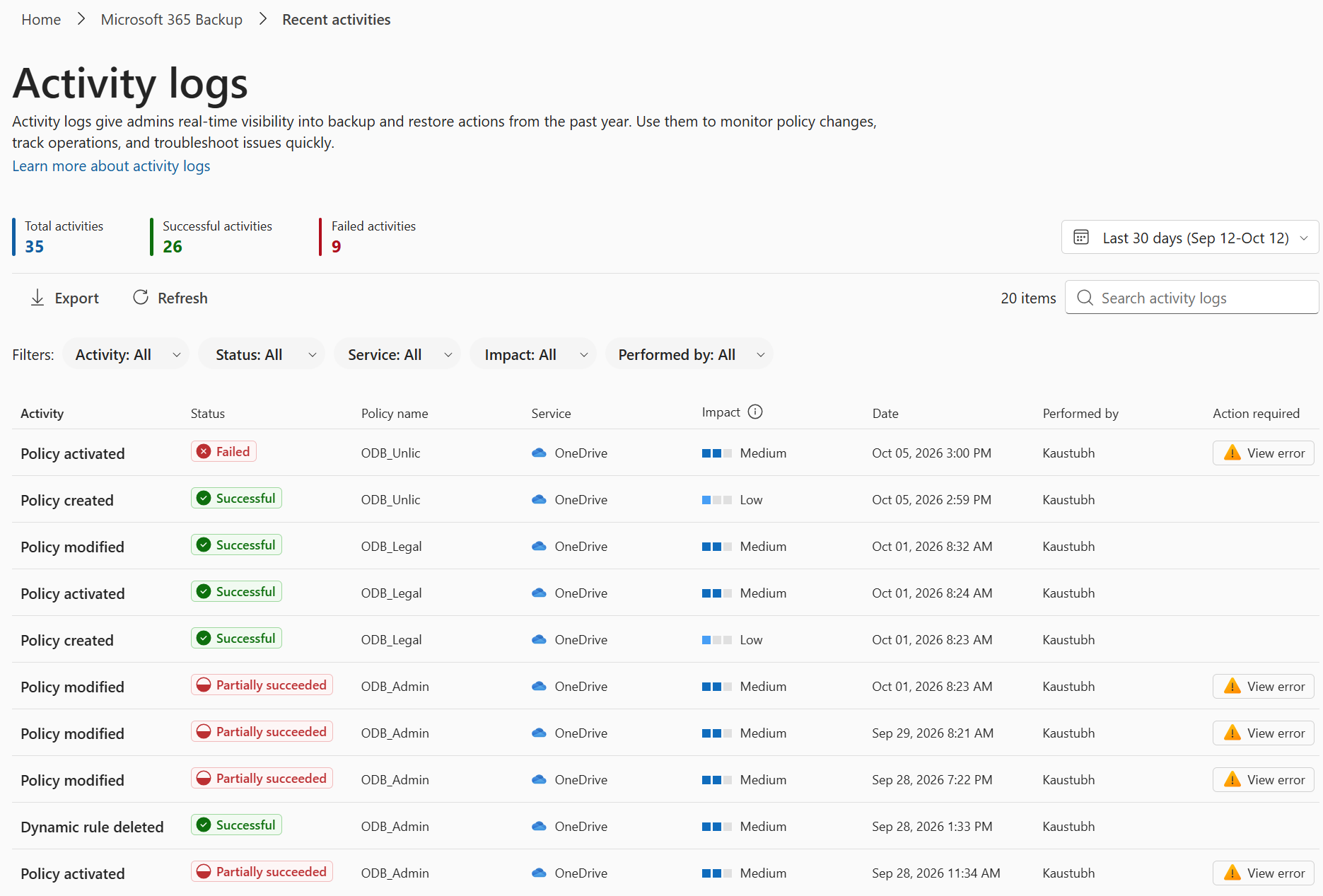
The page shows total, successful, and failed activity counts. Each activity includes its status, service, impact, date, and the admin or system identity that performed it. Policy and restore details appear when they apply to the activity.
Find and export activities
Use the date selector to choose the period you want to review.
Filter by activity, status, service, impact, or performed by.
Status options can be Succeeded, Failed or Partially succeeded.
Service options can be SharePoint, Exchange or OneDrive.
Impact options can be
High: Activities that disrupt backups (for example, pausing or deleting backups, partial or full offboarding) or trigger large-scale restores (CSV based restores).
Medium: Activities that affect backups or restores and may require attention (for example, policy activation, modification, dynamic rule creation or deletion etc.).
Low: Activities with little or no effect on backups or restores (for example, policy rename, policy creation etc.).
Use free-text search to find activities by supported activity log values.
Click on Export to download the current filtered or searched result as a CSV file.
Activity logs are retained for 365 days. The retention period isn't configurable. The system can support up to 1 million activities across all the supported services.
Required roles
Global Administrators and Microsoft 365 Backup Administrators can view activity for SharePoint, OneDrive, and Exchange.
SharePoint Administrators can view activity for SharePoint and OneDrive.
Exchange Administrators can view activity for Exchange.
Security
Microsoft 365 Backup works with and integrates into Microsoft 365. This means that the Microsoft 365 security capabilities-such as identity and app management-apply to Microsoft 365 Backup. The bring-your-own-key (BYOK) feature seamlessly integrates with Microsoft 365 Backup to enhance data security.
Compliance
Microsoft offers a comprehensive set of compliance offerings to help your organization comply with national, regional, and industry-specific requirements governing the collection and use and data.
Microsoft 365 Backup is a Microsoft 365 service built on the same underlying infrastructure and follows the same compliance standards. Microsoft 365 Backup is covered by any or all of the standards (for example, ISO and SCO) and certifications listed on the Service Trust Portal.
Microsoft 365 Backup directly supports the Digital Operational Resilience Act's (DORA) business continuity and recovery provisions, enhancing your organization's overall operational resilience by enabling regulated entities to develop resilient operations and recover quickly from disruptions.
Important
Given that compliance tooling actions might destroy primary data, we administratively isolate those destructive actions from flowing through to backed up data automatically. In other words, compliance actions that automatically delete your primary data will not automatically delete data from your backups.
The core purpose of the backup and restore service is to provide you with a way to recover from common data deletion, overwrite, or encryption events.
Compliance resources
Microsoft offers a comprehensive set of compliance offerings to help your organization comply with national, regional, and industry-specific requirements governing the collection and use and data.
Microsoft 365 Backup is also covered under the Microsoft Product Terms and Data Protection Agreement (DPA). Learn more on the Microsoft Trust Center.
For more detailed information, see the following resources:
Microsoft 365 - Quick tasks for getting started with compliance in Microsoft Purview
Microsoft Copilot - Data, privacy, and security for Microsoft Copilot
Microsoft SharePoint - Plan compliance requirements for SharePoint and OneDrive
Microsoft Graph - Use the Microsoft Graph compliance and privacy APIs
Microsoft Entra ID - Microsoft Entra security baseline for Microsoft Entra ID
Azure - Azure, Dynamics 365, Microsoft 365, and Power Platform compliance offerings